
How to Edit the Shopify Gift Card Email
Shopify sends the same stock gift card picture to every recipient, whatever product they bought. Here is the one edit that makes each gift card email show its own product image, tested end to end.
By AjayCodeWiz · September 8, 2026 · 9 min read
The problem
A merchant asked about this on the Shopify Community and it is one of those problems that sounds like a setting and is not.
They sell six gift cards. Birthday, Christmas, Congratulations, Patriotic, Generic and Thank You. Each one is a separate product with its own artwork, and the artwork is set as the first image on the product.
They assumed Shopify would use that image when it emails the gift card to the recipient. It does not. Every recipient gets the same stock picture of an orange and pink gift box, no matter which card was bought.
So someone buys the Christmas card, writes a message, and the person receiving it opens an email with generic Shopify artwork and a code. The whole point of designing six different cards is lost at the last step.
Here is what Shopify actually sends.
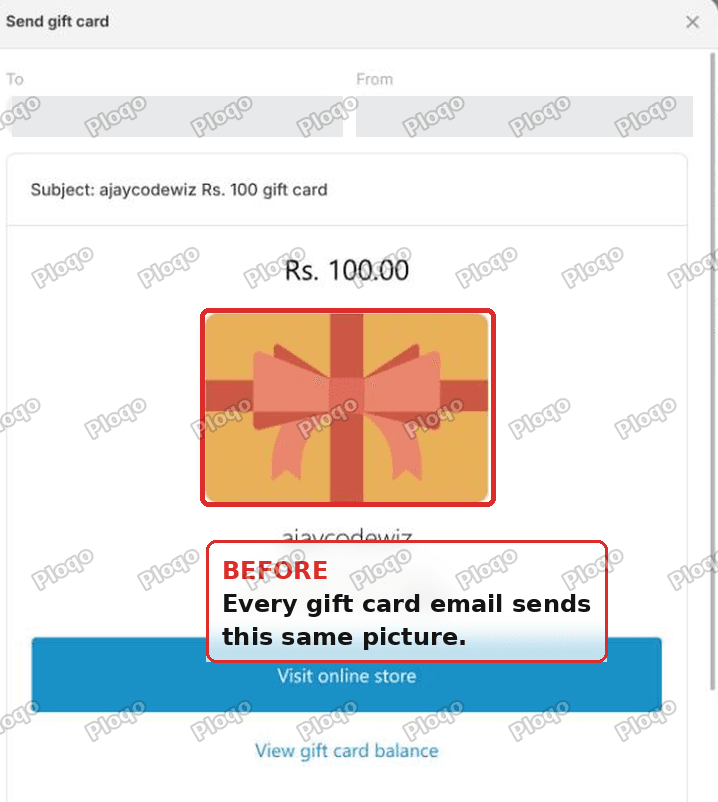 The default Shopify gift card email showing a generic orange and pink gift box illustration
You are not missing a checkbox. There is no setting anywhere in the Shopify admin that points this email at your product image.
Why it happens
The gift card email is a notification template, and the picture in it is written into that template as a fixed file.
Open the template and you find this line:
<img src="{{ 'gift-card/card.jpg' | shopify_asset_url }}" alt="Gift card image" width="240" height="160">shopify_asset_url points at a file on Shopify's own servers. gift-card/card.jpg is that orange box. It is hard coded, so it renders the same for every gift card on every store that has not changed it.
Nothing about your product is involved. The template never asks which product the card came from, so it never has the chance to use your artwork.
That is the whole bug, and it is also why no amount of re-uploading images or reordering media fixes it.
The thing that makes one edit cover all six cards
This is the part worth understanding, because it is what stops this becoming six separate fixes.
There are two different objects in play and they are easy to confuse.
The gift card product is what sits in Products. "Birthday Gift Card", with a price, a title and media. That is what the customer buys.
The gift card is what Shopify creates after the purchase. It is the code and the balance, the thing you see under Products then Gift cards. That is what the email is about.
The link between them is a property called gift_card.product. Every issued card remembers which product it came from.
So the email does not have to know anything about occasions. It just asks the card "which product created you?" and uses that product's picture. Birthday card, Birthday artwork. Christmas card, Christmas artwork. Add a seventh card next year and it works with no further edits.
Step 1: check the artwork is the product's first image
Do this before touching any code, because the fix reads the product's featured image and nothing else.
Go to Products, open your gift card product, and look at the Media section. The occasion artwork has to be the first image there.
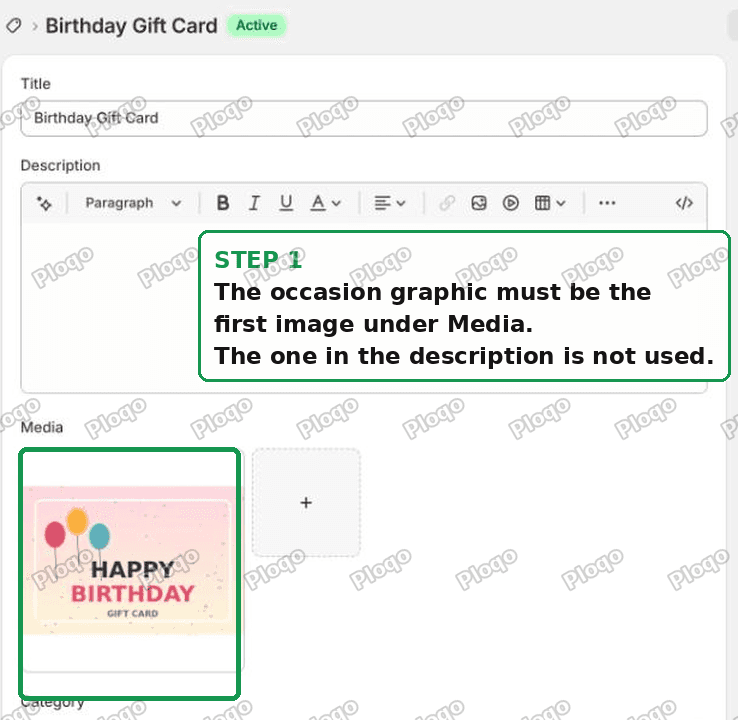 The gift card product page with the occasion artwork as the first image under Media
An image placed only in the product description does not count. The description is a separate field and the email never looks at it. It reads as a bug because the artwork is visibly on the product page, just not in the place the email reads.
If the artwork is second or third in Media, drag it to first.
Step 2: open the right notification
Go to Settings, then Notifications, then Customer notifications. Scroll to the group called Gift cards and open New gift card.
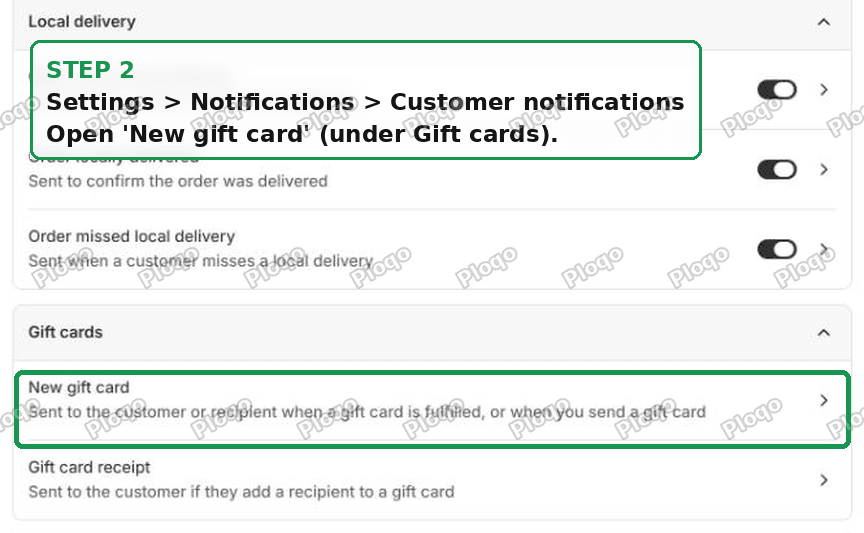 Settings, Notifications, Customer notifications, with New gift card under the Gift cards group
The name matters. A lot of advice online calls this "Gift card created", which is not what the admin says. In the current Shopify admin the two gift card notifications are:
- New gift card - sent to the customer or recipient when a gift card is fulfilled, or when you send one manually. This is the one you want.
- Gift card receipt - sent to the buyer when they add a recipient to a gift card. Not this one.
Click through to Edit code.
Step 3: replace the image line, in both places
Now search the template for this line:
<img src="{{ 'gift-card/card.jpg' | shopify_asset_url }}" alt="Gift card image" width="240" height="160">It appears twice. This is the single most common way this fix goes wrong, so it is worth being slow here.
Around line 103 there is one copy, and around line 195 there is another. They exist because the template branches:
- The first copy runs when the buyer sends the card to somebody else, so there is a recipient.
- The second copy runs when the buyer keeps the card themselves, so there is no recipient.
Replace both. If you only change the first one, every gift card someone buys for themselves still shows the old orange box, and you will spend an afternoon convinced the fix did not work.
Paste this over each copy:
{% if gift_card.product.featured_image %}
<img src="{{ gift_card.product.featured_image | image_url: width: 480 }}" alt="{{ gift_card.product.title }}" width="240">
{% else %}
<img src="{{ 'gift-card/card.jpg' | shopify_asset_url }}" alt="Gift card image" width="240" height="160">
{% endif %}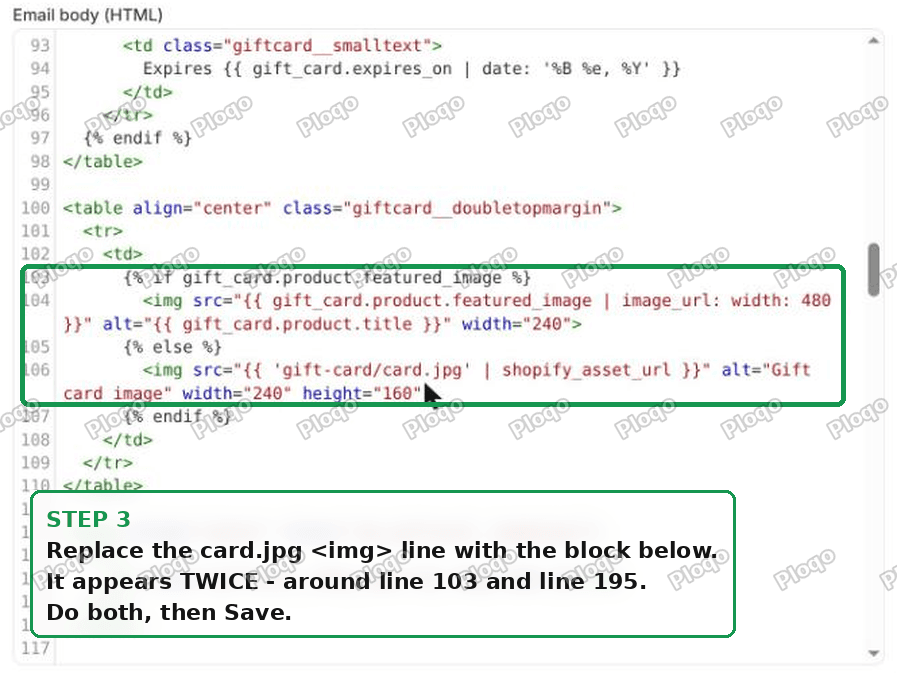 The replacement Liquid block in the New gift card notification template
Then hit Save.
What the code does, in plain words
Line by line, because you should not paste code you cannot read.
{% if gift_card.product.featured_image %} asks whether this gift card came from a product that has a picture.
If it does, the next line renders that picture. image_url: width: 480 asks Shopify for a 480 pixel wide copy, which keeps the email light while still looking sharp on a phone. width="240" displays it at 240 points, so it stays crisp on high resolution screens.
alt="{{ gift_card.product.title }}" puts the product name in the alt text, so a recipient with images turned off sees "Birthday Gift Card" instead of "Gift card image".
{% else %} covers the case where there is no product, and falls back to Shopify's original picture. Keep this branch. More on why below.
What it looks like afterwards
I set this up on a test store with two gift card products, each with completely different artwork, and bought both.
The Birthday card email:
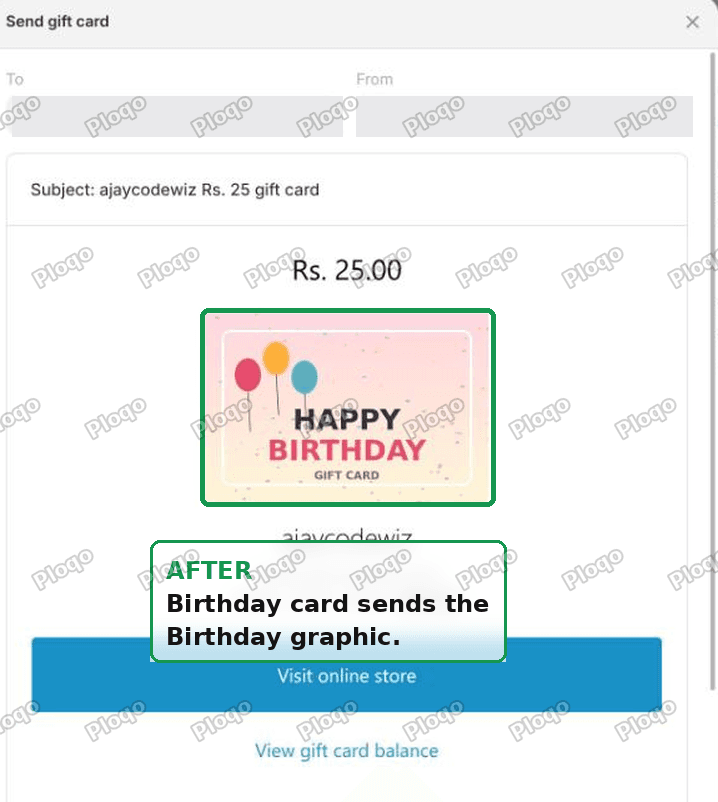 The gift card email showing the Birthday artwork instead of the default box
The Thank You card email, from the same block of code with no extra changes:
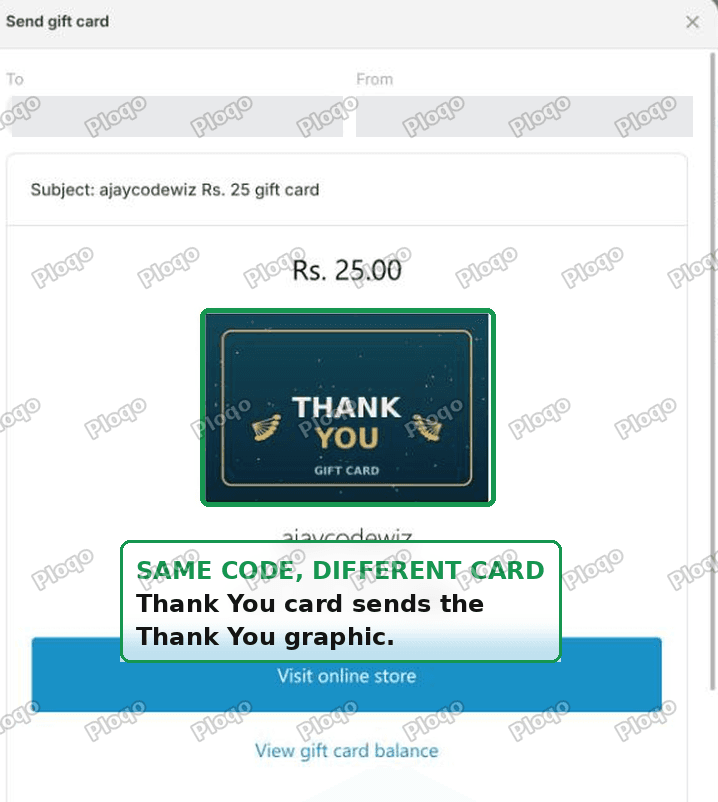 The gift card email showing the Thank You artwork, produced by the same code
To confirm it was really working rather than just looking right, I checked the raw source of the delivered email. Before the edit the image tag pointed at Shopify's asset server:
themes_support/gift-card/card-fd4b15dd...jpgAfter the edit, the same email carried the product image from the store's own files, with the product name as alt text:
/files/birthday.png?v=...&width=480 alt="Birthday Gift Card"That is the proof the change is live rather than cached.
Why you should keep the else branch
It is tempting to delete the fallback and leave only your product image. Do not.
Gift cards created by hand in the admin, under Products then Gift cards then Create gift card, are not attached to any product. They have a balance and a code but gift_card.product is empty.
Without the {% else %}, those emails render a broken image. With it, they fall back to Shopify's default picture and still look fine.
The same applies to gift cards issued by some apps, and to any refund or store credit flow that mints a card directly.
How to test without buying anything
You do not need to place a real order to check your work.
Go to Products, then Gift cards, open any existing card, and click Send gift card. The dialog shows a live preview of the actual email, rendered from the template you just edited, using that specific card.
If the card came from a product, you should see the product artwork. If it was created by hand, you should see the default box, which confirms your fallback works too.
This is much faster than test purchases, and it is the same rendering path the real email uses.
If it still shows the old image
A short checklist, in the order worth checking.
You only replaced one copy. By far the most common cause. Search the template again and confirm there is no remaining gift-card/card.jpg line outside an {% else %}.
The artwork is not the first media item. Reorder it in the product's Media section.
The artwork is only in the description. Upload it to Media as well.
You edited Gift card receipt instead of New gift card. Different template, different email.
You are looking at an email sent before the edit. Templates are applied at send time. Old emails keep the old picture forever. Resend from the gift card page to check.
The gift card was created manually. No product, so the fallback is correct behaviour rather than a failure.
Does this affect anything else?
No. This template is only used for the gift card email.
Your order confirmation, shipping confirmation and every other notification are separate templates and are untouched. The gift card page on your storefront, the one behind the "View gift card balance" link, is part of your theme and is also unaffected.
If you want to undo it later, the notification editor has a Revert to default option that restores Shopify's original template.
Apps, if you would rather not touch code
The edit above is free and takes five minutes, but if you want designed gift card emails, scheduling, balance reminders and multi-currency handling without editing Liquid, these are the established options: Rise Gift Cards & Store Credit, Gift Card Hero and Vify Professional Gift Cards.
They replace the gift card email entirely rather than editing Shopify's, so do not run one of these and the code edit at the same time.
The short version
Shopify hard codes its own picture into the gift card email, twice. Point both copies at gift_card.product.featured_image, keep a fallback for cards with no product, and make sure the artwork is the first image on the product.
One edit, and every gift card you sell now and every one you add later sends its own artwork.
Spending too long on manual Shopify busywork?
PinFlow turns your Shopify catalog into Pinterest pins and posts them on a schedule, automatically. Same idea as the rule above, let the system handle the repetitive part.
Get PinFlow on the Shopify App StoreMore Shopify fixes
More community-sourced Shopify guides, tested on a live store.
Notifications & Emails
Shopify Inbox Notifications Not Working? How to Fix It
Who gets a Shopify Inbox alert, why there is no admin recipient list, how chat routing really works through assignment, and how to fix desktop push in Chrome on Windows. Tested, with screenshots.
Notifications & Emails
Shopify Order Confirmation Email: Logo by Location
A merchant wanted a different brand logo on the order email for each POS location. The location logic came back blank in the Order confirmation email. Here is why, and the template that actually works, with screenshots.
Notifications & Emails
Shopify Order Invoice Email: Fix the Invoice Number
Shopify's Send invoice email labels itself Invoice #1143 using the order number, which clashes with the VAT invoice number. Here is why, and how to rename it, with screenshots.