
Shopify Inbox Notifications Not Working? How to Fix It
Who gets a Shopify Inbox alert, why there is no admin recipient list, how chat routing really works through assignment, and how to fix desktop push in Chrome on Windows. Tested, with screenshots.
By AjayCodeWiz · August 27, 2026 · 9 min read
The problem
A store owner asked about this on the Shopify Community, and it is a question a lot of merchants have once a second person starts helping with chat.
They wanted to know how, as the owner, they could control which staff members get Shopify Inbox chat notifications. They knew each staffer could switch their own alerts off. What they could not find was a place to choose the recipients centrally.
They also could not find a permission the help docs mention, and their desktop push notifications were not firing in Chrome on Windows, even though everything looked switched on.
I reproduced the whole thing on a test store running the current Shopify Inbox. Here is how notifications actually work, why the recipient list they were hunting for does not exist, and how to get Chrome push working.
The short version: notifications are not controlled from one central list. Two things decide who gets pinged. Each person's own settings, and who the conversation is assigned to.
Who actually gets a Shopify Inbox notification
This is the part that clears up most of the confusion, so start here.
There is no store-owner recipient list in Inbox. You cannot open one screen and say "these three staff get alerts, these two do not." That control simply is not in the product.
Instead, alerts follow the conversation. And a conversation is either unassigned or assigned to one person.
An unassigned chat notifies every staff member who has Inbox access and has their own alerts turned on.
Assign that chat to one person, and only that person is notified for it. The rest of the team stops getting pings for it.
You do not have to take my word for it. The Notifications screen says it in plain language. Under "When customer sends a message" it reads: "You won't be notified of new messages from conversations assigned to other staff."
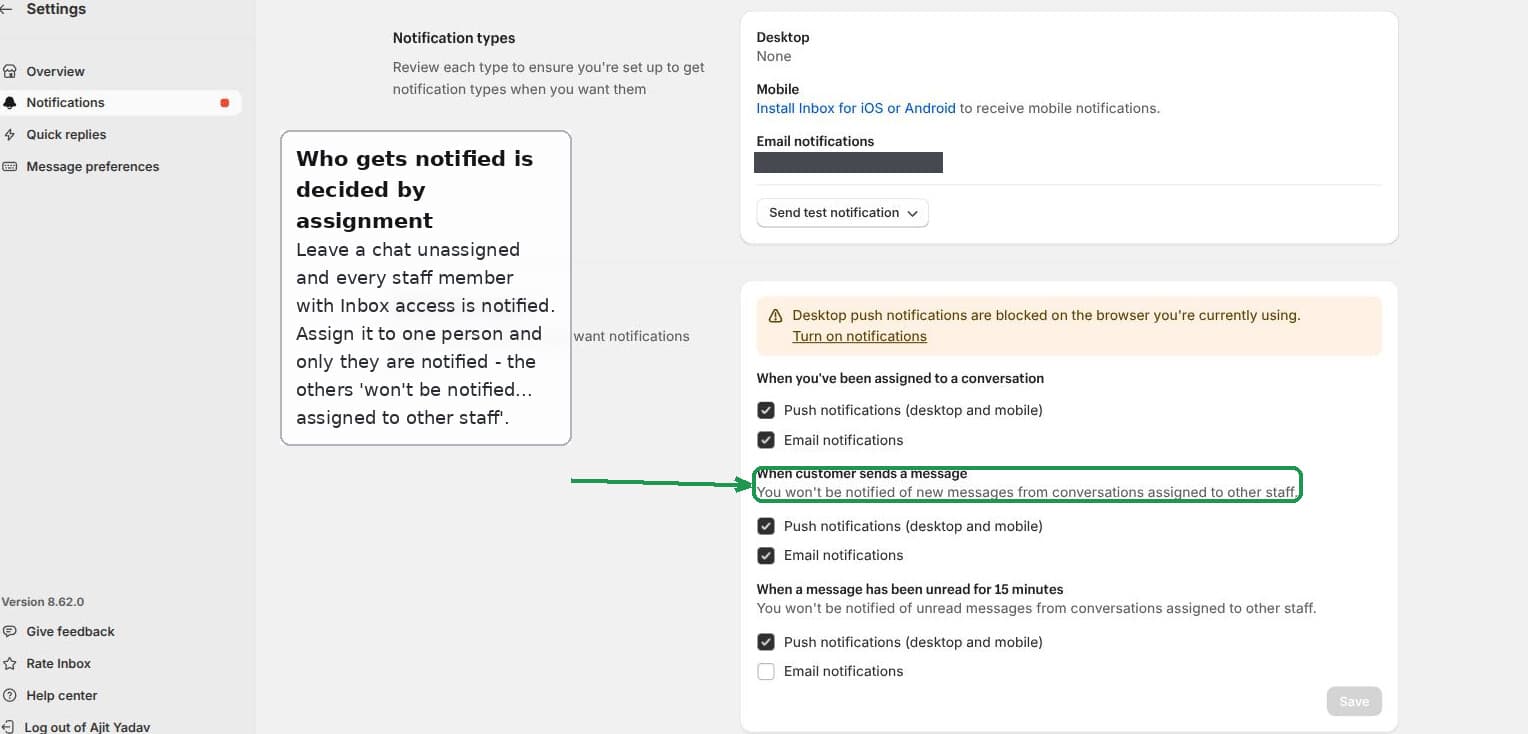 Who gets a Shopify Inbox alert depends on whether the chat is assigned
So the lever you are looking for is assignment, not a recipient list. Route a chat to the right person and the notifications route with it.
There is no admin recipient list, and here is why
The reason a central list does not exist is that each staff member owns their own notification settings.
Open Inbox, then Settings, then Notifications. Everything on that page is personal. The header even calls it "Personalize your Inbox experience" and "Manage how you receive notifications."
Each person chooses whether they get desktop push, mobile push, and email, and for which triggers. There are three triggers: when you are assigned a chat, when a customer sends a message, and when a message has sat unread for 15 minutes.
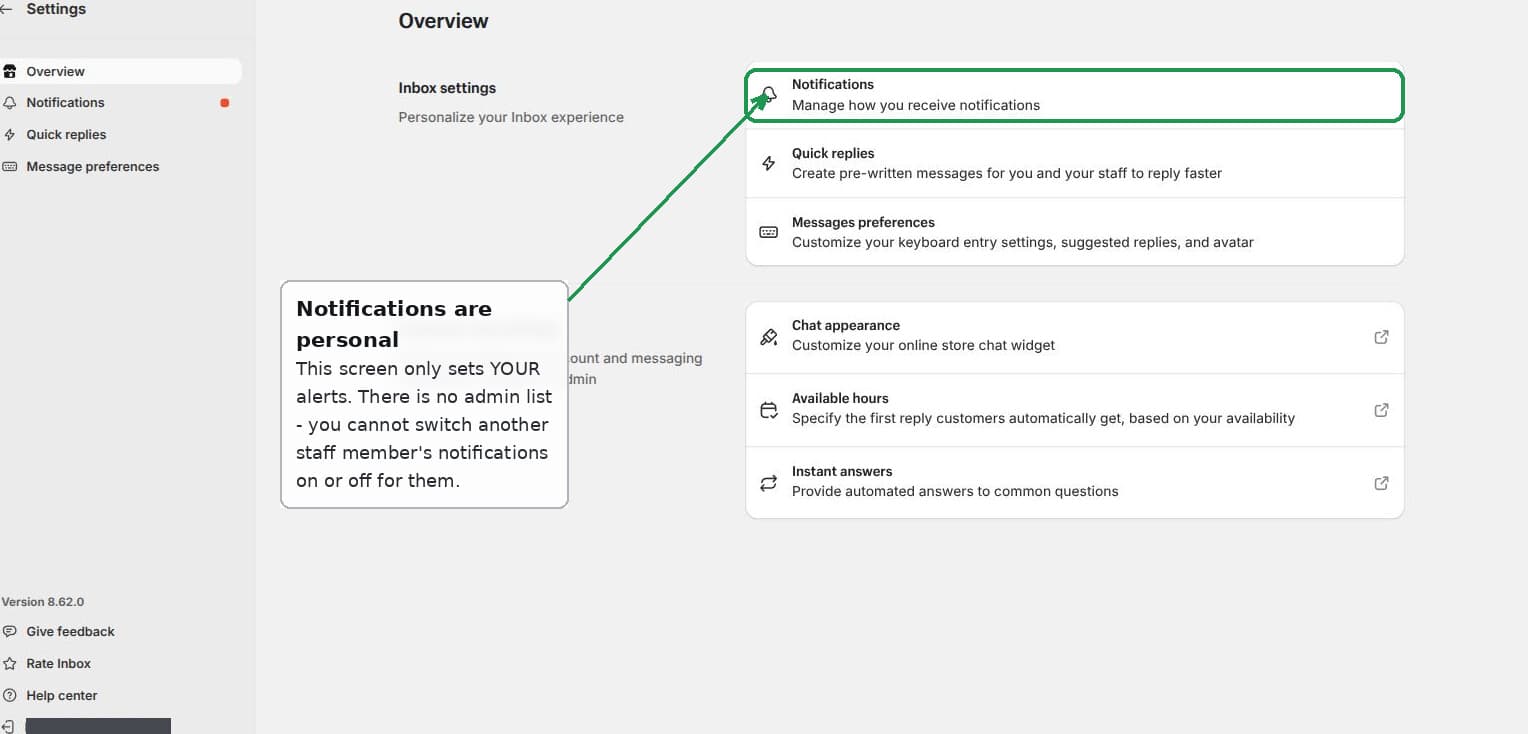 Each Shopify Inbox staff member sets their own notification triggers
Because these settings belong to the individual, an admin cannot reach in and change them for someone else. You cannot turn another person's notifications on or off on their behalf.
That is the answer to the original question. If you want one staffer to stop getting alerts, you either assign chats away from them, or you ask them to turn their own notifications down. There is no button on your side that does it for them.
How to send a chat to one specific person
Since assignment is the real control, it helps to know where it lives.
Open the conversation you want to route. At the top of that conversation there is an assign control. Pick the staff member you want, and the chat is now theirs. From that point, only they are notified about it.
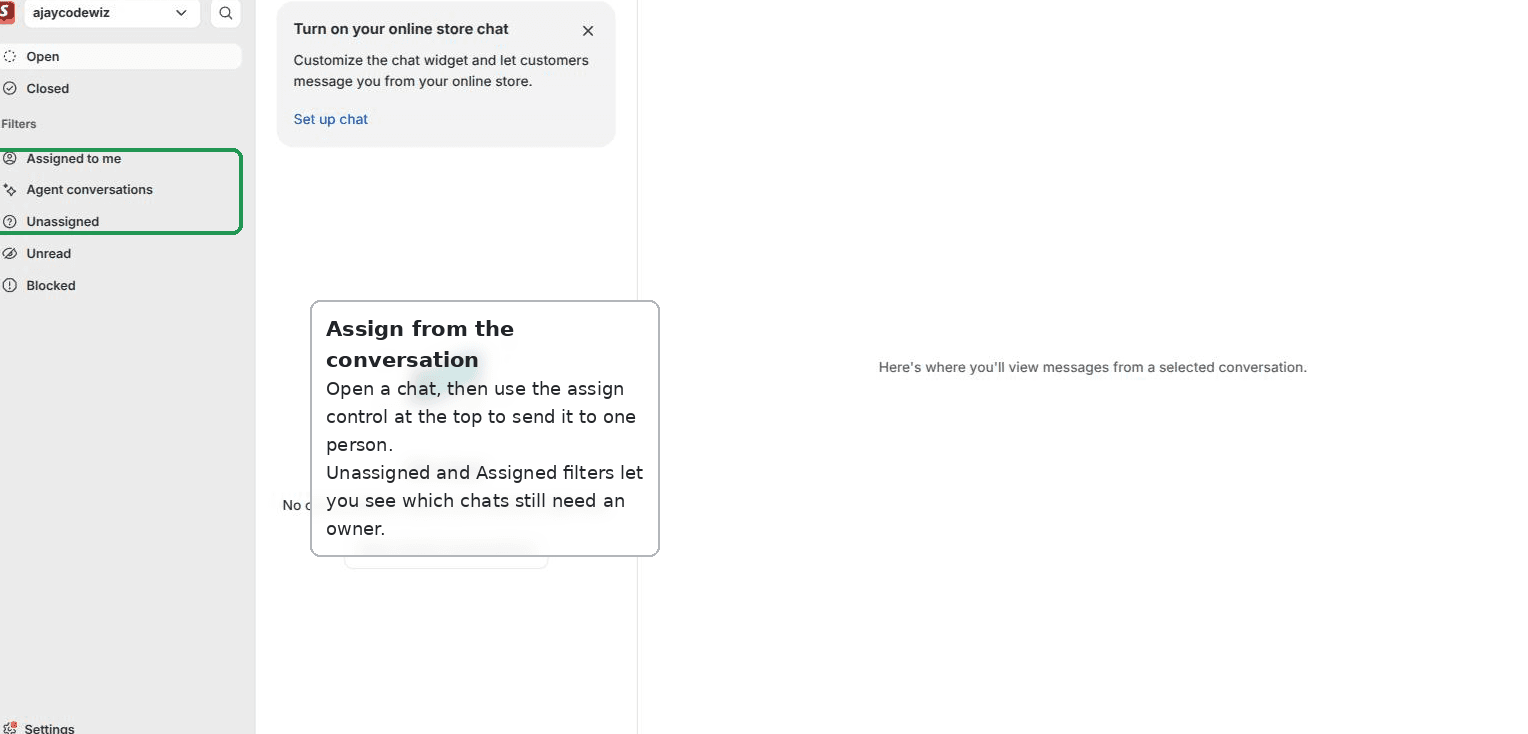 Assign a chat to one person from the Shopify Inbox conversation list
The left side of Inbox has filters for Unassigned and Assigned to me, so anyone on the team can see which chats still need an owner and pick them up.
One important limit: base Shopify Inbox has no automatic assignment. There is no round-robin and no rule that sends "orders" chats to one person and "returns" chats to another. Assigning is manual. If you need rules, that is an app, and I cover the options near the end.
The "online store chat" permission that you cannot find
The merchant had read that you can assign a chat to a staff member who has the "online store chat" permission, and then went looking for that setting and could not find it.
That is because the wording is out of date. There is no toggle literally named "online store chat" in Shopify today. It is language left over from the old Shopify Chat and Shopify Ping days.
Here is what actually controls access now. A staff member gets into Inbox through their access to the Shopify Inbox channel, plus the Customers permission, which is what lets them view customer details and reply. On newer stores that use role-based access, you will see an Inbox permission on the role rather than a separate chat checkbox.
Give a staff member that access. Once they have it, and once they have accepted their invite, they show up in Inbox as someone you can assign chats to.
Why a staff member is missing from the assign list
The same merchant noticed some staff were not showing up when they tried to assign a conversation, and correctly guessed it was because those users were not verified yet.
That is right. A staff member only appears as assignable once they have accepted their invitation and their account is active. A pending or unverified invite will not show.
So if someone is missing from the list, check two things. First, that they have accepted the invite email and their account is active. Second, that they actually have Inbox access, not just a general store login. Both need to be true before they can be assigned or notified.
Shopify Inbox notifications not working in Chrome on Windows
This was the most frustrating part for the merchant, and it is the most common Inbox complaint overall. Everything reads as enabled, the test notification does nothing, and there is no obvious error.
Almost always, the cause is a mix-up between two different Chrome permissions: pop-ups and notifications.
They are not the same thing. Allowing pop-ups does nothing for push. Push alerts come from the Notifications permission, which is separate. In the original case the merchant had allowed pop-ups, which is why the first test seemed to do something and every test after that did nothing.
The tell is on the Notifications page itself. When the browser is not allowing push, Inbox shows the Desktop line as "None" and a banner that reads: "Desktop push notifications are blocked on the browser you're currently using."
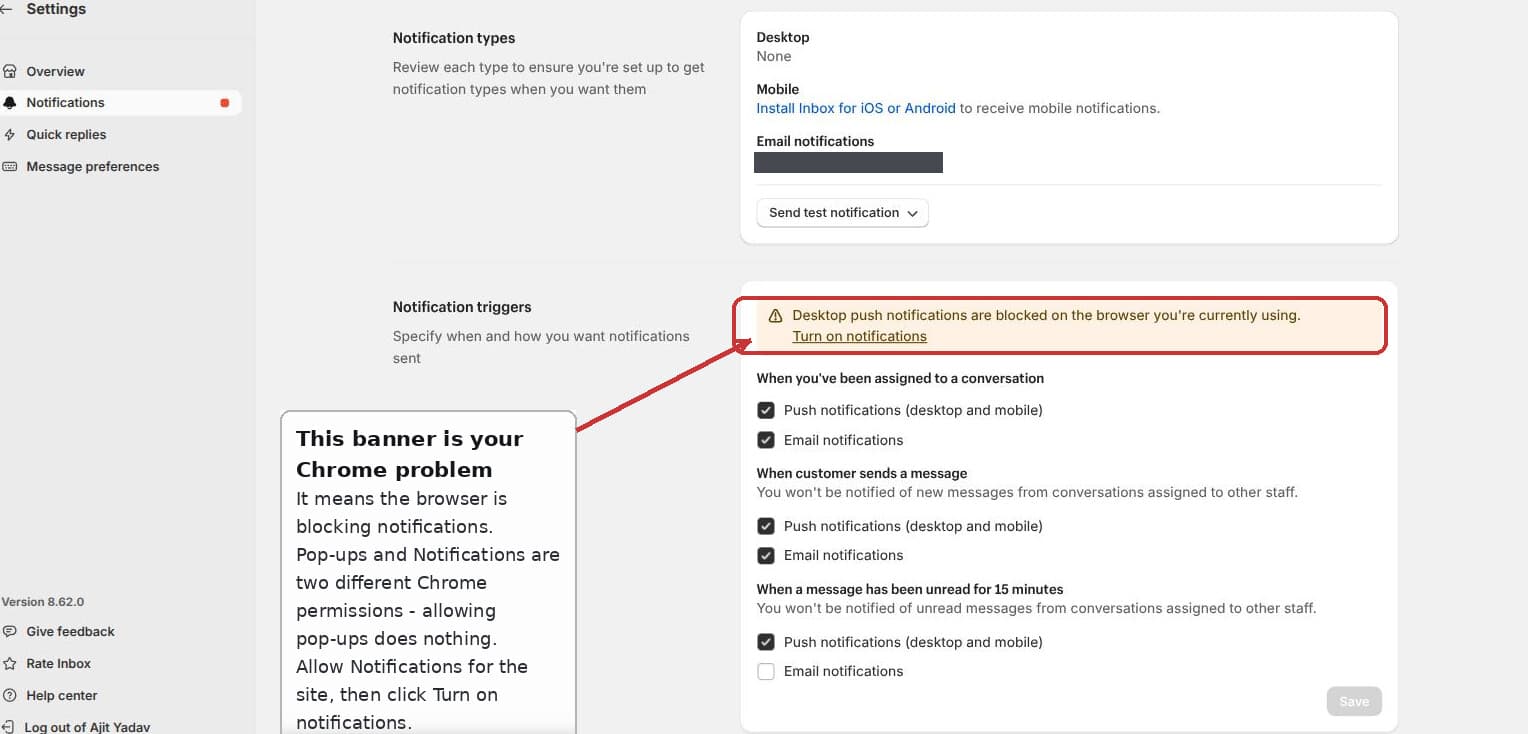 The blocked-on-this-browser banner is the real Chrome push problem
Fix it in this order.
First, set the browser permission. On inbox.shopify.com, click the small icon at the left of the address bar, open Site settings, and set Notifications to Allow. If it currently shows Block, change it and reload the page.
Second, turn it on inside Inbox. Go to Settings, then Notifications. If you see the "blocked on this browser" banner, click Turn on notifications and accept Chrome's prompt. The Desktop line should stop saying "None."
Third, clear Windows out of the way. Open Windows Settings, then System, then Notifications. Make sure Google Chrome is allowed. Then turn off Do Not Disturb or Focus assist, which swallow notifications while they are on.
Fourth, send a test notification again and confirm it lands.
Two more things worth knowing about desktop push, because they trip people up.
Push only fires while Chrome is open and you are logged in. You can close the actual Inbox tab and still get alerts, but if you quit Chrome or log out, you have to open inbox.shopify.com again to re-arm it. On some browsers you have to leave the Inbox tab open.
And if you run more than one store, desktop push follows the store you opened most recently in that browser. If you want alerts for a particular store, open that one last.
Do not forget email as a backstop
If browser push is being stubborn, or the person is not always at their desk, turn on email notifications for the triggers that matter.
Email is on the same Notifications page, next to each trigger. It is not as instant as push, but it does not depend on a browser being open, a Windows setting, or which store was opened last. For a lot of small teams it is the more reliable channel.
For alerts on the go, install the Shopify Inbox mobile app for iOS or Android and enable its notifications. Mobile push is independent of the desktop setup, so a phone can cover you even while the Chrome side is being sorted out.
Common Shopify Inbox notification questions
How do I turn on Shopify Inbox chat notifications? Open Inbox, go to Settings, then Notifications, and switch on push or email for the triggers you care about. If desktop push shows as blocked, allow Notifications for inbox.shopify.com in your browser first.
Why did my notifications stop after I logged into another store? Desktop push tracks the most recently opened store in that browser. Open the store you want alerts for last, or use email so it does not matter.
Can the store owner see or change a staff member's notification settings? No. Those settings are personal to each user. The owner controls routing through assignment, not the other person's toggles.
Does an unassigned chat really alert the whole team? Yes, every staff member with Inbox access and their own alerts on. Assign the chat to narrow that down to one person.
When you need real routing rules
If your team is big enough that manual assignment is not enough, and you want proper rules like assign by topic, round-robin between agents, or per-agent controls the owner can manage, that is where a dedicated help desk app comes in.
Gorgias, Tidio, and Chatra all layer team assignment and routing on top of chat. They are worth a look once base Inbox starts to feel thin, but for most small stores the assignment model above is all you need.
The quick checklist
To decide who gets a chat, assign it. Unassigned goes to every staff member with access, assigned goes to one person.
To stop someone getting alerts, assign chats away from them, or have them lower their own settings. You cannot change their settings for them.
To let a new person handle chat, give them Inbox access plus the Customers permission, and make sure they have accepted their invite.
To fix Chrome push, allow Notifications, not just pop-ups, then turn it on inside Inbox, then clear Windows Focus assist, then test.
That covers every part of the original question, and it is exactly how the current Shopify Inbox behaves on a live store.
Spending too long on manual Shopify busywork?
PinFlow turns your Shopify catalog into Pinterest pins and posts them on a schedule, automatically. Same idea as the routing above, let the system handle the repetitive part.
Get PinFlow on the Shopify App StoreMore Shopify fixes
More community-sourced Shopify guides, tested on a live store.
Notifications & Emails
How to Edit the Shopify Gift Card Email
Shopify sends the same stock gift card picture to every recipient, whatever product they bought. Here is the one edit that makes each gift card email show its own product image, tested end to end.
Notifications & Emails
Shopify Order Confirmation Email: Logo by Location
A merchant wanted a different brand logo on the order email for each POS location. The location logic came back blank in the Order confirmation email. Here is why, and the template that actually works, with screenshots.
Notifications & Emails
Shopify Order Invoice Email: Fix the Invoice Number
Shopify's Send invoice email labels itself Invoice #1143 using the order number, which clashes with the VAT invoice number. Here is why, and how to rename it, with screenshots.