
Shopify Collection Page Template: Add a Custom Section
You cannot put Liquid in a collection JSON template. Here is the correct wiring for a custom section on one collection, plus the two errors that block most people, tested on Dawn.
By AjayCodeWiz · July 9, 2026 · 9 min read
The problem: your section will not go into the collection template
You built a custom section. It reads a metafield and only renders when there is something to show. Now you need it on one collection page, not all of them.
So you open templates/collection.json, try to paste your Liquid in, and it will not save.
This is one of the most common Online Store 2.0 misunderstandings, and the error messages are unhelpful. A merchant hit it on Dawn and spent most of a thread going in circles, which is a fair outcome given how little Shopify explains here.
The short version: a JSON template contains no Liquid. Not a tag, not a filter, not a conditional. It is a list of which sections render and in what order. All the markup and all the conditionals live in the section file.
I built the whole thing on a Dawn test store. Here is the correct wiring, and then the two errors that actually block people, because neither is about the concept.
How Online Store 2.0 templates are wired
Three files, three jobs. Getting these straight makes everything else obvious.
The section (sections/your-section.liquid) holds markup, Liquid, conditionals, and a {% schema %} block declaring its settings. This is where logic goes.
The JSON template (templates/collection.something.json) lists section instances and their order. It is configuration, not code. Every value is a literal.
The collection points at a template in its admin sidebar.
The rule that follows: if you are writing an {% if %}, you are in the wrong file.
Step 1: the section does the metafield check
Create sections/collection-metafield-banner.liquid. The conditional lives here:
{% if collection.metafields.custom.promo_banner.value != blank %}
  <div class="page-width">
    <div class="collection-metafield-banner color-{{ section.settings.color_scheme }}">
      {{ collection.metafields.custom.promo_banner.value }}
    </div>
  </div>
{% endif %}

{% schema %}
{
  "name": "Metafield promo banner",
  "settings": [
    {
      "type": "color_scheme",
      "id": "color_scheme",
      "label": "Color scheme",
      "default": "scheme-2"
    }
  ],
  "presets": [{ "name": "Metafield promo banner" }]
}
{% endschema %}
The {% if %} wraps everything including the outer div. That matters: when the metafield is empty the section outputs nothing at all, not an empty container with padding. No stray gap on collections that have no promo.
The presets block is what makes the section appear in the theme editor's "Add section" list. Without it the section exists but you cannot add it through the UI.
Step 2: reference it from the JSON template
Duplicate templates/collection.json and name the copy something like templates/collection.metafield-promo.json.
Then add your section to it:
{
  "sections": {
    "banner": {
      "type": "main-collection-banner",
      "settings": { "...": "..." }
    },
    "metafield-promo": {
      "type": "collection-metafield-banner",
      "settings": { "color_scheme": "scheme-2" }
    },
    "product-grid": {
      "type": "main-collection-product-grid",
      "settings": { "...": "..." }
    }
  },
  "order": ["banner", "metafield-promo", "product-grid"]
}
Two rules govern this file, and confusing them causes most of the failures:
type must match the section filename exactly, minus .liquid. collection-metafield-banner.liquid becomes "type": "collection-metafield-banner". Get this wrong and you get a "section not found" error.
The key in sections is an id you invent. metafield-promo here. It has no relationship to the filename. Its only job is to be referenced in order.
order controls render order top to bottom. Every id in order must exist in sections, and every id in sections should appear in order or it will not render.
Step 3: create the metafield definition
Go to Settings > Custom data > Collections > Add definition.
Name it Promo banner. Check the generated namespace and key read custom.promo_banner, matching the section code. Type: single line text.
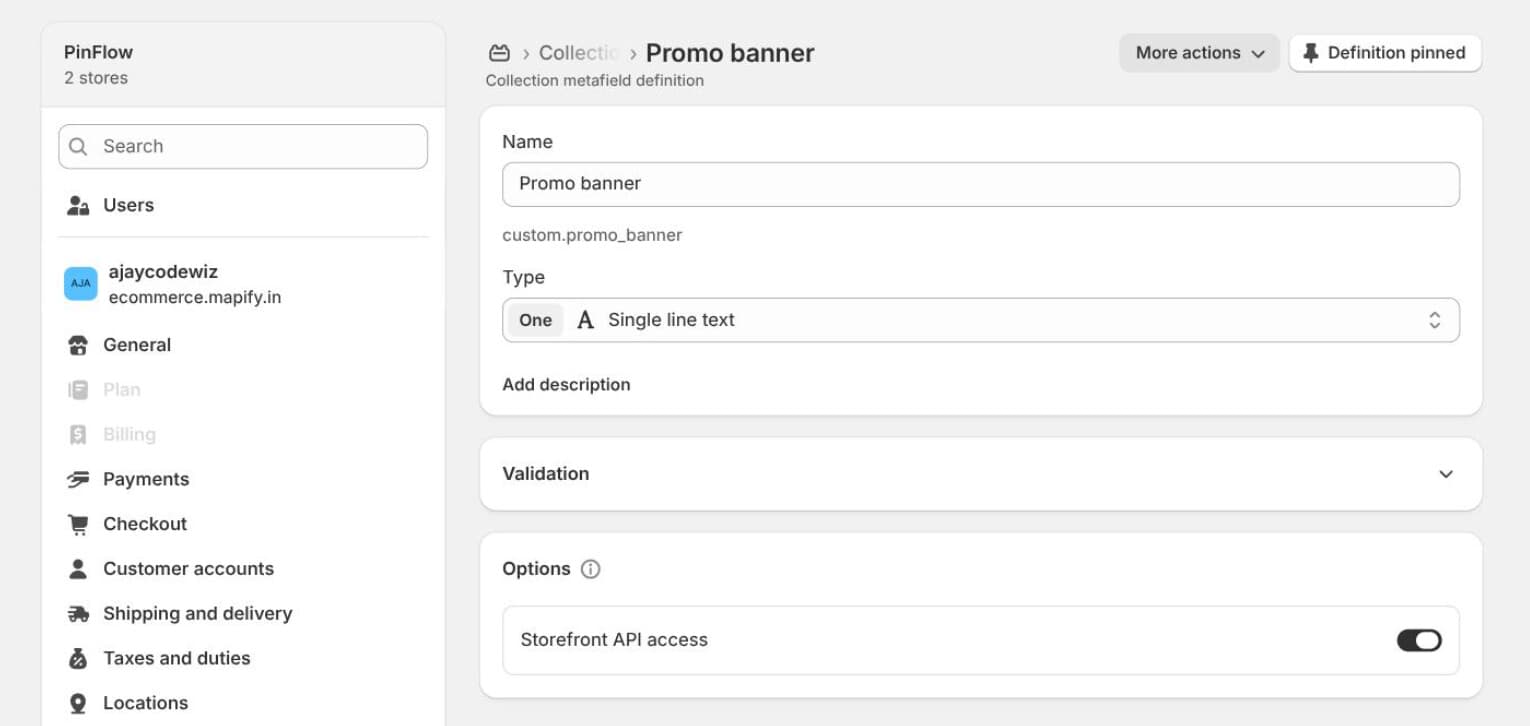 The collection metafield definition for the promo banner
The namespace and key are what the Liquid looks up. If Shopify generated something different from custom.promo_banner, either edit it here or change the section code to match. It has to be one or the other.
Step 4: fill the metafield and assign the template
Open the collection. Two things on this screen.
Scroll to Metafields and fill in Promo banner. Anything, for example Winter Sale - 20% off all jackets this week.
Then find Theme template in the sidebar and switch it from Default collection to metafield-promo.
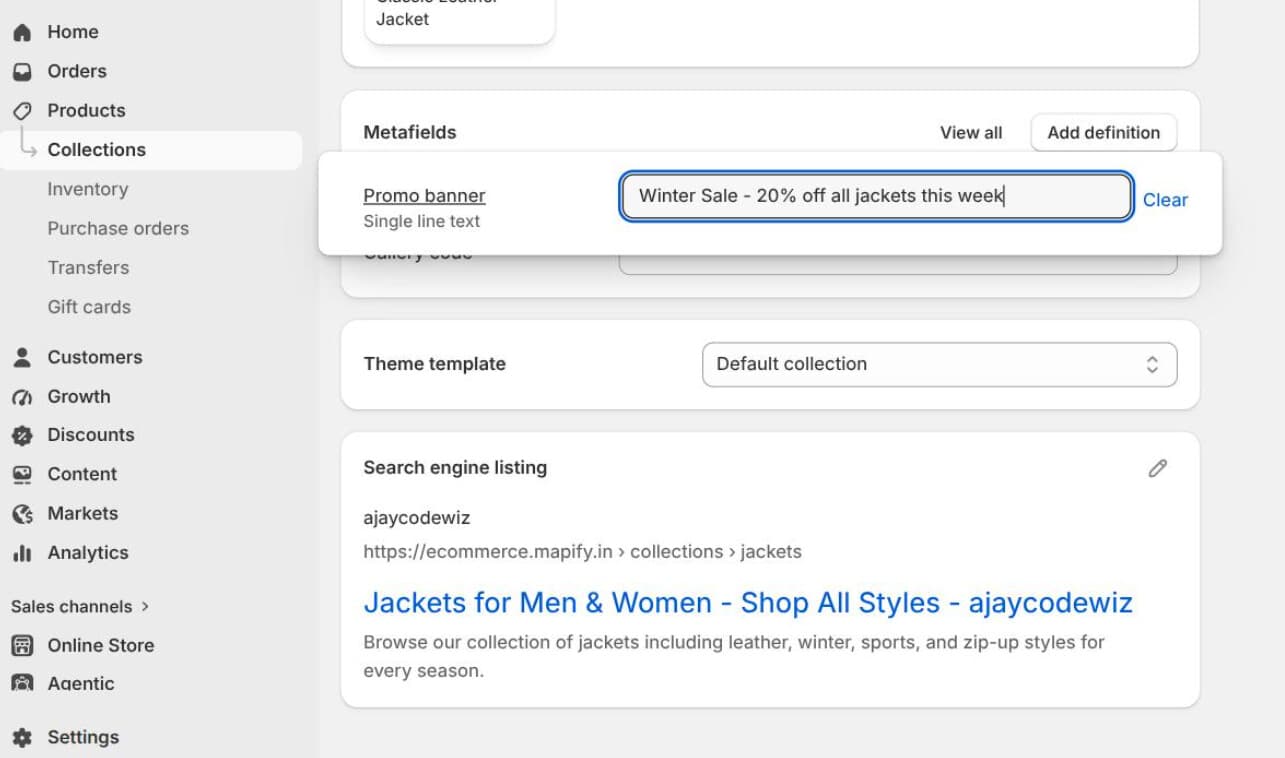 The metafield value filled in and the theme template dropdown
The template assignment is the step people skip. You can build the template perfectly and see nothing, because the collection is still rendering collection.json.
Save, and the banner appears between the collection banner and the product grid, exactly where order put it.
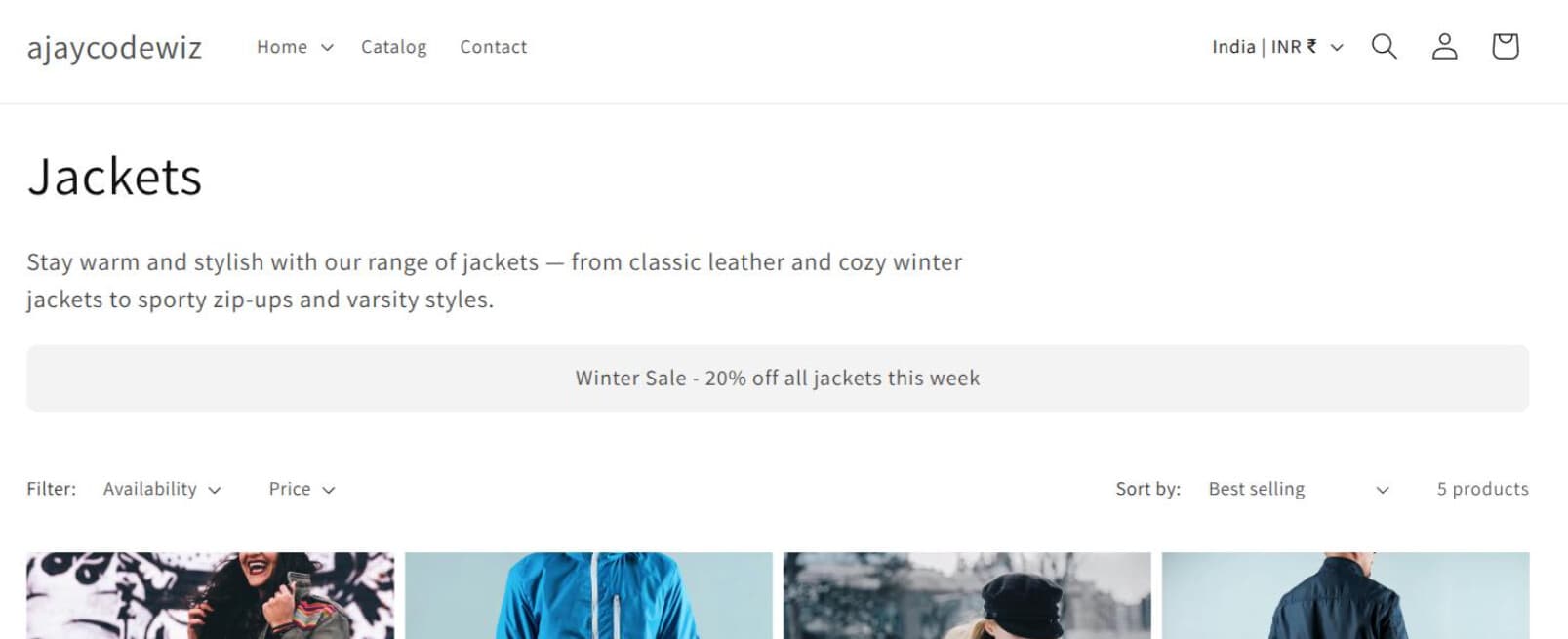 The metafield banner rendered on the collection page
Leave the metafield blank on a different collection using the same template and the section renders nothing. That is the {% if %} from step 1 doing its job.
The two errors that actually block people
The concept above is the easy part. These are what people get stuck on, and neither is really about templates.
"File save error" from the JSON template
Almost always invalid JSON. Two causes, both invisible if you are skimming.
A missing comma in order. This is the big one:
"order": [ "carousel" "banner", "product-grid" ]There is no comma after "carousel". JSON has no opinion about newlines, so this reads as one broken value and the parser rejects the whole file. The editor will not tell you which line.
Smart quotes. If you drafted the JSON anywhere other than a code editor, autocorrect may have turned "sections" into “sections”. Those are different characters and JSON only accepts straight quotes. This is why pasting from a document, a chat window or a forum post so often fails when the same text typed by hand works.
If a template will not save, paste it into any JSON validator first. It takes ten seconds and it is almost always one of these two.
"Could not find asset snippets/xyz.liquid"
This error means {% render 'xyz' %} could not find snippets/xyz.liquid.
{% render %} only looks in the snippets folder. It cannot render a section. So this:
{% if collection.metafields.custom.hero_images.value != blank %}
  {% render 'collection-hero-carousel' %}
{% elsif collection.image %}
  {% render 'collection-featured-image' %}
{% else %}
  {% render 'collection-header' %}
{% endif %}
requires three real files in snippets/: collection-hero-carousel.liquid, collection-featured-image.liquid and collection-header.liquid.
If you were handed this code without those files, it was written for a different theme that had them. Dawn has no snippets/collection-header.liquid, which is exactly why the error names that file.
Two ways out. Either create the missing snippets, or inline their markup directly into the section and drop the render calls. For a single banner, inlining is simpler and leaves you fewer files to keep track of.
Sections, snippets and templates
Worth pinning down, because mixing these up causes the errors above.
| Lives in | Rendered by | Has schema | Editable in theme editor | |
|---|---|---|---|---|
| Section | sections/ | JSON template, or {% section %} | Yes | Yes |
| Snippet | snippets/ | {% render %} | No | No |
| JSON template | templates/ | Assigned to a collection | No | Yes, as a whole page |
The practical consequences:
- Want it in the theme editor? It has to be a section with a
{% schema %}. - Want to reuse markup inside a section? That is a snippet.
{% render %}never reachessections/. That is the asset error.
Do you even need a custom template?
Sometimes not, and it is worth checking before you build one.
If the section should appear on every collection, do not duplicate the template. Add the section to the default collection.json through the theme editor and let the {% if %} on the metafield decide where it shows. Collections without a value render nothing. One template, no assignment step.
If it should appear on a handful of collections, the custom template is right. It keeps the section out of the other templates entirely.
If you only need static content, you may not need code at all. Dawn's collection banner already renders the collection description as rich text. For a line of promo copy that may be all you want.
The metafield route earns its complexity when you need the content structured rather than freeform: a date, an image, a reference to another collection, or a value your theme styles consistently rather than trusting whoever typed the description.
Adding more than one section
The same wiring scales. Add an entry to sections, add its id to order:
{
  "sections": {
    "carousel": {
      "type": "pbb-collection-hero-carousel",
      "settings": { "color_scheme": "scheme-1" }
    },
    "banner": {
      "type": "main-collection-banner",
      "settings": { "show_collection_description": false }
    },
    "product-grid": {
      "type": "main-collection-product-grid",
      "settings": { "products_per_page": 16, "columns_desktop": 4 }
    }
  },
  "order": ["carousel", "banner", "product-grid"]
}
Reordering the page is reordering the order array. Nothing else moves.
One caution on settings: the values in each settings object must match the ids in that section's {% schema %}. Copying a settings block from a different theme brings ids that do not exist in yours, and those are ignored, with no error. If a section renders with default styling and you cannot work out why, compare its settings keys against its schema.
If the section does not appear
Work down these in order. Each rules out the one below it.
The collection is still on the default template. The most common cause by a wide margin. Check Theme template in the collection's sidebar. Building the template does not assign it.
The section is not in order. An entry in sections that is never referenced in order does not render. No error, no warning, just nothing.
type does not match the filename. "type": "collection-metafield-banner" needs sections/collection-metafield-banner.liquid. A typo here usually does produce an error, but a plural or a swapped hyphen is easy to miss when reading your own code.
The metafield is empty, so the {% if %} is correctly hiding it. Fill in a value on the collection and reload. If it appears, everything is wired correctly and you were testing a collection with no data.
The namespace and key do not match. The section reads collection.metafields.custom.promo_banner. Shopify may have generated a different namespace when you created the definition. Open the definition and compare, character for character.
You are previewing an unpublished theme. Template files belong to a theme. If you edited a duplicate and are viewing the live one, you will see nothing.
A quick way to isolate this: temporarily replace the section's body with a plain <p>hello</p> and remove the {% if %}. If "hello" appears, your wiring is fine and the problem is the metafield. If it does not, the problem is the template or the assignment.
What this looked like on Dawn
Tested end to end on a Dawn store:
- With the metafield blank, the section rendered nothing. No empty div, no gap.
- With a value set, the banner appeared between the collection banner and the product grid, in the position
orderspecified. - Switching the collection back to Default collection removed it, with no other changes.
The thing to hold on to: JSON templates are configuration and Liquid files are code, and Shopify's error messages will not tell you when you have mixed them up. Once your logic is in the section and your JSON is just a list, the remaining problems are almost always a missing comma or a smart quote.
Your collection pages deserve traffic, not just polish
PinFlow turns your Shopify catalog into Pinterest pins and posts them on a schedule, so the collections you just customised keep reaching people who have not found your store yet.
Get PinFlow on the Shopify App StoreMore Shopify fixes
More community-sourced Shopify guides, tested on a live store.
Collections & Products
Shopify Unit Pricing: Show a Price per Unit on Each Variant
Set a unit price on every variant and Dawn shows the price per 100 ml or per kg, and updates it when a shopper picks another size. No code needed.
Collections & Products
Shopify Related Products by Collection, Without an App
Shopify's related products show items that do not match, because the recommendation algorithm needs sales data a small catalog does not have. Drive the block off your collections and a hand-picked list, with one Custom Liquid section on Dawn.
Collections & Products
Shopify Variants: The Complete Guide
Variants are one product sold in several forms. How they work, the 2,048 and 3-option limits, and where each variant fix lives - images, swatches, sorting, hiding and the theme-specific bugs.