
Shopify Unit Pricing: Show a Price per Unit on Each Variant
Set a unit price on every variant and Dawn shows the price per 100 ml or per kg, and updates it when a shopper picks another size. No code needed.
By AjayCodeWiz · October 21, 2026 · 9 min read
What unit pricing means on a Shopify store
A unit price is the price for a fixed amount of a product. It is the small line under the main price that reads "$1.60/100ml" or "$12.00/kg". Shoppers use it to compare pack sizes. A 1 litre bottle at $14 looks dearer than a 500 ml bottle at $8, until the unit price shows that the big bottle is cheaper per 100 ml.
Shopify has unit pricing built in. You enter two numbers for a product and Shopify works out the unit price for you. Your theme then prints it under the price on the product page.
The part most merchants get stuck on is products with sizes. On Shopify each size, colour or pack is a variant, which is one version of the product with its own price. The unit price belongs to the variant, not to the product. So a product with three sizes needs three unit prices.
The question from the Shopify Community
A merchant on the Shopify Community asked how to update the unit price with JavaScript when a shopper picks a different variant on the Dawn theme. Dawn is Shopify's free default theme. The other replies in the thread offered code snippets.
I set up the same situation on a test store running Dawn 15.5.0. I made an olive oil product with two sizes, 500 ml at $8.00 and 1 L at $14.00, and gave each size its own unit price per 100 ml.
With 500 ml selected, the product page shows $8.00 and $1.60/100ml under it.
 Dawn product page with 500 ml selected, showing $1.60/100ml under the price
I clicked 1 L. The price changed to $14.00 and the unit price changed to $1.40/100ml, with no page reload and no added code.
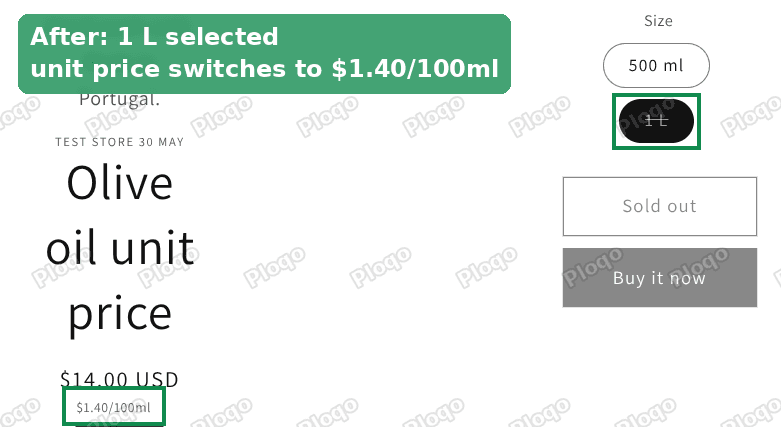 Dawn product page after picking 1 L, the unit price now reads $1.40/100ml
So Dawn already does what the merchant wanted to build. The unit price follows the variant, as long as each variant has a unit price set in the admin and the product page still uses Dawn's own Price block. The rest of this article covers both of those, and what to check when it still does not change.
How to set a unit price on each variant
You set unit prices on the variant's own page in the Shopify admin.
- Go to Products and open the product.
- In the variant list on the left, click the first variant, for example 500 ml.
- Under Price, find the Unit price button. It sits in the row with Compare-at, Charge tax and Cost per item.
 Variant page in the Shopify admin, with the Unit price button under the Price field
- Click Unit price. A small panel opens with two fields.
- In Total amount, enter how much is in the pack and pick the unit, for example 500 and ml.
- In Base measure, enter what the price should be shown per, for example 100 and ml.
- Click Done, then Save at the top of the page.
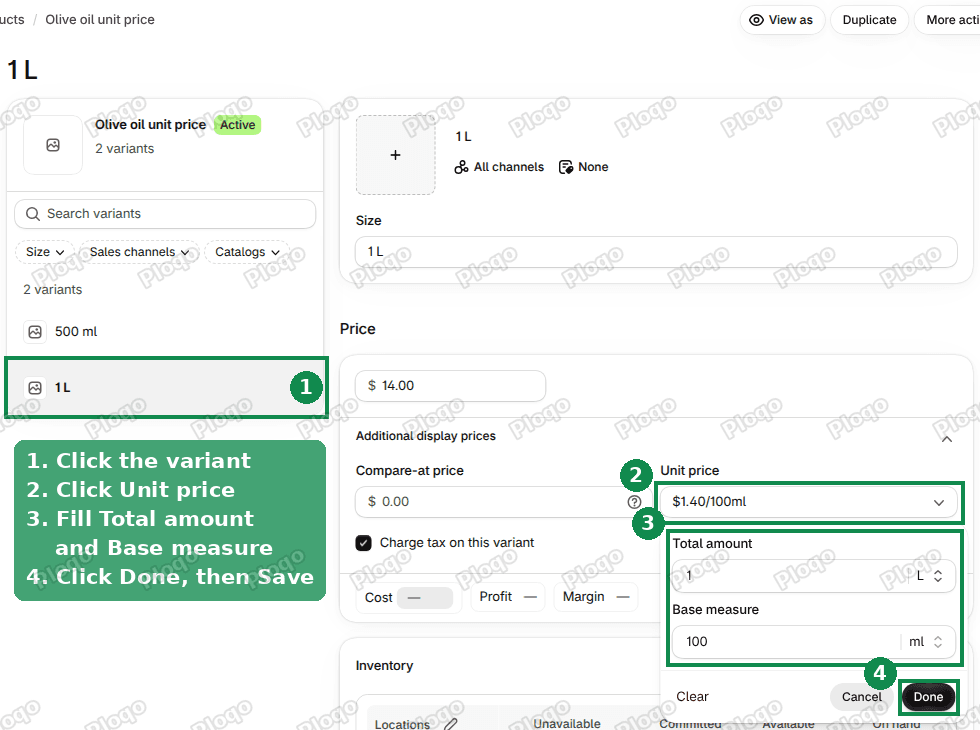 The Unit price panel on a variant, with Total amount 1 L and Base measure 100 ml
- Click the next variant in the list and repeat steps 3 to 7.
Once the panel is filled in, the button shows the result, such as "Unit price $1.40/100ml". You never type the unit price itself. Shopify divides the variant price by the total amount and multiplies by the base measure.
Use the same base measure on every variant of a product. If 500 ml is shown per 100 ml and 1 L is shown per litre, shoppers cannot compare them at a glance, which defeats the point of the unit price.
Working out the numbers
The maths behind the two examples on my test store:
| Variant | Price | Total amount | Base measure | Unit price shown |
|---|---|---|---|---|
| 500 ml | $8.00 | 500 ml | 100 ml | $1.60/100ml |
| 1 L | $14.00 | 1 L | 100 ml | $1.40/100ml |
For the 500 ml bottle, $8.00 divided by 500 ml is 1.6 cents per ml, so 100 ml costs $1.60. For the 1 L bottle, $14.00 divided by 1,000 ml is 1.4 cents per ml, so 100 ml costs $1.40.
The total amount and the base measure do not have to use the same unit. The 1 L variant has its total amount in litres and its base measure in millilitres, and Shopify converts between them.
A few more common setups:
- Coffee beans, 250 g bag at $9.00, base measure 100 g. The unit price is $3.60/100g.
- Flour, 2 kg bag at $5.00, base measure 1 kg. The unit price is $2.50/kg.
- Fabric sold by the metre, 3 m pack at $24.00, base measure 1 m. The unit price is $8.00/m.
- Multipack of 6 cans at $7.20, total amount 6 items, base measure 1 item. The unit price is $1.20 per item.
Which units Shopify accepts
The Unit price panel offers units in five groups. This list comes from Shopify's own product data on my test store.
| Type | Units |
|---|---|
| Weight | mg, g, kg, oz, lb |
| Volume | ml, cl, l, m³, fl oz, pt, qt, gal |
| Length | mm, cm, m, in, ft, yd |
| Area | m², ft² |
| Count | item |
Shopify converts within a group, so grams and kilograms mix freely. It does not convert across groups. You cannot show a liquid sold in millilitres as a price per kilogram.
Setting unit prices on many variants at once
Clicking through every variant is fine for a few products. For a catalogue with hundreds of sizes, the bulk editor is faster. The bulk editor is the spreadsheet view in the Shopify admin where you edit many products in one screen.
Select the products on the Products page, click Bulk edit, then add the Unit price columns from the Columns picker. The steps and screenshots for the bulk editor are in How to bulk edit variants on Shopify.
If you import products by CSV instead, the product CSV has its own unit price columns. Fill in the total amount and the base measure for every variant row, not only the first row of each product.
Why the unit price does not change when the variant changes
If you followed the steps above and the unit price stays the same when a shopper picks another size, one of these is usually the cause.
One of the variants has no unit price. Each variant has its own Unit price panel. Setting it on 500 ml does nothing for 1 L. Open every variant and check that the button shows a value. A variant without one shows no unit price line at all on the product page, which can look as if the line is stuck on the previous value.
The Price block was removed or replaced. In Dawn, the unit price is part of the Price block in the Product information section. A block is one piece of a section that you can add, move or remove in the theme editor. Dawn redraws the Price block every time the variant changes, and that is what updates the unit price.
To check it, go to Online Store > Themes, click Customize, and open a product page. Under Product information, look for a block called Price.
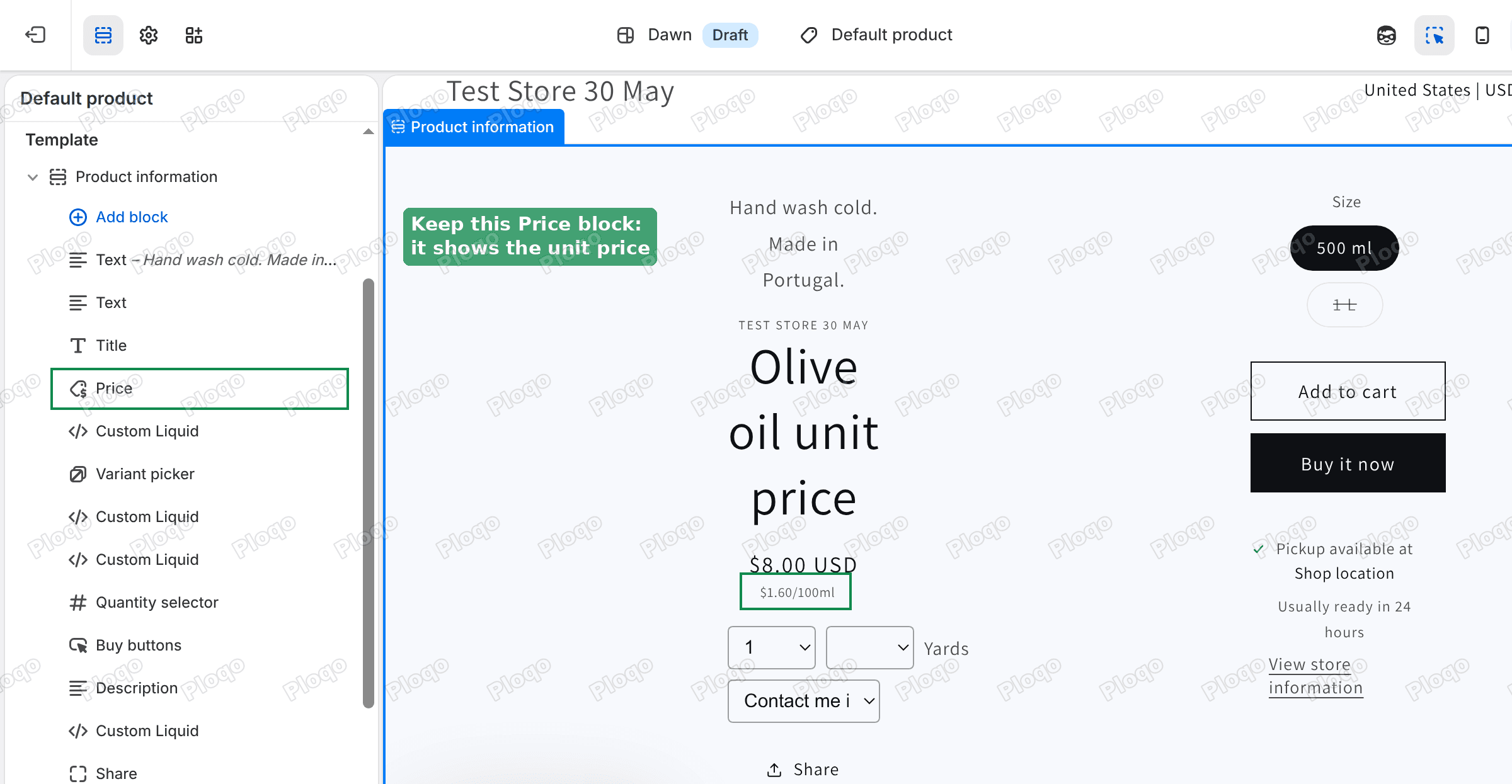 Dawn theme editor with the Price block highlighted in the Product information section
If the Price block is missing, click Add block and add Price back. If someone replaced it with a Custom Liquid block, a box where you paste theme code, that code most likely shows the unit price of the variant the page opened with and never updates. The snippet offered in the forum thread did exactly that. Put the Price block back and hide or remove the custom one.
The theme is not Dawn. Most of Shopify's free themes show the unit price inside their own price block, but older themes and some paid themes do not show it at all. Switch to Dawn in the theme preview to see whether the unit price appears there. If it does, the data is fine and the theme is the reason.
The page is cached in your browser. After saving variants, reload the product page with a hard refresh, or open it in a private window, before deciding it did not work.
Do you still need JavaScript?
Only if you want the unit price somewhere other than under the main price, such as next to the variant buttons or inside a size chart. In that case the cleanest option in Dawn is to move the Price block itself. In the theme editor you can drag blocks up and down inside Product information, so the price and its unit price can sit right above the variant picker.
Writing your own script means listening for Dawn's variant change and rebuilding the text yourself. The event names differ between Dawn versions, so a script written for one version can stop working after a theme update. Use the built-in Price block where you can.
Unit price, compare-at price and cost per item
The variant page has several price fields next to each other, and they do different jobs.
- Price is what the shopper pays for the variant.
- Compare-at price is an old or higher price shown crossed out, to mark a sale.
- Unit price is the price per fixed amount, worked out from the price, the total amount and the base measure. It is for comparison only and does not change what the shopper pays.
- Cost per item is what the product costs you. Shoppers never see it. Shopify uses it for profit and margin reports.
A sale changes the unit price too. If the 1 L bottle drops from $14.00 to $12.00, the unit price drops from $1.40/100ml to $1.20/100ml without you touching the Unit price panel.
Do you have to show unit prices?
That depends on where you sell. In the European Union and the United Kingdom, shops selling food and household goods by weight or volume are generally expected to show a unit price next to the selling price. Several US states have similar rules for grocery shelves. Shopify does not check this for you, so read the rules for the countries you sell to.
Even where it is not required, a unit price helps when you sell the same product in several sizes. It makes the larger pack's saving obvious without a banner or a discount.
Quick checklist
- Every variant has its own unit price, with the same base measure across the product.
- The product page uses the theme's own Price block, not a custom code block.
- The variant prices are right, because the unit price is worked out from them.
- You have checked the result on the live product page by clicking each size.
With those four in place, Dawn shows the right unit price for whichever size the shopper picks, with no extra code.
Spending too long on manual Shopify busywork?
PinFlow turns your Shopify catalog into Pinterest pins and posts them on a schedule, automatically. Same idea as the rule above, let the system handle the repetitive part.
Get PinFlow on the Shopify App StorePart of a complete guide
Shopify Variants: The Complete Guide
Variants are one product sold in several forms. How they work, the 2,048 and 3-option limits, and where each variant fix lives - images, swatches, sorting, hiding and the theme-specific bugs.
More Shopify fixes
More community-sourced Shopify guides, tested on a live store.
Themes & Storefront
Square Size Buttons on Shopify Dawn (Custom CSS)
Dawn draws size options as round pills. Here is the Custom CSS that turns them into square boxes matching the Add to cart button, tested on Dawn 16.0.0.
Themes & Storefront
Remove the Variant ID From Your Shopify Product URL
Your product link keeps turning into /products/name?variant=43176780890281, before the customer has touched anything. One theme setting stops it, a second switch covers Dawn, and a short snippet cleans the links that already carry the ID.
Themes & Storefront
Hide Unavailable Variants in a Shopify Dropdown
Green has no 3XL, so Shopify prints "3XL - Unavailable" in the size dropdown anyway. How to remove combinations that do not exist, without the bug that kills the variant picker. Tested on Studio.