
Shopify Related Products by Collection, Without an App
Shopify's related products show items that do not match, because the recommendation algorithm needs sales data a small catalog does not have. Drive the block off your collections and a hand-picked list, with one Custom Liquid section on Dawn.
By AjayCodeWiz · September 18, 2026 · 8 min read
The problem
A merchant asked about this on the Shopify Community. They sell one-of-a-kind collectibles: autographs, signed jerseys, historical documents. Around 500 products, but only one or two sales a month.
On each product page, the "You may also like" block showed items that had nothing to do with the product on screen. A signed football jersey was recommended next to a handwritten letter. The picks looked random, and on a store built on trust that reads as careless.
They wanted the block to do one simple thing: show other products from a collection the current product is in. A jersey should suggest other jerseys, not letters.
I reproduced the setup on a test store running Dawn, Shopify's free default theme. The fix takes one Custom Liquid section, no theme switch, and no app. Here is why the default block fails and how to replace it.
Why Shopify's recommendations show unrelated products
The product page block is powered by Shopify's recommendation engine. It ranks other products using two signals, in order: what customers bought together, then how similar the product descriptions read.
On a busy store that works well. Thousands of orders tell Shopify that buyers of product A also buy product B, and the block fills with things people actually pair.
On a store with one or two sales a month, there is almost no purchase data to rank. So the engine falls back to matching the text of your product descriptions. For unique collectibles, the descriptions all share words like "signed", "original", "certificate", and "rare". The engine reads a jersey and a letter as similar because the words overlap, and it pairs them.
The block is not broken. It is doing its best with data your catalog does not generate. That is the part worth understanding, because it tells you the fix is to stop feeding the engine and drive the block off something you control: your collections.
A collection is a group of products you set up yourself, like "Football" or "Legends". Most stores already sort their catalog into collections, so the grouping you want is sitting there unused by the recommendation block.
The plan: hand-pick the few, fall back to collections for the rest
There are two reliable ways to get relevant related products, and the best setup uses both together.
The first is manual curation. For the products that matter most, you pick the related items by hand. Nothing beats a human choosing what pairs with a signed World Cup jersey.
The second is a collection rule. For every other product, the page shows other items from the same collection automatically, so you are not curating 500 products one by one.
The setup below does both. It shows your hand-picked items when you have set them, and falls back to same-collection items when you have not. You curate the handful of hero pieces, and the rest look after themselves.
To hold the hand-picked list, you add a metafield. A metafield is an extra field you add to a product to hold your own information, in this case a short list of related products.
Step 1: Add a "Related products" field
Go to Settings, then Custom data, then Products, then Add definition.
Name it Related products. Set the Type to Product, and turn on List of values so it can hold more than one. Save it.
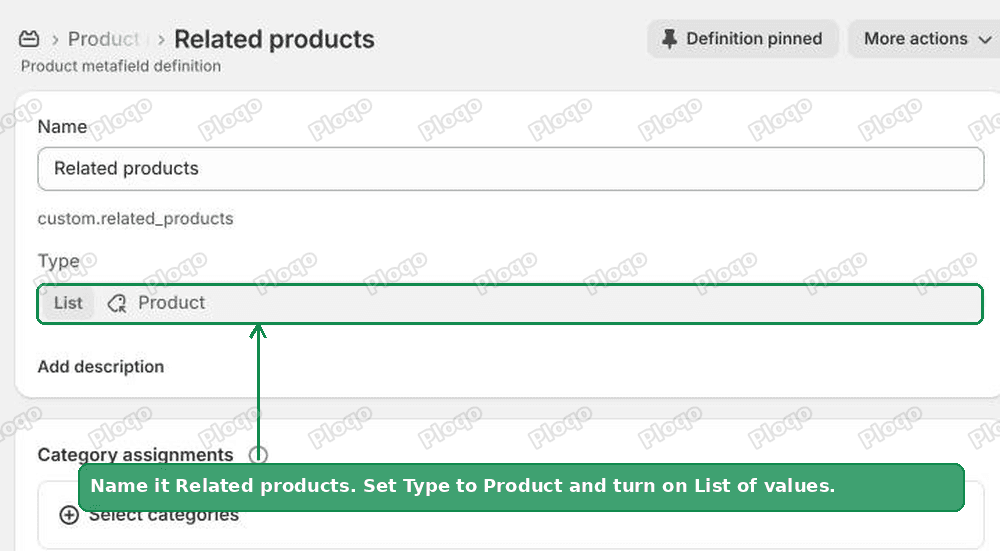 Create the Related products metafield definition in Shopify Custom data
The internal name shows as custom.related_products. The code in Step 3 reads that field, so keep the name as it is unless you plan to edit the code to match.
Step 2: Pick related items on your key products
Open one of your important products and scroll to the Metafields section near the bottom. In the Related products field, add two to four items that clearly pair with it. For a signed jersey, that might be other signed jerseys and a photo from the same era.
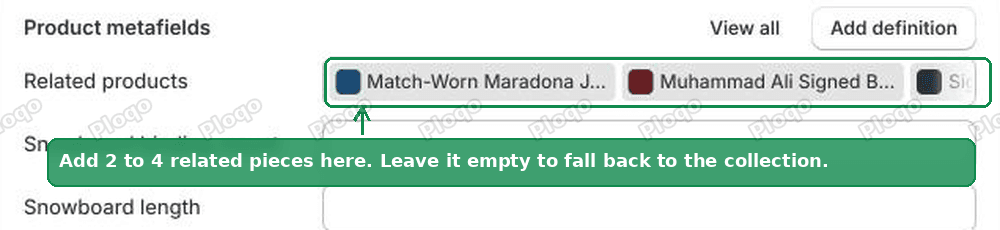 Add hand-picked related products in the product metafield
Leave this empty on any product you do not want to curate. Those fall back to their collection automatically, so you only spend time on the pieces that deserve it.
You do not have to do all 500. Start with your best sellers and your highest-value items. The rest are covered by the collection rule.
Step 3: Add the Custom Liquid section
Custom Liquid is a box in the theme editor where you paste code. Dawn has it built in, so you do not need to touch the theme's own files.
Open your theme, go to the product template, click Add section, and choose Custom Liquid. Paste the code below into the Liquid box.
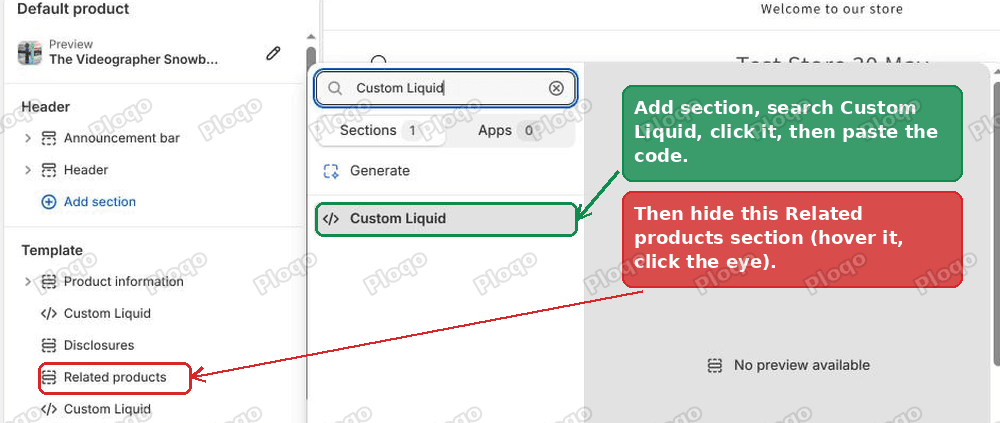 Add a Custom Liquid section and hide the native Related products section
{%- liquid
  assign limit = 4
  assign picks = product.metafields.custom.related_products.value
-%}
<div class="collection-recs page-width">
  <h2 class="collection-recs__title h2">You may also like</h2>
  <ul class="collection-recs__grid grid product-grid grid--2-col-tablet-down grid--4-col-desktop" role="list">
    {%- if picks != blank -%}
      {%- assign shown = 0 -%}
      {%- for item in picks -%}
        {%- if shown < limit and item.available -%}
          <li class="grid__item">
            <a class="collection-recs__link" href="{{ item.url }}">
              {%- if item.featured_image -%}{{ item.featured_image | image_url: width: 500 | image_tag: loading: 'lazy', widths: '200,300,400,500' }}{%- endif -%}
              <span class="collection-recs__name">{{ item.title }}</span>
              <span class="collection-recs__price">{{ item.price | money }}</span>
            </a>
          </li>
          {%- assign shown = shown | plus: 1 -%}
        {%- endif -%}
      {%- endfor -%}
    {%- else -%}
      {%- assign skip = ',frontpage,all,sale,new,new-arrivals,featured,home-page,' -%}
      {%- assign seen = ',' | append: product.id | append: ',' -%}
      {%- assign shown = 0 -%}
      {%- assign cols = product.collections | sort: 'all_products_count' -%}
      {%- for c in cols -%}
        {%- assign probe = ',' | append: c.handle | append: ',' -%}
        {%- unless skip contains probe -%}
          {%- for item in c.products limit: 60 -%}
            {%- assign key = ',' | append: item.id | append: ',' -%}
            {%- if shown < limit and item.available -%}
              {%- unless seen contains key -%}
                <li class="grid__item">
                  <a class="collection-recs__link" href="{{ item.url }}">
                    {%- if item.featured_image -%}{{ item.featured_image | image_url: width: 500 | image_tag: loading: 'lazy', widths: '200,300,400,500' }}{%- endif -%}
                    <span class="collection-recs__name">{{ item.title }}</span>
                    <span class="collection-recs__price">{{ item.price | money }}</span>
                  </a>
                </li>
                {%- assign seen = seen | append: item.id | append: ',' -%}
                {%- assign shown = shown | plus: 1 -%}
              {%- endunless -%}
            {%- endif -%}
          {%- endfor -%}
        {%- endunless -%}
      {%- endfor -%}
    {%- endif -%}
  </ul>
</div>
<style>
  .collection-recs{margin:4rem auto}
  .collection-recs__title{margin:0 0 2rem}
  .collection-recs__link{display:block;text-decoration:none;color:rgb(var(--color-foreground))}
  .collection-recs__grid{gap:1.5rem}
  .collection-recs__link img{width:100%;height:auto;aspect-ratio:1;object-fit:cover;border-radius:var(--media-radius,.4rem);margin-bottom:.8rem}
  .collection-recs__name{display:block;font-weight:600}
  .collection-recs__price{display:block;opacity:.8}
</style>
Then hide the theme's own Related products section so you do not show two blocks. In the same product template, hover the Related products section in the left list and click the eye to hide it. Click Save.
Read the top of the code, and you can change one number. assign limit = 4 sets how many products the block shows. Set it to 3 or 6 if you prefer.
Step 4: Check the result
Open a product page on your storefront. The "You may also like" block now shows the items you picked, or, if you picked none, products from the same collection.
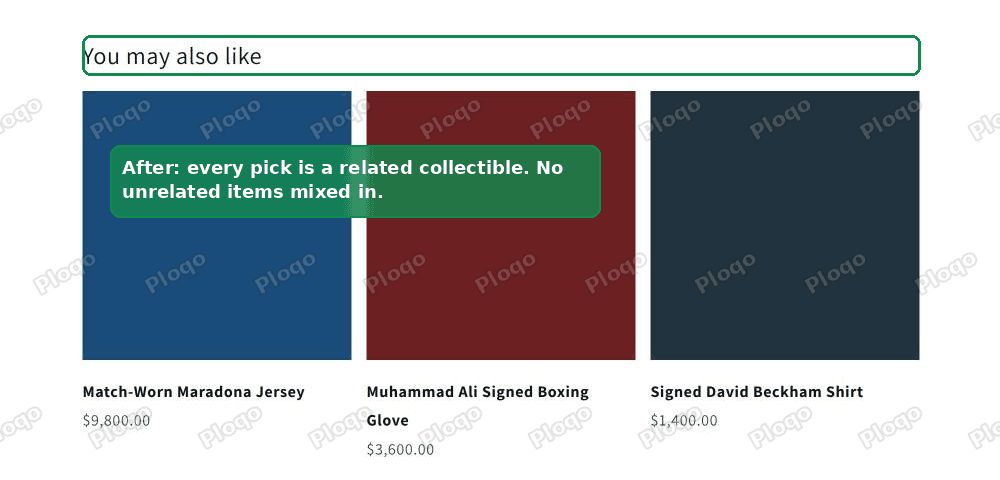 The related products block showing only matching collectibles on the product page
On my test store a signed jersey that I had curated showed the three items I chose. A jersey with no picks fell back to its Football collection and showed three other footballers. A handwritten letter in the Documents collection showed only other documents. A jersey never appeared next to a letter again.
What the code does that a plain collection loop does not
You will find shorter snippets in forum threads that just loop over product.collections. This one adds three guards that matter on a real store.
It reads your narrowest collection first. The line sort: 'all_products_count' puts the smallest collection at the front, so a specific collection like "1966 World Cup" beats a broad one like "All jerseys". Narrower collections make better recommendations.
It skips your utility collections. The skip list ignores collections like Home, Sale and New. Without that, a small "Featured" or "Sale" collection could hijack the block and fill it with unrelated items that happen to be on sale.
It skips sold items and products with no image. The item.available check drops anything out of stock, so you never recommend something a shopper cannot buy. The image check means a product without a photo shows its title and price instead of throwing an error or leaving a blank square.
The no-code option: Search and Discovery
If you would rather not paste code, Shopify's own free app can hand-pick related products for you.
Install Search and Discovery from the Shopify App Store. Open it, go to Product recommendations, choose a product, and add up to ten related products by hand. Those picks appear in the theme's native Related products section, so you do not hide anything or add a Custom Liquid section.
The catch is scale. Search and Discovery is manual only, one product at a time, so it fits your top items but not all 500. The Custom Liquid section above is the one that covers the whole catalog, because the collection fallback needs no per-product work.
Pick one route or the other, not both. If you set manual recommendations in Search and Discovery, do not also add the Custom Liquid block, or the page will try to show two "You may also like" rows.
When a recommendations app is worth it
Apps earn their place when you want behaviour the free routes do not give you, such as tracking which recommendations get clicked, showing "frequently bought together" bundles, or rotating the picks so repeat visitors see something new.
For rule-based and collection-based related products without purchase history, these are the established names:
- Tipo Related Products, Upsell
- Wiser AI - Upsell and Cross Sell
- Rebuy Personalization Engine
For a store with one or two sales a month, an app is usually more than you need. The metafield and collection setup gives you relevant recommendations for free, and it keeps working whether you sell one item this month or fifty.
Same collection is the best practice at low volume
The instinct on a small store is to reach for a smarter algorithm. At one or two sales a month, the opposite is true. No algorithm can learn from data you do not have, so a clear rule you set yourself beats a guess every time.
Hand-pick the few items that matter and let collections cover the rest. Your product pages will show related items that make sense, your catalog will look curated rather than random, and you will not be paying an app to do what one field and one section already do.
Related products and collections, terms people mix up
A collection is a group of products you build, either by hand or by a rule, like "Football" or "Under $100". The related products block reads collections to decide what to suggest.
A metafield is an extra field on a product for your own data. Here it holds your hand-picked related products list, and the code reads it before it falls back to collections.
The native "You may also like" block is Shopify's own recommendation section. It is the one you hide in Step 3, because you are replacing what feeds it, not the idea of a related products row.
Spending too long on manual Shopify busywork?
PinFlow turns your Shopify catalog into Pinterest pins and posts them on a schedule, automatically. Same idea as the rule above, let the system handle the repetitive part.
Get PinFlow on the Shopify App StoreMore Shopify fixes
More community-sourced Shopify guides, tested on a live store.
Collections & Products
Shopify Variants: The Complete Guide
Variants are one product sold in several forms. How they work, the 2,048 and 3-option limits, and where each variant fix lives - images, swatches, sorting, hiding and the theme-specific bugs.
Collections & Products
Shopify Collection Image Size: Why Cards Look Wrong
Collection images that look fine on desktop can turn huge on mobile, with the second card cut off the screen. The cause is not pixel dimensions, it is aspect ratio. Here is what to set, measured on a real phone viewport.
Collections & Products
How to Set Up Shopify Smart Collections With Metafields (Not Tags)
Building one tag per collection turns into hundreds of typo-prone tags fast. Here is how to run Shopify smart collections off product type and metafields instead, tested on a store.