
Shopify Compare at Price Not Showing? Check the Data
The crossed-out price is usually missing because the value was never saved, not because the theme is broken. Check it, fill it in for every variant at once, and clear saved 0.00 values.
By AjayCodeWiz · July 27, 2026 · Updated October 21, 2026 · 12 min read
The problem
A merchant posted on the Shopify Community that the compare-at price on their store was not showing. They had already done a lot of work on it.
They had confirmed the Liquid (the code Shopify themes are written in) in main-product.liquid was correct. They had confirmed the .old-price CSS rule existed in the stylesheet. They had been told the compare-at price was set to 420 euros on every variant. Their theme was Xclusive 3.2.0, a custom theme uploaded manually rather than installed from the Theme Store.
Three people replied, and all three sent them further into the theme code: check the price snippet (the small file in your theme that draws the price), check whether the product template uses a different component, inspect the element to see whether CSS is hiding it.
All reasonable advice. All aimed at the wrong layer.
I checked their live store before suggesting anything, and the compare-at price was not there to display. The data was missing.
Check the data first, it takes one request
Every Shopify product has a public JSON endpoint. Add .js to any product URL and you get the raw product data the storefront is working with:
https://yourstore.com/products/your-product-handle.jsOn their store, that returned:
"compare_at_price": null,
"compare_at_price_min": 0,
"compare_at_price_max": 0null. Not a rendering problem, not a CSS problem, not a theme problem. There was no compare-at price saved on any variant of any product.
Do this check before you touch a single theme file. If compare_at_price is null, no amount of Liquid will make a crossed-out price appear, because there is nothing to cross out.
You can check every product at once:
curl -s https://yourstore.com/products.json?limit=250 \
  | grep -o '"compare_at_price":[^,]*' | sort | uniq -c
That prints a count of how many variants have a value and how many are null. If the null count is everything, stop reading the theme and go fill in the data.
Here is the same product before and after, on my test store. Nothing changed except the price data.
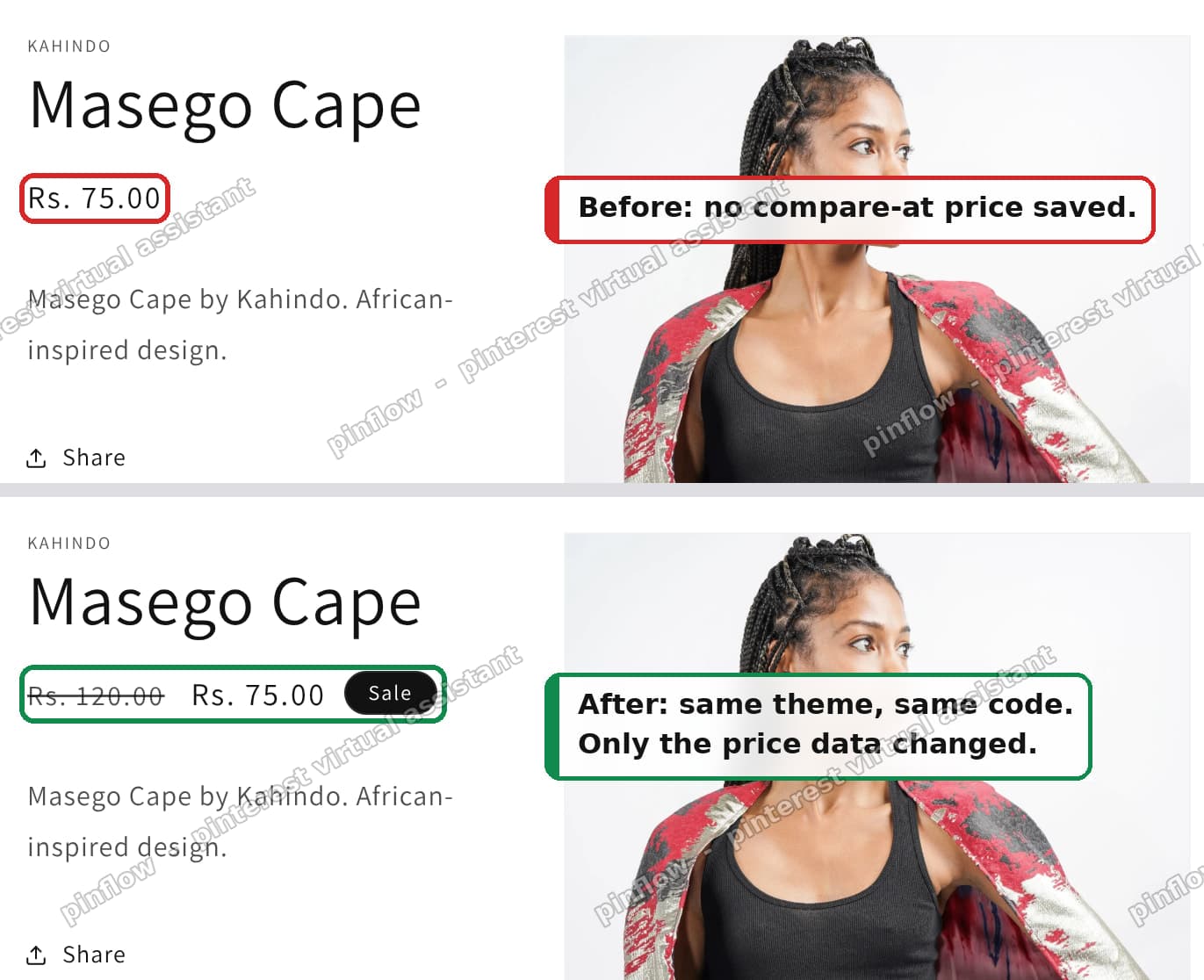 Before and after: only the price data changed
What compare-at price actually is
Compare-at price is the "was" number. It is the higher, crossed-out price shown next to the current selling price to signal a discount.
Two rules govern whether it renders, and both catch people out.
It lives on the variant, not the product. This is the big one. If your product has sizes 36 through 46, that is eleven variants, and each one carries its own compare-at price field. Filling in the first variant does nothing for the other ten. A product page will show the crossed-out price for size 38 and not for size 39, which looks like a random theme bug and is not.
It must be higher than the selling price. If compare-at equals the price, or is lower, every well-built theme renders nothing at all. This is deliberate: a strikethrough showing the same number is noise, and a strikethrough showing a lower number is a lie. So setting compare-at to 420 and the price to 420 produces exactly the symptom in this thread, an invisible compare-at price on a product that definitely has one saved.
Worth knowing: the second rule means a compare_at_price that is present but not greater than price is functionally the same as null. When you run the check above, look at the values, not just whether they exist. A saved 0.00 is the most common case of this, and it is the one place where "zero" and "empty" stop behaving the same, covered further down.
The fix: fill it in for every variant at once
Doing this one variant at a time is what makes people give up and go looking for a theme bug instead. Use the bulk editor.
Step 1: select the products and open Bulk edit
Go to Products in your admin. Tick the products you want to price, then click Bulk edit in the bar that appears.
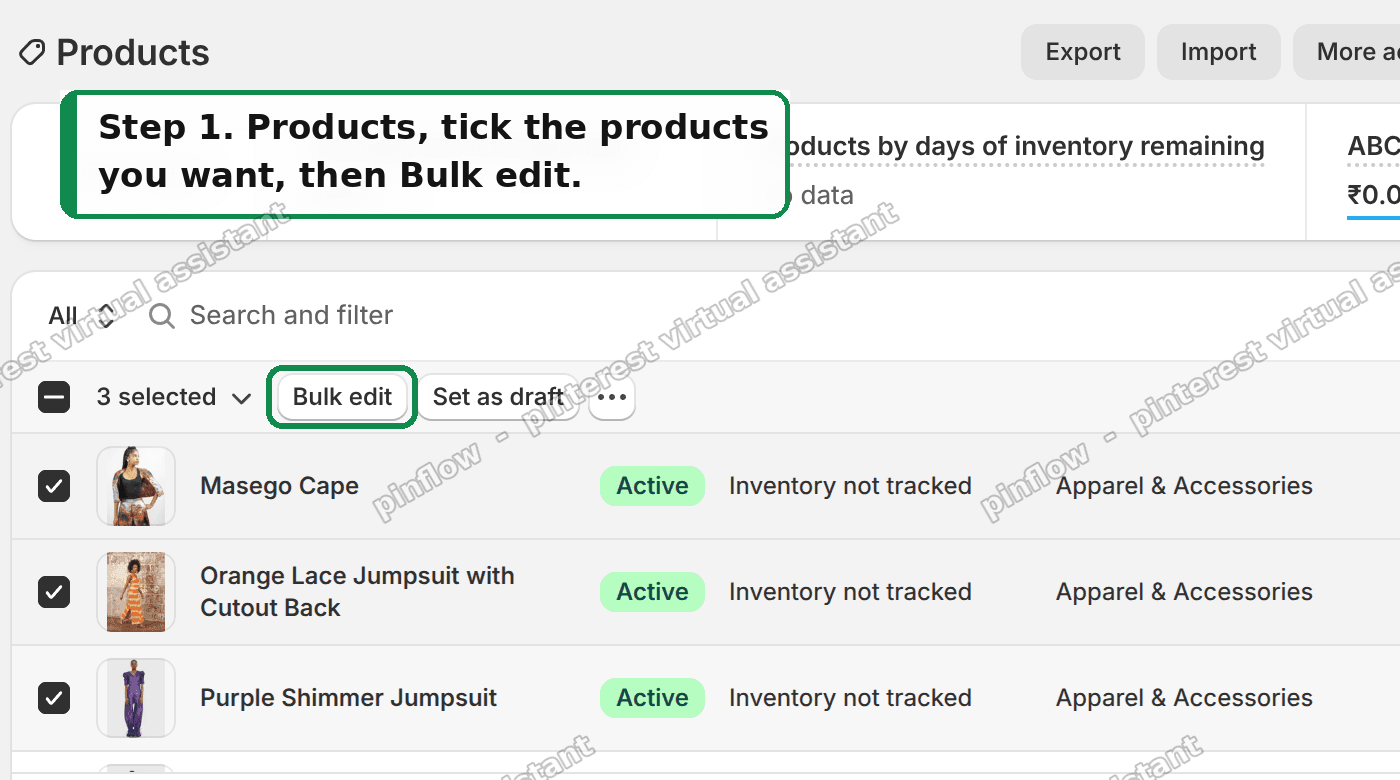 Select the products, then Bulk edit
The bulk editor opens as a spreadsheet, one row per variant. That row-per-variant behaviour is exactly what you want here, because it is the reason the manual approach is so slow.
Step 2: add the Compare at price column
The column is not shown by default. Click Columns, search for "compare", and tick Compare at price.
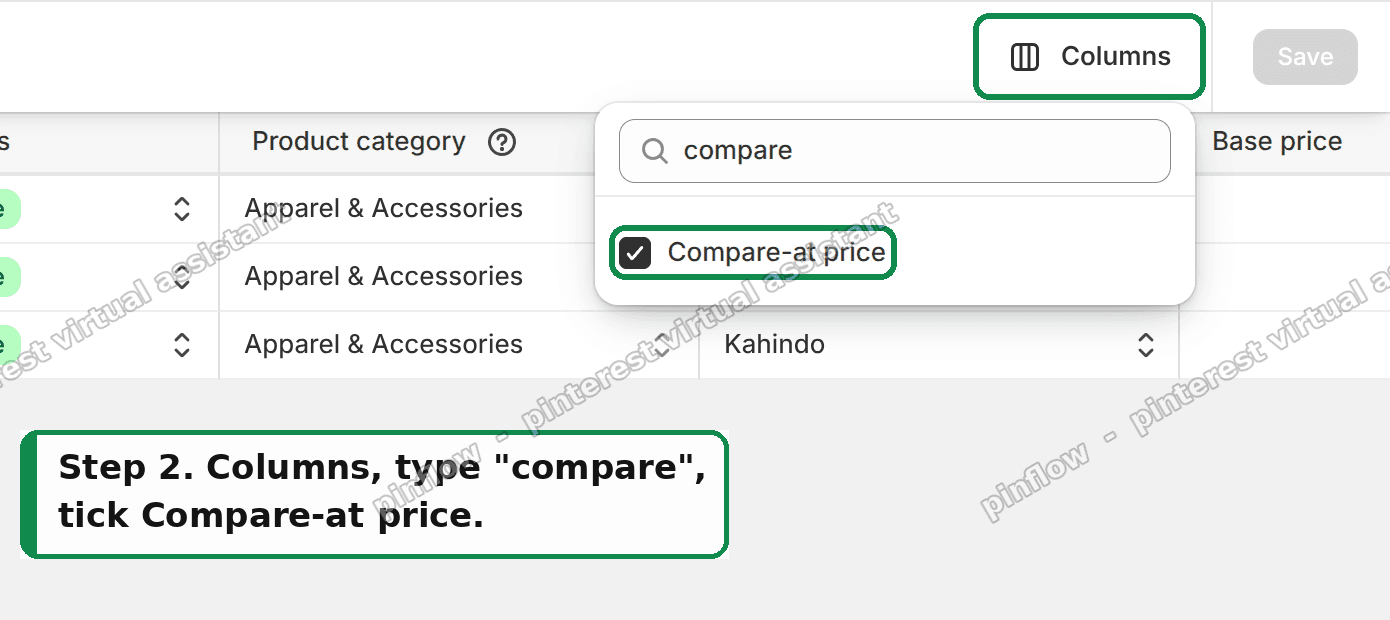 Columns, search compare, tick Compare-at price
While you are in there, it is worth adding the Price column too if it is not showing, so you can see both numbers side by side and confirm compare-at is the higher one.
Step 3: type the old price and save
Fill in the Compare at price column, then Save.
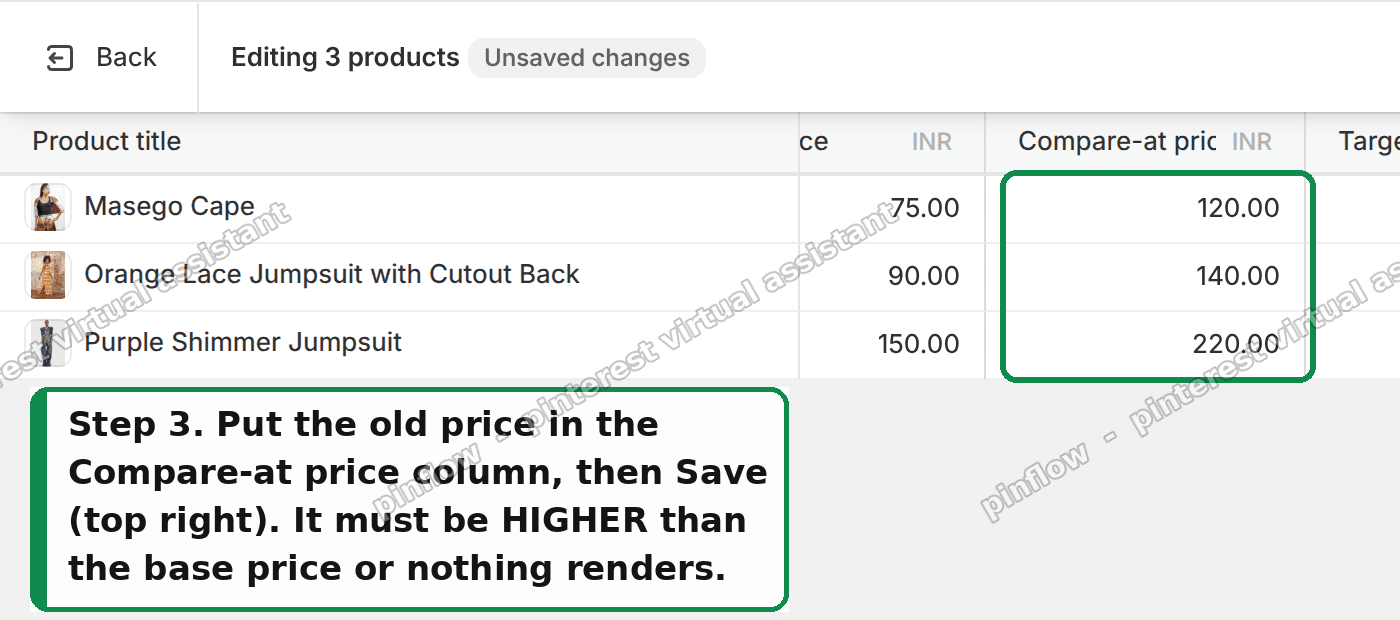 Type the old price in the Compare-at price column, then Save
You can type a value in the first cell and paste it down the column, the same as any spreadsheet. Every variant of every selected product gets its value in one pass.
Reload the storefront. The crossed-out price appears, and so does whatever sale badge your theme draws from the same data.
Doing it at scale, or on a schedule
The bulk editor is right for a few hundred variants. Past that, or if you want this to be repeatable, there are two better routes.
CSV export and import. Go to Products, Export, and open the CSV. The column is Variant Compare At Price. Fill it in, import the file back. This is the fastest route for thousands of variants and it gives you a record of what you changed.
A percentage markup with a formula. If your "was" price is a consistent markup on your current price, do it in the spreadsheet. Export, set Variant Compare At Price to = Variant Price * 1.3 for a 30 percent apparent discount, then import. Ten seconds for the whole catalog.
One caution on the second one. A compare-at price is a claim about what the item previously sold for, and in several markets, including the UK, EU and much of the US, inventing that number is a regulated pricing practice. Use a price you actually charged.
When the compare-at price shows 0.00
A second merchant raised a related problem on the Shopify Community. A large share of their products had a compare-at price saved as £0.00, where it should have been left empty.
On the storefront the two look the same. A compare-at price of zero is never higher than the selling price, so the theme draws no crossed-out price for it, just as it does for an empty field.
Automated collections treat the two differently. An automated collection is one that fills itself from conditions you set, such as "Compare at price is not set". The merchant had a "Full Priced Products" collection built on that condition, and every product with a saved £0.00 was left out of it.
The product editor makes the zeros hard to spot. Open the compare-at field on a product with a saved zero and it reads 0.00. Open it on a product with an empty field and it also reads 0.00, because that is the grey placeholder text Shopify puts in an empty box. On my test store the saved value was near-black and the placeholder a dark grey only a shade lighter. With one product open at a time, there is nothing to compare it against.
How to tell a saved 0.00 from an empty field
Leave the field closed. Under the Price box on a product page, Shopify shows a row of small chips: Compare-at, Unit price, Charge tax, Cost per item. A chip with a saved value shows that value next to its name.
- A saved zero shows Compare-at $0.00, or £0.00 in a UK store.
- An empty field shows the word Compare-at on its own.
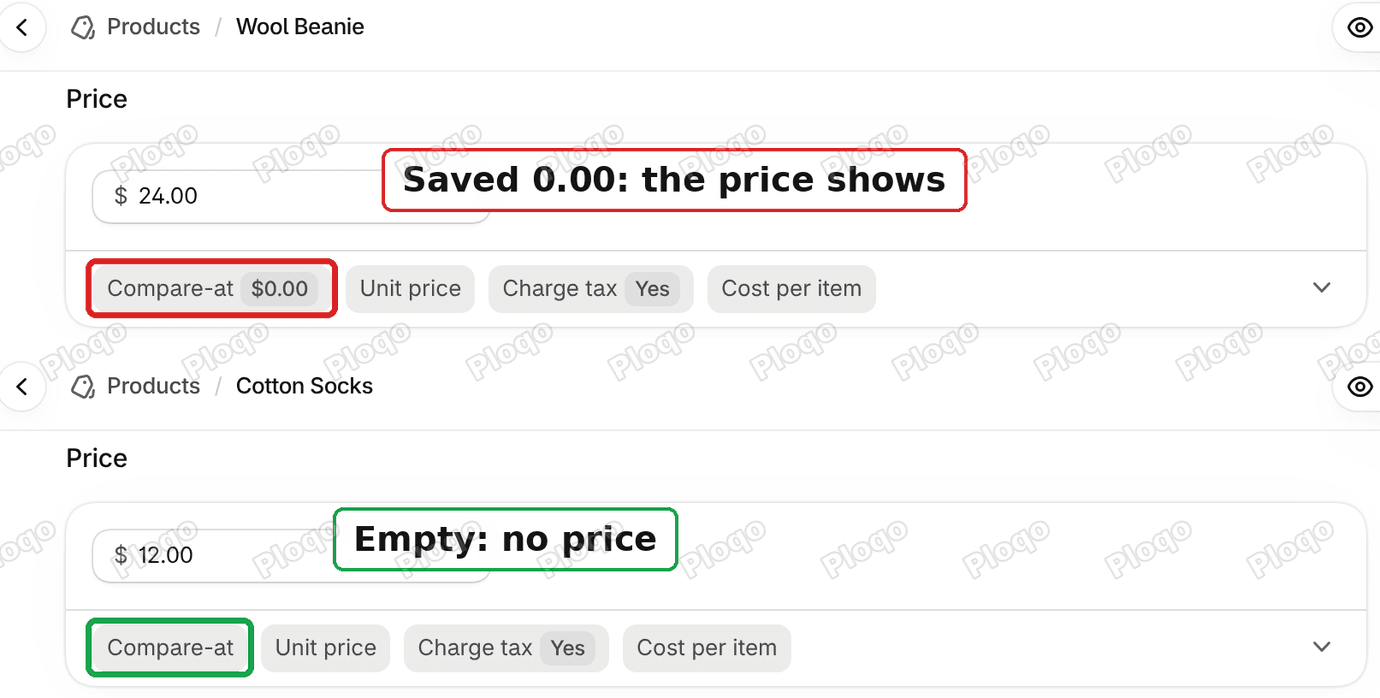 The Compare-at chip shows $0.00 when a zero is saved, and only the word when the field is empty
On my test store the Wool Beanie had a saved 0.00 and the Cotton Socks had nothing saved. The chips were the quickest place to see the difference.
How to remove the compare-at price from many products at once
Checking one product at a time does not work for a whole catalog. The product search in the admin has no filter for compare-at price, so the first job is a list of the affected products. An automated collection builds that list for you.
1. Create a collection that catches the zeros
Go to Products > Collections and click Add collection. Click Add condition and pick Compare at price.
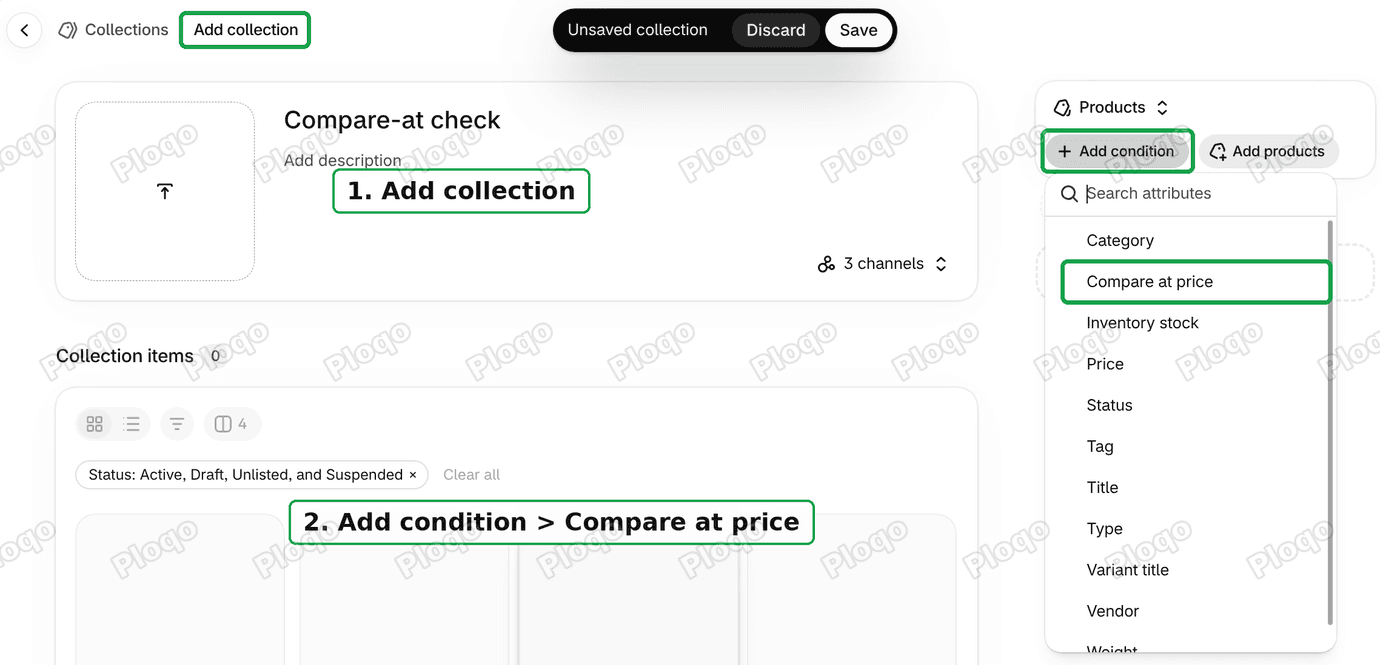 Add collection, then Add condition and Compare at price
Leave the rule on is equal to and type 0 in the box. Give the collection a title you will recognise, such as "Compare-at check", and click Save.
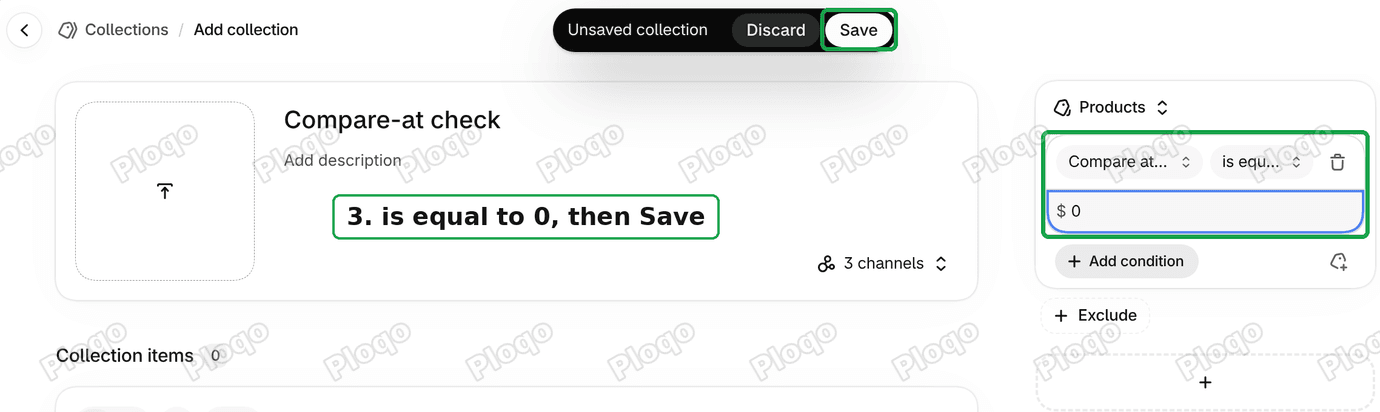 The condition set to Compare at price is equal to 0, then Save
On my test store this collection caught two of three test products: the two with a saved 0.00. The product with an empty field stayed out.
2. List only those products
Open Products and click Search and filter above the product list. Add the Collection filter and pick the collection you just made.
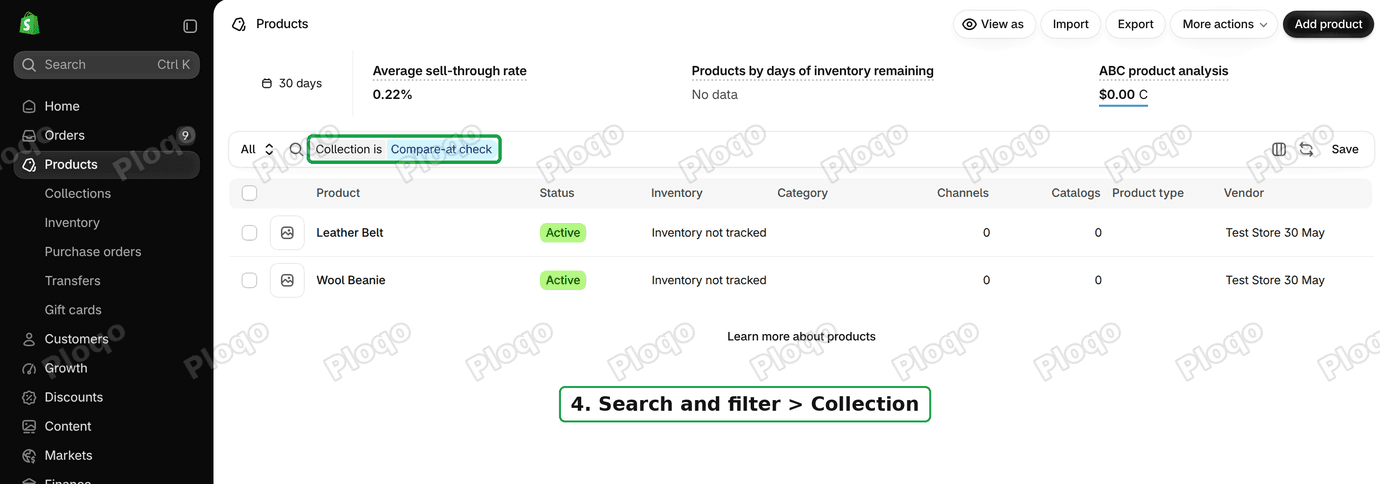 The Products list filtered by the new collection
3. Open them in the bulk editor
Tick the checkbox at the top of the list to select every product it shows, then click Bulk edit. The bulk editor is a spreadsheet view of your products, with one row per variant.
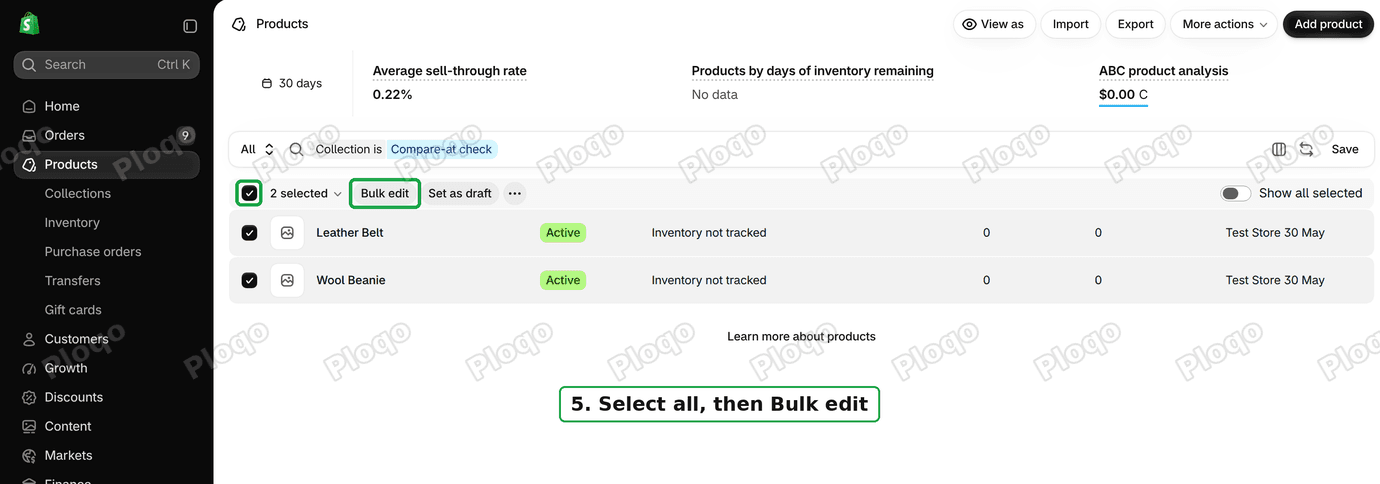 Select every product, then Bulk edit
4. Show the Compare-at price column
Click Columns, type "compare" in the search box and tick Compare-at price. Every row in the new column reads 0.00, because every product in this list has a saved zero.
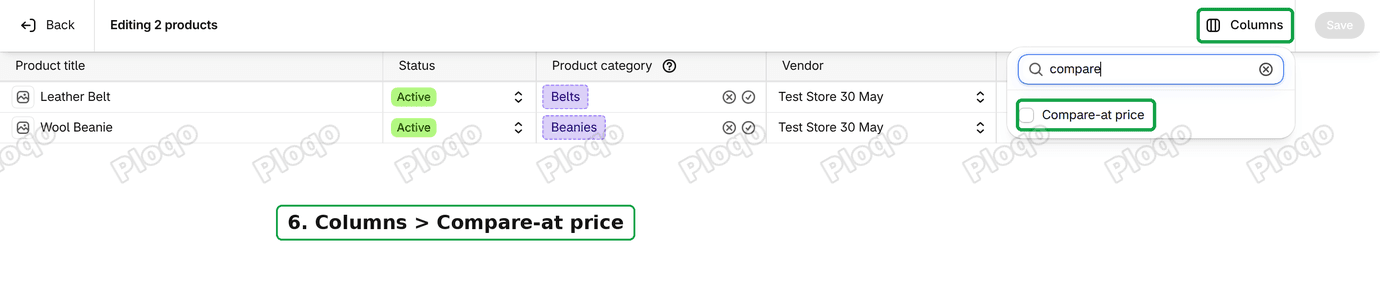 Columns, then tick Compare-at price
5. Clear the cells and save
Click the first Compare-at price cell, hold Shift and click the last one, so the whole column is selected. Press Delete, then click Save.
 The Compare-at price cells selected and cleared, then Save
The cleared cells still show a grey 0.00 after you press Delete. That is the placeholder for an empty cell, not a saved value. On my test store both products came back with no compare-at price saved after this step.
6. Check the collection is empty
Go back to Products > Collections. The check collection now shows 0 products.
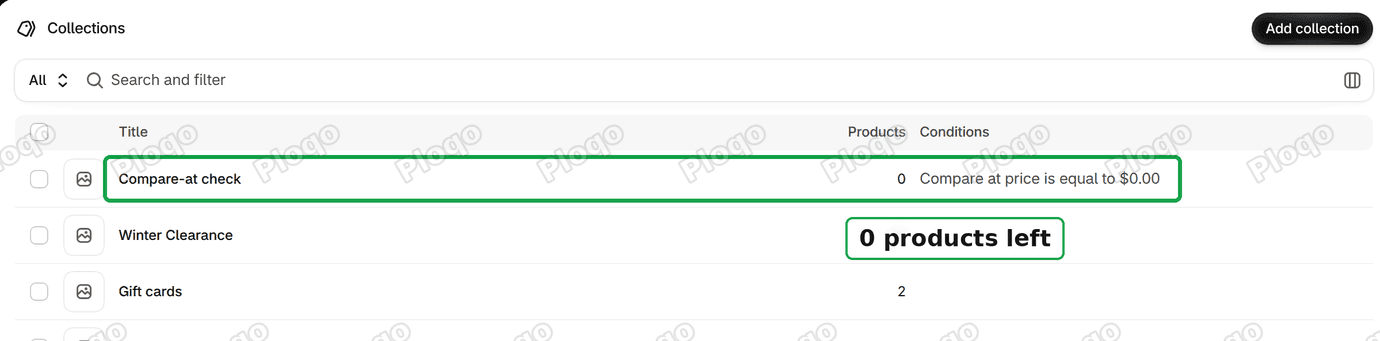 The check collection now has 0 products
With the field empty again, those products match a "Compare at price is not set" condition, so a collection built on it, like the merchant's "Full Priced Products", includes them again. Automated collections update by themselves, so there is nothing to re-save.
Keep the check collection as an alarm
Leave the check collection in place once it is empty. If its product count ever goes above 0, a zero compare-at price has been saved again, and you can repeat steps 2 to 5 on just those products. It is a working list, not a page for shoppers, so take it off your Online Store sales channel in the collection's publishing settings.
To find where the zeros come from, look at whatever writes prices into your store in bulk: a product CSV import, a supplier feed, or an app that syncs prices from another system. If it writes 0 where it should leave the compare-at price blank, it saves exactly this.
The merchant in the thread had first changed their collection rules to accept both an empty field and 0.00. That keeps the collection right, but the zeros stay in the data, and any other collection or report that looks for an empty compare-at price runs into the same problem. Clearing them fixes it once for every rule.
Why theme edits were the wrong instinct here
The replies in that thread were not careless. They followed a reasonable chain: the merchant says the data is set, the data is not showing, therefore the display layer is at fault.
The weak link is "the merchant says the data is set". On a custom theme, with a store built by an agency, with prices that were configured by someone else, that is exactly the assumption worth testing first. It cost one HTTP request to test and it turned out to be false.
The general form of this is worth keeping: when something is not displaying, confirm the value exists before you go looking at how it is rendered. Shopify makes that cheap, because .js on any product URL and /products.json on any store are both public and need no authentication.
That also means you can run this check on a store you do not own, which is how I checked theirs before answering.
Common questions
Compare-at price shows on the product page but not on collection pages.
Different template, different snippet. Most themes render the price through a shared price.liquid snippet, but some have a separate card price component. If the data is present and one surface shows it, that surface is now your reference: find what it calls and check the other one calls the same thing.
The strikethrough shows on the first variant only.
Classic symptom of compare-at being filled in on variant one and nowhere else. Open the bulk editor and look down the column. It is also worth checking that your theme's variant-switching JavaScript updates both prices rather than only the current price, but check the data first.
Compare-at is set and higher, and still nothing renders.
Now it is worth looking at the theme, and now you have ruled out the common cause. Inspect the element on the price area. If the markup for the old price is in the DOM but invisible, it is CSS. If the markup is not in the DOM at all, the price snippet your template actually uses does not have the compare-at logic in it.
Does compare-at price affect anything besides the strikethrough?
Yes, and this is worth knowing. Sale badges, "on sale" collection filters, and the sale sorting option all key off compare-at being higher than price. Filling it in switches on several theme features at once, which is often a pleasant surprise.
Can I set compare-at without putting the product on sale?
No, and that is the point of the field. If compare-at is higher than the price, Shopify considers the variant on sale, and any theme feature that keys off that will treat it as such.
Is a 0.00 compare-at price the same as no compare-at price?
On the storefront, yes. Zero is never higher than the selling price, so no crossed-out price shows. In automated collection conditions, no. "Compare at price is not set" leaves a saved zero out, and "Compare at price is equal to 0" catches it.
How do I remove the compare-at price from one product?
Open the product, click the Compare-at chip under the price to open the field, delete the amount until only the grey placeholder is left, and click Save. The chip then shows the word Compare-at with no amount next to it.
If it did not work
Run the JSON check again after saving. If compare_at_price is still null, the save did not land, usually because the bulk editor had a validation error on another column that blocked the whole save.
If the value is there and higher than the price and still nothing shows, share your theme's price snippet. At that point it is a theme problem, and you have eliminated the cause that accounts for most of these threads.
Tested on
I reproduced this on a Shopify dev store: set a compare-at price through the bulk editor across multiple variants, confirmed it rendered, then cleared it and confirmed the strikethrough disappeared while the theme code stayed untouched. For the 0.00 case I saved a zero on two test products and left a third empty, caught the two with an "is equal to 0" collection, cleared them in the bulk editor, and watched that collection drop from 2 products to 0. The store in the original thread was checked read-only through its public product JSON.
Fixing product data one row at a time?
PinFlow reads your Shopify catalog automatically and turns it into Pinterest pins on a schedule. Set the data once, let the automation use it everywhere.
Get PinFlow on the Shopify App StoreMore Shopify fixes
More community-sourced Shopify guides, tested on a live store.
Collections & Products
Shopify Unit Pricing: Show a Price per Unit on Each Variant
Set a unit price on every variant and Dawn shows the price per 100 ml or per kg, and updates it when a shopper picks another size. No code needed.
Collections & Products
Shopify Related Products by Collection, Without an App
Shopify's related products show items that do not match, because the recommendation algorithm needs sales data a small catalog does not have. Drive the block off your collections and a hand-picked list, with one Custom Liquid section on Dawn.
Collections & Products
Shopify Variants: The Complete Guide
Variants are one product sold in several forms. How they work, the 2,048 and 3-option limits, and where each variant fix lives - images, swatches, sorting, hiding and the theme-specific bugs.