
How to Edit the Footer in Shopify
Footer content is split across three places - menus, theme settings and policies - which is why links go missing. Here is what lives where, and the nesting rule that hides your policy links.
By AjayCodeWiz · July 17, 2026 · 9 min read
The problem: your footer link is there, but it is not
You added Privacy Policy, Refund Policy, Shipping Policy and Terms of Service to your footer menu. You saved. You look at the storefront and the footer shows one link:
Terms and Policies.
The four you actually care about are nowhere. They are in the menu, you can see them in the admin, and the footer refuses to print them.
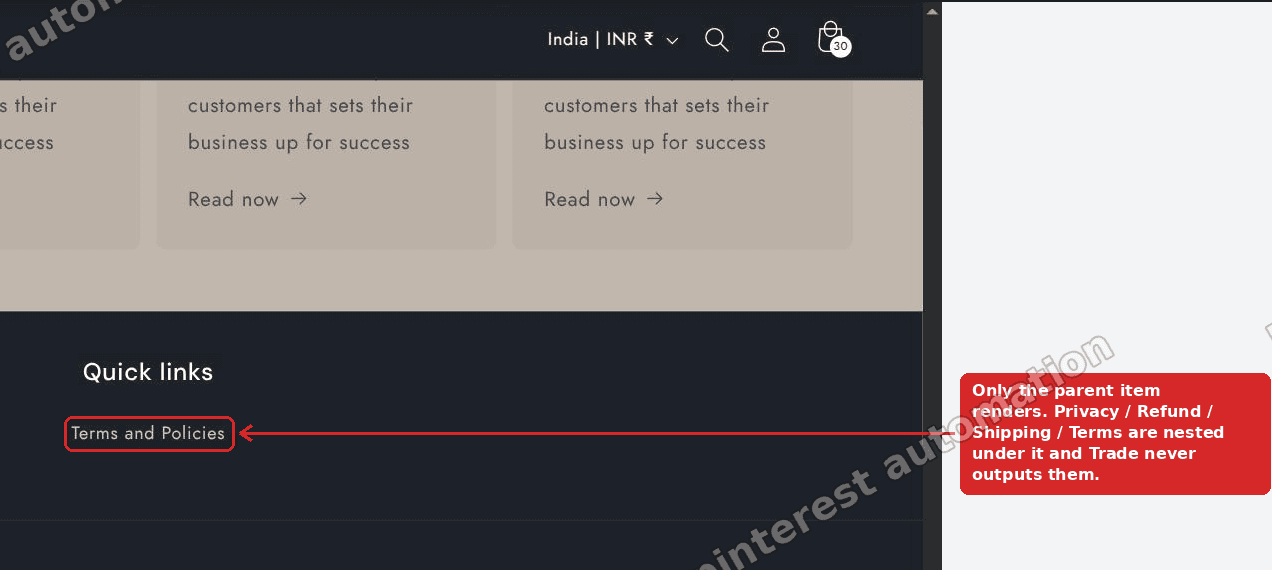 The storefront footer showing only the parent link, with the four policy links missing
A merchant on the Trade theme asked how to show their policy links separately instead of grouped. The fix takes about ten seconds once you know what is happening, and the underlying reason explains a whole category of Shopify footer confusion.
Why footers are confusing: content comes from three places
The reason footer editing feels harder than it should is that there is no single "edit footer" screen. What you see is assembled from three independent sources, and knowing which one owns a given piece of text is most of the battle.
Menus (Content > Menus) hold your link lists. The Quick links or Footer menu is a menu you edit here, not in the theme editor.
Theme settings (Online Store > Themes > Customize > Footer) control the structure and the toggles. Which blocks appear, how many columns, whether social icons and payment icons show, the newsletter signup.
Policies (Settings > Policies) hold the actual text of your refund, privacy, shipping and terms pages. Themes can print links to these automatically, without any menu involved.
So "edit the footer" means different actions depending on what you are changing. Wrong text in a policy? That is Settings. Missing link? Probably Menus. Want to remove the newsletter box? Theme editor.
Most footer problems are really "I am editing the wrong one of these three."
The nesting rule that hides links
Back to the missing policy links. Go to Content > Menus and open the menu your footer uses, usually Quick links or Footer.
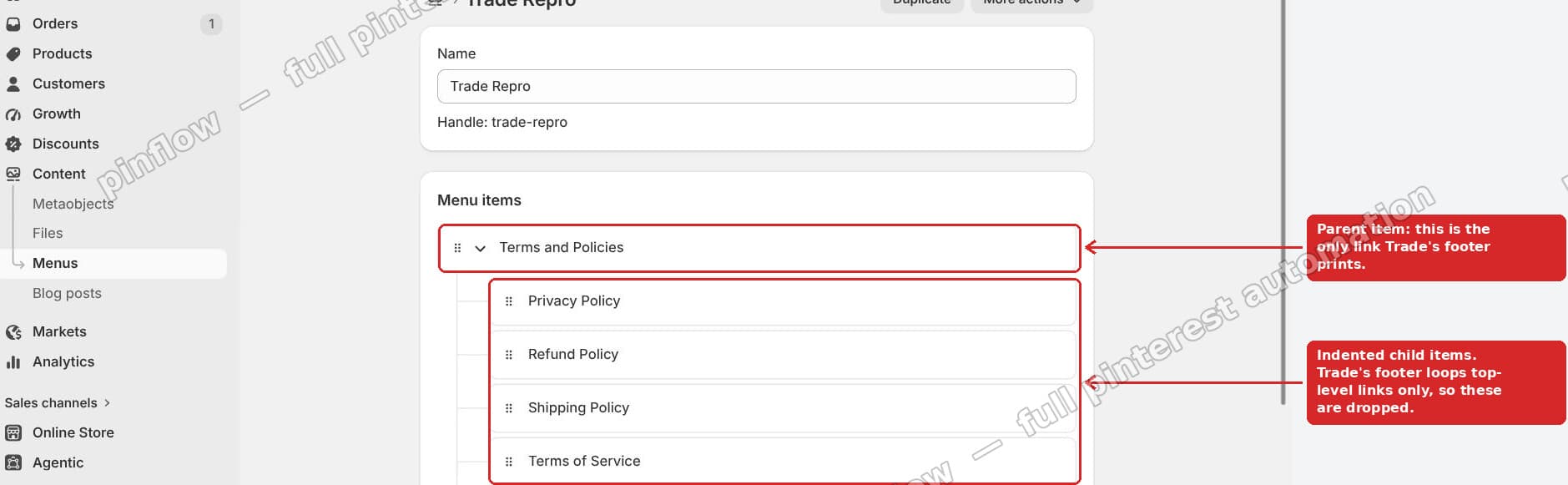 The menu showing Privacy, Refund, Shipping and Terms nested under a Terms and Policies parent
There it is. Privacy Policy, Refund Policy, Shipping Policy and Terms of Service are indented beneath a "Terms and Policies" item. They are child items in a two-level menu.
That structure is correct for a header, where children become a dropdown. Footers are different. Most themes loop only the top-level items of a footer menu and never render children, because a footer has no room for hover dropdowns and no sensible way to reveal a second level.
So the theme prints the parent, "Terms and Policies", and drops, with no error everything under it. No error, no warning. The links exist and are simply never output.
This is why the problem is so disorienting. Nothing looks broken in the admin. The menu is right there with all five items in it.
Fix 1: flatten the menu
Drag Privacy, Refund, Shipping and Terms out to the top level so they sit beside "Terms and Policies" rather than under it.
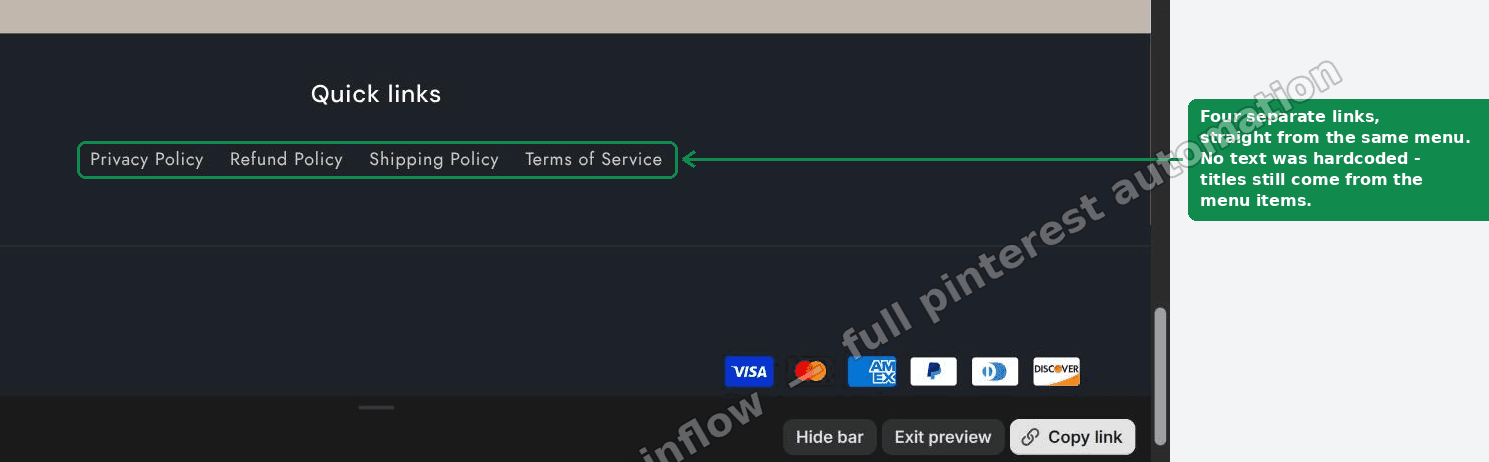 The same menu with the policy links dragged out to the top level
Save, reload the storefront, and all four print as separate links.
Delete the now-redundant "Terms and Policies" parent if you no longer want it, or keep it pointing somewhere useful.
The drag target is finicky: dragging an item slightly left promotes it to the top level, and slightly right nests it under whatever is above. If an item refuses to move, drop it at the bottom of the list first, then drag it up into position.
Fix 2: use the theme's built-in policy row
Many themes, Trade included, already have a policy link row that does not use a menu at all.
Go to Theme editor > Footer > Utilities > Policy links and tick it.
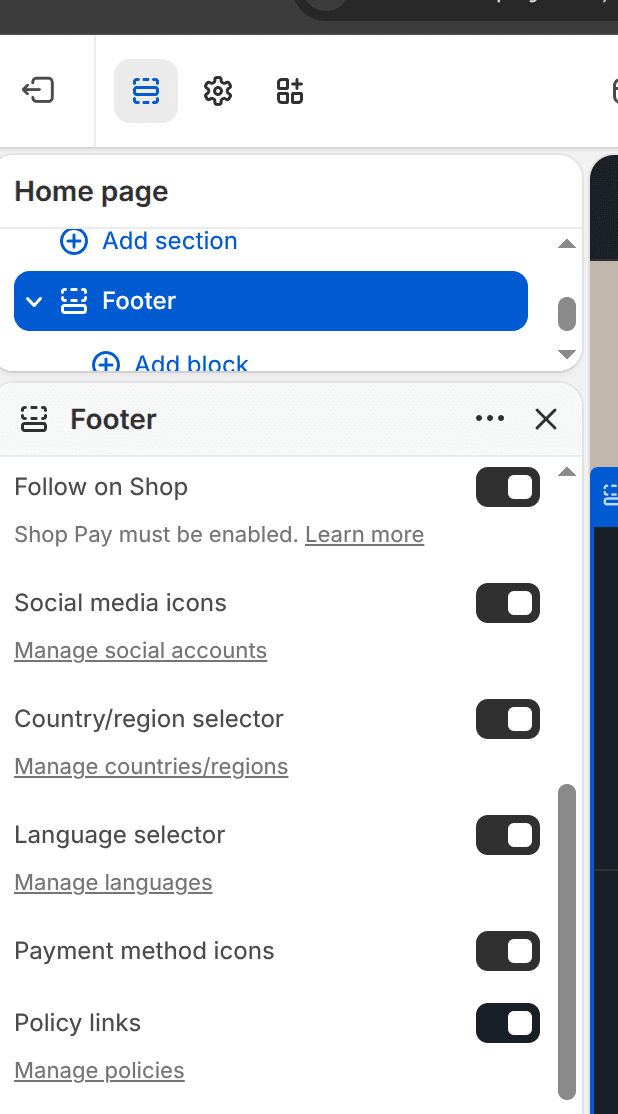 The Policy links toggle in the theme editor footer settings
Every policy you have published under Settings > Policies now prints as its own link automatically.
This is the better option when it exists, for a reason worth spelling out: it stays in sync. Publish a new policy and the link appears. Remove one and the link goes. There is no menu to maintain, and no chance of a link pointing at a policy you have since deleted.
It also means the policy links are correct in every language you sell in, since Shopify handles the localised policy URLs for you. A hand-built menu of policy links does not do that.
The trade-off is control. You get every published policy, in Shopify's order, with Shopify's names. If you need a specific subset, or want to call it "Returns" rather than "Refund policy", use the menu.
Other footer edits worth knowing
Since footer questions cluster, here is where the rest of it lives.
Change the footer link text. In Content > Menus, edit the menu item's name. The name is the visible text, and it is independent of the page title it points at. This is how you get "Returns" in the footer while the page itself is titled "Refund policy".
Add a footer menu. In the theme editor, select the Footer section and add a Menu block, then choose which menu it shows. Most themes support several, which is how you get columns of links with different headings.
Remove the newsletter signup. Theme editor, Footer section, find the newsletter block and either toggle it off or delete the block.
Social media icons. Usually a single toggle in the footer settings, with the actual URLs set in Theme settings > Social media. A common confusion: ticking the box does nothing if the URLs are blank, because there is nothing to link to. Themes generally hide icons for networks with no URL rather than showing a dead link.
Payment icons. Another toggle. These reflect the payment methods actually enabled in Settings > Payments, so you cannot show a card logo you do not accept.
"Powered by Shopify". Available on paid plans. Look in Theme settings or the footer section for the toggle. If your theme has no toggle, it is in the footer Liquid, usually as {{ powered_by_link }}. Removing it is allowed, and the toggle exists precisely so you do not have to edit code.
Copyright text. Usually generated from your store name and the current year. Themes that let you change it expose a field in the footer settings.
Getting the columns right
Footer columns confuse people because they are not always a setting.
In block-based themes such as Dawn, Horizon and Trade, each block you add becomes a column, and the theme decides how they wrap. Four menu blocks give four columns on desktop, stacking on mobile. There is often no explicit "number of columns" control, because the block count is the control.
If your footer looks lopsided, count your blocks. Three menus and a newsletter is four columns, and a fifth block will usually wrap onto a second row rather than squeeze in.
Check it on a phone. Footers stack, and a footer that is tidy on desktop can become a very long scroll of links on mobile. If yours runs past two screens, that is a signal to cut links rather than to style them smaller.
A note on what belongs in a footer
Worth a moment, since you are in there anyway.
Your policy links belong in the footer, and in most jurisdictions selling online they are effectively required to be findable. Refund, privacy, shipping and terms are the standard four, and a contact route is expected alongside them.
Beyond that, footers work best short. A footer with forty links is a footer people skip, and it dilutes the internal linking signal that makes the footer worth anything for SEO in the first place. Links you put in every page's footer are telling search engines those pages matter. If everything is in the footer, nothing is.
The links worth having sitewide are the ones a visitor might want from any page: policies, contact, about, and your main category pages. Seasonal promotions and individual products are not that.
If it is still not showing
You edited the wrong menu. Stores often have several. Check which one the footer block is actually set to in the theme editor, then edit that one. The menu named "Footer" is not necessarily the one your footer uses.
Items are still nested. Look for indentation in Content > Menus. This is the main cause.
The policy link goes nowhere. The policy is not published. Add the text under Settings > Policies and save. An empty policy has no page to link to.
You are previewing a different theme. Changes to an unpublished theme do not show on your live store. Confirm you are editing the theme marked Live, or open the preview URL for the one you edited.
Nothing you change appears. Hard refresh, or open the storefront in a private window. Footers are on every page and get cached aggressively.
Your theme has no Policy links toggle. Not all themes include one. Use the menu method instead.
What I confirmed on the test store
- Policy links nested under a parent item did not render in the Trade footer. Only the parent printed, with no error anywhere in the admin.
- Dragging them to the top level made all four appear immediately.
- The theme's built-in Policy links toggle printed every published policy without touching a menu at all, and stays in sync as policies change.
The short version: a footer menu is a flat list, even though the menu editor lets you build a tree. If a footer link has vanished, check for indentation before you check anything else. And if your theme offers a policy links toggle, use it, because a footer that maintains itself is worth more than one you have to remember to update.
A tidy store still needs people arriving at it
PinFlow turns your Shopify catalog into Pinterest pins and posts them on a schedule, so your storefront reaches shoppers who are not searching for you yet.
Get PinFlow on the Shopify App StoreMore Shopify fixes
More community-sourced Shopify guides, tested on a live store.
Themes & Storefront
Shopify Wishlist App: Add a Free Wishlist to Your Store
A free Shopify wishlist app: hearts on product cards, a Wishlist button on product pages and a wishlist page. Guest lists follow shoppers when they log in.
Themes & Storefront
Shopify Payment Icons: Fix a Footer That Shows None
The payment icons in a Shopify footer come from your payment provider, not from the theme. When the provider sends none, the row stays empty. Here is how to add the icons yourself on Refresh, Dawn and similar themes.
Themes & Storefront
Shopify Order Notes: Turn On the Cart Note Box
Let customers leave order notes and special instructions on your Shopify cart page. Turn on the built-in cart note in Theme settings, rename its label, and find each note on the order. Tested on Dawn, no code.