
Shopify Order Notes: Turn On the Cart Note Box
Let customers leave order notes and special instructions on your Shopify cart page. Turn on the built-in cart note in Theme settings, rename its label, and find each note on the order. Tested on Dawn, no code.
By AjayCodeWiz · October 20, 2026 · 8 min read
The problem
A merchant asked on the Shopify Community how to let customers add special instructions before they go to checkout. They wanted a box for things like gift messages or delivery notes, and they wanted to know whether Online Store 2.0 themes support it or whether it needs code.
It needs no code. Shopify calls this box the cart note, and most free Shopify themes ship with it switched off. One switch in the theme editor turns it on.
This article covers how to switch it on in Dawn, where each note shows up in your admin, how to change the wording customers see, and what to do in themes where the switch has a different name.
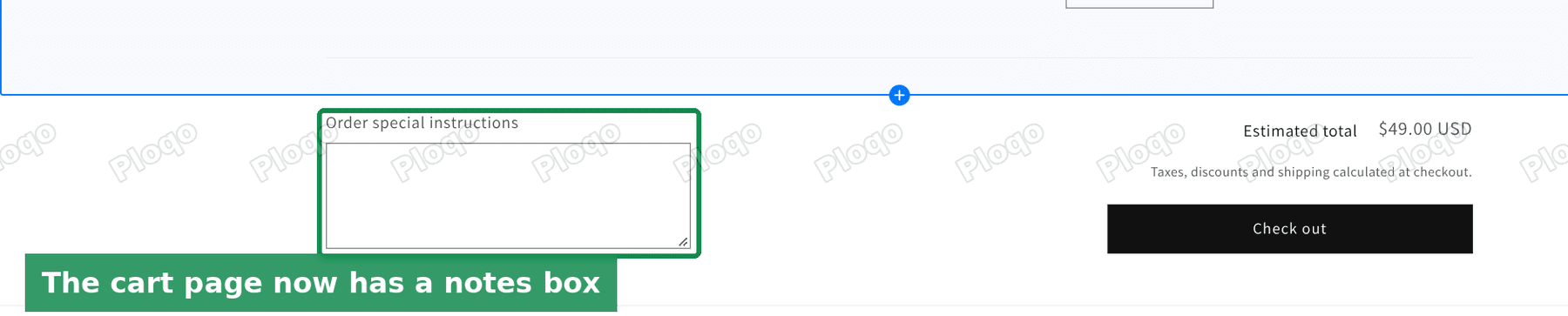 The notes box on the cart page, under the products and next to the Check out button
What a Shopify order note is
A cart note is a free-text box on the cart page. Whatever the customer types there is saved with their cart, travels through checkout with it, and lands on the order as the order note.
So "cart note", "order note", "order notes" and "special instructions" are the same thing seen from different places:
- Cart note is what the theme setting is called.
- Order special instructions is the label Dawn shows customers above the box.
- Notes is the card on the order page in your admin where you read it.
There is one note per order, not one per product. If a customer needs to say something about a single item, they write it in the same box and name the item.
How to turn on the cart note in Dawn
I reproduced this on a test store running Dawn 16.0.0. The steps are the same in earlier Dawn versions and in themes built on Dawn, such as Crave, Ride and Sense.
- In your Shopify admin, open Online Store > Themes. Next to your current theme, click Edit theme.
 Online Store, Themes, with the Edit theme button marked
- The theme editor opens. In the narrow bar on the far left, click the gear icon. That opens Theme settings, which holds the options that apply to the whole store rather than to one page.
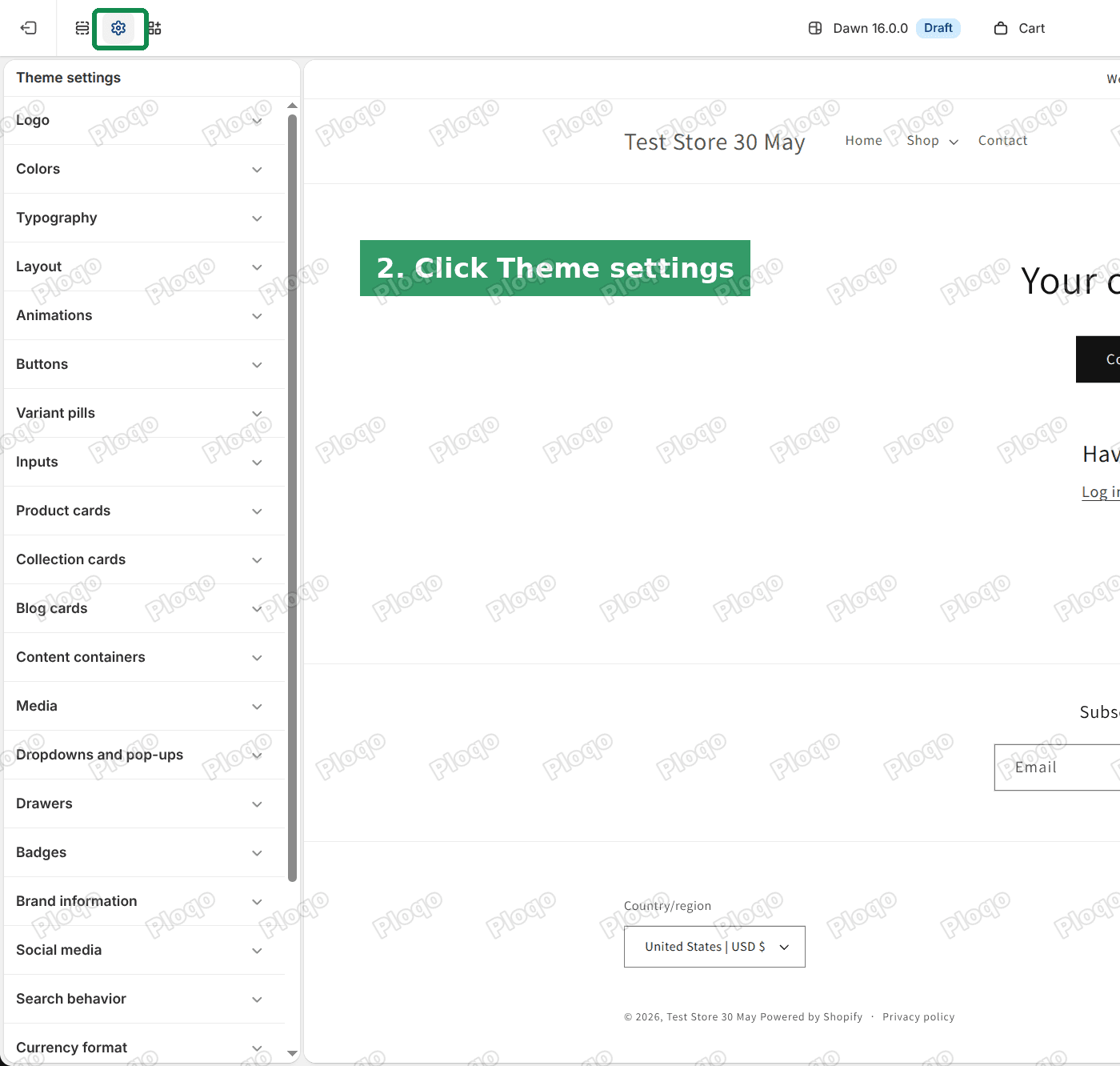 The theme editor with the Theme settings gear icon marked
- Scroll to the bottom of the Theme settings list and click Cart to expand it.
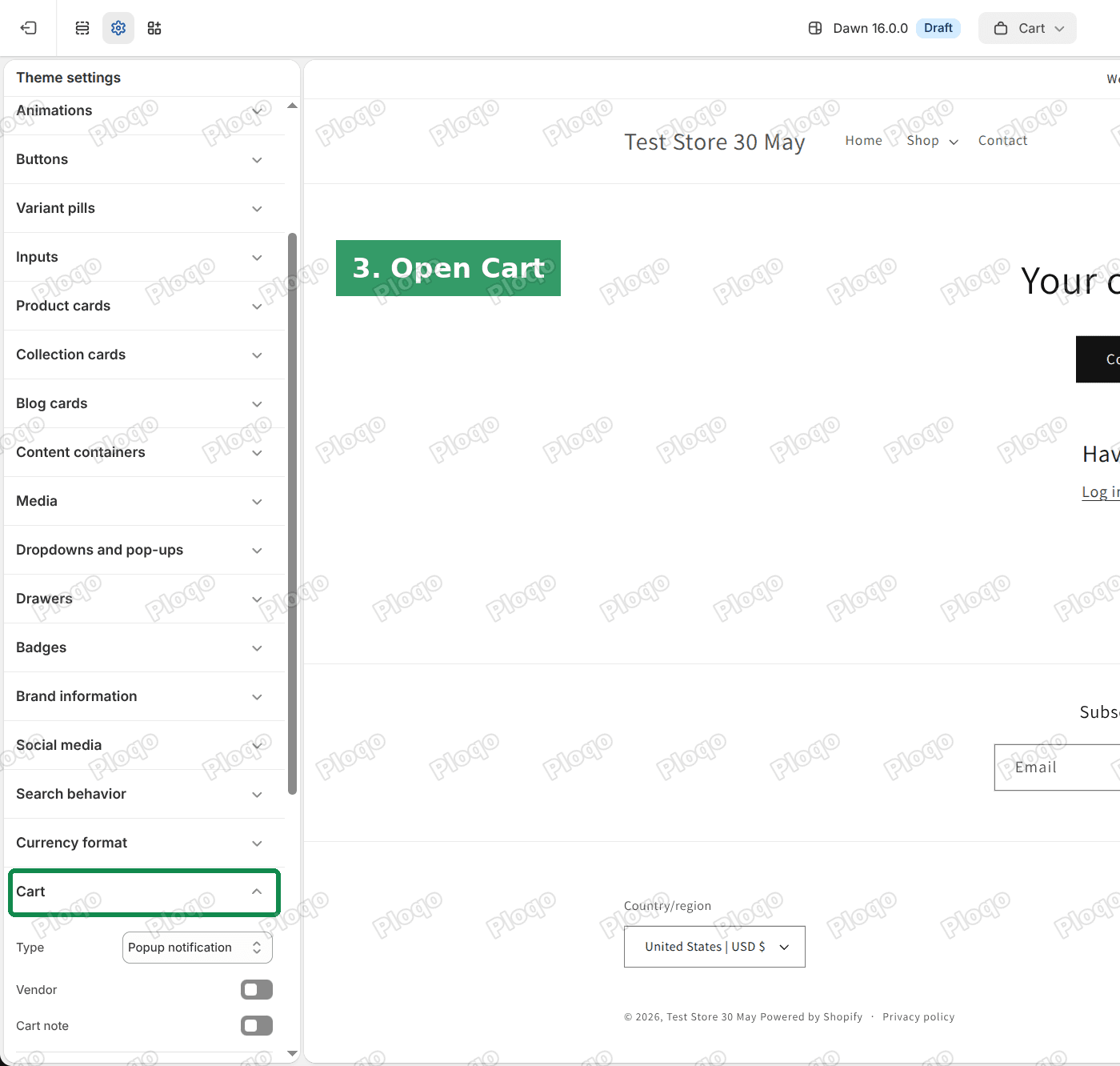 Theme settings list with the Cart group marked
- Turn on the Cart note switch.
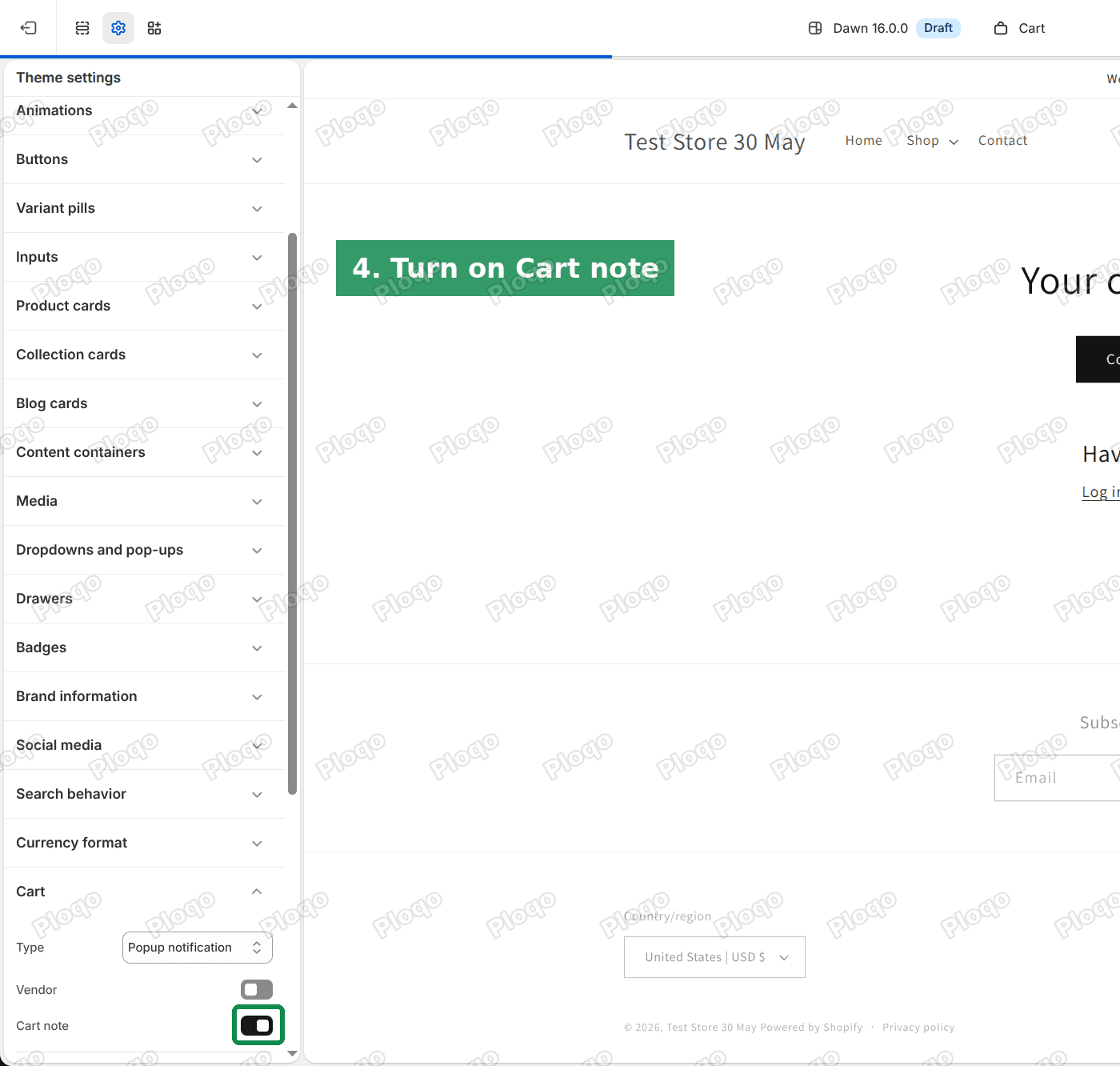 The Cart group expanded, with the Cart note switch turned on
- Click Save in the top right corner.
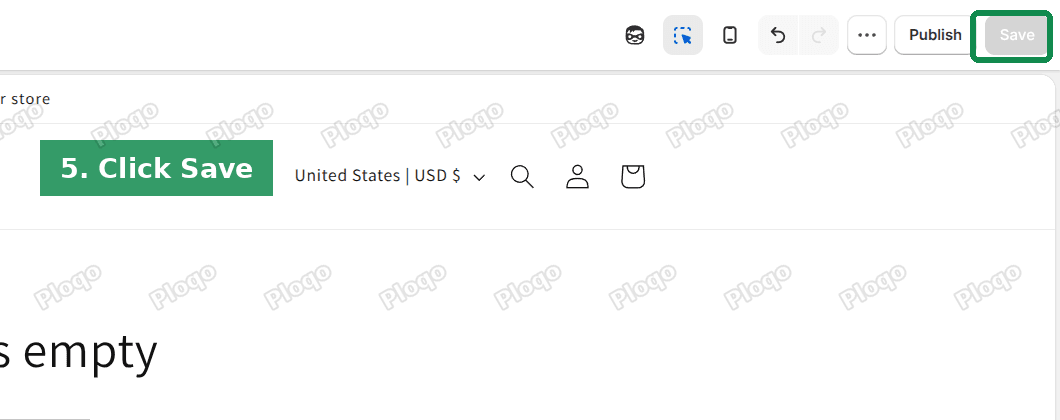 The Save button in the top right of the theme editor
Now add any product to your cart and open the cart page. The box appears under the list of products, beside the subtotal and the Check out button. The cart page only shows it when the cart has at least one item in it, because an empty cart shows a "Your cart is empty" message instead.
The box saves as the customer types. They do not need to press anything before clicking Check out.
Check your cart type first
Look at the setting just above Cart note, called Type. It decides what happens when a customer clicks Add to cart, and it changes where the note box can appear.
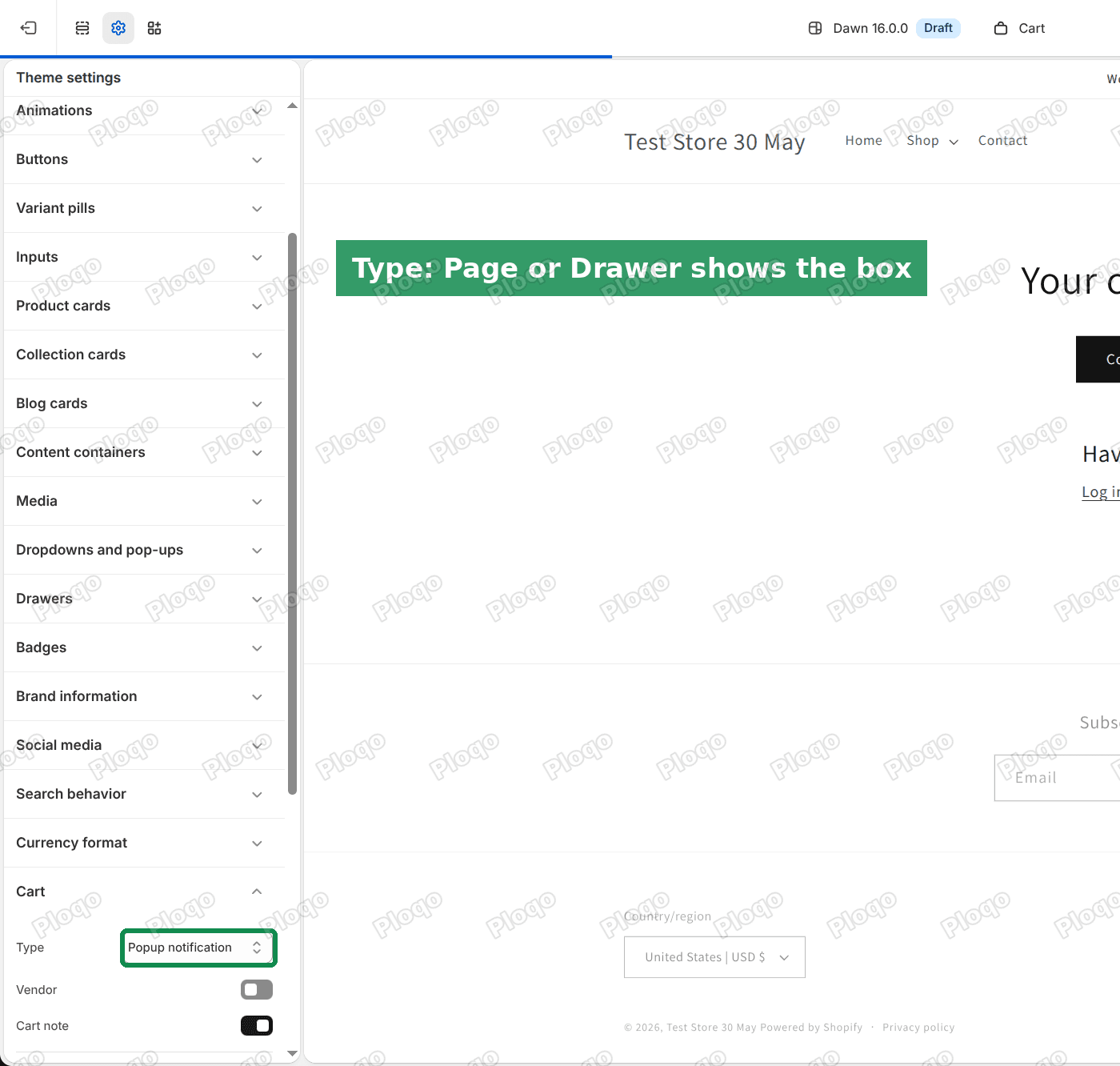 The Cart group in Theme settings, with the Type dropdown marked
Dawn offers three cart types:
- Page. Add to cart takes the customer to the full cart page, where the note box sits.
- Drawer. A panel slides in from the side. Dawn shows the note there too, as a collapsible "Order special instructions" row the customer clicks to open.
- Popup notification. A small popup confirms the item was added and offers a Check out button. The popup has no note box.
Popup notification is Dawn's default. With it, a customer who clicks Check out straight from the popup never sees the cart page, so they never see the box. If notes matter for your orders, set Type to Page or Drawer and save again.
Rename the box label
Dawn labels the box "Order special instructions". You can change that to something that tells customers what you want from them, such as "Gift message or delivery notes".
The wording is not in the cart settings. It is in the theme's text file, which you edit from the Themes page:
- Go to Online Store > Themes. Next to your current theme, click the ... button, then Edit default theme content.
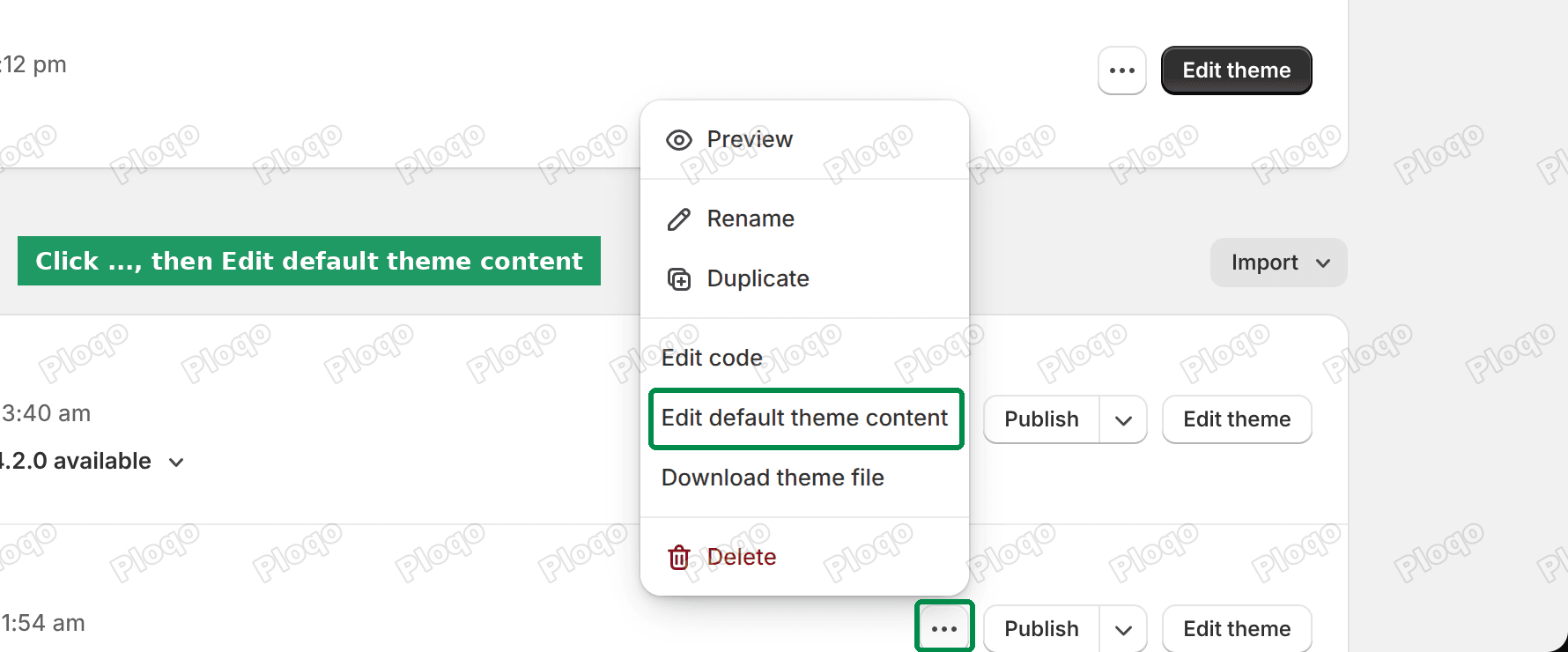 The theme actions menu open, with Edit default theme content marked
- Click the search icon, type
special instructions, and Shopify finds the Note field under Sections > Cart. Replace the text, then click Save.
 Theme content search for special instructions, showing the Cart Note field
This changes the label in both places, the cart page and the cart drawer. If your store sells in more than one language, each language has its own copy of this text, so change it in each one.
Where to find order notes in Shopify
Open Orders and click the order. The customer's note sits in the Notes card at the top of the right-hand column.
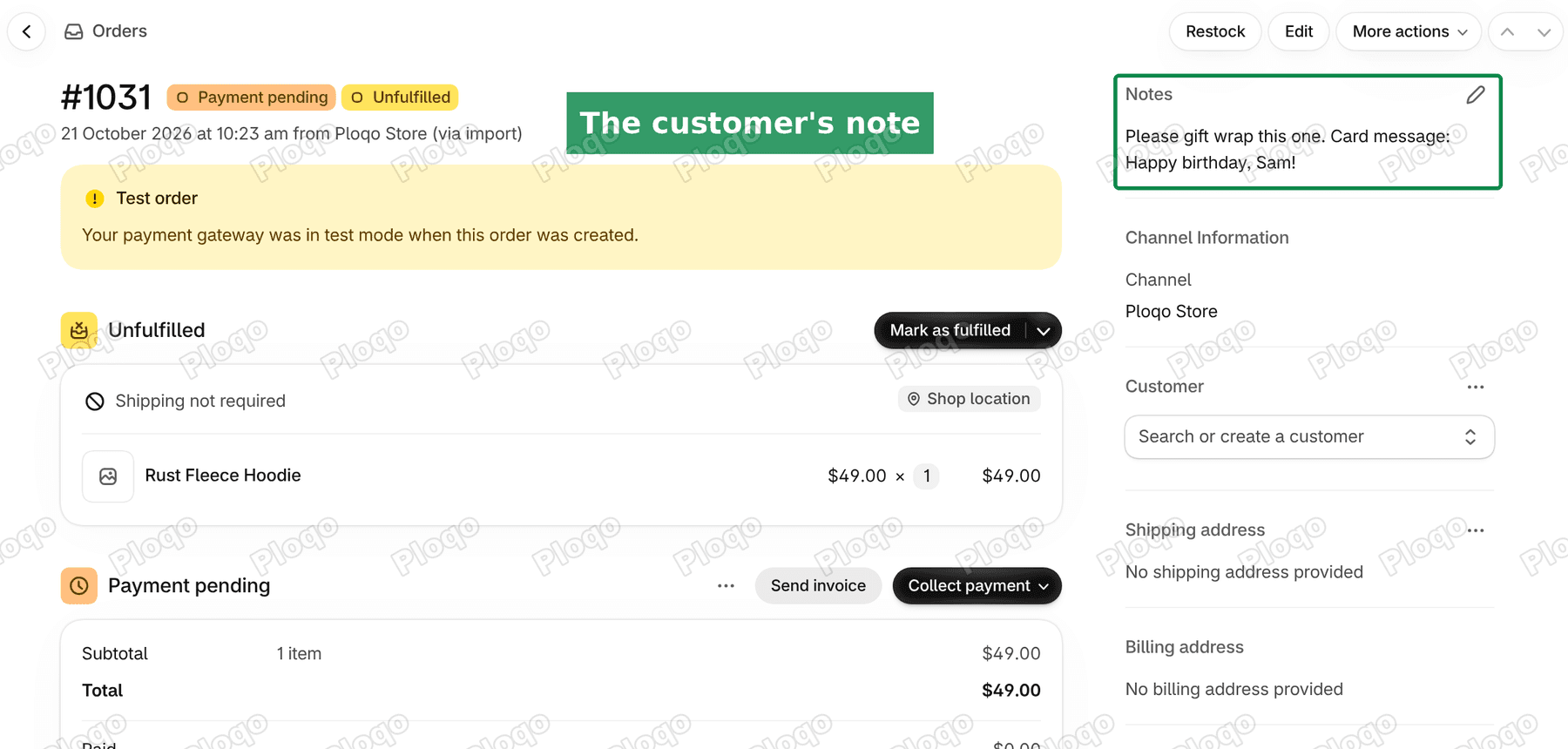 An order page in the Shopify admin with the customer's note in the Notes card
On my test store I placed an order with the note "Please gift wrap this one. Card message: Happy birthday, Sam!" and it appeared word for word in that card. The pencil icon on the card lets your staff edit the note later, for example to add "wrapped" once it is done.
To read many notes at once, use the orders export. On the Orders page, click Export. The CSV file has a Notes column with each order's note, which is handy when you pack a batch of orders together.
Using the cart note for a gift message
Gift messages are the most common reason merchants turn this on. The cart note handles them well, with two limits to plan for:
- It is one box for the whole order. A customer sending two gifts to two people writes both messages in the same box. Rename the label to say so, for example "Gift message (one per item, please name the item)".
- It does not print a card by itself. You read the note on the order, then write or print the card yourself before you pack the parcel.
If you need a separate, required field per product, such as an engraving line on one product only, that is a product option rather than a cart note. Shopify's built-in tools cannot make a free-text field on a single product without code or an app.
Cart note in Horizon, Fabric and other themes
The setting is in the same place in most free Shopify themes, but its name changes:
| Theme | Where | Setting name |
|---|---|---|
| Dawn, Crave, Sense, Ride and other Dawn-based themes | Theme settings > Cart | Cart note |
| Horizon, Fabric and the 2025 themes built on Horizon | Theme settings > Cart | Allow note to seller |
| Debut and other older vintage themes | Cart page section settings | Enable cart notes |
In Horizon and Fabric, a second switch appears once you turn the note on: Open note to seller by default. With it off, customers see a closed "Special instructions" row they have to click. With it on, the box is already open, so customers can start typing without a click.
Paid themes usually have the same setting under Theme settings > Cart, or in the settings of the Cart section when you open the cart page in the editor. Search the editor's left panel for "note" if you cannot find it.
Order notes at checkout
Many merchants look for a notes field at checkout rather than on the cart page. Shopify's checkout has no built-in notes field, and adding your own fields to the checkout steps needs a Shopify Plus plan.
So on other plans the cart page and cart drawer are the places to collect a note.
Customers who click a Buy it now button on the product page skip both of them. That button goes straight to checkout, so they never see the cart or the note box. If notes are important to you, add a line on the product page saying where to leave one. You can also turn off the Buy it now button in the product page settings of the theme editor, so every order passes through the cart.
Cart note, cart message and cart attributes
These three get confused, so here is how they differ:
- Cart note is the box the customer types into. It is what this article turns on.
- A message on the cart page is text you write for every customer to read, such as a shipping notice. That one is added with a section in the theme editor, covered in how to edit the Shopify cart page and add a message.
- Cart attributes are extra named fields saved with the cart, such as a delivery date picker or a "How did you hear about us?" dropdown. Each one needs code added to the theme or an app. They show on the order under Additional details, separate from the note.
For a single free-text box, the cart note is the simplest choice and needs nothing but the switch.
If the box does not show
- Your cart is empty. The cart page hides the box until there is at least one item. Add a product, then open the cart.
- You saved a different theme. The editor shows the theme name at the top. A draft theme does not change your live store until you publish it. Edit the theme marked Current theme on the Themes page.
- Your cart type is Popup notification. The popup has no note box. Open
/carton your store directly to check the page, then change Type to Page or Drawer. - The switch has another name. In Horizon and Fabric it is "Allow note to seller". Check the table above.
- Your theme has no note setting. Some older or heavily customised themes removed it. Ask the theme's developer, because adding the box back means editing the cart page code.
The merchant's question was whether this needs code. On Dawn and the current Shopify themes it does not: one switch turns the box on, and every note arrives on the order page.
Spending too long on manual Shopify busywork?
PinFlow turns your Shopify catalog into Pinterest pins and posts them on a schedule, automatically. Same idea as the rule above, let the system handle the repetitive part.
Get PinFlow on the Shopify App StoreMore Shopify fixes
More community-sourced Shopify guides, tested on a live store.
Themes & Storefront
Shopify Payment Icons: Fix a Footer That Shows None
The payment icons in a Shopify footer come from your payment provider, not from the theme. When the provider sends none, the row stays empty. Here is how to add the icons yourself on Refresh, Dawn and similar themes.
Themes & Storefront
Shopify WhatsApp Integration: Add a Free Chat Button
How to add WhatsApp to Shopify with a floating chat button: shoppers tap it and WhatsApp opens a chat with you, the message already typed and naming the product.
Themes & Storefront
Shopify Estimated Delivery Date Countdown, No App
Show an "order within 3 hours to get it by Saturday" estimated delivery date on your Shopify product page, with a 4pm cut-off, dispatch days and no Sunday deliveries. One free Custom Liquid block, tested on Dawn.