
Shopify Payment Icons: Fix a Footer That Shows None
The payment icons in a Shopify footer come from your payment provider, not from the theme. When the provider sends none, the row stays empty. Here is how to add the icons yourself on Refresh, Dawn and similar themes.
By AjayCodeWiz · October 21, 2026 · 9 min read
Where Shopify payment icons come from
Payment icons are the small card logos at the bottom of a store: Visa, Mastercard, PayPal, Apple Pay and so on. On most free Shopify themes they sit in the footer, on the right, next to the country selector. Shoppers glance at them to check that their card will work before they reach checkout.
The theme does not keep its own set of these logos. When you tick the payment icons setting in the footer, the theme asks Shopify which payment methods the store accepts, and prints one icon for each. Shopify gets that list from your payment provider, which is the company that takes the card payment for you (Shopify Payments, PayPal, Stripe, a local bank gateway and so on).
So there are two switches behind each icon:
- the footer setting in your theme, which decides whether the row is shown at all
- the payment provider in your admin, which decides what goes in the row
If the first switch is on and the second one gives Shopify nothing, the footer shows an empty row. There is no error message anywhere. The checkbox is ticked, the store takes payments, and the icons are still missing.
The question from the Shopify Community
A merchant on the Shopify Community ran the Refresh theme. Refresh is one of Shopify's free themes, built on the same code as Dawn. They had ticked the payment method icons setting, but no icons appeared in the footer.
Other replies suggested the usual checks: finish the Shopify Payments setup, make sure you are editing the live theme, clear the browser cache. The merchant answered that none of it applied. Their payment provider was fully set up, payments were going through, and the provider had no option anywhere to turn icons on or off.
That is the case where the provider does not pass its card types to Shopify. Some providers do, and you get the icons for free. Some do not, and the theme has nothing to print.
I reproduced it on a test store running Refresh 16.1.0. With the footer row empty, the bottom of the page shows only the country selector and the copyright line.
 Refresh theme footer with no payment icons, only the country selector and copyright line
After adding a small piece of code from the theme editor, the same row shows the seven icons I picked.
 Refresh theme footer after the fix, showing Visa, Mastercard, American Express, PayPal, Apple Pay, Google Pay and Klarna icons
First, check the footer setting
Before adding any code, rule out the simple cause. On Refresh, Dawn and the other themes built on Dawn, the setting is called Payment method icons and it lives in the Footer section of the theme editor.
 Theme editor with the Footer section open and the Payment method icons switch turned on, and the icons showing in the footer preview
On my test store, with Shopify's test payment gateway active, this switch shows six icons: Visa, Mastercard, American Express, PayPal, Diners Club and Discover. With the switch off, the whole row is removed from the page.
If the switch is on and you see icons in the editor preview but not on your live store, you are probably editing a theme that is not published. Check the theme name at the top of the editor against the one marked as your current theme in Online Store > Themes.
If the switch is on and the row is empty everywhere, the provider is the cause. Move on to the fix below.
How to add payment icons to the Shopify footer yourself
The fix is a Custom Liquid section. Custom Liquid is a box in the theme editor where you paste code, and Liquid is the code Shopify themes are written in. The code below holds your own list of icons and drops them into the footer row the theme already has, so they line up exactly where the built-in icons would go.
1. Open the theme editor
From your Shopify admin, open Online Store. On the theme you are using, click Edit theme.
 Shopify admin Online Store page with Online Store highlighted in the sidebar and the Edit theme button highlighted on the current theme
2. Add a Custom Liquid section to the footer
In the left sidebar, find the Footer group. Click Add section under it, then pick Custom Liquid.
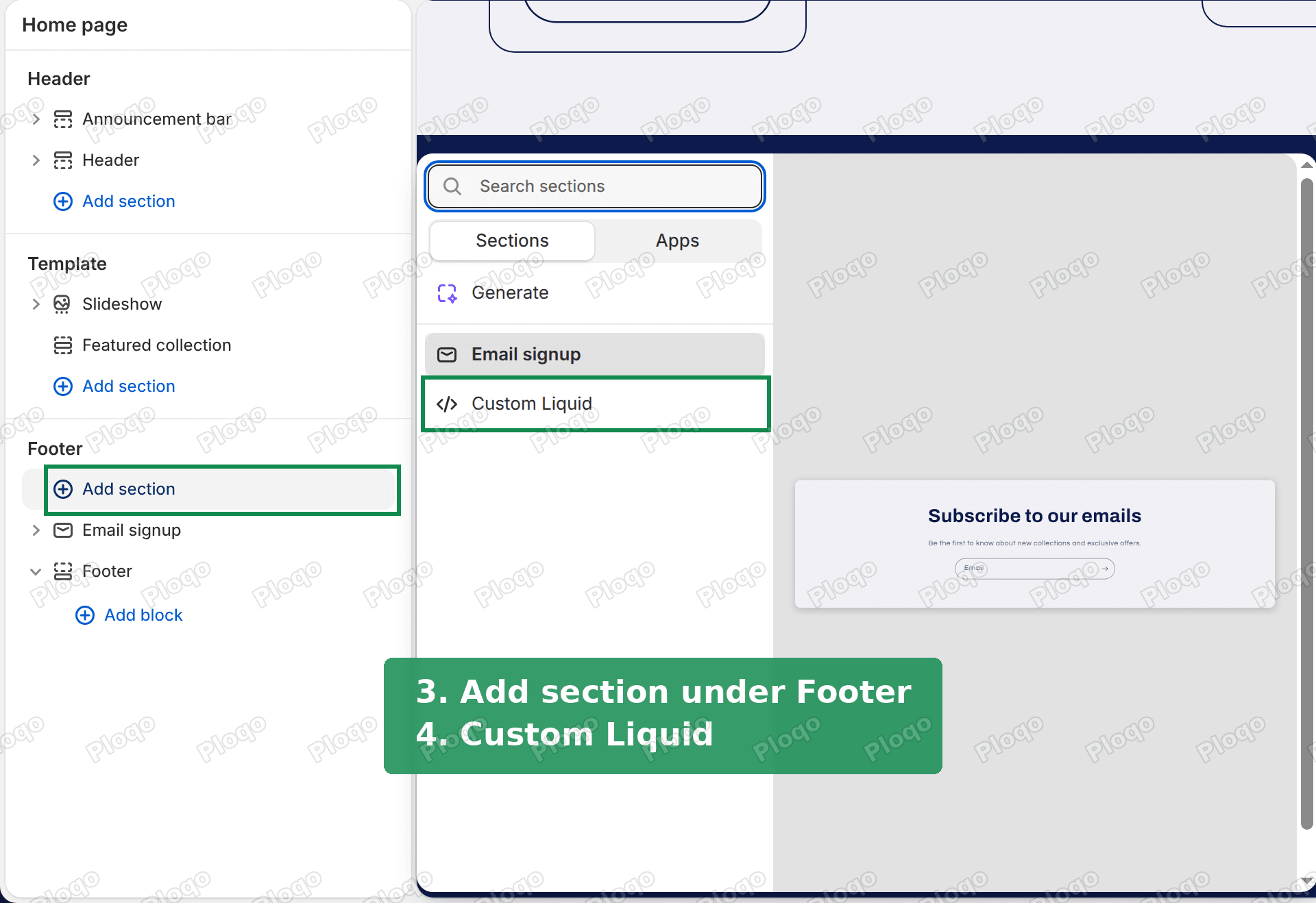 Theme editor sidebar with Add section under Footer highlighted and Custom Liquid highlighted in the section picker
The new section appears at the top of the footer group, above the email signup. That position does not matter. The code hides the section itself and only moves the icons into the footer.
3. Paste the code
Click inside the Liquid code box and paste this:
{%- assign icons = 'visa,master,american_express,paypal,apple_pay,google_pay,klarna' | split: ',' -%}
<template id="payment-icons">
{%- for icon in icons -%}
<li class="list-payment__item">{{ icon | payment_type_svg_tag: class: 'icon icon--full-color' }}</li>
{%- endfor -%}
</template>
<style>#shopify-section-{{ section.id }} { display: none; }</style>
<script>
document.addEventListener('DOMContentLoaded', function () {
var list = document.querySelector('.footer__payment .list-payment');
var icons = document.getElementById('payment-icons');
if (list && icons) list.innerHTML = icons.innerHTML;
});
</script>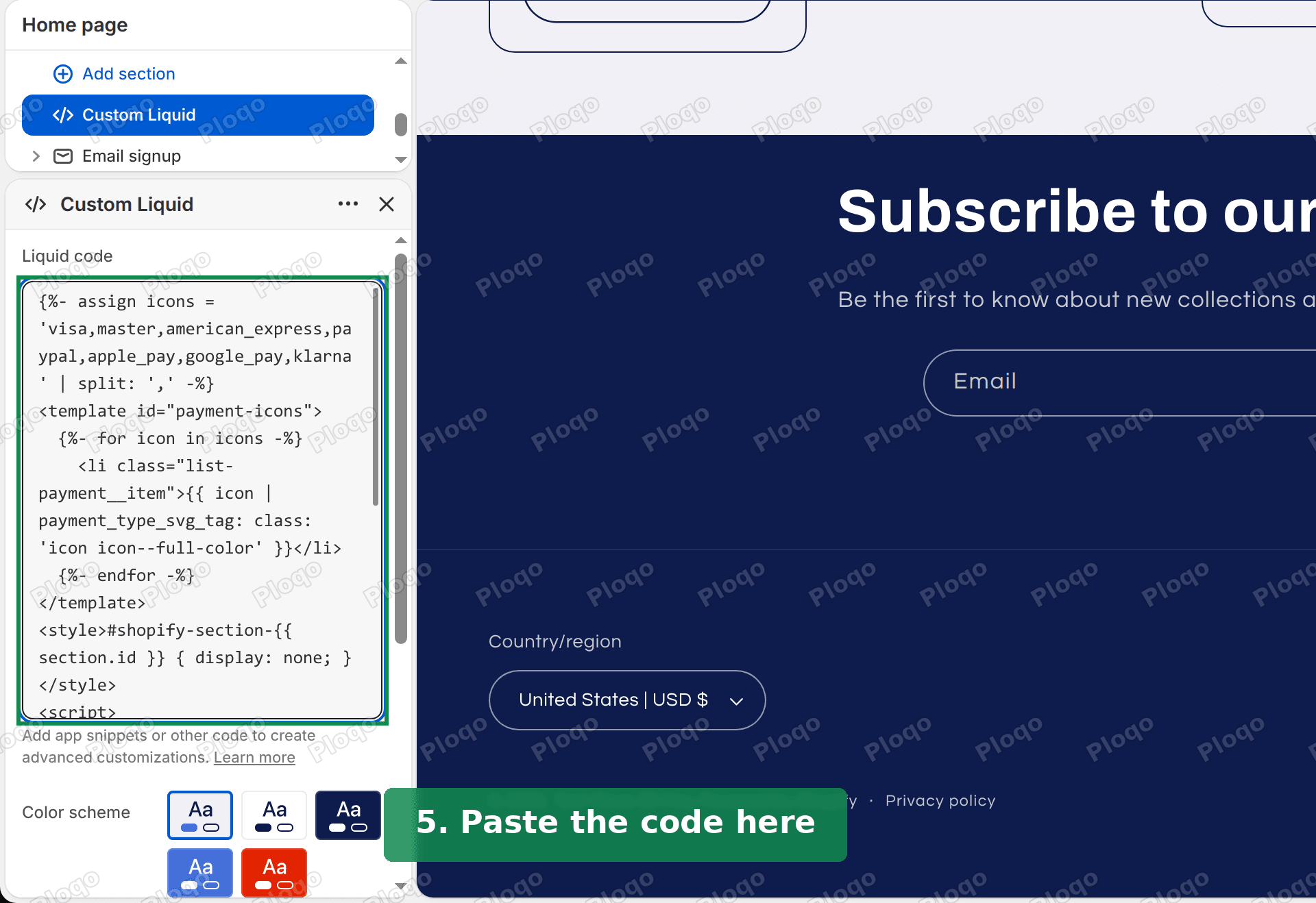 Custom Liquid section open in the theme editor with the payment icons code pasted into the Liquid code box
4. Save
Click Save in the top right corner of the editor.
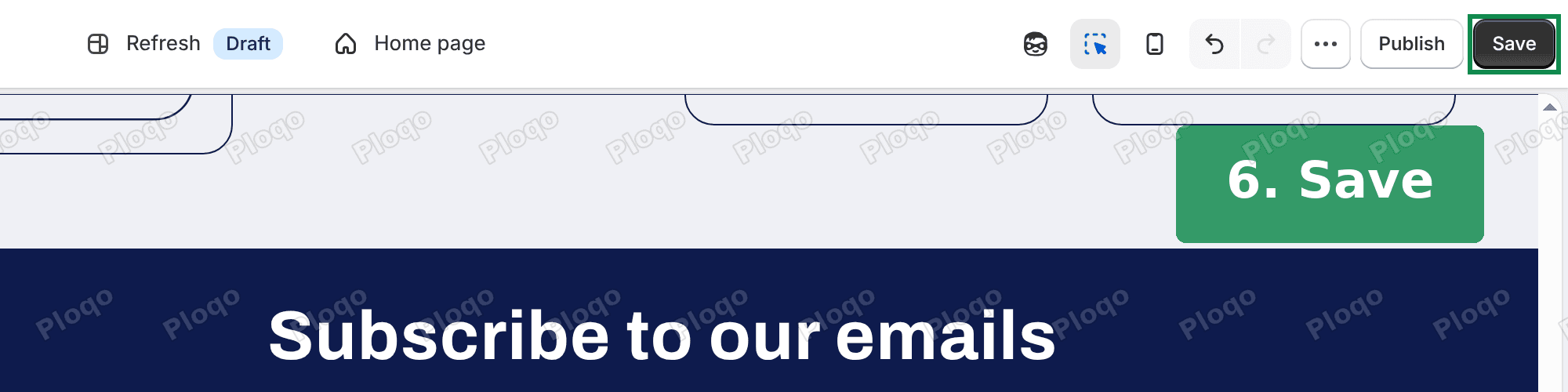 Theme editor top bar with the Save button highlighted
The editor preview does not always redraw the footer straight away, because the code runs when the page first loads. Reload the editor, or open your store in a new tab, and the icons are in the footer.
On my test store the row went from the six icons the gateway reports to the seven in the code, in the same place and at the same size.
Choosing which icons to show
The first line of the code is the list. Each name between the commas becomes one icon, in that order. To show only Visa, Mastercard and PayPal, the first line becomes:
{%- assign icons = 'visa,master,paypal' | split: ',' -%}These names all rendered on my Refresh test store:
| Name in the code | Icon |
|---|---|
| visa | Visa |
| master | Mastercard |
| american_express | American Express |
| paypal | PayPal |
| apple_pay | Apple Pay |
| google_pay | Google Pay |
| klarna | Klarna |
| discover | Discover |
| diners_club | Diners Club |
Keep the names lowercase, with underscores instead of spaces, and no spaces after the commas.
Only list methods your checkout really accepts. A shopper who sees an Apple Pay icon in the footer and finds no Apple Pay button at checkout has a reason to leave.
Leave the footer setting switched on
The code fills the row the theme draws when Payment method icons is on. If you switch that setting off, the theme removes the row, and the code has nowhere to put the icons. So leave the switch on.
If your provider starts passing its card types to Shopify later, the code still wins. Your own list replaces whatever the theme would have shown, so you never get two rows of icons.
Which themes this works on
The code looks for the footer row by its name in the theme's code. Refresh, Dawn and Spotlight all use the same footer code for the payment row, which I checked in Dawn 15.4.1, Dawn 15.5.0, Spotlight 16.0.0 and Refresh 16.1.0. I tested the fix itself on Refresh 16.1.0. Other free themes from the Dawn family, such as Crave, Ride, Sense, Studio, Craft and Colorblock, are built from the same base, so the same code should work there too.
Newer themes such as Horizon are built differently and name their footer parts differently. On those, the code finds no row and does nothing. It does not break the page.
If you are on a paid theme, open your store, right-click the footer and choose Inspect. If you see a list with the class list-payment inside a block called footer__payment, the code should work as it is.
Check what your payment provider sends to Shopify
It is worth a look at your payment settings before or after the fix, so you know which methods are really on.
Go to Settings > Payments. Each active provider is listed with its payment methods. Shopify Payments shows its card logos right on this page. Other providers are listed by name, and many have a Payment methods link where you can turn card types on and off.
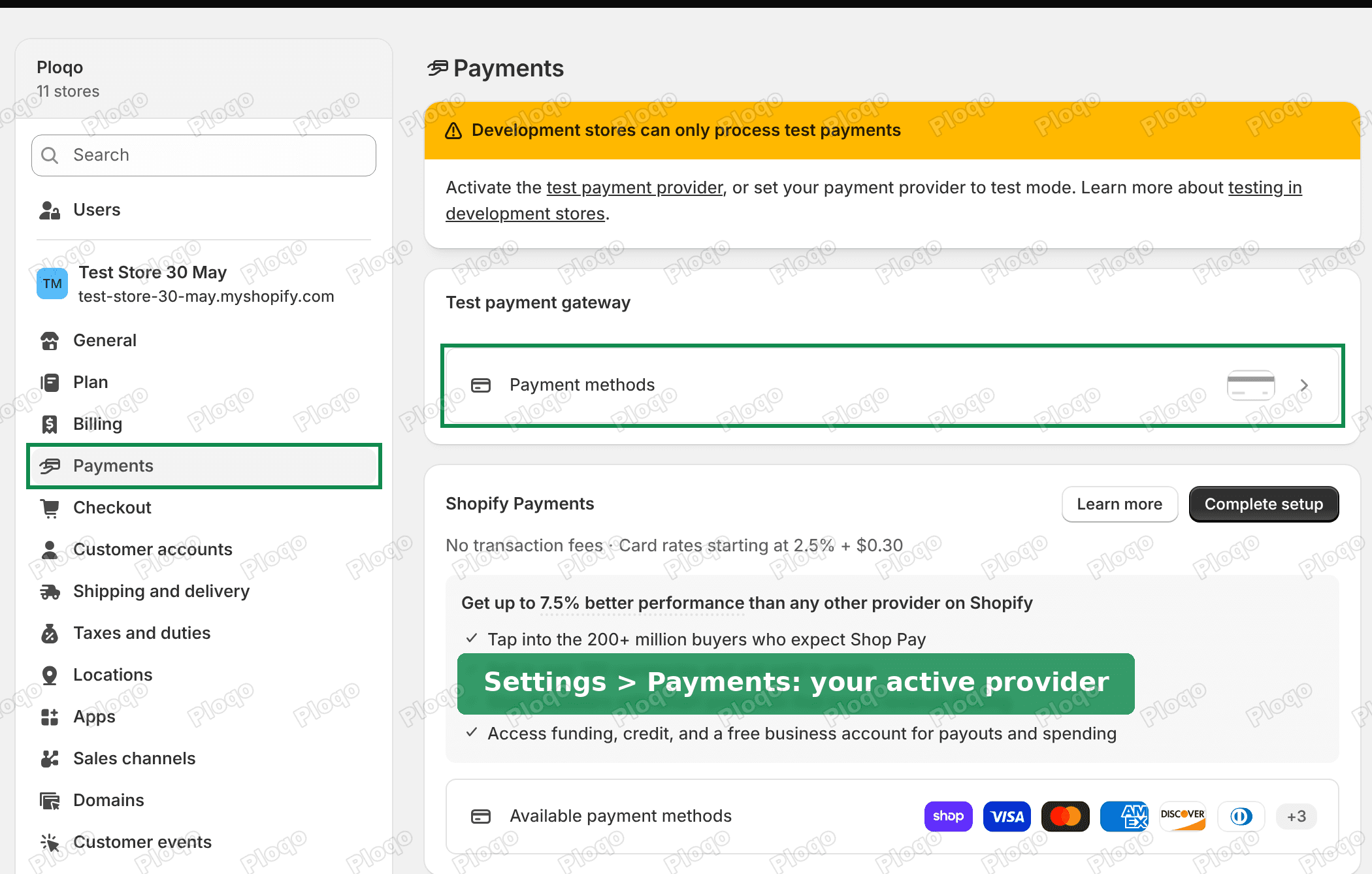 Shopify admin Settings, Payments page with the Payments menu item and the active provider's Payment methods card highlighted
A few things you may see here:
- Shopify Payments says "Complete setup". Finish the setup first. Until then, do not expect its card icons in the footer.
- Your provider has no payment methods list. This is the case from the forum thread. The provider takes payments, but it does not tell Shopify which cards it accepts. Use the code above.
- Only manual methods are active, such as bank transfer or cash on delivery. These have no card logos, so the footer stays empty. If you take bank transfers only, leave the icons off rather than showing cards you cannot accept.
For more on running a store on a provider other than Shopify Payments, see Shopify Payments alternatives.
Payment icons on the product page
The footer is not the only place for icons. Some merchants also want them right under the Add to cart button, where the buying decision happens. The same payment_type_svg_tag code works there inside a Custom Liquid block on the product page. The product page buy box guide walks through that layout with trust badges and a payment icon row under the price.
If the icons still do not show
The row is still empty after saving. Reload the page. The code runs once when the page loads, and the theme editor does not always reload the footer after a save.
Nothing changed on the live store. Check you edited your current theme. The editor's top bar shows the theme name. A theme marked Draft is not the one shoppers see.
One icon is missing from the row. Check the spelling of that name in the first line against the table above. The names must match exactly.
The icons show on the home page but not on other pages. Footer sections are shared by every page, so this should not happen. If it does, you added the Custom Liquid section to one page template instead of the Footer group. Delete it there and add it under Footer in the sidebar.
The theme was updated and the icons are gone. A theme update can rename parts of the footer. Repeat the Inspect check above and look for the new name.
How to remove the icons again
In the theme editor, click the Custom Liquid section under Footer, scroll to the bottom of its settings and click Remove section, then Save. The footer goes back to whatever your payment provider reports.
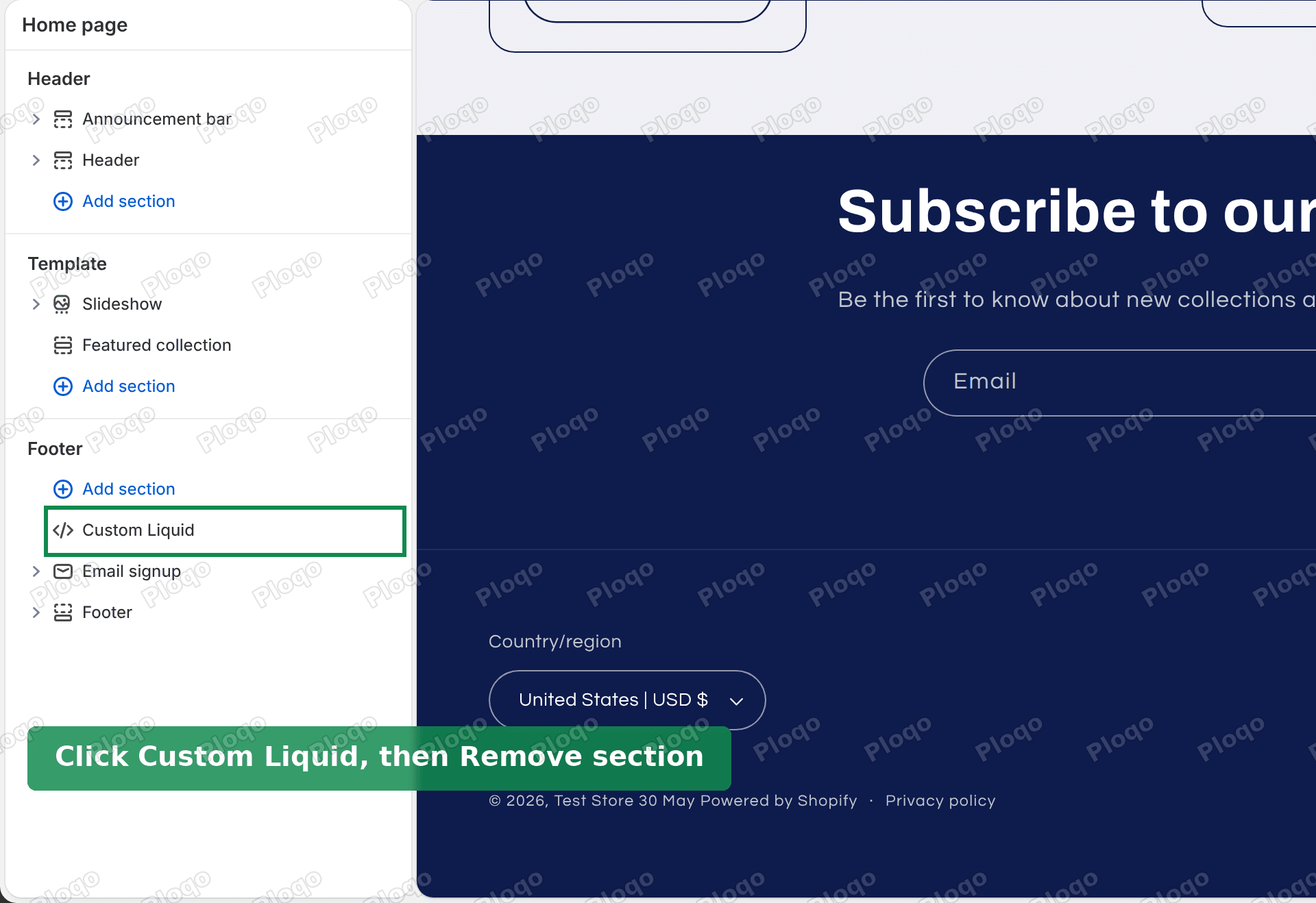 Theme editor sidebar with the Custom Liquid section highlighted under the Footer group
If you would rather keep other footer content and need to know where the rest of it is edited, the guide to editing the Shopify footer covers menus, policy links and the other footer settings.
Spending too long on manual Shopify busywork?
PinFlow turns your Shopify catalog into Pinterest pins and posts them on a schedule, automatically. Same idea as the rule above, let the system handle the repetitive part.
Get PinFlow on the Shopify App StoreMore Shopify fixes
More community-sourced Shopify guides, tested on a live store.
Themes & Storefront
Shopify Order Notes: Turn On the Cart Note Box
Let customers leave order notes and special instructions on your Shopify cart page. Turn on the built-in cart note in Theme settings, rename its label, and find each note on the order. Tested on Dawn, no code.
Themes & Storefront
Shopify WhatsApp Integration: Add a Free Chat Button
How to add WhatsApp to Shopify with a floating chat button: shoppers tap it and WhatsApp opens a chat with you, the message already typed and naming the product.
Themes & Storefront
Shopify Estimated Delivery Date Countdown, No App
Show an "order within 3 hours to get it by Saturday" estimated delivery date on your Shopify product page, with a 4pm cut-off, dispatch days and no Sunday deliveries. One free Custom Liquid block, tested on Dawn.