
Send Shopify Order Notifications to a Shared Inbox
Some payment notifications go to the store owner and nowhere else, and no notification setting changes it. A three-step Shopify Flow workflow routes them wherever you want, free.
By AjayCodeWiz · July 23, 2026 · 9 min read
The problem
A merchant on the Shopify Community had a specific, very ordinary request. When they edit an order and send an additional invoice, and the customer pays it, the payment notification email goes to the store owner's personal address. They wanted it in their shared team inbox instead.
They had already done the obvious things:
- Changed Settings > General > Store contact email to the team mailbox
- Added the team address under Settings > Notifications > Staff notifications
Neither worked. The email kept arriving at the owner's address only.
The replies concluded that this particular notification is tied to the store owner, cannot be reconfigured, and that an email forwarding rule from the owner's inbox is the only workaround.
Forwarding works, but it means the routing lives in one person's mailbox. When that person leaves, or turns off the rule, the team stops, with nothing to flag it hearing about payments. That is a bad place for a business process to live.
Shopify Flow solves it properly, and Flow is free.
Why the notification settings do not cover this
Worth understanding, because it explains why people burn an hour in Settings first.
Shopify's notification system has three different concepts that all look like "who gets emailed":
Store contact email is the address Shopify uses to contact you about your store: billing, platform notices, account issues. It is not a routing rule for order events.
Sender email is the from address on emails your store sends to customers. Changing it does not change who receives anything.
Staff notifications are a specific, finite list of events, each with its own recipient list. You can add a recipient to the events on that list. Events that are not on that list cannot be redirected, and this payment notification is one of them.
So the merchant was not missing a setting. There genuinely is no setting for this particular email, and no amount of clicking finds one.
The general rule: Staff notifications is an allowlist, not a router. If the event you care about is not one of the entries, Settings will not help you.
The fix: a three-step Flow workflow
Flow is Shopify's free automation app. It listens for events and takes actions, and one of its actions is sending an internal email to whatever address you specify.
Here is the finished workflow.
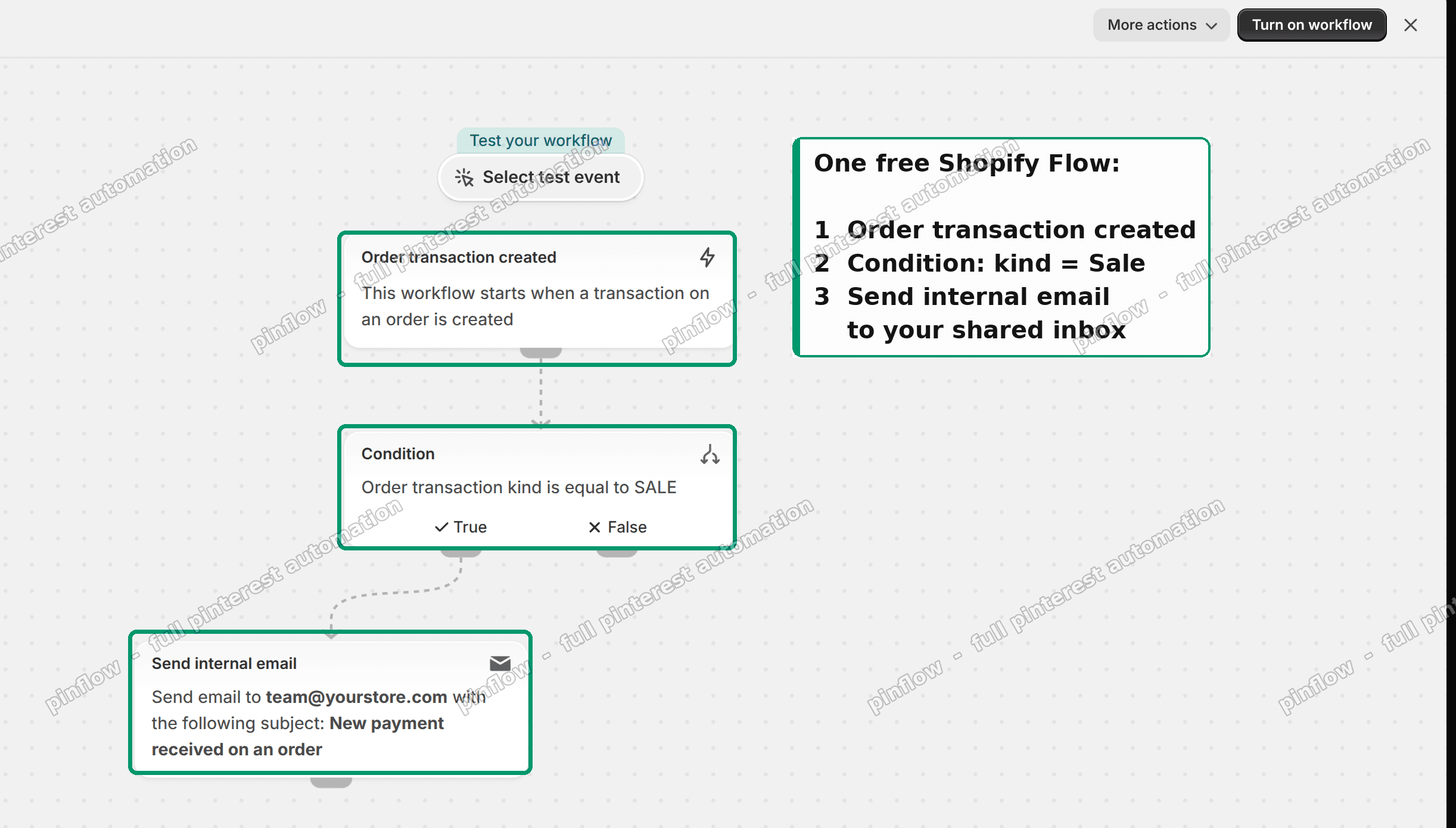 The finished Flow: Order transaction created, then keep only kind equals Sale, then Send internal email to your shared inbox
Three steps. Trigger, condition, action.
Step 1: install Flow and create a workflow
If it is not installed, get Shopify Flow from the App Store. It is free and first party.
Open it and click Create workflow.
Step 2: pick the Order transaction created trigger
Click Select a trigger, search for transaction, and choose Order transaction created.
This is the important choice, and it is the one that makes this work at all.
The obvious trigger is Order paid. Do not use it here. Order paid fires on the order's payment status changing to paid, and an additional invoice on an already-paid order does not always produce that transition. The payment happens, money moves, and the trigger never fires.
Order transaction created fires on the transaction itself. Every payment, on every order, edited or not, produces a transaction. It catches what Order paid misses.
Step 3: filter out refunds and authorizations
A transaction is not necessarily a payment. Refunds, authorizations, voids and captures are all transactions, and you do not want an email for each one.
Add a condition:
Order transaction kind is equal to Sale.
If you want to be strict, add a second criterion: Transaction status is equal to Success. That excludes failed payment attempts, which otherwise generate an email saying money arrived when it did not.
Step 4: send the internal email
Add the action Send internal email.
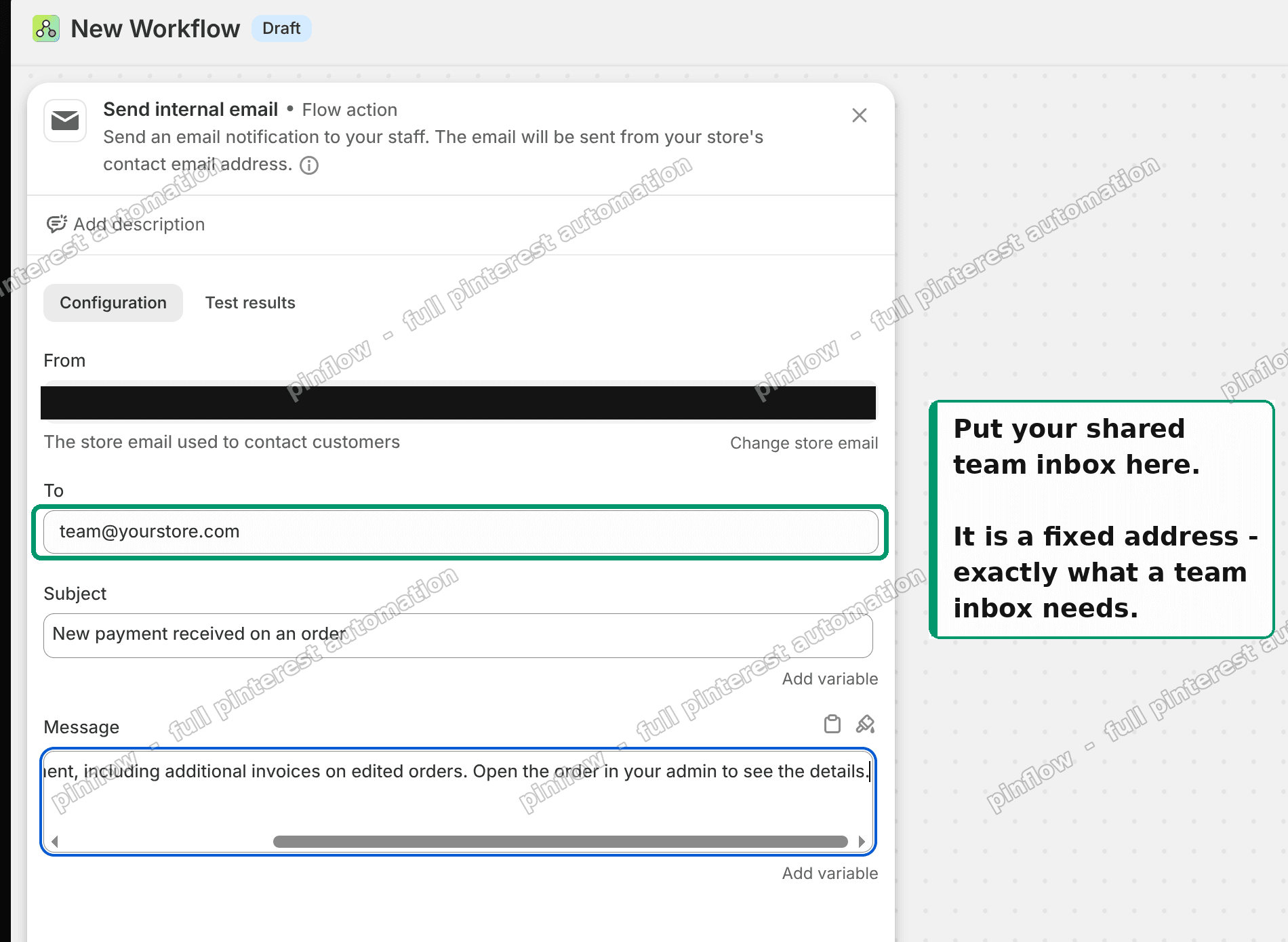 The Send internal email step: put your shared team inbox in the To field
Put your shared inbox in the To field. Write a subject and message, and use the variable picker to drop in the order name and the amount so the email is useful at a glance rather than something you have to click through.
A subject that works well:
Payment received: {{ order.name }} - {{ order.totalPriceSet.shopMoney.amount }}Then click Turn on workflow.
Here is what actually arrived in the team inbox during testing.
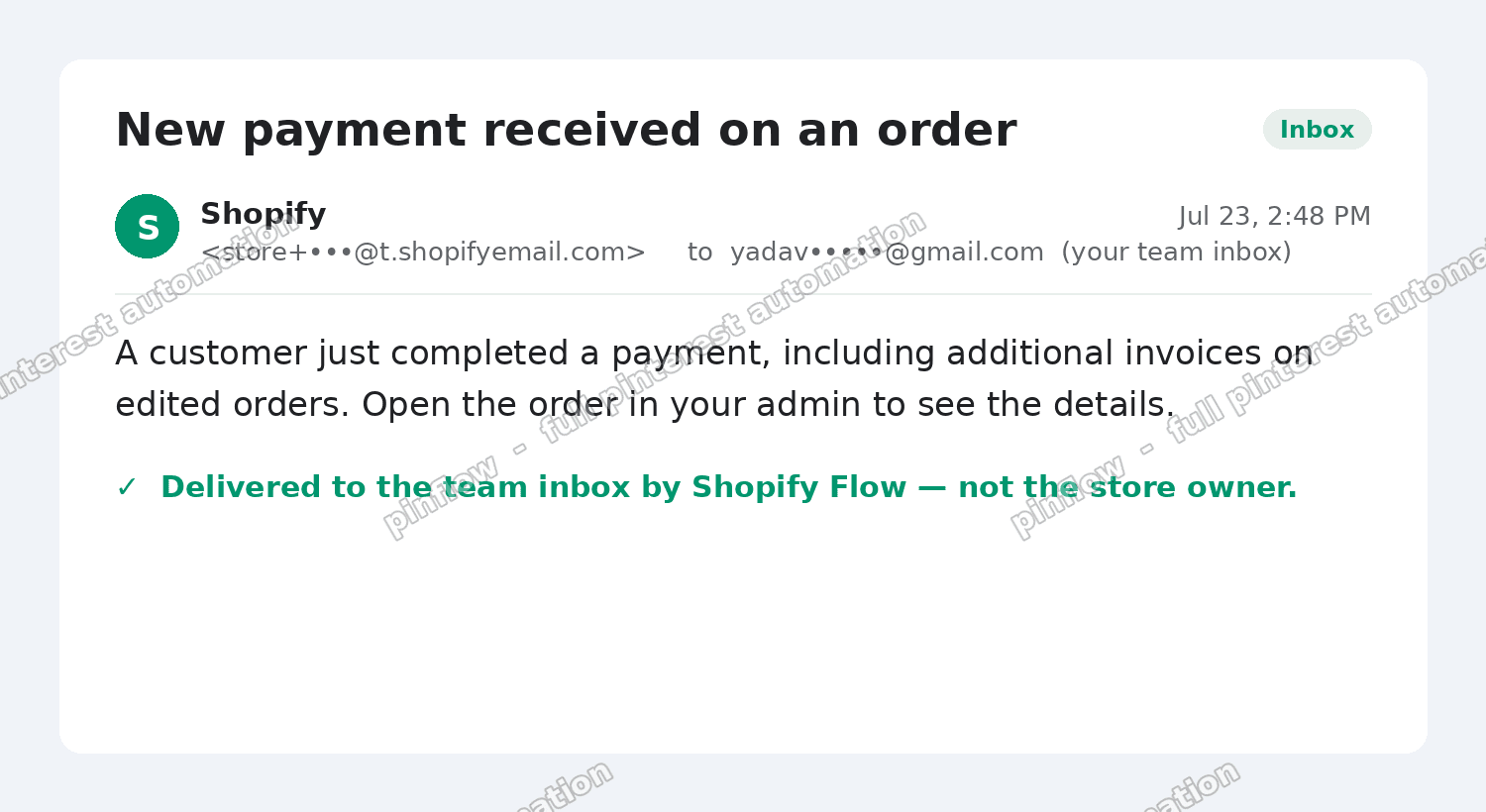 The notification email that arrived in the team inbox during the test
Narrowing it to edited orders only
As built, this fires for every successful payment, not just the additional-invoice ones. For most teams that is what they want anyway: one inbox, every payment, no gaps.
If you only want the edited or additional-invoice payments, there are two ways to narrow it.
Compare the transaction date to the order's created date. An additional invoice is paid some time after the order was created, whereas the original payment lands within seconds of it. A condition that the transaction is more than, say, five minutes after order creation isolates the later ones reliably.
Tag the orders and filter on the tag. If you are editing the order anyway, add a tag like additional-invoice while you are in there, and add a condition that the order has that tag. More manual, but unambiguous, and it survives any change to how Shopify times transactions.
The tag route is the one I would pick if the distinction matters for accounting, because it is explicit rather than inferred.
What else this pattern unlocks
Once you have this shape in your head, a lot of "Shopify will not email the right person" problems dissolve. The same three steps handle:
High value order alerts. Same trigger, add a condition on amount, send to a different address. Useful for fraud review.
Per-supplier fulfilment notices. Trigger on order created, condition on a product vendor, send to that vendor's address.
Payment failure alerts. Same trigger, condition on transaction status is not Success. This one is valuable and rarely built, because Shopify does not tell you when a payment attempt fails.
Refund notifications to finance. Same trigger, condition on kind is Refund.
All free, all in Flow, all keeping the routing in the store rather than in one person's mail client.
Common questions
Does Send internal email work for customer emails too?
No, and this is the limit worth knowing. Shopify's documentation states you cannot use variables to customise the To address on this action. It is for staff addresses you type in. To email a customer from Flow, you need the Send HTTP request action and an external email provider.
Can I send to more than one address?
Yes, the To field accepts multiple addresses. Though if you are sending to several people, a shared inbox or a distribution list is easier to maintain than a list inside a workflow.
Will this duplicate the email the owner already gets?
Yes. Shopify's own notification still goes to the owner; Flow adds a second one to your inbox. If the duplicate bothers the owner, they can filter it, but there is no way to stop Shopify's original.
Does Flow cost anything?
No. It is free on all plans that have it, and this workflow uses no external services.
How fast does it fire?
Within seconds in practice. Flow is event driven, not polled, so there is no schedule to wait for.
Can I include the customer's details in the email?
Yes. The variable picker exposes the order, and through it the customer, line items, shipping address and more. Add whatever your team needs to act without opening the admin.
If it did not work
No email arrives at all. Check the workflow is turned on, not just saved. Then open its run history: Flow logs every run and shows exactly which step stopped it and why.
Emails arrive for refunds too. The kind is equal to Sale condition is missing or is checking the wrong field.
Emails arrive for failed payments. Add the Transaction status is equal to Success criterion.
The email lands in spam. Send internal email comes from Shopify's infrastructure, so add the sender to your allowlist in the shared mailbox. This is common on Google Workspace shared inboxes specifically.
The trigger never fires. You are on Order paid rather than Order transaction created. That is the whole reason this build works, so it is worth double-checking.
Why this beats a forwarding rule
The suggestion in the thread was a forwarding rule from the owner's inbox, and it does work today.
But it puts a business process inside one employee's mailbox. It breaks when they leave, when they reorganise their filters, or when their mail client decides the rule is stale. It goes unnoticed until someone asks why finance stopped seeing payments.
The Flow workflow lives in the store, is visible to anyone with admin access, logs every run, and keeps working when staff change. For the same fifteen minutes of setup, it is the version that is still working in two years.
Tested on
Built and run on a Shopify dev store: created the workflow with the Order transaction created trigger and a Sale condition, processed a payment, and confirmed the internal email arrived at the target address with the order name and amount populated from the variable picker. The Order paid trigger was checked separately and did miss the additional-invoice case, which is why the transaction trigger is used here.
Still doing the repetitive parts by hand?
PinFlow turns your Shopify catalog into Pinterest pins and posts them on a schedule. Same idea as the workflow above, let the system handle what repeats.
Get PinFlow on the Shopify App StoreMore Shopify fixes
More community-sourced Shopify guides, tested on a live store.
Notifications & Emails
How to Edit the Shopify Gift Card Email
Shopify sends the same stock gift card picture to every recipient, whatever product they bought. Here is the one edit that makes each gift card email show its own product image, tested end to end.
Notifications & Emails
Shopify Inbox Notifications Not Working? How to Fix It
Who gets a Shopify Inbox alert, why there is no admin recipient list, how chat routing really works through assignment, and how to fix desktop push in Chrome on Windows. Tested, with screenshots.
Notifications & Emails
Shopify Order Confirmation Email: Logo by Location
A merchant wanted a different brand logo on the order email for each POS location. The location logic came back blank in the Order confirmation email. Here is why, and the template that actually works, with screenshots.