
How to Pin a Product to the Top of a Shopify Collection
Manual sort loses to customer sorting. Here is a Dawn section setting that pins a product above the grid no matter how visitors sort, with the pagination caveat stated up front.
By AjayCodeWiz · July 7, 2026 · 9 min read
The problem: manual sort only lasts until someone sorts
You want one product first on a collection page. A new arrival, a promotion, the thing your buyer is trying to move.
Shopify's collection has a Manually sort order, so you drag it to position one and it works. Then a customer picks "Price, low to high" from the sort dropdown and your product is somewhere on page two.
That is not a bug. Manual sort sets the default order. The sort dropdown replaces it entirely. There is no native "pin" that survives sorting, the way a pinned thread stays at the top of a forum.
A merchant asked about this after trying a sorting app that did not behave the way they expected. The thread turned up several partial answers: remove the sort dropdown entirely, put a block above the grid, use a merchandising app, or accept manual sort.
I built an actual pin on a Dawn test store. It works, and it has one real trade-off that I want to state before the code rather than after.
 The pinned product still first when sorted by price, high to low
That screenshot is sorted Price, high to low. The Navy Sports Jacket at Rs. 60 sits above jackets at Rs. 80 and Rs. 110. The sort ran; the pin ignored it.
Why there is no native setting
Worth understanding, because it tells you what any solution has to do.
When a customer picks a sort option, Shopify re-queries the collection and returns collection.products in that order. Your theme loops over that list and renders a card each.
The sort happens before your theme sees anything. By the time Liquid runs, the order is already decided, and nothing in the loop can promote an item without breaking the pagination that was calculated alongside it.
So a pin cannot live inside the loop. It has to be rendered before the loop, as a separate card, with the product then skipped inside the loop so it does not appear twice.
That is exactly what the code below does, and it is also the source of the trade-off.
The trade-off, up front
Rendering an extra card before the loop means the first page shows one more product than the pagination expects.
If your grid is 16 per page across 4 columns, page one now has 17 cards: the pin plus 16. In a 4-column grid that leaves a single card hanging on its own row.
Concretely:
- Page one has one extra card. Every other page is normal.
- The product count can read one high relative to what is displayed, depending on how your theme counts.
- In a 4-column grid, 17 cards means a row of 4, 4, 4, 4, then 1.
Two ways to make this tidy, and you should pick one before shipping:
- Set products per page to a number that leaves room. With 4 columns, 15 per page plus the pin gives 16, which fills four clean rows.
- Accept the hanging card. On a 2-column mobile grid it is barely noticeable, and on desktop many stores have uneven last rows anyway.
This was raised in the original thread and it is a fair criticism. It is a presentation cost, not a correctness bug, but you should know about it before a customer does.
The code
Duplicate your theme first. Online Store > Themes > ... > Duplicate.
Open sections/main-collection-product-grid.liquid. Find the opening of the product grid, just after the <ul id="product-grid" ...> and the {% assign skip_card_product_styles = false %} line.
Insert the pinned block before the {%- for product in collection.products -%} loop:
{%- comment -%}
Pinned product: render it first, only on page 1, so it stays at the very
top of the collection no matter how the customer sorts. Sorting only
reorders `collection.products` below - it never touches this block.
{%- endcomment -%}
{%- assign pinned_product = section.settings.pinned_product -%}
{%- if pinned_product != blank and paginate.current_page == 1 -%}
<li class="grid__item grid__item--pinned{% if settings.animations_reveal_on_scroll %} scroll-trigger animate--slide-in{% endif %}"
{% if settings.animations_reveal_on_scroll %}
data-cascade
style="--animation-order: 0;"
{% endif %}
>
{% render 'card-product',
card_product: pinned_product,
media_aspect_ratio: section.settings.image_ratio,
image_shape: section.settings.image_shape,
show_secondary_image: section.settings.show_secondary_image,
show_vendor: section.settings.show_vendor,
show_rating: section.settings.show_rating,
lazy_load: false,
skip_styles: skip_card_product_styles,
quick_add: section.settings.quick_add,
section_id: section.id
%}
</li>
{%- assign skip_card_product_styles = true -%}
{%- endif -%}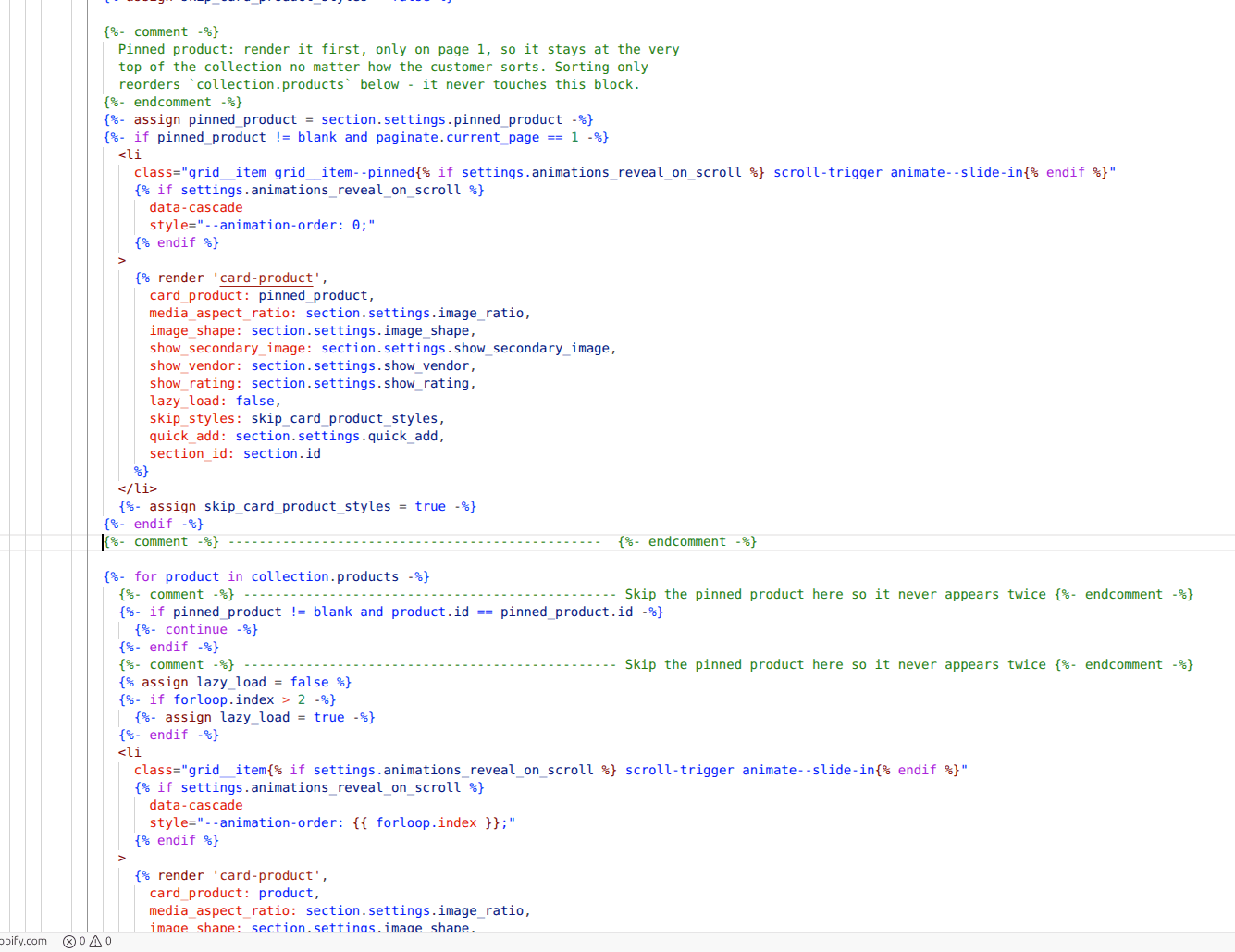 The pinned block rendered before the product loop
Then, as the first thing inside the existing loop, skip the pinned product so it cannot appear twice:
{%- for product in collection.products -%}
  {%- if pinned_product != blank and product.id == pinned_product.id -%}
    {%- continue -%}
  {%- endif -%}
Finally, add the setting to the section's {% schema %}, at the top of the settings array:
{
"type": "header",
"content": "Pinned product"
},
{
"type": "product",
"id": "pinned_product",
"label": "Pinned product",
"info": "Always shows first on this collection page, no matter how customers sort. Leave empty for none."
}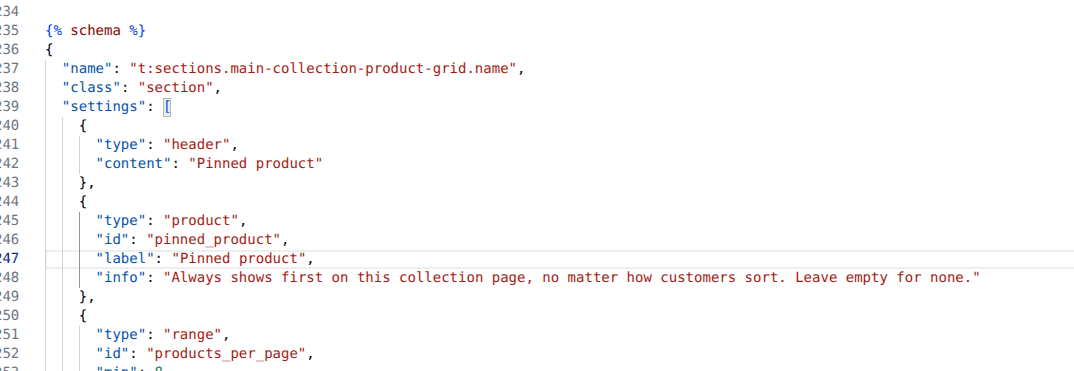 The pinned product setting in the section schema
Save.
What each piece does
"type": "product" gives you a real product picker in the theme editor, not a handle you have to type. Merchandisers can change the pin without touching code, which is the difference between this being useful and being a developer task every week.
paginate.current_page == 1 keeps the pin off pages two and beyond. Without it the product repeats at the top of every page.
{%- continue -%} is what stops the duplicate. The pinned product is still in collection.products, so without this it renders twice: once pinned, once in its sorted position.
skip_card_product_styles is Dawn's own optimisation. Card CSS is emitted once with the first card. Since the pin is now first, it has to take over that job, which is why it sets the flag to true afterwards.
lazy_load: false on the pin, because it is above the fold by definition.
Setting it
Online Store > Themes > Customize, navigate to a collection page, and click the Product grid section. A Pinned product picker now sits at the top of its settings.
Pick a product and save. Leave it empty and the collection behaves exactly as before, which means the change is safe to ship even on collections you do not want to use it on.
One important detail: this is a section setting, so it applies to every collection using that template. To pin different products on different collections, duplicate the collection template and assign it per collection, the same way you would for any other per-collection customisation.
Pinning more than one product
The same shape scales, with the caveat getting proportionally worse: two pins means two extra cards on page one.
Add a second setting to the schema with a different id, pinned_product_2, then render both before the loop and skip both inside it. The skip condition becomes:
{%- if pinned_product != blank and product.id == pinned_product.id -%}
  {%- continue -%}
{%- endif -%}
{%- if pinned_product_2 != blank and product.id == pinned_product_2.id -%}
  {%- continue -%}
{%- endif -%}
Past two or three, stop. The schema gets unwieldy, the pagination drift gets noticeable, and you are rebuilding a merchandising app badly. At that point buy one, or reorder the underlying collection query rather than the markup.
A cleaner variant for several products: pin by tag instead of by picker. Give the products a tag like pinned, then loop collection.products twice, once emitting only tagged products and once skipping them. It avoids a schema entry per product, but it costs you the theme-editor picker, so merchandisers need to manage tags instead. Which is better depends entirely on who does the merchandising.
Doing this on other themes
This code is Dawn's. It will not paste cleanly into Ella, Impulse, Prestige or any other non-Dawn theme, and that matters: the merchant who asked the original question was on Ella, not Dawn.
The approach transfers, the identifiers do not. In your theme, find:
- The collection product loop, usually in
sections/main-collection-product-grid.liquidor, on vintage themes,sections/collection-template.liquid. - The card snippet your theme renders inside the loop. Dawn uses
card-product. Yours may useproduct-card,product-grid-itemor similar. - The grid item wrapper markup, so your pinned card matches the others.
Then apply the same three moves: render before the loop, continue inside the loop, add a product setting to the schema.
If your theme is heavily customised or you are not comfortable with Liquid, the alternatives below are genuinely reasonable.
The alternatives, and when they are better
A featured block above the grid. Add a Featured product section above the collection. It is not in the grid, so no pagination issue at all, and it can be styled to stand out more than a normal card. This is what the merchant in the original thread ended up doing on Ella, using the collection description, and they were happy with it. If your goal is draw attention to this product rather than make it literally first in the grid, this is the better answer and it needs no code.
Remove the sort dropdown. In the Product grid section settings, turn off Enable sorting. Manual order then always wins because customers cannot change it. Blunt, and it costs shoppers a genuinely useful control, but it is one checkbox.
A merchandising app. Apps in this space can pin, boost and demote products with rules, and they handle counts and pagination properly because they reorder the query rather than the markup. Worth it if merchandising is a regular job rather than a one-off. Note the merchant tried one and found it did not pin the way they expected, so test against your actual sort behaviour before committing.
Just use manual sort. If most visitors never touch the sort dropdown, manual order may be sufficient. Check your analytics before building anything: if sorting is rarely used, this is a problem you may not have.
What I confirmed on the test store
On Dawn:
- The pinned product stayed first under every sort option, including Price high to low, Price low to high, and Best selling, which is what manual sort cannot do.
- It appeared once, not twice, thanks to the
continue. - It appeared only on page one.
- With the setting empty, the collection rendered exactly as stock Dawn.
- Page one carried one extra card, as expected.
The honest summary: Shopify has no native pin because sorting happens before your theme runs, so any pin has to sit outside the sorted list. That works, and the cost is one extra card on page one. If that cost bothers you more than the problem does, a featured section above the grid gets you most of the benefit for none of the code.
Pinning works on the visitors you already have
PinFlow turns your Shopify catalog into Pinterest pins and posts them on a schedule, so the product you just promoted also reaches people outside your store.
Get PinFlow on the Shopify App StoreMore Shopify fixes
More community-sourced Shopify guides, tested on a live store.
Collections & Products
Shopify Unit Pricing: Show a Price per Unit on Each Variant
Set a unit price on every variant and Dawn shows the price per 100 ml or per kg, and updates it when a shopper picks another size. No code needed.
Collections & Products
Shopify Related Products by Collection, Without an App
Shopify's related products show items that do not match, because the recommendation algorithm needs sales data a small catalog does not have. Drive the block off your collections and a hand-picked list, with one Custom Liquid section on Dawn.
Collections & Products
Shopify Variants: The Complete Guide
Variants are one product sold in several forms. How they work, the 2,048 and 3-option limits, and where each variant fix lives - images, swatches, sorting, hiding and the theme-specific bugs.