
How to Set Up Shopify Smart Collections With Metafields (Not Tags)
Building one tag per collection turns into hundreds of typo-prone tags fast. Here is how to run Shopify smart collections off product type and metafields instead, tested on a store.
By AjayCodeWiz · August 31, 2026 · 9 min read
The problem: one tag per collection does not scale
A merchant asked about this on the Shopify Community, and it is one of those problems that only shows up once your catalog gets big.
They run a print-on-demand apparel store with more than 80 collections. The menu is organised across audience (Men, Women, Kids, Youth, Baby), garment type (Graphic Tees, Oversized Tees, Hoodies, Joggers, Hats) and design themes (Road Trips, Coffee Break, Nature Escape).
To get a product into the right automated collection, they created one exact tag per collection. Over 80 of them. Every tag is a full multi-word name like "Men's Graphic Tees".
You can see the setup in their own planning sheet. The last column, "Condition Tag", holds one long tag for every collection.
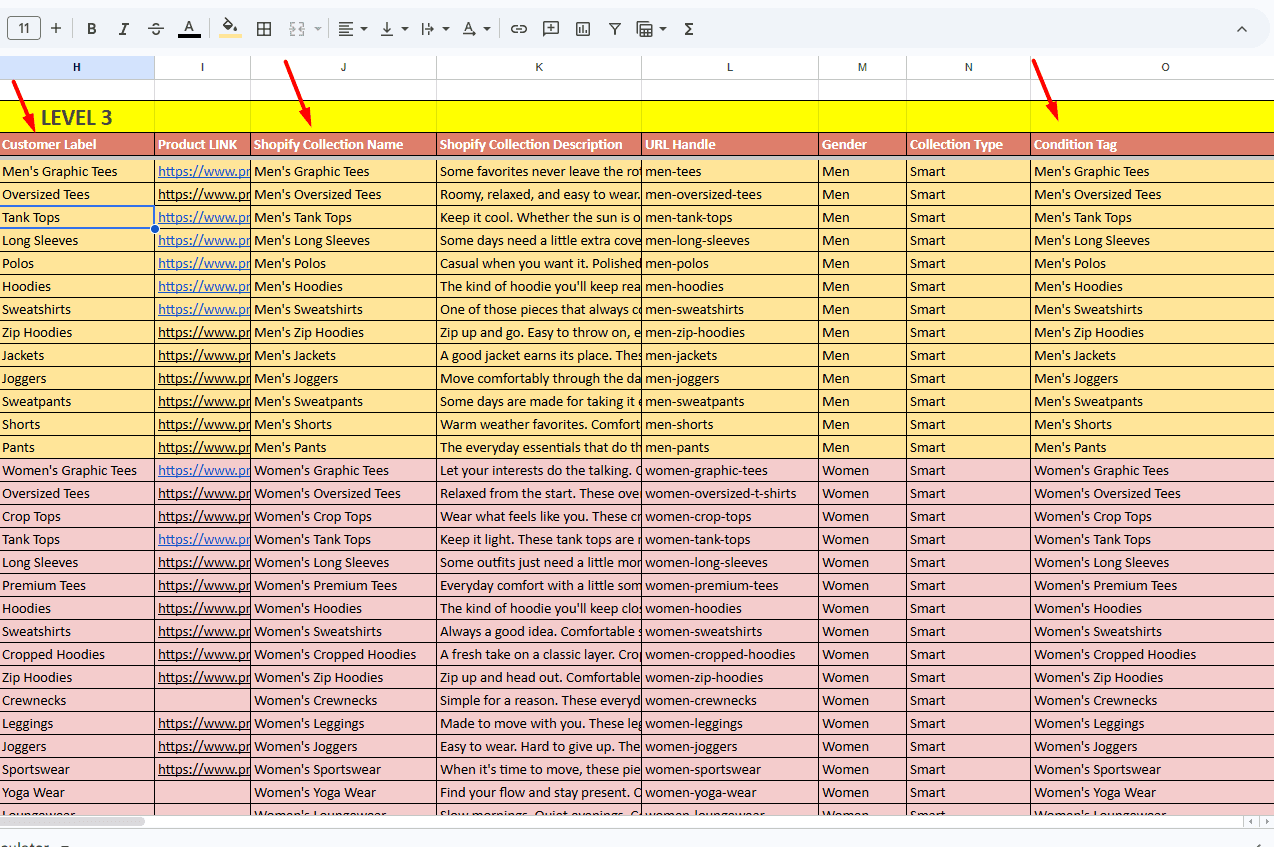 A spreadsheet listing over 80 Shopify collections, each with its own unique multi-word condition tag such as Men's Graphic Tees
Three things break as the store grows:
- Typing errors. Every publish means hand-typing exact multi-word tags. One misspelled tag and the product misses its collection.
- Tag clutter. The backend fills with hundreds of single-use tags that mean nothing on their own.
- Cross-categorisation. A product that belongs in several places (a men's graphic tee that is also in a design theme) needs several compound tags stacked on it, which gets hard to track.
This is a common wall to hit. The good news is that the fix removes the tag list almost entirely, and I set the whole thing up on a store to confirm it works.
Why it happens: you are encoding three things into one field
The root cause is not tags themselves. It is that each tag tries to describe three separate things at once (audience and garment and theme), rolled into a single label like "Men's Graphic Tees".
Shopify smart collections can match on more than one condition at a time. So you never needed a combined tag. You needed to keep the three dimensions apart and let the collection combine them.
Once the three dimensions are separate fields, "Men's Graphic Tees" stops being a tag you type. It becomes a rule: garment is a Graphic Tee and audience is Men. The collection does the combining for you.
That one change is what collapses 80-plus unique tags down to a handful of reusable values.
The better structure: three fields, not 80 tags
Here is the model I would use. It replaces every compound tag with three clean fields.
1. Garment goes in the native Product type field.
Graphic Tees, Hoodies, Joggers, Hats. This is a field Shopify already gives every product, so it costs you nothing new. Set it once per product. That erases roughly a third of your tag list on its own, because the garment dimension is now handled without a single tag.
2. Audience and Design theme become two metafields.
Not free-text tags. Two list metafields with a fixed set of allowed values. One for audience (Men, Women, Kids, Youth, Baby) and one for design theme (Road Trips, Coffee Break, Nature Escape, and so on).
The word "metafield" sounds technical, but for this job it is just an extra field on the product that you define once and then fill from a dropdown.
3. Every collection becomes a two-condition smart collection.
"Men's Graphic Tees" is now: Product type is Graphic Tees, and Audience includes Men. No compound tag anywhere.
Let me walk through the exact setup, because the details matter.
Step 1: Create the two metafields with a fixed value list
In your admin go to Settings, then Custom data, then Products, then Add definition.
Give it a name (Audience). For Type, pick Choice list (single line text). Then add your allowed values: Men, Women, Kids, Youth, Baby.
The choice list is the part that kills typos. Because the values are fixed, you pick one from a dropdown when you edit a product. You cannot misspell "Men" if you are choosing it from a list rather than typing it.
There is one switch you must not miss. On the definition, turn on Use as a condition in collections. Do this before you build any collections. If it is off, the metafield will not show up as an option when you build the collection rules.
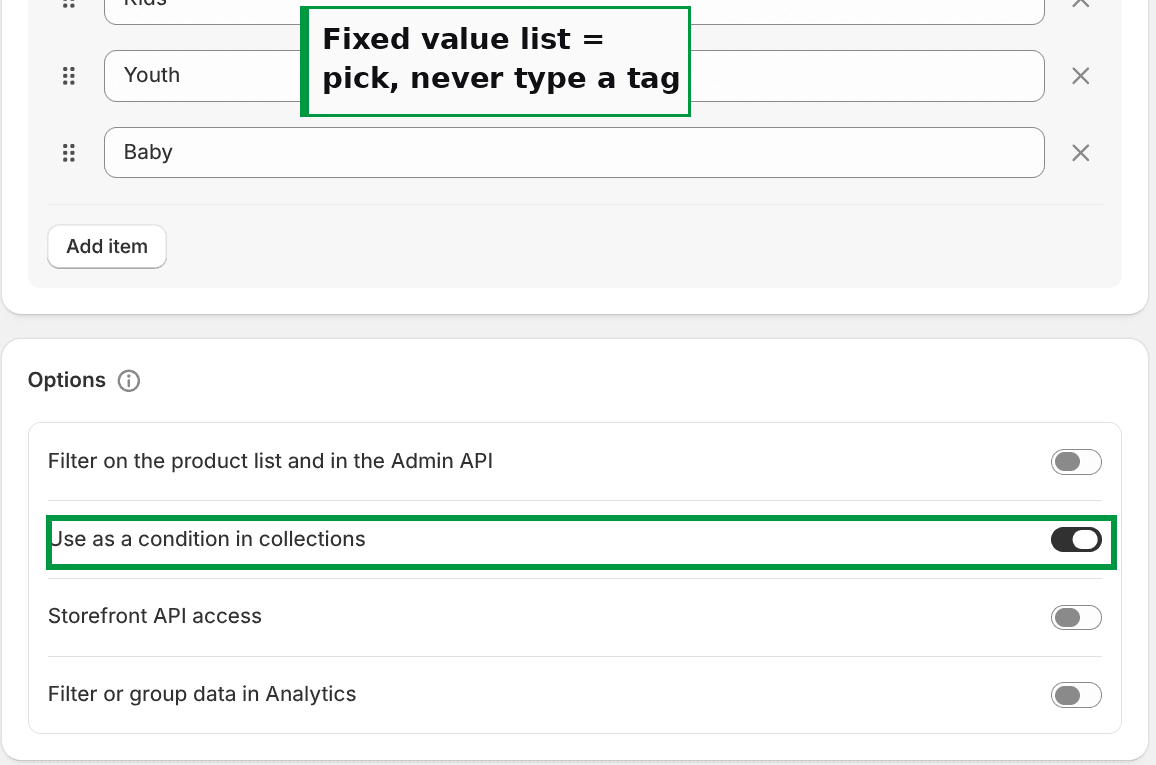 A Shopify metafield definition with a fixed choice list of audience values and the Use as a condition in collections toggle switched on
Repeat the same steps for a Design theme definition, with its own list of theme values.
Step 2: Set the values on your products from a dropdown
Open a product and find its metafields. Set Audience and Design theme by picking from the dropdown.
Notice there is no typing here. You are choosing from the fixed list you defined, so the values are always spelled the same way across every product.
 A Shopify product showing Audience set to Men and Design theme set to Road Trips, both chosen from dropdown lists
Because these are list metafields, one product can hold more than one value. A design that suits men and women can carry both audiences. A product can sit in two themes. That is how one product lands in several collections without stacking a pile of tags on it.
Step 3: Build the smart collection from two conditions
Create a collection and set it to an automated (smart) collection. Set it to match all conditions, then add two:
- Product type is equal to Graphic Tees
- Audience includes Men
Save it. Shopify fills the collection by matching those rules against your catalog, and it re-checks them whenever a product changes.
When I tested this, a tee with Product type set to Graphic Tees and Audience set to Men dropped straight into the collection. A hoodie with the same audience but a different product type stayed out, exactly as it should. The collection built itself from the two fields, with no tag involved.
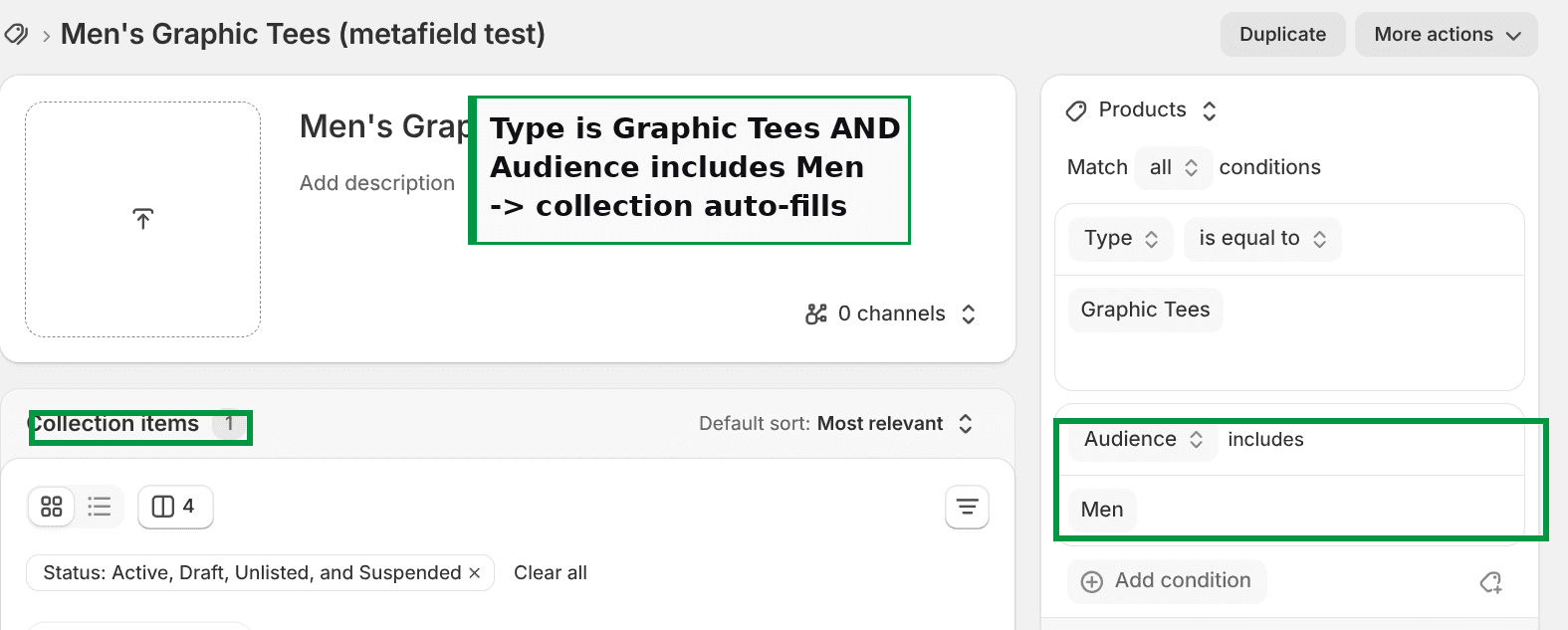 A Shopify smart collection with two conditions, Product type is Graphic Tees and Audience includes Men, showing one matching product
Do list metafields really work as collection conditions? Yes
This is worth calling out, because a lot of advice online assumes only single-value metafields can be used in automated collections.
That is not true. A list metafield works as a smart collection condition, as long as its definition has "Use as a condition in collections" turned on. In the rule builder it reads as "Audience includes Men". I confirmed it end to end on a test store, and the collection populated correctly.
So you do not have to choose between "one value per product" and "usable in collections". You get both. One product can hold several audience or theme values and still feed every collection those values belong to.
Filling this in across an existing catalog
Setting up the fields is the easy part. The real work is applying them to products you already have. Do not do it one product at a time.
- Use Shopify's bulk editor. Select a batch of products and set the metafield values in a grid, rather than opening each product.
- Or export and import a CSV. Map audience, theme and product type in a spreadsheet and bring them back in one file.
For new products coming from Printful, the native Product type comes across on sync, so the garment dimension is handled automatically. You only set the two dropdown values once at publish.
If your design names are already sitting in your product titles (common in print-on-demand), you can even skip the theme metafield. A "Title contains" condition can drive the theme collections straight off the title. Just test it for false matches first, because a title word can appear where you did not expect it.
Smart collections vs manual collections
A quick distinction, because the wording trips people up.
A manual collection is one you fill by hand. You add and remove products yourself, and you can drag them into a custom order.
A smart collection (Shopify also calls these automated collections) is one you fill with rules. You set conditions, and Shopify adds any product that matches and removes any that stops matching. This is what you want for 80 collections, because you are never hand-adding a product again.
Everything above uses smart collections. That is the whole point: the rules maintain membership so you do not have to.
Metafields vs tags: when to use which
Both can drive automated collections, so which should you reach for?
- Tags are best for temporary, loose labels. A campaign, a season, a quick flag you will remove later. They are free text, which is exactly why they attract typos at scale.
- Metafields are best for stable, structured data that describes what a product permanently is. Audience and design theme are structural, so they belong in metafields with a fixed value list.
- Native fields (product type, vendor) are best of all when they fit, because they already exist and need no setup.
The rule of thumb: if a value describes what the product fundamentally is, and you will build navigation on it for years, put it in a native field or a metafield. Save tags for things that come and go.
How many conditions can one smart collection have?
Plenty for this. A single smart collection can combine multiple conditions, and you choose whether a product must match all of them or any of them.
For this catalog structure, two conditions per collection is the norm (product type plus audience, or audience plus theme). You are not going to run out of room.
If a collection is not filling, check these
If you build the rules and nothing shows up, it is almost always one of three things:
- The definition toggle is off. If "Use as a condition in collections" is not on, the metafield either will not appear as a condition or will not match. Turn it on and rebuild the rule.
- The value does not match exactly. Smart collection conditions are literal. This is the whole reason for the fixed choice list, so make sure the collection condition uses the same value the products actually carry.
- Product type is not set. If you are conditioning on Product type is Graphic Tees, every tee needs that product type filled in. Empty product type means no match.
The takeaway
You do not fix 80 messy collections by cleaning up 80 tags. You remove the need for them.
Put the garment in the native Product type field. Put audience and design theme in two list metafields with fixed dropdown values. Then build each collection from two conditions instead of one hand-typed tag.
Your 80-plus one-off tags collapse into a native field plus about a dozen reusable dropdown values. Typos become impossible, the tag list clears out, and a product that belongs in several places just carries several values. The collections take care of themselves after that.
Spending too long on manual Shopify busywork?
PinFlow turns your Shopify catalog into Pinterest pins and posts them on a schedule, automatically. Same idea as the rule above, let the system handle the repetitive part.
Get PinFlow on the Shopify App StoreMore Shopify fixes
More community-sourced Shopify guides, tested on a live store.
Collections & Products
Shopify Unit Pricing: Show a Price per Unit on Each Variant
Set a unit price on every variant and Dawn shows the price per 100 ml or per kg, and updates it when a shopper picks another size. No code needed.
Collections & Products
Shopify Related Products by Collection, Without an App
Shopify's related products show items that do not match, because the recommendation algorithm needs sales data a small catalog does not have. Drive the block off your collections and a hand-picked list, with one Custom Liquid section on Dawn.
Collections & Products
Shopify Variants: The Complete Guide
Variants are one product sold in several forms. How they work, the 2,048 and 3-option limits, and where each variant fix lives - images, swatches, sorting, hiding and the theme-specific bugs.