
How to Add a Video to Your Shopify Homepage
Add an autoplay, looping video to a Shopify homepage section like Image with text. The exact code, why a connected video shows as a still, and the no-code options.
By AjayCodeWiz · August 13, 2026 · 9 min read
The problem
A merchant asked about this on the Shopify Community. They wanted a short video as the hero on their homepage.
They had been using a GIF in that spot. The GIF was slowing the site down, so they swapped it for a small video file to keep things fast.
They uploaded the video to Shopify. They saved it in a metaobject. Then they connected it to the "Image with text" section as dynamic content.
The video showed up. But it would not play. It sat there as a still picture, a single frozen frame. No autoplay, no loop, nothing.
They tried a few bits of CSS. None of it worked. And they did not want to lose the design of that hero section, they just wanted the video to move.
I reproduced it on a test store running the Dawn theme, which is the free theme most Shopify stores start on. Same result: a still frame, no playback.
Why it happens
This is the part the quick forum answers skip, and it is the whole reason no amount of CSS fixes it.
The "Image with text" section, and most homepage sections like it, only knows how to show an image. In the theme code, that section outputs an image tag. Nothing more.
When you connect a video file to the Image slot, Shopify still renders it as an image. It grabs the first frame of the video and shows that frame as a picture.
So what you see is real. It is a frame of your video. But it is a photo of your video, not your video.
There is no video player on the page at all. No play button, no autoplay, no loop, because none of those things exist in an image tag.
That is why CSS cannot save it. CSS styles what is on the page. You cannot style a video player into existence when the page only has a picture. The video player has to be added in the theme code first.
Once you understand that, the fix is obvious. You add a real video to the section. Then you point the section at your video file.
What you need first
Two things, and you probably already have both.
- Your video, uploaded to Shopify. Go to Content, then Files, and upload the video there. Keep it short and small, a few seconds is plenty for a hero.
- A backup of your theme. Never edit your live theme directly. Go to Online Store, then Themes, and use the three dots menu to Duplicate your theme first. Do the edit on the copy, check it, then make the copy live.
The steps below are shown on Dawn. The same idea works on any theme that has an "Image with text" or "Image banner" section, the section file name is just slightly different.
The fix, step by step
There are two small edits to one file.
Open Online Store, then Themes. Click the three dots next to Customize, then Edit code. Open the file sections/image-with-text.liquid.
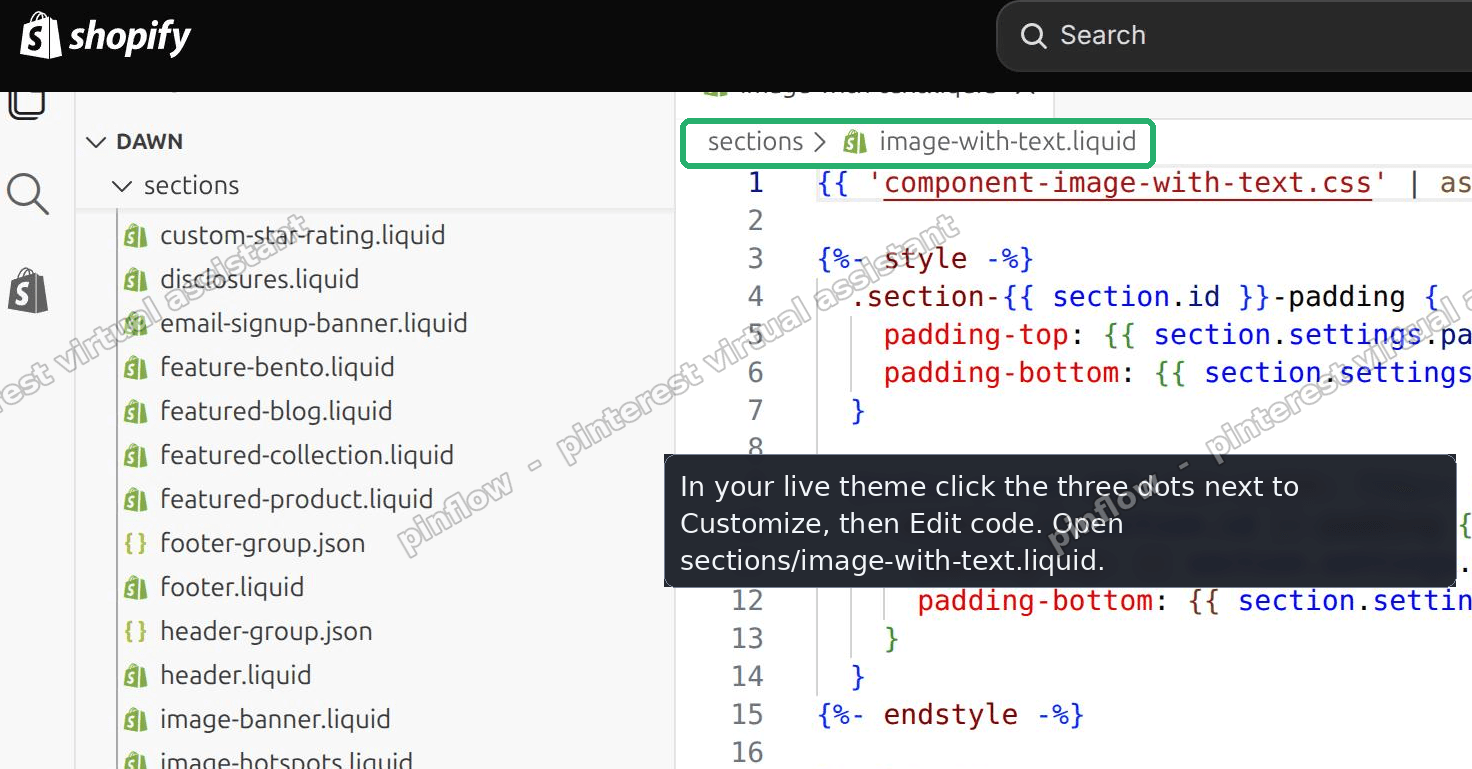 Editing image-with-text.liquid in the Shopify theme code editor
Edit one, add the video. Inside that file, find this line. It sits just inside the media area of the section.
{%- if section.settings.image != blank -%}Replace that one line with this block.
{%- if section.settings.video != blank -%}
  {{ section.settings.video | video_tag: image_size: '1100x', autoplay: true, loop: true, muted: true, controls: false, playsinline: true, class: 'image-with-text__video' }}
  <style>
    .image-with-text__media:has(> .image-with-text__video) { position: relative; overflow: hidden; }
    .image-with-text__video { position: absolute; inset: 0; width: 100%; height: 100%; object-fit: cover; }
  </style>
{%- elsif section.settings.image != blank -%}
This does the real work. It builds a video player set to autoplay, loop, and muted, and it makes that video cover the same area your image used to fill.
Edit two, add the setting. Scroll to the bottom of the same file, to the part that starts with {% schema %}. Find the image setting.
{
  "type": "image_picker",
  "id": "image",
  "label": "t:sections.image-with-text.settings.image.label"
},
Add this new block right after it.
{
  "type": "video",
  "id": "video",
  "label": "Video",
  "info": "Autoplays muted and loops. Use Height Small, Medium or Large."
},
Save the file.
Now open the theme customizer and open your Image with text section. A new Video setting is sitting there.
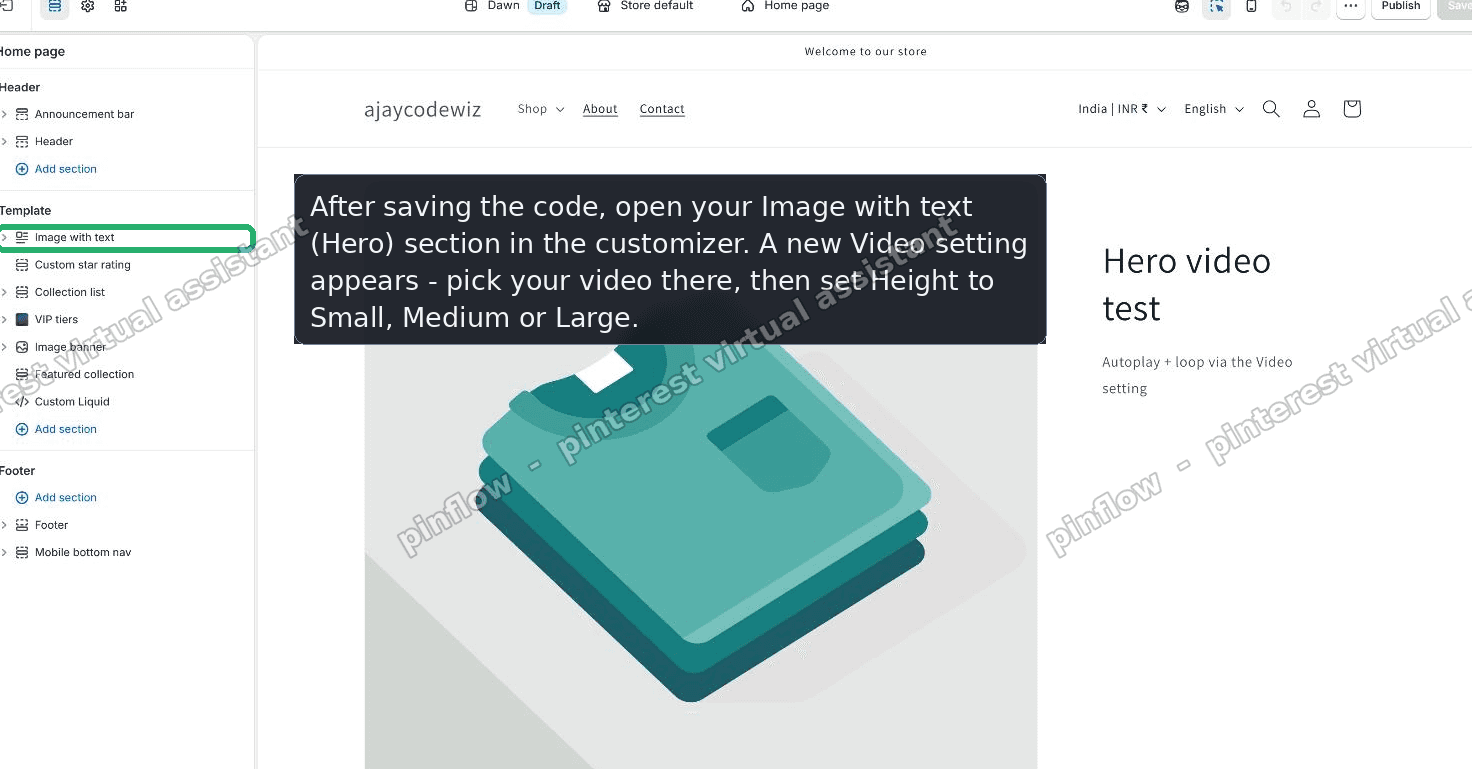 The new Video setting inside the Image with text section in the Shopify theme editor
Pick your video in that setting. Set the section Height to Small, Medium, or Large. Save.
That is it. The video now plays on its own, loops forever, and fills the same space the image used to. The text on top of it does not change.
On my test store the section went from a frozen frame to a video that played and looped the moment the page loaded, covering the full hero area.
How do I make a Shopify video autoplay?
The key word in the code above is muted.
Browsers block videos that try to autoplay with sound. Chrome, Safari, and the rest all do this, to stop pages blasting audio at you.
A muted video is allowed to autoplay. So a hero video that plays on its own has to be muted. That is a browser rule, not a Shopify one, and there is no way around it.
The playsinline part matters too. Without it, some phones will try to open the video full screen instead of playing it in place. playsinline keeps it inside your hero where it belongs.
So the recipe for a self-playing hero video is always the same: autoplay, loop, muted, playsinline. All four. The code above sets all four for you.
Does a video slow down your Shopify store?
This was the merchant's original worry, and it is a fair one. It is also why they switched away from a GIF.
Here is the thing. A short video is usually lighter than a GIF that shows the same clip. GIFs are a very old format and they get huge fast. A five second GIF can easily be several megabytes. The same clip as an MP4 can be a fraction of that.
So moving from a GIF to a video is often a speed win, not a speed cost.
To keep it fast, do a few simple things. Keep the clip short. Let Shopify host the file, which the code above does, so it serves the right size for each device. And do not stack three autoplay videos on one page.
One muted, looping hero video, hosted by Shopify, is fine for almost every store.
How do I save a video in a metaobject?
The merchant in the thread had stored their video in a metaobject. You do not have to, but it is a tidy way to manage reusable media, so here are the steps.
- Go to Settings, then Custom data. Or Content, then Metaobjects.
- Open your definition, or click Add definition and give it a name like Hero Video.
- Click Add field and choose the type File.
- In that field's validation, set the accepted file types to Media, or Video only.
- Save the definition.
- Open the definition and click Add entry.
- In the File field, upload your video or pick it from Files.
- Save the entry. The video now lives in that metaobject.
To use it, you do not have to pick the video directly in the Video setting. On that setting, click the small dynamic source icon and choose your metaobject. The section reads the video from there. That keeps your setup exactly as it was, just pointed at a section that can actually play it.
The no-code way
If you would rather not touch theme code at all, you have two options.
First, some themes ship a dedicated Video section already. On Dawn it is a separate full-width section you add from the theme editor. The catch is it is its own section, so you cannot put a heading and a button on top of it the way Image with text lets you.
Second, there are apps for exactly this. Videowise and Easy Video Background both add autoplay video sections and video backgrounds without code. They cost money and add a bit of weight, but they are quick and they are supported.
For a single hero, the two-edit code above is lighter and free. For lots of video across the store, an app is easier to manage.
If the video still will not play
A few things to check if you followed the steps and it is still stuck.
- Height is set to Adapt. Adapt sizes the section from an image, and there is no image now. Set Height to Small, Medium, or Large instead.
- The video setting is empty. Make sure you actually picked the video in the new Video setting, or connected your metaobject to it.
- The file is not a video. Only real video files play. A GIF is still an image, so it will not autoplay through a video player.
- You edited the wrong section. If your hero is not "Image with text", it might be "Image banner". The edit is the same idea, just in
sections/image-banner.liquid. - You are looking at the live theme. If you edited a duplicate, preview the duplicate, not your published store.
Image setting versus video setting
The whole issue comes down to two setting types, so it helps to know the difference.
An image setting shows a picture. It is the right choice for a photo, a logo, or a banner still. It cannot play anything, because a picture does not move.
A video setting shows a video player. It can autoplay, loop, and mute. It is the right choice for a moving hero.
Connecting a video file to an image setting does not upgrade the image setting into a player. It just feeds the picture-shower a single frame of your video. That is what the merchant ran into, and it is easy to run into, because the setting happily accepts the video and shows something.
The fix is not a workaround. It is giving the section the setting it actually needed, a video setting, so your video can finally play.
Spending too long on manual Shopify busywork?
PinFlow turns your Shopify catalog into Pinterest pins and posts them on a schedule, automatically. Same idea as the fix above, let the system handle the repetitive part.
Get PinFlow on the Shopify App StoreMore Shopify fixes
More community-sourced Shopify guides, tested on a live store.
Themes & Storefront
Shopify AI Section: Fix a Price Badge Hidden Behind the Image
You built a section with Shopify's AI section generator, but the price badge on each card sits behind the photo. Here is the Custom Liquid fix that brings it to the front without regenerating anything. Tested on a Dawn store.
Themes & Storefront
Hide Shipping Calculated at Checkout on One Shopify Product
The line under Add to cart that says shipping is calculated at checkout shows on every product, gift cards included. Here is how to hide it on one product only, with the code, screenshots and the Eclipse theme steps.
Themes & Storefront
Shopify Dropdown Menu Behind Page Content (Z-Index Fix)
Your Shopify dropdown or mega menu opens, but the page title and products sit on top of its links and the menu closes before you can click. The fix is one Custom CSS rule in Theme settings. Tested on a Rebel store.