
Shopify Line Item Properties: Show Custom Options in Cart
Made a custom dropdown or text field on your product page but the customer's choice never reaches the cart or the order? Here is why line item properties get dropped on Horizon, and the one-line fix, tested.
By AjayCodeWiz · August 15, 2026 · 8 min read
The problem
A merchant asked about this on the Shopify Community, and it is one of the most common product-page questions there is.
They run Shopify's Horizon theme. They added a dropdown to their product page so customers could pick a "Text Color" (Black, White, Red, Athletic Gold). The dropdown shows up fine. But when a customer picks a colour and adds the product to the cart, the choice vanishes. Nothing appears in the cart, and nothing appears on the order.
The strange part: a "Special Instructions" text box on the same product page works perfectly. Whatever the customer types there shows up under the item in the cart, exactly as expected.
So one field works and the other does not, on the same page. That is the puzzle.
Here is the same setup reproduced on a test store. A customer picked Red, added to cart, and the cart line shows the product but no Text Color at all.
 A Shopify cart line with no line item property, even though the customer picked a colour
If that is you, you are not doing anything wrong. The dropdown is just not wired up the way the text box is. Let me explain what is actually happening, then give you the one-line fix.
What a line item property is
A line item property is a small piece of custom text that rides along with a product when it goes into the cart.
It is not a variant. Variants are the price-and-inventory choices you set up in the product editor, like size or colour. A line item property is different. It is a note attached to that one cart line: an engraving, a gift message, a chosen colour, a delivery date.
Shopify stores it as a name and a value. In the example above the name is "Text Color" and the value is "Red". Once it is attached, it shows under the item in the cart, carries through checkout, and lands on the order for you to read when you fulfil it.
Themes create line item properties from form fields. Any field on the product page whose name follows the pattern properties[Something] gets picked up when the product is added to the cart. That is the whole mechanism.
The "Special Instructions" box works because it is a proper line item property field. Its name is properties[Special Instructions]. The dropdown does not work because, even though its name looks right, it never actually reaches the cart. Here is why.
Why the dropdown gets dropped on Horizon
This is the part every quick answer skips, and it is the reason the fix works.
To send a field to the cart, Shopify submits the product's "Add to cart" form. Everything inside that form gets sent. Anything outside it does not.
On older themes, all the product-page content sat inside one big form, so a stray field usually got swept up. Horizon is built differently. In Horizon, the blocks on your product page (the title, the price, the variant picker, your custom dropdown) each render as their own piece, and they sit next to the "Add to cart" form, not inside it.
That is fine for text and images. It is a problem for a form field. A dropdown that sits next to the form, rather than inside it, is invisible to the submission. The customer picks Red, clicks Add to cart, and the dropdown is simply not part of what gets sent.
So how does the "Special Instructions" box get through? Because Horizon's own field has a special attribute that reconnects it to the form. In HTML, a field can be linked to a form it is not physically inside, using a form attribute that points at the form's ID. Horizon's built-in property block does exactly that. The dropdown that an AI generator or a quick snippet produced does not, because it has no way to know the form's ID.
That is the entire bug. Right field name, wrong (missing) form link.
You can confirm this on your own store in ten seconds. Add the item with a choice picked, then open yourstore.com/cart.js in the browser. If you see "properties": {} (empty), the field is not reaching the cart. That is the wiring problem, not a theme bug.
The fix: link the dropdown back to the form
The fix is one attribute on the <select> element:
form="BuyButtons-ProductForm-{{ section.id }}"BuyButtons-ProductForm-{{ section.id }} is the ID of Horizon's "Add to cart" form. Adding it to your dropdown tells the browser "this field belongs to that form", so the choice gets submitted with everything else.
Here is a complete, working Custom Liquid block you can drop in. It renders the Text Color dropdown on the product page and, because of that form attribute, sends the choice to the cart.
Open your product page in the theme editor first.
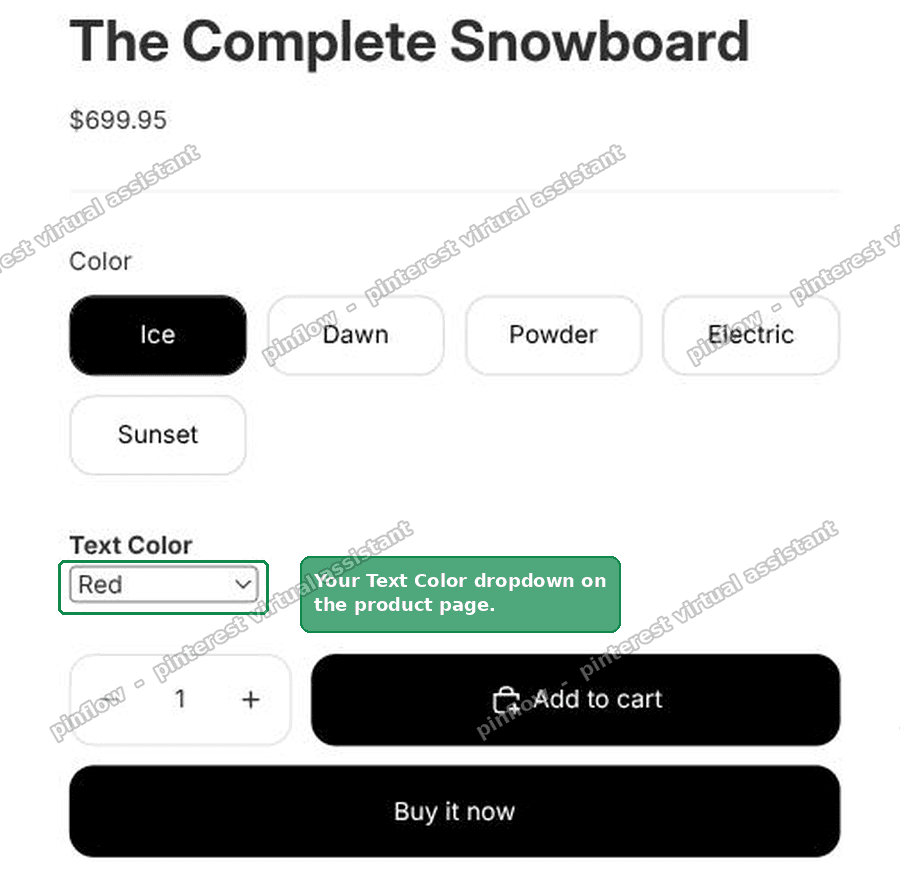 The Text Color dropdown on a Shopify Horizon product page
Now paste the code.
- In your admin, go to Online Store, then Themes, then Customize.
- Open a product page in the editor.
- Click your existing dropdown block (the Custom Liquid block you added). If you do not have one, click Add block, then Custom Liquid, and place it just under the variant options.
- Replace the code in it with this:
<div class="cl-dropdown">
  <label for="cl-text-color"><strong>Text Color</strong></label><br>
  <select id="cl-text-color" name="properties[Text Color]" form="BuyButtons-ProductForm-{{ section.id }}">
    <option value="">- Choose -</option>
    <option>Black</option>
    <option>White</option>
    <option>Red</option>
    <option>Athletic Gold</option>
  </select>
</div>- Click Save.
The one line that matters is the form="BuyButtons-ProductForm-{{ section.id }}" on the <select>. Everything else is just the label and the options.
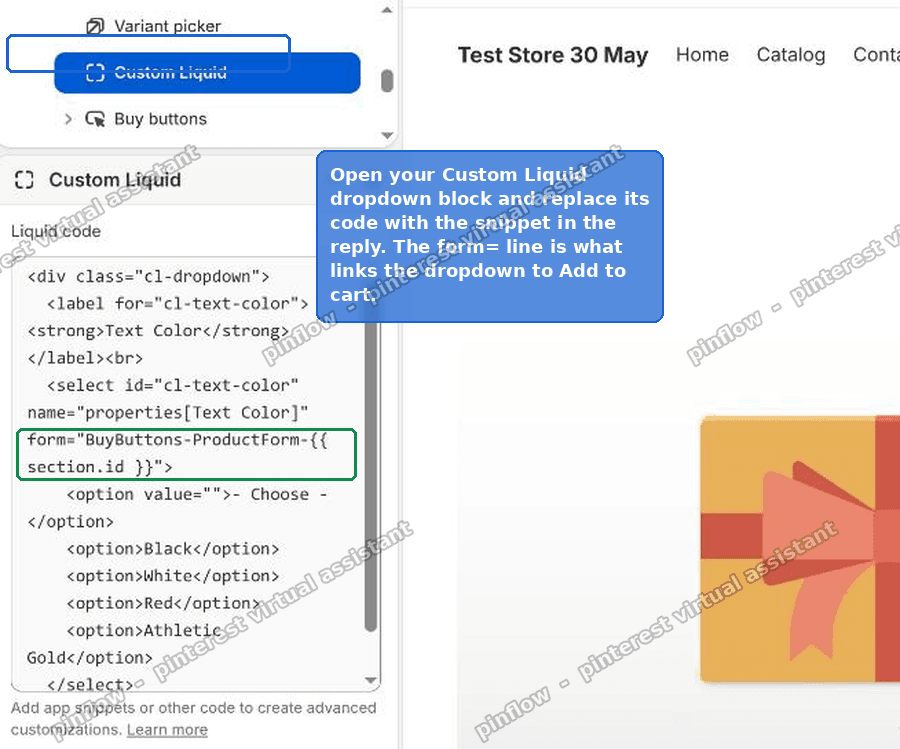 The Custom Liquid block in the Shopify theme editor, with the form attribute that links the dropdown to the cart
{{ section.id }} is a small piece of Liquid that fills in the correct section ID automatically, so you do not have to hunt for it. Because the block sits in the same product section as the Add to cart button, it resolves to the same ID, and the two line up.
Check that it worked
Add the product to the cart again with a colour selected, then open the cart.
On a test store running Horizon, I picked Red, added to cart, and the choice now shows under the item, exactly like the Special Instructions box does.
 A Shopify cart line now showing the Text Color line item property
That same value now carries through to checkout and onto the order, so you will see "Text Color: Red" when you go to fulfil it. No app, no extra plumbing.
One thing to know: changing the dropdown does not update an item that is already in the cart. If you were testing before the fix and left something in the cart, remove it and add a fresh one. Line item properties are set at the moment of adding, not afterwards.
Make it your own
The block above is a starting point. A few common tweaks:
- Rename the option. Change "Text Color" in both places (the label and the
name="properties[Text Color]") to whatever you sell: Engraving, Gift Message, Monogram, Frame Colour. The name you use is exactly what shows in the cart and on the order, so keep it readable. - Change the choices. Edit the
<option>lines. Add or remove as many as you like. - Make it required. Add
requiredinside the<select>tag so the customer cannot add to cart without choosing. Keep the empty- Choose -option so there is a blank starting state to force a real choice. - Use a text box instead of a dropdown. For a free-text field like an engraving, Horizon already has a built-in block. In the editor, Add block, then look for the property or text-input block. It has the form link built in, so it just works. Use the Custom Liquid route when you specifically need a dropdown, which the built-in block does not offer.
What to check if it still does not show
If the choice is still missing after the fix, run through these. They are the usual culprits.
- Do not start the name with an underscore. A property named
properties[_Text Color]is treated as hidden and is deliberately not shown in the cart. Drop the underscore unless you want it hidden. - Confirm the field is actually a form field. It has to be a real
<select>,<input>, or<textarea>with anameattribute. A styled<div>that looks like a dropdown but is not a form control will never submit. - Match the form ID exactly. The
formattribute has to match your theme's Add to cart form ID. On Horizon that isBuyButtons-ProductForm-{{ section.id }}. On other themes the ID is different, so check what your theme uses. - Add a fresh item. As above, existing cart items keep whatever they had. Always test with a brand new add.
- Check
/cart.js. Openyourstore.com/cart.js. If the value is there but the cart page does not show it, the issue is the cart template, not the field. Most themes show non-blank properties automatically, so this is rare.
Line item properties, variants, and metafields
These three get mixed up constantly, and picking the wrong one is where a lot of wasted effort goes. Here is the short version.
- Variants are for real product choices that affect price or stock, like size or a colour that has its own inventory. You set them up in the product editor. There is a hard limit on how many you can have, so do not use variants for open-ended options like engraving text.
- Line item properties are for per-order custom input that does not change price or stock: a message, a chosen finish, a date. That is what this whole article is about. They are free, they have no variant limit, and they attach to the cart line.
- Metafields are for storing extra data about a product itself, like a care guide or a spec sheet, that you show on the page. They are not customer input at checkout, so they are the wrong tool for a "let the buyer choose" field.
If your question is "how do I let a customer type or pick something that ends up on the order", the answer is almost always a line item property, which is exactly the fix above.
If you would rather not touch code
If editing theme code is not for you, a product-options app does the same thing with a visual builder and handles the cart wiring for you. Infinite Options, Globo Product Options, and Hulk Product Options are all popular choices. They are the easier route if you want conditional logic, price add-ons, or file uploads on top of a simple dropdown.
For a single dropdown that just needs to reach the cart, though, the one-attribute fix above is free and takes a couple of minutes.
Spending too long on manual Shopify busywork?
PinFlow turns your Shopify catalog into Pinterest pins and posts them on a schedule, automatically. Same idea as the rule above, let the system handle the repetitive part.
Get PinFlow on the Shopify App StoreMore Shopify fixes
More community-sourced Shopify guides, tested on a live store.
Themes & Storefront
Shopify AI Section: Fix a Price Badge Hidden Behind the Image
You built a section with Shopify's AI section generator, but the price badge on each card sits behind the photo. Here is the Custom Liquid fix that brings it to the front without regenerating anything. Tested on a Dawn store.
Themes & Storefront
Hide Shipping Calculated at Checkout on One Shopify Product
The line under Add to cart that says shipping is calculated at checkout shows on every product, gift cards included. Here is how to hide it on one product only, with the code, screenshots and the Eclipse theme steps.
Themes & Storefront
Shopify Dropdown Menu Behind Page Content (Z-Index Fix)
Your Shopify dropdown or mega menu opens, but the page title and products sit on top of its links and the menu closes before you can click. The fix is one Custom CSS rule in Theme settings. Tested on a Rebel store.