
Shopify Product Variant Image Switching, Explained
Your product page keeps loading the first variant's photo instead of the main image you chose. Here is how Shopify variant image switching works, why the wrong photo shows first, and the exact fix, tested on Crave.
By AjayCodeWiz · August 15, 2026 · 8 min read
The problem
A merchant asked about this on the Shopify Community, and it is one of those things that feels broken but is actually working exactly as the theme was built.
They run Shopify's Crave theme. They set a nice lifestyle photo as the main image for a framed art print. But when a customer opens the product page, that photo is not what loads. Instead the page opens on the first variant's photo, a plain shot of one frame style. The photo they chose gets bumped down to a thumbnail.
They tried the obvious fix: drag the main photo to the first spot in the media library. It did not help. The variant photo still loaded first.
Here is the same thing reproduced on a test store. The main image is the "Oak frame" variant photo, and the lifestyle photo the merchant actually wanted is pushed down to the second thumbnail.
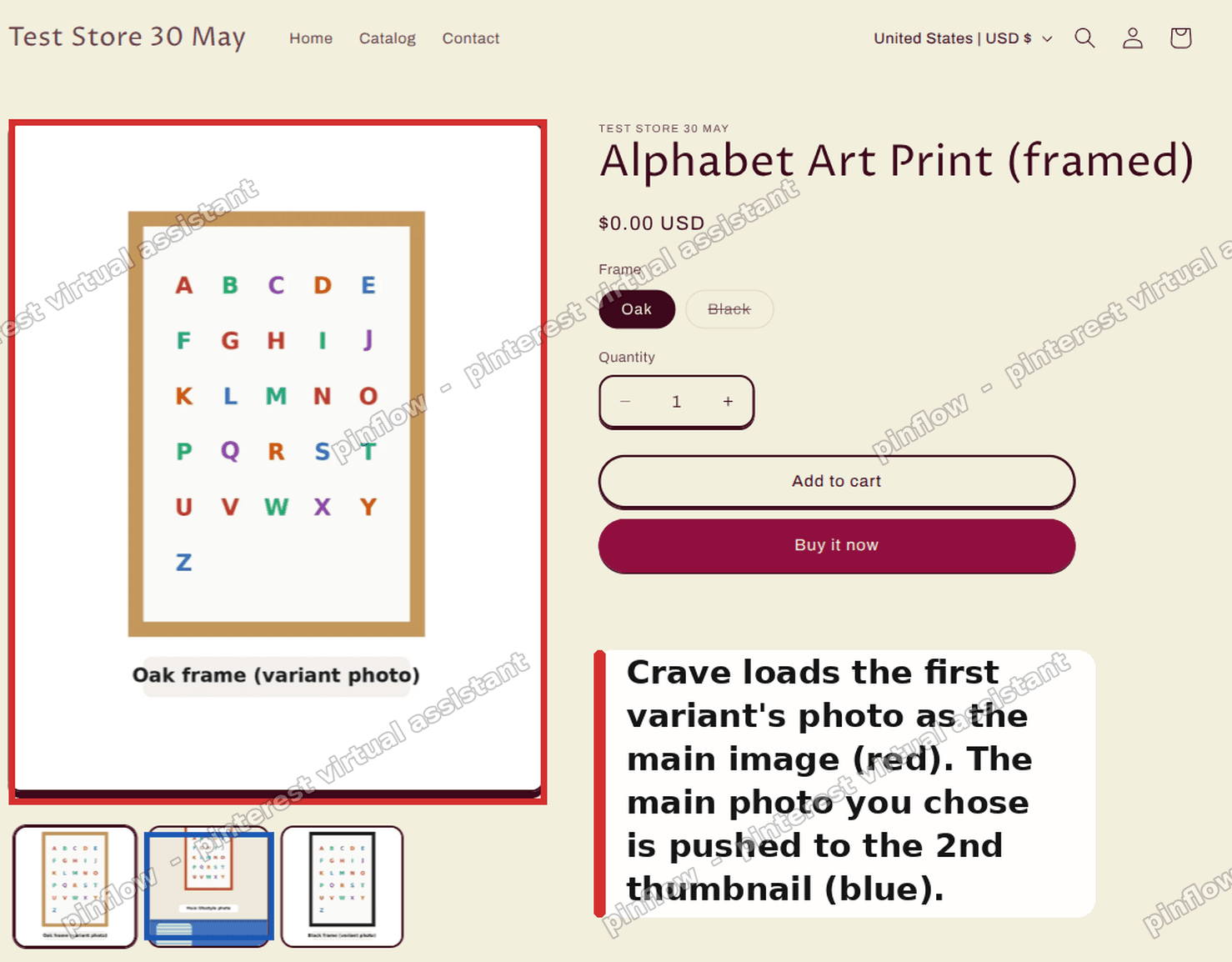 Crave loads the first variant photo as the main image, not the one the merchant chose
If this is happening to you, you are not doing anything wrong. This is variant image switching, and once you understand it the fix is quick.
What variant image switching is
Variant image switching is the behavior where the product photo changes to match the option a shopper selects.
A customer picks the red shirt, the main photo swaps to the red shirt. They pick the oak frame, the photo swaps to the oak frame. It is a good feature. It ties each option to its own picture so the shopper always sees what they are about to buy.
You turn it on by attaching an image to a variant in the product editor. Each variant can point at one photo in your media library. When the shopper selects that variant, the gallery jumps to its photo.
So far, so useful. The trouble starts with what the theme does before the shopper touches anything.
Why the wrong photo loads first
When a product page loads, the theme has to pick which image to show before the customer has selected anything.
Most modern Shopify themes, including Crave and the whole Dawn family it is built on, make the same choice: they show the first available variant's photo. Not the first image in your media library. The first variant's assigned photo.
That is the key detail. If your first variant has a photo attached, that photo wins on load, no matter where your chosen main image sits in the media order.
This is why dragging your main photo to the first position does nothing on its own. The media order controls the thumbnails, but the initial main image is decided by the variant, and the variant overrides it.
You can confirm it is variant switching and not a broken image. Change your variant selection on the page. If the main photo jumps to a different picture each time, switching is on and a variant photo is claiming the top spot.
The fix is to tell the theme to load your chosen first image instead, while leaving the switching behavior in place for when a shopper actually picks an option.
The fix, tested on Crave
This is a small theme code edit. It is one Find and Replace in a single file. I tested it on a Crave store and it does exactly what you want: your chosen photo loads first, and variant switching still works after that.
It comes in two parts.
First, put your main photo first.
- Open the product in your admin.
- Under Media, drag the photo you want as the main image to the very first spot.
- Save.
Second, make the theme respect that order.
- Go to Online Store, then Themes.
- On your theme, click the three dots menu, then Edit code. If you want a safety net, duplicate the theme first and edit the copy.
- Open the file
snippets/product-media-gallery.liquid. - Press Ctrl+H to open Find and Replace inside the code editor, and turn on Replace all.
- In Find, paste:
product.selected_or_first_available_variant.featured_media - In Replace, paste:
product.featured_media - There are 7 matches in that file. Replace all of them, then Save.
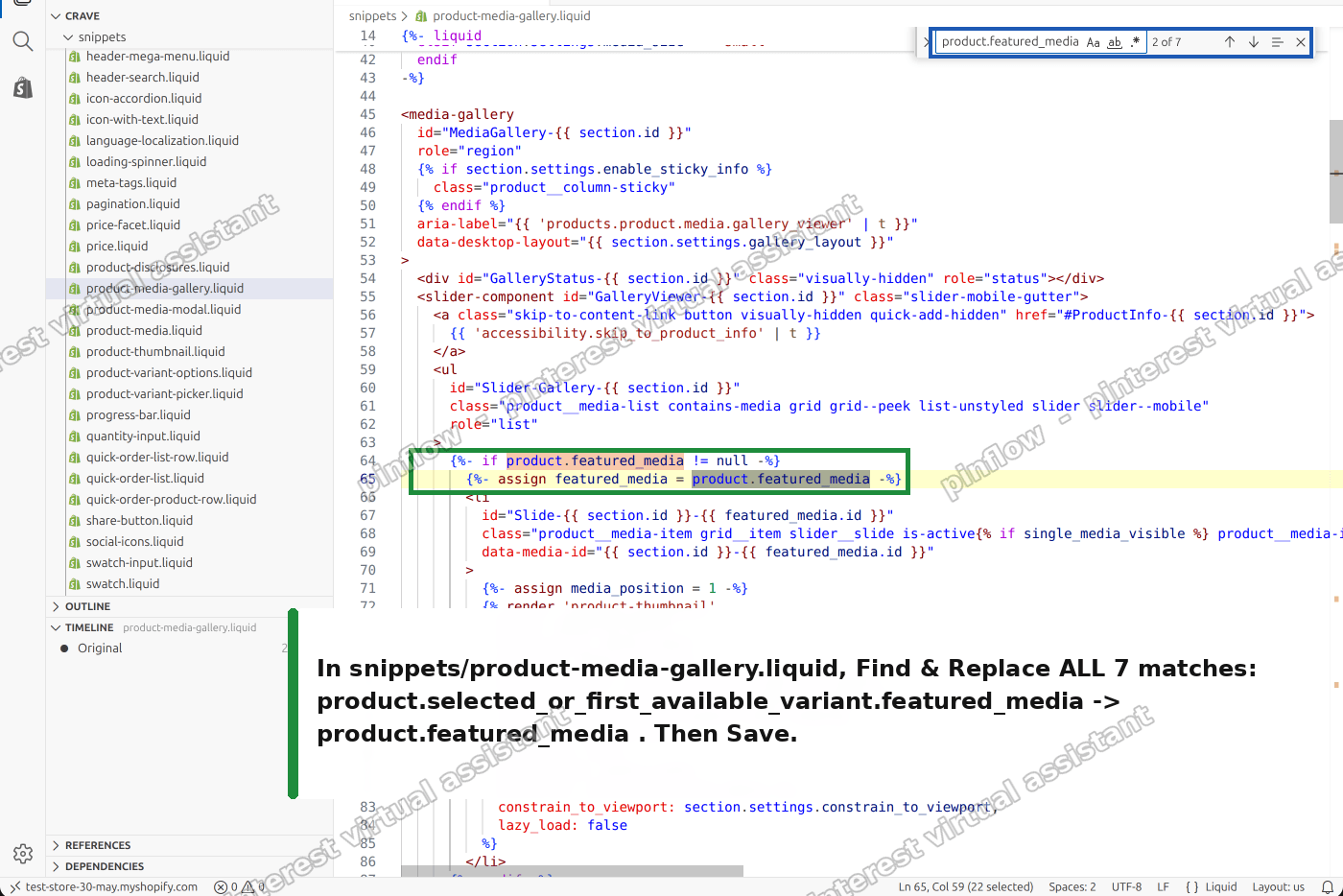 Find and Replace in product-media-gallery.liquid, swapping the variant expression for product.featured_media
That is the whole change. You are swapping the piece of code that means "the first variant's photo" for the piece that means "the product's first image". Both the main gallery and the thumbnail strip use it, which is why there are seven matches. Replacing all of them keeps the two in sync.
Check that it worked
Open the product page again. The main image should now be the photo you set first, not a variant shot.
On my test store, the page opened on the first variant's frame photo before the change. After the change, it opened on the lifestyle photo I had set as the first image, exactly as intended.
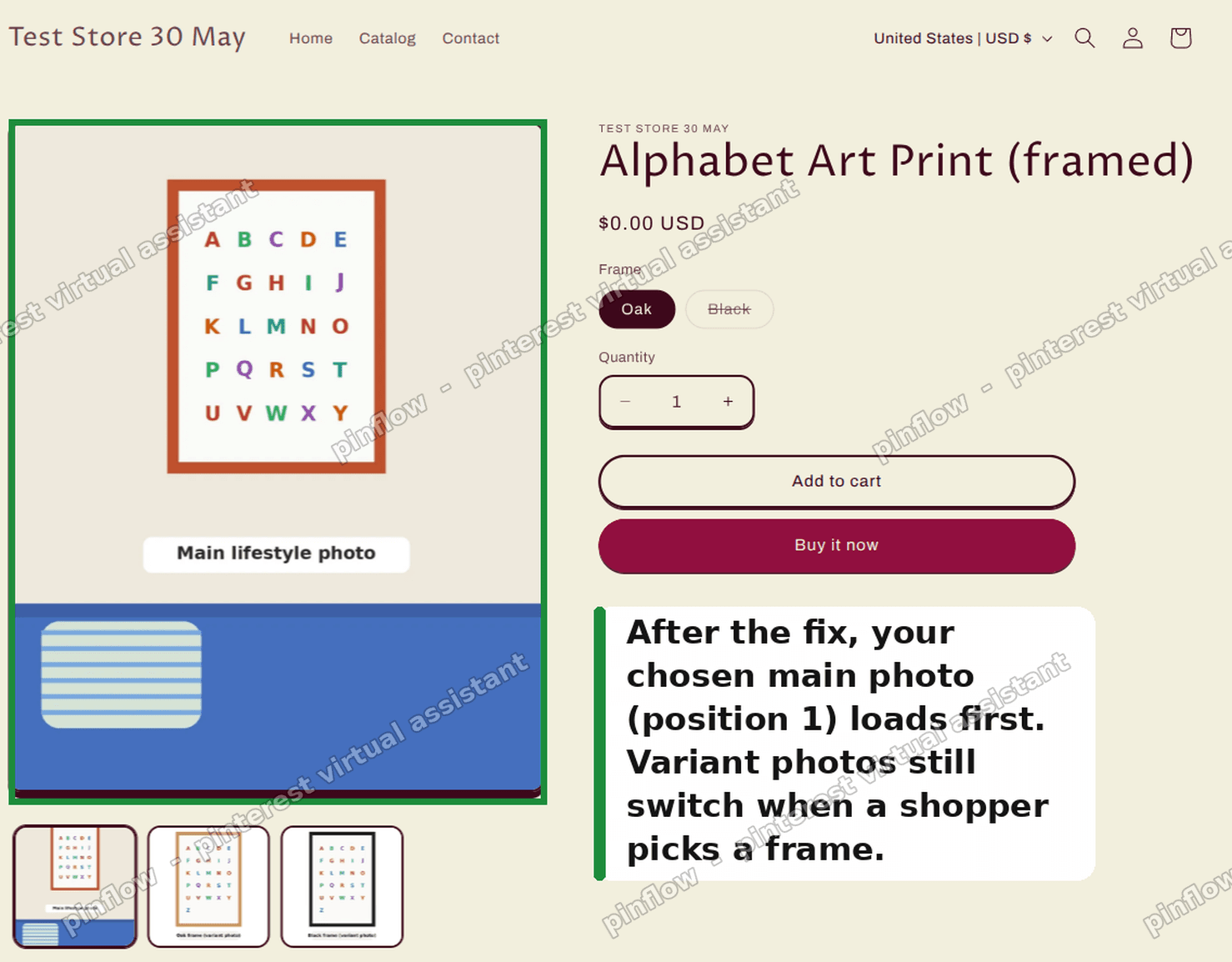 After the fix, the chosen main photo loads first while variant photos still switch
Then click through your variants. Pick the oak frame, pick the black frame. The main photo should still swap to match each one. You have not lost variant image switching. You have only changed which photo greets the shopper before they choose.
Will this break my variant photos?
No, and this is the part people worry about most, so it is worth being clear.
The edit only changes which image is active when the page first loads. Every variant photo is still in the gallery, and the theme still swaps to the right one the moment a shopper selects an option. I verified this after the change: load showed the chosen main photo, and selecting a variant switched the photo as normal.
The only behavior you are turning off is the theme jumping to a variant photo on its own, before the customer has done anything.
The no-code alternative
If you would rather not touch theme code, there is a simpler route, with one trade-off.
Remove the image link from each variant. In the product editor, open each variant and clear its assigned image. Then set your media order so your chosen photo is first.
With no photo attached to any variant, there is nothing for the theme to jump to, so it falls back to your first media image. Your main photo loads first with no code at all.
The trade-off is that you lose variant image switching entirely. The photo will no longer change when a shopper picks an option. If you do not rely on per-variant photos, this is the easiest fix. If you do want the photo to change per option, use the code edit above instead.
Does this change affect all my products?
Yes. The file you edit is shared by every product page in the theme, so the new behavior applies store wide.
That is usually what merchants want. Every product will now open on its own first media image, and every product will still switch photos when a shopper picks a variant. There is no per-product setting for this, so the code edit is the way to control it across the catalog at once.
If you only want it on one product, that is not something a theme setting can do cleanly. The edit is store wide by design.
What to check if the photo still loads wrong
If the wrong image still shows after the change, run through these.
- Confirm your chosen photo really is first in the media order. The fix loads the first media image, so if a different photo sits in position one, that one loads.
- Make sure you replaced all seven matches, not just the first. A missed match in the thumbnail section can leave the gallery half changed.
- Clear your cache or open the page in a private window. Themes and browsers both cache aggressively, so an old version can linger.
- Check you edited the live theme, or published the copy you edited. It is easy to edit a duplicate and forget it is not the one customers see.
- If you have an image zoom or gallery app, it may control the main image itself. Disable it briefly to test whether the theme or the app is in charge.
Variant image, featured image, and media order
These three get mixed up constantly, and knowing the difference makes this whole topic click.
A variant image is a photo attached to one specific option, like the oak frame. Its job is to switch the main photo when that option is selected. It is optional, and it is what causes the behavior in this article.
The featured image, or first media, is simply the photo in position one of your product's media library. It is the product's default picture, the one used on collection pages and shares. The fix in this article tells the product page to open on this image.
Media order is the sequence of all your photos. It controls the thumbnails and the order a shopper scrolls through. On its own it does not decide the opening main image, because a variant photo overrides it. That is the surprise that sends most merchants looking for an answer.
Once you see it that way, the fix makes sense. You are telling the theme to trust your media order for the opening image, instead of letting the first variant decide for you.
The short version
Your product page loads the first variant's photo because Crave, and the Dawn family it belongs to, pick the first available variant's image as the opening main image. Drag your chosen photo to the first media spot, then in snippets/product-media-gallery.liquid replace all seven instances of product.selected_or_first_available_variant.featured_media with product.featured_media. Your chosen photo now loads first, and variant image switching still works when a shopper picks an option.
Spending too long on manual Shopify busywork?
PinFlow turns your Shopify catalog into Pinterest pins and posts them on a schedule, automatically. Same idea as the rule above, let the system handle the repetitive part.
Get PinFlow on the Shopify App StorePart of a complete guide
Shopify Variants: The Complete Guide
Variants are one product sold in several forms. How they work, the 2,048 and 3-option limits, and where each variant fix lives - images, swatches, sorting, hiding and the theme-specific bugs.
More Shopify fixes
More community-sourced Shopify guides, tested on a live store.
Themes & Storefront
Remove the Variant ID From Your Shopify Product URL
Your product link keeps turning into /products/name?variant=43176780890281, before the customer has touched anything. One theme setting stops it, a second switch covers Dawn, and a short snippet cleans the links that already carry the ID.
Themes & Storefront
Hide Unavailable Variants in a Shopify Dropdown
Green has no 3XL, so Shopify prints "3XL - Unavailable" in the size dropdown anyway. How to remove combinations that do not exist, without the bug that kills the variant picker. Tested on Studio.
Shopify Admin
How to Hide a Variant in Shopify Without Deleting It
A colour is temporarily unavailable and you want it off every product page without deleting it and rebuilding it later. Shopify can now unpublish a single variant. The fast way to do it, tested on a live store.