
Be Yours Shopify Theme: Show From Price, Not a Price Range
The Be Yours Shopify theme shows a price range like $45.00 - $125.50 on product cards. Two lines of code turn it into from $45.00. Tested on Be Yours 9.5.1.
By AjayCodeWiz · September 30, 2026 · 8 min read
The problem
You sell a product in several sizes or versions, and each one has its own price. On your collection pages the product card shows the whole spread, for example $45.00 – $125.50. You would rather show one clean starting price: from $45.00.
A merchant asked exactly this on the Shopify Community. They run the Be Yours theme, version 9.5.1, and wanted every card with a price spread to show only the lowest price with the word "from" in front of it.
I installed Be Yours 9.5.1 on a test store and reproduced it. A cake with three sizes at 66 and 46.00 – 46.00`. Products with a single price did not change.
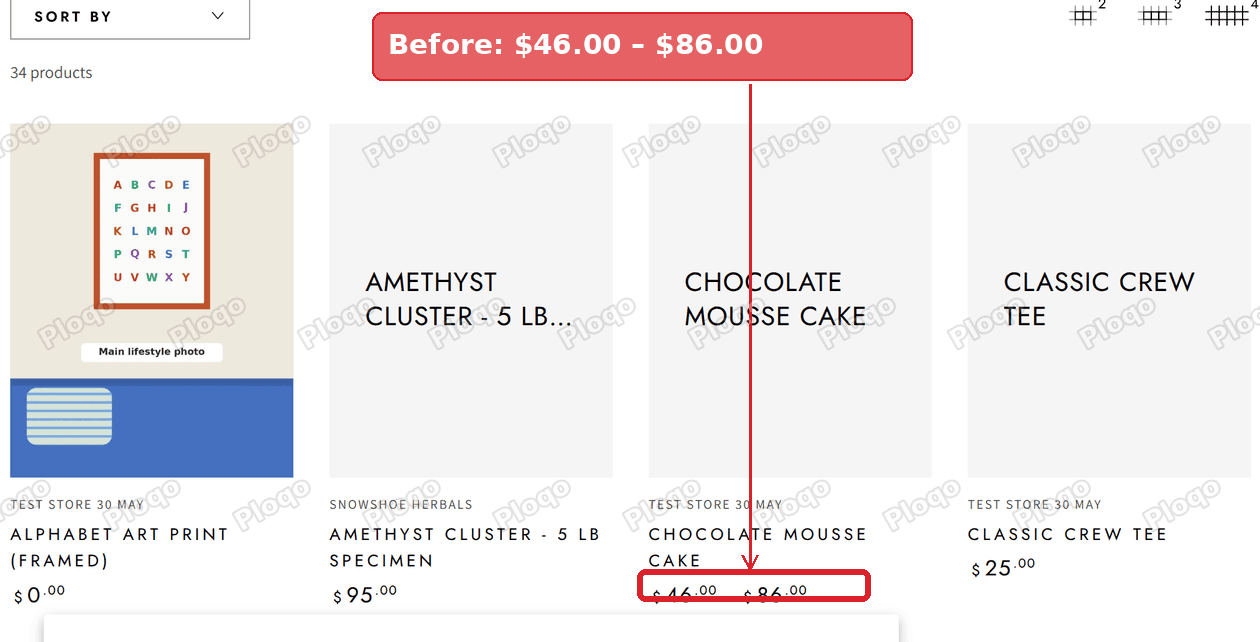 Before: the product card shows the price range 46.00 – 86.00
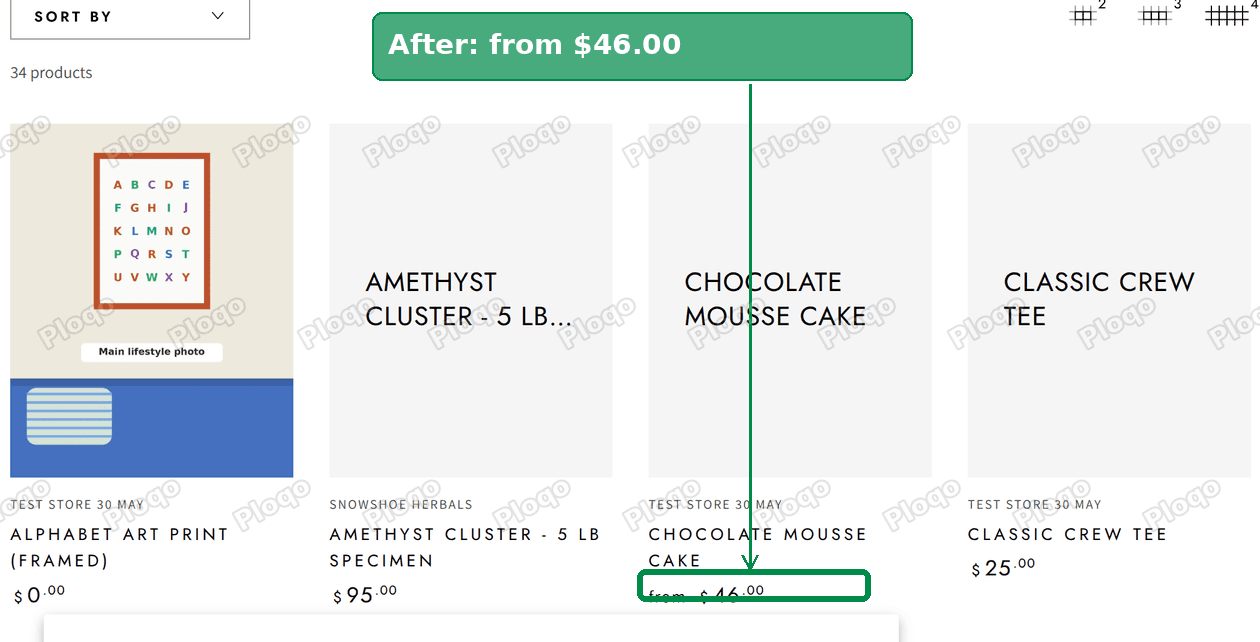 After: the same card shows from $46.00
Why Be Yours shows a price range
Every product in Shopify has at least one variant. A variant is one buyable version of the product, such as the 6 inch cake or the 10 inch cake. Each variant has its own price.
When a product's variants all cost the same, the card shows one price. When they differ, Be Yours prints two prices side by side on the card: the cheapest and the most expensive. Its stylesheet (the file that controls how the theme looks) then puts a dash in front of the second price. That is how $46.00 and $86.00 turn into $46.00 – $86.00.
Be Yours does not offer a theme editor setting to switch this off, so the fix is a small edit to the theme's code.
The upside is that both prices are already on the page. The fix does not need to work anything out. It hides the second price and writes "from" in front of the first one.
Before you edit: make a backup
Any code edit is safer with a copy of the theme to fall back on. It takes ten seconds.
On the Themes page shown in step 1 below, click ... next to your Be Yours theme and choose Duplicate.
The copy appears in your theme library as an unpublished theme. If anything looks wrong later, you can publish the copy or compare the two.
The fix: show "from" and the lowest price
The whole change is two lines pasted at the end of one file.
- Go to Online Store > Themes.
- Click ... next to your Be Yours theme.
- Click Edit code.
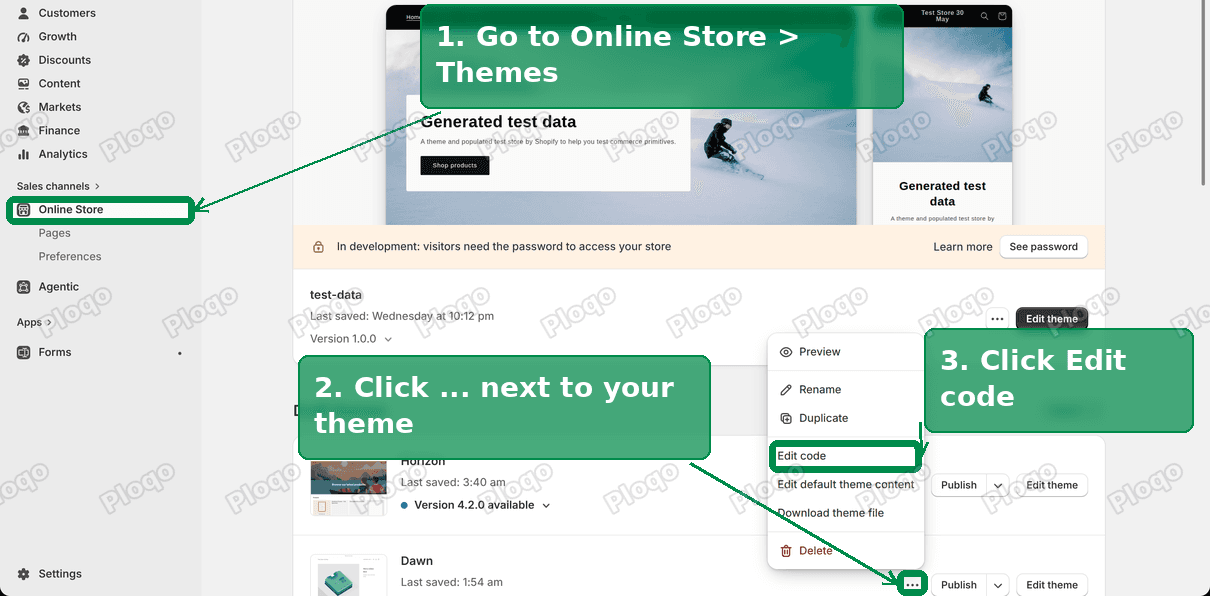 Online Store, the three-dot menu on the theme, and Edit code
- On the left, open the assets folder and click component-price.css. This file holds the styling for every price in the theme.
- Go to the very end of the file and paste this on a new line:
.price price-money + price-money { display: none; }
.price price-money:first-child:not(:only-of-type)::before { content: "from "; margin-inline-end: 0.4rem; }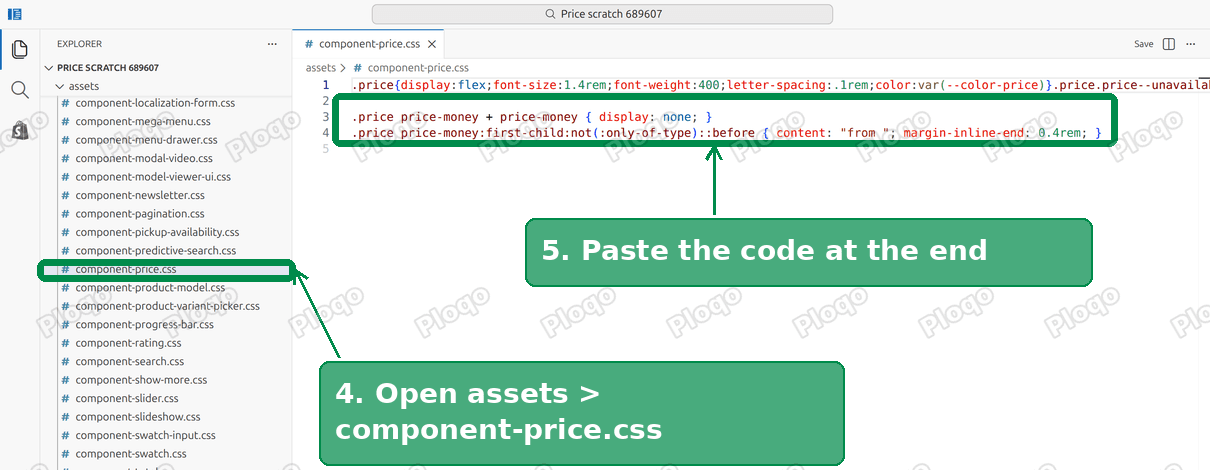 component-price.css with the two lines pasted at the end
- Click Save.
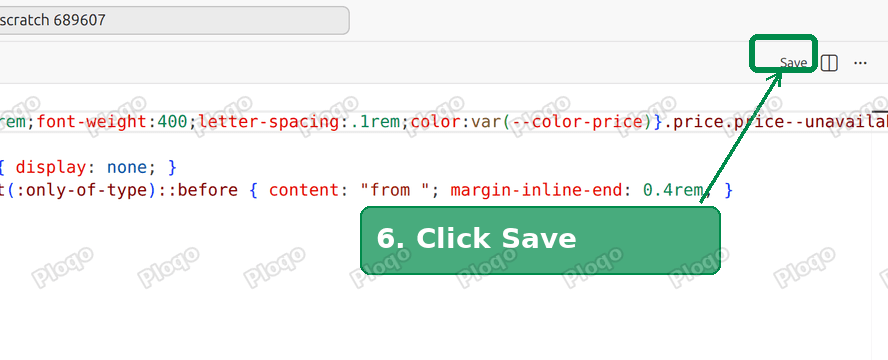 Save in the code editor
Open a collection page on your store and refresh it. Cards for products with a price spread now read from $46.00. Cards for products with one price look exactly as before.
What the two lines do
You do not need to understand the code to use it, but it helps when something looks off.
- The first line hides the second price on the card, the most expensive one. The dash disappears with it, because the dash belongs to that second price.
- The second line adds the word "from" in front of the first price, but only when a second price exists. A product with one price has nothing hidden and gets no "from".
Nothing is deleted from the theme. Remove the two lines and save, and the range comes back.
Change "from" to "From", "Starting at" or another language
The word in quotes is plain text, so you can change it to anything.
- Capital F: change
"from "to"From ". - Different wording:
"Starting at "or"As low as "work the same way. - Another language: use your own word, for example
"ab "for German or"à partir de "for French.
Keep the space before the closing quote. Without it, the word runs into the price.
If your store is in several languages, the text in this code is the same for all of them. A multi-language store is better off with a short word that reads fine in each language, or with a translation app that handles theme text.
Where the change shows up
The price styling lives in one shared file, so the two lines apply wherever Be Yours prints a product card, not only on the collection page I tested:
- Collection pages
- Search results
- Featured collection sections on the home page
On the product page itself, Be Yours already shows the price of the selected size or version, not a range, so nothing changes there.
What about sale prices?
When some variants are on sale, Be Yours shows a crossed-out regular price next to the sale price. Be Yours prints the sale price spread the same way, as two prices, so the same two lines turn it into from and the lowest sale price.
Is "from" the right choice for your store?
A range tells shoppers the ceiling. A starting price tells them the floor. Both are fair, and it depends on what you sell.
- Starting price works well when the cheapest option is a real, popular choice: the smallest size, the basic finish, a single unit. Shoppers see a lower number on the grid and click through.
- A range works better when the cheapest option is rarely bought. If
from $45turns into$125for most people once they choose, the jump can feel like a bait and switch.
A quick check is your own sales data. If most orders for the product land on the cheapest variant, "from" describes what shoppers actually pay.
About the Be Yours Shopify theme
Be Yours is a paid theme from RoarTheme, sold in the Shopify Theme Store. It is built for beauty, fragrance and fashion brands, and it comes with quick buy, a slide-out cart and a quick view drawer on product cards.
Like most Theme Store themes, it gets regular updates. The fix in this article was tested on version 9.5.1. Your theme's card on the Themes page (the screen in step 1 below) shows which version you run.
Because Be Yours is a paid theme, the theme developer offers support to buyers. RoarTheme can make changes like this one for you if you would rather not edit code. The two lines here are small enough that most merchants can paste them in a couple of minutes.
A few other common Be Yours changes follow the same pattern: find the file that styles the element, paste a short rule at the end, save. Price size, price colour and the sale badge all live in the theme's stylesheet files in the assets folder.
Troubleshooting
Cannot find component-price.css? Click in the file list on the left and type component-price in the search box at the top of the code editor. Very old versions of Be Yours may name it differently; search for price and open the CSS file with that word in its name.
Saved, but the storefront still shows a range? Refresh the page with a hard reload (Ctrl+Shift+R on Windows, Cmd+Shift+R on Mac). Browsers keep a stored copy of theme files for a while.
Edited the wrong theme? The code only changes the theme you edited. If your live theme is a different copy of Be Yours, repeat the steps on the live one. The theme marked Current theme at the top of the Themes page is the one shoppers see.
Updated Be Yours and the range came back? A theme update installs fresh copies of the theme files, including this one. Paste the two lines again after updating.
Using a different theme? The two lines are written for Be Yours. Other themes print the range in a different way, so the code will not match. Dawn and most free Shopify themes show "From $45.00" on cards already, which is worth checking before you edit anything.
Apps that do this without code
Some merchants would rather not touch code. Price display apps and variant option apps can change how prices appear on product cards. They add a monthly cost and another script to your store, so for a two-line change the code above is the lighter option.
Ask a question on the thread linked below if you get stuck, or send it to your theme developer along with this page.
Source thread: <a href="https://community.shopify.com/t/change-price-in-be-yours-theme/689607" rel="nofollow">Change price in Be Yours theme</a> on the Shopify Community.
Spending too long on manual Shopify busywork?
PinFlow turns your Shopify catalog into Pinterest pins and posts them on a schedule, automatically. Same idea as the rule above, let the system handle the repetitive part.
Get PinFlow on the Shopify App StoreMore Shopify fixes
More community-sourced Shopify guides, tested on a live store.
Themes & Storefront
Shopify AI Section: Fix a Price Badge Hidden Behind the Image
You built a section with Shopify's AI section generator, but the price badge on each card sits behind the photo. Here is the Custom Liquid fix that brings it to the front without regenerating anything. Tested on a Dawn store.
Themes & Storefront
Hide Shipping Calculated at Checkout on One Shopify Product
The line under Add to cart that says shipping is calculated at checkout shows on every product, gift cards included. Here is how to hide it on one product only, with the code, screenshots and the Eclipse theme steps.
Themes & Storefront
Shopify Dropdown Menu Behind Page Content (Z-Index Fix)
Your Shopify dropdown or mega menu opens, but the page title and products sit on top of its links and the menu closes before you can click. The fix is one Custom CSS rule in Theme settings. Tested on a Rebel store.