
Copy a Section to Another Page in Shopify (Theme Editor, No App)
Right-click a section in the theme editor, pick Copy, switch page with the page picker, then right-click a section there and pick Paste after. No app needed.
By AjayCodeWiz · November 11, 2026 · 4 min read
The short answer
In the theme editor, right-click the section's name in the left panel and pick Copy. Open the other page with the page picker at the top, right-click a section there and pick Paste after. The copy lands after that section with its settings, and Save keeps it. It needs no app and no code.
This was filmed on a development store on 11 November 2026, on the Horizon theme (version 4.4.0) and the Basic plan. Watch the 2-minute version, or follow the steps below:
In the video's order:
- Copy the section. Right-click it in the left panel and pick Copy.
- Open the other page. Use the page picker at the top of the editor.
- Paste after. Right-click a section on that page and pick Paste after.
- Save, or Undo. The paste is an unsaved edit until you press Save.
- If Copy is missing. You have probably right-clicked the page's main section.
- One block. Blocks have Copy and Duplicate in their menu too.
Copy the section
Open your theme with Customize (Online Store, then Themes). In the left panel, under Template, right-click the name of the section you want, here Featured collection on the Home page.
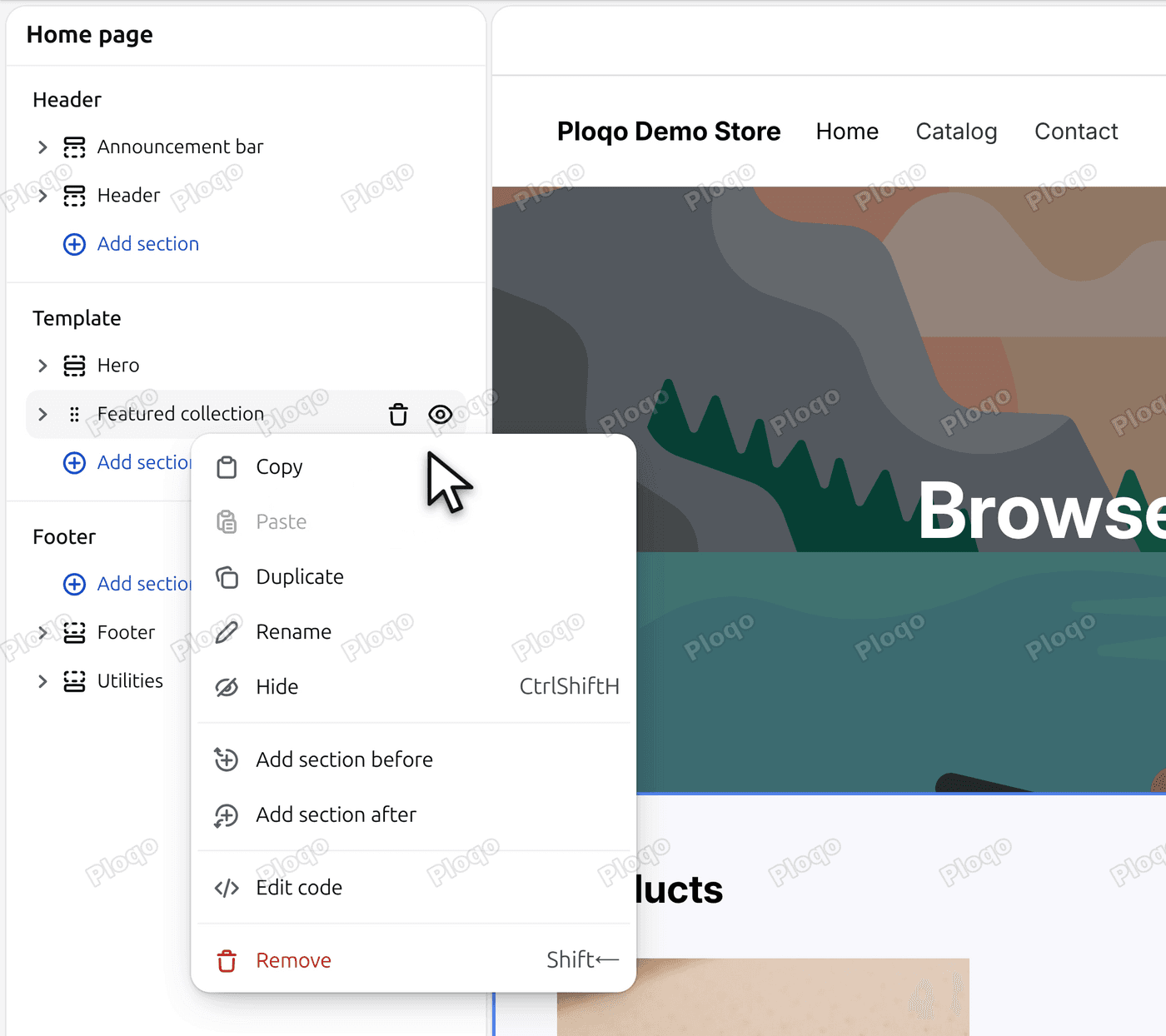 The right-click menu on the Featured collection section, with Copy at the top, Paste greyed out and Duplicate below it
The menu has Copy, Paste, Duplicate, Rename, Hide, Add section before, Add section after, Edit code and Remove. Paste is grey here because nothing has been copied yet. Duplicate only makes a copy on the same page.
Click Copy. Nothing seems to happen, and Save stays grey, but the section is copied.
Open the other page
Click the page name at the top of the editor, in the middle of the top bar. The page picker opens with a list: Home page, Products, Collections, Collections list, Gift card, Cart, Pages, Blogs and more. Pick the page you want the section on. In the video it is Collections list.
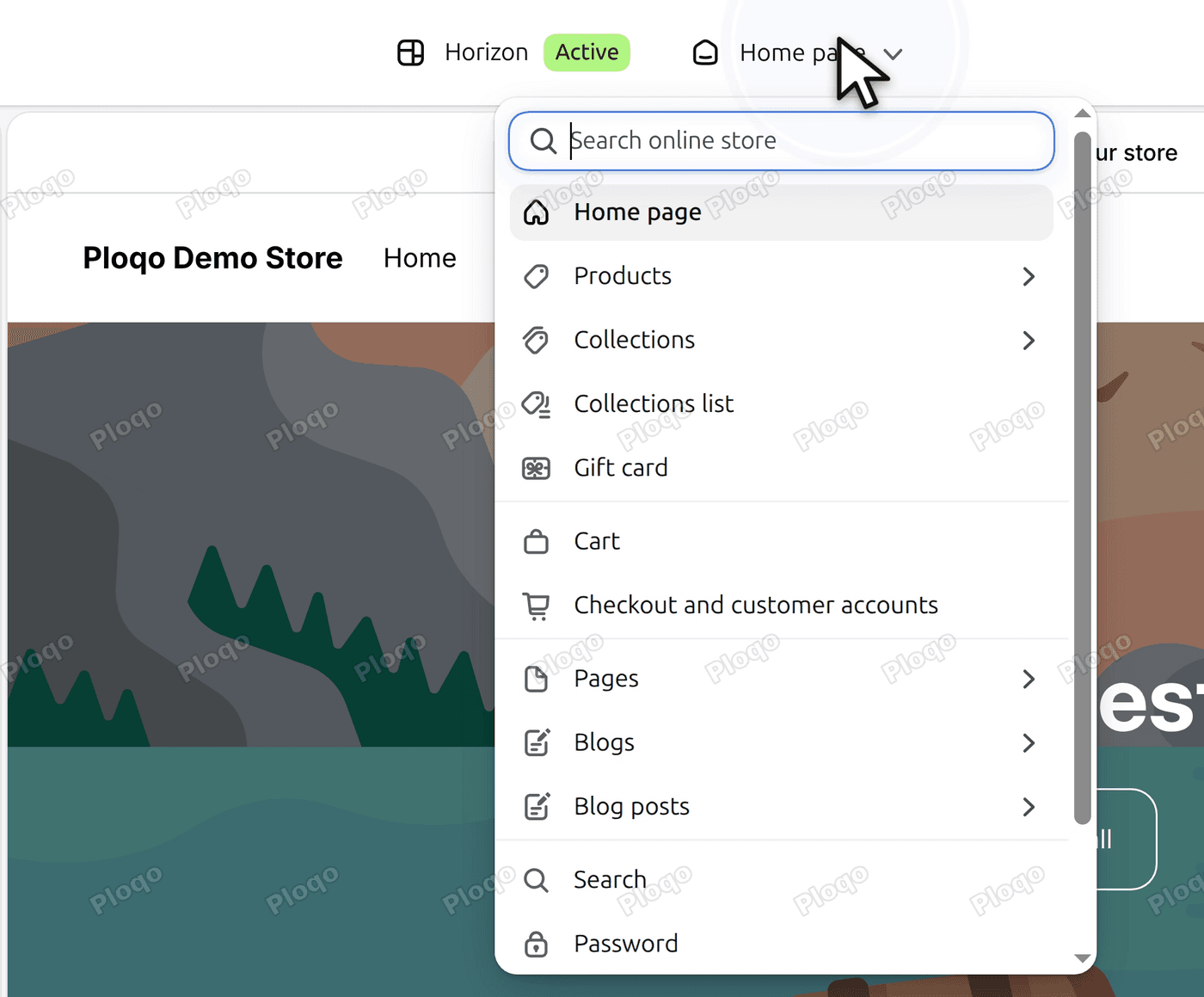 The page picker open from the top bar, with the page list under Home page
Use the picker to change page. The video does not reload the editor between the two pages, and the copy was still there after the switch.
Paste after
On the new page, right-click a section in the left panel. Paste after is at the top of the menu. Click it.
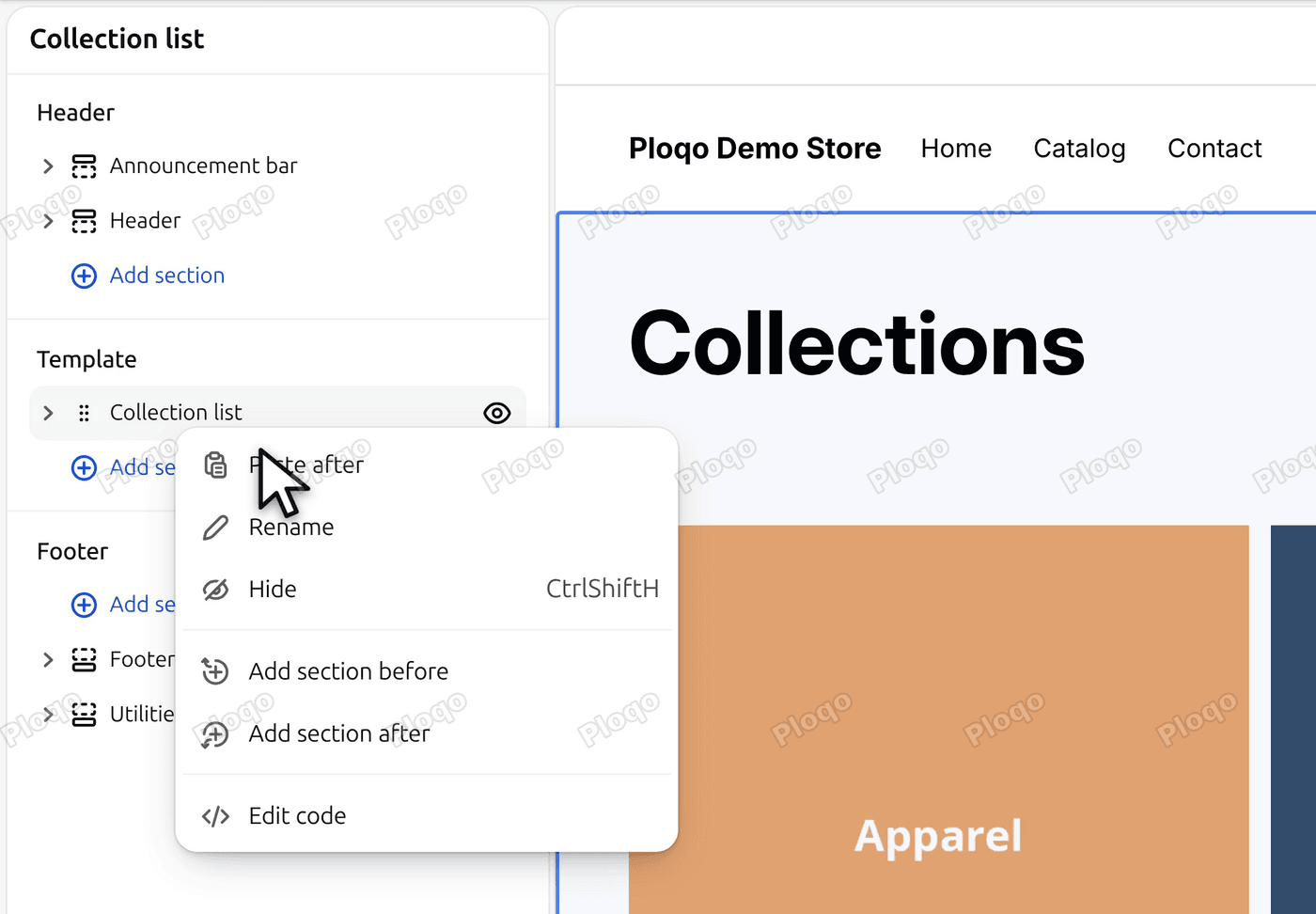 The right-click menu on the Collection list section, with Paste after at the top
The copy lands right after the section you clicked, already selected. It keeps its settings. In the video the pasted Featured collection still shows Collection: Products, Type: Grid, Product count 8 and Columns 4, the same as the original.
Save it, or take it back
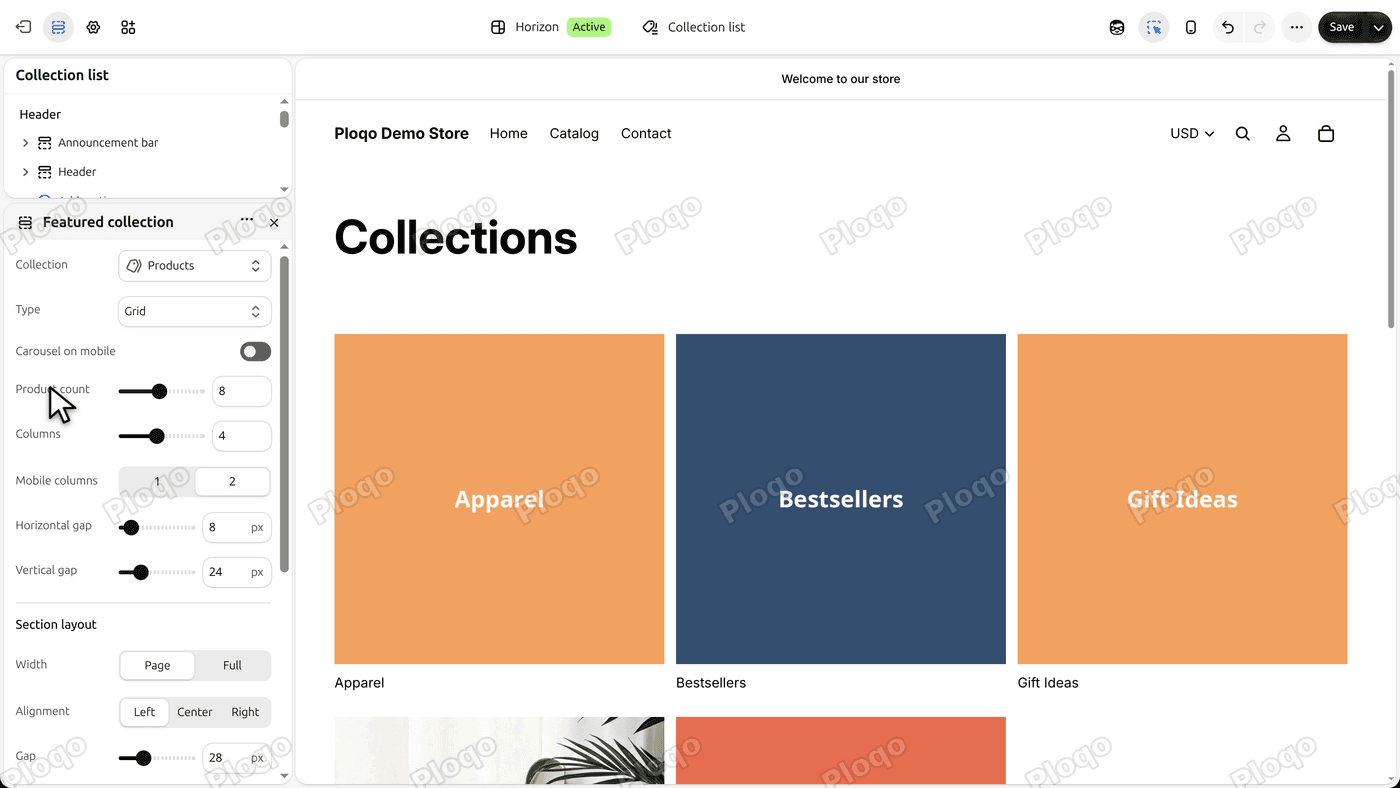 The pasted Featured collection settings in the left panel, with Save lit and the Undo arrow active in the top bar
The paste is an unsaved edit. Save lights up, and the Undo arrow next to it becomes active. Press Save when you want to keep the section.
The video does not save, because it is a demo store. It clicks the Undo arrow instead (its label is "Revert the most recent action"). Save goes grey again and the pasted section is gone from the page.
When Copy is not in the menu
One reason is that you have right-clicked the page's main section. On the Collections list page that is Collection list. Its menu has Paste after, Rename, Hide, Add section before, Add section after and Edit code, but no Copy and no Duplicate.
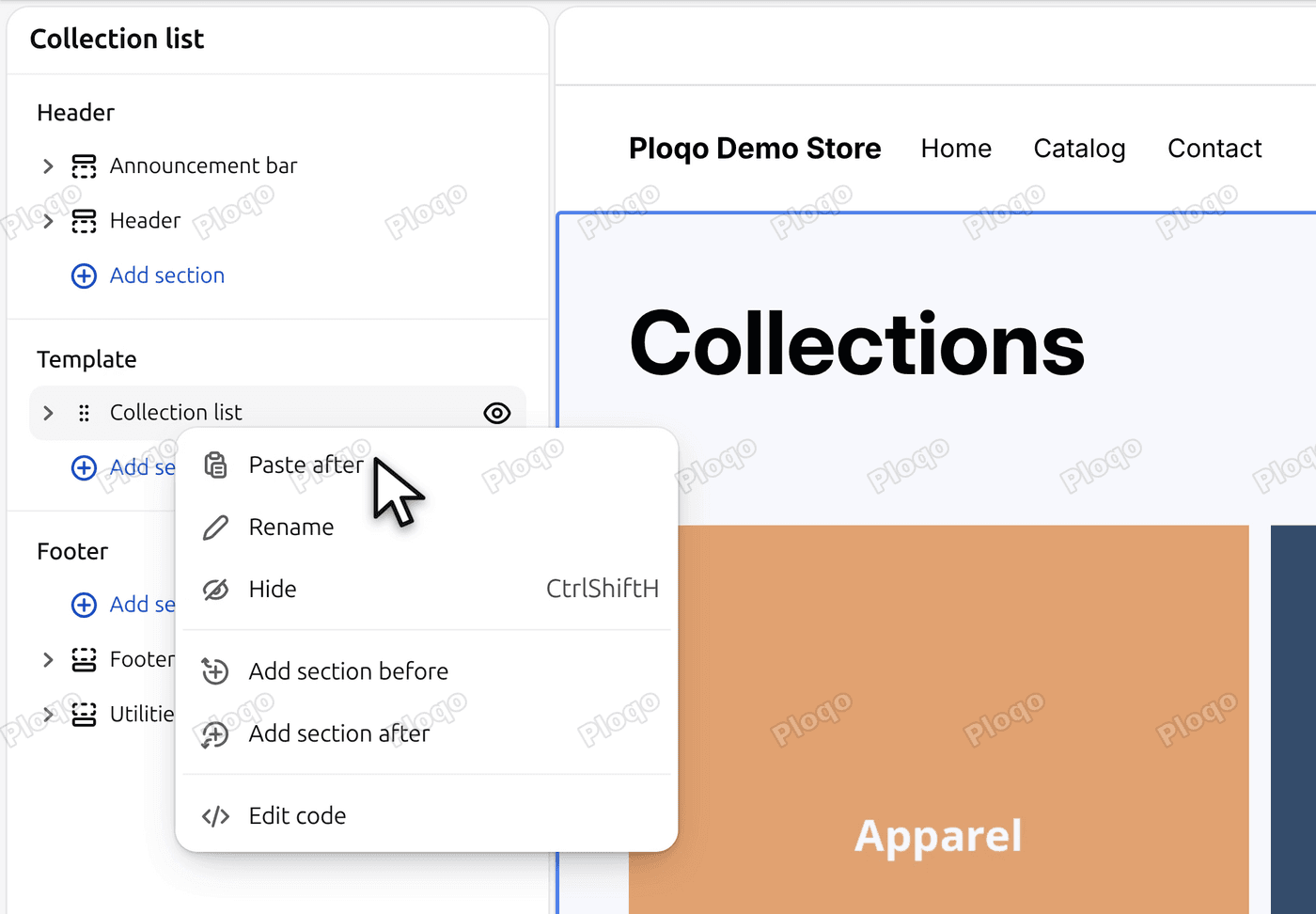 The right-click menu on the Collection list section, with no Copy, Duplicate or Remove in it
Copy a content section instead, such as Featured collection or Hero. If Paste is grey, copy something first.
These are the menus on the demo store. Other themes may differ.
Copy one block
Blocks work the same way. Open a section in the left panel (the video uses Hero) and right-click one of its blocks, here the Heading.
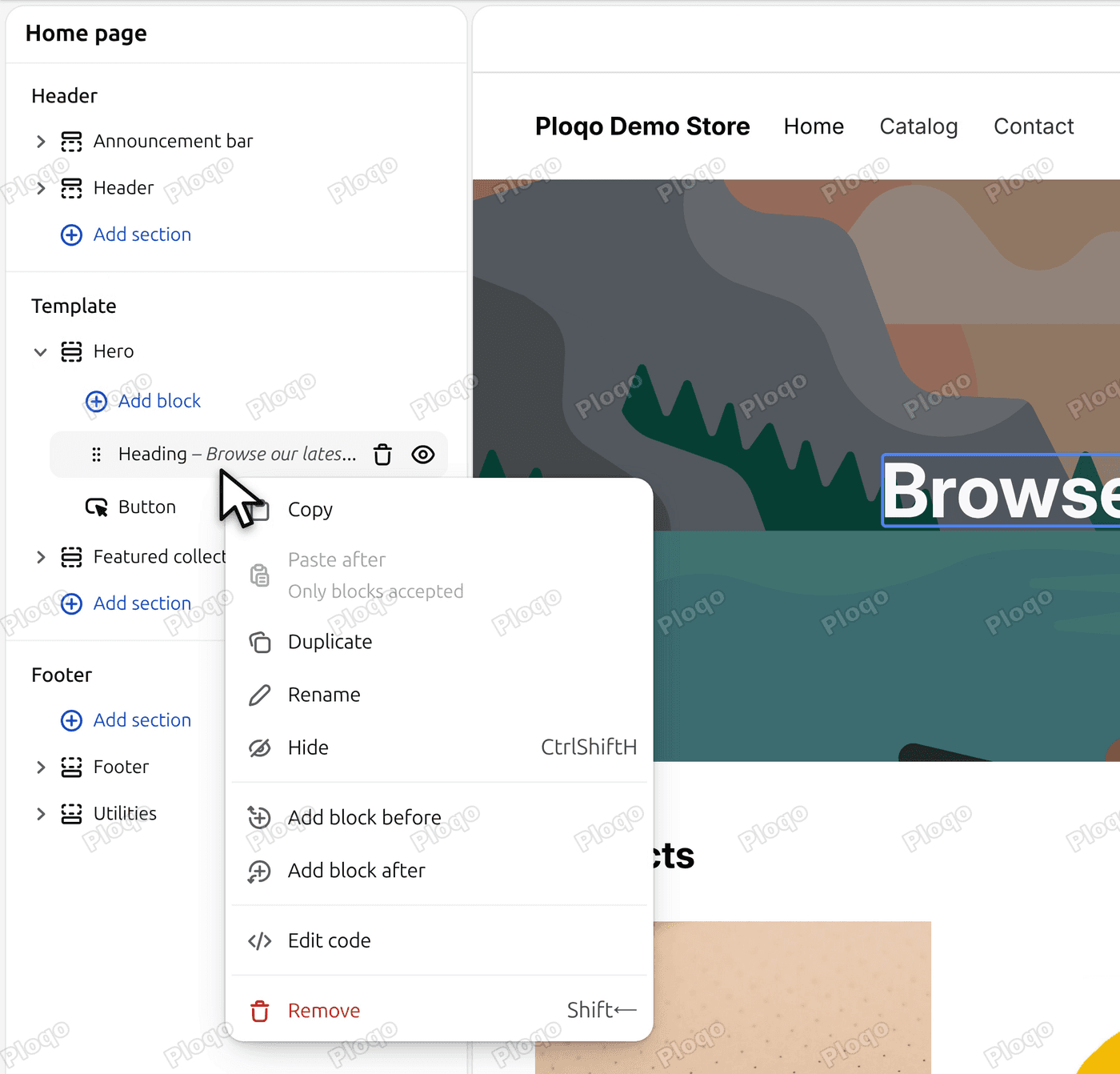 The right-click menu on the Hero section's Heading block, with Copy, Duplicate and a greyed Paste after
The menu has Copy and Duplicate. In this screenshot a section is already copied, so the block's Paste after is grey and says "Only blocks accepted".
Shopify's help page on sections and blocks says a copied block can be pasted into the same section or a different one: right-click the block, pick Copy, right-click in a section, pick Paste, then Save. A duplicated block keeps all the settings and content of the original. The video shows the block's menu but does not paste a block.
Shopify added this in May 2025
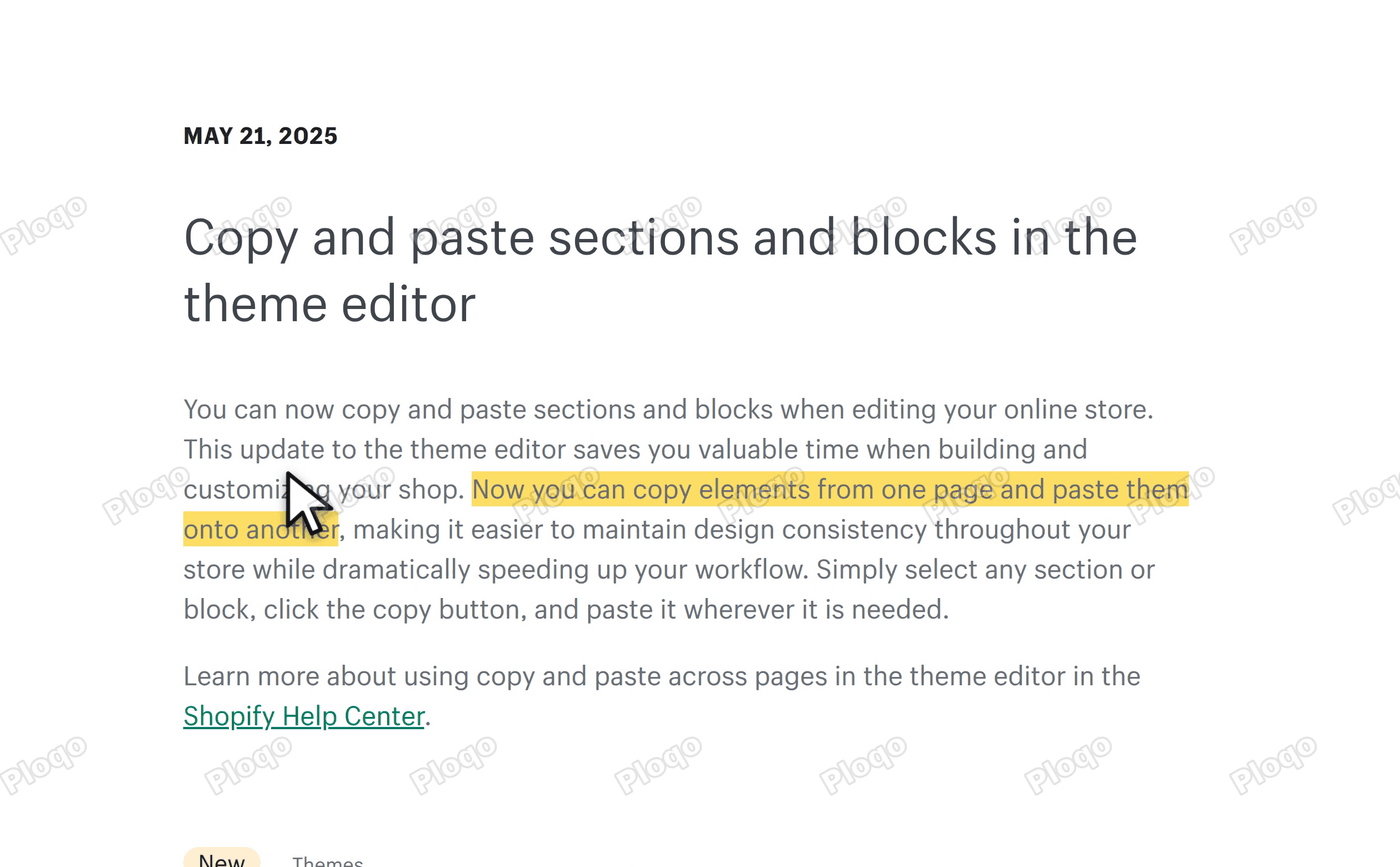 Shopify's changelog post "Copy and paste sections and blocks in the theme editor", dated May 21, 2025, with the sentence about copying from one page to another highlighted
Shopify's changelog post of 21 May 2025 says: "Now you can copy elements from one page and paste them onto another." It is also in the theme editor updates of the Summer '25 Edition, listed as "Copy and paste blocks and sections". The post does not name a theme.
Older forum answers say there is no built-in way, for example this thread with answers from 2023 and 2024, and this one from 2022. Those answers are from before the change. A newer thread, moving a section from one page to another, has an accepted answer from December 2025 saying copy and paste works across pages.
What this covers
These steps move a section between pages of one theme. They were filmed on Horizon 4.4.0. Keyboard shortcuts, other themes and moving a section to a different theme or store are outside what the video shows. The changelog post does not name a theme.
This is an unofficial guide and is not affiliated with Shopify. Questions: [email protected].
More Shopify fixes
More community-sourced Shopify guides, tested on a live store.
Themes & Storefront
Shopify Anchor Link: Button That Scrolls to a Section
Link a Shopify button to a section lower on the same page with an anchor link. Steps for the theme editor, no code files, plus the fix for a title hidden under the header.
Themes & Storefront
Shopify Social Media Icons: Add a Custom Icon and Link
Set your social links in Shopify theme settings, see why icons do not show, and swap in your own icon for a network the theme does not list.
Themes & Storefront
Sticky Add to Cart Button in Shopify Dawn, No App
Pin the Add to cart button and its delivery line to the bottom of the screen in Shopify Dawn. One free Custom Liquid block, no app, phone and desktop.