
Shopify Predictive Search: Show Product Photos in Dawn
Shopify cannot search by photo, but Dawn can show a product picture beside each match as shoppers type. Here is the setting that turns it on.
By AjayCodeWiz · November 12, 2026 · 8 min read
The problem
A merchant on the Shopify Community asked how to add an image search option to the Dawn theme without installing an app. Dawn is Shopify's free default theme, which is the template that controls how your store looks.
The question can mean two different things, and they have very different answers.
- Searching with a photo. The shopper uploads a picture and the store returns similar products.
- Seeing photos while searching. The shopper types a word and every suggestion has a product picture next to it.
Shopify does not offer the first one. Dawn already offers the second, and it is switched on or off with a single setting. That feature is called predictive search, which is the dropdown of suggestions that opens under the search box while a shopper is still typing.
I tested it on a store running Dawn 5.0.0. With the setting off, I typed "snowboard" into the search box and the dropdown stayed empty.
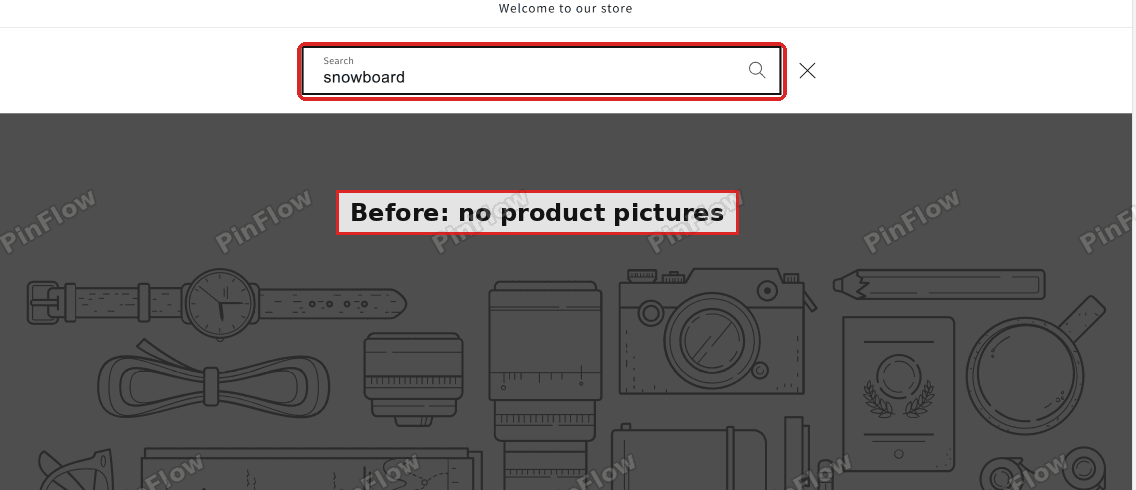 Before: typing snowboard into the Dawn search box shows no product pictures
With the setting on, the same search listed four snowboards, each with its photo.
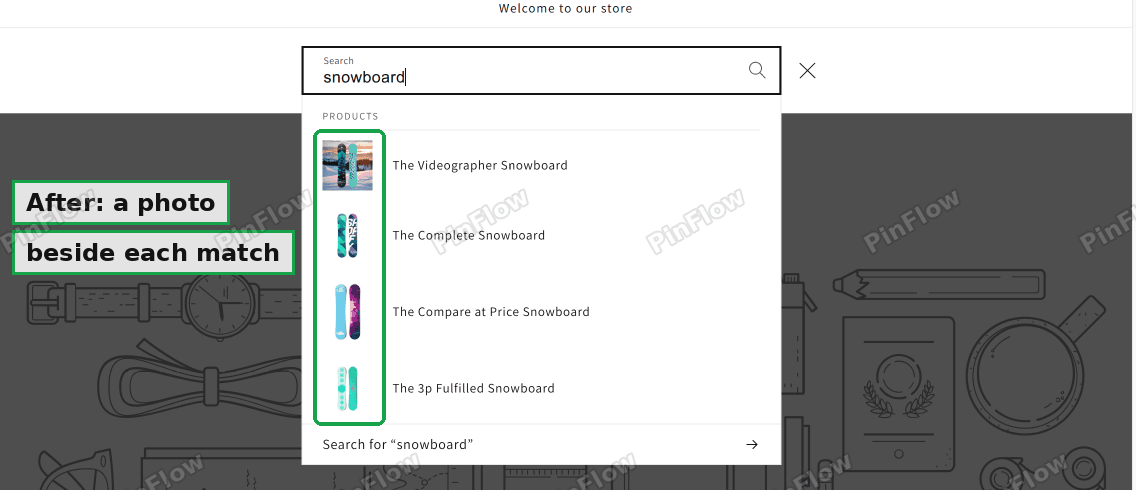 After: the same search shows a photo beside each snowboard
The rest of this article covers how to turn it on, what the dropdown searches, which photo it shows, and what to check when it does not appear.
Can Shopify search by uploading a photo?
Shopify's search works on text. Its documentation lists what a product search reads: the title, the description, the product type, the tags, the variant titles, the vendor, the SKU and the barcode. All of those are words and codes, so a photo has nothing to match against.
Matching a picture to similar products needs software that can compare images, and that has to run on a server outside Shopify. Dawn cannot do that by itself, and nothing in the theme settings adds it.
If photo upload is what you need, the options are an app or a custom build with your own server. Ask for suggestions on the Ask and Offer board of the Shopify Community, since that is the place where app recommendations are allowed.
Most shoppers who ask for "image search" want to find the right product quickly and recognise it by sight. The product picture in the dropdown covers that for typed searches, and it takes about a minute to set up.
What predictive search does
When a shopper types in the search box, Shopify looks up matching products while they type and shows the best few in a small panel. They can click one and go straight to the product page without ever loading the full results page.
Dawn has this built in, and the theme setting decides whether the panel appears at all. With the setting off, the shopper has to press Enter and wait for the results page. With it on, the panel shows the product title and the product picture.
How to turn on product photos in the search box
This is the setting I used on Dawn 5.0.0. The steps are the ones I posted in the thread, with a picture for each screen.
- In your Shopify admin, open Online Store.
- Click Edit theme on the theme that is live on your store.
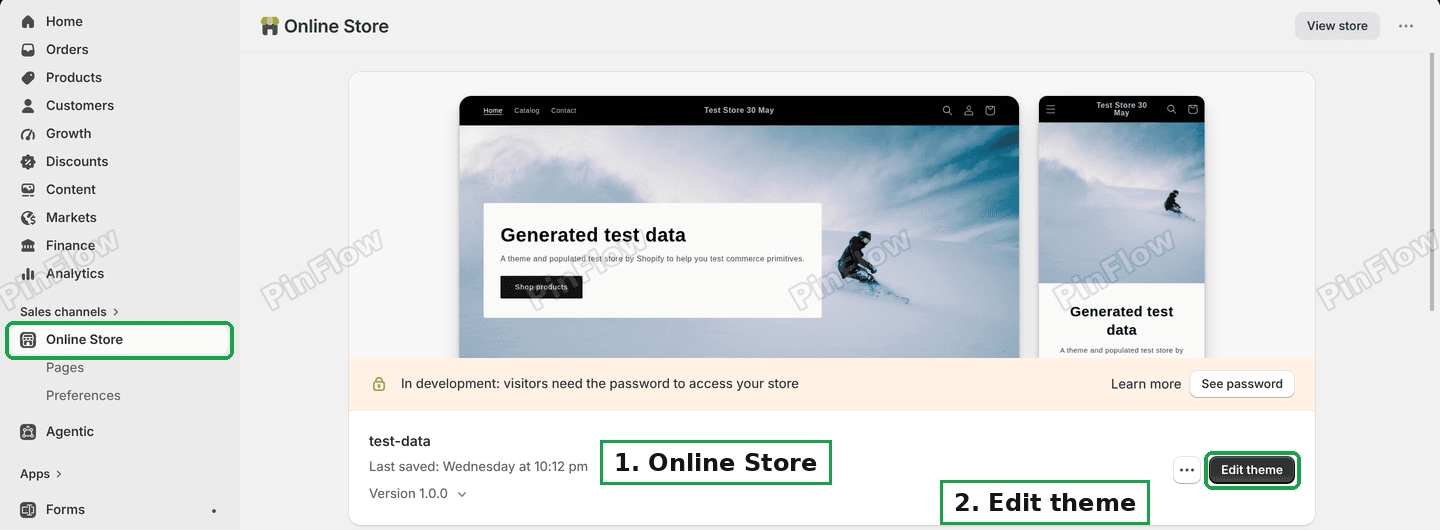 Online Store, then Edit theme on the current theme
- In the left panel, click the gear icon called Theme settings.
- Scroll down and open Search behavior.
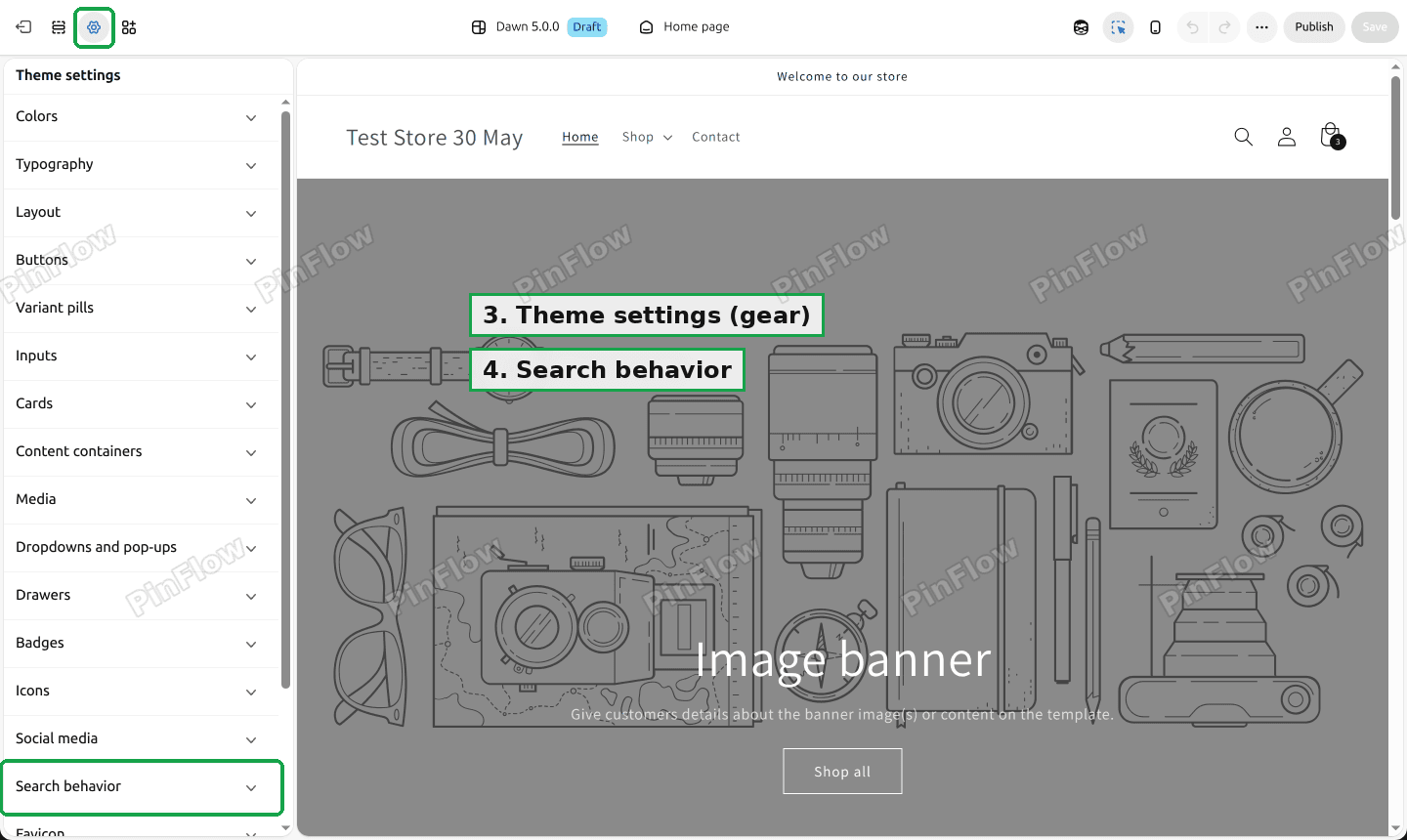 Theme settings gear in the editor, with Search behavior in the list
- Turn on Enable product suggestions.
- Click Save.
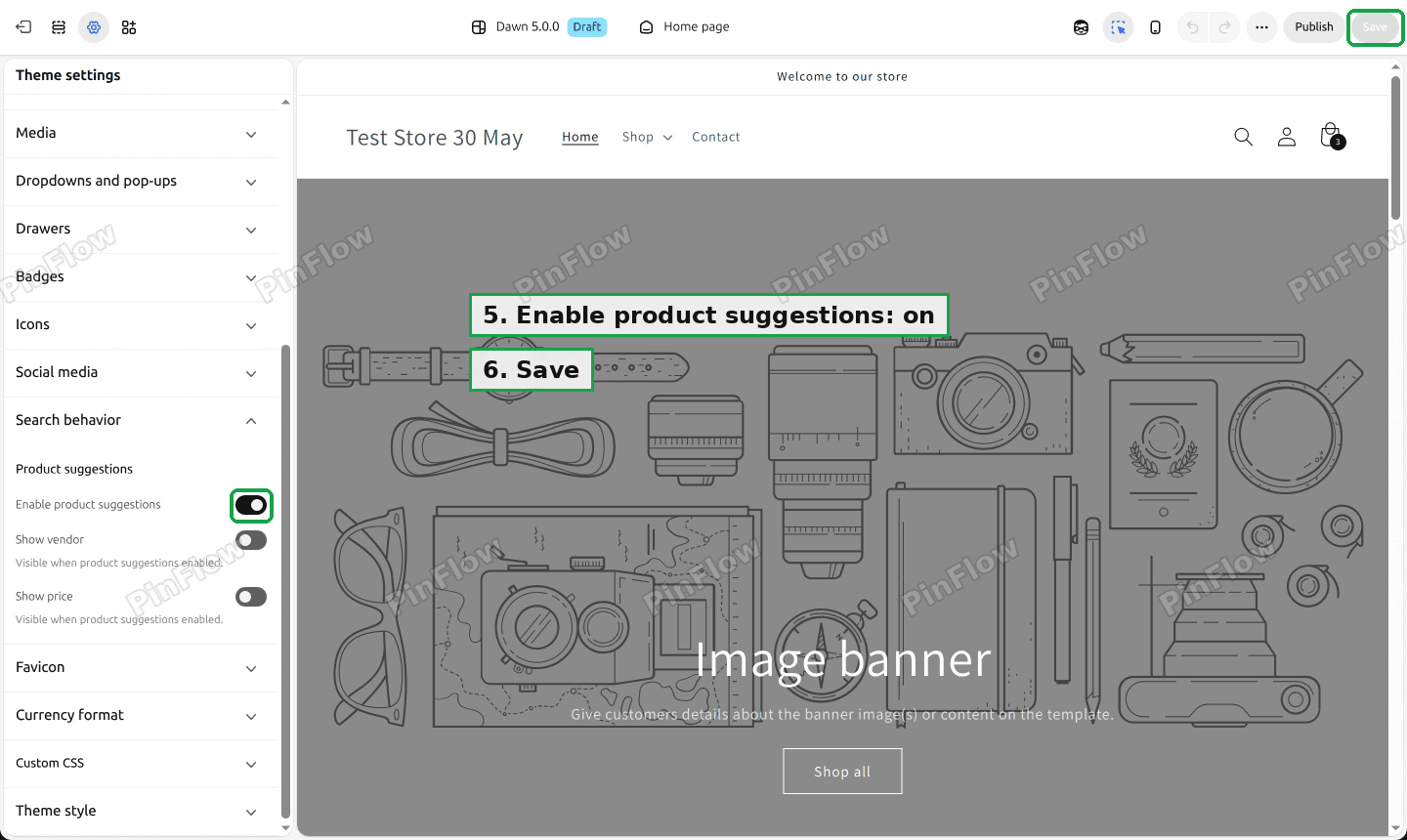 Enable product suggestions switched on, then the Save button
Open your store, click the magnifying glass and type a product word. The panel should list matching products with their pictures.
On Dawn 5.0.0 the switch is labelled Enable product suggestions. Another reply in the thread called it "Search suggestions", so the wording can differ between theme versions. Look inside Search behavior for the switch that talks about suggestions.
Show the price and the vendor too
When you switch on product suggestions, two more switches become usable underneath it: Show vendor and Show price. The settings panel marks both as "Visible when product suggestions enabled", and both are off by default.
Show price is worth turning on for a store where shoppers compare cost before they click. Show vendor suits a store that sells several brands. Leave both off if you want the panel to stay as plain as possible, with only a picture and a title.
Click Save again after changing either one.
What the search box actually searches
The dropdown does more than match the first letters of a title. These points come from Shopify's Predictive Search documentation.
- Partial words work. Typing "sweate" can suggest a sweater, and "presso" can return espresso products.
- Typos are forgiven. A search for "cofee" returns coffee products, including searches with several words such as "strong cofee mug".
- Many fields are searched. Product suggestions read the title, the description, the product type, the tags, the variant titles and the vendor, plus the SKU and the barcode.
- Collections, pages and articles can appear too. The Shopify system behind the dropdown can return suggestions for collections, pages and blog articles, but it matches only their titles. Dawn's switch is named for product suggestions, and the photo is a product feature.
- The limit is ten suggestions per type. Shopify's system never returns more than 10 for one type of result, and themes usually show fewer. The Dawn dropdown on my test store showed four products.
The practical result is that product tags and descriptions matter. If you want a search for "birthday gift" to find a mug, put those words in the mug's tags or description, and the dropdown will pick it up.
Which photo does the dropdown show?
The dropdown shows the product's featured image, which is the first picture in the product's media list.
There is one exception that Shopify documents. If the shopper types words that match a variant, such as a colour, the product is shown with that variant's picture. Shopify's example is a snowboard with a blue and a light blue version. Searching "snowbo" shows the main snowboard photo, while searching "light blue snowbo" shows the light blue one.
For this to work, each variant needs its own image assigned in the product page. If your variants all share one picture, every search shows that same picture.
A product with no picture at all has nothing to show beside its name, so add at least one image to each product you want to appear with a photo.
Search results page and dropdown are different things
Shopify has two search displays that people often mix up.
- The dropdown is the predictive search panel described above. It appears while typing.
- The results page is the full page that opens after the shopper presses Enter. Its address starts with
/search?q=.
The theme switch in this article controls only the dropdown. If your complaint is that the full results page lists unrelated products, that is a separate problem with a separate fix, which I covered in Shopify Search and Discovery App: Fix Unrelated Search Results. It includes a paste-in fix for Dawn that makes the results page strict again.
Keep some products out of the dropdown
Photos in the dropdown make hidden products more visible if you forget about them. Sample products, wholesale-only items and internal test products can all show up as soon as someone types a matching word.
Shopify's documentation gives two ways to exclude a product from predictive search: set its status to Unlisted, or hide it from search engines and sitemaps with a special metafield. A metafield is an extra field you add to a product to hold your own information. The full steps, with screenshots for both storefront search and the admin search, are in Keep Products Out of Shopify Search Results.
Show a picture without any typing
Some shoppers want to browse by looking, not by typing. Dawn has a Collection list section that shows one picture tile per collection, for example "Shirts", "Mugs" and "Gifts". A shopper clicks the picture that matches what they want.
You add it in the theme editor with Add section on the home page, then pick the collections to show. Each tile uses the collection's own image, so upload a clear photo to each collection first. I did not build this layout for this article, so treat it as a starting point and check how the tiles look on your own phone before you publish.
It is not image search in the sense of uploading a photo. It does give a visual way in for shoppers who do not know the product name.
If the photos do not appear
Work through this list from top to bottom. Each item is something that has stopped the dropdown from showing for a store.
- The switch was saved on a different theme. The editor saves to the theme you opened. If you edited an unpublished copy, publish that copy or repeat the steps on the live theme.
- Your theme has no such switch. Themes other than Dawn word it differently or leave it out. Search the theme's documentation for "predictive search" or "search suggestions".
- The storefront language is not supported. Predictive search works only when the shopper's language is on Shopify's supported list. English, French, German, Spanish, Italian, Dutch and Portuguese are on it, as are many others. If a visitor's language is not on the list, they get no dropdown.
- The product is unlisted or draft. Unlisted products are excluded from the dropdown on purpose, and draft products are not sold on your store.
- The product has no picture. There is nothing to show beside its name. Add an image to the product.
- A search app has replaced the box. Some apps swap Shopify's search for their own. In that case the app's own settings control the dropdown, not Dawn's.
Words people confuse
Predictive search is the dropdown that suggests products while you type. Dawn's setting for it is called Enable product suggestions.
Search suggestions is the wording another reply on the thread used for the same switch. The label can change between theme versions.
Semantic search is how Shopify now matches the full results page, with related words and concepts. Shopify's documentation says it does not apply to the predictive dropdown, so the two behave differently.
Search and Discovery is Shopify's free app for search settings, such as where sold-out products appear. Its settings change what the dropdown returns. The Dawn theme switch only decides whether the dropdown appears and what it displays.
Image search can mean uploading a photo to find products, which Shopify does not do, or seeing product pictures in the results, which Dawn does.
Summary of the fix
The switch is Enable product suggestions, found under Search behavior in the editor's Theme settings. Once it is on and saved, shoppers see a picture beside each product as they type. The two switches under it add the price and the vendor.
Spending too long on manual Shopify busywork?
PinFlow turns your Shopify catalog into Pinterest pins and posts them on a schedule, automatically. Set it up once and let it run.
Get PinFlow on the Shopify App StoreMore Shopify fixes
More community-sourced Shopify guides, tested on a live store.
Themes & Storefront
Copy a Section to Another Page in Shopify (Theme Editor, No App)
Right-click a section in the theme editor, pick Copy, switch page with the page picker, then right-click a section there and pick Paste after. No app needed.
Themes & Storefront
Shopify Anchor Link: Button That Scrolls to a Section
Link a Shopify button to a section lower on the same page with an anchor link. Steps for the theme editor, no code files, plus the fix for a title hidden under the header.
Themes & Storefront
Shopify Social Media Icons: Add a Custom Icon and Link
Set your social links in Shopify theme settings, see why icons do not show, and swap in your own icon for a network the theme does not list.