
Shopify Anchor Link: Button That Scrolls to a Section
Link a Shopify button to a section lower on the same page with an anchor link. Steps for the theme editor, no code files, plus the fix for a title hidden under the header.
By AjayCodeWiz · October 27, 2026 · 10 min read
The problem: a button that should scroll to another section
A merchant on the Shopify Community had an Image with text section near the top of their home page. It carried a button reading "Order by Friday 6th Nov". Further down the same page sat a Rich text section titled "Start your order".
They wanted the button to scroll the visitor straight down to that section. They did not want it to open another page. Their words: "How do I link the button to a section lower down on the same page."
A link that scrolls to a spot on the same page is called an anchor link. It is the right tool for a long landing page, a sale page with an order form at the bottom, or a home page where one button should lead to a contact form.
Shopify has no "link to section" option in the button's link field. This guide shows what I did on a test store running the Focal theme, so you can copy it step by step. It also covers the problem that came up right after: the button worked, but the section title ended up hidden under the header.
What an anchor link is
An anchor link has two parts. The first is a name tag placed on the page at the spot you want to scroll to. The tag is called an ID, which is a short name that belongs to one spot on a page. The second is the link itself, which is a hash sign followed by that name.
If the name tag is start-your-order, the link is #start-your-order.
When a visitor clicks that link, the browser looks for the spot with that name and scrolls to it. The page does not reload. The address in the browser bar also gains #start-your-order at the end.
So the job has two halves:
- Put a name tag at the right spot on the page.
- Point the button's link at that name.
The second half takes ten seconds. The first half is where Shopify merchants get stuck.
Why the first answers in the thread did not work
The first reply in the thread said to give the Rich text section an HTML ID in the theme editor. That is correct advice for themes that have an ID box on their sections. The Rich text section in Focal does not have one.
The same reply said to wrap the section in a small piece of code. The merchant pasted that code into the Custom CSS box, which is the box in the theme editor where you add style rules. Shopify showed an error, because that box only accepts style rules and the code was a page element.
A second reply suggested a different route. It told them to open the live store, use the browser's developer tools to find the long name Shopify gives each section, and link to that. The merchant tried it and wrote back that nothing happened when they clicked the button.
I did not dig into why that route failed for them. It asks a shop owner to read a page's code and copy a long name by hand, and one wrong character breaks it. The method below needs no developer tools and no code files.
Link a button to a section in Focal, step by step
The idea is to add a small empty section that carries the name tag, and place it just above the section you want to scroll to. The button then points at that name.
I used a section called Custom Liquid. Liquid is the code that Shopify themes are written in, and a Custom Liquid section is a box in the theme editor where you paste a line of code. You only paste one line here.
Step 1. Add a Custom Liquid section
Open the theme editor, then open the page that holds both sections. Under Template, click Add section and pick Custom Liquid. Typing "Custom Liquid" in the search box finds it faster.
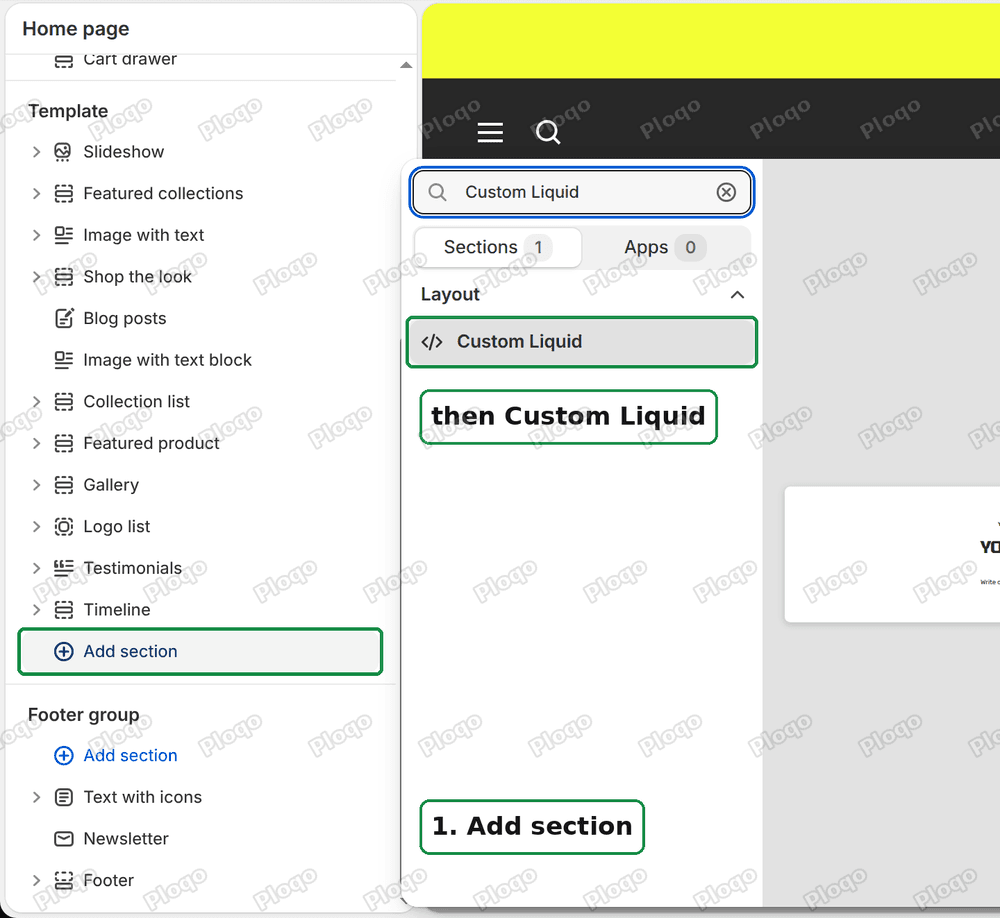 The Focal theme editor with Add section clicked and Custom Liquid shown in the search results
Step 2. Paste the name tag
The new section comes with a Subheading box and a Heading box. Clear both so the section shows no text. Then paste this line into the Liquid box:
<div id="start-your-order"></div>The <div> is an empty box with the name start-your-order on it. You can change that name to anything you like, as long as you use the same name in step 5.
Paste it into the Liquid box, not the Custom CSS box that the merchant ran into earlier.
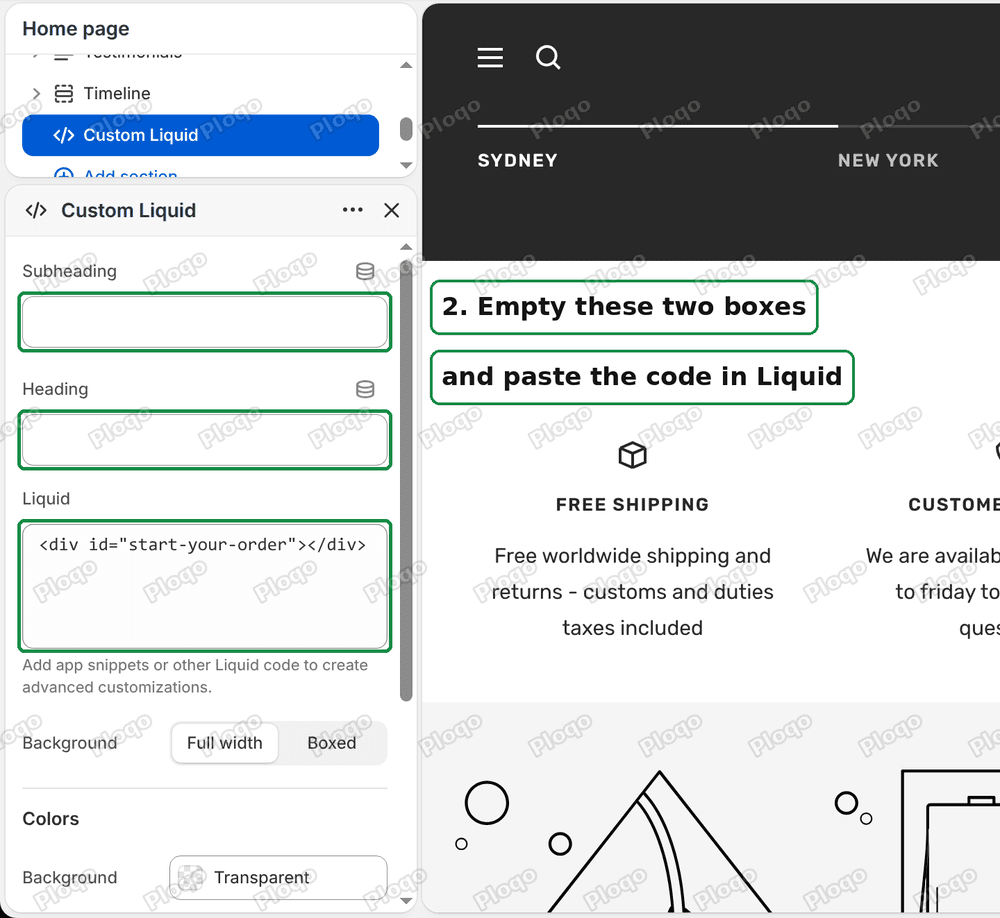 The Custom Liquid section with the heading boxes emptied and the one line of code in the Liquid box
Step 3. Move it right above the section you want to scroll to
Drag the new Custom Liquid section in the left list until it sits directly above your target section. In this case that was the Rich text section.
Placement matters. The browser scrolls to the name tag, so the tag should sit at the top edge of the section you want visitors to land on.
An empty section like this added no visible space on my test page. The page looked the same before and after.
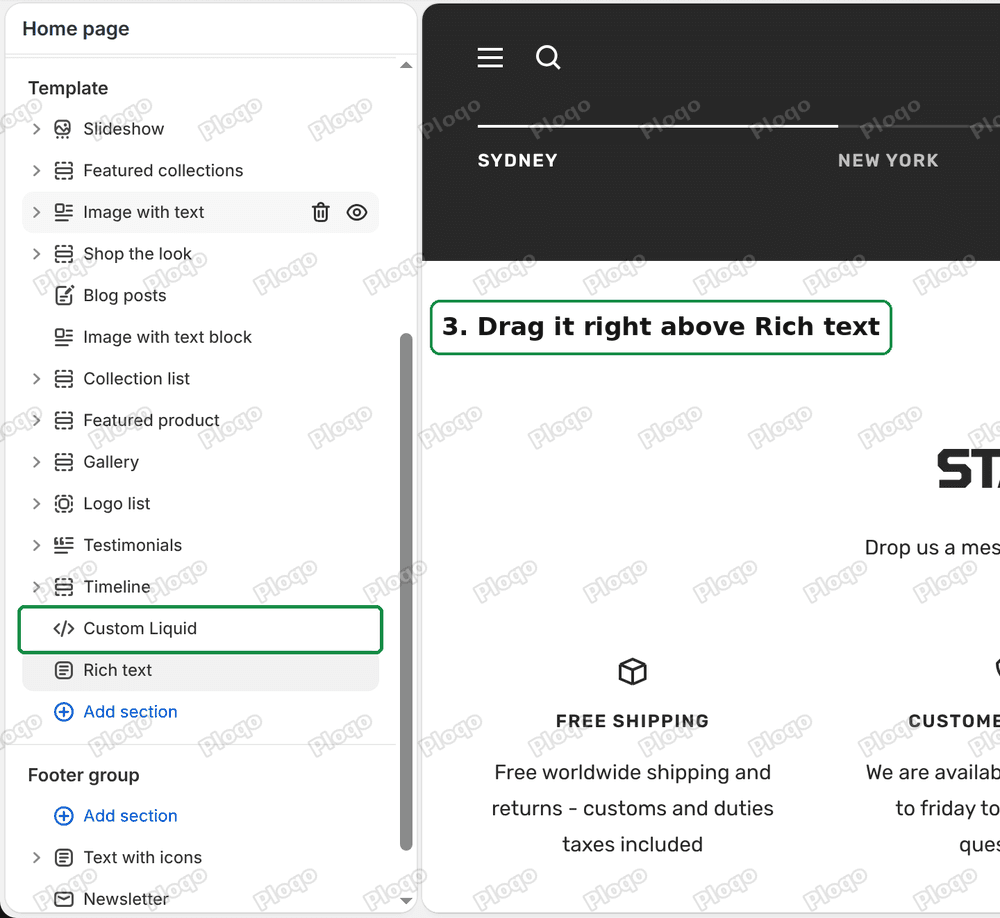 The section list with Custom Liquid placed directly above the Rich text section
Step 4. Open the button and find its link box
Under Image with text, click the Item that holds your button. Scroll to Button link.
Step 5. Type the name with a hash sign
In Button link, type #start-your-order. Shopify shows a list under the box. Click the #start-your-order entry in that list so the link is saved.
Keep the hash sign at the front and match the name exactly. Anchor names are case sensitive, so Start-Your-Order is a different name from start-your-order.
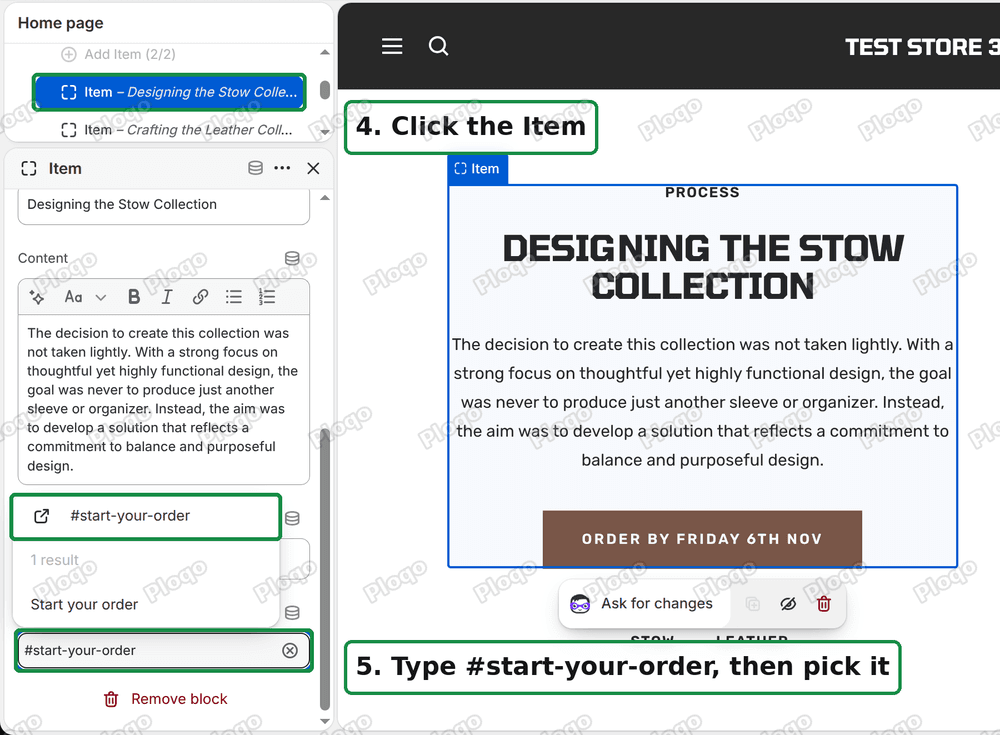 The Button link box with the anchor link typed in and chosen from the list
Step 6. Save and test
Click Save in the top right of the editor, then open your store's page and click the button.
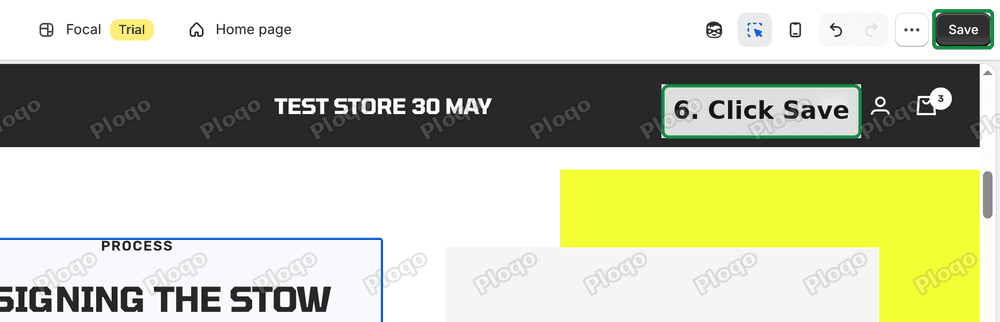 The Save button in the top right of the theme editor
On my test store the page scrolled from the button to the "Start your order" section. The address in the browser bar gained #start-your-order.
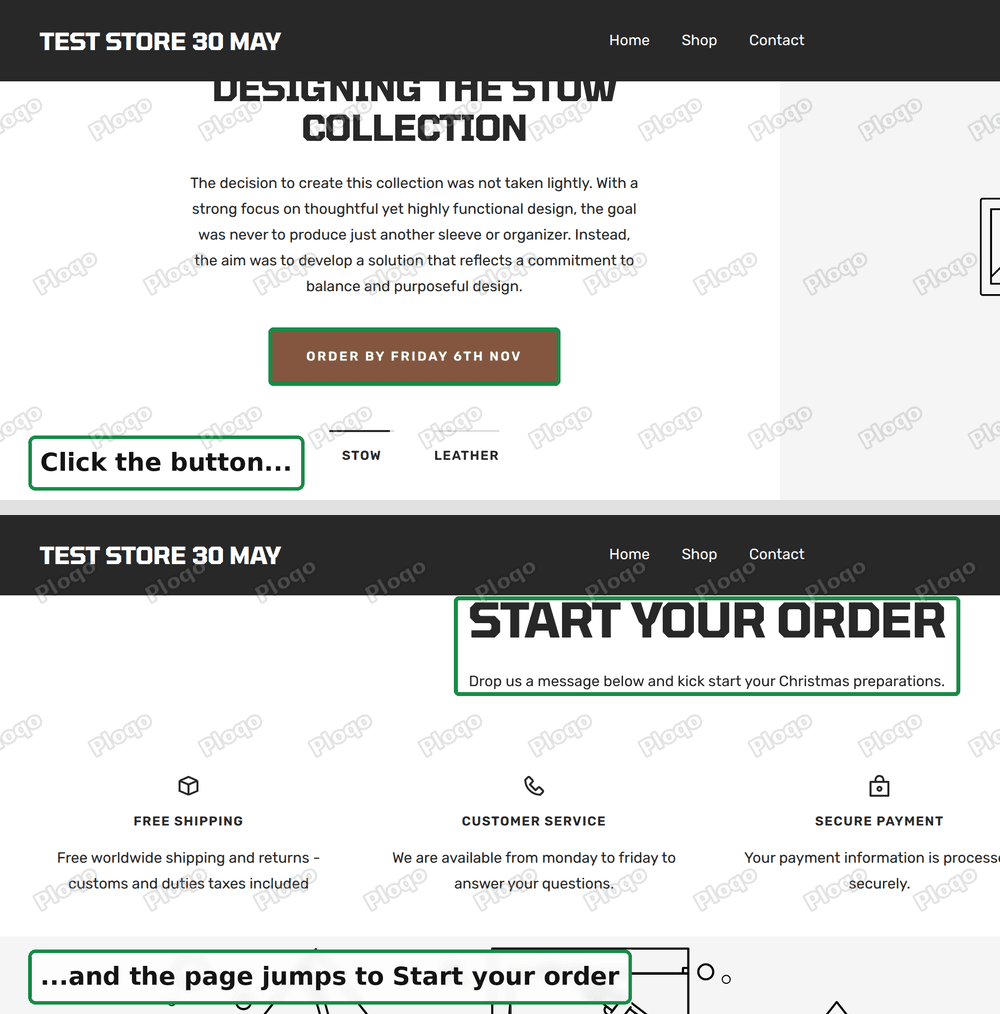 Top: the Order by Friday button on the page. Bottom: the page after the click, scrolled to the Start your order section
The button works but the title is hidden under the header
This is the follow-up the merchant posted next. After step 6 the page jumped, but it landed too far down. The "Start your order" title was not visible where they expected it.
The cause is the sticky header, which is the menu bar that stays fixed at the top of the screen while you scroll. The browser scrolls the name tag to the very top edge of the window. The sticky header covers that top edge, so the first lines of the section end up behind it.
On my test store the header was 82 pixels tall. A pixel is the smallest dot on a screen, and 82 of them is roughly the height of two lines of text. After a click, the top of the "Start your order" heading sat at 80 pixels, right at the header's bottom edge. A header with an announcement bar above it is taller, so the title would be hidden further.
The fix is to tell the browser to stop a little earlier. The setting for that is called scroll-margin-top, which means "leave this much space above me when you scroll to me".
Step 1. Open the Custom Liquid section
Go back to the theme editor and click the Custom Liquid section from earlier.
Step 2. Replace the code
Replace the line in the Liquid box with this one:
<div id="start-your-order" style="scroll-margin-top: 150px;"></div>Only the part after id="start-your-order" is new. It leaves 150 pixels above the anchor.
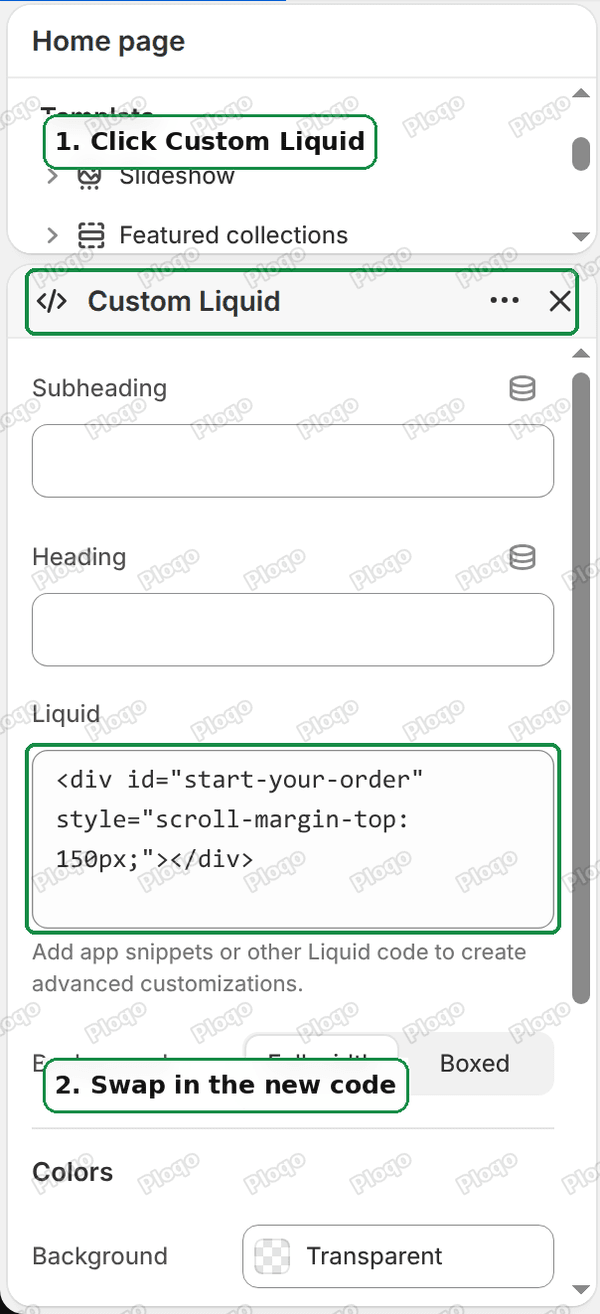 The Custom Liquid section in the editor with the new line of code in the Liquid box
Step 3. Save
Click Save again.
 The Save button in the top right of the theme editor
I measured the result on the test store. The click used to land at 9028 pixels down the page and now lands at 8878, which is 150 pixels higher. The heading's top edge moved from 80 pixels to 230 pixels below the top of the window, well clear of the 82-pixel header.
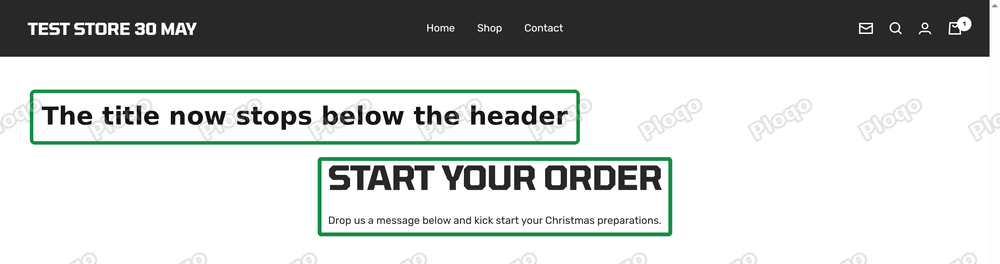 The page after the click, with the Start your order title fully visible below the header
How to pick the number
Start with 150. Then adjust:
- Title still touches the header or is cut off: raise the number, to 200 or 250.
- Too much empty space above the title: lower it, to 120 or 100.
- Different on phone: the header can be a different height on a phone, so check both sizes before you settle on a number.
Change the number in 25 pixel steps and save each time. Your header height is the number to beat, plus a little breathing room.
Rules for the name
A few rules keep anchor links working:
- Use letters, numbers and hyphens. Skip spaces.
start-your-orderworks,start your orderdoes not. - Keep it unique. Two name tags with the same name on one page confuse the browser, and it picks the first one it finds.
- Match it exactly. The name after
#has to be spelled the same, including capital letters, as the name in the code. - Name it for the section.
contact-formis easier to remember in six months thansection2.
You can add as many anchors as the page needs. Each one is another Custom Liquid section with its own name, and each button points at its own hash link.
Link to the section from another page
The same ending works on a full web address. If your home page holds the anchor, https://yourstore.com/#start-your-order opens the home page and scrolls to the section.
That is useful in two places. A menu item in your header can use it, and so can a link in a marketing email. The name tag only has to exist on the page you are sending visitors to.
Take care with the sticky header here too. The scroll margin from the section above applies to every visit to that anchor, whether the visitor came from a button on the page or from outside.
If the button does nothing
Check these in order. Each takes under a minute.
- Is the hash sign there? The link has to start with
#. Without it the browser treatsstart-your-orderas a page name. - Does the name match? Compare the Button link to the
id="..."in the Custom Liquid box, character by character, including capitals. - Did you choose it from the list? In step 5, click the entry Shopify shows under the box. That is how the link was saved on my test store.
- Did you save? The Save button is grey when everything is saved. If it is dark, click it.
- Is the section on the same page as the button? An anchor only works on the page that holds the name tag. A button on the home page cannot scroll to a section on the About page.
- Is the Custom Liquid section hidden? A section with the eye icon turned off is not on the page, so its name tag is gone too.
If the page scrolls but lands in the wrong place, the cause is almost always the sticky header from the section above. Raise the scroll margin number.
Does your theme already have an ID box?
Check before you add a Custom Liquid section. Some themes add an ID or anchor box to each section. In those themes the job is one box: type a name into the section's own settings, then link the button to # plus that name.
Look through your target section's settings, the same list shown in the screenshots above, for words like "ID", "Anchor" or "Section ID". If one is there, use it and skip steps 1 to 3. The Rich text section in Focal has no such box, so a separate name tag is the way to go.
The scroll margin fix in the second half of this guide still applies in either case, because it depends on your header, not on how you made the name tag.
Why not use the long section name Shopify generates?
Every section on a Shopify page already carries a long, automatic name that starts with shopify-section-. Some guides tell you to find that name with the browser's developer tools and link to it.
That route works only if you copy the name exactly. The name also contains the page's template and a string of characters Shopify chose, so it is long and easy to mistype. In the community thread, the merchant who tried it reported that nothing happened.
Your own short name, such as start-your-order, is easier to read, and easier to check. If you want to understand the Custom Liquid box better first, the guide to Custom Liquid in Shopify walks through it. If you want to know why the Custom CSS box rejected the first attempt, see how to add custom CSS in Shopify.
Related: make other page elements clickable
The same link box accepts a normal page address, a product, a collection or an email link. If you want a whole banner or slideshow slide to be clickable instead of a small button, read how to make Shopify banner and slideshow images clickable.
Quick reference
- Add a Custom Liquid section, clear its two text boxes, and paste
<div id="start-your-order"></div>into the Liquid box. - Drag that section directly above the section you want visitors to land on.
- Set the button's link to
#start-your-orderand pick it from the list. - Save and click the button on your live page.
- If the title is hidden under the header, add
style="scroll-margin-top: 150px;"to the<div>and adjust the number. - Use the same name after
#on a full web address to link from other pages or from a menu.
Spending too long on manual Shopify busywork?
PinFlow turns your Shopify catalog into Pinterest pins and posts them on a schedule, automatically. Same idea as the fix above, let the system handle the repetitive part.
Get PinFlow on the Shopify App StoreMore Shopify fixes
More community-sourced Shopify guides, tested on a live store.
Themes & Storefront
Shopify Social Media Icons: Add a Custom Icon and Link
Set your social links in Shopify theme settings, see why icons do not show, and swap in your own icon for a network the theme does not list.
Themes & Storefront
Sticky Add to Cart Button in Shopify Dawn, No App
Pin the Add to cart button and its delivery line to the bottom of the screen in Shopify Dawn. One free Custom Liquid block, no app, phone and desktop.
Themes & Storefront
Shopify Wishlist App: Add a Free Wishlist to Your Store
A free Shopify wishlist app: hearts on product cards, a Wishlist button on product pages and a wishlist page. Guest lists follow shoppers when they log in.