
Shopify Social Media Icons: Add a Custom Icon and Link
Set your social links in Shopify theme settings, see why icons do not show, and swap in your own icon for a network the theme does not list.
By AjayCodeWiz · October 26, 2026 · 11 min read
Where the social media icons in a Shopify footer come from
The small round or square logos in a store footer (Instagram, Facebook, TikTok and so on) are the social media icons. Shoppers click them to find your profiles. On most free Shopify themes, you do not draw or upload these icons yourself. The theme draws them, and you only supply the address of each profile.
That setup works well until you want a network the theme does not know about. A merchant on the Shopify Community hit exactly that. They had stopped using Meta apps and moved to a smaller platform called UpScrolled. They wanted to replace the Instagram icon in their footer with an UpScrolled icon, and point it at their new profile.
There is no field for that in the theme settings. This article covers both halves of the job: the normal way to set social links, and the code change you need when your network is not in the list.
I reproduced the merchant's footer on a test store running Dawn 15.3.0, then checked the fix against their live store in my own browser. Here is the footer block before:
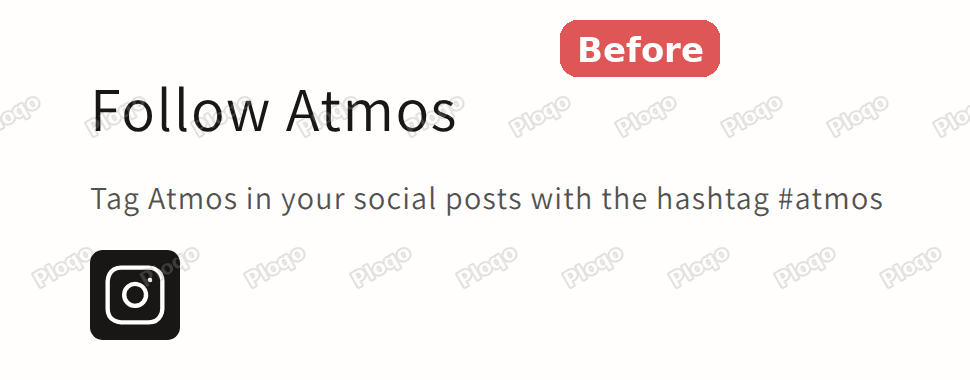 Footer block titled Follow Atmos with an Instagram icon
And after, with a different icon in the same spot:
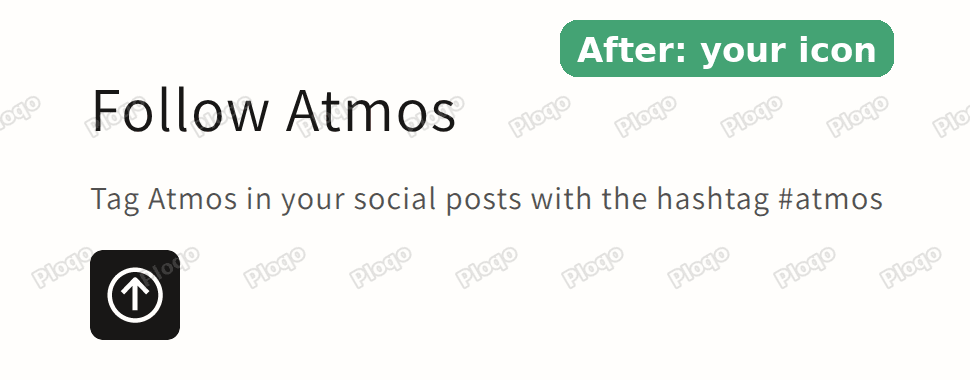 Same footer block with a custom icon in place of the Instagram icon
How to add social media icons to a Shopify footer
If your network is one the theme supports, you do not need any code. The links live in the theme settings, in a section called Social media.
1. Open Theme settings
From your Shopify admin, go to Online Store > Themes, then click Customize on your current theme. In the theme editor, click the gear icon in the top left. That opens Theme settings.
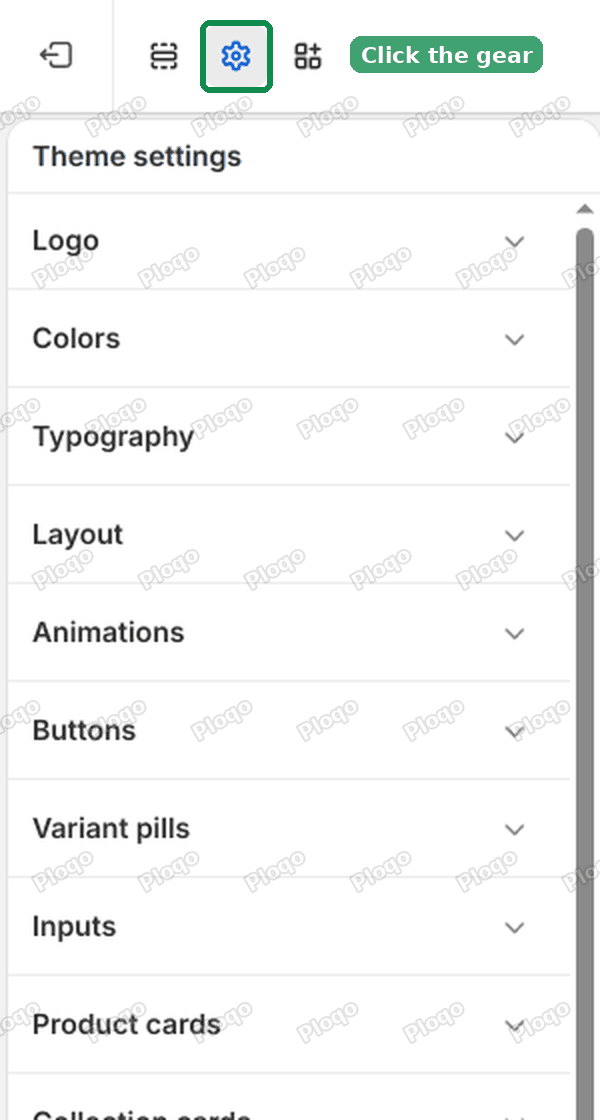 Theme editor with the gear icon highlighted at the top of the left sidebar
2. Open Social media
Scroll down the list of settings until you find Social media, then click it to open it.
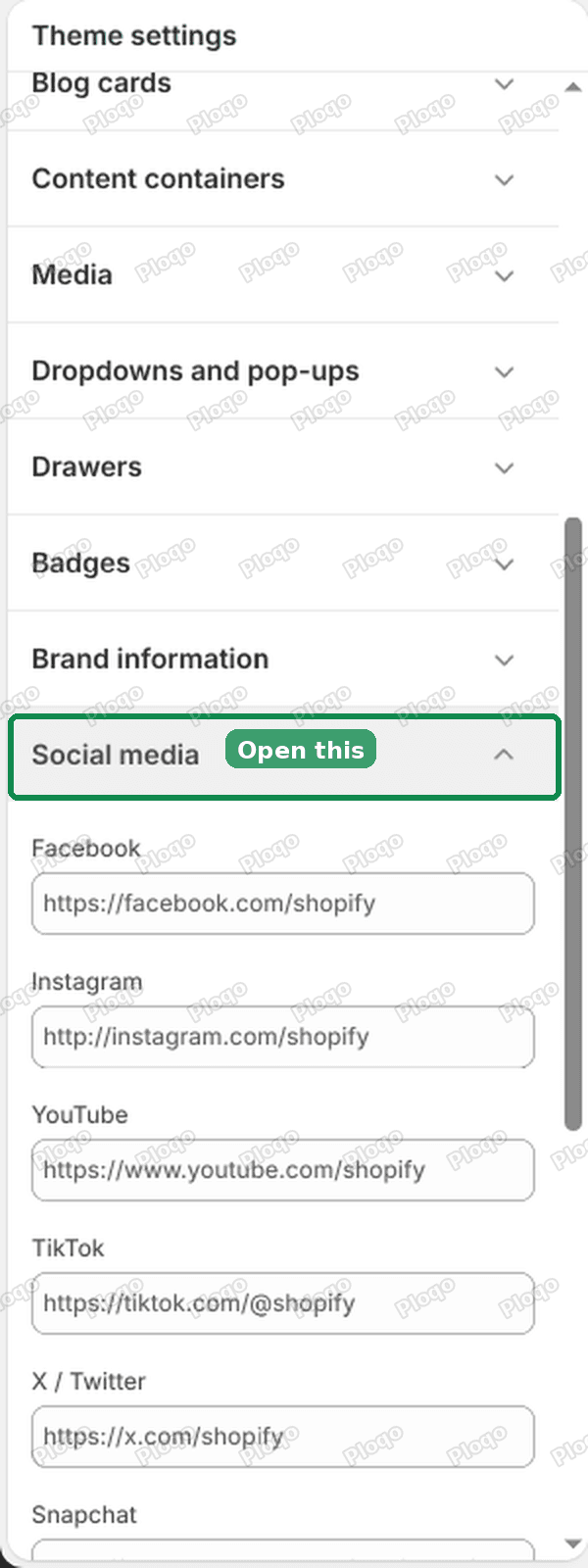 Theme settings list with the Social media section highlighted and opened
3. Paste your profile links
Each network has its own box. Paste the full address of your profile, starting with https://, into the box for that network. Leave a box empty for any network you do not use.
On Dawn 15.3.0, the list has nine networks: Facebook, Instagram, YouTube, TikTok, X / Twitter, Snapchat, Pinterest, Tumblr and Vimeo. There is no box for anything else, and there is no button to add one.
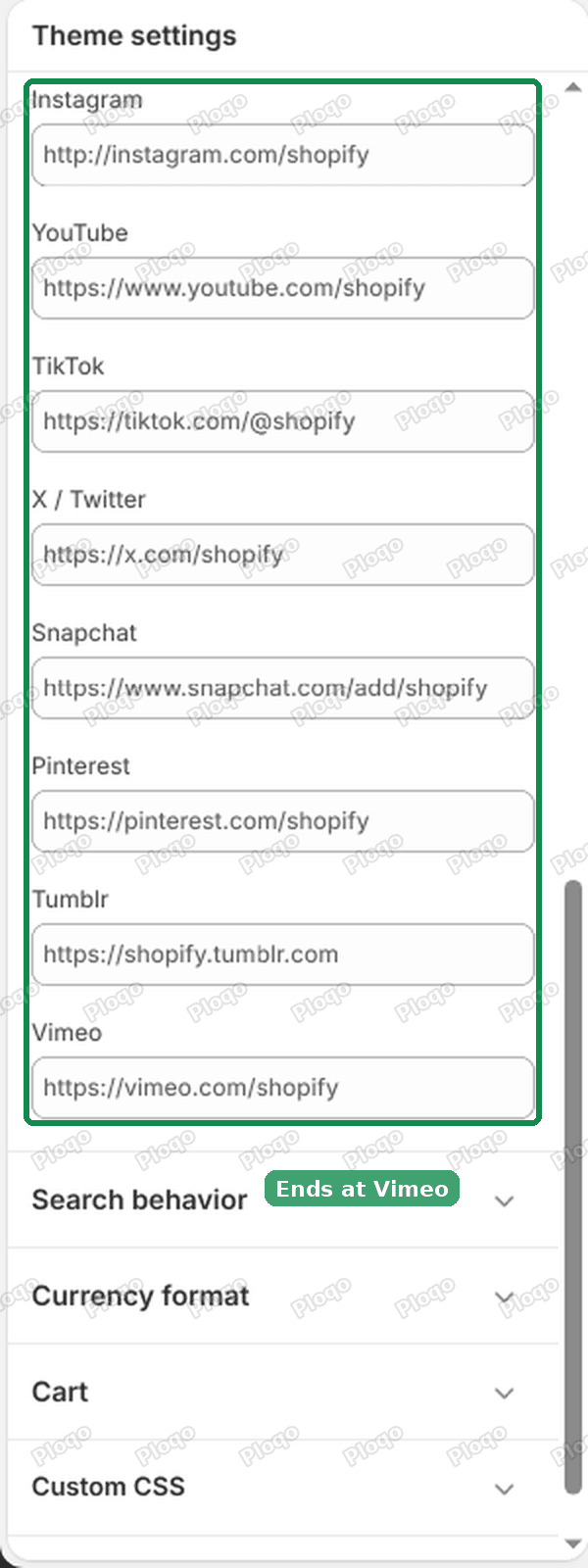 Bottom of the Social media list in Dawn ending at Vimeo, with the networks highlighted
Other themes have their own list. Open the same section in your theme and check which networks it names before you plan anything else.
4. Make sure the footer shows them
The icons only appear where the theme is told to show them. In the theme editor, open the Footer section and find the checkbox called Social media icons. On Dawn it is ticked by default. If you have turned it off, the whole row of icons disappears, even when every link is filled in.
Click Save at the top right of the editor when you are done.
Why your social media icons are not showing
Most missing icons come down to one of four causes. Check them in this order.
- The box for that network is empty. The theme draws an icon only for a network that has a link. When I opened Social media on an unmodified copy of Dawn 15.3.0, every box was empty, and the footer on the live preview had no icons at all.
- Every box is empty. If all nine boxes are blank, the theme skips the whole row, so no empty space is left where the icons would go.
- The footer checkbox is off. The Social media icons checkbox in the Footer section controls whether the row appears.
- You edited a theme that is not live. The theme name at the top of the editor should match the theme marked as your current theme in Online Store > Themes. A saved change in a draft theme never reaches your store.
If none of these fit, and your footer shows icons even though the Social media boxes are empty, the icons are written into your theme by hand. That was the merchant's situation, and it is the next section.
How to tell if your icons are built in or hand-coded
A built-in icon row reads its links from the Social media settings. If you change a link there, the icon's address changes. If you empty the box, the icon goes away.
A hand-coded icon ignores those settings. Somebody, often a developer or a theme customiser, pasted the icon into one of your theme's sections. Those icons keep showing when the Social media boxes are empty, and changing the boxes does nothing.
On the merchant's store, the Instagram icon sat inside a customised newsletter section. It was a link tag with the class social-icon instagram, wrapped around a drawn image, and the link's address was empty. So the icon was displayed, but clicking it went nowhere. That is why the theme settings could not fix it, and why the forum answer was a code edit.
How to replace a hand-coded social icon with your own
This is the fix I posted on the forum, and the merchant confirmed it worked on their store. You swap the icon in two parts: first upload your own picture, then change the code so it shows that picture and links to your profile.
1. Upload your icon to Files
In your Shopify admin, go to Content > Files. Click the Files button at the top right to upload your icon, then wait for it to appear in the list.
A square PNG works best. The code below shows the icon at 45 by 45 pixels, so an image around 90 by 90 or larger stays sharp on phones and high-resolution screens.
2. Copy the icon's link
On the row of the file you just uploaded, click the link icon to copy its address. You will paste it into the code in a few steps. Keep the page open, or paste the link into a note, so you do not lose it.
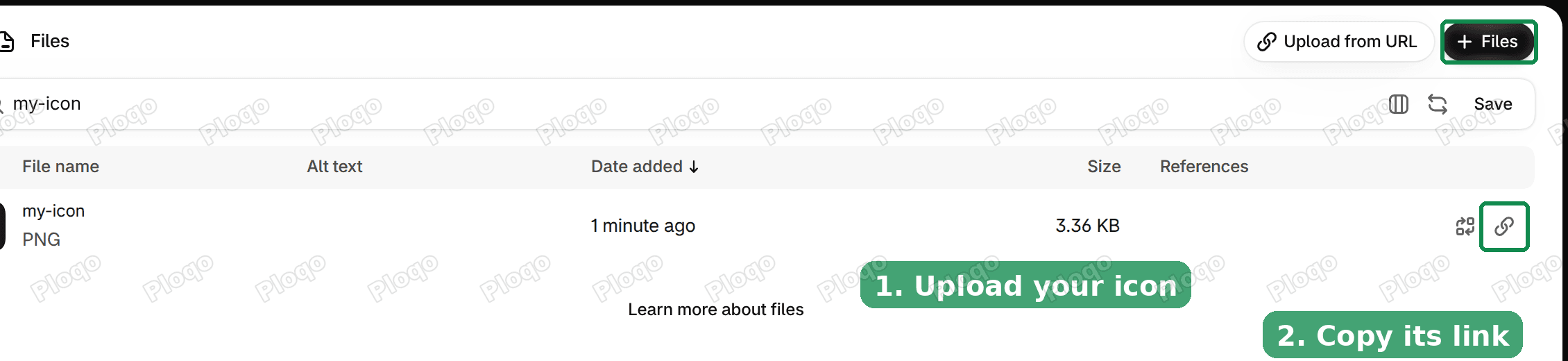 Content Files page with the upload button and the copy link icon highlighted
3. Back up the theme, then open the code editor
Go to Online Store > Themes and click the three dots next to your current theme. Choose Duplicate first. A duplicate is a full copy, so if an edit goes wrong you can go back to it. Make your edits in the theme you were using, not in the duplicate.
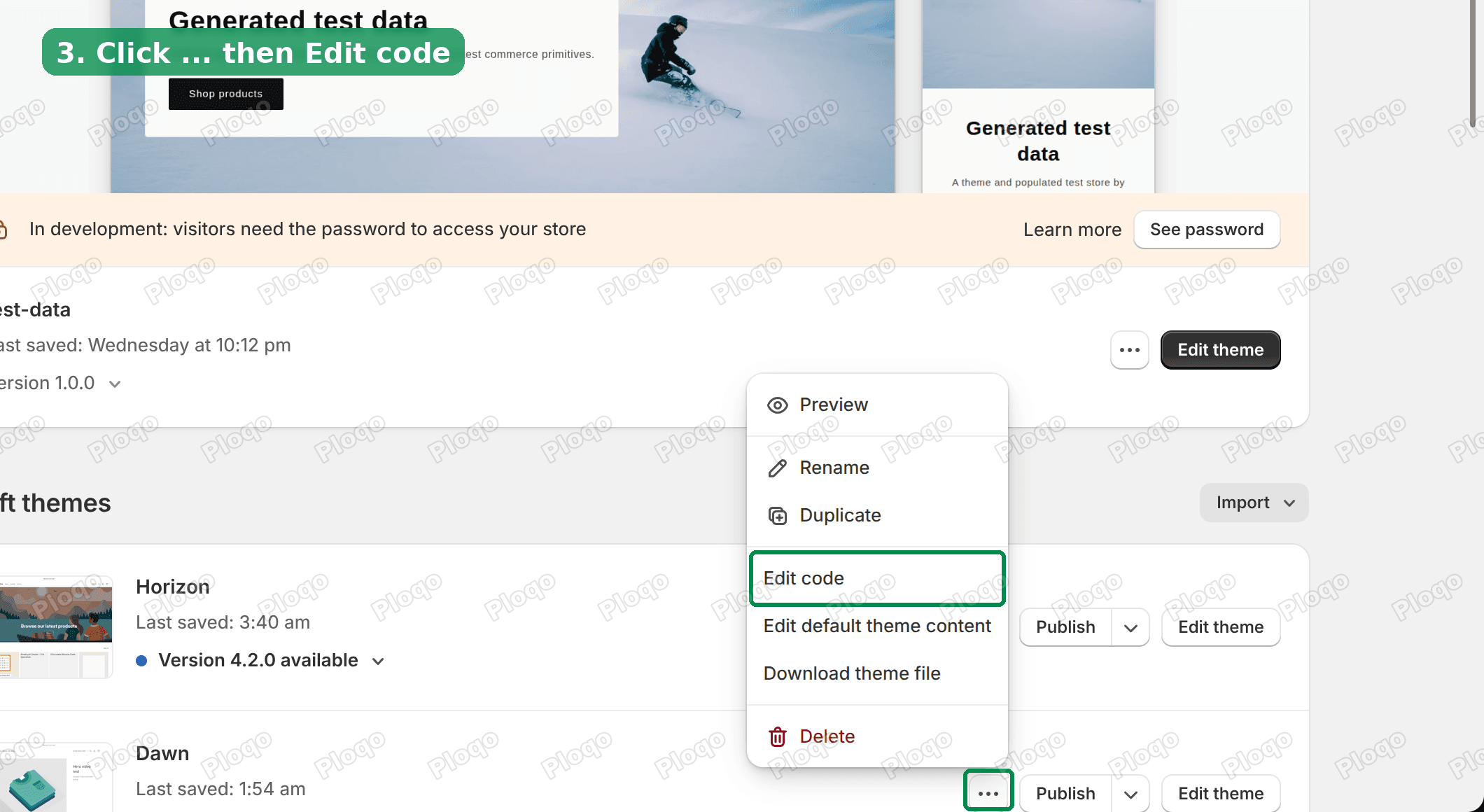 Themes page with the three dots menu open and Edit code highlighted
Then open the same three dots menu again and click Edit code. This opens every file your theme is built from.
4. Find the old icon in the code
Press Ctrl + Shift + F on Windows, or Cmd + Shift + F on a Mac. This searches every file at once. Search for social-icon instagram, which is the class name on the merchant's old icon, then click the result.
Your code will not match this exactly. Search for the class name or the network name on your own icon, for example instagram, and look for a result inside a file in the sections folder. Results in snippets/social-icons.liquid are the built-in icon row, which the Social media settings control.
The old icon is one <a href=""> line followed by a drawing, and it ends at the next </a>. Select from the start of that <a href line down to its closing </a> and delete it.
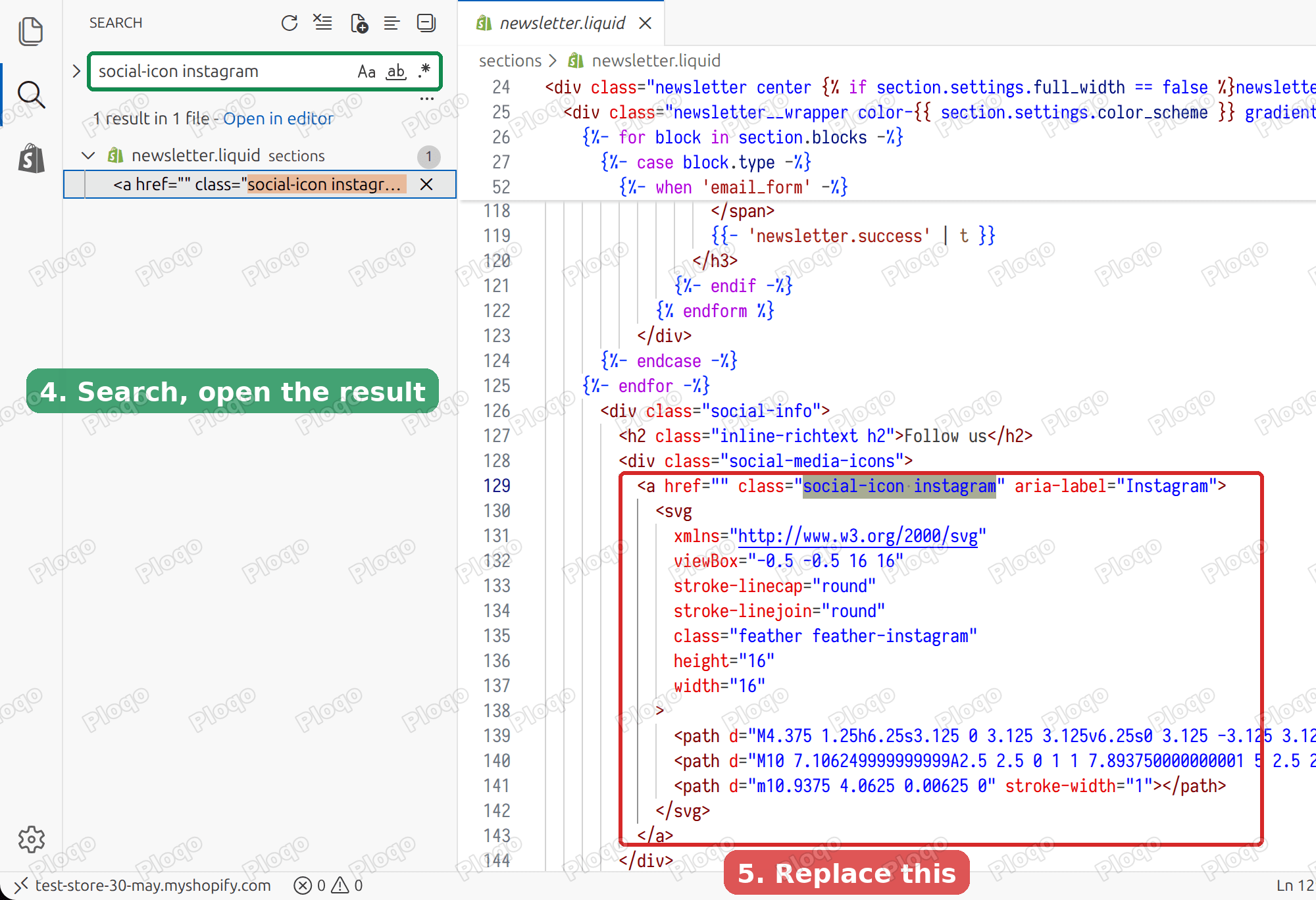 Code editor search results and the old icon block highlighted for deletion
5. Paste the new icon
Paste this in the place where the old block was:
<a href="PASTE-YOUR-LINK-HERE" class="social-icon" target="_blank" rel="noopener" aria-label="Follow us">
  <img src="PASTE-YOUR-ICON-LINK-HERE" alt="" width="45" height="45" style="display:block; border-radius:6.4px;">
</a>
Replace PASTE-YOUR-LINK-HERE with the address of your profile, and PASTE-YOUR-ICON-LINK-HERE with the icon link you copied in step 2. Keep the quote marks around each address.
6. Save and check
Click Save at the top right of the code editor, then refresh your store.
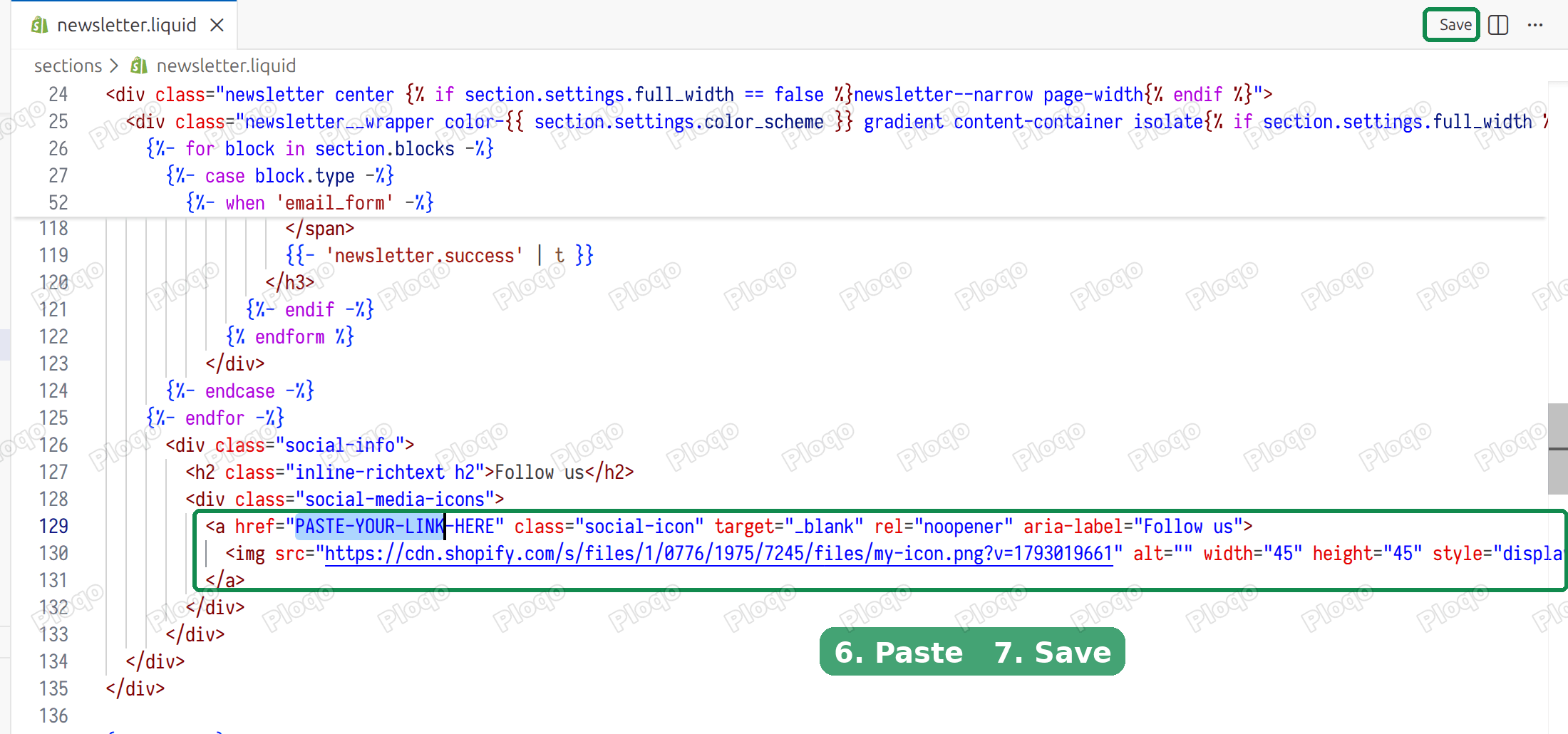 Code editor with the new icon code pasted and the Save button highlighted
The new icon shows in the same spot, and a click opens your profile in a new tab. On the merchant's live store, I tested the same swap in my own browser without saving anything to their theme. The test icon was 360 pixels wide and displayed at 45 by 45, and the link address was set.
What each part of the code does
You can leave the code as it is, but knowing which part controls what makes later changes easy.
hrefis the address of your profile. Social networks give you this as the link in your browser when you open your own profile.target="_blank"opens the profile in a new tab, so shoppers do not leave your store.aria-labelis the name read out to people using a screen reader, which is software that reads a page aloud. Change "Follow us" to the name of the network, for example "Follow us on UpScrolled", so the link makes sense without the picture.srcis the address of your uploaded icon.widthandheightset the displayed size. The 45 matches the old icon on that store. Check the size of the icons beside it and use the same number so they line up.border-radiusrounds the corners. Raise it to make the icon more circular, or set it to 0 for sharp corners.
What to check if the new icon does not appear
- A broken image or empty space. The icon link was probably not copied from the Files page. Go back to Content > Files, click the link icon again, and paste the whole address.
- The old icon is still there. Either you edited a copy of the section that is not shown on your store, or you did not click Save. Search the code again and check the Footer in the editor, since a store can have more than one place that shows icons, for example a footer and a header.
- The new icon is too big, too small or squashed. Change both
widthandheightto the same number, and use a square image. A wide or tall picture is stretched into the square. - The link opens the wrong page. Check that the address in
hrefis the one for your profile and starts withhttps://. - Nothing changed after saving. Hard refresh the page, which loads it again without the copy your browser stored. On Windows press Ctrl + F5, on a Mac press Cmd + Shift + R.
Other ways to show a network the theme does not list
The code swap above is the way to get a real icon. Two lighter options exist.
Use a text link. Open Content > Menus and add a link to your profile in a footer menu, for example with the title "Follow us on UpScrolled". The theme shows it with the other footer links. It has no icon, but it needs no code, and a theme update cannot undo it.
Ask a developer to add it to the theme. On an unmodified Dawn, the icon row is drawn by one theme file, snippets/social-icons.liquid. Adding a tenth icon there makes it appear wherever the theme shows social icons. I only tested the swap above on a hand-coded icon, so if you take this route, ask the developer to test it on a duplicate theme first.
If you only need a different link for a network the theme does support, skip all of this and change the address in Theme settings > Social media.
Keep your custom icon after a theme update
A custom icon pasted into a theme file belongs to that copy of the theme. If you install a newer version of the theme, or switch to another one, the new copy does not contain your edit. Keep the code and your icon link in a note so you can paste them in again.
This is also a reason to use the Social media settings whenever your network is on the list. A link typed into a settings box needs no code, so there is nothing to paste back.
Related footer fixes
If the footer needs more than an icon, two other articles cover it:
- How to edit the footer in Shopify explains where menus, text and policy links live.
- Shopify payment icons shows how to add the card logos when a footer row stays empty.
FAQ
Can I add any social media platform to my Shopify footer?
Not through the theme settings. Dawn lists nine networks and has no way to add a tenth. Any other network needs a code change, a footer menu link, or an app.
Where do I change my social media links in Shopify?
The links sit in the Social media section of Theme settings. The steps with screenshots are near the top of this page. Paste each profile address into its box and click Save.
Why is my Instagram icon showing but the link does nothing?
The icon is probably hand-coded, with an empty address in the code. The Social media settings do not control it. Replace the block as shown above, or put your address in the href of the existing link.
What size should a custom social media icon be?
Use a square PNG. The code in this article displays it at 45 by 45 pixels, so a file of 90 by 90 or larger looks sharp on high-resolution screens.
Will a custom icon survive a theme update?
Not on its own. Code pasted into a theme file stays with that copy of the theme, so a newer theme version or a different theme starts without it. Save the code and your icon link somewhere safe so you can paste them in again.
Spending too long on manual Shopify busywork?
PinFlow turns your Shopify catalog into Pinterest pins and posts them on a schedule, automatically. Same idea as the rule above, let the system handle the repetitive part.
Get PinFlow on the Shopify App StoreMore Shopify fixes
More community-sourced Shopify guides, tested on a live store.
Themes & Storefront
Shopify Anchor Link: Button That Scrolls to a Section
Link a Shopify button to a section lower on the same page with an anchor link. Steps for the theme editor, no code files, plus the fix for a title hidden under the header.
Themes & Storefront
Sticky Add to Cart Button in Shopify Dawn, No App
Pin the Add to cart button and its delivery line to the bottom of the screen in Shopify Dawn. One free Custom Liquid block, no app, phone and desktop.
Themes & Storefront
Shopify Wishlist App: Add a Free Wishlist to Your Store
A free Shopify wishlist app: hearts on product cards, a Wishlist button on product pages and a wishlist page. Guest lists follow shoppers when they log in.