
Sticky Add to Cart Button in Shopify Dawn, No App
Pin the Add to cart button and its delivery line to the bottom of the screen in Shopify Dawn. One free Custom Liquid block, no app, phone and desktop.
By AjayCodeWiz · October 26, 2026 · 11 min read
The problem: the Add to cart button scrolls out of view
A merchant running Dawn asked on the Shopify Community for a sticky Add to cart button. She also had a custom delivery line under the button, "Order within 10 hours to get your order by Friday", and wanted that line to stay with the button.
On a phone, the Add to cart button sits under the photos, the title, the price and the variant buttons. Once a shopper scrolls down to read the description, reviews or "You may also like", the button is gone. To buy, they have to scroll all the way back up.
A sticky add to cart button fixes that. When the shopper scrolls past the button, a copy of the buying area stays pinned to the bottom of the screen. On my Dawn test store it looks like this:
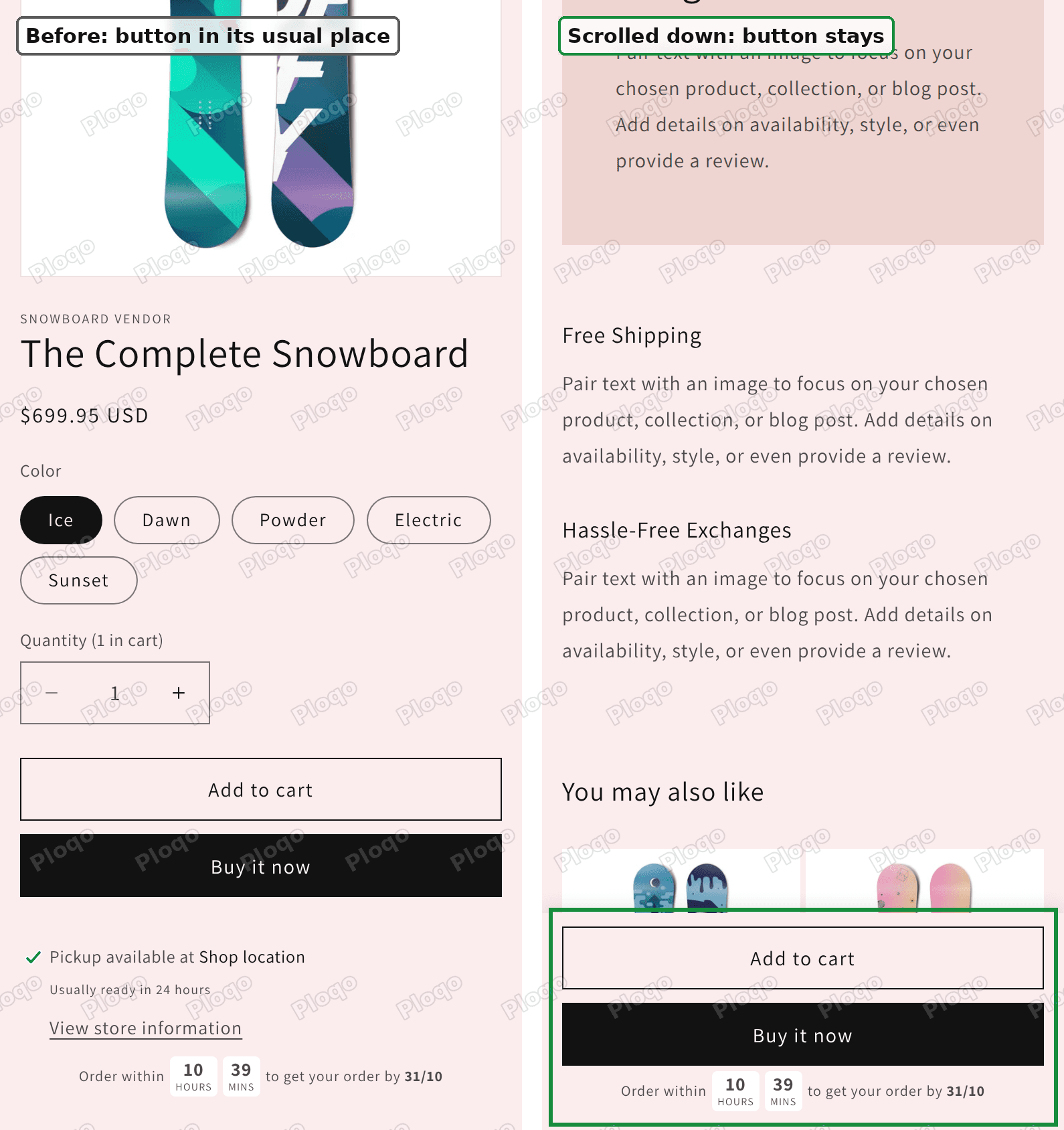 Dawn product page on a phone. Left: the Add to cart button in its usual place. Right: after scrolling, Add to cart, Buy it now and the delivery countdown pinned to the bottom of the screen
Dawn has no setting for this, so it takes one Custom Liquid block (a box in the theme editor where you paste code). This guide gives you the code, shows where to paste it, and covers the changes merchants usually ask for next: phone only, no Buy it now in the bar, and a delivery line that comes along.
Does your theme already have a sticky add to cart?
Check before you add code. Many paid themes ship a sticky add to cart bar, and a theme's own bar will always fit its design better.
- In the theme editor, open a product page.
- Click the main product section (often called Product information).
- Look through its settings for anything named "sticky add to cart" or "sticky cart".
Dawn 15.4.1 has two settings with "sticky" in the name, and neither is a sticky button:
- Sticky content in the product section keeps the whole text column beside the photos while you scroll on desktop. It stops at the end of the product section, and on a phone it does nothing.
- Sticky header in the header section keeps your logo and menu at the top of the screen.
So on Dawn, and on themes built from Dawn, the code below is the way to get a sticky Add to cart button without an app.
Add a sticky add to cart button to Dawn
The whole job takes about five minutes. You need access to the theme editor, and nothing else.
Step 1. Go to Online Store, then Themes, and click Edit theme next to your current theme. If you want to test first, use Duplicate in the three-dot menu and edit the copy.
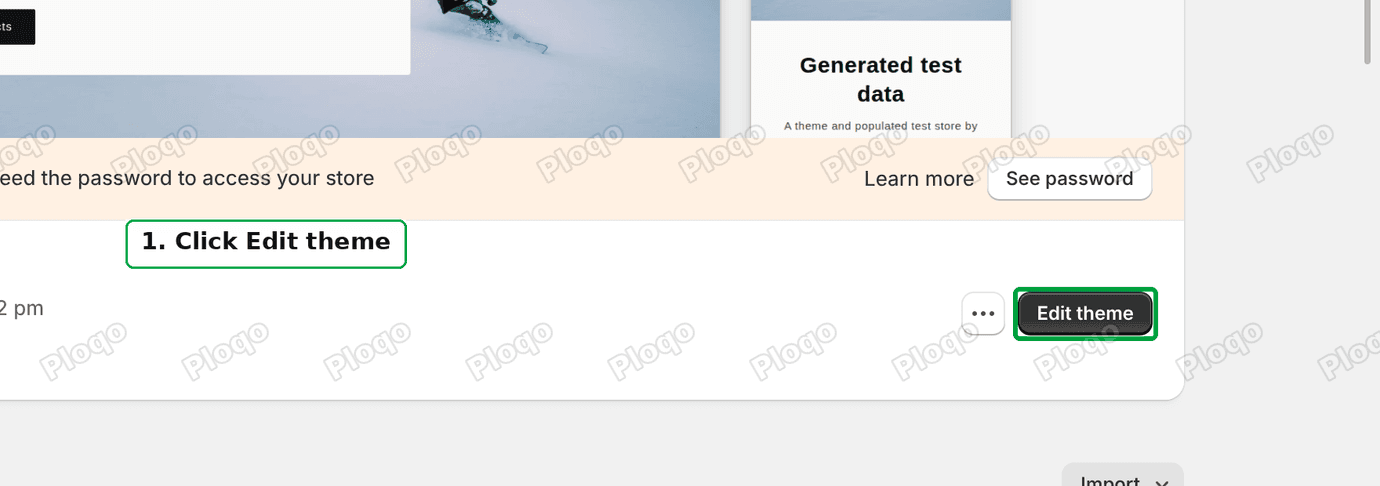 Online Store Themes page with the Edit theme button marked as step 1
Step 2. At the top of the editor, switch the page selector to Products and open your default product template. In the left list, under Product information, click Add block and choose Custom Liquid.
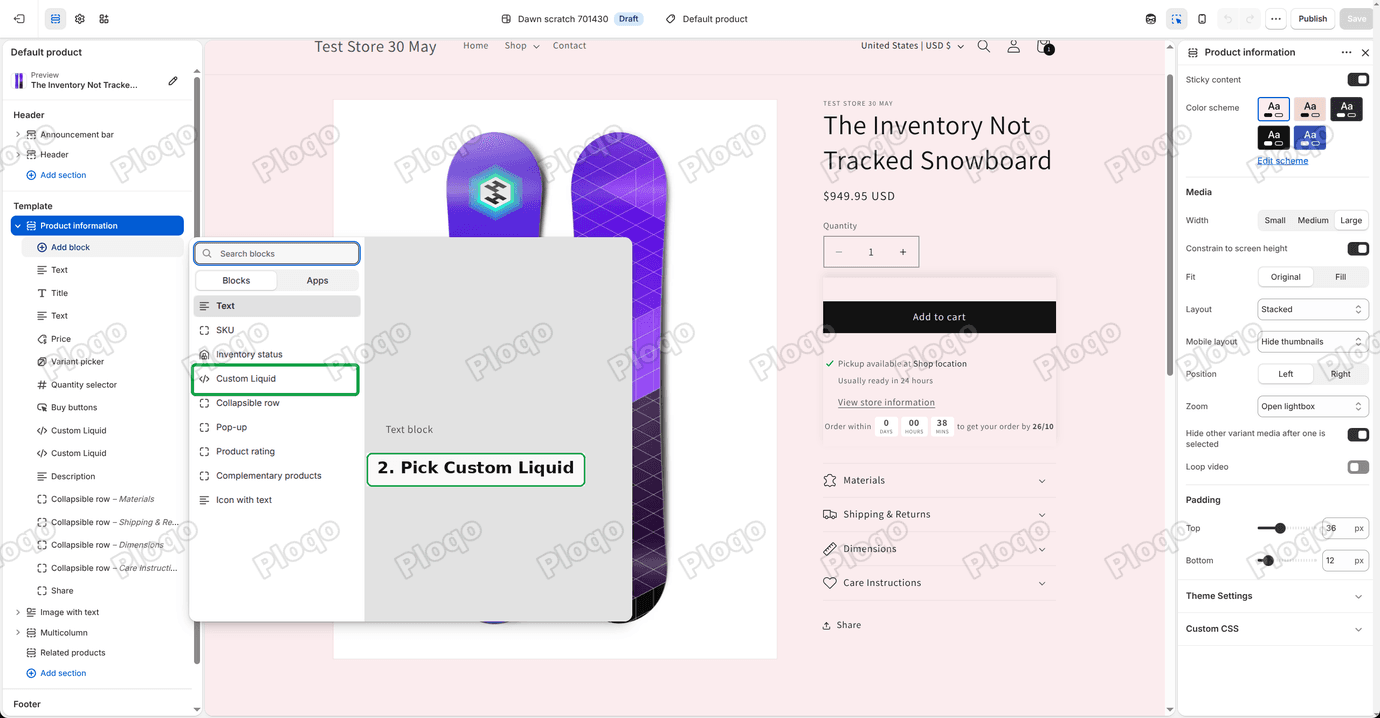 Theme editor with the Add block menu open and Custom Liquid marked as step 2
Step 3. Drag the new Custom Liquid block so it sits directly under the last block you want in the bar. For the button alone, that is right under Buy buttons. For a button plus a delivery line, put it right under the delivery block. Then paste this code into the block's box:
<style>
  .sticky-atc.is-fixed {
    position: fixed;
    left: 0;
    right: 0;
    bottom: 0;
    z-index: 50;
    margin: 0;
    padding: 1rem 1.5rem;
    background: rgb(var(--color-background));
    box-shadow: 0 -6px 12px rgba(0, 0, 0, 0.08);
  }
  .sticky-atc.is-fixed > * {
    max-width: 44rem;
    margin-left: auto;
    margin-right: auto;
  }
  .sticky-atc.is-fixed pickup-availability {
    display: none;
  }
</style>
<script>
  (function () {
    var me = document.currentScript;
    var form = document.querySelector('.product product-form');
    if (!form || document.querySelector('.sticky-atc')) return;
    var container = form.closest('.product__info-container');
    if (!container) return;
    var first = form;
    while (first.parentElement !== container) first = first.parentElement;
    var last = first;
    if (me && container.contains(me)) {
      var mine = me;
      while (mine.parentElement !== container) mine = mine.parentElement;
      if (first.compareDocumentPosition(mine) & Node.DOCUMENT_POSITION_FOLLOWING) {
        last = mine.previousElementSibling;
        while (last && /^(STYLE|SCRIPT)$/.test(last.tagName)) last = last.previousElementSibling;
        if (!last || !(first.compareDocumentPosition(last) & Node.DOCUMENT_POSITION_FOLLOWING)) last = first;
      }
    }
    var spot = document.createElement('div');
    spot.style.display = 'block';
    var box = document.createElement('div');
    box.className = 'sticky-atc';
    var scheme = container.closest('[class*="color-scheme"]');
    if (scheme) {
      scheme.classList.forEach(function (c) {
        if (c.indexOf('color-') === 0) box.classList.add(c);
      });
    }
    spot.appendChild(box);
    container.insertBefore(spot, first);
    var node = first;
    while (node) {
      var next = node.nextSibling;
      box.appendChild(node);
      if (node === last) break;
      node = next;
    }
    var update = function () {
      var pin = spot.getBoundingClientRect().bottom < 0;
      var pinned = box.classList.contains('is-fixed');
      if (pin && !pinned) {
        spot.style.height = box.offsetHeight + 'px';
        box.classList.add('is-fixed');
        document.body.appendChild(box);
      } else if (!pin && pinned) {
        box.classList.remove('is-fixed');
        spot.appendChild(box);
        spot.style.height = '';
      }
    };
    window.addEventListener('scroll', update, { passive: true });
    window.addEventListener('resize', update);
    update();
  })();
</script>
Step 4. Click Save in the top right corner.
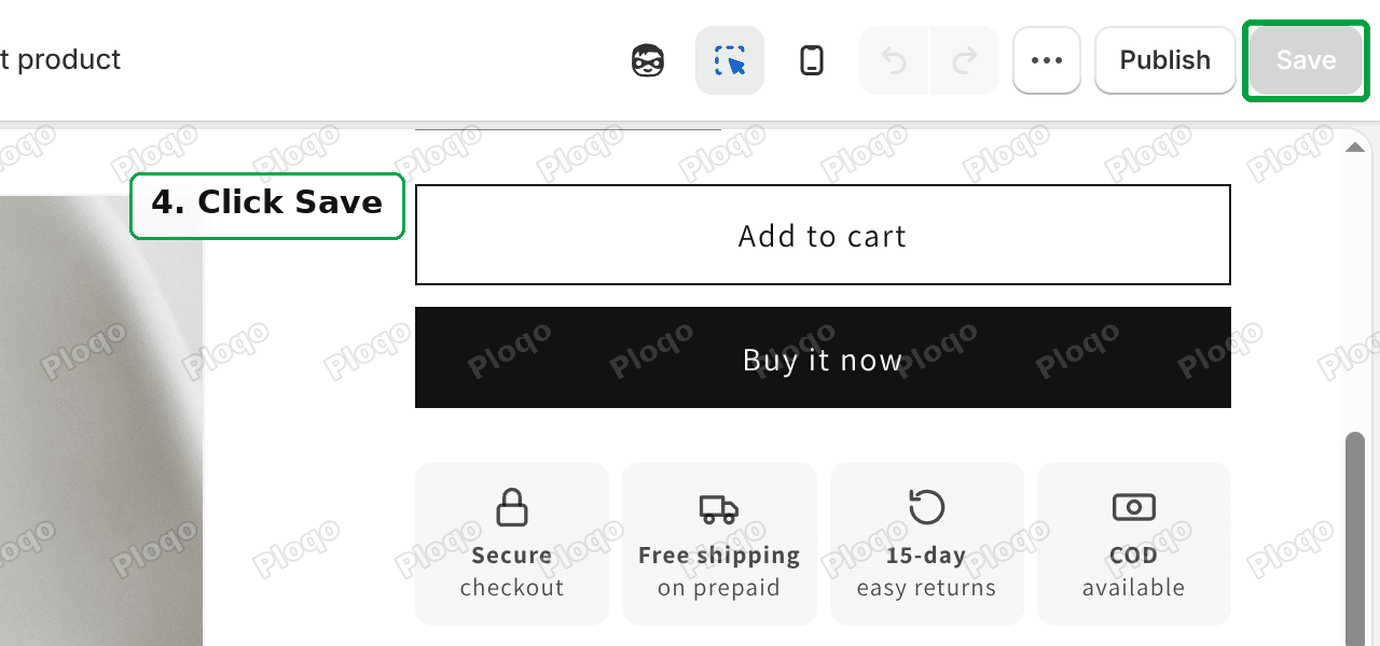 Theme editor top bar with the Save button marked as step 4
Open a product page on your store and scroll down. Once the Add to cart button has scrolled off the top of the screen, the bar slides in at the bottom. Scroll back up and the button returns to its usual place.
What the code does, in plain words
You do not need to read code to use this, but knowing what it does makes it easier to fix if your page looks different.
- It finds your Add to cart button on the product page and the block it sits in.
- It gathers every block from the button down to itself. That is why the placement in step 3 matters. Anything between Buy buttons and the Custom Liquid block goes into the bar.
- It leaves everything in place at the top of the page. Nothing is pinned while the button is still on the screen, so it never covers the title or the price on first load.
- It pins the bar once the button scrolls off the top. It also holds the empty space where the button was, so the page does not jump while the shopper reads.
- It uses your theme colours. The bar takes the background of the product section's colour scheme, so it matches a dark or tinted product page too.
- It hides the pickup message while pinned. Dawn shows "Pickup available at..." under the buttons when local pickup is on. In a small bar at the bottom of the screen that line takes too much room, so it only shows in the normal spot.
On my test store the pinned bar with Add to cart, Buy it now and a delivery countdown was 162 pixels tall on a 390 pixel wide phone, about a fifth of the screen.
Keep a delivery countdown in the bar
The merchant's delivery line was a separate Custom Liquid block under the buttons. To keep it with the button, place the sticky block directly under the delivery block, as in step 3. The bar then holds both, and the countdown keeps ticking while pinned, because it is the same element and not a copy.
If you do not have a delivery line yet, my guide to an estimated delivery date countdown on Shopify builds one for Dawn with a cut-off time and dispatch days. It is the one in the screenshots on this page. Add that block under Buy buttons first, then add the sticky block under it.
The same rule works for any other block you want in the bar, such as trust badges or a short shipping note. Keep the list short, though. Every block you add makes the bar taller and covers more of the page.
A sticky button without anything else
Place the Custom Liquid block directly under Buy buttons and the bar holds just the buttons.
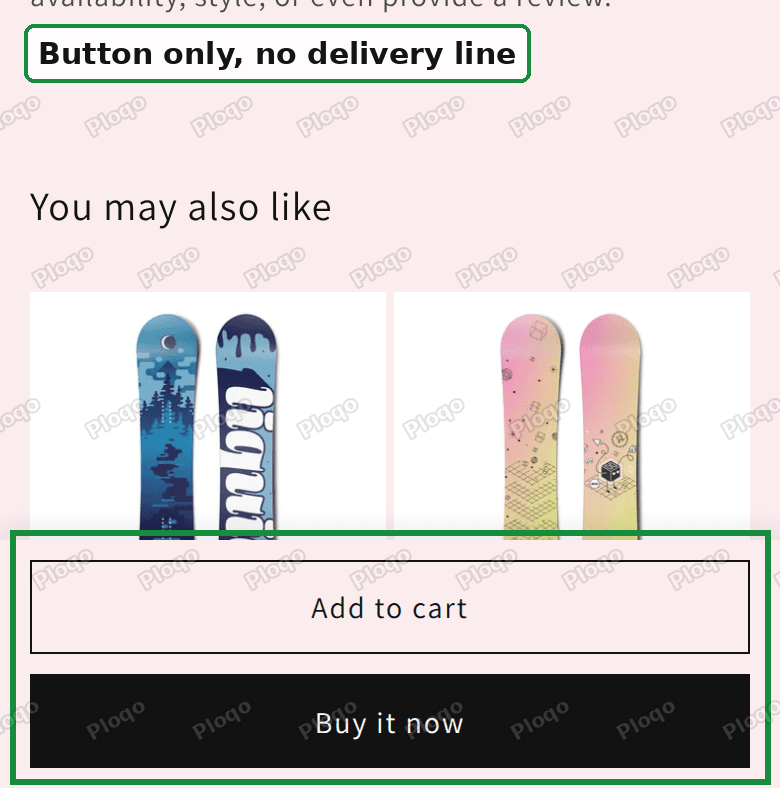 Phone screen with only Add to cart and Buy it now pinned at the bottom
That is the slimmest version of the sticky add to cart, and it is the right choice when your product page is long and your shoppers mostly buy on the phone.
How it looks on desktop
The same code works on a computer screen. The bar spans the full width of the window, and the buttons stay centred at the width they have on the product page.
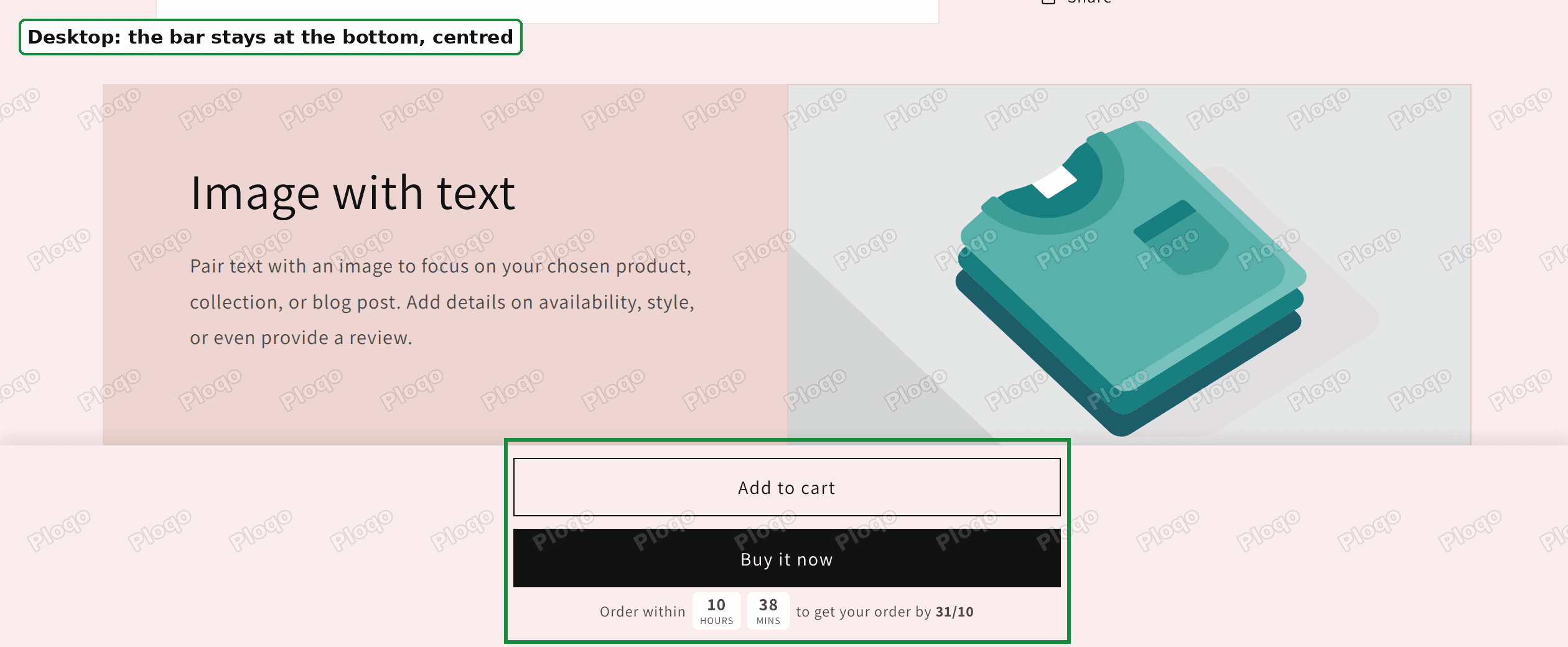 Desktop product page scrolled down, with Add to cart, Buy it now and the delivery countdown centred in a bar at the bottom
On a wide screen the button is rarely far away, so some merchants prefer the bar on phones only. The next section shows how.
Common changes
Each change below edits the code from step 3. Open the Custom Liquid block again, make the change in its box, and click Save. I tested all three on Dawn 15.4.1.
Show the bar on phones only. Find this line:
var pin = spot.getBoundingClientRect().bottom < 0;and replace it with:
var pin = spot.getBoundingClientRect().bottom < 0 && window.innerWidth < 750;750 pixels is the width where Dawn switches between its phone and desktop layouts. On my test store, a 1280 pixel wide window no longer showed the bar, and a phone still did.
Hide Buy it now in the bar. The black Buy it now button is Shopify's express checkout button (the dynamic checkout button). It is useful on the page, but in a bar it doubles the height. Add this line just before </style>:
.sticky-atc.is-fixed .shopify-payment-button { display: none; }Buy it now still shows in the normal spot. With this line, the pinned bar on my test phone went from 162 to 115 pixels tall.
Change the colour or the shadow. The bar uses your theme's background colour through rgb(var(--color-background)). To use a fixed colour instead, replace that with a colour code, for example #ffffff. To remove the soft shadow above the bar, delete the box-shadow line.
Will it break variants or the cart?
No. The code moves Dawn's own buttons into the bar, it does not copy them, so everything attached to them keeps working.
On my test store I checked three things:
- Changing the colour variant updated the page as usual, including the variant in the browser's address bar, and the Add to cart button stayed inside the sticky area.
- Add to cart from the pinned bar added the item: the cart count went from 6 to 7 and the cart pop-up opened.
- Scrolling back and forth over the spot where the button sits switched the bar once, with no flicker and no page jump.
The quantity selector is a separate block above the buttons, so it stays in its usual place. The bar adds whatever quantity the shopper picked there.
Sticky add to cart apps vs a Custom Liquid block
The Shopify App Store has many sticky add to cart apps. Several add more than a pinned button, such as a variant picker, a quantity box or a product photo in the bar, and some add a bar on collection pages too. Many are free, and the paid plans I looked at ran from about $3 to $10 a month.
The Custom Liquid block does one thing. It pins the buttons you already have, in your own theme's style, and it costs nothing. It adds no extra script from an outside server, so it does not slow the page down.
Pick an app if you want the variant picker inside the bar, or if your theme is not built on Dawn and you do not want to touch code. Pick the block if you want a plain sticky button that matches your theme. Either way, run only one. A cart app that adds its own sticky bar and this block together give you two bars stacked at the bottom of the screen.
If the sticky button does not show
Is the block in the right place? Open the product template and look at the block list. The Custom Liquid block must be under Buy buttons, not above it. If it sits far below, at the end of the list, the bar takes everything between, including the description and the collapsible tabs. That makes the bar taller than the screen. Drag it up to sit right under the last block you want in the bar.
Did you open the right template? Products can use different templates. If one product shows the bar and another does not, the second one uses another template. Check the Theme template box on the product page in the admin, then add the block to that template too.
Is your theme built on Dawn? The code looks for the parts of the page Dawn uses for the product text column and the Add to cart form. Free Shopify themes built from Dawn share them. I checked Refresh 16.1.0 and Studio 15.5.0, and both use the same names. Themes from other makers use different names, and the code then does nothing at all. It does not break the page. In that case, check your theme's own settings or contact its developer.
Are you looking in the theme editor? The editor preview runs the code, but it reloads the block every time you change a setting. Save, then check on the live product page or with Preview in a new tab.
Did you scroll far enough? The bar only appears once the button has left the top of the screen. On a desktop with the Sticky content setting on, the text column follows you down the page, so the bar may appear later than on a phone.
Sticky add to cart, sticky header and sticky content
These three get mixed up because they share a word.
- Sticky add to cart pins the buy buttons to the bottom of the screen, as built in this guide.
- Sticky header pins your logo and menu to the top. Dawn has it in the header section settings, with options from None to Always. If you want a sticky menu at the bottom of the phone screen instead, see adding a sticky bottom navigation bar.
- Sticky content keeps the product text column beside the photos on desktop. It never leaves the product section, so it does not follow the shopper to reviews or related products.
A sticky header and a sticky add to cart work well together. One holds navigation at the top, the other holds the buying area at the bottom, and the product page stays readable in between.
If you would rather change what the button says than where it sits, my guide to changing the Add to cart button text covers that without editing theme code.
Spending too long on manual Shopify busywork?
PinFlow turns your Shopify catalog into Pinterest pins and posts them on a schedule, automatically. Same idea as the fix above, let the system handle the repetitive part.
Get PinFlow on the Shopify App StoreMore Shopify fixes
More community-sourced Shopify guides, tested on a live store.
Themes & Storefront
Shopify Anchor Link: Button That Scrolls to a Section
Link a Shopify button to a section lower on the same page with an anchor link. Steps for the theme editor, no code files, plus the fix for a title hidden under the header.
Themes & Storefront
Shopify Social Media Icons: Add a Custom Icon and Link
Set your social links in Shopify theme settings, see why icons do not show, and swap in your own icon for a network the theme does not list.
Themes & Storefront
Shopify Wishlist App: Add a Free Wishlist to Your Store
A free Shopify wishlist app: hearts on product cards, a Wishlist button on product pages and a wishlist page. Guest lists follow shoppers when they log in.