
Custom Liquid Shopify: Hide the Header on One Page
Hide the Shopify header on a single page template with one Custom Liquid section. Why the #shopify-section-header selector matches nothing, and the class that works. Tested on Taste 15.5.0.
By AjayCodeWiz · July 20, 2026 · 8 min read
The problem custom liquid actually solves
A merchant posted this on the Shopify Community. They run the Taste theme, they built a separate template for one page, and they wanted that page to show without the site header.
They did the obvious thing. They opened the theme editor, found the header section, and switched it off.
It disappeared from every page on the store.
That reaction is not a bug and it is not something you configure your way out of. It is how Shopify structures a theme, and once you see the structure the fix is one small block of CSS in a Custom Liquid section.
I reproduced the whole thing on a Taste 15.5.0 store. Here is what is going on and what to paste.
What is custom liquid in Shopify
Custom Liquid is a section you can drop into a template to inject your own code. It accepts HTML, CSS, Liquid, and script tags, and it renders exactly where you place it in the template.
It exists because themes cannot anticipate everything. Rather than force you to edit theme files for every small change, Shopify gives you a slot in the theme editor where your own markup goes.
Two things make it more useful than it first appears.
It is a section, so it obeys the same scoping rules as every other section. Put it in a template and it only exists in that template.
It renders inline, so a <style> tag inside it applies to that page. You are not editing a stylesheet that every page shares.
That second point is the whole trick behind hiding a header on one page and nowhere else.
Why turning the header off removes it everywhere
Open the theme editor on any Online Store 2.0 theme and the left panel splits into three groups: Header, Template, and Footer.
Those groups are not cosmetic. Header and Footer are section groups. Each is defined once, in sections/header-group.json and sections/footer-group.json. The layout then renders them on every single page:
{% sections 'header-group' %}That line lives in layout/theme.liquid. Every page that uses that layout gets it. There is no per-template version of it and no setting that makes one.
So when you uncheck the header section, you are editing the one shared definition. It vanishes site-wide because there is only one of it.
The Template group is the opposite. Its contents come from the template file you are editing, which is why anything you add there exists only on pages using that template.
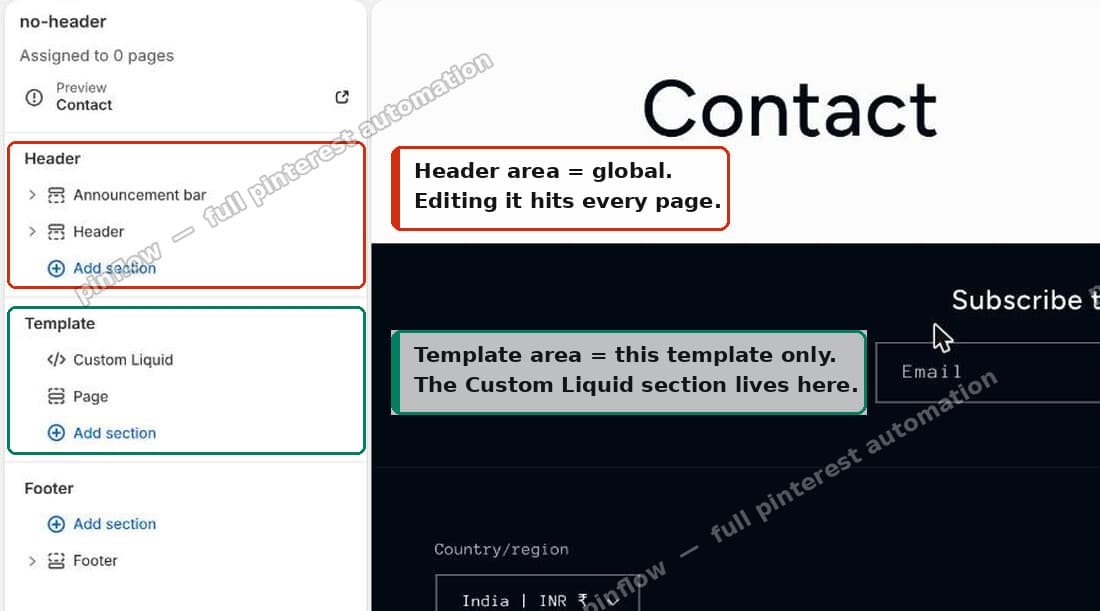 Header area is global, Template area is per template
That is the distinction the theme editor never spells out, and it is the entire answer.
The fix: one Custom Liquid section
Add a Custom Liquid section to the template you want header-free, and paste this:
<style>
  /* hides the announcement bar and the header on this template only */
  .shopify-section-group-header-group { display: none; }
</style>
That is the whole fix.
Because the <style> tag renders as part of that template, the rule only exists on pages using it. Every other page renders normally.
Before, with the header group intact:
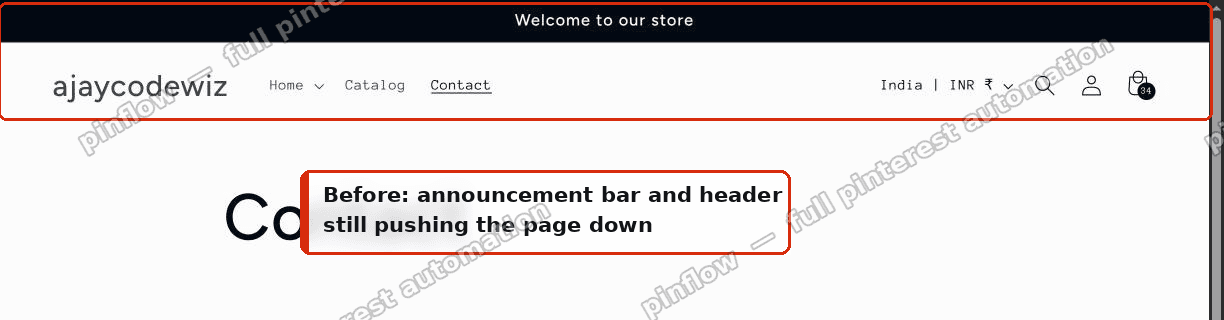 Announcement bar and header still on the page
After, on the same page:
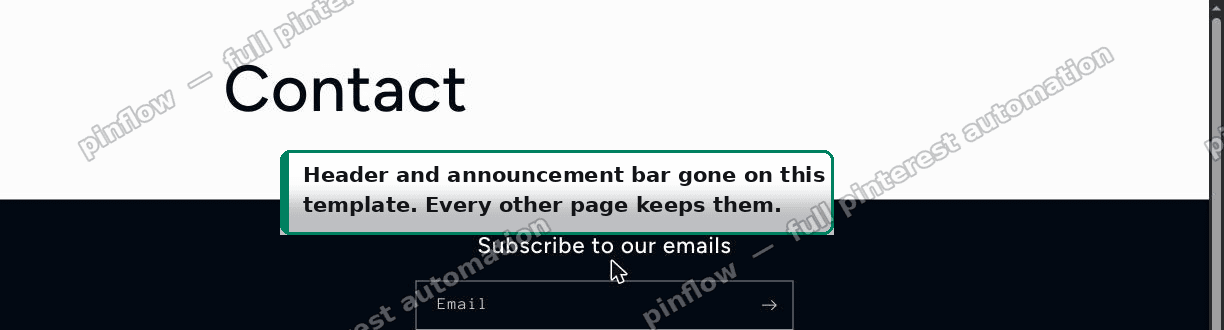 Header and announcement bar gone on this template only
On my Taste test store the announcement bar measured 42px tall and the header 86px, pushing the main content down 129px. With the section in place, both measured 0px and the content started at 0. The same page on the default template still measured the full 42px and 86px, so nothing leaked.
Why the ID selector you will be given does not work
Search this problem and you will be handed some version of this:
<style>
  #shopify-section-header { display: none; }
  #shopify-section-announcement-bar { display: none; }
</style>
It looks right. It does nothing.
I checked on Taste 15.5.0. document.querySelectorAll('#shopify-section-header') returns zero elements. Same for the announcement bar.
Sections rendered through a section group do not get that ID. They get a generated one that includes the group's internal numeric ID:
shopify-section-sections--20216712724657__headerThat number is unique to the store. It changes when the theme is duplicated, and it changes again when the theme updates. There is no value you can hardcode and rely on.
The class is the stable handle. Shopify derives shopify-section-group-header-group from the group's filename, so it is the same on every store running any Online Store 2.0 theme, and it survives updates.
It also covers both sections at once. The announcement bar and the header are both in that group, so one rule handles both.
Hiding only part of the header group
If you want the header gone but the announcement bar kept, add the header section's own class:
<style>
  .shopify-section-group-header-group.section-header { display: none; }
</style>
For a true landing page with no chrome at all, hide the footer group too:
<style>
  .shopify-section-group-header-group,
  .shopify-section-group-footer-group { display: none; }
</style>
One caveat on the header-only variant: .section-header is the class Dawn-family themes put on the header section. Most free Shopify themes are Dawn-family, so it works on Taste, Dawn, Refresh, Sense, Craft, Studio, and Origin. On a heavily customized paid theme, inspect the header element and use whatever class it actually carries.
How to add a custom liquid block in Shopify
The navigation is where people get lost, because the Add section button appears three times on the page, once per group.
Go to Online Store > Themes > Customize, then pick the template you want from the template dropdown in the top bar. This is the step that gets skipped. If you leave it on the default, you will edit the wrong template and see no effect.
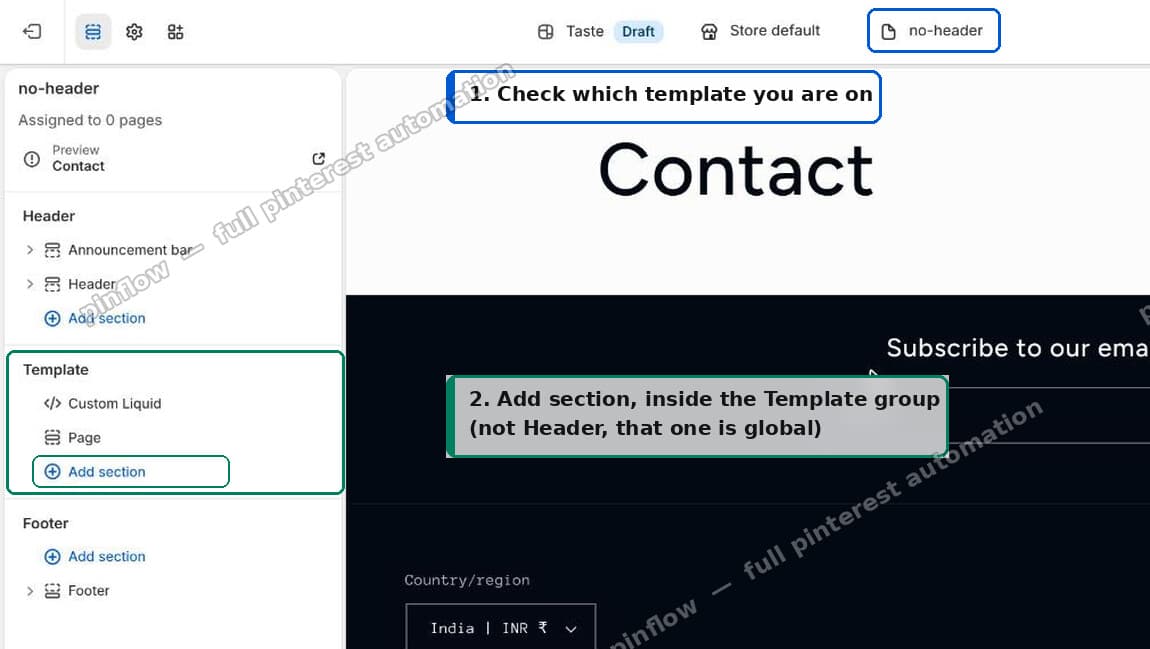 Pick your template, then Add section in the Template group
Then click Add section in the Template group, and search for custom.
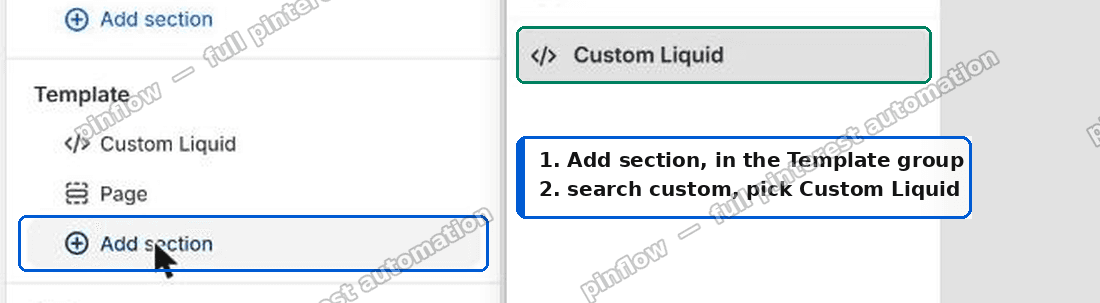 Add section in the Template group
Paste the CSS into the Liquid code box and save.
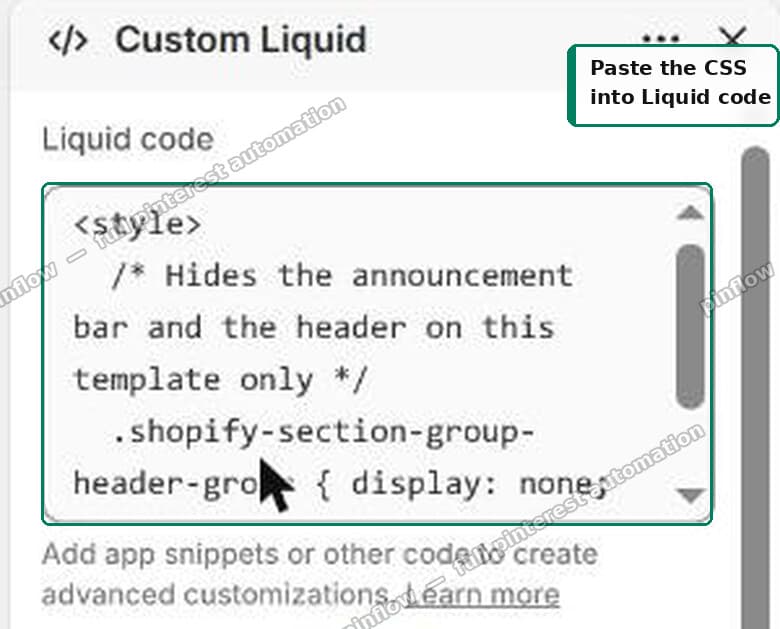 Paste the CSS into the Liquid code box
Position in the template does not matter for CSS. A <style> tag applies to the whole document wherever it sits. Put it at the top so it is easy to find later.
Custom liquid section vs custom liquid block
Newer themes offer both, and they are scoped differently.
A Custom Liquid section sits at the template's top level, alongside your other sections. That is what you want for anything page-wide, like this fix.
A Custom Liquid block sits inside another section, such as a block within Product information. It renders in that section's position, which is right when you are adding something next to the buy buttons and wrong when you are targeting the page as a whole.
For hiding a header, use the section. A block would still work, since CSS does not care where the style tag renders, but it puts the code somewhere illogical for the next person who opens the theme.
The step people forget
The template only applies to pages actually assigned to it.
Open the page in Content > Pages, and set the Template dropdown on the right to your new template rather than "Default page".
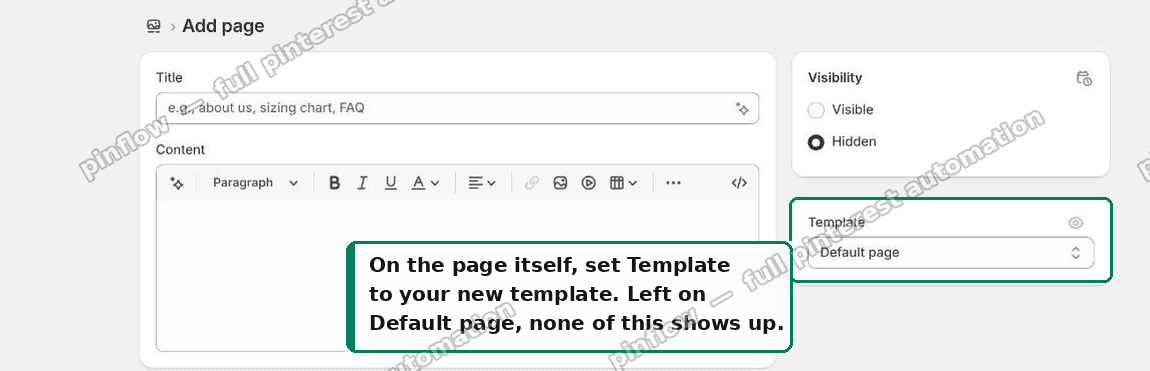 Set the page Template to your new template
Miss this and everything above is correct and invisible. You edited a template nothing uses.
Worth knowing: this dropdown lists templates from your live theme. If you built the template on an unpublished theme, it will not appear here until you publish. To test before publishing, preview the page with ?view=<suffix> on the URL, which renders an alternate template without changing any page data.
If it did not work
The header is still there. You are almost certainly on the wrong template. Check the template dropdown in the theme editor top bar, and check the page's Template setting in the admin.
It worked but the page still scrolls oddly. Some themes add top padding to the main content to clear a sticky header. display: none removes the header from layout entirely, so this is rare. If you do see a gap, inspect the element above your content and clear its padding in the same style block.
It hid on every page. You added the section to the Header group instead of the Template group, or you edited the default template rather than your custom one.
Nothing at all happened. Confirm the section actually saved. The Custom Liquid box does not validate, so an unclosed tag fails with no error. Check the rendered page source for your <style> block.
Is hiding the header with CSS a problem for SEO
Not in this case, and the distinction matters.
Google penalizes hidden text that manipulates rankings, meaning keyword-stuffed content shown to crawlers and hidden from users. That is not this. Here the header is absent for every visitor, and the reason is a design decision about one page.
The header markup does still ship to the browser. It renders nothing, but it is in the HTML, so your navigation links remain crawlable from that page. If you want them truly gone from the response, you need a separate layout file, which means editing theme code rather than using a section.
For a landing page or a checkout-adjacent page, the CSS approach is standard practice.
When to edit the theme code instead
Custom Liquid is the right tool when the change is presentational and scoped to a template.
Go to the code editor instead in three cases. When you need the header genuinely absent from the HTML response. When the same change is needed across many templates and you would rather write it once. Or when the change involves logic beyond a style rule.
For a single page that should not show a header, a Custom Liquid section is the smaller and safer change. It survives theme updates, it needs no file edits, and any merchant can undo it by deleting one section.
What this cost
Reproducing it on Taste, verifying the measurements, and confirming other pages were untouched took about an hour. The fix itself is one line of CSS.
The hour went into establishing why the obvious version fails. That is the part no forum answer covers, and the part that would otherwise have you pasting an ID selector that matches nothing and reports no error.
A landing page no shopper ever reaches is still a page that earns you nothing.
PinFlow turns your Shopify catalog into Pinterest pins and posts them on a schedule, so the page you just built gets found by people who are not on your store yet.
Get PinFlow on the Shopify App StoreMore Shopify fixes
More community-sourced Shopify guides, tested on a live store.
Themes & Storefront
Shopify Payment Icons: Fix a Footer That Shows None
The payment icons in a Shopify footer come from your payment provider, not from the theme. When the provider sends none, the row stays empty. Here is how to add the icons yourself on Refresh, Dawn and similar themes.
Themes & Storefront
Shopify Order Notes: Turn On the Cart Note Box
Let customers leave order notes and special instructions on your Shopify cart page. Turn on the built-in cart note in Theme settings, rename its label, and find each note on the order. Tested on Dawn, no code.
Themes & Storefront
Shopify WhatsApp Integration: Add a Free Chat Button
How to add WhatsApp to Shopify with a floating chat button: shoppers tap it and WhatsApp opens a chat with you, the message already typed and naming the product.