
Shopify WhatsApp Integration: Add a Free Chat Button
How to add WhatsApp to Shopify with a floating chat button: shoppers tap it and WhatsApp opens a chat with you, the message already typed and naming the product.
By AjayCodeWiz · October 17, 2026 · 14 min read
What a WhatsApp integration on Shopify does
A WhatsApp chat button is a small round button in the corner of your store. A shopper taps it, WhatsApp opens on their phone, and a chat with your number is already there with a message typed in. They press send, and the question lands in your own WhatsApp.
That is the simplest kind of Shopify WhatsApp integration. It suits a shop whose owner already answers customer messages on WhatsApp, because it removes the steps a shopper takes before asking: finding your number, saving it as a contact and typing out which product they mean.
I built a free app for this, Ploqo Chat Button, and set it up from scratch on a fresh test store running Horizon, Shopify's current default theme. The whole setup took about two minutes. This guide walks through it screen by screen, and the video below shows the same steps.
The number in the screenshots, +1 202 555 0123, is a made-up example. Use your own number.
How to add WhatsApp to Shopify
To add WhatsApp to Shopify, install a chat button app, switch its app embed on in the theme editor, type your WhatsApp number with its country code and save. With Ploqo Chat Button that is six steps:
- In your Shopify admin, find Ploqo Chat Button under Apps and click Turn on.
- In the theme editor, check WhatsApp button is switched on under App embeds.
- Type your WhatsApp number with its country code.
- Check the two pre-filled messages.
- Choose the side, the pages and the colour.
- Click Save, then open your store and tap the button.
Each step has a screenshot below.
Two kinds of WhatsApp integration
"Shopify WhatsApp integration" covers two very different things, and it helps to know which one you want before you install anything.
A chat button. The button opens a normal WhatsApp chat between the shopper and you. The shopper starts the conversation, and you reply from your phone like any other chat. Nothing is sent automatically and there is no cost per message. This is what this guide sets up.
Automated messages through the WhatsApp Business API. The Business API is Meta's paid service for businesses that send messages from software rather than from a phone. Apps built on it send order confirmations, shipping updates and abandoned cart reminders to customers who opted in. They usually charge a monthly fee, and Meta charges for the messages your business starts. They also need a verified business account and approved message templates.
A third option is not WhatsApp at all. Shopify Inbox, Shopify's free chat app, puts a chat window on your store, and you answer in the Inbox app rather than in WhatsApp. It suits shops that want to answer from the Shopify admin; if its alerts stop reaching you, see Shopify Inbox notifications not working.
If you want shoppers to be able to ask you a question before they buy, start with the chat button. It is free, it takes minutes, and you can add an API app later if you outgrow it.
Before you start
You need three things:
- A Shopify store. Any plan, any theme. The button works on Online Store 2.0 themes like Dawn and Horizon and on older themes too.
- A WhatsApp number. Your personal WhatsApp works. The free WhatsApp Business app works better for a shop, because it adds a business profile, quick replies and an away message for when you are closed.
- The number in international format. That means your country code first, then the number. +1 202 555 0123 for the US, +44 20 7946 0000 for the UK, +91 98765 43210 for India. Spaces and dashes are fine. Leave out the leading 0 that you dial inside your own country.
Step 1: Open the app and click Turn on
Install Ploqo Chat Button from the Shopify App Store, then open it from Apps in your Shopify admin. The first screen, called Home, shows whether the button is switched on in your live theme. On a new install it says Off.
Click Turn on.
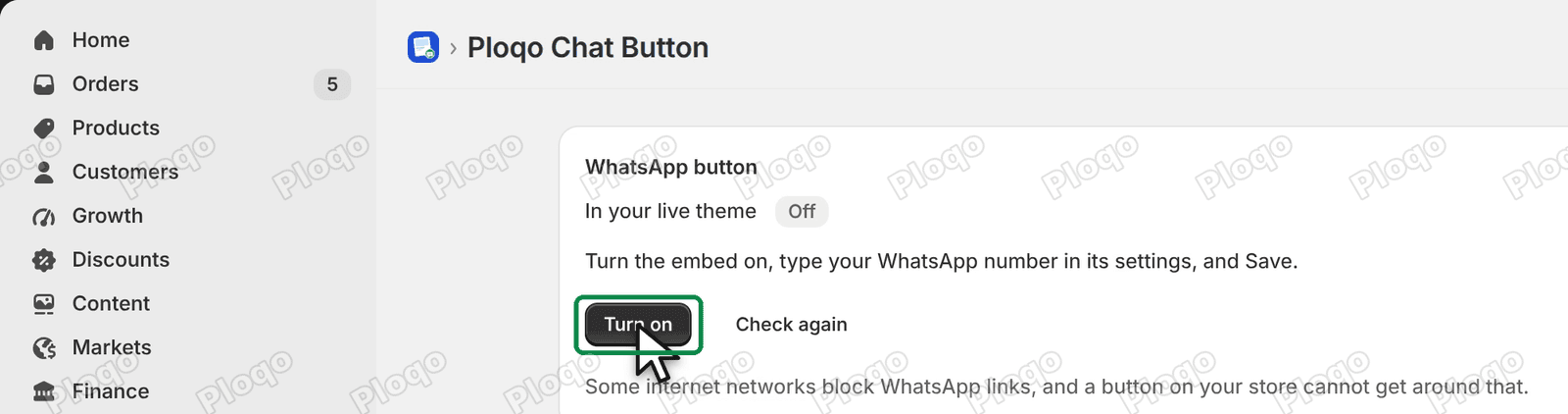 Ploqo Chat Button Home in the Shopify admin, showing the WhatsApp button Off in the live theme and the Turn on button
The button is added to your store as an app embed: a piece an installed app adds to your theme, which you switch on and off in the theme editor. Shopify's help page on app embeds shows where they live. The theme editor is the screen where you change how your store looks. Turn on opens it for you, on the App embeds panel.
Step 2: Check the embed is switched on
The theme editor opens on App embeds, with WhatsApp button already switched on. You can see the switch at the top of the left panel.
Directly under it is the box this whole setup depends on: WhatsApp number with country code. It starts empty.
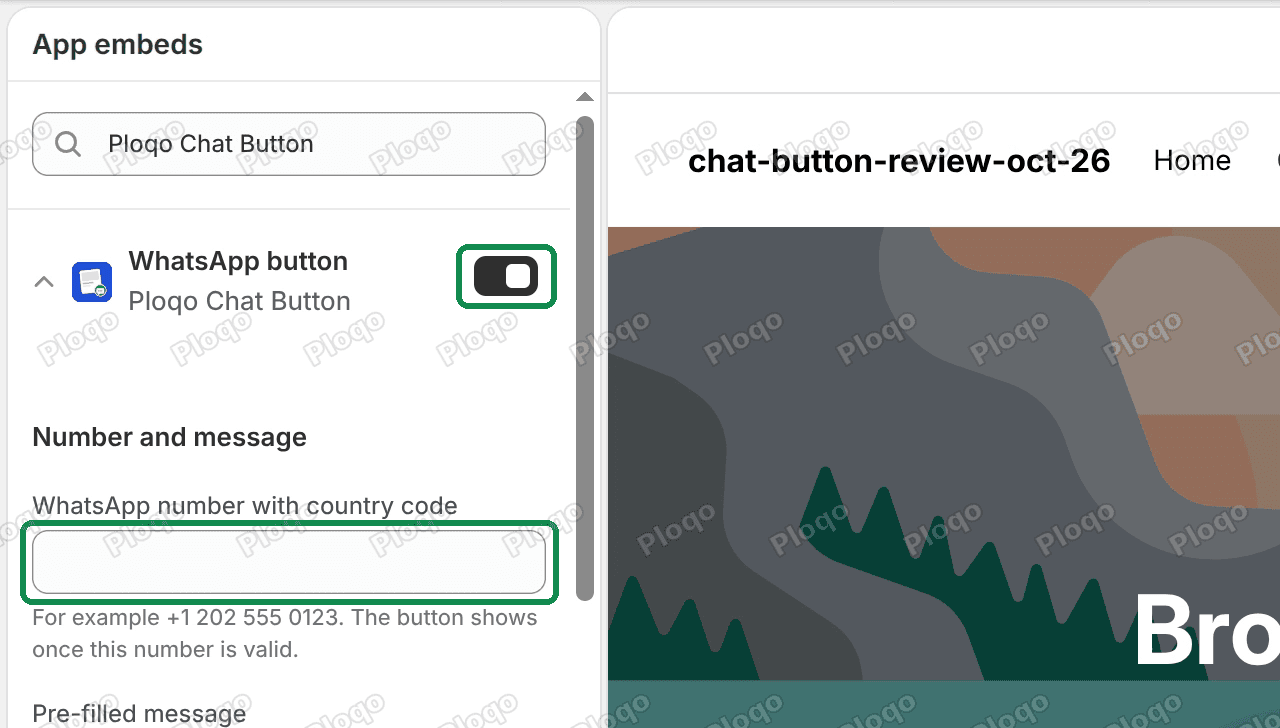 The Shopify theme editor App embeds panel with the WhatsApp button switched on and the empty WhatsApp number box
While the number is empty, the editor preview shows a yellow note saying the number is missing. Shoppers never see that note, and the button stays hidden on your live store until there is a valid number. A button that opens a chat with a wrong number is worse than no button, so the app will not show one.
Step 3: Type your WhatsApp number
Click the number box and type your number with its country code. Then click anywhere outside the box.
After a few seconds the green WhatsApp button appears in the preview, in the bottom right corner of your store.
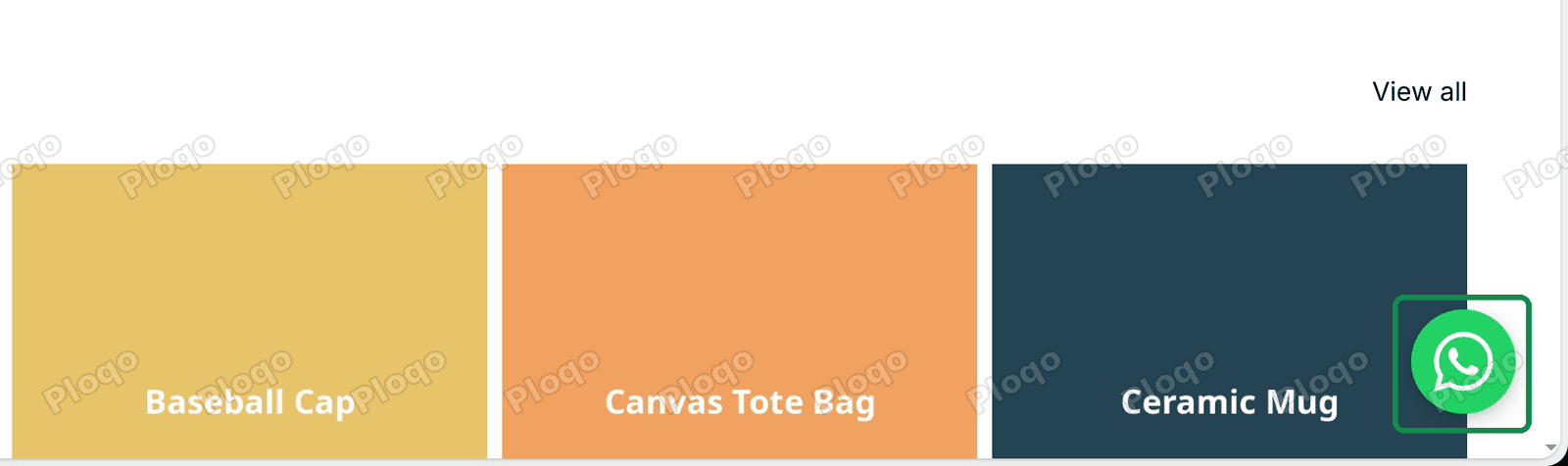 The theme editor preview with the green WhatsApp button in the bottom right corner of the store
If the button does not appear, look at the note under the number box. It says the button shows once the number is valid. The usual causes are a missing country code or a number that is too short.
Step 4: Check the pre-filled messages
Scroll down a little to the two message boxes. A pre-filled message is the text that is already typed in the chat when WhatsApp opens. The shopper can change it or add to it before they press send.
- Pre-filled message is used on every page except product pages. The default is "Hi, I have a question".
- Pre-filled message on product pages is used on product pages. The default is "Hi, I have a question about {product_title} {product_url}".
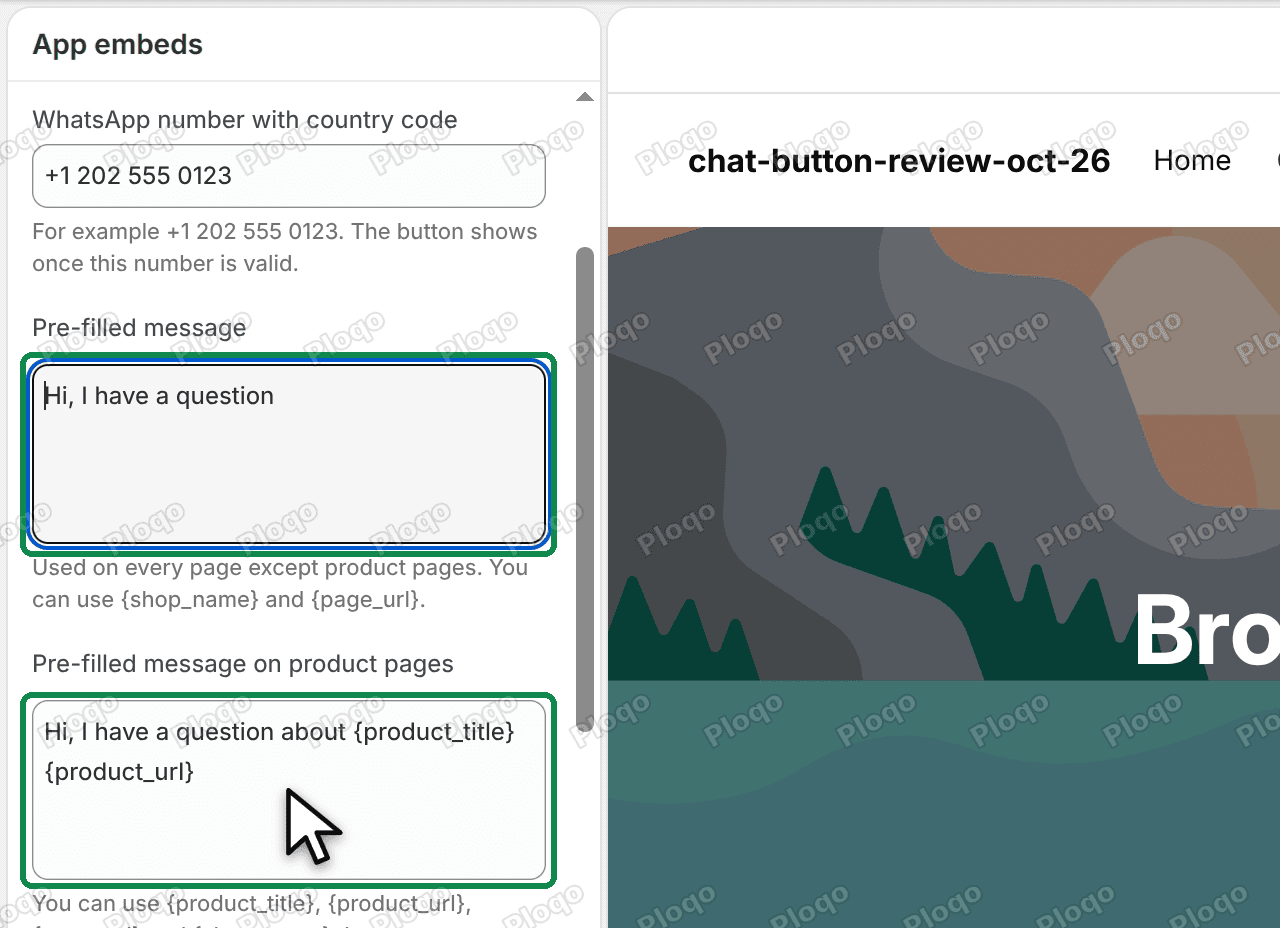 The two pre-filled message boxes in the WhatsApp button settings
The words in curly brackets are placeholders: the app swaps each one for real text when the shopper taps the button. On the Baseball Cap page of my test store, the message came out as "Hi, I have a question about Baseball Cap" followed by the link to that product. You see straight away which product the shopper means, and you can tap the link to open it.
There are four placeholders:
| Placeholder | Becomes |
|---|---|
{product_title} | the product's name (product pages only) |
{product_url} | the link to the product (product pages only) |
{page_url} | the link to the page the shopper is on |
{shop_name} | your store's name |
You can write your own message in your own language. "Hello {shop_name}, I am looking at {page_url}" works on any page. Leave the product message empty if you want product pages to use the general one.
Step 5: Choose where and how the button shows
Further down are the rest of the settings.
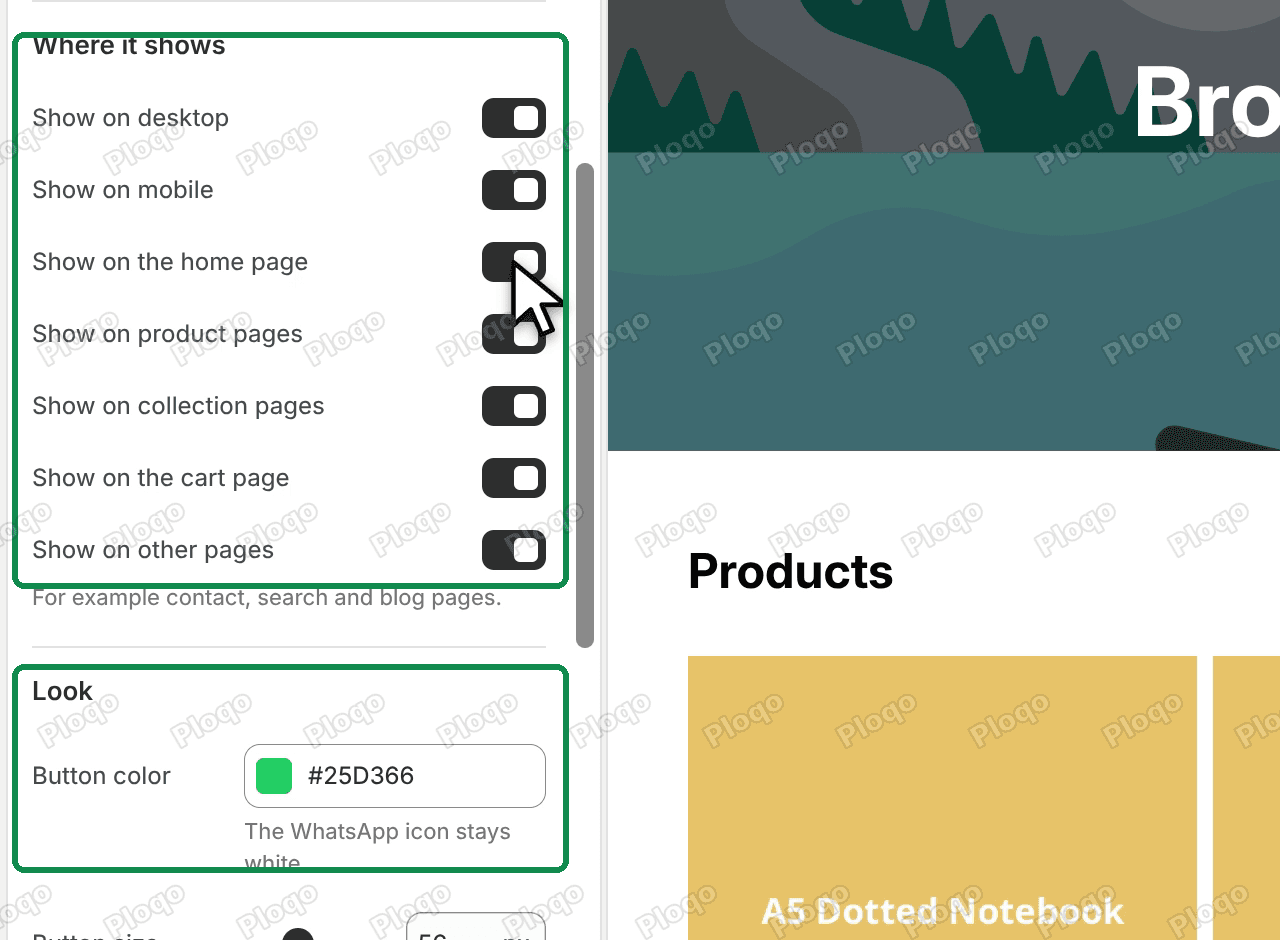 The Where it shows switches and the button colour setting for the WhatsApp button
- Position. Left or right side of the screen, and the distance from the bottom and from the side, set separately for desktop and mobile. Mobile means screens narrower than 750 pixels.
- Where it shows. Switches for desktop, mobile, the home page, product pages, collection pages, the cart page and other pages such as contact, search and blog pages.
- Look. The button's colour and size. The WhatsApp icon inside stays white.
There is also an optional greeting bubble that can pop up next to the button after a few seconds. It is off by default, so nothing pops up on your store unless you switch it on.
On mobile, the default distance from the bottom is 80 pixels. Some themes put a sticky Add to cart bar along the bottom of product pages on phones. If the button covers it on your theme, raise the mobile distance until it clears. The same goes for any floating button that sits over your menu or other controls; stop a chat widget covering your Shopify menu covers the general fix.
Step 6: Save
Click Save in the top right corner of the theme editor.
 The Save button in the top right corner of the Shopify theme editor
Wait until Save turns dark before you click it. After you change a setting, Shopify takes a few seconds to apply it to the preview, and Save stays grey until it has. A click on a grey Save does nothing.
Nothing reaches your live store until you save. If you leave the theme editor with unsaved changes, your browser asks whether you want to leave the page.
Step 7: See it on your store
Open your online store. The green button sits in the corner of every page you left switched on.
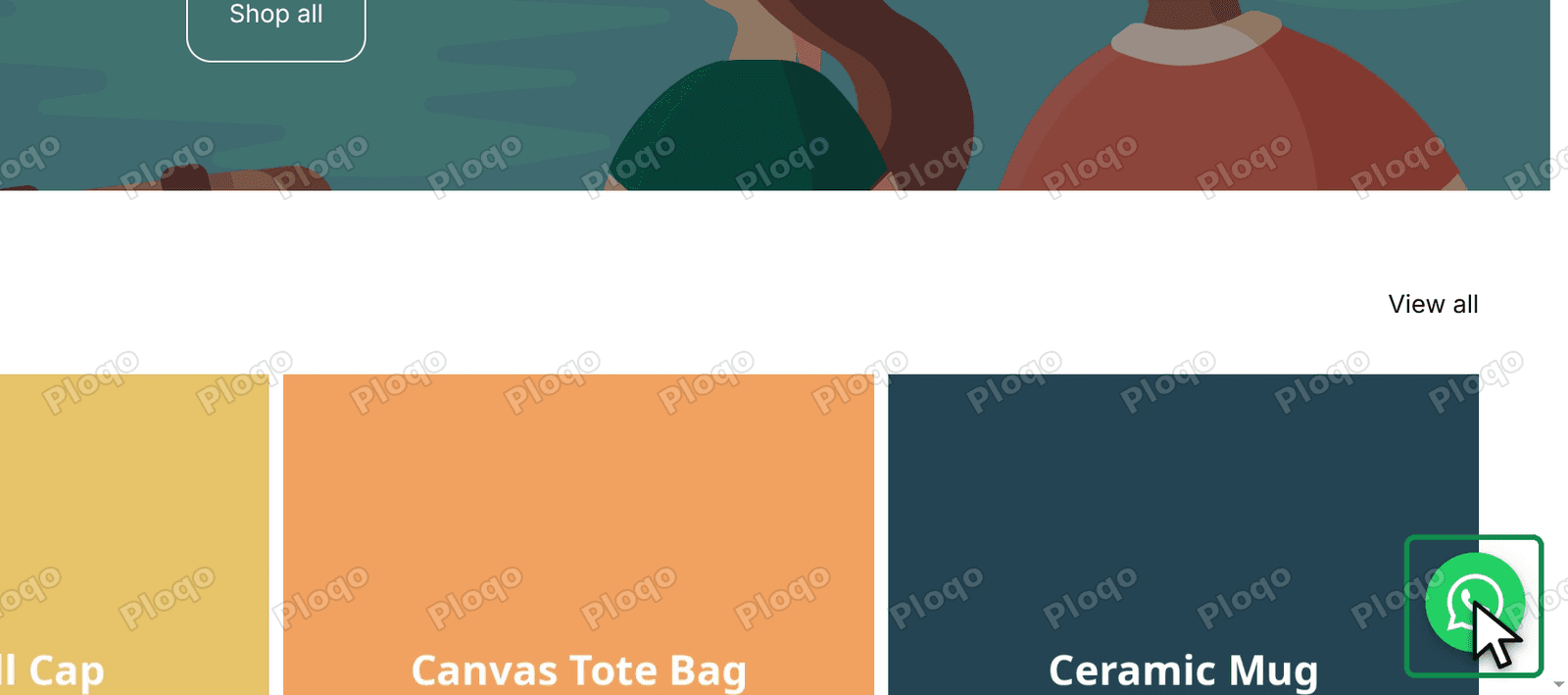 The live Shopify store home page with the green WhatsApp chat button in the bottom right corner
On a product page it looks the same. The difference is the message: tap it there and the chat opens with the product's name and link.
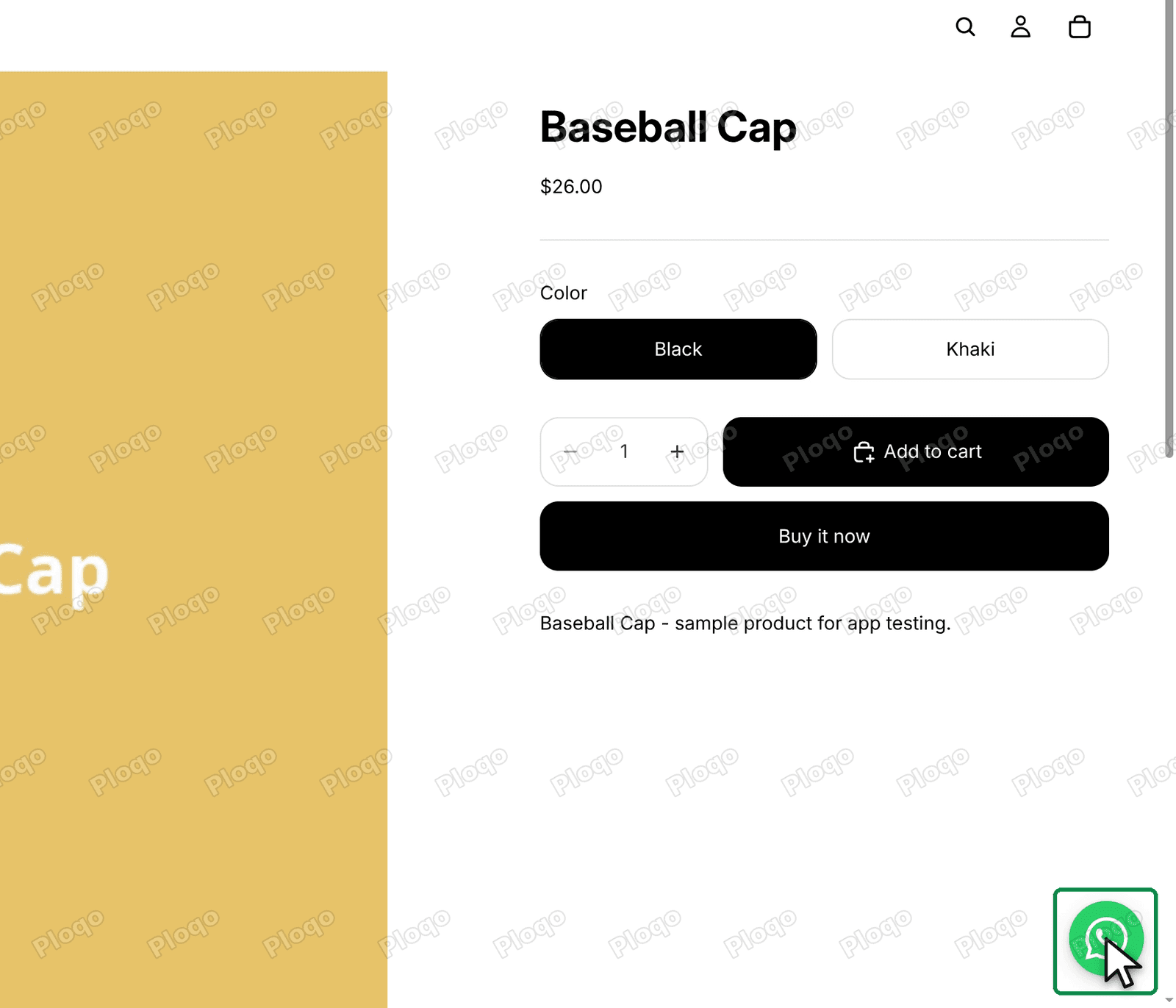 A Shopify product page for a Baseball Cap with the WhatsApp chat button in the corner
What the shopper sees
When a shopper taps the button on their phone, WhatsApp opens a chat with your number, with the message already typed in the box. They only have to press send. On a computer, the link opens WhatsApp's own page, which offers to continue in the WhatsApp app or in WhatsApp Web.
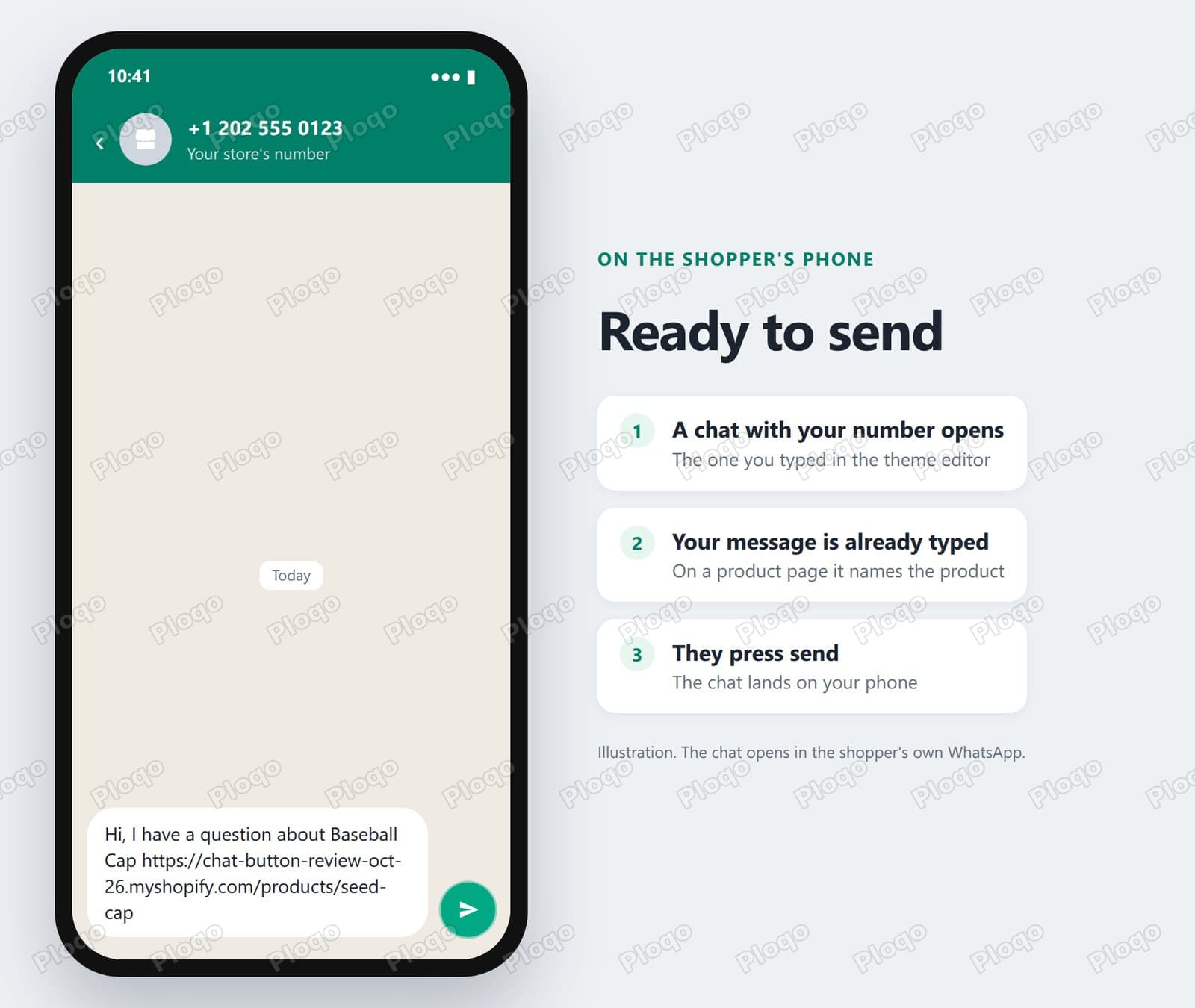 An illustration of the shopper's phone: a WhatsApp chat with the store's number and the product message ready to send
The button opens a normal WhatsApp link, the kind WhatsApp calls click to chat. Nothing is sent until the shopper presses send, and the app never sees the conversation.
What you receive
Each shopper who presses send arrives in your WhatsApp as a new chat, from their own number. What the message says depends on the page they tapped the button on.
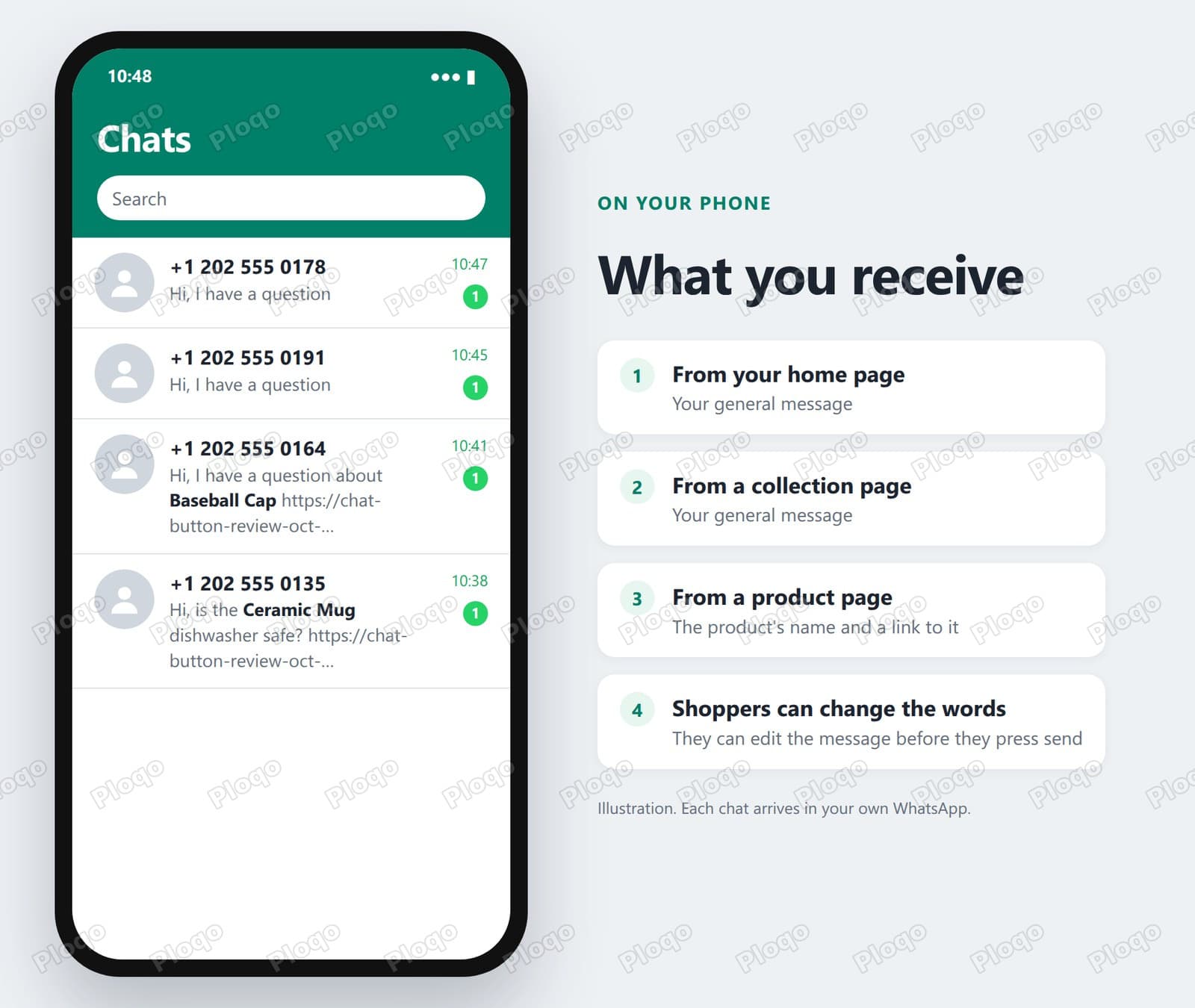 An illustration of the store owner's WhatsApp chat list with messages from the home page, a collection page and two product pages
- From the home page or a collection page: your general message, "Hi, I have a question".
- From a product page: the product message, with the product's name and link.
- When the shopper edits the text: whatever they wrote. In the example above, the shopper turned the default into "Hi, is the Ceramic Mug dishwasher safe?" and kept the link.
Shoppers' numbers are not saved anywhere by the app. They are only in your WhatsApp, like any other chat.
Change the settings later
Back in the app, Home now shows the button as On. Edit button settings opens the theme editor on the same panel whenever you want to change the number, the messages or the position.
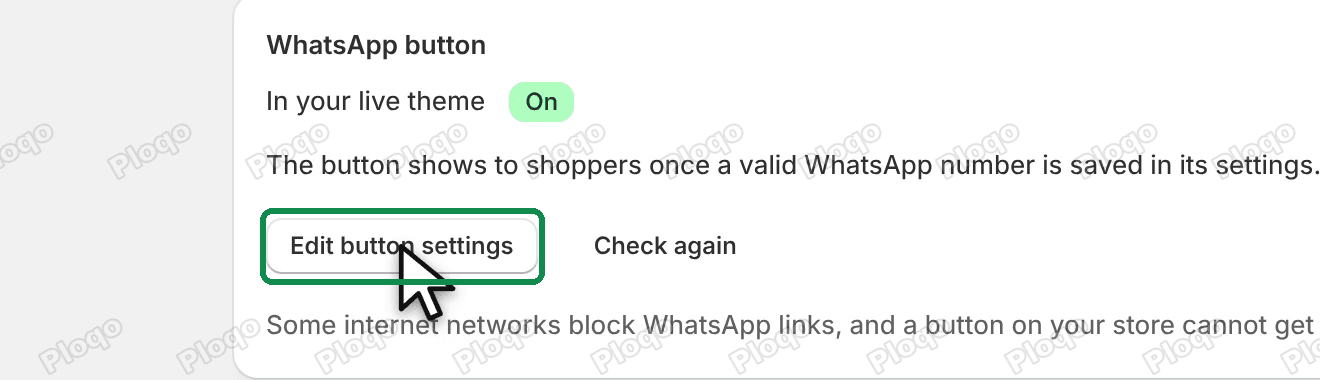 Ploqo Chat Button Home showing the WhatsApp button On, with the Edit button settings button
Test the link without a phone
Home also has a Test a WhatsApp link box. Type a number and a message, and it shows the exact link the button on your store opens. Nothing you type there is saved.
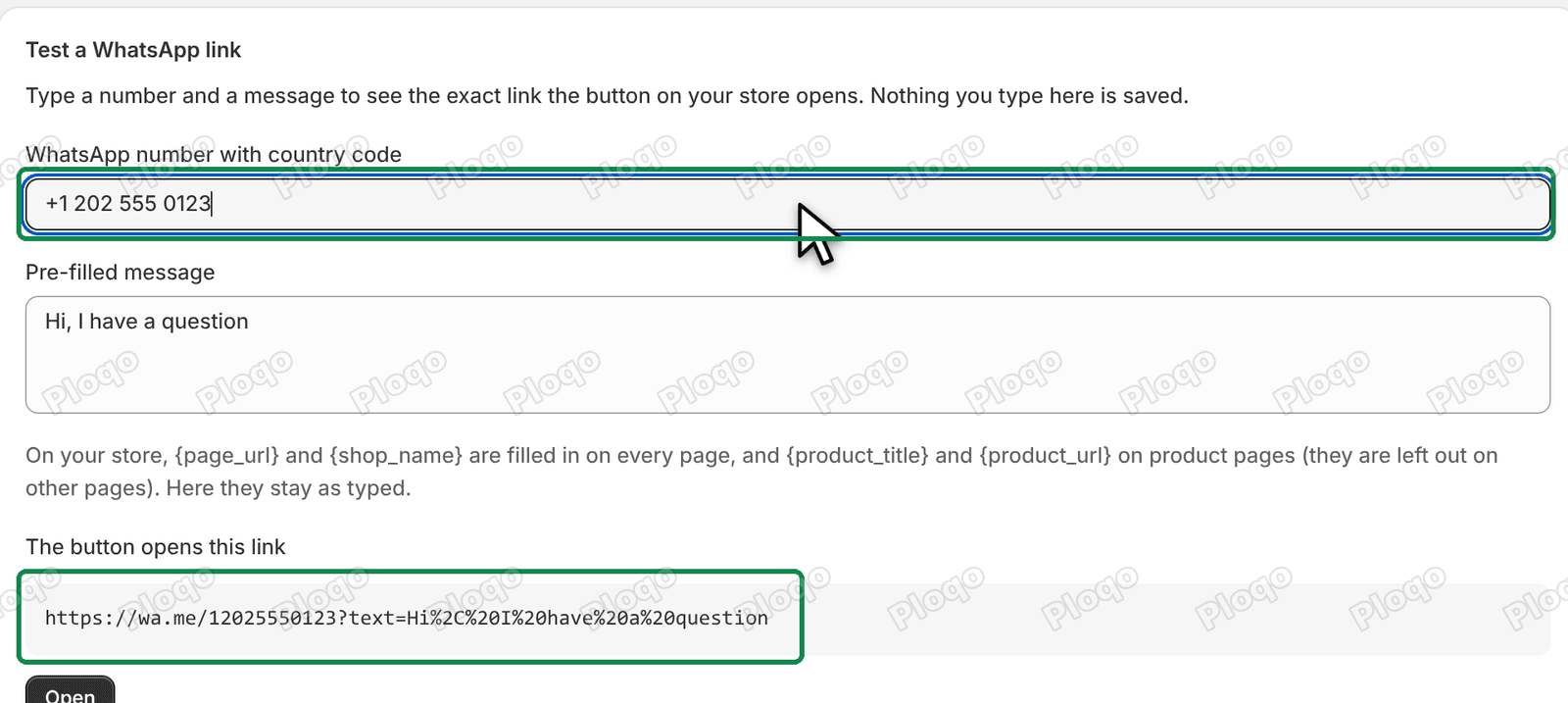 The Test a WhatsApp link box showing the wa.me link built from the number and message
The link has the form https://wa.me/12025550123?text=Hi%2C%20I%20have%20a%20question. The part after wa.me/ is your number: digits only, country code first, no plus sign and no leading zero, as WhatsApp's click to chat help page describes. The part after text= is the message, written in the format web addresses use, so spaces become %20. Open tries the link in a new tab.
Add WhatsApp to Shopify without an app
You can add a WhatsApp link to your store with no app at all. It is free and takes a minute, but it does less.
Build your link by hand: https://wa.me/ followed by your number in digits, for example https://wa.me/12025550123. Then add it as a menu item. In your Shopify admin, go to Online Store > Navigation, open your main menu or footer menu, click Add menu item, name it "WhatsApp us" and paste the link. For where the footer menu shows up, see how to edit the footer in Shopify; for the main menu on Horizon, how to customize the Horizon theme menu.
What you give up:
- No floating button. The link sits in your menu or footer, where a shopper on a product page has to go looking for it.
- No product name. The message is the same on every page, so you have to ask which product they mean.
- No checks. If you mistype the number, the link opens a chat with a stranger and nothing warns you.
For a store with a handful of products that sells mostly through Instagram, a menu link can be enough. For a catalogue where shoppers ask about specific items, the product message saves a round of questions on every chat.
Add a WhatsApp button with theme code
Many guides tell you to paste a WhatsApp button straight into your theme's code instead. The button is a link styled as a circle. It goes near the end of theme.liquid, the file that wraps every page of your store.
It works, and it is free. It also has costs that only show up later:
- A theme update leaves it behind. When you update your theme or switch to a new one, the code stays in the old copy. The button is gone from the live store until you paste it again.
- The number is written into the code. To change it, you edit the theme file again.
- One message for every page. Plain code cannot name the product the shopper is looking at, unless you write more code for product pages.
- A typo breaks the page. A missing quote mark in pasted code can break the layout of every page, and there is no undo button in the code editor once you save.
An app embed avoids these: the button is switched on in the theme editor, the settings are form fields, and Shopify removes the button when you uninstall the app.
Which option should you choose?
| Option | Cost | Floating button | Names the product | Sends automatic messages |
|---|---|---|---|---|
| Menu link | Free | No | No | No |
| Code in the theme | Free | Yes | Not without more code | No |
| Chat button app | Free to paid | Yes | Depends on the app | No |
| WhatsApp Business API app | Monthly fee plus message charges | Usually | Yes | Yes |
A chat button app sits between the free routes and the API: a floating button, a message that names the product, and no code to maintain. Move to a Business API app when you want order updates and cart reminders sent for you.
Is a WhatsApp chat button free?
The button itself costs nothing to run. A click to chat link is a free WhatsApp feature, and the chat happens between the shopper's WhatsApp and yours. There are no message fees, because nothing goes through the WhatsApp Business API.
Ploqo Chat Button is free. Some chat button apps on the Shopify App Store charge once you pass a number of clicks, add agents or want to remove their branding. Read the pricing tab before you install one, and check what happens when the free plan's limit is reached.
WhatsApp Business app or personal WhatsApp?
Both work with the button, because it only needs a number that has WhatsApp.
The free WhatsApp Business app is worth installing on a separate number if you can. It shows your shop's name, address and opening hours on your profile. It has quick replies for the questions you answer every day, labels for sorting chats into new, paid and shipped, and an away message for nights and weekends. It also keeps shop chats apart from family chats.
If the button does not show up
- The number is missing or not valid. Look at the note under the number box, as in step 3. The button stays hidden until the number has a country code and enough digits.
- The embed is off, or was never saved. In the app, Home shows Off. Click Turn on, check the switch and click Save.
- You changed theme. App embeds are switched on per theme. Shopify's app embeds help page says apps need to be activated again in a new theme, so turn the button on there too.
- The page type is switched off. Check the Where it shows switches, and the desktop and mobile switches.
- You are looking at a cached page. After saving, reload the page. Shopify can serve the old version of a page for a few seconds.
- The link does not open WhatsApp. Some workplace and school networks block WhatsApp links. Try the same button on mobile data.
- The button scrolls away with the page. Some themes override how floating elements are pinned. Shopify chat widget scrolling with the page shows how to spot it and the CSS that fixes it.
Frequently asked questions
Does the button slow my store down? The script is small, loads after the page, and makes no requests to the app's own server. Everything it needs is in your theme settings.
Can I show the button on some pages only? Yes. Use the Where it shows switches: home, product, collection, cart and other pages each have their own switch.
What happens if I uninstall the app? Shopify stops showing the button on your store straight away. Your settings stay in the theme, so a reinstall brings the button back with the same number and messages.
Should I keep my contact form? Yes. Some shoppers prefer email, and a form works for long questions and attachments. If yours does not send, see Shopify contact form not working.
Can several people answer the chats? The button opens a chat with one number. If a team shares the work, the WhatsApp Business app can be linked to other devices, such as a computer running WhatsApp Web, so more than one person can reply from the same number.
Add the WhatsApp button to your store
Ploqo Chat Button is free. Shoppers tap it and WhatsApp opens a chat with you, the message already typed and naming the product.
Get Ploqo Chat Button on the Shopify App StoreMore Shopify fixes
More community-sourced Shopify guides, tested on a live store.
Themes & Storefront
Shopify Payment Icons: Fix a Footer That Shows None
The payment icons in a Shopify footer come from your payment provider, not from the theme. When the provider sends none, the row stays empty. Here is how to add the icons yourself on Refresh, Dawn and similar themes.
Themes & Storefront
Shopify Order Notes: Turn On the Cart Note Box
Let customers leave order notes and special instructions on your Shopify cart page. Turn on the built-in cart note in Theme settings, rename its label, and find each note on the order. Tested on Dawn, no code.
Themes & Storefront
Shopify Estimated Delivery Date Countdown, No App
Show an "order within 3 hours to get it by Saturday" estimated delivery date on your Shopify product page, with a 4pm cut-off, dispatch days and no Sunday deliveries. One free Custom Liquid block, tested on Dawn.