
Shopify New Customer Accounts: Customizing the Login Page
Can you redesign the Shopify customer login page on Horizon or any modern theme? Here is what you can actually change in 2026, why the old fully custom login is gone, and the real options left.
By AjayCodeWiz · July 25, 2026 · 8 min read
The problem
A merchant asked this on the Shopify Community, and it is a fair question with a frustrating answer. It comes down to Shopify's new customer accounts, and what they let you change.
They run the Horizon theme. Their login page is Shopify's standard sign-in screen, a "Continue with Shop" button and an email field. They wanted to replace it with a fully custom design: a photo on the left, and email plus password boxes with their own buttons on the right.
So the question was simple. Can you change the Shopify login page to a custom design like that?
They also asked a good follow-up: would switching to a different free theme let them do it?
I dug into this on a test store. The short answer is that the exact custom design is not possible on Horizon, or on any current theme, and the reason is a platform change most guides have not caught up with. But there is a real set of things you can change, so let me walk through both.
Why you cannot edit the login page like you used to
This is the key shift, so it is worth being precise.
Shopify has two generations of customer accounts.
The old, classic accounts rendered the login page from inside your theme. There was a login template in the theme files, and you could rebuild it: add a side image, add email and password fields, restyle everything with Liquid and CSS. The custom design the merchant wanted is exactly that old style of login.
The new customer accounts are different. The login page is hosted by Shopify, not by your theme. Your theme does not contain a login template at all. There is nothing in the theme code to edit, because the page is not served from the theme.
Horizon is a new theme, so it uses new customer accounts. I checked its files: there is no customer login template anywhere in it. That is by design.
And classic accounts are on the way out. Shopify deprecated the classic customer accounts in early 2026. Stores that are not already using them can no longer switch to them. So the theme-editable login that the merchant's target design relies on is simply not available to turn on.
The new login has no password field
There is a second reason the target design cannot be recreated, separate from the layout.
New customer accounts do not use email and password at all. Customers sign in with a one-time code sent to their email, or through Shop, Google, or Facebook. There is no password box to add, because passwords are not part of the new sign-in.
So even setting aside the custom layout, the email-and-password form in the merchant's mockup is not something the new login supports.
What you CAN change on the login page
Now the useful part. The Shopify-hosted login is not frozen. You can brand it, and the controls live in your admin, not in theme code.
- Go to Settings > Customer accounts.
- Next to Configurations, click Customize.
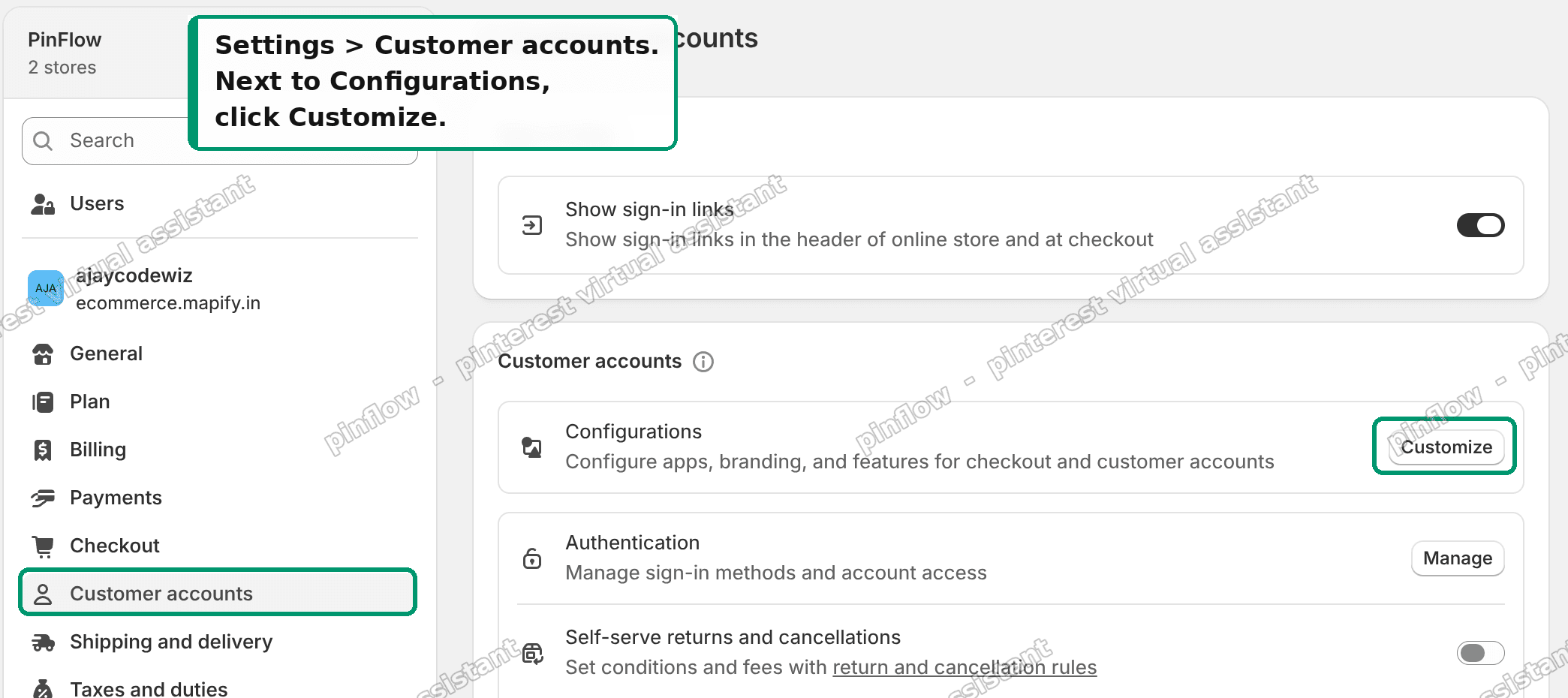 Settings, Customer accounts, then click Customize
This opens the branding editor that is shared by checkout and customer accounts. Open the Settings tab, the gear icon on the left, and you can set:
- your logo and its alignment
- background, accent, and button colors
- fonts for headings and body text
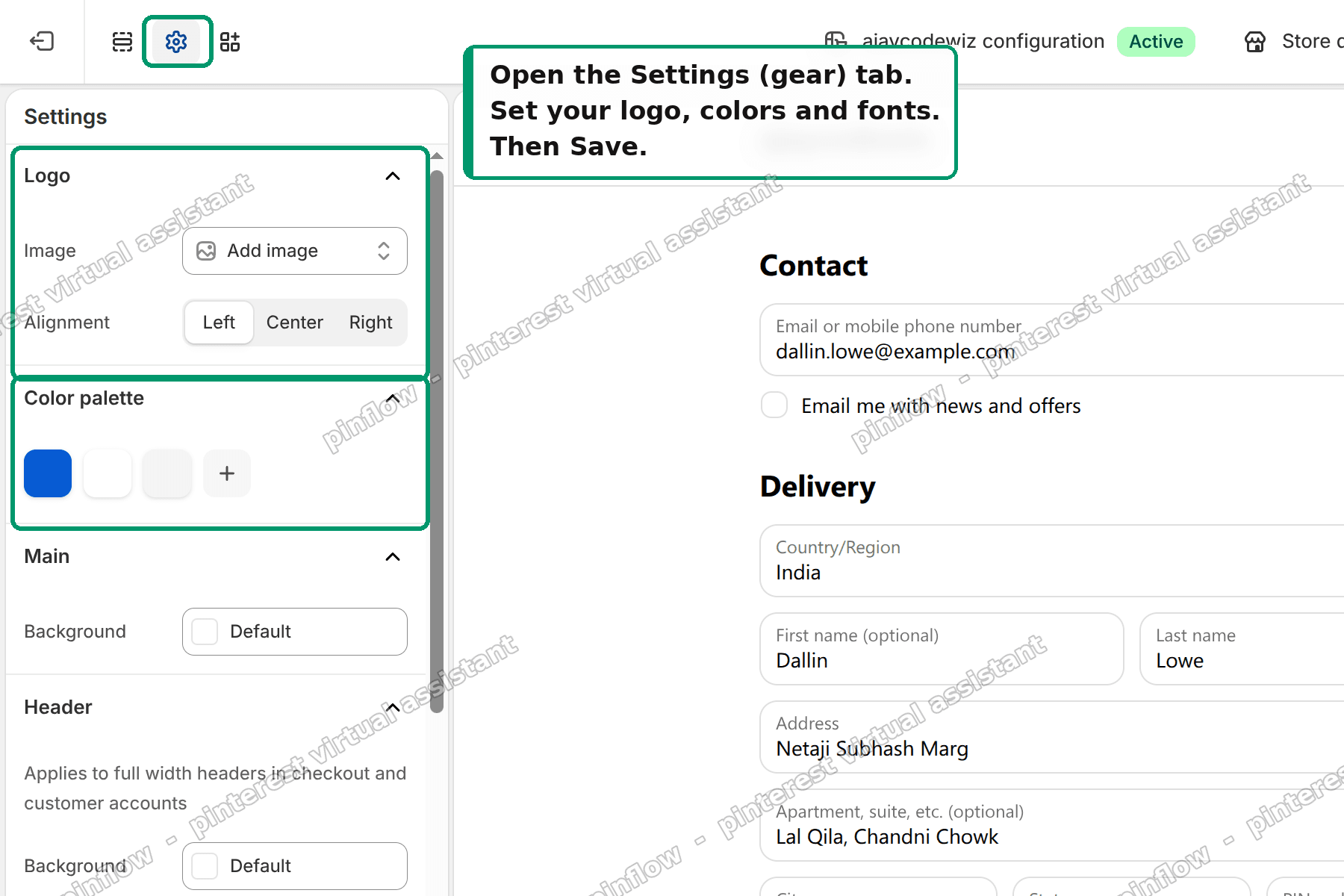 The branding editor showing logo, color palette, and font controls
Click Save, and these apply to the login screen and the account pages. The editor even labels these as applying to "checkout and customer accounts", so you can see the scope while you edit.
That is the full extent of the built-in styling: logo, colors, and fonts. There is no layout change, and no option for a side image. You cannot turn the single-column Shopify login into the two-column, image-plus-form design from the mockup.
Does switching to another free theme help?
The merchant asked this directly, so it deserves a clear answer. No.
The login page limitation is not a Horizon problem. It comes from customer accounts, which is a store-level setting, not a theme feature. Every current theme on a store using new customer accounts gets the same Shopify-hosted login. Dawn, Spotlight, Refresh, Horizon: same login page, same branding-only controls.
Changing themes changes your storefront. It does not give you back a theme-editable login, because no current theme ships one.
If you truly need a fully custom login
If the branded Shopify login is genuinely not enough, and you need the side image and your own form layout, there are two real routes. Both are bigger commitments.
- A customer login or account app from the Shopify App Store. Some apps add their own account and login experiences that sit alongside or in front of the default. This is the lighter option, though it depends on the app.
- A custom, headless build. Here you build your own storefront and your own login flow against Shopify's APIs. This gives full design control, but it is a full development project, not a settings change.
Neither is achievable with theme code alone on a current theme, which is the honest bottom line.
How to preview your branded login page
Change branding, then look at the real thing before you decide it is not enough.
Your customer account area has its own URL. In Settings > Customer accounts, there is a URL field near the bottom that points at your account and login pages. Open that link in a private browser window, where you are not already signed in, and you will see the login screen exactly as a customer does.
Do this after you set your logo, colors, and fonts. It is the honest test of how far the branding gets you. For a lot of stores, a clean logo and matching brand colors on the login screen is genuinely enough, even though it is not the fully custom layout the merchant originally pictured.
If you decide it is not enough after seeing it live, that is the point to weigh an app or a headless build, not before.
Should you force customers to log in?
A related setting confuses people, so it is worth clearing up.
Separate from styling the login page, you can decide whether accounts are optional or required. In the checkout and accounts configuration, there is an option to require customers to sign in before checkout. Turning it on sends every shopper through the login screen, so the branding you set there matters more.
Most stores leave login optional, so guests can check out without an account. If you run a wholesale or members-only store, requiring login makes sense. Either way, the styling options are the same. Requiring login just means more customers see the page you branded.
Classic vs new customer accounts
Since the two get confused constantly, here is the plain distinction.
Classic customer accounts were theme-rendered. Email and password login, a login template in your theme, fully customizable with Liquid and CSS. Deprecated in early 2026 and not available to switch on for stores that were not already using them.
New customer accounts are Shopify-hosted. Passwordless sign-in by email code, or Shop, Google, and social login. Not editable in theme code. Branding only, through Settings > Customer accounts.
If your store is new, or on a new theme like Horizon, you are on the new system. That is the reality the design decision has to work within.
Common questions
Can I add my own CSS to the login page? Not in the way you could with the classic theme login. The page is hosted by Shopify. You style it through the branding controls, not with custom CSS in your theme.
Can I at least put my logo and brand colors on it? Yes. That is exactly what Settings > Customer accounts > Configurations > Customize covers. Logo, colors, and fonts carry across the login and account pages.
Can I remove the "Continue with Shop" button? The Shop sign-in option is managed under Settings > Customer accounts > Authentication, along with Google and Facebook. You control which sign-in options appear there, rather than editing them out with theme code.
Why does the login ask for an email code instead of a password? That is the new customer accounts flow. Instead of a password, Shopify emails a one-time code to verify the customer. It removes password resets and locked-out-customer support tickets, which is a large part of why Shopify moved to it. It is not something you switch off per theme.
Will Shopify bring back the custom login? The direction is the opposite. Shopify is consolidating on the hosted new customer accounts and retiring the classic, theme-editable version. Plan around the hosted login, not against it.
I tested all of this on a Horizon store. The login is served by Shopify, the only built-in styling is logo, colors, and fonts, and there is no layout or side-image option in the theme. The branding controls above are the real, supported way to make the login page look like yours.
Spending too long on manual Shopify busywork?
PinFlow turns your Shopify catalog into Pinterest pins and posts them on a schedule, automatically. Same idea as the rule above, let the system handle the repetitive part.
Get PinFlow on the Shopify App StoreMore Shopify fixes
More community-sourced Shopify guides, tested on a live store.
Themes & Storefront
Shopify Anchor Link: Button That Scrolls to a Section
Link a Shopify button to a section lower on the same page with an anchor link. Steps for the theme editor, no code files, plus the fix for a title hidden under the header.
Themes & Storefront
Shopify Social Media Icons: Add a Custom Icon and Link
Set your social links in Shopify theme settings, see why icons do not show, and swap in your own icon for a network the theme does not list.
Themes & Storefront
Sticky Add to Cart Button in Shopify Dawn, No App
Pin the Add to cart button and its delivery line to the bottom of the screen in Shopify Dawn. One free Custom Liquid block, no app, phone and desktop.