
How to Edit the Shopify Cart Page and Add a Message
Shopify checkout hides the shipping option when a cart holds only pickup-only products, and never says why. You cannot edit that screen without Plus, but you can edit the cart page. Here is how, tested on Dawn.
By AjayCodeWiz · October 7, 2026 · 9 min read
The problem
A merchant on the Shopify Community sells trail mix, dried fruit and chocolate from a local business in Colorado. Some of the products can only be collected in person, so the store has them set to pickup only.
When a customer's cart holds nothing but those products, checkout shows a single delivery choice: collect from the store. There is no shipping option and no sentence explaining why it is missing.
The merchant's concern was that customers assume the checkout is broken and leave. Their request was a line of text on that screen, such as "Shipping isn't available for these items", placed next to the pickup choice.
This article shows what you can do instead. It also covers how to edit the Shopify cart page, because that page is where the fix goes.
Why checkout shows no shipping option
In Shopify, the shipping rates a customer sees come from a shipping profile. A shipping profile is a group of products plus the delivery prices that apply to them.
A pickup-only product sits in a profile that has no delivery prices at all. If every item in the cart belongs to such a profile, checkout has nothing to offer except pickup, so it shows only that. The step-by-step setup is in how to make a product pickup only on Shopify.
Checkout treats this as a normal result, so it shows no warning and no explanation. That works for a shopper who chose pickup on purpose. It confuses a shopper who expected delivery.
Can you add the message at checkout?
Not directly. The checkout page is not part of your theme, so the theme editor cannot change it.
Two routes exist, and neither suits this case:
- Edit the wording of the pickup line. Shopify lets you rename some checkout phrases, such as "There is 1 location with your item". The merchant had already found this. The same phrase appears in other carts too, so a note about shipping would show up where it makes no sense.
- Add a checkout extension. An extension is a small add-on that places your own content inside checkout. Putting one on the delivery step needs a Shopify Plus plan.
So the closest option is the last page you do control before checkout: the cart page. The customer reads the message, then clicks Check out already knowing what to expect.
What the result looks like
This is the cart of a pickup-only product on my test store. Shopify's cart page says nothing about shipping.
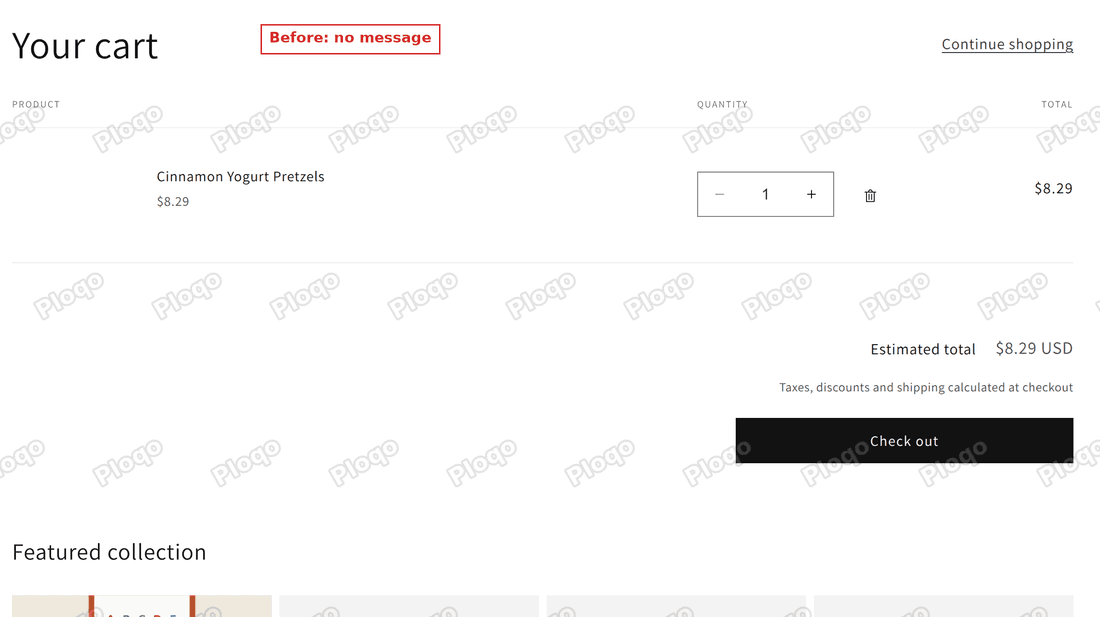 Cart page with one pickup-only product and no message
After the change, a green box explains it above the total and the Check out button.
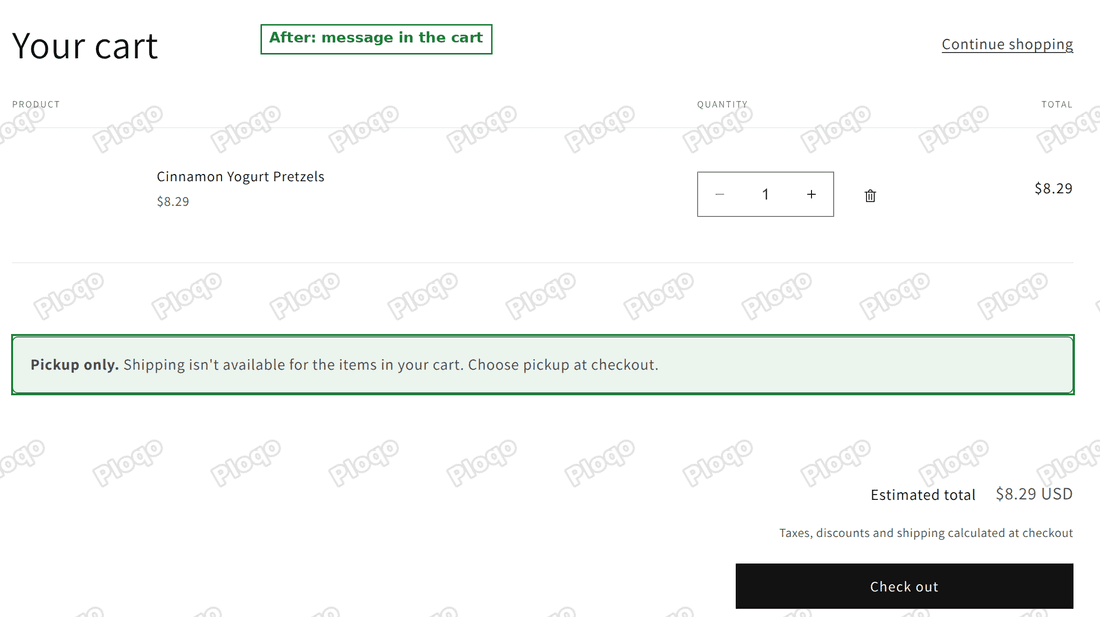 Cart page with a green message saying pickup only and shipping is not available
The box appears only when every item in the cart is a pickup-only product. A cart that mixes pickup-only and shippable products does not show it. I tested both: a cart with the pretzels alone showed the message, and a cart with the pretzels plus a tote bag did not.
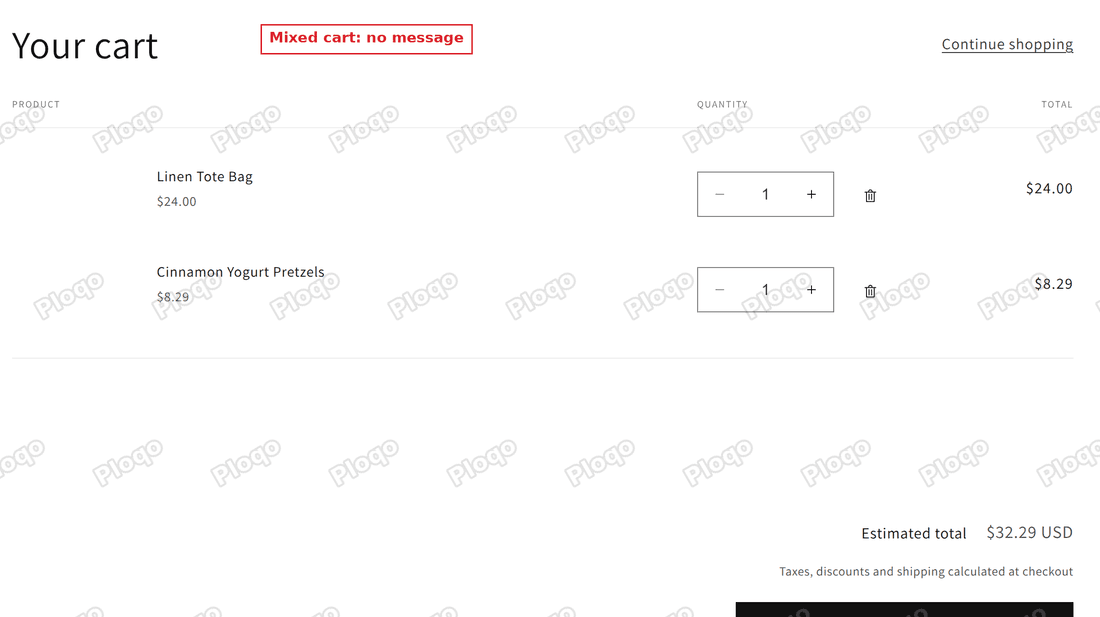 Cart page with two products, one pickup only, and no message
Mixed carts behave differently at checkout, and the pickup-only article linked above explains why. In short, a shopper in a mixed cart has to choose Pickup to buy everything in one order.
Before you start: check your cart type
Dawn and similar themes let you pick what happens after a customer clicks Add to cart. In the theme editor, open Theme settings (the gear icon), then Cart, and look at Cart type.
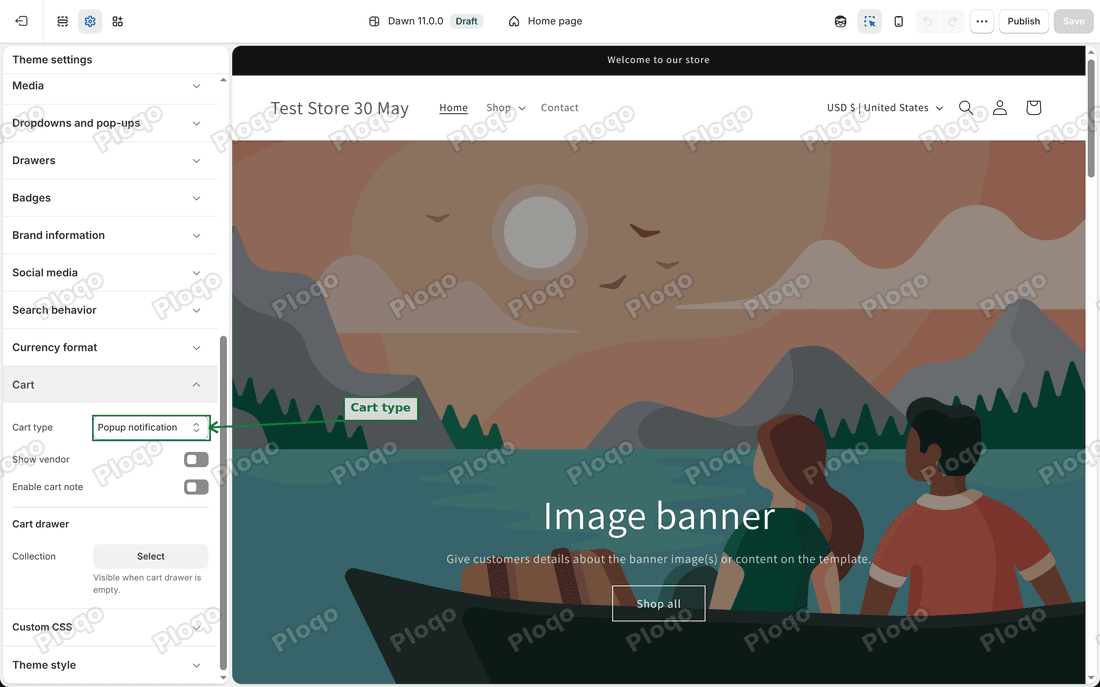 Theme settings in the editor with the Cart section open and Cart type set to Popup notification
There are three choices: Page, Drawer and Popup notification. Dawn ships with Popup notification. That popup has a button that goes straight to checkout, so a customer can skip the cart page and never see your message.
Set Cart type to Page if you want every customer to pass through the cart page. If you keep the drawer or the popup, the message below will only show to customers who open the full cart page.
Step 1: Tag the pickup-only products
The message needs a way to tell which products are pickup only. A tag does that job. A tag is a short label you attach to a product, and the theme code can read it.
Open each pickup-only product, add the tag pickup-only in the Tags box, and save. Type it exactly as written, because the code looks for that spelling.
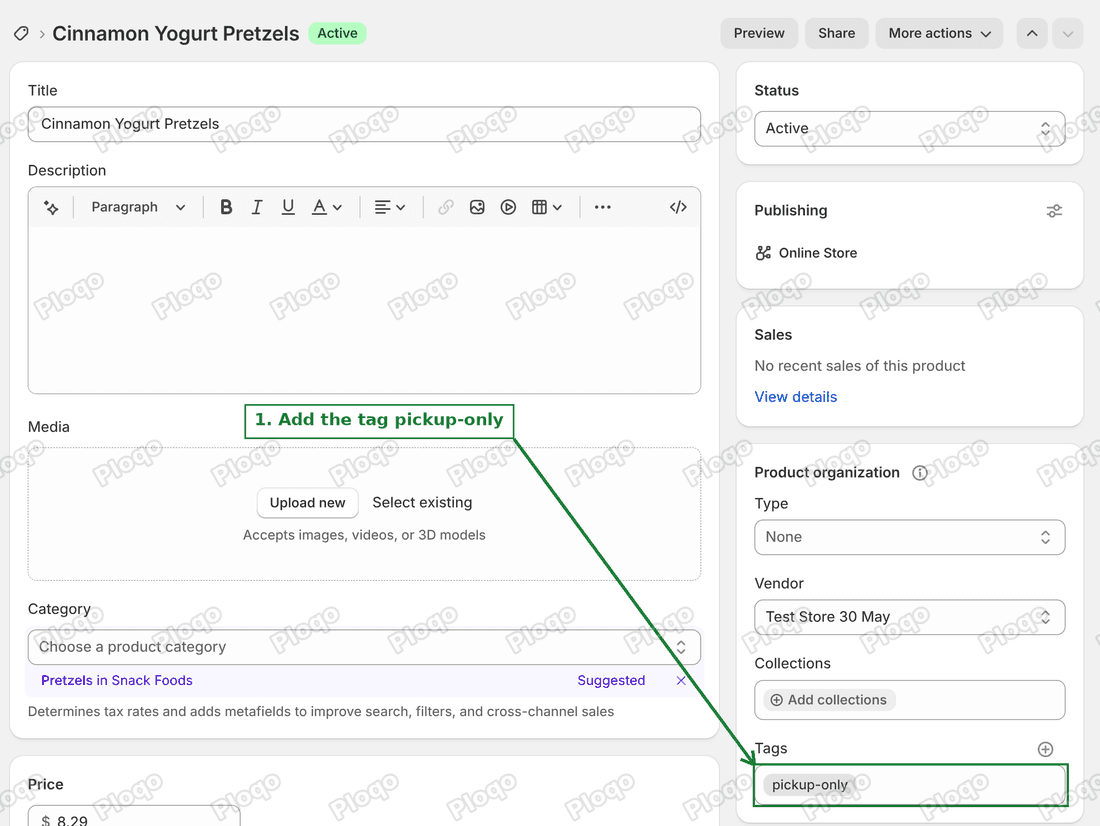 Product page in Shopify admin with the pickup-only tag added
Step 2: Open the theme editor
Go to Online Store, then click Edit theme on your current theme. The theme editor is where you change how your store looks without touching the files directly.
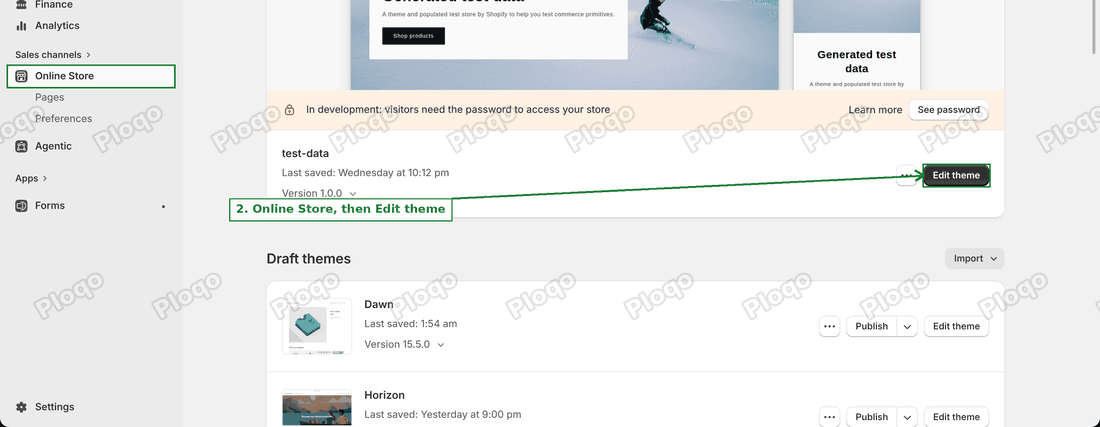 Online Store themes page with the Edit theme button highlighted
Step 3: Switch to the Cart page
At the top of the editor there is a page list that says Home page by default. Click it and choose Cart.
The editor now shows your cart page. Its sections are listed on the left under Template: Items, Subtotal and Featured collection. A section is one block of a page that you can move, hide or add to.
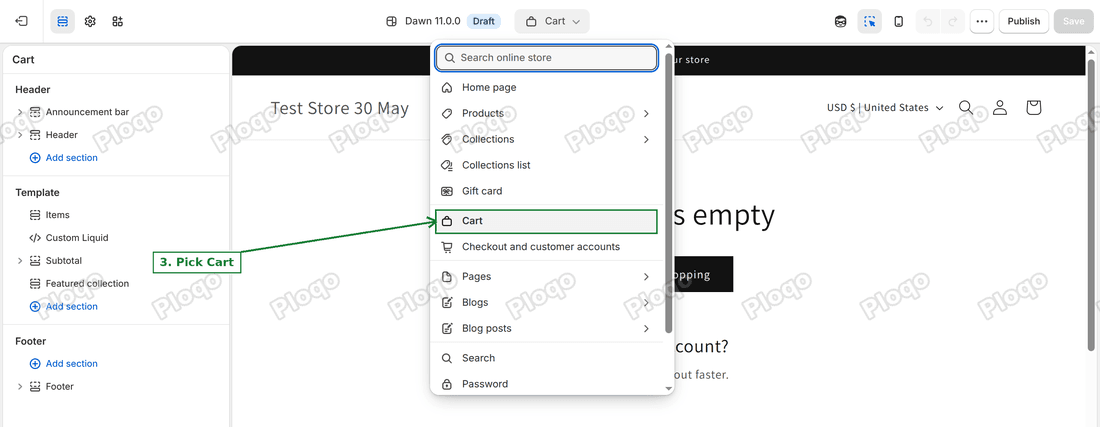 Theme editor page list open with Cart selected
If your cart is empty, the editor shows the "Your cart is empty" version of the page. The message stays hidden there, because it only appears when the cart has items.
Step 4: Add a Custom Liquid section
Liquid is the code Shopify themes are written in. A Custom Liquid section is a box in the theme editor where you paste a short piece of that code.
Under Template, click Add section.
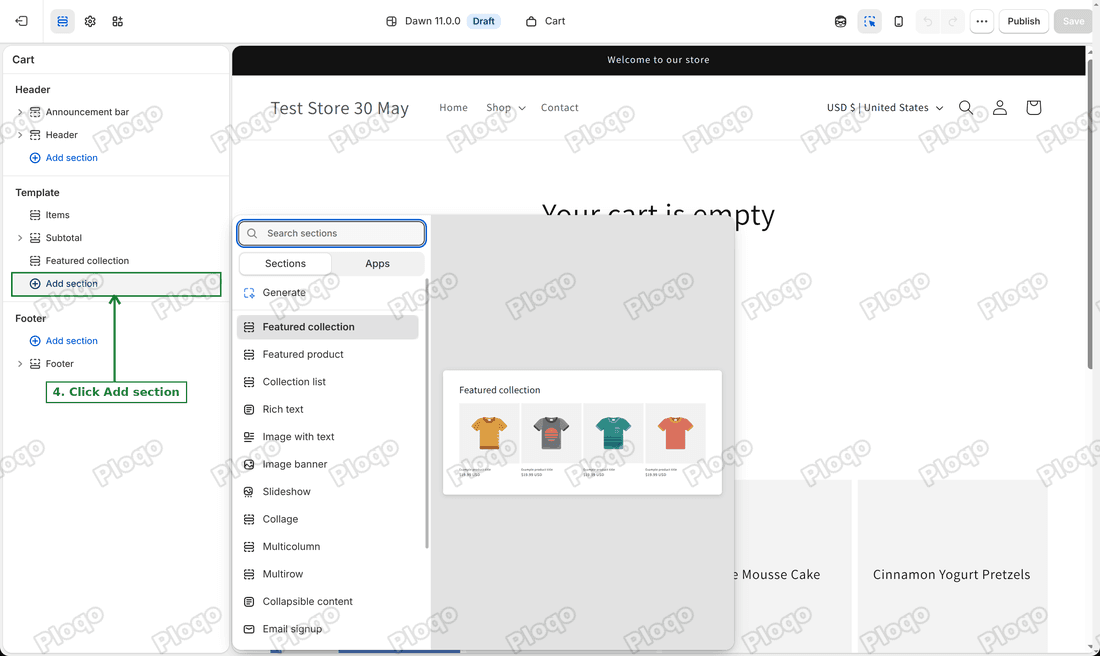 Cart template in the editor with the Add section button highlighted
Type Custom Liquid in the search box and click the result.
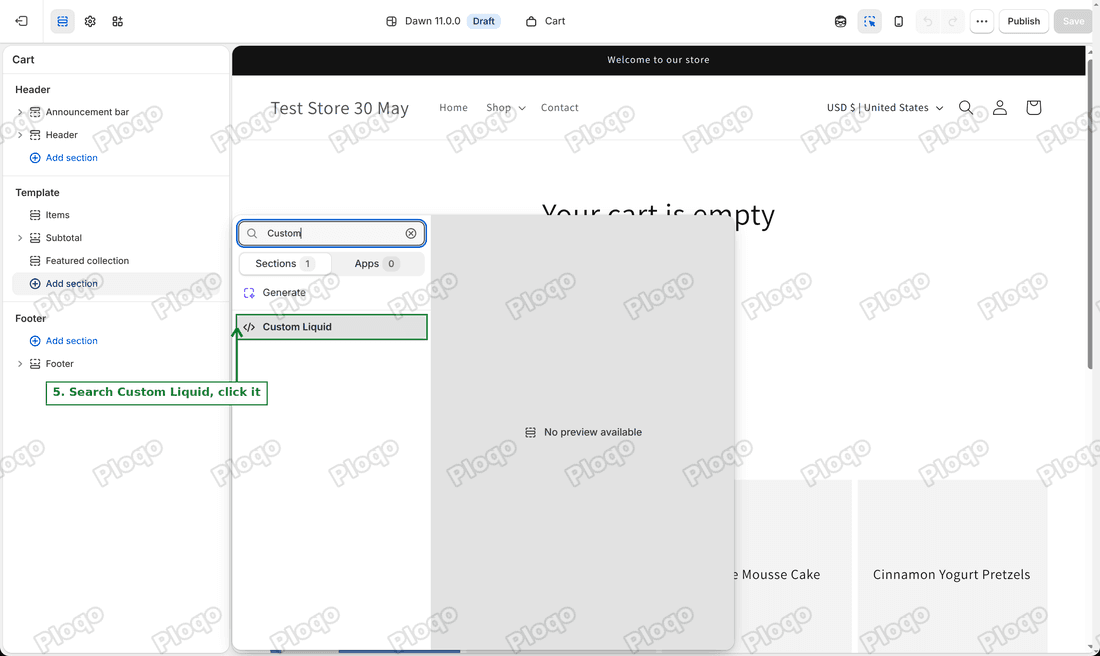 Add section search showing Custom Liquid
Step 5: Paste the code
Paste this into the Liquid code box:
{%- assign pickup_only = true -%}
{%- for item in cart.items -%}
{%- unless item.product.tags contains 'pickup-only' -%}
{%- assign pickup_only = false -%}
{%- endunless -%}
{%- endfor -%}
{%- if cart.item_count > 0 and pickup_only -%}
<div class="page-width">
<p style="border:1px solid #1f6f43;background:#eaf5ee;padding:14px 18px;border-radius:6px;margin:0;">
<strong>Pickup only.</strong> Shipping isn't available for the items in your cart. Choose pickup at checkout.
</p>
</div>
{%- endif -%}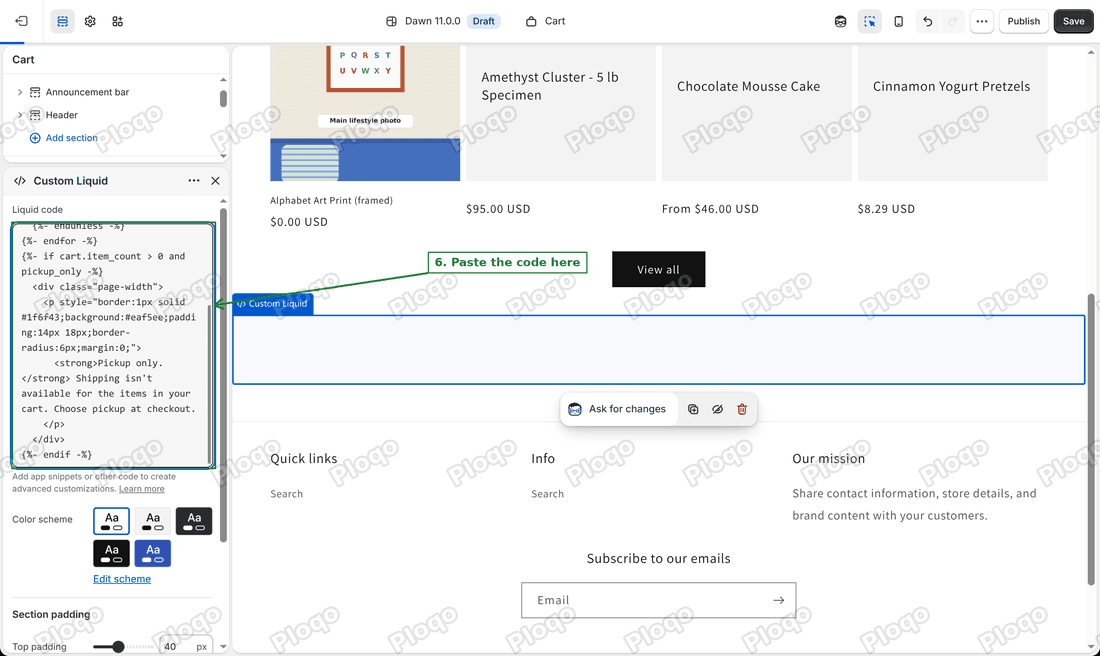 Custom Liquid box with the code pasted in
Here is what the code does, in plain words:
- It starts by assuming the cart is pickup only.
- It looks at each item in the cart. If an item does not carry the tag, it changes its mind.
- If the cart has items and every one of them has the tag, it shows the green box. Otherwise it shows nothing.
Step 6: Move the section above the total
A new section lands at the bottom of the page, below Featured collection. Drag Custom Liquid up in the left list until it sits between Items and Subtotal. Shopify shows a blue line where it will drop.
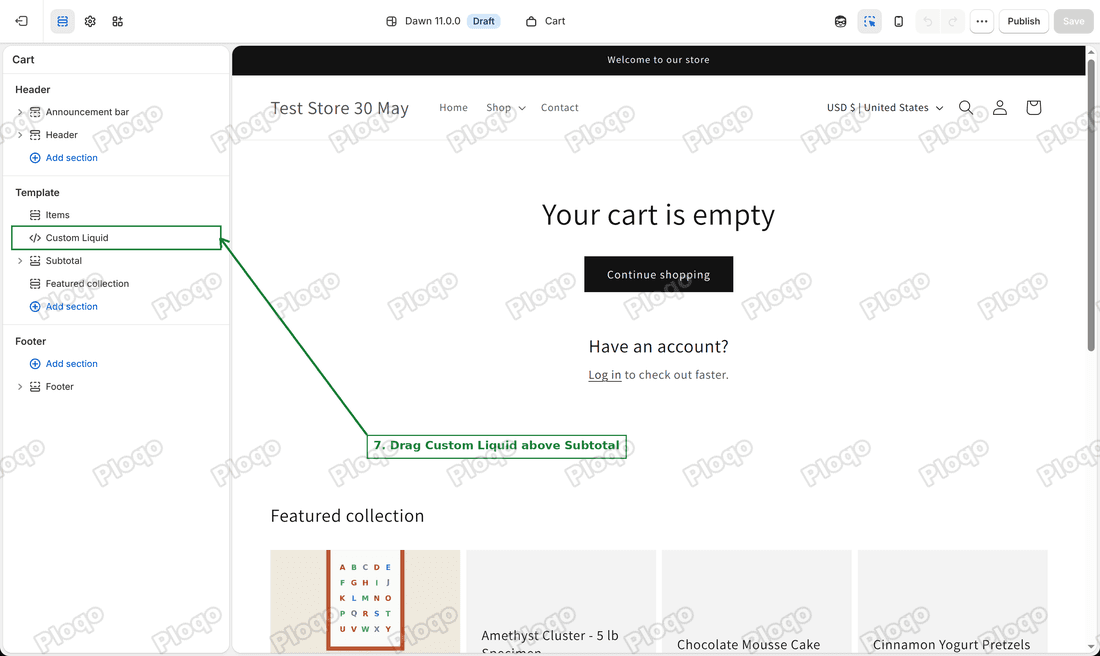 Left list in the editor with Custom Liquid placed between Items and Subtotal
Step 7: Save
Click Save in the top right corner. The message is live on your cart page as soon as the theme you edited is the published one.
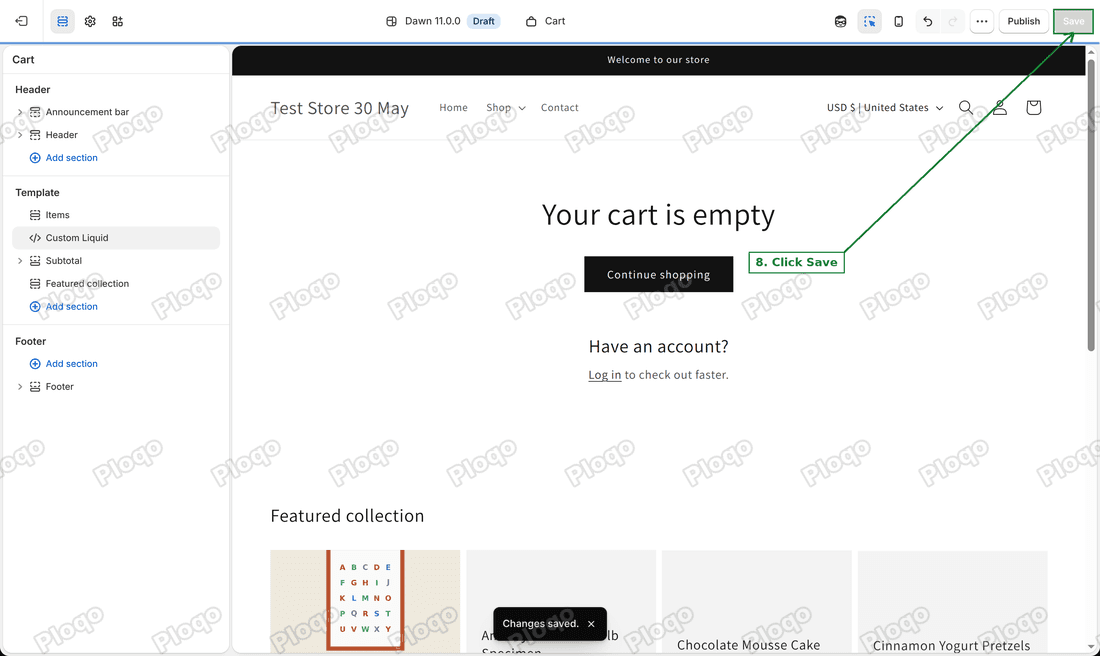 Theme editor with the Save button highlighted
I ran these steps on Dawn 11.0.0, the theme the merchant uses. Themes built on the same base look the same. A theme with a different layout may use other section names, but the Add section and Custom Liquid steps are the same.
Change the wording or the colors
Edit the text between the <strong> and </p> tags to say what you like. Keep the tag name pickup-only the same in the product and in the code. If you rename the tag, rename it in both places.
The colors sit in the style line. border is the outline, background is the fill. Replace the hex values (the codes starting with #) with your own brand colors.
The message says "Choose pickup at checkout" because that is what the checkout offers for these items. Change that last sentence if your pickup has an extra step, such as booking a time.
What else you can edit on the cart page
The cart page is built from the same sections as any other page, so the editor controls cover most changes:
- Move or hide a section. Drag a section in the left list to reorder it. The eye icon hides it without deleting it.
- Add a section. Any section type your theme offers, such as Rich text or Image banner, can sit on the cart page. Custom Liquid is the one to use when the content depends on what is in the cart.
- Turn on the cart note. In Theme settings, under Cart, the Enable cart note switch adds a box where customers can leave a message for you.
- Change the cart type. Page, Drawer or Popup notification, as shown earlier.
If you want a message for a different group of products, create another tag and copy the Custom Liquid section with a new tag name. Use contains with the tag in the code, the same way as above.
If the message does not show
- Check the tag. The tag on the product must read
pickup-only, with a hyphen and no capital letters, the same as in the code. - Check every item. The message needs all items in the cart to carry the tag. One product without it hides the message by design.
- Check the cart type. With Popup notification or Drawer, a customer may never open the cart page. Set Cart type to Page, or tell customers to open the cart.
- Check you saved the right theme. The editor shows the theme name at the top. A draft theme does not change your live store until you publish it.
- Check the section is on the Cart page. If you added it while the page list said Home page, the message sits on the home page instead. Switch the page list to Cart and add it again.
Cart page, cart drawer and checkout
These three get mixed up, so here is the difference:
- Cart page is the full page at
/cart. Your theme controls it, and this article edits it. - Cart drawer is a panel that slides in from the side after Add to cart. It belongs to the theme too, but it is a separate piece of code from the cart page, so a section on the cart page does not appear in it.
- Checkout is the page where the customer enters an address and pays. Shopify controls it. Only Plus stores can add their own content to the delivery step.
The merchant who asked already had a pickup note on the cart page and on the product pages. Their wish was for Shopify to add a short explanation at checkout, so this stays a request for Shopify. Until then, the cart page is the last page where you can add your own text for every plan.
Summary
Checkout shows only the pickup choice when a cart holds nothing but pickup-only products, and it gives no reason. Without Plus, you cannot add that reason at checkout.
Tag the pickup-only products, add a Custom Liquid section to the cart page, paste the code and drag it above the total. On my test store the message showed for a pickup-only cart and stayed hidden for a cart that also held a shippable product.
Set Cart type to Page so that customers see it before they pay.
Spending too long on manual Shopify busywork?
PinFlow turns your Shopify catalog into Pinterest pins and posts them on a schedule, automatically. Same idea as the rule above, let the system handle the repetitive part.
Get PinFlow on the Shopify App StoreMore Shopify fixes
More community-sourced Shopify guides, tested on a live store.
Themes & Storefront
Shopify Autoplay Video on Product Page: Skip the Play Button
Your product video shows a play button instead of playing. How to make a Shopify product page video autoplay on desktop and mobile, with the exact code and steps.
Themes & Storefront
Hide the First Image in Your Shopify Product Image Gallery
Hide the first photo in a Shopify product image gallery without deleting it, so the gallery opens on image 2. Tested Custom CSS for the Roam theme, desktop and mobile.
Themes & Storefront
Show a Brand Logo on Shopify Product Pages by Vendor
Show the right brand logo next to the vendor name on every Shopify product page. One logo per brand, no code edits when you add a brand. Tested on the Enterprise theme.