
Shopify Autoplay Video on Product Page: Skip the Play Button
Your product video shows a play button instead of playing. How to make a Shopify product page video autoplay on desktop and mobile, with the exact code and steps.
By AjayCodeWiz · October 8, 2026 · 8 min read
The problem
A merchant asked about this on the Shopify Community. They sell sweat shorts for wrestling and jiu-jitsu, and their product page has a short video in the media gallery. The media gallery is the set of photos and videos shown next to the product title.
They wanted the video to play by itself, on both mobile and desktop. Instead, shoppers saw a still picture with a play button on top, and had to tap it.
Their question was simple: what is the best way to set this up?
The thread had three answers, and none of them gave steps. One suggested turning the video into a GIF. Two said the theme was holding the video back and that the theme code needed editing. None of them said which file to open or what to paste.
I tested this on the merchant's own product page. Here is why it happens and the exact fix.
Why the video waits for a click
The video was already set up to autoplay. It was muted, it looped, and it had the setting that tells the browser to start it on its own.
The problem is that the page does not show that video at first. It shows a photo of the video, called a poster, with a play icon on it. The real video is stored in a hidden box in the page's code, and the theme only unpacks it after a shopper clicks the poster.
I checked this on the product page. Before any click, the page contained zero video players. After a click, one player appeared and started playing.
This is a speed choice made by the theme. A video file is heavy, and a page that does not load it until someone asks for it opens faster. The cost is that autoplay never gets a chance to run.
So the setting on the video is fine. The theme needs to be told to unpack the video as soon as the page opens.
Before you start
Three quick checks, so you do not chase the wrong problem.
- The video must be muted to autoplay. Chrome, Safari and Firefox block videos that start with sound. A muted video is allowed to start on its own. This is a browser rule, not a Shopify rule, and it applies on every store.
- Your video is added as product media. The fix below targets the video player that your theme uses for videos in the product gallery. A video you pasted as a link to YouTube uses a different player.
- You can edit your theme code. You need the Edit code option in your Shopify admin. Every theme has it.
Make a copy of your theme first. In the Themes page, click the three dots next to your theme and choose Duplicate. Edit the copy and publish it once it works. A mistake in the copy never reaches your shoppers.
How to make the product video autoplay
The fix is a small script that you paste into one file of your theme. It finds the hidden video on the page and unpacks it, which is what the click used to do.
Here are the steps for a beginner. You do not need to read the code.
- Go to Online Store in your Shopify admin.
- Click the ... button next to your theme.
- Click Edit code.
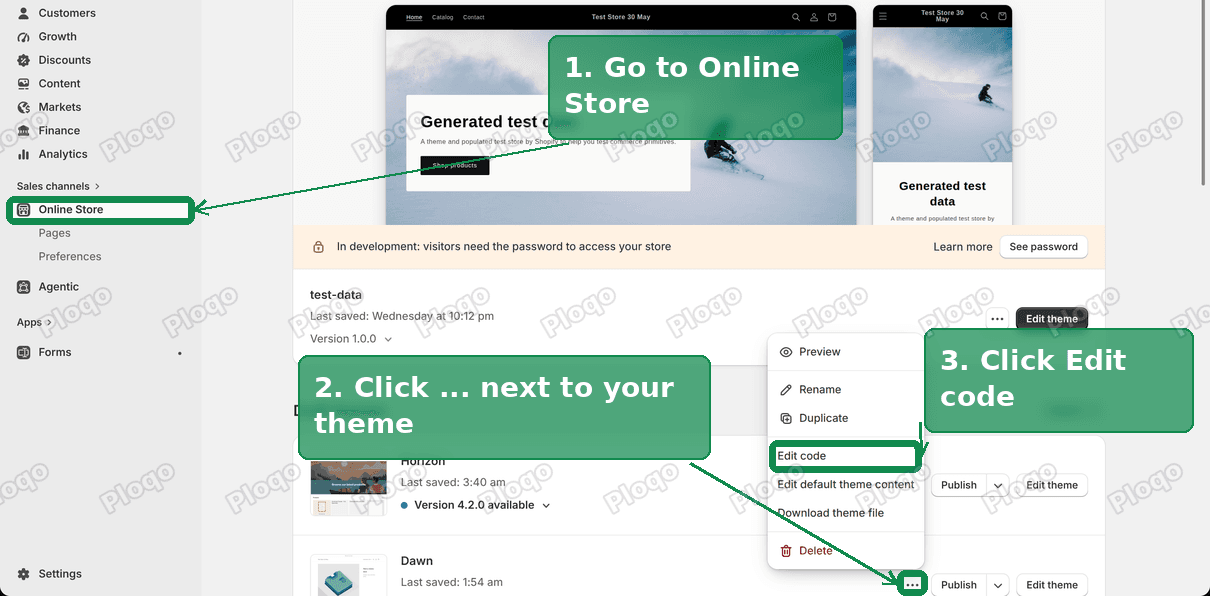 Online Store, the three dots menu next to a theme, and Edit code
- In the file list on the left, open layout, then click theme.liquid. This is the main file of your theme. Liquid is the code that Shopify themes are written in.
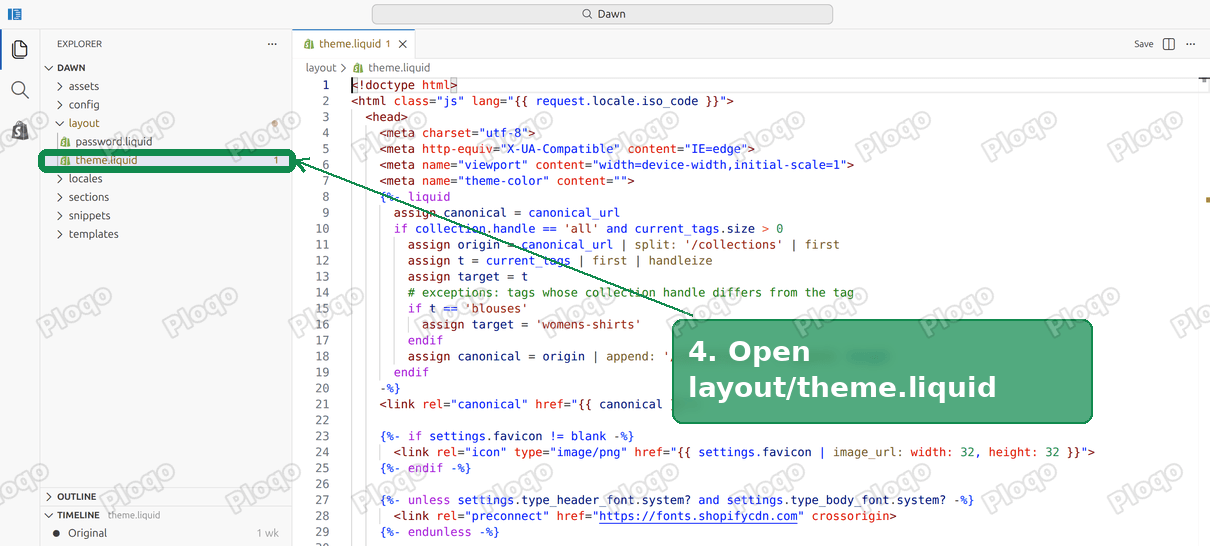 The theme.liquid file under the layout folder in the code editor
- Scroll to the very bottom of the file. Find the line that says
</body>, and paste this code on the line just above it:
<script>
customElements.whenDefined('deferred-media').then(function () {
function playVideos() {
document.querySelectorAll('deferred-media:not([data-media-loaded])').forEach(function (m) {
m.showDeferredMedia();
});
}
playVideos();
new MutationObserver(playVideos).observe(document.body, { childList: true, subtree: true });
});
</script>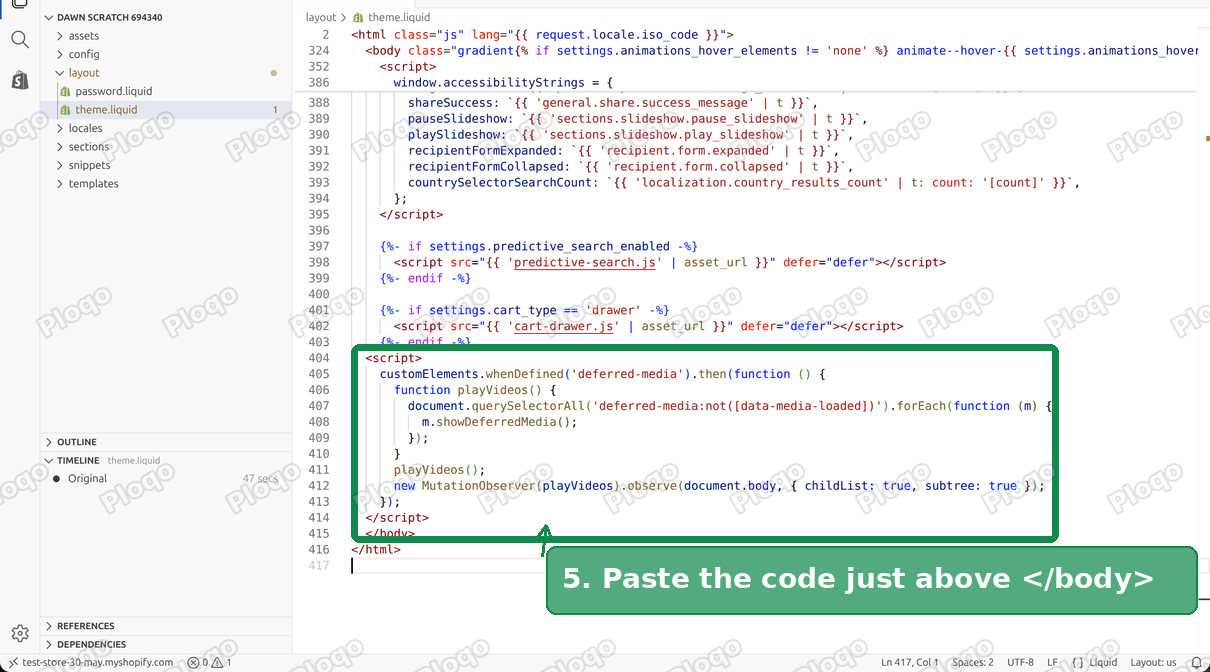 The autoplay code pasted just above the closing body tag in theme.liquid
- Click Save in the top right corner.
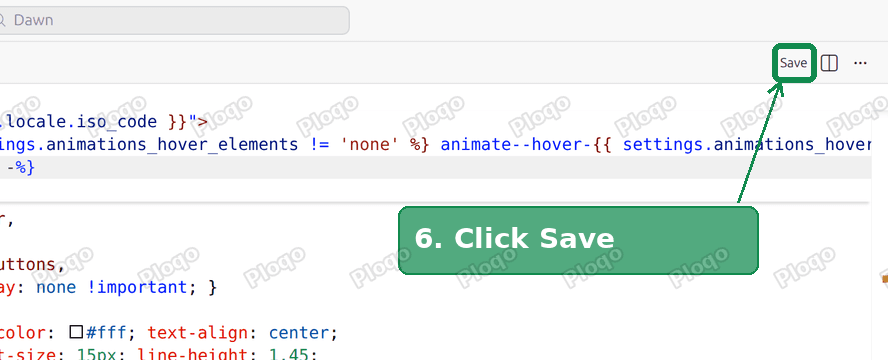 The Save button in the code editor
Open your product page and reload it. The video should start without a click.
Here is the merchant's product page before the change. The play button is on top of a still picture.
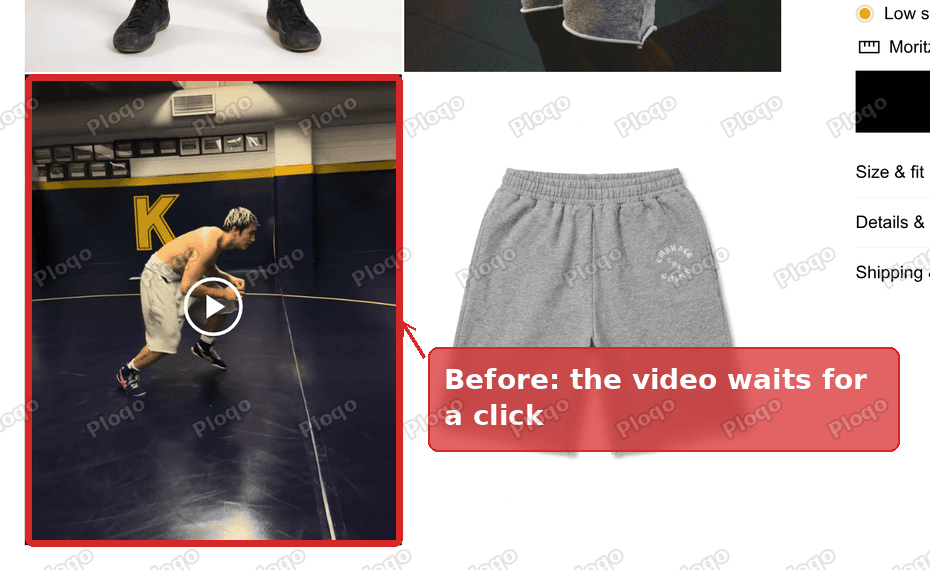 Product page before the fix: the video is a still picture with a play button
And here it is after the change. The video is playing, the timer reads 0:04 of 0:09, and the sound is off.
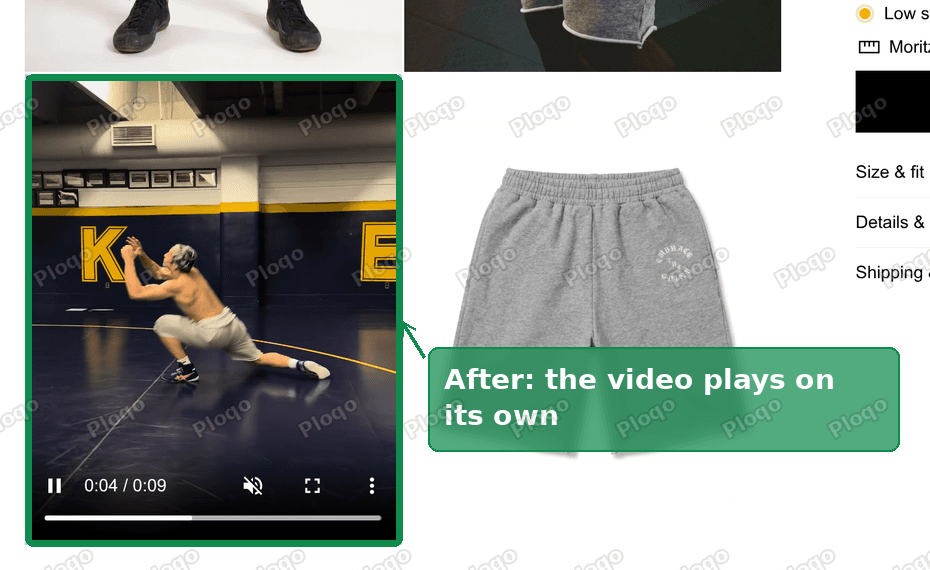 Product page after the fix: the video plays by itself, muted
What the code does
The script asks the page for every video that is still hidden behind a poster. For each one, it runs the same step that the click would have run.
The theme calls this hidden-video box deferred-media. Deferred means postponed. The script says: do not postpone it, do it now.
The last line of the script keeps watching the page. Some themes rebuild the gallery when a shopper picks a different size or colour. If a new hidden video shows up after that, the script unpacks it too. Without that line, the video would play on the first visit and then go back to the poster after a variant change.
Does it work on mobile?
Yes. The video in this theme already has the settings that phones need to allow autoplay: it is muted and it plays inside the page instead of jumping to full screen.
I checked the page at a phone width of 390 pixels. On a phone, this theme shows the gallery as a row you swipe through, and the video is one of the slides. The video was playing, muted, with the timer running.
One limit to know about: iPhones in Low Power Mode can block autoplay for every website. A shopper in that mode still sees the poster and play button, and the video starts when they tap it. Nothing on your side changes that.
The file size cost
Because the theme did not load the video until a click, only shoppers who pressed play downloaded the file. With the fix, every visitor to that product page downloads it.
On this store the video file is about 9 MB. That is a lot to load on a phone with a weak connection, and it competes with your product photos.
Three ways to keep it light:
- Keep the video short. Five to ten seconds that loop is enough for a product page.
- Compress it before you upload. A free tool like HandBrake can shrink a clip a lot, and a phone screen is small enough that the lower quality is hard to see.
- Use the autoplay only on products where the video sells. The script runs on every page that has a hidden video, so remove the video from products where it does not help.
Should you use a GIF instead?
One answer in the thread suggested converting the video to a GIF, because a GIF always moves.
I would not do that. A GIF is usually much larger than the same clip as a video, and the quality is worse. A GIF also cannot be paused, and it has no sound option for the shoppers who want one.
A short muted video gives you the same moving picture for less data.
Can shoppers still pause the video?
Yes. The video keeps its normal controls, so a shopper can pause it, turn the sound on, or open it full screen. The script only starts the video. It does not lock it.
Does this work on other themes?
The code looks for a hidden video box named deferred-media. That name is used by several themes, so the same fix may work for you. The theme in this thread was one of those.
To find out, open your product page in your browser, press the right mouse button and choose View page source. Search the page for deferred-media.
- You find it: the fix above should work. Try it on a duplicate of your theme.
- You do not find it: your theme hides the video in a different way, and this code will do nothing. Search the same page source for
poster. The word near it tells you what your theme calls the hidden video, and a theme developer can adapt the script.
If your theme already has an autoplay switch in the theme editor, use that instead. Look at the product page settings in Customize, under the media or gallery block, before you edit code.
If it did not work
The video still shows a play button. Reload the page with a hard refresh. Press Ctrl and F5 together on Windows, or Command, Shift and R on a Mac. Your browser may be showing an older saved copy.
You pasted the code and the editor shows an error. Check that you pasted it above </body> and not inside another script. The code starts with <script> and ends with </script>, and nothing else should be between those two tags.
The video plays but the gallery jumps. Some themes resize the gallery when a video loads. Check that the video has the same shape as your photos, for example 4 by 5 for a portrait gallery.
It works on desktop but not on your phone. Check that the video was uploaded without sound, or that it is muted in the theme. A video with sound is blocked by the phone's browser.
It plays twice or restarts. Make sure the code appears only once in theme.liquid. If you pasted it twice, delete one copy.
How to undo it
Open theme.liquid again, delete the block that starts with <script> and ends with </script> that you pasted, and click Save. The video goes back to waiting for a click. If you worked on a copy of your theme, you can also just publish the original theme again.
Related questions
How do I add a video to a Shopify product page? Open the product in your admin, find the Media section, and add the video file there. It then shows in the gallery with your photos. Short MP4 files work best.
Why does my Shopify video not play by itself? In most cases the theme shows a poster and loads the real video on a click, as in this thread. The video's own settings are fine.
Can I make the video play only when it scrolls into view? Yes, but it needs more code than the fix above, and it is a separate project. For a gallery that sits at the top of the page, where the video is usually one of the first things a shopper sees, starting it on page load is simpler.
Is this safe for my theme updates? The code lives in theme.liquid. When you update to a newer version of your theme, the file is replaced and the code is removed. Keep a copy of the script and paste it again after an update.
What to remember
The video was never broken. The theme hides it behind a picture until a click, and a small script unpacks it at page load instead.
- Paste the script above
</body>in theme.liquid, on a copy of your theme. - The video stays muted and keeps its controls.
- Compress the file, because every visitor now loads it.
- Repeat the paste after a theme update.
Spending too long on manual Shopify busywork?
PinFlow turns your Shopify catalog into Pinterest pins and posts them on a schedule, automatically. Same idea as the rule above, let the system handle the repetitive part.
Get PinFlow on the Shopify App StoreMore Shopify fixes
More community-sourced Shopify guides, tested on a live store.
Themes & Storefront
Hide the First Image in Your Shopify Product Image Gallery
Hide the first photo in a Shopify product image gallery without deleting it, so the gallery opens on image 2. Tested Custom CSS for the Roam theme, desktop and mobile.
Themes & Storefront
Show a Brand Logo on Shopify Product Pages by Vendor
Show the right brand logo next to the vendor name on every Shopify product page. One logo per brand, no code edits when you add a brand. Tested on the Enterprise theme.
Themes & Storefront
How to Edit the Shopify Cart Page and Add a Message
Shopify checkout hides the shipping option when a cart holds only pickup-only products, and never says why. You cannot edit that screen without Plus, but you can edit the cart page. Here is how, tested on Dawn.