
Focal Shopify Theme: Resize the Image with Text Block
Focal's Image with text block has no setting for the text box width or the image height. Custom CSS that sets both, tested on Focal 13.0.0.
By AjayCodeWiz · October 22, 2026 · 8 min read
The Focal theme has no size setting for this section
Focal is a paid Shopify theme made by Maestrooo. One of its home page sections is called Image with text block: a full-width photo with a coloured box of text sitting on top of it.
A merchant running Focal asked on the Shopify Community how to change two things on that section. They wanted the text box wider, and they wanted the photo shorter, so it matched the other sections on the page.
They had already looked in the section's settings and found nothing. That is correct. The section lets you choose a full-width or boxed background, where the text box sits, how the text lines up, and four colours. There is no width, height or size option anywhere in the panel.
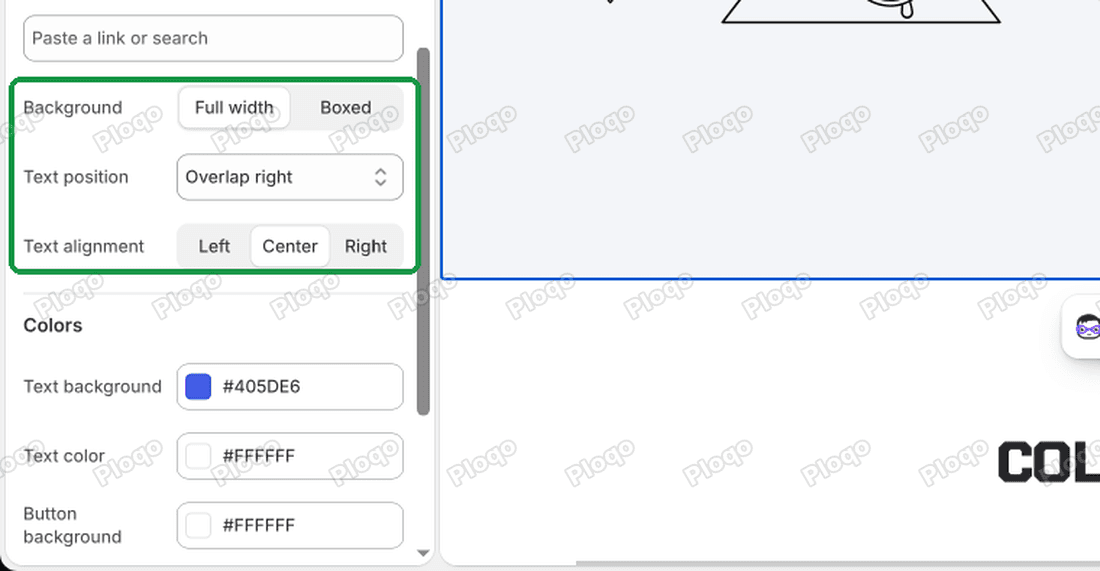 The Image with text block settings in Focal: Background, Text position and Text alignment, with no size setting
The merchant also noticed that a different Focal section, Image with text overlay, does have a height choice: Small, Medium, Large or Original image ratio. They wanted the Image with text block to match the Small one.
I installed Focal 13.0.0 on a test store to check what the theme does. On a 1440px wide browser window, the text box was 460px wide and the whole section was 700px tall. That is the theme's built-in size, and the editor gives you no way to change it.
Why the section is so tall
Focal's stylesheet (the file that controls how every part of your store looks) gives this section a minimum height on computer screens:
- 500px tall on screens between 1000px and 1199px wide.
- 700px tall on screens 1200px wide or more.
The text box width is set the same way. Focal splits the page into an invisible grid of columns, and the box always takes up a fixed number of them. On a laptop that comes to roughly 460px, whatever text you put inside it.
The Image with text overlay section uses its own heights instead. Its Small option is 400px tall on screens wider than 740px, and 375px on phones. So a Small overlay next to an Image with text block will always look 300px shorter on a big screen, unless you change the block.
The fix: a few lines of Custom CSS
The fix is a short piece of CSS, the code that controls how things look on the page. Focal has a Custom CSS box at the bottom of each section's settings. Code you paste there only changes that one section, so the rest of your store is left alone.
This is what the code changes on my test store. The text box went from 460px to 600px wide. With a short heading and one sentence of text, like the merchant's, the section came down from 700px to exactly 400px, the same as the Small overlay.
 Focal's Image with text block before and after: the text box is wider and the image is shorter
Here are the steps.
- In your Shopify admin, go to Online Store > Themes.
- Click Edit theme on your current theme.
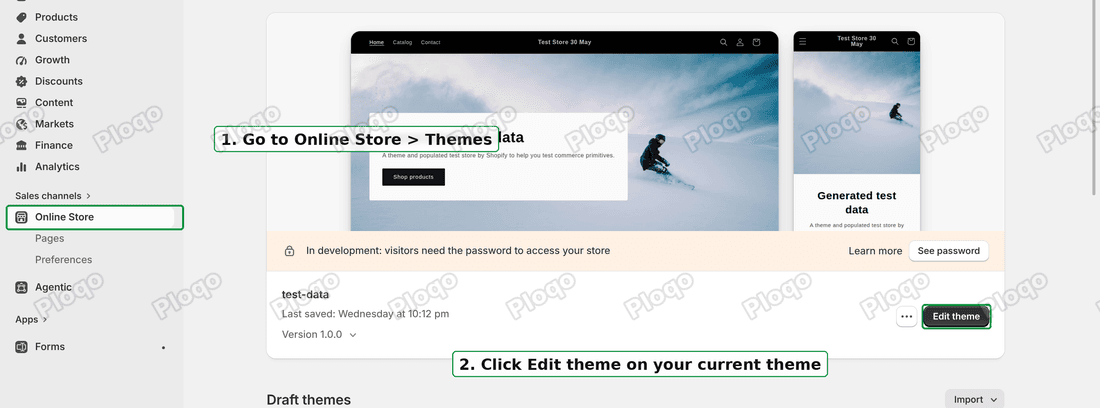 Online Store in the admin menu, then the Edit theme button on the current theme
- In the left sidebar of the theme editor, click your Image with text block section.
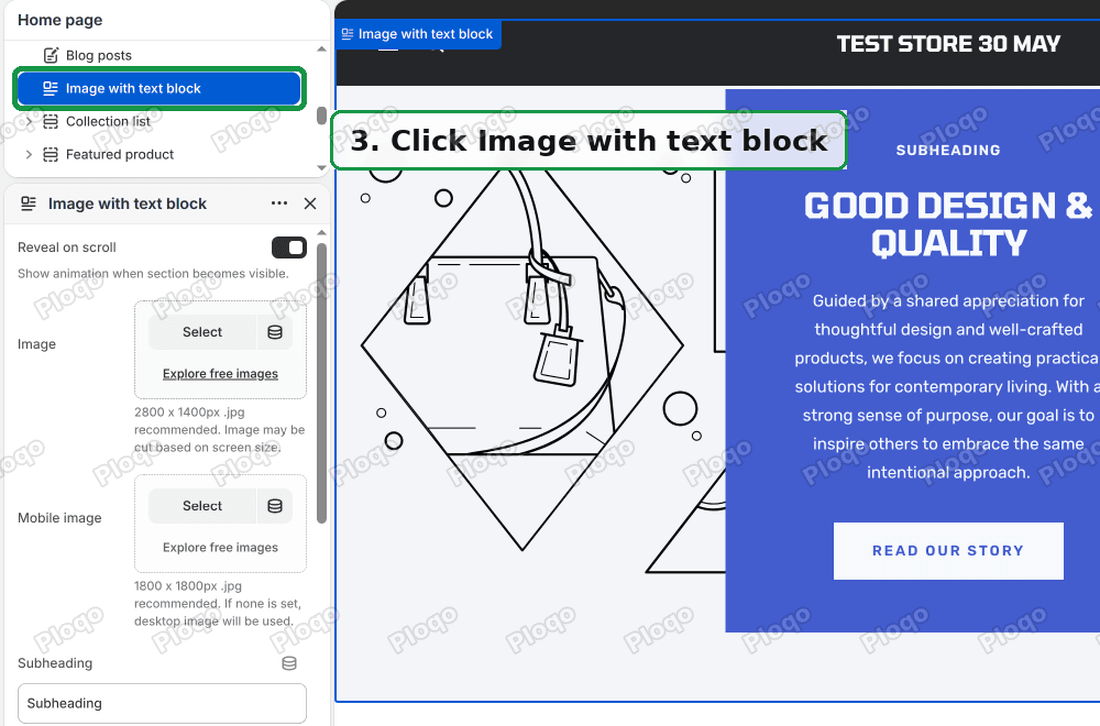 The Image with text block section selected in the Focal theme editor sidebar
- Scroll to the bottom of the section's settings and click Custom CSS to open it.
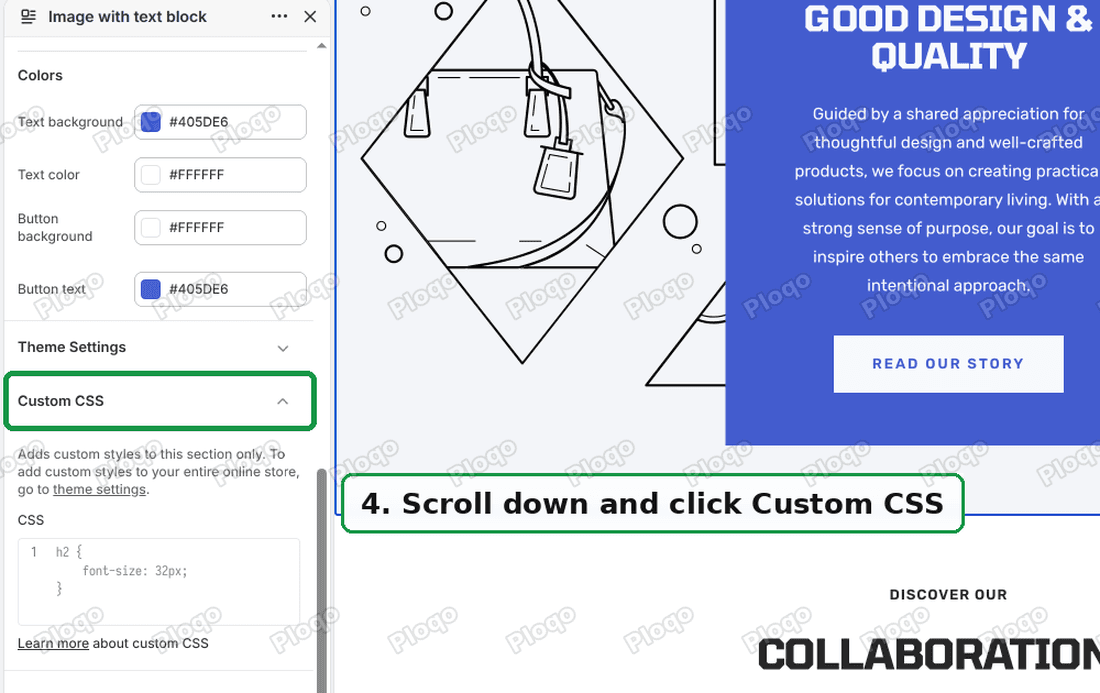 The Custom CSS heading at the bottom of the Image with text block settings, below Theme Settings
- Paste this code into the box:
@media screen and (min-width: 1000px) {
.image-with-text-block {
min-height: 400px;
}
.image-with-text-block__content {
width: 600px;
padding: 40px 48px;
margin-block: 32px;
}
}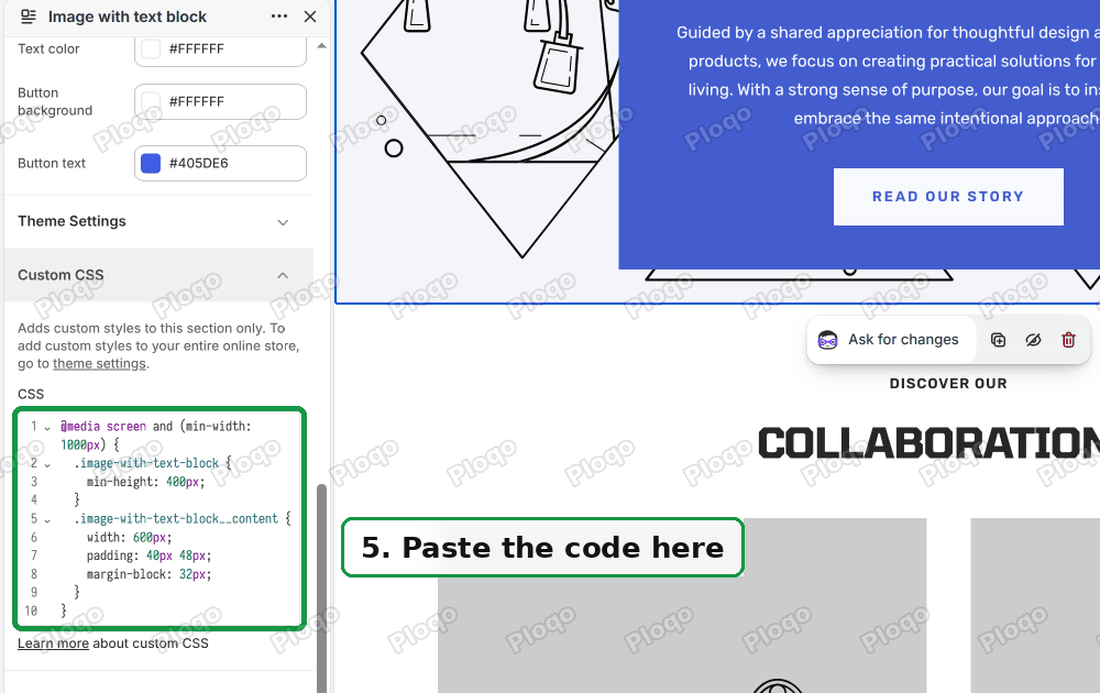 The code pasted into the section's Custom CSS box
- Click Save in the top right corner.
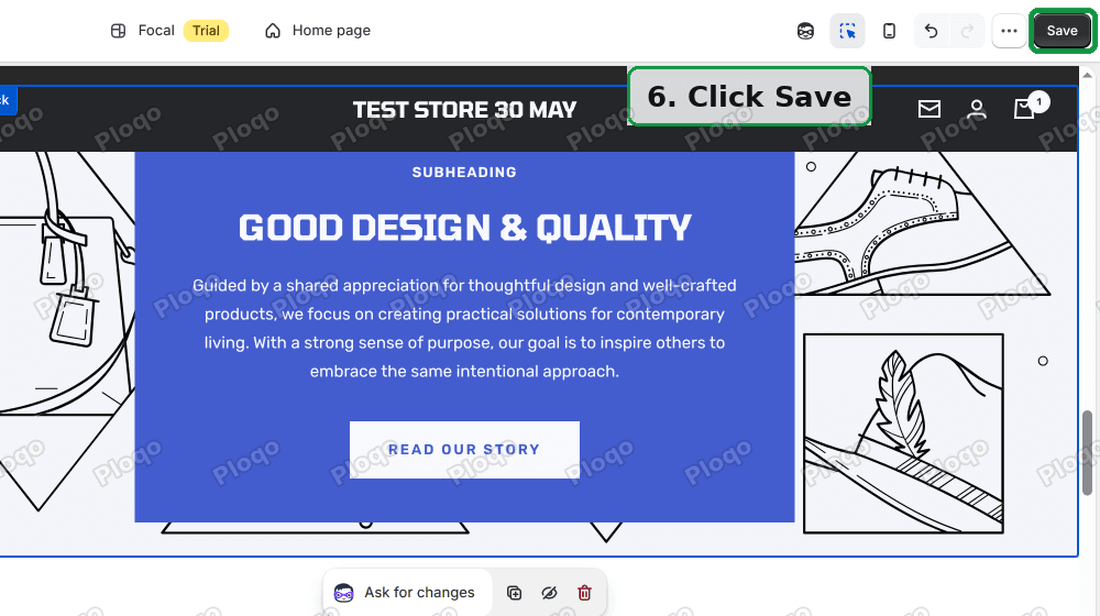 The Save button in the top right corner of the theme editor
The preview on the right updates as soon as you paste the code, so you can see the result before saving.
The numbers you can change
Every number in the code is a size in pixels. Change one, and the preview shows the result straight away.
- 600px is the width of the text box. Use 500px for a narrower box, or 700px for a wider one.
- 40px is the space inside the box, above and below the text. A bigger number makes the box taller. The second number, 48px, is the space on the left and right.
- 32px is the space between the box and the top and bottom of the photo.
- 400px is the smallest height the section can have. 400px matches the Small height of Image with text overlay. Use 550px to match Medium, or 700px to match Large.
The first line, @media screen and (min-width: 1000px), means "only on screens at least 1000px wide". That keeps the change to laptops and desktops.
Why the section can still come out taller than 400px
The 400px is a minimum, not a fixed height. The section grows to fit whatever is inside it, so long text makes it taller.
On my test store, Focal's demo text is a subheading, a two-line heading, four lines of paragraph and a button. With that much text the section came out at 436px, not 400px. With the merchant's shorter text it was exactly 400px.
If yours is taller than you want, you have three options:
- Shorten the text in the section.
- Make the box wider, so the text wraps onto fewer lines.
- Lower the 40px and 32px numbers to take out some of the empty space.
The code sets a minimum rather than a fixed height for that reason. A fixed height would cut off any text that did not fit, and a cut-off button is worse than a slightly taller photo.
What happens on phones
The code does not change anything on phones or small tablets. The first line limits it to screens 1000px wide or more.
That is deliberate. Focal has a separate layout for this section on smaller screens, where the text box already stretches to fill the width of the screen, minus a small margin. A fixed 600px box would be wider than a 390px phone screen, so the phone layout is better left as it is.
To check your phone layout, click the phone icon at the top of the theme editor. It shows the page at phone size.
 The phone preview icon at the top right of the Focal theme editor
Make every Image with text block the same size
The section's Custom CSS box only changes that one section. If you have several Image with text block sections and want them all resized, you have two choices.
The first is to paste the same code into each section's Custom CSS box. This is the safer option, because each section can have its own numbers.
The second is to paste it once into the theme's own Custom CSS box. The note under each section's Custom CSS box points to it: "To add custom styles to your entire online store, go to theme settings." Click the gear icon (Theme settings) at the top left of the theme editor and open Custom CSS there. Code in that box applies to your whole store, so every Image with text block section on every page picks it up.
 The Theme settings gear icon at the top left of the theme editor
Prestige has a section with the same name
Maestrooo also makes the Prestige theme, and Prestige has a section called Image with text block too. It looks similar, but it is built differently.
I checked Prestige 11.4.1 on the same test store. Its Image with text block already has an Image size setting (Original image ratio, X-Small, Small, Medium, Large or Fit screen) and a Content width setting (Small, Medium or Large). So on Prestige you do not need any code. Pick the sizes in the section settings.
The code in this article is written for Focal. Prestige's text box has a different name in the theme's code, so the width part of the Focal code does nothing on Prestige. Use the Prestige settings instead.
How to check which theme you are running
Before you paste the code, make sure your store runs Focal.
Go to Online Store > Themes. Your live theme is the large card at the top of the page. If you have renamed it, the name there may not say Focal.
Online Store > Themes in the Shopify admin, with the current theme card and its Edit theme button
The theme editor shows the name as well, in the bar at the top of the screen. If you are still unsure, look at the section's settings: the Focal version has Background, Text position and Text alignment settings, and a Colors group with Text background, Text color, Button background and Button text.
If the code did not work
Nothing changed after pasting. Check that you pasted into the Custom CSS box of the Image with text block section, not a different section. The box is per section, so code in the wrong one has no effect here.
The layout broke after pasting. A missing curly bracket stops the whole block from working. Delete everything in the box and paste the code again in one go, so all ten lines arrive together.
The box is wider but the photo is still tall. Your text is probably long, so the section grows to fit it. See the section on why it can come out taller than 400px.
It looks right on a laptop but not on a big monitor. The code works on every screen 1000px wide or more, so this is rare. Check that there is no second copy of the code with different numbers in Theme settings > Custom CSS, since both would apply.
You are not on Focal. Another theme's Image with text section uses different names in its code, so this code will not match it. Check your theme first.
Spending too long on manual Shopify busywork?
PinFlow turns your Shopify catalog into Pinterest pins and posts them on a schedule, automatically. One less thing to remember to switch on.
Get PinFlow on the Shopify App StoreMore Shopify fixes
More community-sourced Shopify guides, tested on a live store.
Themes & Storefront
Shopify Anchor Link: Button That Scrolls to a Section
Link a Shopify button to a section lower on the same page with an anchor link. Steps for the theme editor, no code files, plus the fix for a title hidden under the header.
Themes & Storefront
Shopify Social Media Icons: Add a Custom Icon and Link
Set your social links in Shopify theme settings, see why icons do not show, and swap in your own icon for a network the theme does not list.
Themes & Storefront
Sticky Add to Cart Button in Shopify Dawn, No App
Pin the Add to cart button and its delivery line to the bottom of the screen in Shopify Dawn. One free Custom Liquid block, no app, phone and desktop.