
How to Use the New Shopify Admin (2026): Every Main Screen
A tour of the new Shopify admin: the black sidebar, search and Ctrl K, Home, Orders, Products, Settings and Sidekick, with where to click on each screen.
By AjayCodeWiz · November 5, 2026 · 7 min read
The short answer
The new admin starts in the black sidebar on the left. Search, your sections (Home, Orders, Products and the rest), Settings and your alerts all sit in it, and Sidekick, Shopify's built-in assistant, is the bar at the bottom of the page. This post walks through each main screen in the order of the video, with where to click.
Watch the 5-minute tour, or read the sections below. If you only want to know where search, alerts, Settings and Sidekick went, there is a 90-second version.
The new look is still rolling out, so your store may not show every screen exactly as it appears here. This tour was filmed on a development store on 5 November 2026, and it is an unofficial guide, not made by Shopify.
The black sidebar
The new admin has a black left sidebar. As of November 2026, we could not find a setting to change its colour, and the Shopify help pages we read do not list one. Merchants on the Shopify Community describe the dark sidebar as painful to the eyes and low in contrast.
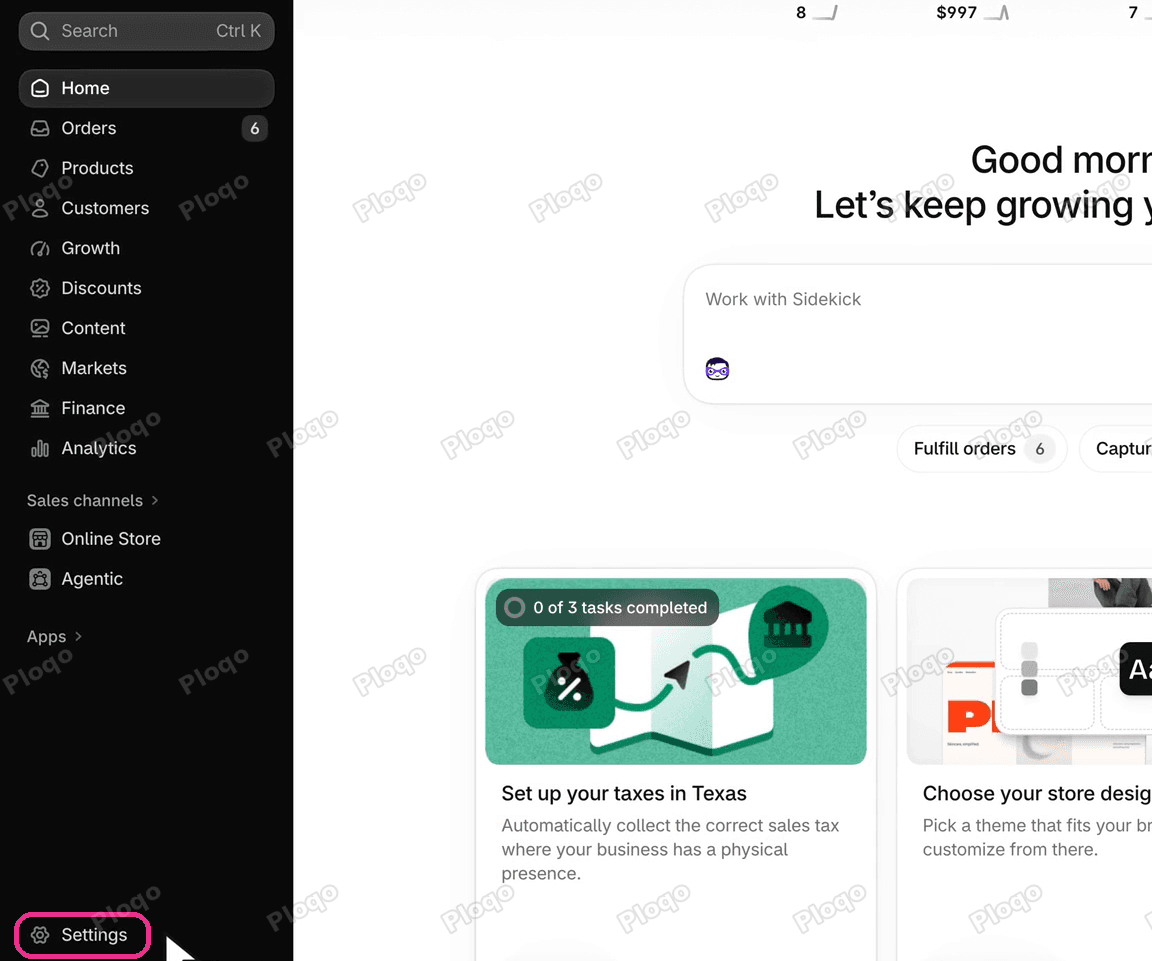 The new black sidebar with Search, Home, Orders, Products, Customers, Growth, Discounts, Content, Markets, Finance, Analytics, Sales channels, Apps and the Settings link at the bottom
What you can do is fold it away. The button at the top of the sidebar turns it into a strip of icons, and clicking it again brings it back. Ctrl B does the same. Settings is the gear at the bottom of the sidebar, circled above.
Search, Ctrl K and keyboard shortcuts
Search is the box at the top of the sidebar. Click it, or press Ctrl K (Command K on a Mac), and type a word. Results come back grouped: pages, orders, products and settings in one place. Shopify describes this in its changelog post on search.
Press the ? key on any page to open a list of every keyboard shortcut in the admin. Press Esc to close it. Two examples from the list:
- A then P adds a product.
- G then O goes to Orders.
Press the two keys one after the other, within about a second. Shopify's keyboard shortcuts page explains this.
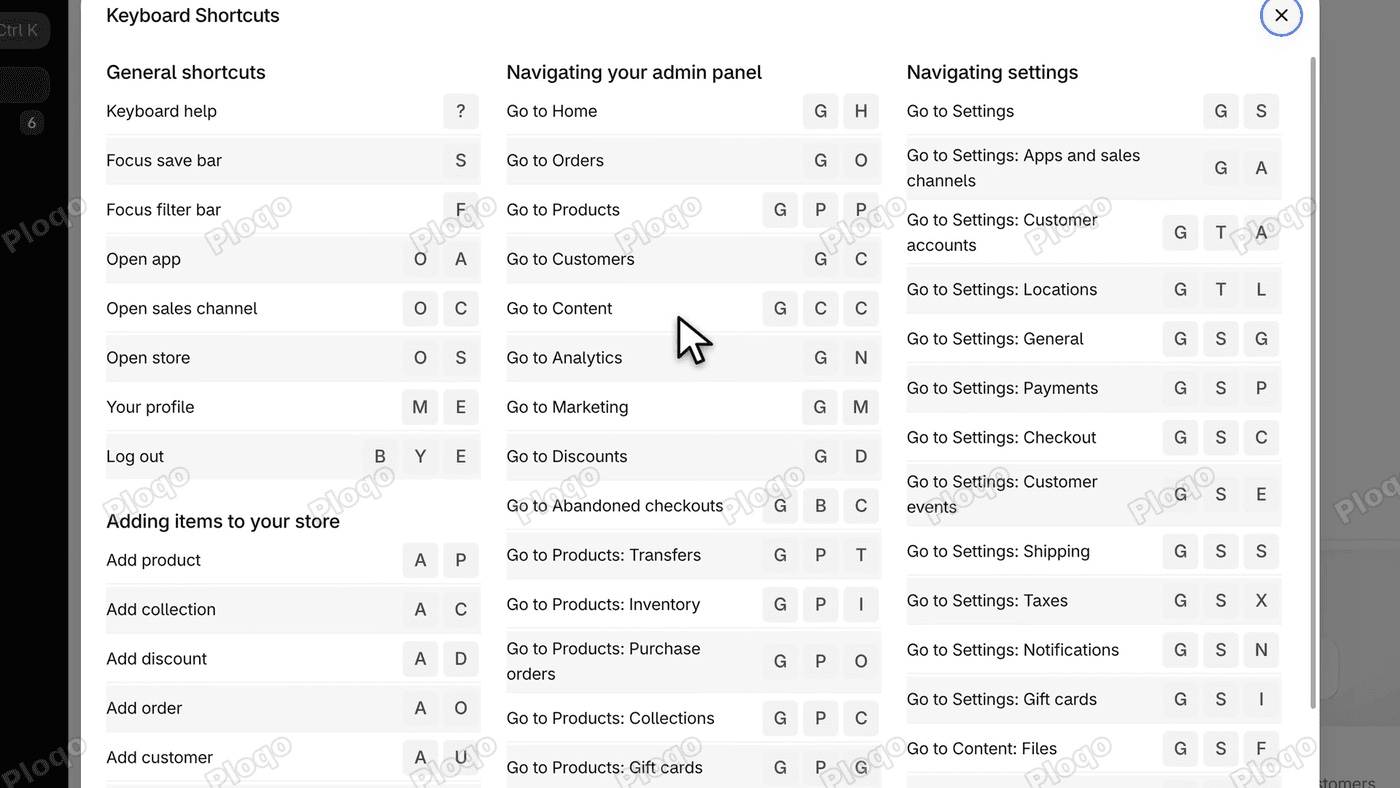 The Keyboard Shortcuts panel with General shortcuts, Navigating your admin panel and Navigating settings. The middle column still says Go to Marketing
The panel still says Marketing (G then M), while the sidebar now calls that section Growth. They are the same place.
Home: where your numbers went
Your numbers are in the thin strip at the top of Home: sessions, total sales, orders and conversion rate. Hold the mouse over one and it opens the full chart, compared with the period before.
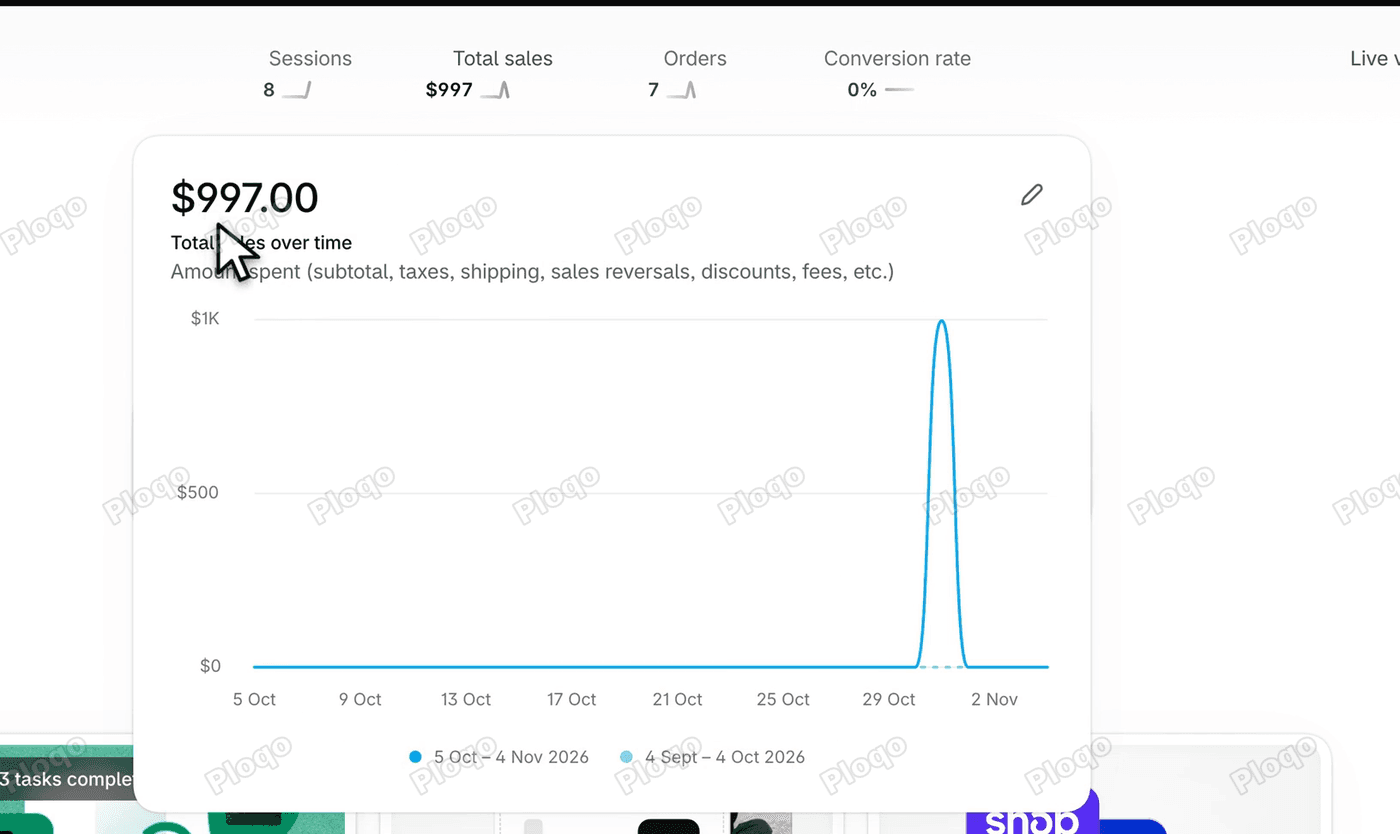 The Home page with the Total sales chart open over the thin strip of numbers, showing $997.00 for 5 Oct to 4 Nov 2026
The date pill at the top changes the period. It also has a Black Friday Cyber Monday preset. Under the Sidekick box, small chips count what is waiting for you: on our store, six orders to fulfill and two payments to capture.
Orders and Mark as fulfilled
Orders opens with a strip of today's numbers, so it shows zeros on a day with no new orders. Drafts and Abandoned checkouts (shoppers who started checkout and left) sit under Orders in the sidebar.
Your saved views are behind the All button: Unfulfilled, Unpaid, Open and Archived.
- Tick an order. A bar appears across the top of the list with what you can do to it: print, create shipping labels and capture payment.
- Create batch is the new action. It groups the orders you have picked so you can fulfill them together. According to Shopify's changelog, a batch can group up to 250 fulfillments, by criteria such as product type or shipping destination.
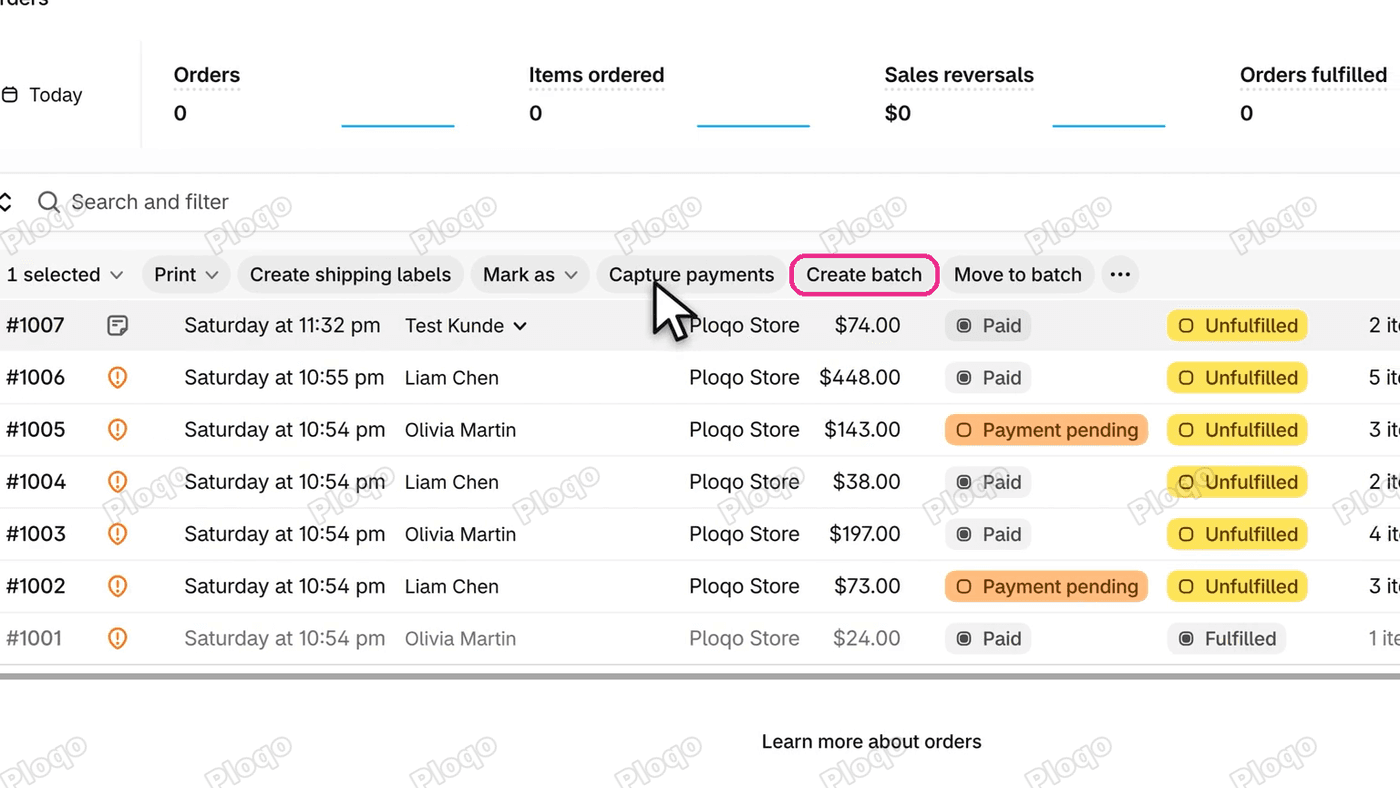 The Orders list with one order ticked and the action bar showing Print, Create shipping labels, Mark as, Capture payments, Create batch and Move to batch
Open an order and Refund and Edit are at the top. The arrows step to the next order, and the customer and shipping address are on the right.
Mark as fulfilled is in the Unfulfilled card. Click it and the card opens right there, with the items, a tracking number box and a shipping carrier box.
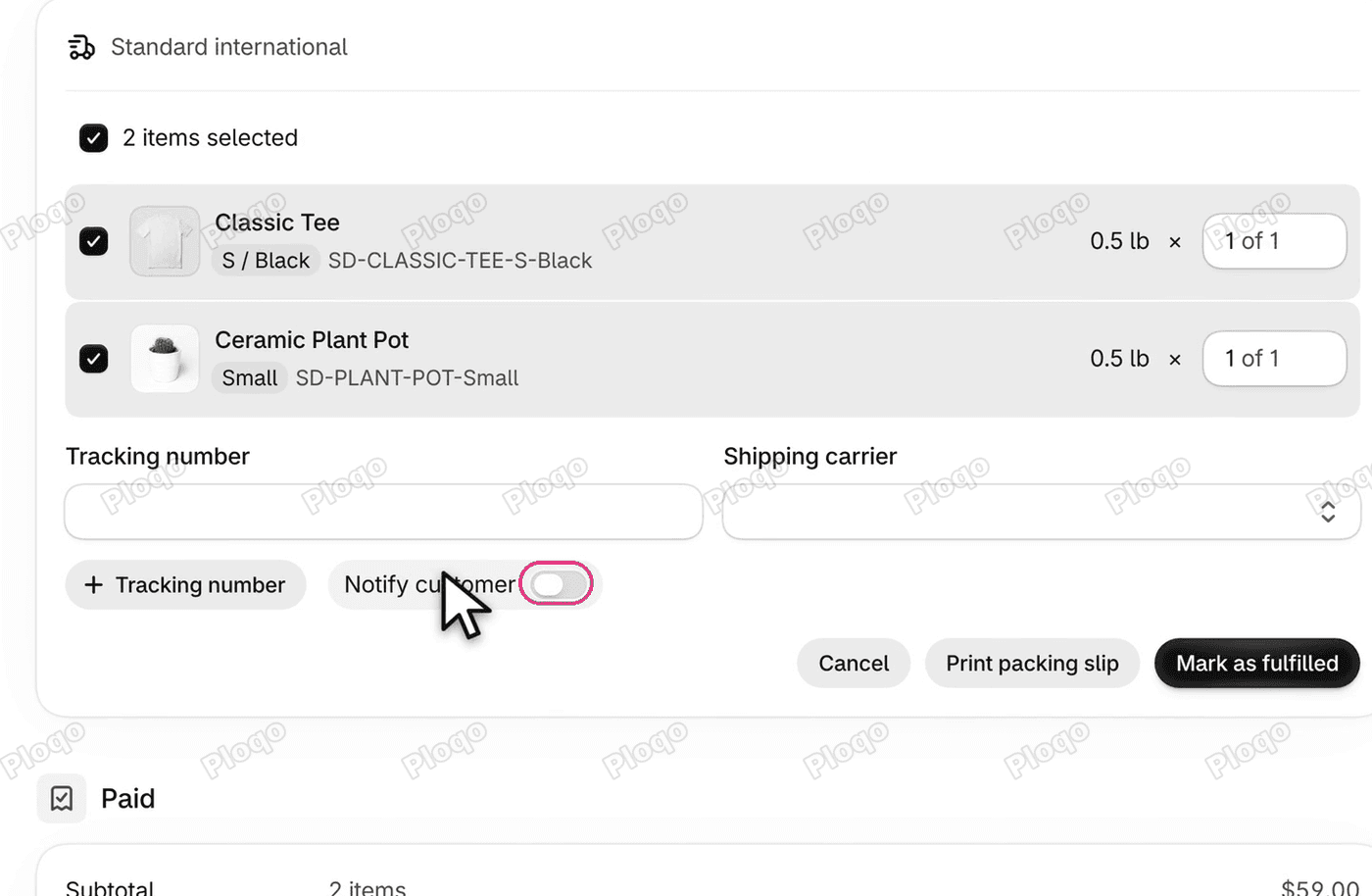 The Unfulfilled card opened on an order, with two items ticked, the tracking fields, the Notify customer toggle ringed and the Mark as fulfilled button
The one to check is Notify customer. This small toggle decides whether the shipping email goes to the customer. It starts off, then remembers your last choice, so look at it on every order. A Shopify Community thread says the toggle is hard to read, which is why it is worth a second look.
Products: variants, the barcode chip and sales
Products opens with an inventory strip above the list: your sell-through rate (the share of stock you sold in the period) and days of stock left. The days figure was empty on our store. Click a section and its pages open under it in the sidebar: Collections, Inventory, Purchase orders, Transfers and Gift cards.
On a product, the variants are now in one card. A variant is one version of a product, such as a size and colour. Your options (Size, Color) are along the top, the list of variants is on the left, and the details of the selected one are in the middle.
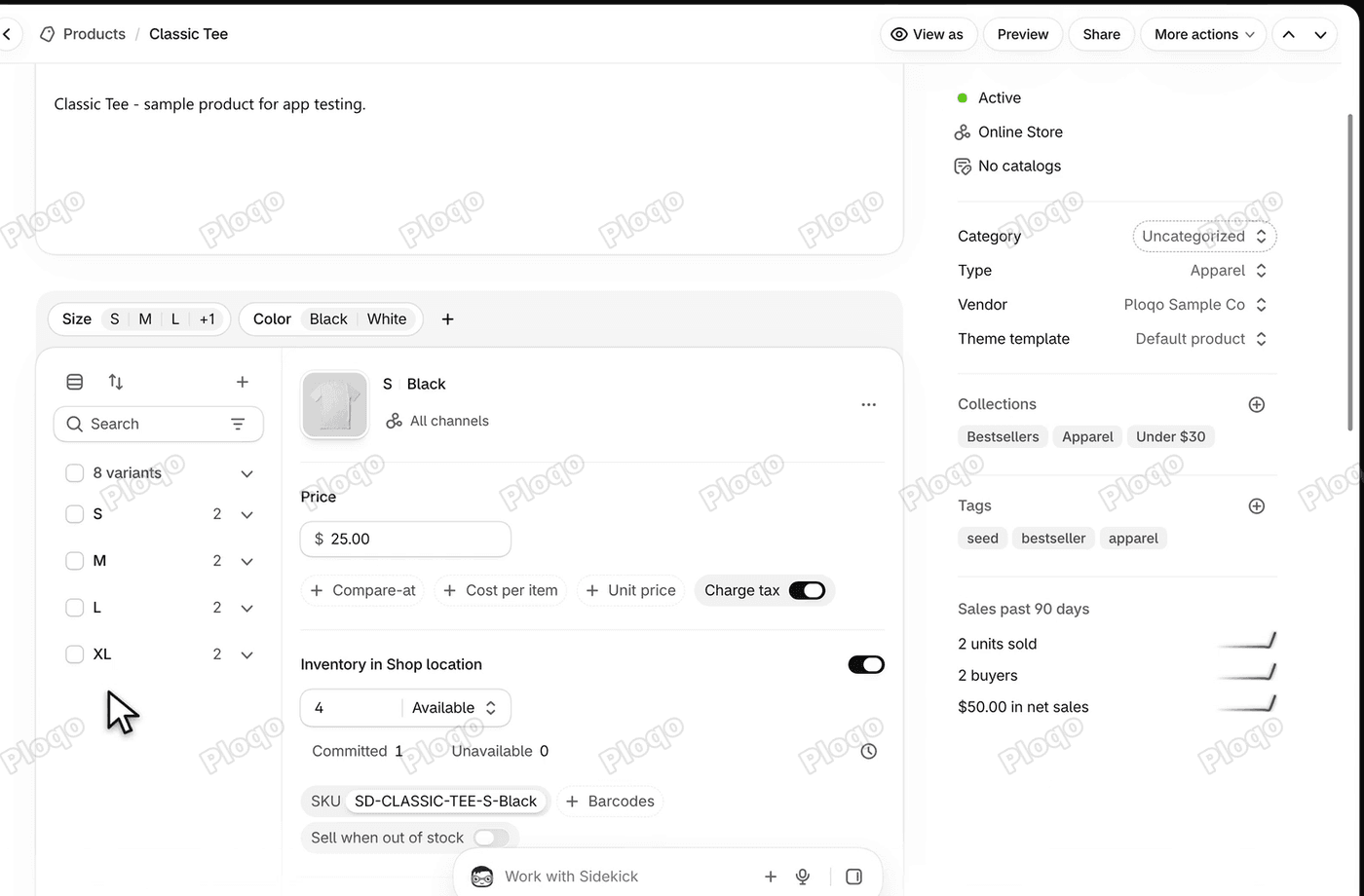 The product page of Classic Tee with the variants card: options along the top, 8 variants listed on the left and the details of the S / Black variant in the middle
Your store may not have this card yet. Shopify's changelog puts the wider rollout in December.
The barcode is no longer a field you can see. It is a small Barcodes chip next to the SKU. It opens a box where you pick the type, such as GTIN, UPC or EAN. These are the standard barcode number formats on retail packaging. If you sell in the EU and a barcode is required, see fixing the "Product identifiers are required" error.
On the right, Sales past 90 days shows units sold, buyers and net sales for this product.
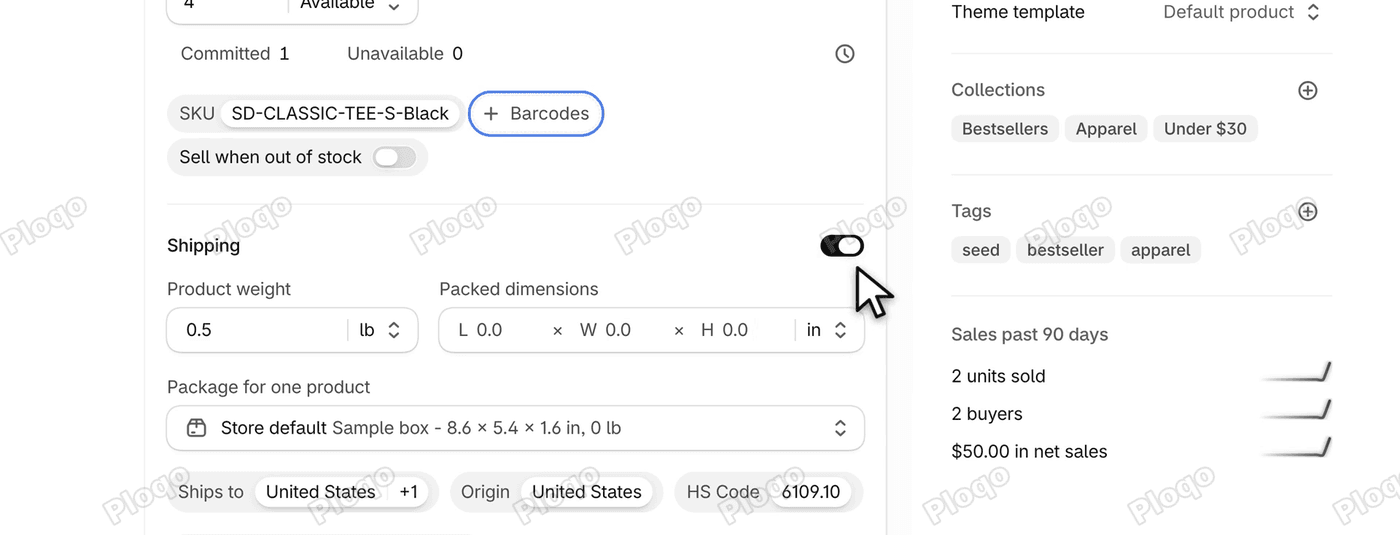 The Barcodes chip next to the SKU on a variant, and the Sales past 90 days box on the right with units sold, buyers and net sales
Customers, Growth, Discounts, Content, Markets and Finance
Here is what to look for on each of these screens:
- Customers has one box at the top where you describe the group of customers you want, in your own words.
- Marketing is gone from the sidebar. It is called Growth now, with Attribution, Autopilot and Campaigns under it.
- Discounts has a Rollouts column, so you can see which sale is tied to a scheduled rollout. A rollout is a set of store changes Shopify applies on a date you choose. Scheduling a Black Friday sale uses one.
- Content opens on Metaobjects, a reusable record you fill in once and use in many places, with Files, Blog posts and Menus under it. Menus is where your navigation is.
- Markets lists your regions, with Catalogs and Rollouts under it.
- Finance is its own section, with taxes and getting paid on one page, and Credit and Bill Pay under it.
Analytics and Reports
Analytics is where the full numbers are. It opens on Today, so the charts stay empty on a store with no sales today. Pick a longer range, such as Last 30 days, and press Apply, and the charts fill in.
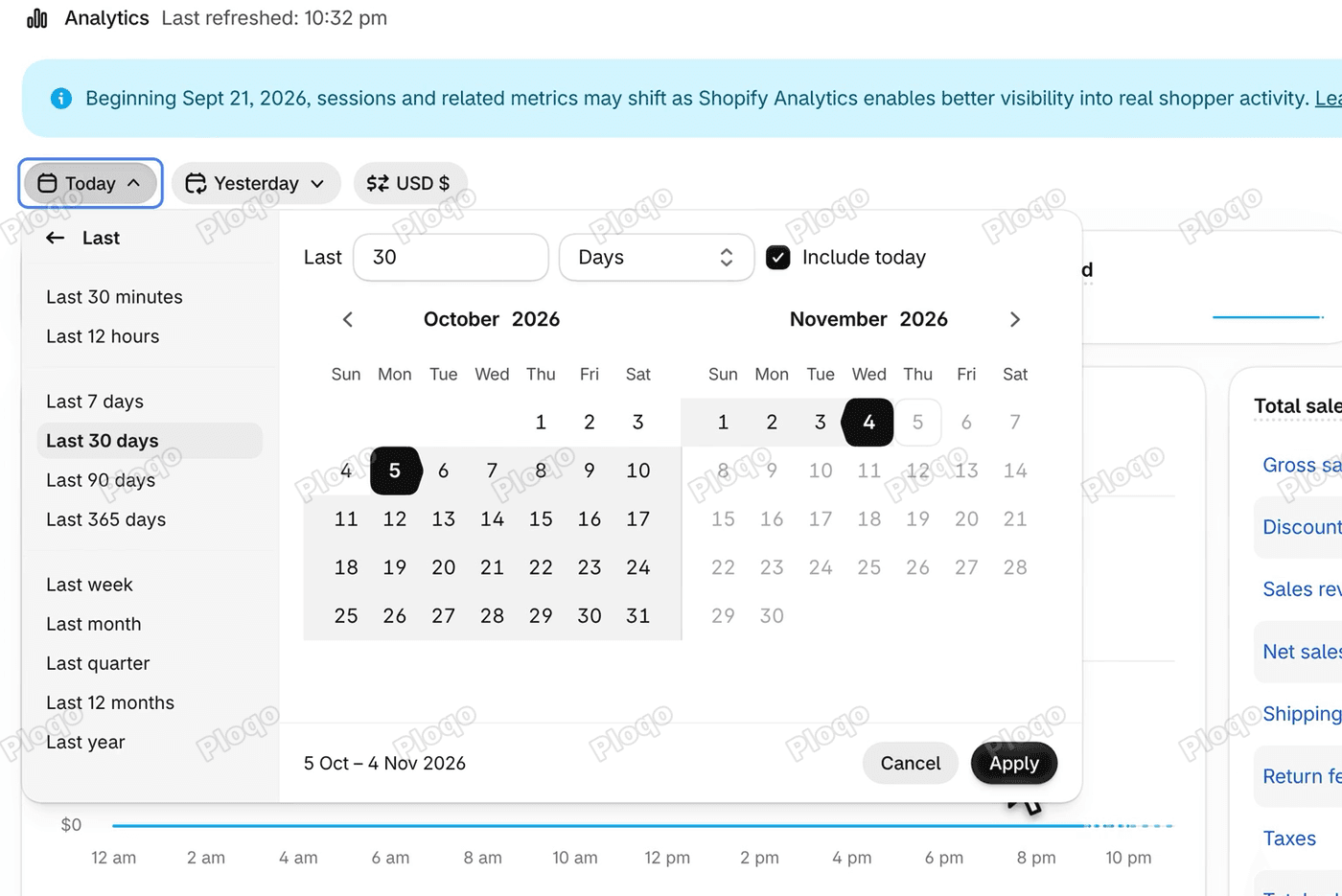 The Analytics date menu open on Last 30 days, with the 5 Oct to 4 Nov 2026 range and the Apply button
Your reports are listed under Analytics, by name and category.
Online Store, Agentic and Apps
- Online Store opens on your live theme, with Edit theme on it, and Pages and Preferences under it.
- Agentic sits under Sales channels. It lists ChatGPT, Meta AI, Microsoft Copilot and Shop, the channels where AI agents can show your products.
- Apps is a button, not a page. It opens search, filtered to the apps you have installed.
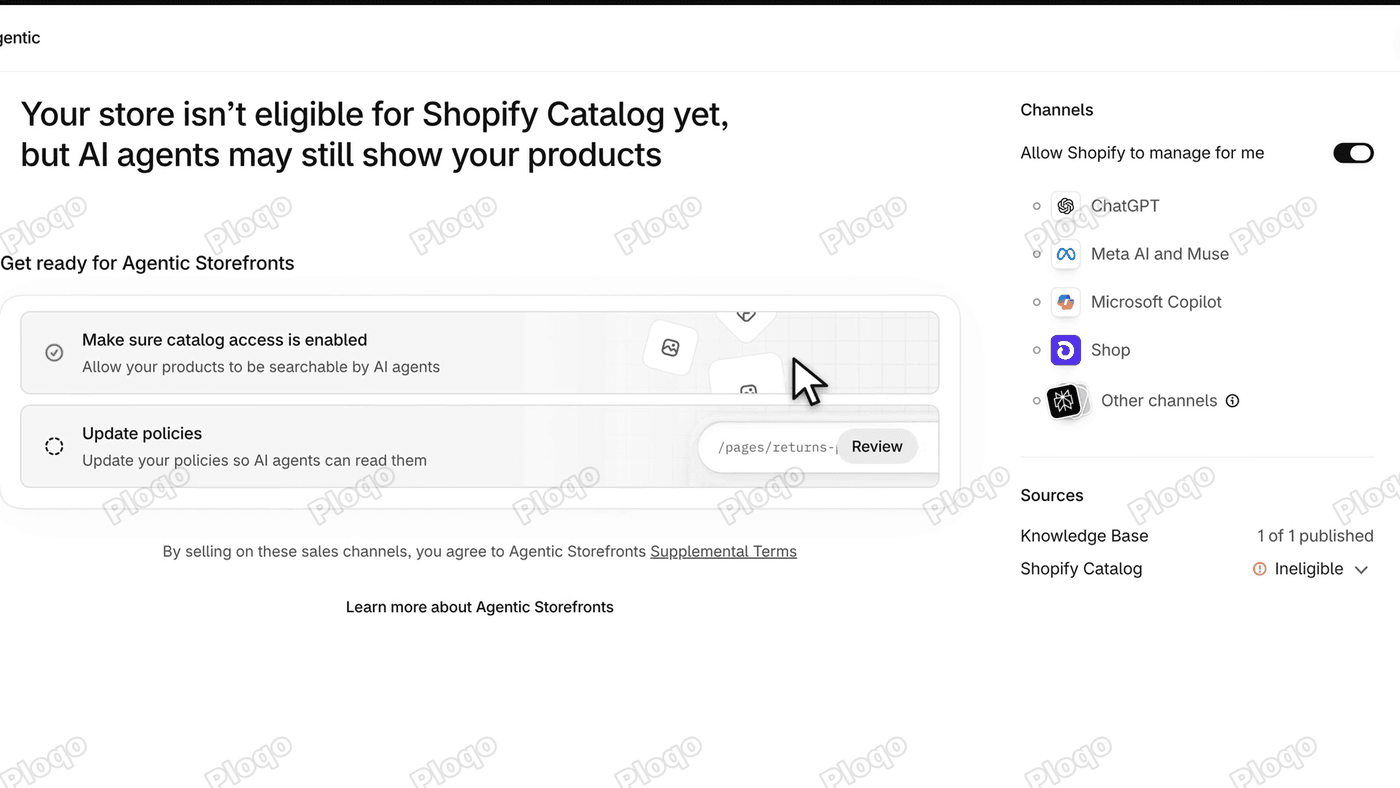 The Agentic page with the list of channels: ChatGPT, Meta AI, Microsoft Copilot, Shop and Other channels
Settings and customer emails
Settings is the gear at the bottom of the sidebar, and it takes over the whole screen. It has its own sidebar and a search box at the top, and every section is in one list: payments, checkout, shipping, notifications and more. The arrow at the top takes you back out.
Your customer emails (the ones that notify customers about order and account events) are under Notifications, then Customer notifications.
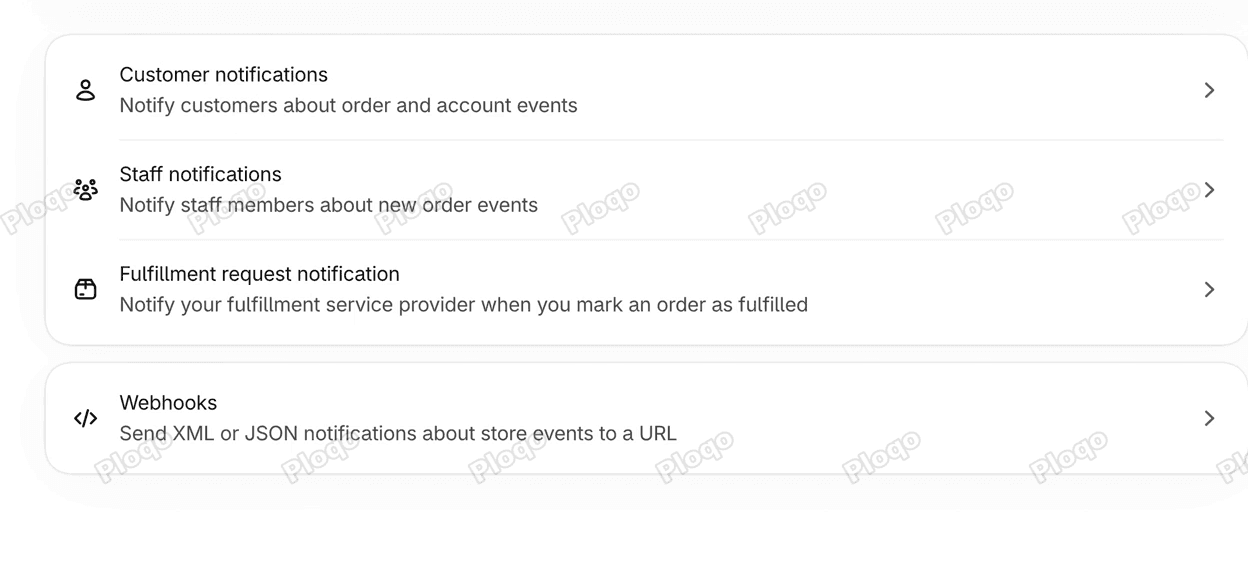 The Notifications page in Settings listing Customer notifications, Staff notifications, Fulfillment request notification and Webhooks
Sidekick: can you hide it
Sidekick is the bar at the bottom of every page, and the large box on Home. As of November 2026, we could not find a way to hide it, and Shopify's help does not list one.
Click the bar and Sidekick docks on the right. In the video we asked which product has the least inventory, and the answer came back in the panel (Wool Beanie, with zero units). The X at the top of the panel closes it, and it goes back to the bar.
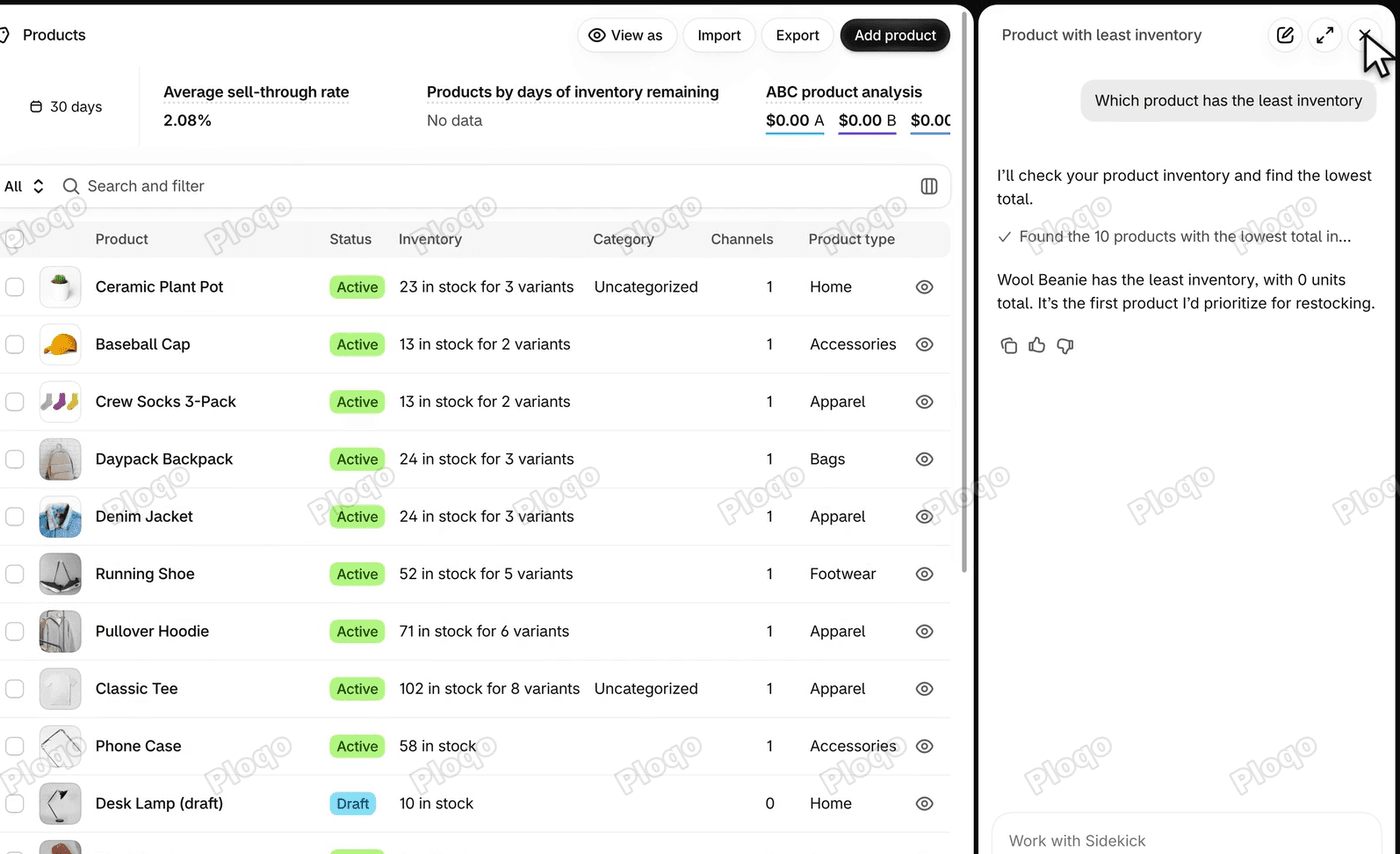 The Products list with the Sidekick panel docked on the right, showing the question and the answer, and the X at the top of the panel
Shopify's Fall '26 Edition says Sidekick can make a plan, you approve it once, and it applies several changes.
This tour was filmed on a development store on 5 November 2026. It is an unofficial guide and is not affiliated with Shopify. Questions: [email protected].
Sources
- Shopify changelog: The admin's new look
- Shopify changelog: Search the admin and ask Sidekick from one flow
- Shopify changelog: Fulfill orders in batches
- Shopify changelog: Variants are now managed on the product page
- Shopify: Fall '26 Edition
- Shopify Help: Keyboard shortcuts
- Shopify Help: Shopify admin overview
More Shopify fixes
More community-sourced Shopify guides, tested on a live store.
Shopify Admin
Shopify New Admin (2026): Where Search, Sidekick and Settings Went
Shopify's new admin moved search, alerts, the store switcher and Settings into the black sidebar, and Sidekick to a bar at the bottom. Where each one is now.
Shopify Admin
Schedule a Black Friday Sale in Shopify (Auto Start and End)
Give the discount its own start and end date and put the sale banner in an Event rollout with the same dates. Both start at midnight and end after Cyber Monday.
Shopify Admin
Product Identifiers Are Required: Shopify EU Labels (2026)
Fix Shopify's 'Product identifiers are required' EU label error: add a GTIN barcode or the no-identifier switch. Covers the rule from 1 November 2026.