
Shopify New Admin (2026): Where Search, Sidekick and Settings Went
Shopify's new admin moved search, alerts, the store switcher and Settings into the black sidebar, and Sidekick to a bar at the bottom. Where each one is now.
By AjayCodeWiz · November 5, 2026 · 4 min read
The short answer
Search, the Alerts bell, the store switcher and Settings are in the black left sidebar. Sidekick, Shopify's built-in assistant, is the bar at the bottom of the page. The new look has been rolling out gradually since 15 September 2026, with no setup, according to Shopify's changelog.
Watch the 90-second video, or use the table and sections below:
| What you are looking for | Where it is now | How to get there |
|---|---|---|
| Search | Top of the sidebar | Click the Search box, or press Ctrl K (Command K on a Mac) |
| Apps | Sidebar | The Apps button opens search, filtered to your installed apps |
| Alerts | Bottom of the sidebar | The bell |
| Store switcher | Bottom of the sidebar | Your store name, next to the bell |
| Settings | Bottom of the sidebar | The gear above the store name |
| Sidekick | Bottom of every page | The Work with Sidekick bar |
| Mark as fulfilled | On the order | The Unfulfilled card, next to Create shipping label |
This was filmed on a development store on 4 November 2026. It is an unofficial guide and is not affiliated with Shopify.
Search and Apps
Search is the box at the top of the sidebar. Type a word and the results come back grouped: admin pages, orders, products and settings.
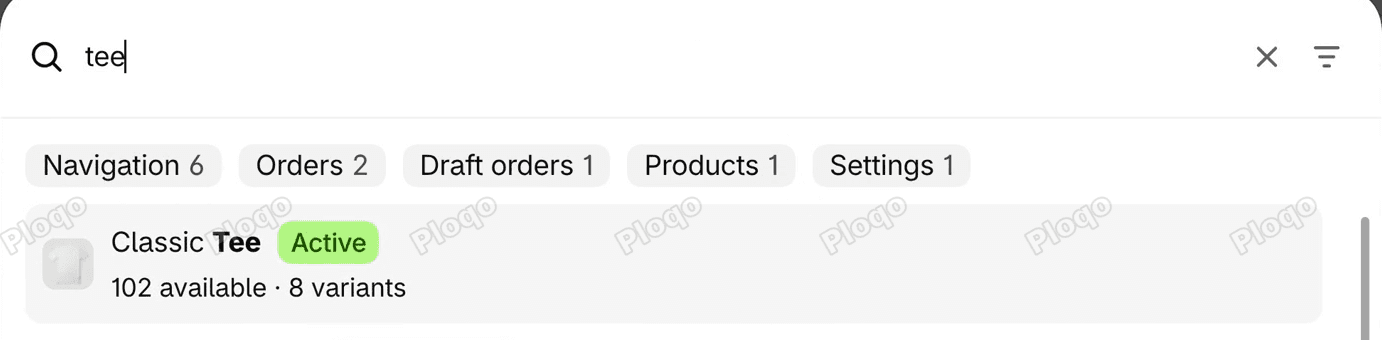 The new search open with the word tee typed, the result groups Navigation, Orders, Draft orders, Products and Settings, and Classic Tee as the first product
The Apps button in the sidebar opens the same search, filtered to the apps you have installed.
Alerts, store switcher and Settings
At the bottom of the sidebar, the bell opens your Alerts feed, which is where your store's notifications are. Your store name next to it is the store switcher. The gear above it is Settings.
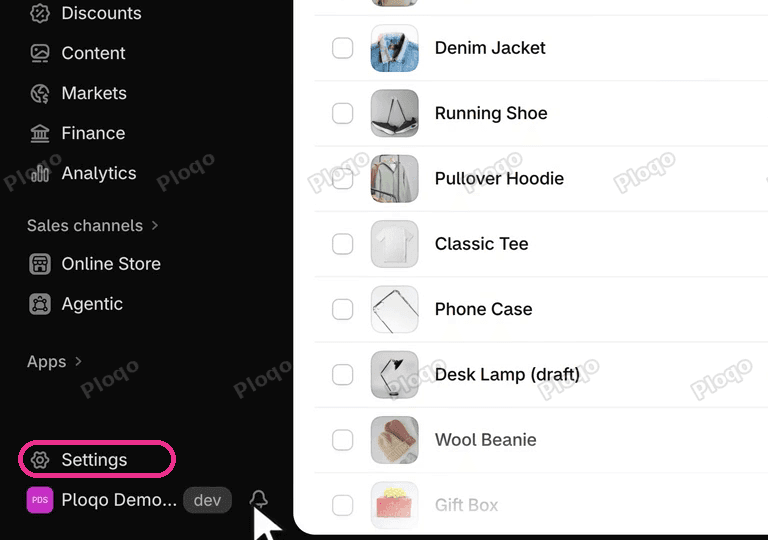 The bottom of the black sidebar with the Settings gear ringed above the store name and the Alerts bell
Settings opens its own screen, with a Search settings box and every section in one list. Your customer emails are under Notifications. The arrow at the top takes you back to the admin.
Sidekick and the collapsing sidebar
Sidekick is the Work with Sidekick bar at the bottom of every page. On Home it is a box on the page. Click it and Sidekick docks on the right. The X at the top of the panel closes it, and it goes back to the bar.
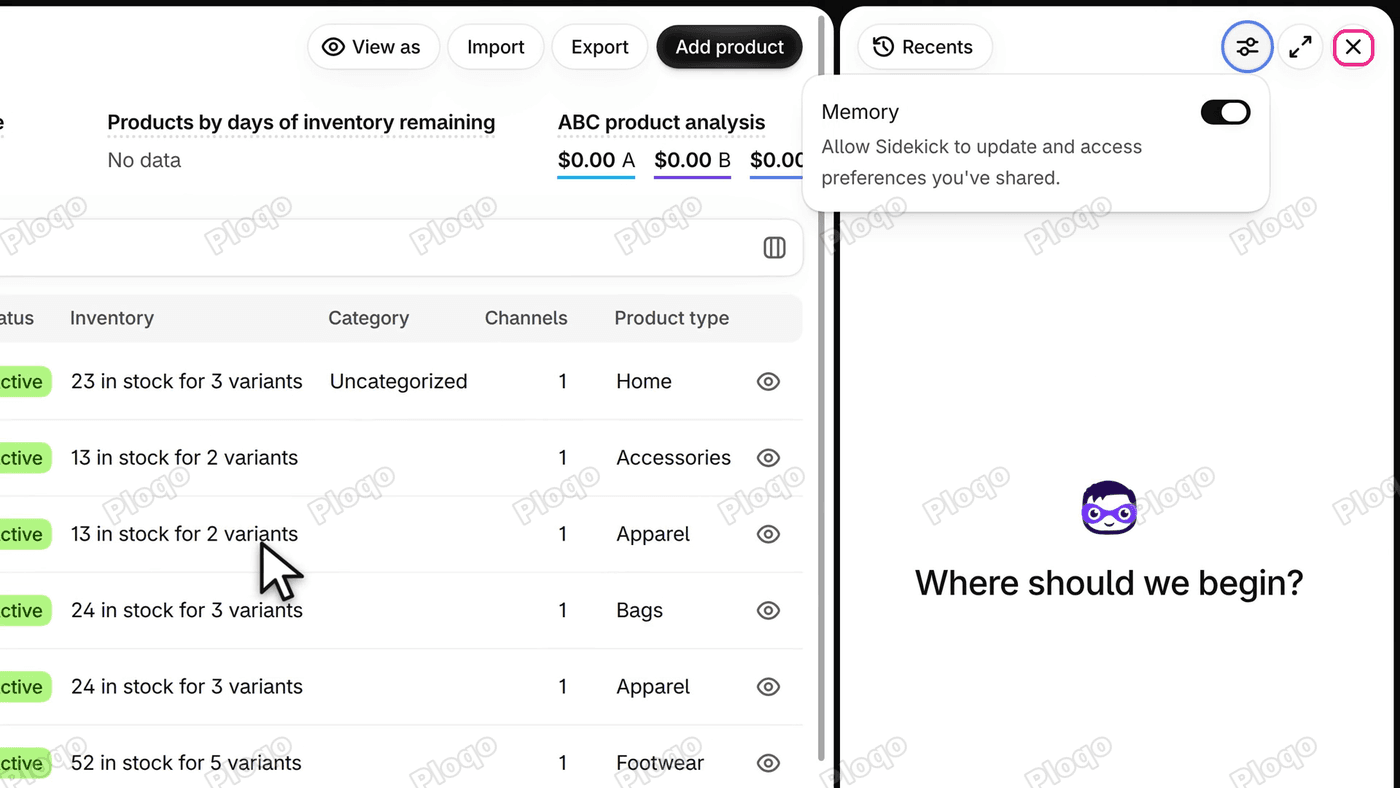 The Sidekick panel docked on the right with the Memory setting open and the X at the top ringed
The settings in Sidekick's menu only have a memory option. As of November 2026, we could not find a way to hide Sidekick, and Shopify's help explains how to close it, not how to hide it.
For more room, the button at the top of the sidebar folds it down to icons. Click it again to bring the sidebar back. Ctrl B does the same.
Where Mark as fulfilled is
Open Orders, then an order. Mark as fulfilled is in the Unfulfilled card, next to Create shipping label. It is not at the top of the page with Refund and Edit.
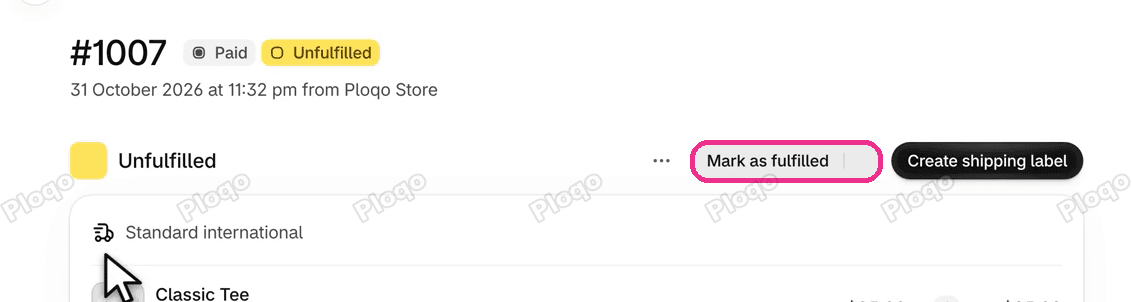 An order with the Unfulfilled card, the Mark as fulfilled button ringed next to Create shipping label
Can you switch back to the old look?
As of November 2026, we could not find a setting to switch back to the old look or to change the sidebar colour, and Shopify's help pages do not mention one. Shopify's help page on the admin says the refreshed design changes only the appearance and layout of the admin.
See the whole new admin
This post covers where things moved. The 5-minute tour goes through every main screen: Home, Orders, Products, Customers, Analytics and more.
Read it as a post: How to use the new Shopify admin.
Sources
- Shopify changelog: The admin's new look
- Shopify Help: Shopify admin overview
- Shopify Help: Sidekick
Questions: [email protected]
More Shopify fixes
More community-sourced Shopify guides, tested on a live store.
Shopify Admin
How to Use the New Shopify Admin (2026): Every Main Screen
A tour of the new Shopify admin: the black sidebar, search and Ctrl K, Home, Orders, Products, Settings and Sidekick, with where to click on each screen.
Shopify Admin
Schedule a Black Friday Sale in Shopify (Auto Start and End)
Give the discount its own start and end date and put the sale banner in an Event rollout with the same dates. Both start at midnight and end after Cyber Monday.
Shopify Admin
Product Identifiers Are Required: Shopify EU Labels (2026)
Fix Shopify's 'Product identifiers are required' EU label error: add a GTIN barcode or the no-identifier switch. Covers the rule from 1 November 2026.