
Shopify EU Product Identifiers: Barcodes, NS-PID and GS1
Shopify EU product identifiers from 1 November 2026: what S-PID, NS-PID and M-PID mean, how to add GTIN or UPC barcodes, and where GS1 numbers come from.
By AjayCodeWiz · October 30, 2026 · 11 min read
What changed on 1 November 2026
From 1 November 2026, the EU asks for three product identifiers for every item in a parcel sent from outside the EU to a customer in the EU, when the parcel is worth €150 or less. Customs uses them to tell what is in the box.
Shopify posted how it handles the rule in its changelog on 24 October 2026, New EU product identifiers supported on Shopify Shipping & Managed Markets labels, and wrote the steps up in a help page, Adding product identifiers for shipments to the European Union. Those two pages are the source for this article. Read them before you ship, because the details can change.
When you buy a label through Shopify Shipping or Managed Markets, Shopify copies the identifiers from your products onto the customs documents. So each variant you ship to the EU needs the right numbers saved on it.
The three identifiers, in plain words
M-PID, the merchant product identifier. Your own identifier for the item. Shopify uses the variant itself for this, so you don't add anything.
S-PID, the standardized product identifier. An internationally issued barcode number: a GTIN, EAN, UPC or ISBN. GTIN (Global Trade Item Number) is the family name: EAN-13 is the 13-digit version on most packaging outside North America, UPC-A the 12-digit version in the US and Canada, and ISBN the number on books. Shopify asks for it "with the matching barcode type", and also accepts the Custom type when the value is a valid GTIN of 8, 12, 13 or 14 digits. A product with no such number gets a declaration instead.
NS-PID, the non-standardized manufacturer identifier. The maker's model, part or style number, saved as a barcode of the NS-PID type. Your own product code or SKU can count. Without one, Shopify uses the standard barcode, then any other barcode, the SKU, and finally the variant's ID.
So the M-PID is automatic and the NS-PID falls back to what you have. The one to work on is the S-PID, the standard barcode.
Add the barcode to one product
Shopify's help page gives these steps:
- In your Shopify admin, go to Products.
- Click the product. If it has variants, click the variant.
- In the Barcodes section, enter the GTIN, EAN, UPC or ISBN and choose the matching barcode type.
- If you like, add the model, part or style number as another barcode with the NS-PID type.
- Click Save.
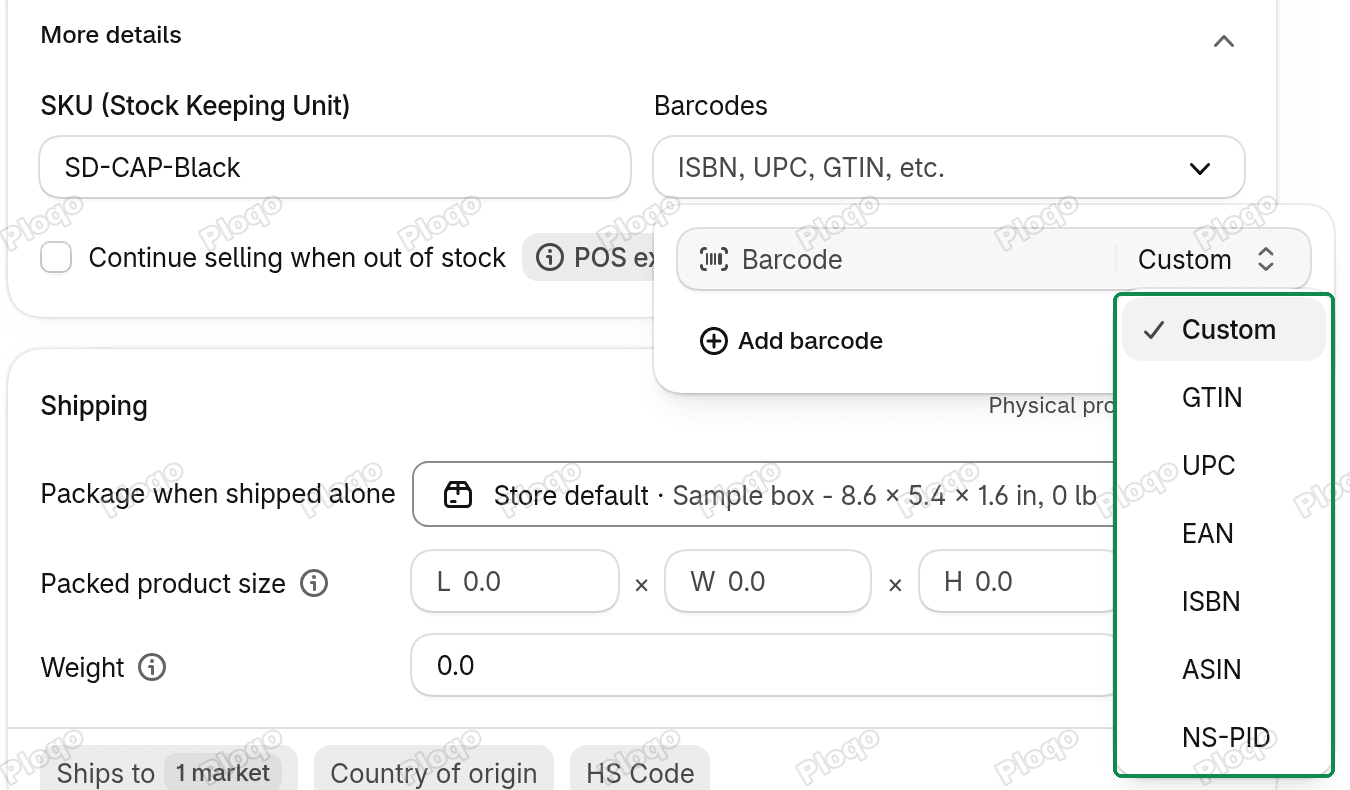 A variant's Barcodes section in the Shopify admin with the barcode type list open
The number usually comes from the packaging or the supplier. If you make the product yourself, it comes from your own GS1 company prefix (below), or the product has none and you declare that.
Fill many products at once
Shopify's help page names two ways to update many products: a CSV import and the bulk editor. Its changelog says the bulk editor can add barcodes and the "no standardized identifier" declaration to many products at once.
Go to Products, tick the products, and click Bulk edit in the bar above the list.
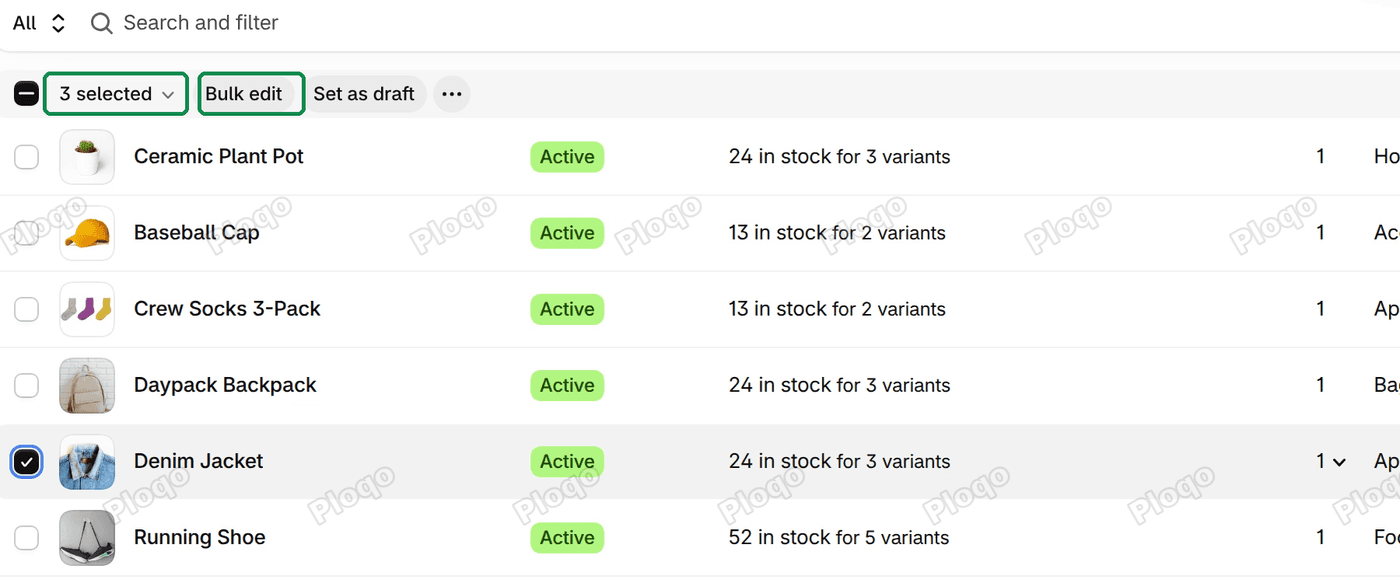 The Shopify Products list with 3 selected and the Bulk edit button in the bar above the list
In the bulk editor, add the barcode columns you need and fill the cells.
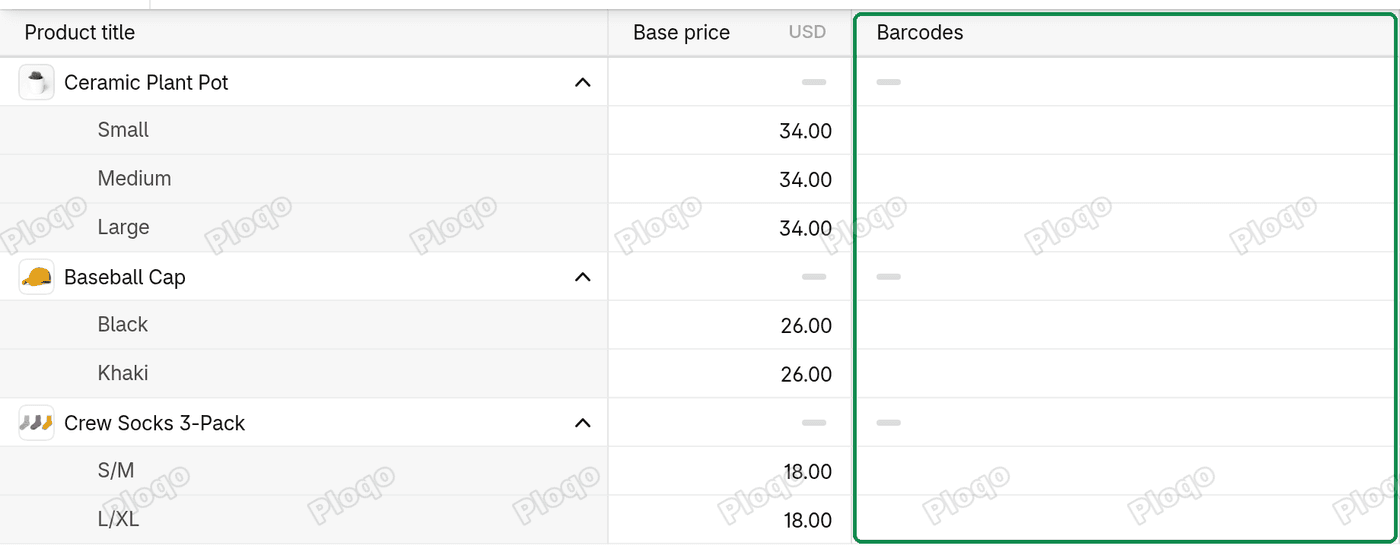 The Shopify bulk editor with a barcode column added for the selected variants
How to bulk edit variants in Shopify covers the editor, and updating products with a CSV import the spreadsheet route for hundreds of products. Either way, check a few variants afterwards: the barcode should be there, with its type.
Declare a product that has no standard barcode
Handmade, one-of-a-kind and many small-batch products have no GTIN, EAN, UPC or ISBN, because no number was ever registered for them. Shopify lets you say so:
- In Products, open the product. If it has variants, open the variant.
- In the Shipping section, check that Physical product is on, then click More details.
- Under EU customs declaration, turn on Has no standardized identifier.
- Click Save.
Customs knows this declaration as code Y081. Use it only when the product truly has no standard barcode: once it is on, no standard identifier is sent for that item, even if one is saved on the variant.
Add a manufacturer code (NS-PID), or let Shopify use your SKU
If you resell branded goods, the maker's model or part number is often on the box or in the supplier's price list. Add it as another barcode on the variant, with the NS-PID type.
If you make your own products, your SKU is your product code, and Shopify falls back to it when there is no NS-PID or other barcode. A variant with a standard barcode or a SKU already has something here.
What happens if an item is missing its identifiers
For labels bought through Shopify Shipping or Managed Markets, the changelog says: "Labels for EU-bound orders cannot be purchased for items missing required identifiers." Per the help page, an item worth €150 or less with no standard barcode and no declaration blocks the label until the item is updated.
Fix it on the label page with Edit customs declaration. For an item linked to a product, what you enter is saved back to the product. If you buy labels outside Shopify, ask your carrier, broker or fulfillment partner how they receive the identifiers.
Parcels that reach customs without the information may be held or rejected, and return-to-origin fees may apply.
Goods that don't need identifiers
The EU exempts some goods. Shopify lists unprocessed agricultural and perishable goods in HS chapters 01 to 15, some handmade and artisanal goods, and antiques, collectibles, art, stamps and coins.
The exemption is decided by the variant's HS code, its customs category, and you can't mark a product exempt yourself. If you sell any of these, check that each product's HS code is right.
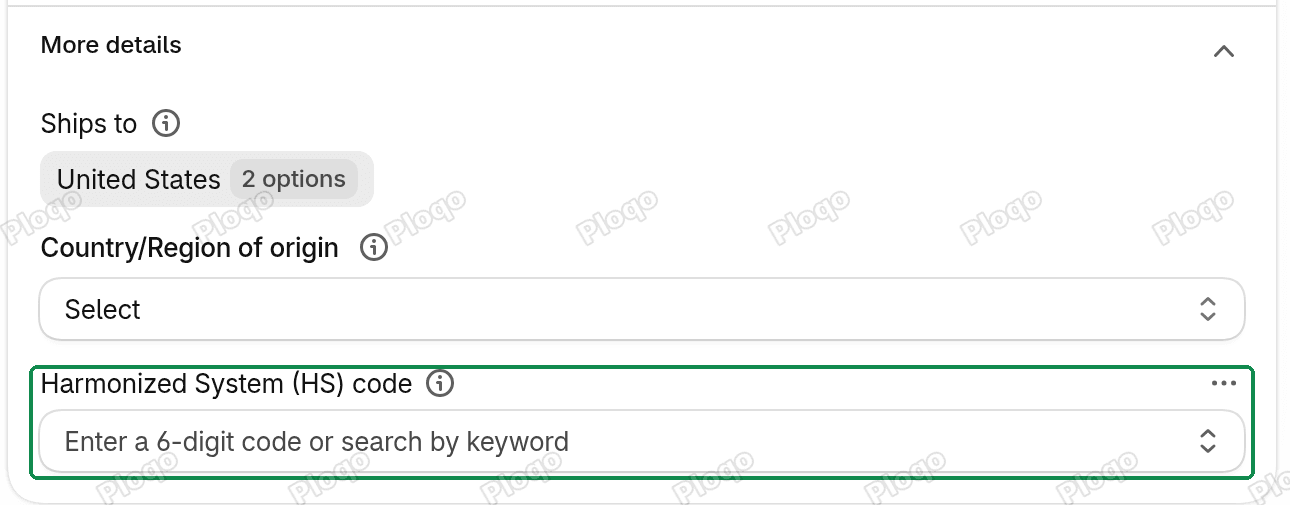 The HS code field in a product's Shipping section, under More details
GS1 and company prefixes: where real barcode numbers come from
GS1 is the not-for-profit organisation that issues product barcodes, with an office in most countries. To get your own EAN or UPC numbers, you license a company prefix from your local GS1 office: a block of digits, for example 7 or 9 long, that marks a number as yours. Each product number has three parts:
- your company prefix;
- an item number you choose for each product or variant;
- a check digit, worked out from the other digits, so a scanner can tell when a number was misread.
A longer prefix leaves fewer digits for item numbers, so it covers fewer products; GS1 sells prefixes sized to your range. The licence is what makes the number yours. A number you make up, or one bought from a reseller without a GS1 licence, isn't registered to your business and may already be on another company's product.
Never use in-store numbers as the product barcode
EAN-13 numbers that start with 20 to 29 are "restricted circulation" numbers. GS1 keeps them for use inside one business: shelf labels, goods you weigh at the till, items you make yourself and only sell in your own shop.
They need no licence, so they are easy to use as product barcodes by mistake. But any other shop can use the same number for a different product, so outside your shop it says nothing about the item. Marketplaces don't accept them, and they aren't the standard identifier the EU rule asks for. On items you ship to the EU, replace them with numbers from your own GS1 prefix, or declare that the product has none.
Find and fill missing barcodes with Ploqo Labels
I built Ploqo Labels, a free Shopify app that prints price tags and barcode labels, and it has two parts that help with this.
Find the variants with no barcode. The app's Barcodes page has a No barcode view that lists every variant in your store with an empty Barcode field, with a count. You can filter it by product, variant or SKU.
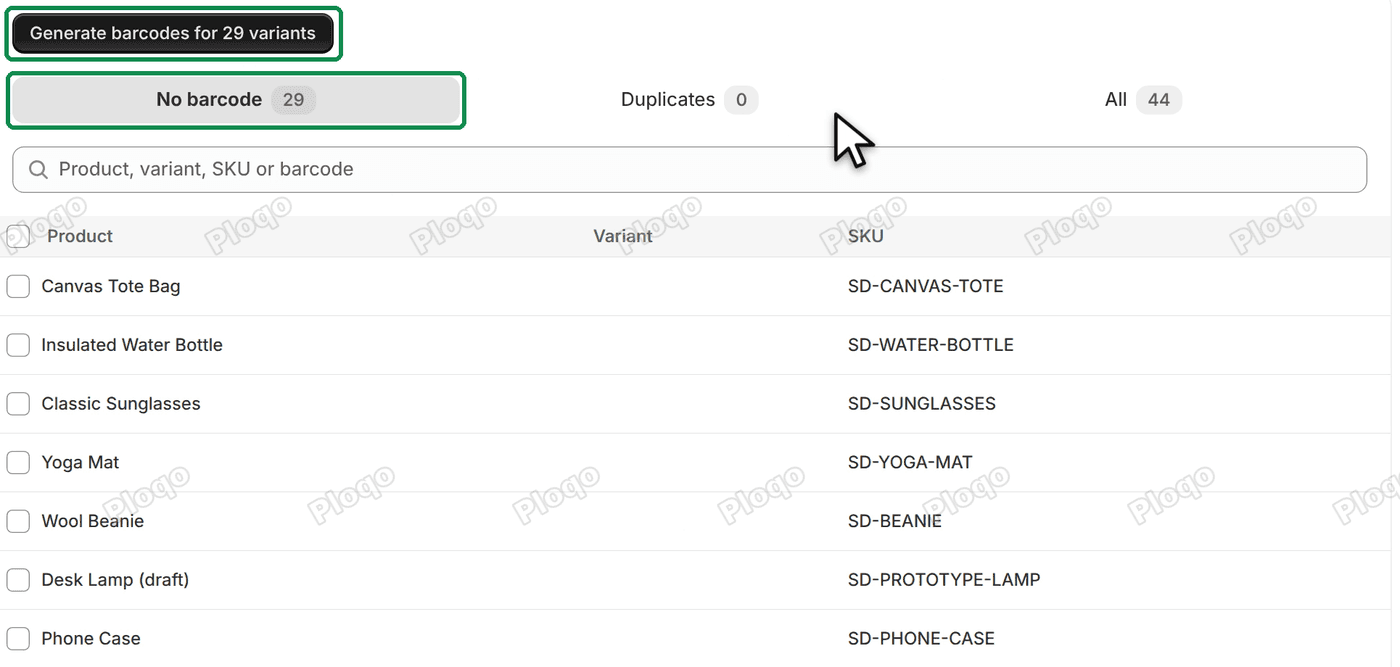 The Barcodes page on the No barcode view: Generate barcodes for 29 variants, the views No barcode 29, Duplicates 0 and All 44, and the list of variants without a barcode
Fill real numbers in bulk. Click Generate barcodes for every variant on the list, or tick some. In the Format list, choose EAN-13 from a GS1 company prefix or UPC-A from a UPC company prefix and type your prefix. The app numbers your items after the prefix and adds the check digit.
 The four Format options for new barcodes: Code 128 sequence, EAN-13 from a GS1 company prefix, UPC-A from a UPC company prefix and In-store EAN-13
Before it writes anything, the app reads every barcode already in your store and skips any number in use, so a new barcode never repeats one. After writing, it reads each variant back from Shopify. If you change your mind, Clear the last run on the Barcodes page takes the new barcodes off again.
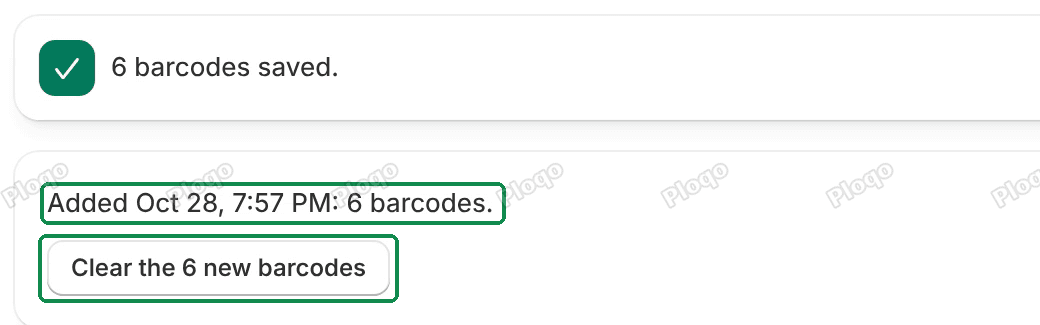 The Barcodes page after a run: 6 barcodes saved., the line Added Oct 28, 7:57 PM: 6 barcodes. and the Clear the 6 new barcodes button
The app can also make in-store numbers, and its Generate box warns when you pick them: "Amazon, Google Shopping and EU customs don't accept in-store numbers as product barcodes. Use them only on your own shelves and tills."
One thing to check. The app saves each number in the variant's Barcode field. On my test store, a barcode saved that way has no barcode type, even when it is a valid EAN-13, and Shopify doesn't say whether an untyped barcode counts for EU parcels. So after a run, open a variant in your admin and set the type that matches the number (an EAN-13 is an EAN, a UPC-A is a UPC) before you ship to the EU.
The video shows the whole app, including generating barcodes from 1:02 and the Barcodes page from 6:06:
The help centre has a page on EU product identifiers in Ploqo Labels and the rest of the Ploqo Labels guides.
Print the barcodes on your stock
Customs reads the identifiers from the parcel's documents, but a barcode printed on the item lets you scan it at the till or when you pack.
- For a few barcodes, the free barcode generator turns a number into a printable barcode image, and Shopify barcode generator: turn a number into a barcode explains how to tell which format a number is.
- For tags with the price and a barcode, the free price tag generator lays them out on a sheet.
- To print labels for many variants at once, sized to your label roll or sheet, Ploqo Labels does it from its Print page. See getting started.
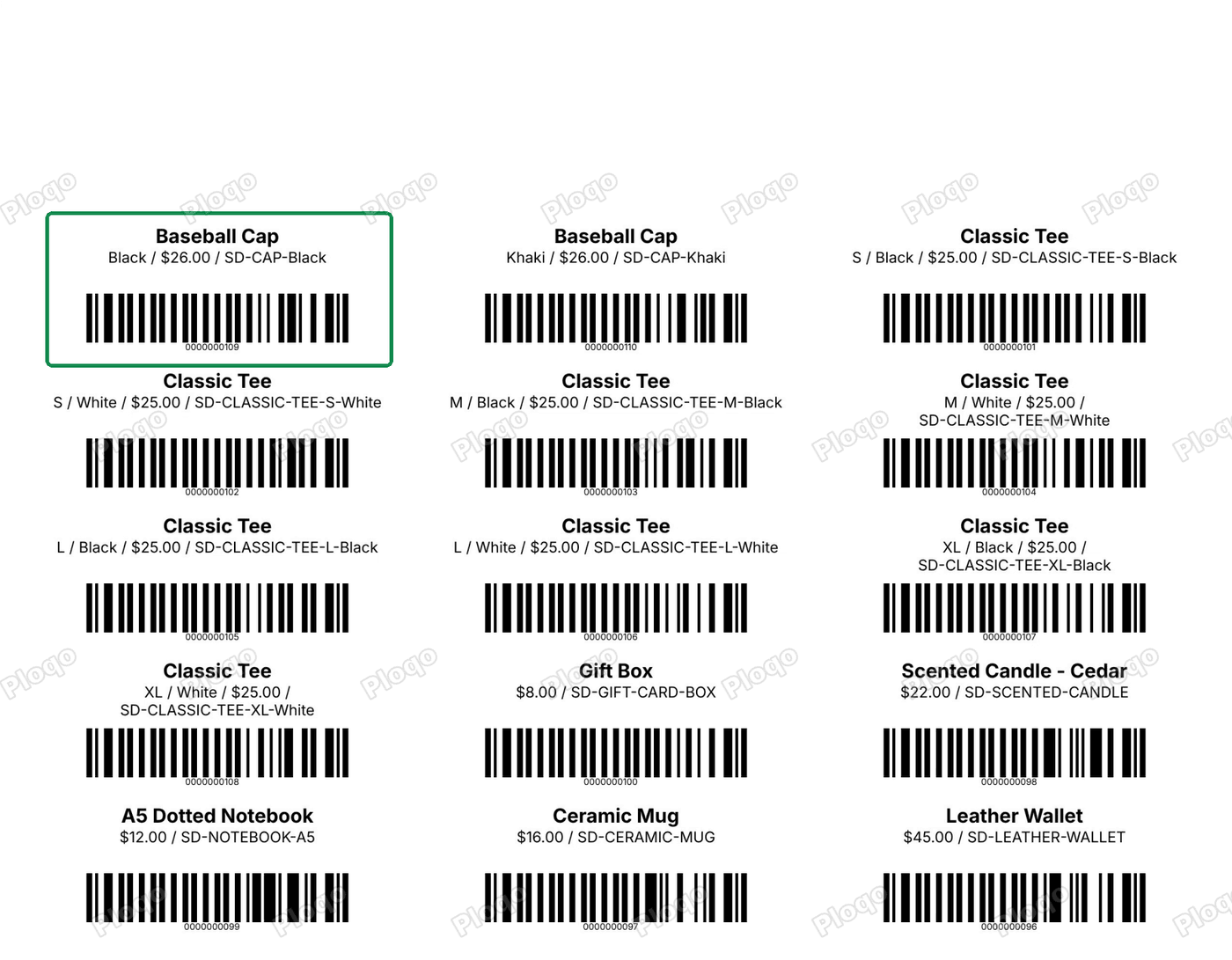 A PDF of Avery 5160 sheet labels made by Ploqo Labels, three across, each with a product name, price and barcode
Common questions
Does the rule apply if I ship from inside the EU? Shopify describes it for parcels sent to EU customers from outside the EU. Parcels that never cross the EU's customs border don't go through EU import customs.
What is a GTIN on Shopify? It is the standard barcode number of a product, saved on the variant as a barcode. EAN-13, UPC-A and ISBN are all GTINs.
Does a UPC count for the EU rule? Shopify lists UPC with GTIN, EAN and ISBN as standard identifiers. A 12-digit UPC-A is also a valid GTIN-12.
Can I use my SKU as the NS-PID? Yes. Shopify says your own product code or SKU can count, and it uses the SKU when there is no NS-PID barcode and no other barcode.
I make everything myself. Do I need GS1 numbers? Not for this rule. Declare Has no standardized identifier on each product. You may still want GS1 numbers if you sell through marketplaces that ask for them.
What changes once the identifiers are there? Shopify's help page says a missing standard barcode blocks the label until the item is updated, with the identifiers or the declaration. It promises nothing beyond that: what happens to the parcel is up to the carrier and customs.
Fill missing barcodes in bulk
Ploqo Labels lists every variant with no barcode and fills EAN-13 or UPC-A numbers from your GS1 prefix, checked against every barcode in your store. Then it prints them on labels sized to your roll or sheet.
Read the Ploqo Labels guideMore Shopify fixes
More community-sourced Shopify guides, tested on a live store.
Shopify Admin
Shopify Physical Gift Cards: Sell and Ship Them Online
Shopify sells physical gift cards only at POS. How to sell a plastic gift card online, load its printed code in the admin and post it, with screenshots.
Shopify Admin
How to Edit a Packing Slip on Shopify to Show Big Product Photos
Shopify's order page shows each item as a 40 pixel thumbnail with no way to enlarge it. Here is how to edit the packing slip template so every line prints that exact variant's photo at 1000 pixels, including the one-line fix Shopify's default template needs.
Shopify Admin
Shopify Shipping Zones: Fix Products Sold Out in One Country
Products show Sold out for customers in one country while your admin shows stock. The cause is a shipping profile with no zone for that country. How Shopify shipping zones and profiles decide what a customer can buy, and the six-click fix, with screenshots.