
Schedule a Black Friday Sale in Shopify (Auto Start and End)
Give the discount its own start and end date and put the sale banner in an Event rollout with the same dates. Both start at midnight and end after Cyber Monday.
By AjayCodeWiz · November 4, 2026 · 5 min read
The fix
Give the discount its own start and end date in its Schedule section, and put the sale banner in an Event rollout with the same dates. The discount and the banner both switch on at midnight on Black Friday and switch off when Cyber Monday ends, so you do not have to stay up for it.
Watch the 2-minute version, or follow the steps below:
The dates in this post are for 2026: Black Friday is Friday 27 November and Cyber Monday is Monday 30 November. Change them to match your own sale.
Step 1: Create the discount
- The Discounts list in your Shopify admin has a Create discount button at the top right. Use it.
- Choose Amount off order. This is the type that covers the whole store. Amount off products has no "all products" option, only specific collections or products, so use it only if the sale is for one collection.
- Pick Automatic discount, so shoppers do not need a code.
- Name it, for example "Black Friday 20% off", and set the value to 20%.
If you also run discount codes next to this sale, read how discount combinations work first, because a code can replace an automatic discount. To limit the sale to one collection instead, see automatic discounts by collection.
Step 2: Set the start and end date
Scroll down to the Schedule section. Set the start date to 27 November at 12:00 am, click + Set end date, and set it to 30 November at 11:59 pm.
 The Schedule section of a new discount with the start 27 Nov at 12:00 am and the end 30 Nov at 11:59 pm, both marked GMT-5
The times use your store's time zone, which is shown next to each time. On our dev store it is GMT-5. If the time zone is wrong, the sale starts and ends at the wrong hour, so check it before you save.
Click Save, then go back to Discounts. The badge next to the discount says Scheduled, which means it is waiting for Friday and needs nothing else from you.
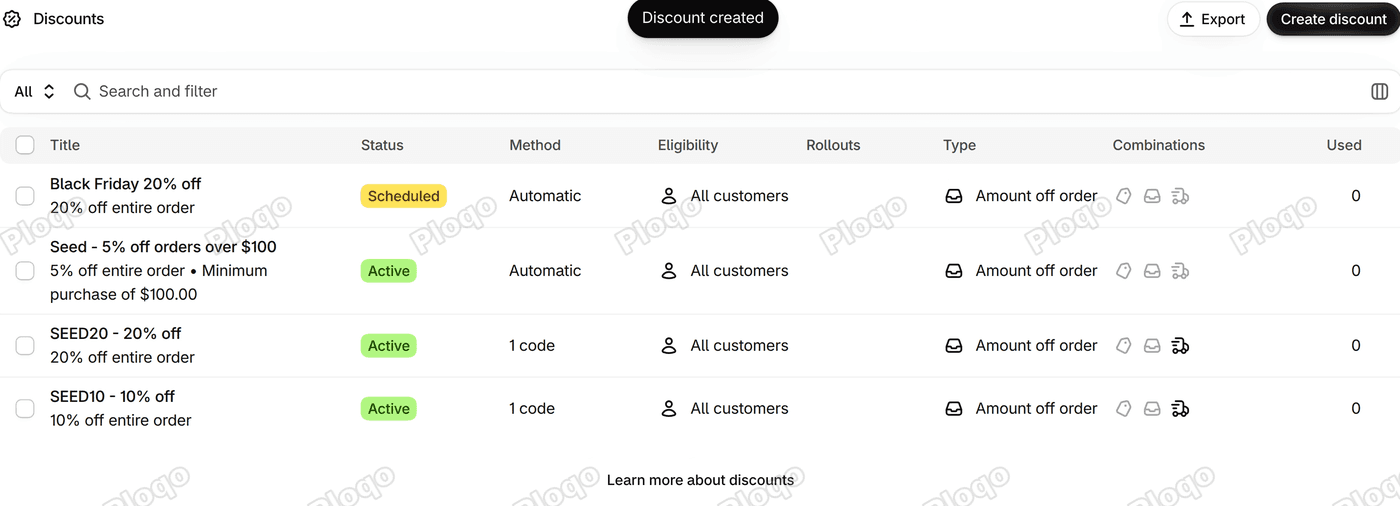 The Discounts list with the Black Friday 20% off discount showing the Scheduled badge
Step 3: Add the banner in an Event rollout
A rollout is a set of changes to your store that Shopify applies on a date you choose. It can change your theme, and it can also change discounts, catalogs and checkout. Here you use it only for the banner text.
- Click Markets, then Rollouts, then Create rollout.
- Name it "Black Friday".
- Set the type to Event. The note under the dates reads "Changes are temporarily shown to customers, then rolled back", which is what makes the banner go away by itself. A Launch rollout keeps its changes permanently, so it is the wrong type for a sale.
- Enter the same dates: 27 November at 12:00 am to 30 November at 11:59 pm. Click Save.
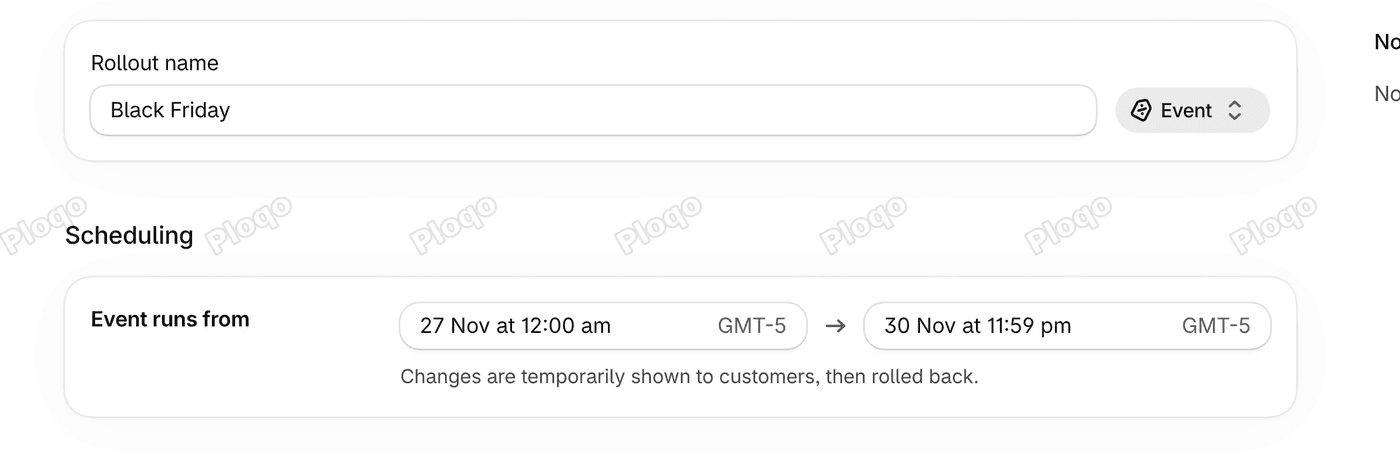 A saved Black Friday rollout of type Event, running from 27 Nov at 12:00 am to 30 Nov at 11:59 pm, with the note that changes are temporarily shown and then rolled back
Once the rollout is saved, change what it shows:
- In the Changes section, click Add changes.
- Choose Online store, then click Edit theme.
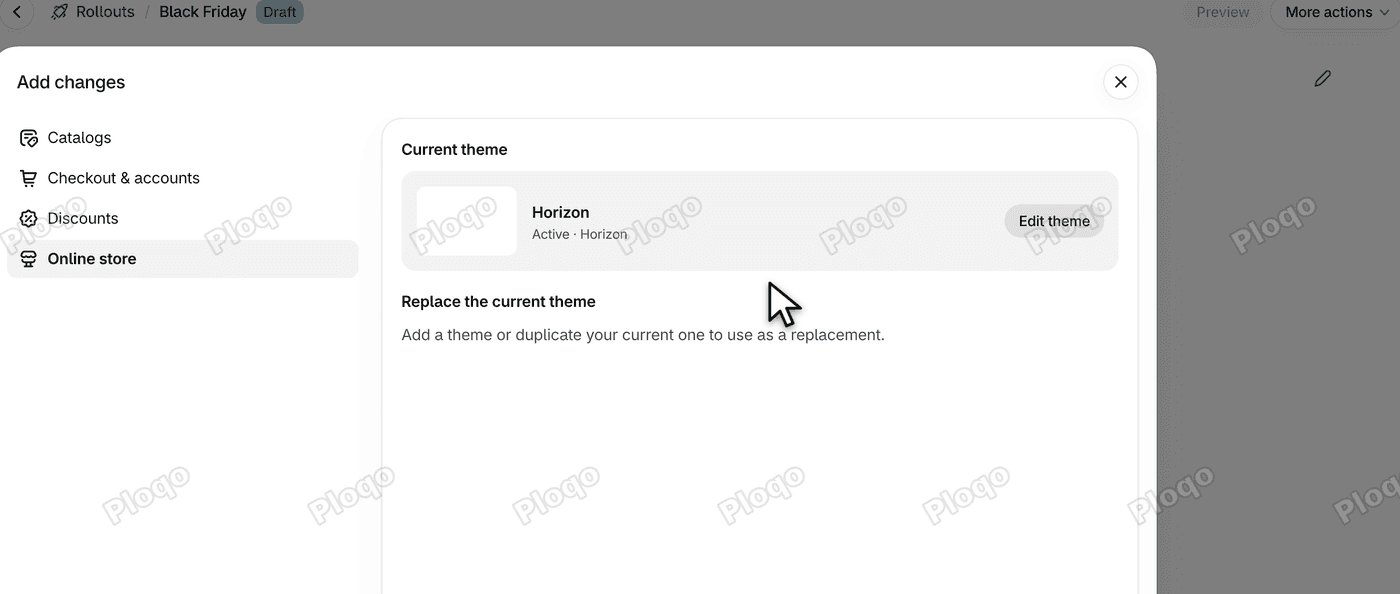 The Add changes window with Online store selected, showing the current theme Horizon and its Edit theme button
- The theme editor opens for this rollout only, and its name, "Black Friday", is shown at the top. Click the announcement bar, type your sale text, such as "Black Friday: 20% off everything", and click Save.
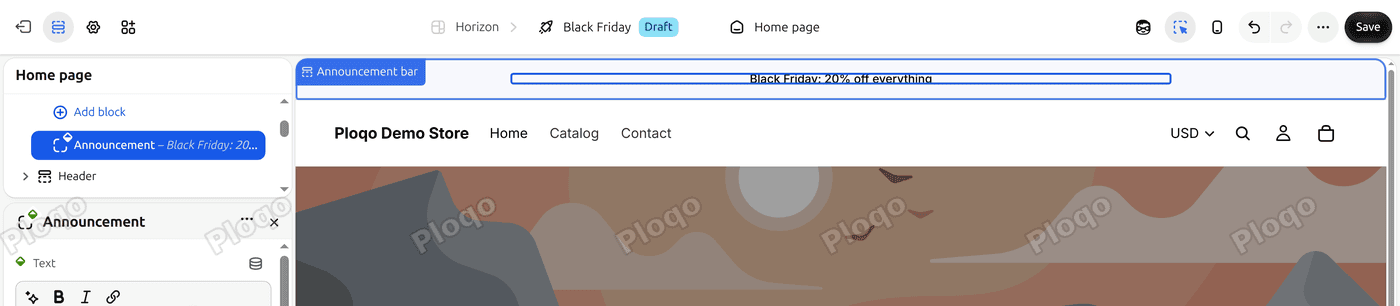 The theme editor with the rollout name Black Friday in the header and the announcement bar text typed in
Leave Discounts out of the rollout. The discount already has its own dates from step 2. The warning below explains why.
Step 4: Check the result
- Open Online store. Your live theme still shows its normal text. The banner appears on Friday at midnight, not before.
- Open Markets, then Rollouts. The Black Friday rollout is listed as Scheduled, with type Event, starting on 27 Nov.
 The Rollouts list with the Black Friday rollout marked Scheduled, type Event, starting 27 Nov at 12:00 am and ending 30 Nov at 11:59 pm
- Open the rollout and click Preview. It shows your store with the banner as shoppers will see it.
 The store preview with the Black Friday: 20% off everything banner above the header
At midnight on Friday the banner goes live with the discount, and when Cyber Monday ends both switch off.
Do not create the discount inside the rollout
The Add changes window also has a Discounts option with Create a discount. We did not use it, because of what happened on our dev store on 2 November 2026. A discount made there was live at once instead of at the start date, and during the event it showed as expired. Schedule the discount on its own, as in step 2, and use the rollout for the banner only. This is what we saw on one store, not a rule Shopify documents, so test it on yours if you need the discount inside a rollout.
Good to know
- Rollouts is available on the Basic plan and higher. On Basic the rollout types are Launch and Event, and Experiment needs a higher plan.
- Use Amount off order for a storewide percentage. Amount off products needs a collection or specific products.
- Shopify allows up to 25 active automatic discounts at once. Several sale discounts at the same time also depend on their combination settings.
- Times follow the time zone set in your store settings, so a sale starts at midnight in your time, not in each shopper's.
- The rollout's Eligibility setting shows which markets see the banner.
- To switch a different part of the store on a timer, for example to show a product only at certain hours, see how to schedule Shopify products by time.
This was tested on the Horizon theme and the Shopify admin, filmed on a dev store on 4 November 2026.
Sources
- Shopify Help: Create a rollout
- Shopify Help: Percentage and fixed amount discounts, including their dates
- Shopify changelog: Schedule and test storefront changes with Rollouts
More Shopify fixes
More community-sourced Shopify guides, tested on a live store.
Shopify Admin
Shopify Discount Limit: One Code for More Than 100 Products
Shopify stops you at 100 items when a discount applies to specific products. There is no setting to raise it, but you do not need one. Point the discount at a collection and one code covers thousands of products. Tested on a store, with the B2B route too.
Shopify Admin
Shopify Discount Types: Amount Off Products vs Order
Shopify has four discount types, and two of them work out a percentage in different ways. One rounds every single unit, the other rounds the order once. On low unit prices that difference is real money. Tested on a live store.
Shopify Admin
Shopify POS Discount Code: Where the Controls Are
A discount code is Online Store only, and the POS switch lives on the discount, not in POS settings. Here is what each control actually does, checked in a live admin.