
How to Make Shopify Banner and Slideshow Images Clickable
Shopify only makes the button on a banner clickable, not the image. Tested fixes for Horizon, Dawn and Craft, plus the rule that blows the image up to full size when you wrap it in a link.
By AjayCodeWiz · July 19, 2026 · 12 min read
The problem: your banner looks clickable, but only the button is
You upload a hero image to your Shopify homepage. It fills the screen. It looks like a giant button.
Then a customer clicks the middle of it and nothing happens.
Only the small Shop now button actually goes anywhere. The image around it is decoration.
A merchant asked about exactly this on the Shopify Community. They wanted their slide images to link to a page on their site and could not find the setting.
There is no setting. That is the whole problem.
I reproduced it on a test store and worked out two fixes. One takes about thirty seconds and no code. The other makes the entire image clickable and needs one small theme edit.
I also hit two things that break the usual advice you will find in other threads. Both are covered below, because if you do not know about them the code looks correct and simply does nothing.
Why Shopify does not ship this
This is a deliberate choice, not an oversight.
Shopify's banner and slideshow sections give you a Button block with a link field. They do not give you a link field for the image itself.
The reasoning is accessibility. A screen reader announcing a link needs text to read out. A button labelled "Shop winter coats" is meaningful. A giant image wrapped in an empty link announces as "link" with nothing after it, which is useless to anyone not looking at the screen.
So the default is the accessible option. That is defensible.
But it is also true that customers click images. If your banner reads like a call to action, people will click the picture, not hunt for the button. Making the image clickable is a real conversion improvement, as long as you keep an accessible label on the link. Both methods below do that.
First, check which section you actually have
This matters, because the fix differs and people mix these up constantly.
Open Online Store > Themes > Customize and click the section on your homepage. The panel on the left names it:
 The theme editor section list naming the Image banner section
- Image banner is one static image. One picture, no arrows, no rotation.
- Slideshow rotates through several slides. Each slide is a separate block inside it.
They are different sections with different files. If you follow slideshow instructions on an image banner, nothing will happen and you will assume the code is wrong.
The rest of this guide covers both.
If you already tried this and the image got huge
This is the most common failed attempt, and it looks nothing like a CSS problem.
You find an older snippet that says to wrap the banner image in a link, like this:
<a href="/collections/all">
  {{ section.settings.image | image_url: width: 3840 | image_tag }}
</a>
You save it. The link works. The image is now enormous, the crop is wrong, and the banner no longer fills its row.
Nothing is broken in your code. The theme sizes that image with a direct child rule in base.css:
.media > *:not(.zoom):not(.deferred-media__poster-button) {
  display: block;
  position: absolute;
  top: 0;
  left: 0;
  height: 100%;
  width: 100%;
}
> means direct child only. Slipping an <a> in between makes the link the direct child instead of the image. The link gets the absolute full-size treatment, and the image inside it falls back to its own pixel dimensions.
On a Craft test store I measured it: the banner photo went from 560px tall to 1233px, its natural height, the moment the wrapper went in.
 A Craft image banner after the image was wrapped in a link, no longer filling the row
The fix is not to force the size back with more CSS. It is to stop wrapping the image at all. Every method below puts a separate link over the image and leaves the image markup untouched, so the theme keeps sizing it.
Method 1: add a button block to the slide (no code)
Do this one first. It works on every modern theme, it survives theme updates, and it takes under a minute.
The trade-off is that the button is clickable, not the whole image.
Step 1. Go to Online Store > Themes, then Customize.
Step 2. In the left panel click Slideshow, then click an individual Slide.
Step 3. Click Add block, then choose Button.
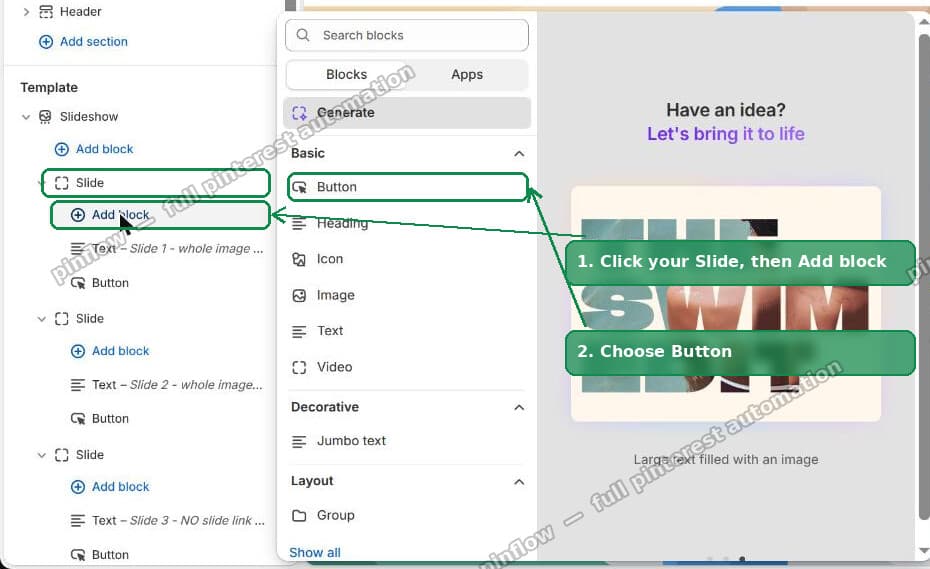 Click your Slide, then Add block, then Button
Step 4. Click the new Button and paste the page you want into the Link box.
Step 5. Click Save.
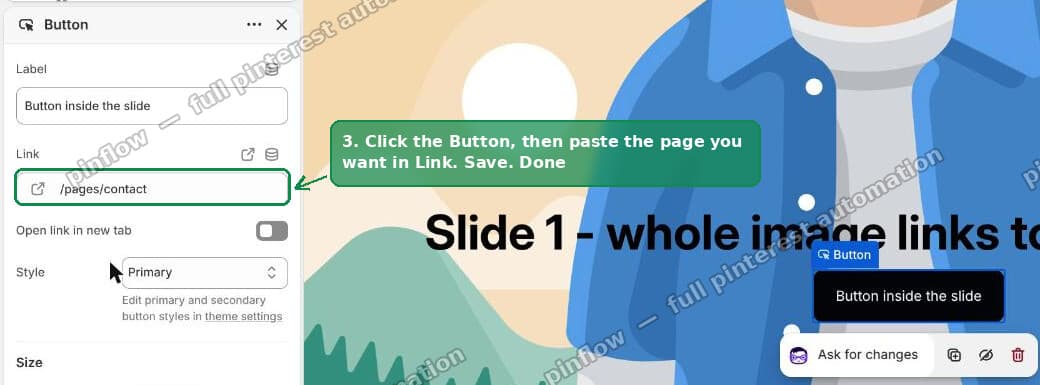 Paste your page into the Link box
That is it. If a visible button is acceptable, stop here. Nothing below is necessary, and this method cannot break when your theme updates.
Method 2: make the whole image clickable (one code edit)
If you want the entire image to be a link, you need to add a stretched, empty link on top of it.
The idea is simple. You place an <a> element over the image, size it to cover the whole slide, and let the existing button sit above it so both still work.
The execution is where people get stuck, because two separate CSS rules in the free themes defeat it, with nothing on screen to say why. Both are covered under the two rules that break this on Dawn, and the code below already handles them.
Back up your theme first
Non-negotiable. You are editing a theme file.
Go to Online Store > Themes, click the ... button on your theme, and choose Duplicate. That copy is your rollback.
Then open the ... menu again and click Edit code.
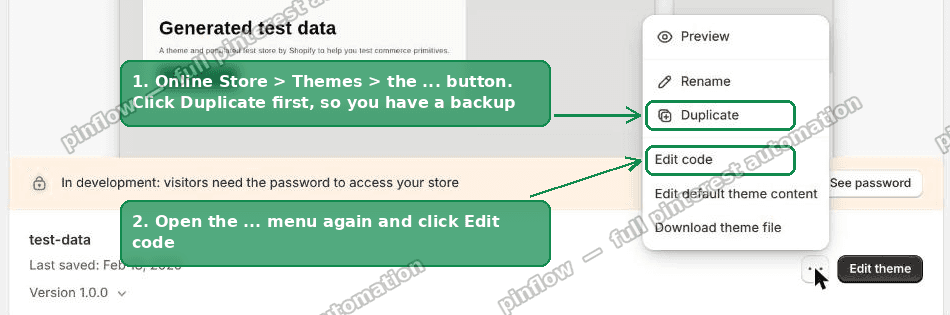 Duplicate first, then Edit code
On the Horizon theme
Horizon builds slides from a block file rather than a section file.
In the file list on the left, open the blocks folder and click _slide.liquid. That is one of the files your theme is built from, written in Liquid, the templating language Shopify themes use.
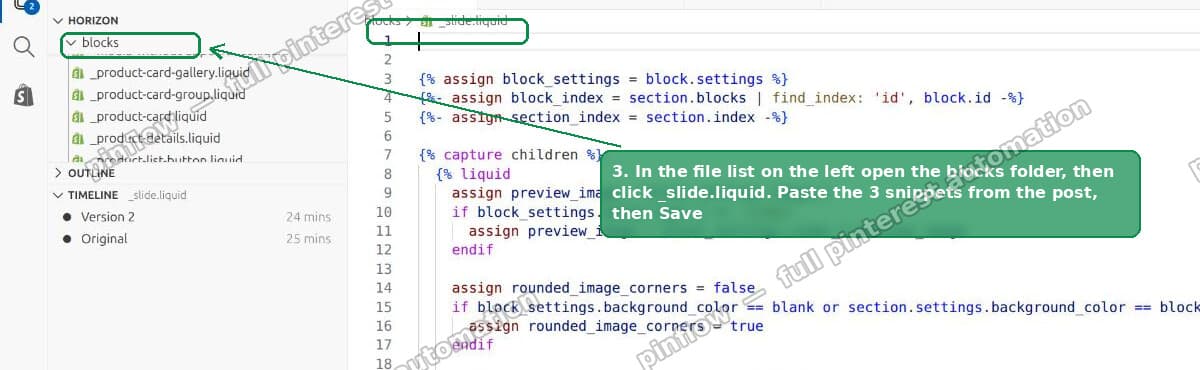 Open blocks then _slide.liquid
First, give the customizer a link field. Find "id": "video_1". Scroll down a few lines to the }, that closes it, and paste this on the next line:
{
  "type": "url",
  "id": "slide_link",
  "label": "Slide link"
},
Next, add the link itself. Find {% content_for 'blocks' %}. Below it are two </div> lines, then a line saying {% endcapture %}. Paste this in between:
{%- if block_settings.slide_link != blank -%}
  <a
    class="slide__link"
    href="{{ block_settings.slide_link }}"
    aria-label="{{ block_settings.image_1.alt | default: 'View more' | escape }}"
  ></a>
{%- endif -%}
Then the styling. Find {% stylesheet %} and paste this right below it:
.slide__link {
  position: absolute;
  inset: 0;
  z-index: var(--layer-flat);
}

slideshow-slide:has(.slide__link) .slide__content {
  pointer-events: none;
  z-index: var(--layer-raised);
}

slideshow-slide:has(.slide__link) .slide__content :is(a, button, summary, label, input) {
  pointer-events: auto;
}

slideshow-slide[aria-hidden='true'] .slide__link {
  pointer-events: none;
}
Click Save.
Go back to Customize and click a Slide. There is now a Slide link box. Pick your page and save.
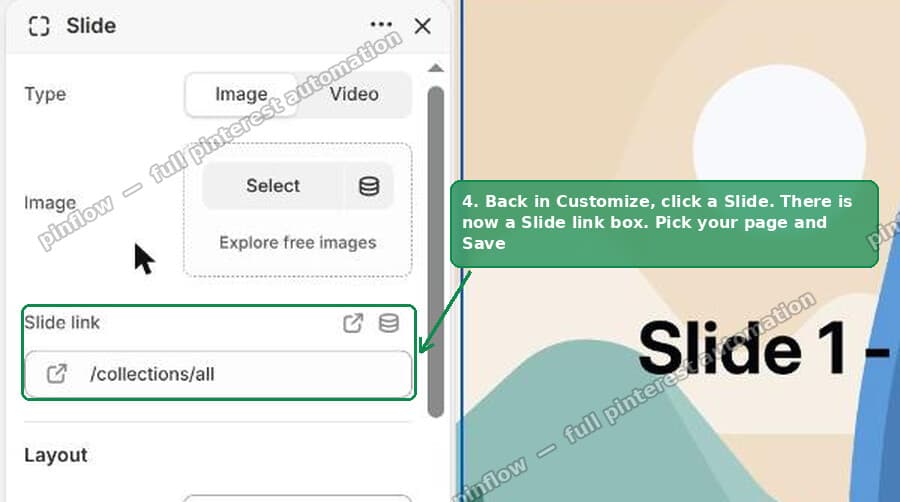 The new Slide link box in the customizer
The whole image is clickable now.
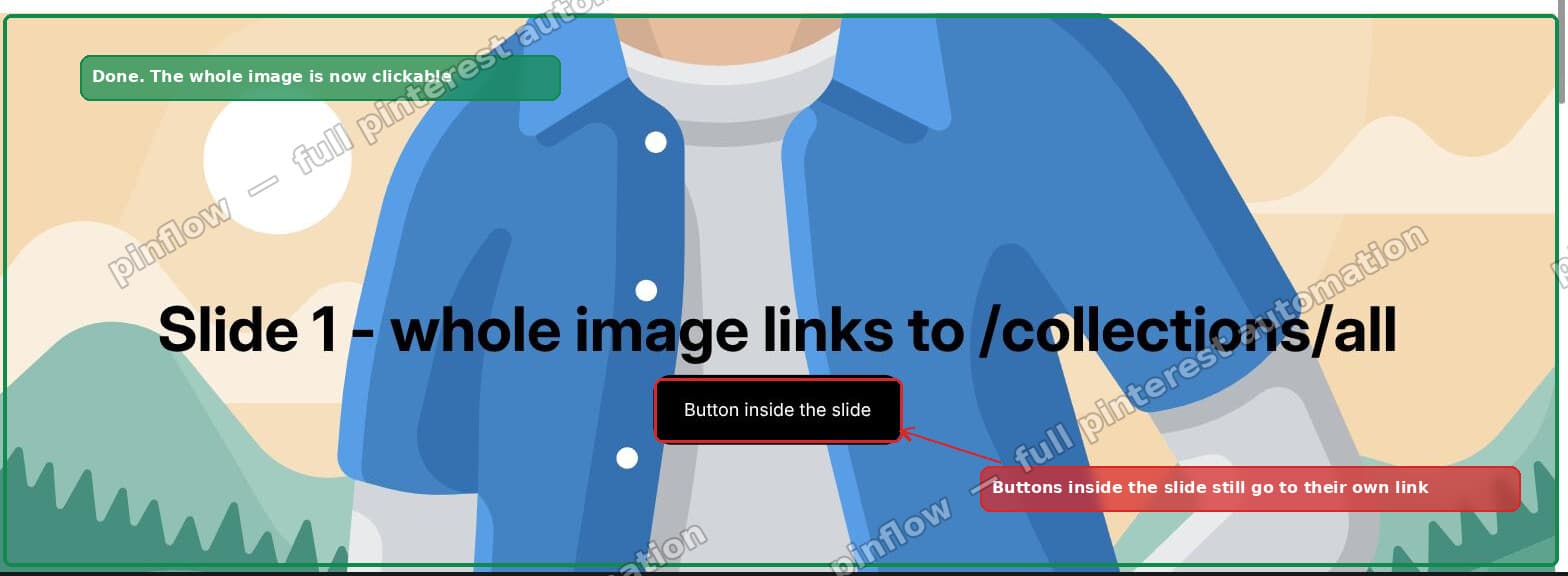 The whole slide is clickable
That last rule matters more than it looks. A slideshow keeps its off-screen slides in the DOM. Without slideshow-slide[aria-hidden='true'] .slide__link { pointer-events: none; } a hidden slide's link can sit over the visible one and send people to the wrong page.
On the Dawn theme
Dawn is the theme most people are actually on, and it is easier, because you do not need to add a link field at all.
Dawn's slide block already has a url setting. It is the one powering the button. You can reuse it, which means one edit instead of two.
For the Slideshow section, open sections/slideshow.liquid. Find the </div> that closes slideshow__media, and add the link right after it:
{%- if block.settings.link != blank -%}
  <a
    class="slide__link"
    href="{{ block.settings.link }}"
    aria-label="{{ block.settings.heading | strip_html | default: 'View more' | escape }}"
  ></a>
{%- endif -%}
For the Image banner section, open sections/image-banner.liquid. The banner's link lives on a buttons block rather than on the section, so you have to look it up first. Paste this just above the <div class="banner__content ..."> line:
{%- liquid
  assign banner_link = blank
  assign banner_link_label = blank
  for block in section.blocks
    if block.type == 'buttons' and block.settings.button_link_1 != blank
      assign banner_link = block.settings.button_link_1
      assign banner_link_label = block.settings.button_label_1
    endif
  endfor
-%}
{%- if banner_link != blank -%}
  <a
    class="banner__link"
    href="{{ banner_link }}"
    aria-label="{{ banner_link_label | default: 'View more' | escape }}"
  ></a>
{%- endif -%}
That detail is easy to miss. section.settings.link_1 does not exist on Dawn's image banner. The setting is button_link_1 and it is on a block.
Then the CSS, inside the existing {%- style -%} block near the top of the file:
#Banner-{{ section.id }} .banner__link {
  display: block;
  position: absolute;
  inset: 0;
  z-index: 2;
}

#Banner-{{ section.id }}:has(.banner__link)::after {
  pointer-events: none;
}

#Banner-{{ section.id }}:has(.banner__link) .banner__content {
  pointer-events: none;
}

#Banner-{{ section.id }}:has(.banner__link) .banner__content :is(a, button) {
  pointer-events: auto;
}
On the Craft theme
Craft is built on Dawn, so the Dawn instructions above work as written. Two things differ in practice.
The first is that Craft's Image banner has no link setting of its own to borrow. If you want the banner clickable instead of using a button, rather than as well as, give the section its own setting so the link survives deleting the button block.
Open sections/image-banner.liquid from Online Store > Themes > ... > Edit code.
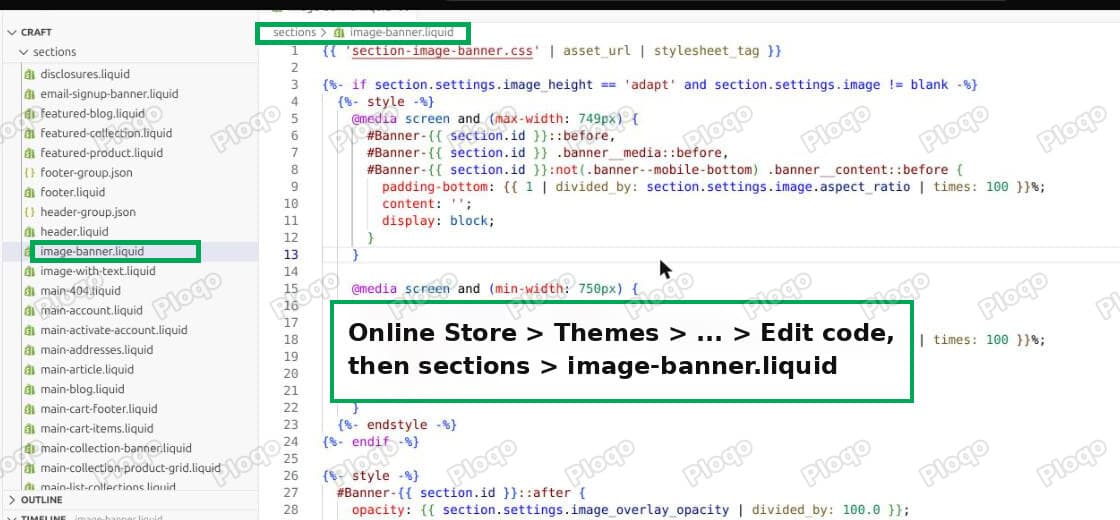 Edit code, then the sections folder and image-banner.liquid
Find this line, roughly 120 lines down:
<div class="banner__content banner__content--{{ section.settings.desktop_content_position }} page-widthPaste this block directly above it:
{%- if section.settings.banner_link != blank -%}
  {%- style -%}
    #Banner-{{ section.id }} .banner__link {
      display: block;
      position: absolute;
      top: 0;
      left: 0;
      width: 100%;
      height: 100%;
      z-index: 2;
    }
    #Banner-{{ section.id }} .banner__content {
      pointer-events: none;
    }
    #Banner-{{ section.id }} .banner__box a,
    #Banner-{{ section.id }} .banner__box button {
      pointer-events: auto;
    }
  {%- endstyle -%}
  <a
    href="{{ section.settings.banner_link }}"
    class="banner__link"
    aria-label="{{ section.settings.banner_link_label | default: section.settings.banner_link | escape }}"
  ></a>
{%- endif -%}
Then scroll to {% schema %} and paste these two settings straight after the image_2 block:
{
  "type": "url",
  "id": "banner_link",
  "label": "Banner link"
},
{
  "type": "text",
  "id": "banner_link_label",
  "label": "Banner link description",
  "info": "Read out by screen readers.",
  "default": "Shop the collection"
},
Save, then open Customize > Image banner. The new field is there.
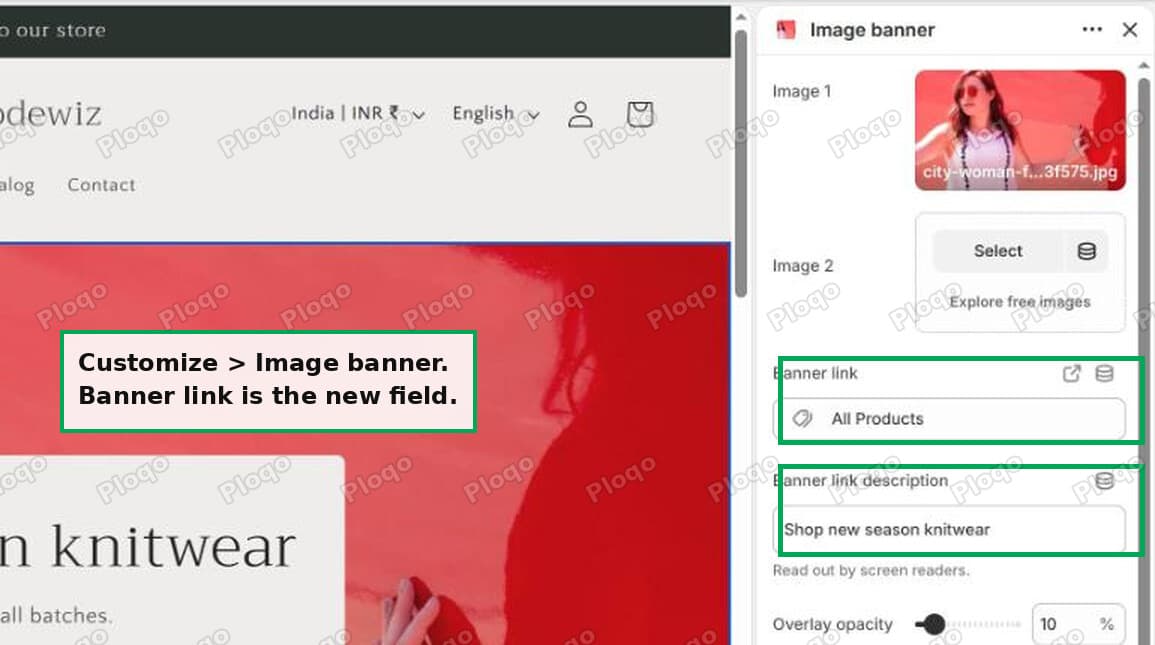 The new Banner link field in the Craft theme editor
Leave it empty and the section behaves exactly as it did before, which makes this safe to add and forget.
 The whole Craft banner is one link, and the image is the same size as before
The second difference is the z-index. Craft's tint layer sits at z-index: 1, and a link at z-index: 1 loses to it because the tint is painted later, so the clicks land on the tint. z-index: 2 is doing real work in that snippet, not padding.
I checked the result by hit-testing the corners, the area behind the heading and the button itself. Every point over the image returns the banner link, the button still returns the button, and the photo measured the same before and after.
The two rules that break this on Dawn, with no error
This is the part missing from every other answer I have seen, and it cost me two rounds of debugging on a live test store.
1. Dawn hides empty links. Dawn's base.css contains this:
a:empty, ul:empty, div:empty, section:empty, p:empty { display: none; }Your stretched link is an empty <a></a>. So Dawn hides it. The element is in the HTML, the CSS looks right, and it measures zero by zero pixels.
That is why display: block is in the rule above. Without it nothing happens and there is no error to tell you why.
2. The image overlay eats the click. Both sections have a decorative dark overlay drawn as ::after, sitting at inset: 0 with z-index: 1.
If your link is also z-index: 1, the overlay is painted later and wins. Clicks land on the overlay instead of your link.
Two things fix it, and the code above does both: put the link at z-index: 2, and set pointer-events: none on the overlay so it stops intercepting.
I confirmed the result by hit-testing points across the banner in the browser. Every point over the image returns the link, and the button centre still returns the button. Both work, which is exactly what you want.
Which method should you use
| Button block | Whole image clickable | |
|---|---|---|
| Code required | None | One file edit |
| Survives theme updates | Yes | No, re-apply after updating |
| Clickable area | The button only | The entire image |
| Accessibility | Best, real link text | Fine with an aria-label |
| Time | Under a minute | Ten to fifteen minutes |
Use the button block if a visible button suits the design. It is the better answer for most stores, because it survives every theme update and needs no code.
Use the whole-image method when the banner is the call to action and a button would clutter it, or when you already know customers are clicking the image and bouncing.
You can also do both. Keep the button for clarity and make the image clickable for shoppers who do not aim carefully. The code above is written for exactly that, which is why the button stays clickable on top of the stretched link.
Does this hurt SEO or accessibility
Not if you keep the aria-label.
An empty link with no label is a real accessibility failure. Screen readers announce "link" and stop. Automated audits like Lighthouse flag it as Links do not have a discernible name.
Every snippet above sets aria-label from something meaningful: the image alt text on Horizon, the heading or the button label on Dawn. Set those properly in the customizer and the label follows automatically.
For SEO it makes no real difference. It is an internal link to a page already in your navigation. It will not help rankings and it will not hurt them.
If it did not work, check these
Nothing appears to change. Confirm you edited the right section. Image banner and Slideshow are separate files, and the block and section names differ between themes.
The link is there but not clickable. This is nearly always the z-index and overlay problem above. Right-click the banner, choose Inspect, and see which element is on top at that point.
The link measures zero pixels. That is the a:empty rule. Add display: block.
The button stopped working. Your link is covering it. Keep pointer-events: auto on links and buttons inside the content box.
Clicking a slide opens the wrong page. Off-screen slides are still in the DOM. Add the aria-hidden='true' rule so hidden slides stop receiving clicks.
It broke after a theme update. Expected. Theme updates replace section files. Re-apply the edit, or move to the button method if you update often.
One thing worth checking afterwards
Once the banner is clickable, look at where it actually sends people.
A hero image linking to a broad collection with two hundred products is a weak destination. Sending that traffic to a focused collection, a specific product, or a page matching the promise in the banner artwork usually converts better than the catch-all.
The click is the easy part. The destination is what earns the sale.
Getting the click is only half the job
PinFlow turns your Shopify catalog into Pinterest pins and posts them on a schedule, so the products behind that banner keep finding new traffic without you touching anything.
Get PinFlow on the Shopify App StoreMore Shopify fixes
More community-sourced Shopify guides, tested on a live store.
Themes & Storefront
Shopify Payment Icons: Fix a Footer That Shows None
The payment icons in a Shopify footer come from your payment provider, not from the theme. When the provider sends none, the row stays empty. Here is how to add the icons yourself on Refresh, Dawn and similar themes.
Themes & Storefront
Shopify Order Notes: Turn On the Cart Note Box
Let customers leave order notes and special instructions on your Shopify cart page. Turn on the built-in cart note in Theme settings, rename its label, and find each note on the order. Tested on Dawn, no code.
Themes & Storefront
Shopify WhatsApp Integration: Add a Free Chat Button
How to add WhatsApp to Shopify with a floating chat button: shoppers tap it and WhatsApp opens a chat with you, the message already typed and naming the product.