
How to Schedule Shopify Products by Time of Day
Shopify can schedule a product by date, but not by hour. Here is how to make products like cafe items un-orderable outside set hours, and actually block checkout, not just hide them. Tested on a dev store.
By AjayCodeWiz · August 13, 2026 · 8 min read
The problem
A merchant asked about this on the Shopify Community, and it is a common one for anyone selling food, pickup, or made-to-order items.
They run a cafe inside their shop. The shop is open from 10 to 5. The cafe is only open from 10 to 3. Cafe items are on the website for pickup.
The trouble: customers place cafe orders after 3, when the kitchen is closed. Then the merchant has to cancel and refund those orders by hand, every day.
What they wanted sounds simple. Turn the cafe items (or the cafe page) off after 3 PM, and back on at 10 AM the next day. Leave the rest of the store running until 5.
I reproduced the setup on a test store to work out the cleanest fix. Here is what I found.
Why Shopify cannot do this on its own
This is the part that trips people up, so it is worth being clear.
Shopify has no setting that turns a product, collection, or page on and off by the hour.
The scheduling that does exist works by date, not by time of day. You can set a product to publish on a future date, or a discount to run between two dates. But there is no native "available 10 AM to 3 PM" control anywhere in the admin.
Local pickup settings do not help either. They control how quickly an order is marked ready for pickup. They do not stop someone from placing the order in the first place.
So "hide after 3 PM" is not a checkbox. It has to be built. The good news is that it is a small build, and one of the ways is free.
First, tag your cafe items
Whichever route you pick below, start here. It is the one step they all share, and it takes a minute.
Give every product that has limited hours the same tag. I used cafe. Open the product, find the Tags box, type cafe, and save.
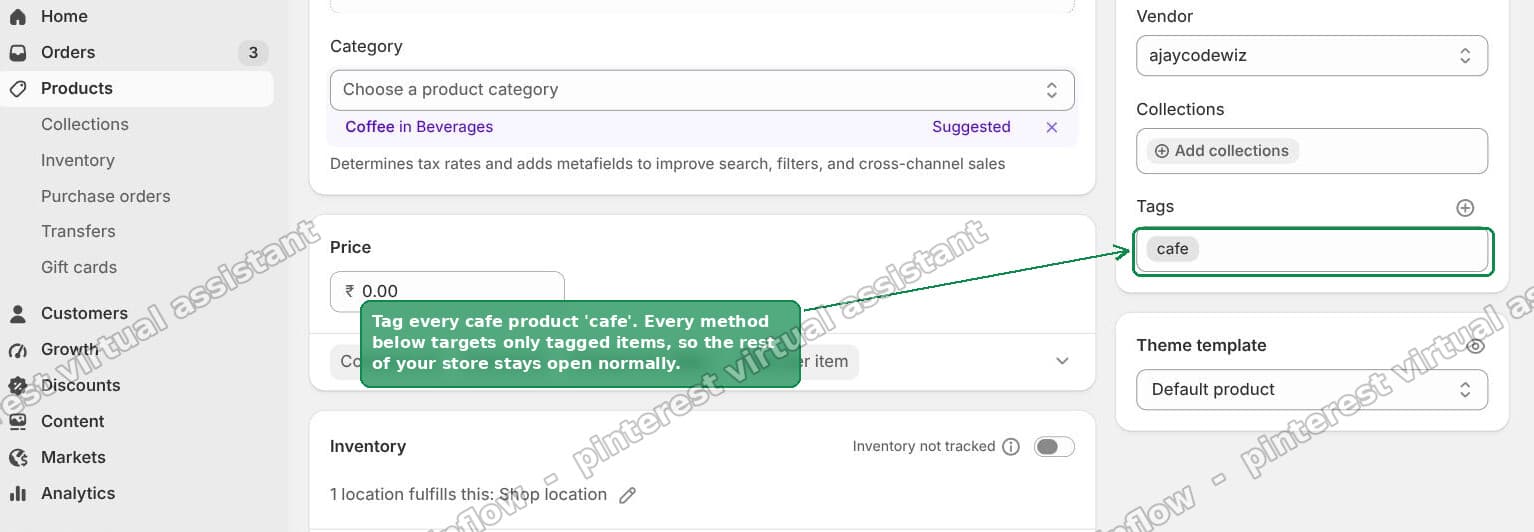 Tag your cafe products with the tag cafe in the Shopify product editor
Now every method points at that one tag. Your regular products are never touched, so the rest of the store keeps selling normally until close.
The important distinction: hide versus block
Before the fix, understand what "make it unavailable" really means. There are two very different things, and people mix them up.
Hiding the product removes it from the collection page and search. It looks gone. But the product still exists, and its direct link still works. Anyone with that link, or a saved cart, or a bookmarked page, can still add it and check out.
Blocking stops the actual order. The item cannot be purchased outside the window, no matter how the shopper reached it.
The cafe owner does not care whether the item looks hidden. They care about the refunds. Refunds come from orders that go through. So the real goal is to block checkout, not just to hide the product.
Keep that in mind, because the most common advice online only hides, and it will not stop the refunds by itself.
Route 1: an app (no code)
The easiest path for most merchants is an app built for order timing.
Install an order-scheduling or pickup app, then set the cafe order window to 10 AM to 3 PM. Outside that window, cafe items cannot be ordered. Everything else stays available.
Apps worth looking at:
- Bird Pickup Delivery Date, which has a free plan.
- Zapiet Pickup and Delivery, the heavyweight for cafe and local pickup.
- TimeGate Timed Products, aimed directly at products that are only available at set times.
One thing to check before you commit to any of them. The app must block checkout, not just the Add to cart button. If it only hides or disables the button, someone with the direct product link can still order, and you are back to refunds. Test that before you rely on it.
Route 2: a checkout rule (free, set up once)
If you want a free solution and you have a developer, or you are comfortable with the Shopify command line, there is a clean built-in way.
Shopify lets apps add a checkout validation rule. This is a small piece of logic that runs when someone tries to check out. It can stop checkout and show a message when the cart breaks a rule you set.
For the cafe, the rule is: if the cart contains a cafe item and the current time is outside 10 to 3, block checkout with a message.
Why this route is nice:
- It runs on your store's timezone, on Shopify's own servers.
- It covers the fast checkout buttons too, like Shop Pay, Apple Pay, and Google Pay, which many workarounds miss.
- It works on any Shopify plan.
- Once it is on, it needs no daily attention.
I built this exact rule and tested it with three sample carts. A cafe item after 3 PM was blocked at checkout with the message "Cafe items can only be ordered between 10 AM and 3 PM." The same item before 3 PM went through. A non-cafe item was never affected.
A developer sets it up with the Shopify command line: scaffold a cart and checkout validation function, drop in the small file, deploy it, and switch it on under Settings, then Checkout. The whole thing is a few dozen lines.
Why hiding in the theme is not enough
There is a third idea that comes up a lot, and it causes its own problems.
You can edit your theme so the cafe collection or products disappear after 3 PM. It feels like the answer, but it only hides.
The direct product link still works. Search engines and old links still point at it. A shopper who added the item earlier can still finish checking out. So the refunds keep coming.
Use a theme hide only as a visual cue on top of Route 1 or Route 2, never on its own. Show a "Cafe closes at 3 PM" note so shoppers see the window early. Let the app or the checkout rule do the actual blocking.
How to schedule products on Shopify by date
Worth covering the neighbour question, because many people searching for this actually want date scheduling, not hours.
If your goal is "make this product go live next Monday" or "take it down at the end of the month," Shopify can do that, sort of, through publishing. You unpublish the product, or use the sales-channel publishing dates where available, or an app that flips product status on a schedule.
That is date-based. It is a different job from "open at 10, close at 3, every day." Time-of-day control is the one Shopify does not offer natively, which is why the cafe case needs one of the routes above.
If you only need a one-time date change, you may not need any app at all. If you need a repeating daily window, you do.
How to make a Shopify product unavailable
A few quick ways, depending on what "unavailable" should mean:
- Permanently, from all channels: archive the product. It leaves the storefront and every sales channel. This is not scheduled, it is manual and lasting.
- Temporarily, but still hidden only: set it to draft, or unpublish it from the Online Store channel. It comes off the storefront until you publish it again. Still a manual switch, and still only hides.
- On a daily schedule, and actually blocked: the app or checkout-rule routes above. This is the only option that both repeats on its own and stops the order.
Match the method to the meaning. Most people who ask about "store hours" want the last one.
What to check if orders still slip through
Once your rule or app is live, a quick check in the first week saves surprises. A fellow merchant on the thread put this well, and it is good advice.
- Test a cafe-only cart just before and just after 3 PM, in your store's timezone. Confirm the block turns on at the right minute.
- Test an accelerated checkout too, like Shop Pay or Apple Pay, not just the normal checkout button. This is where weaker solutions leak.
- For the first week, glance at your order timestamps each morning. Confirm no cafe orders landed after the cutoff.
If something did slip through, the usual cause is one of two things. Either the app only hid the button instead of blocking checkout, or the times are being read in the wrong timezone. Both are quick to spot with the tests above, before they turn into more refunds.
Quick answers
Can I set store hours for one product on Shopify? Not with a native setting. You add an app or a checkout validation rule, and point it at a tag on those products.
Does Shopify have opening hours? Not for ordering. You can display business hours with a theme section or app, but that is a label. It does not stop orders.
Will hiding the product stop after-hours orders? No. Hiding removes it from view, but the direct link still checks out. You need to block checkout to stop the refunds.
Does the checkout rule work on the Basic plan? Yes. Cart and checkout validation works on any plan, and it covers the fast wallet checkouts too.
The short version
Shopify schedules by date, not by hour, so daily "open at 10, close at 3" needs a small add-on. Tag the affected items first. Then either install an order-timing app or add a free checkout validation rule. Make sure whatever you choose blocks checkout, not just hides the product, or the after-hours refunds keep coming.
Spending too long on manual Shopify busywork?
PinFlow turns your Shopify catalog into Pinterest pins and posts them on a schedule, automatically. Same idea as the rule above, let the system handle the repetitive part.
Get PinFlow on the Shopify App StoreMore Shopify fixes
More community-sourced Shopify guides, tested on a live store.
Shopify Admin
How to Edit a Packing Slip on Shopify to Show Big Product Photos
Shopify's order page shows each item as a 40 pixel thumbnail with no way to enlarge it. Here is how to edit the packing slip template so every line prints that exact variant's photo at 1000 pixels, including the one-line fix Shopify's default template needs.
Shopify Admin
Shopify Shipping Zones: Fix Products Sold Out in One Country
Products show Sold out for customers in one country while your admin shows stock. The cause is a shipping profile with no zone for that country. How Shopify shipping zones and profiles decide what a customer can buy, and the six-click fix, with screenshots.
Shopify Admin
Shopify Translate: Fix Mixed Languages on Product Pages
A Swedish Shopify store showed English words on translated product pages. The titles were translated, so the English came from option names and theme text. How to fix each one in Translate & Adapt, with screenshots.