
How to Create a Black Friday Discount with Shopify Sidekick (2026)
Type your Black Friday discount into Sidekick as one sentence, check the review form, fix the end date and press Publish. It shows as Scheduled until it starts.
By AjayCodeWiz · November 18, 2026 · 5 min read
How do you create a Black Friday discount with Shopify Sidekick?
In your Shopify admin, open Discounts, open Sidekick and type the whole discount as one sentence, for example "Create an automatic discount: 20% off everything for Black Friday, from 27 Nov 2026 to 1 Dec 2026." Sidekick prepares it and shows a Ready to review card. Click Start review, check each field in the form, fix the dates, click Save, then Publish.
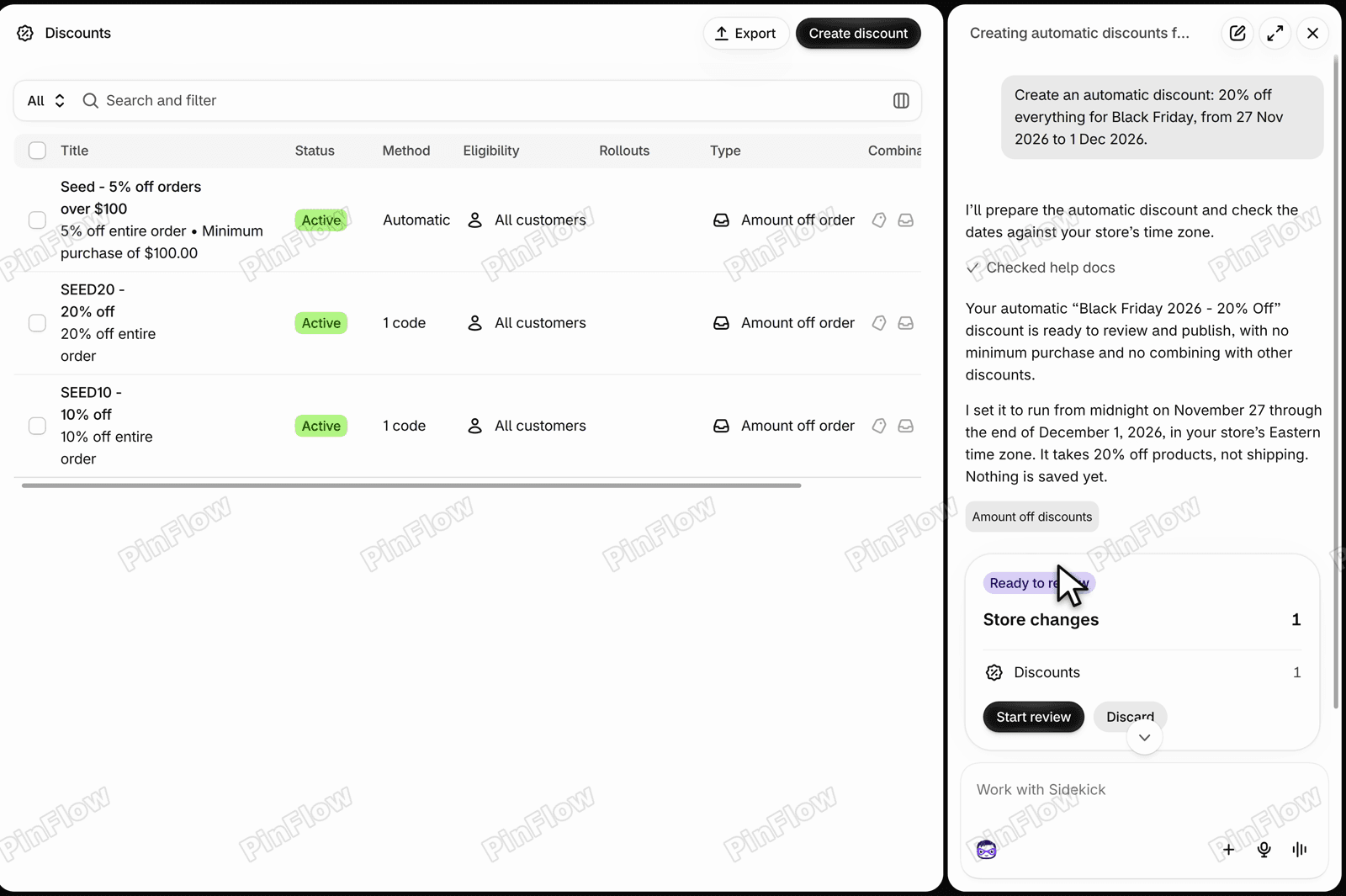 Sidekick panel with a Ready to review card for the discount Black Friday 2026 - 20% Off, with the buttons Start review and Discard
The steps follow the video, filmed on a development store on 18 November 2026. Sidekick only stages the discount. Nothing is saved to your store until you press Publish, so you read the form first. Shopify's help pages cover automatic discounts and Sidekick. Black Friday 2026 is 27 November and Cyber Monday is 30 November, so use your own dates.
Step 1: Open Sidekick on the Discounts page
Click Discounts in the admin menu. Click the Sidekick bar at the bottom of the page and a chat panel opens on the right, headed Where should we begin?
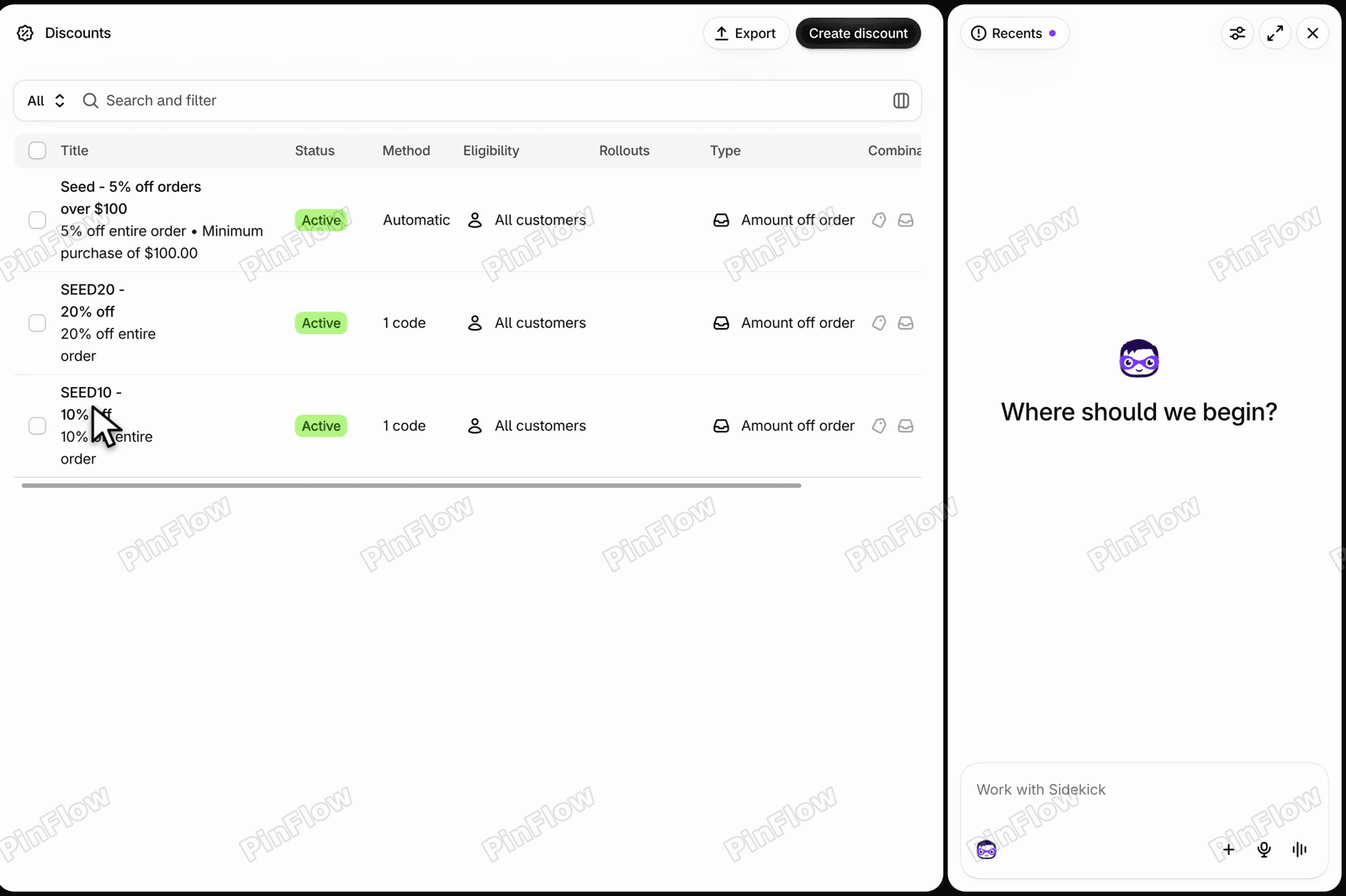 Discounts list with the Sidekick chat panel open on the right, showing the heading Where should we begin
Step 2: Type the whole discount in one sentence
Put the kind of discount, the amount, what it covers and both dates, with the year, in one message. The video types: "Create an automatic discount: 20% off everything for Black Friday, from 27 Nov 2026 to 1 Dec 2026." Saying automatic means shoppers do not need a code. Press the arrow to send it.
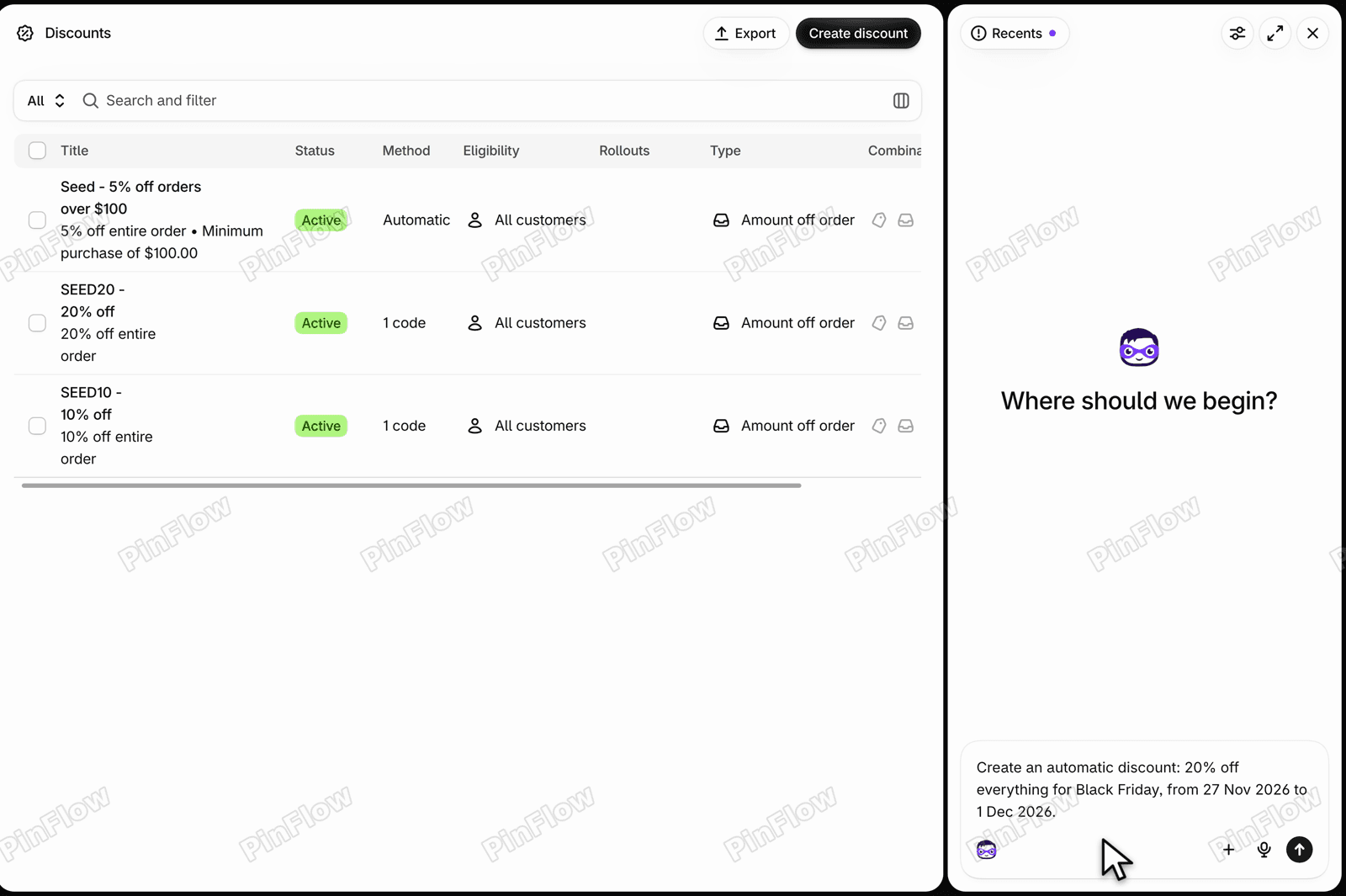 Sidekick message box with the typed text Create an automatic discount: 20% off everything for Black Friday, from 27 Nov 2026 to 1 Dec 2026
Step 3: Read the Ready to review card
Sidekick takes a few seconds and then writes a summary of what it set up. Its wording is different every time you ask, so do not rely on the summary. Check the form in step 5 instead.
Below the summary is a card marked Ready to review, with Store changes 1 and two buttons, Start review and Discard. Discard throws the change away.
Ready to review card in the Sidekick panel under the summary, showing Store changes 1 and the buttons Start review and Discard
Step 4: Check that nothing is saved yet
With the card still open, click Discounts in the menu. The list shows the discounts the store already had, and none of them is Black Friday.
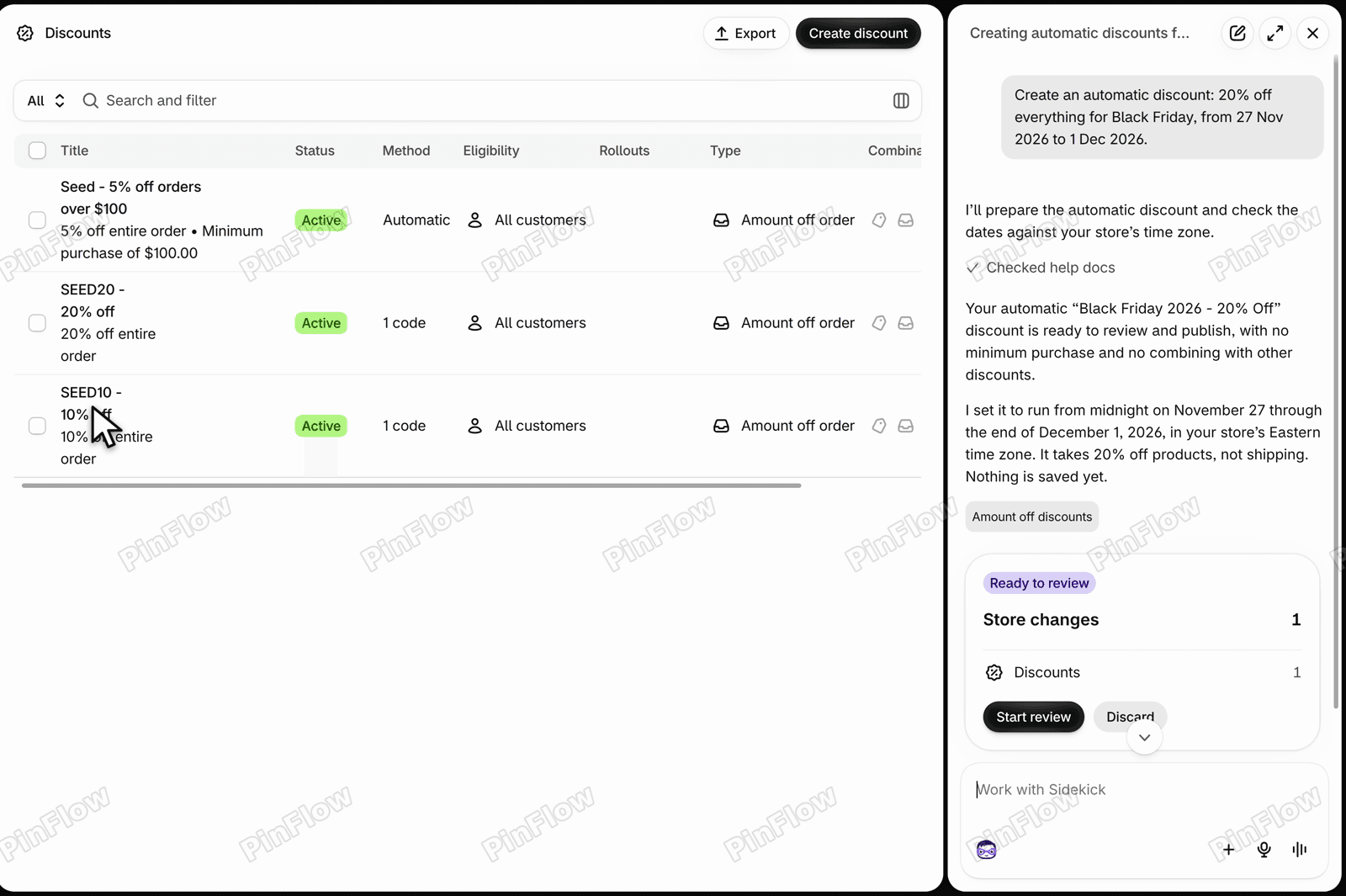 Discounts list showing only the three existing discounts, with no Black Friday row, while the Sidekick card waits for review
Step 5: Start review and read the top of the form
Click Start review. It opens the real discount form, with a banner that says Check the change, then publish when it looks good. The form has the title, Black Friday 2026 - 20% Off, the method, Automatic discount, and the value, 20 percent.
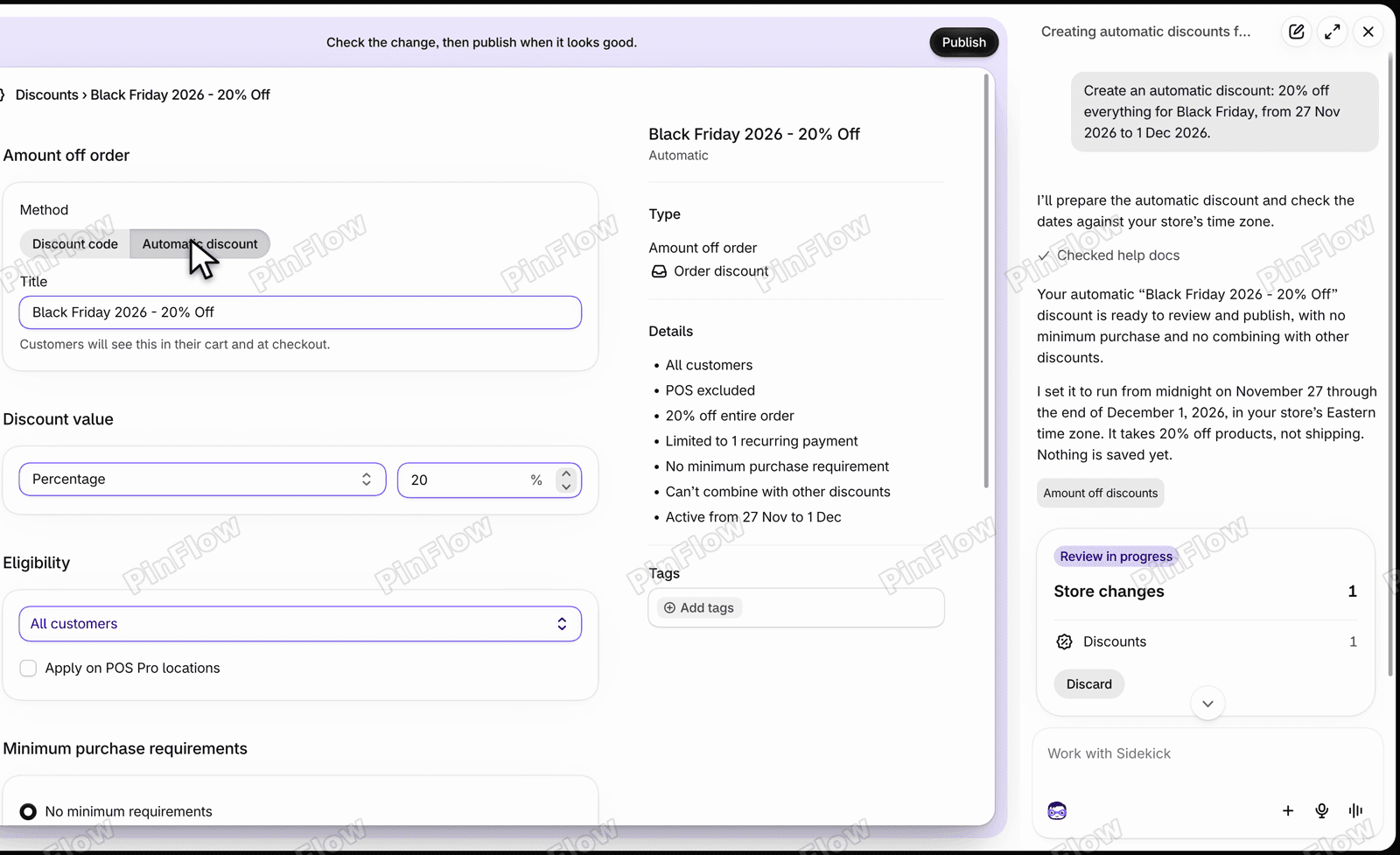 Review form for Black Friday 2026 - 20% Off with Automatic discount selected, the title field and a Discount value of 20 percent
Step 6: Check customers, minimum purchase and combinations
Scroll down. The video's discount is for All customers, has No minimum requirements, and has combinations off, which means it does not combine with other discounts. You can change any of these in the form. Check them against what you meant to ask for.
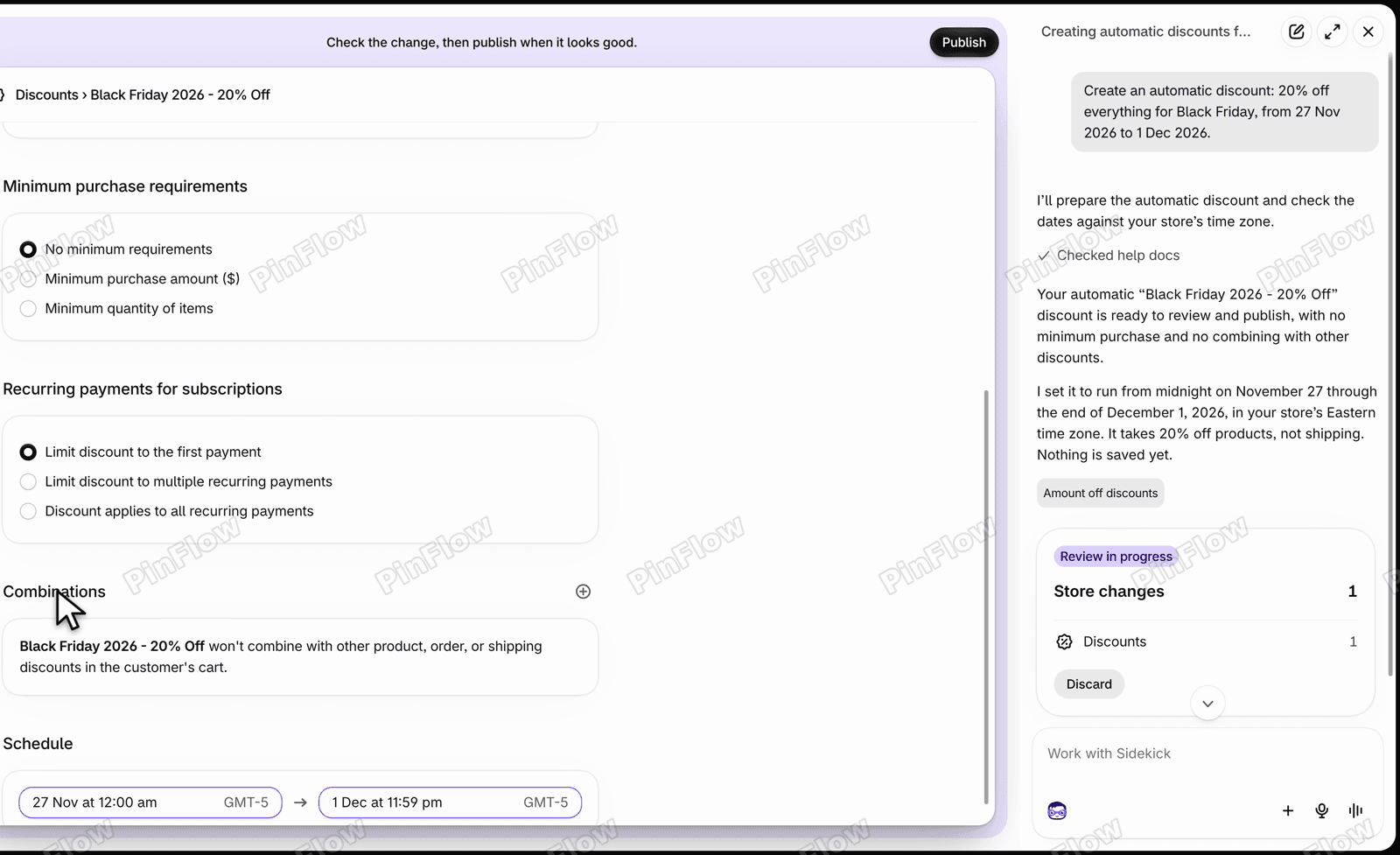 Review form scrolled to Minimum purchase requirements, Recurring payments for subscriptions, Combinations and Schedule
The summary on the right says it again in short: 20% off the entire order, all customers, and it cannot combine with other discounts.
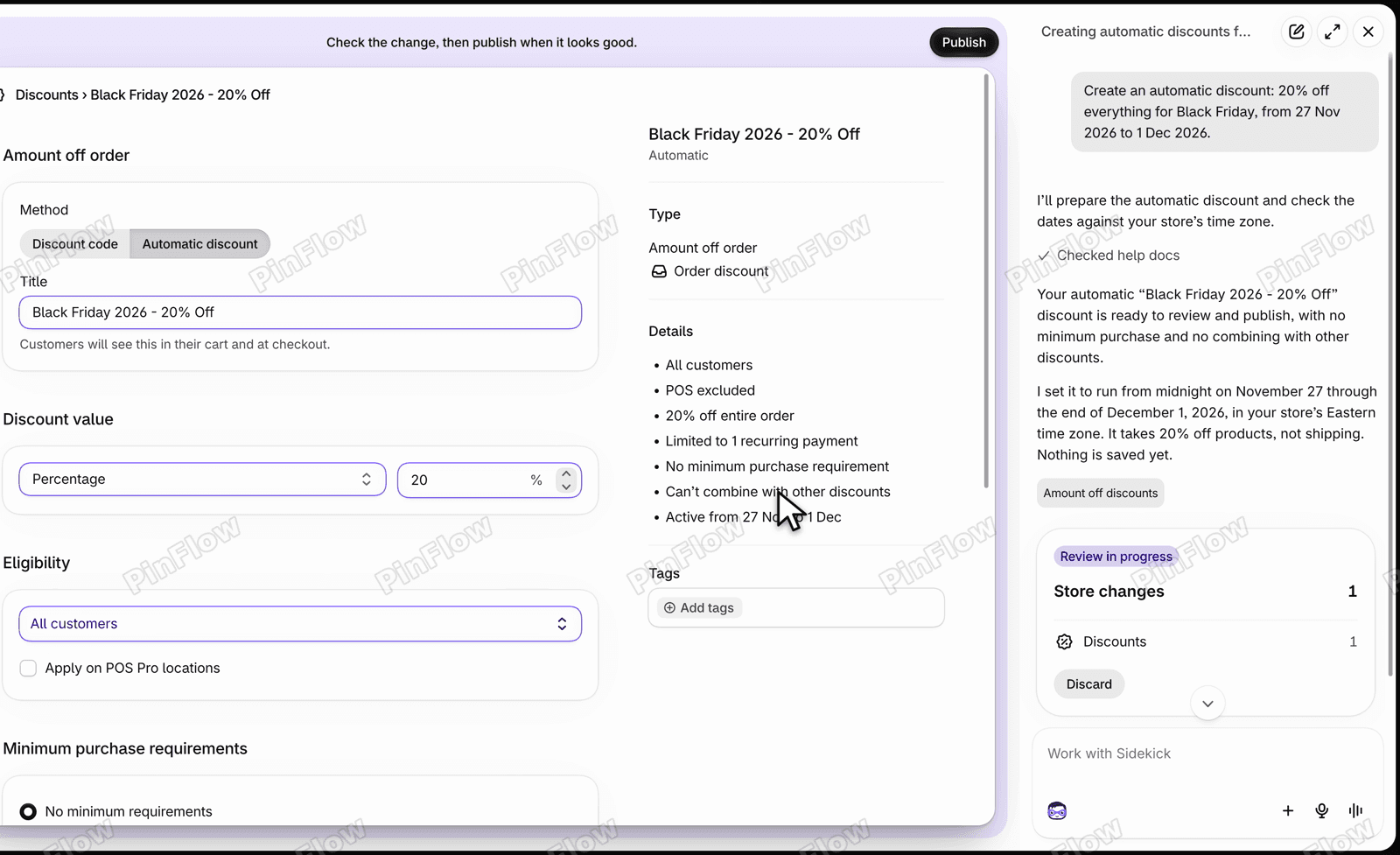 Summary panel on the right of the review form listing All customers, 20% off entire order, no minimum purchase requirement and Can't combine with other discounts
Step 7: Read the recurring payments line
The summary also says Limited to 1 recurring payment. That line is for subscriptions: it limits how many billing cycles get the discount. On this store every discount carries the same default, so the video leaves it. Change it before you publish if you sell subscriptions.
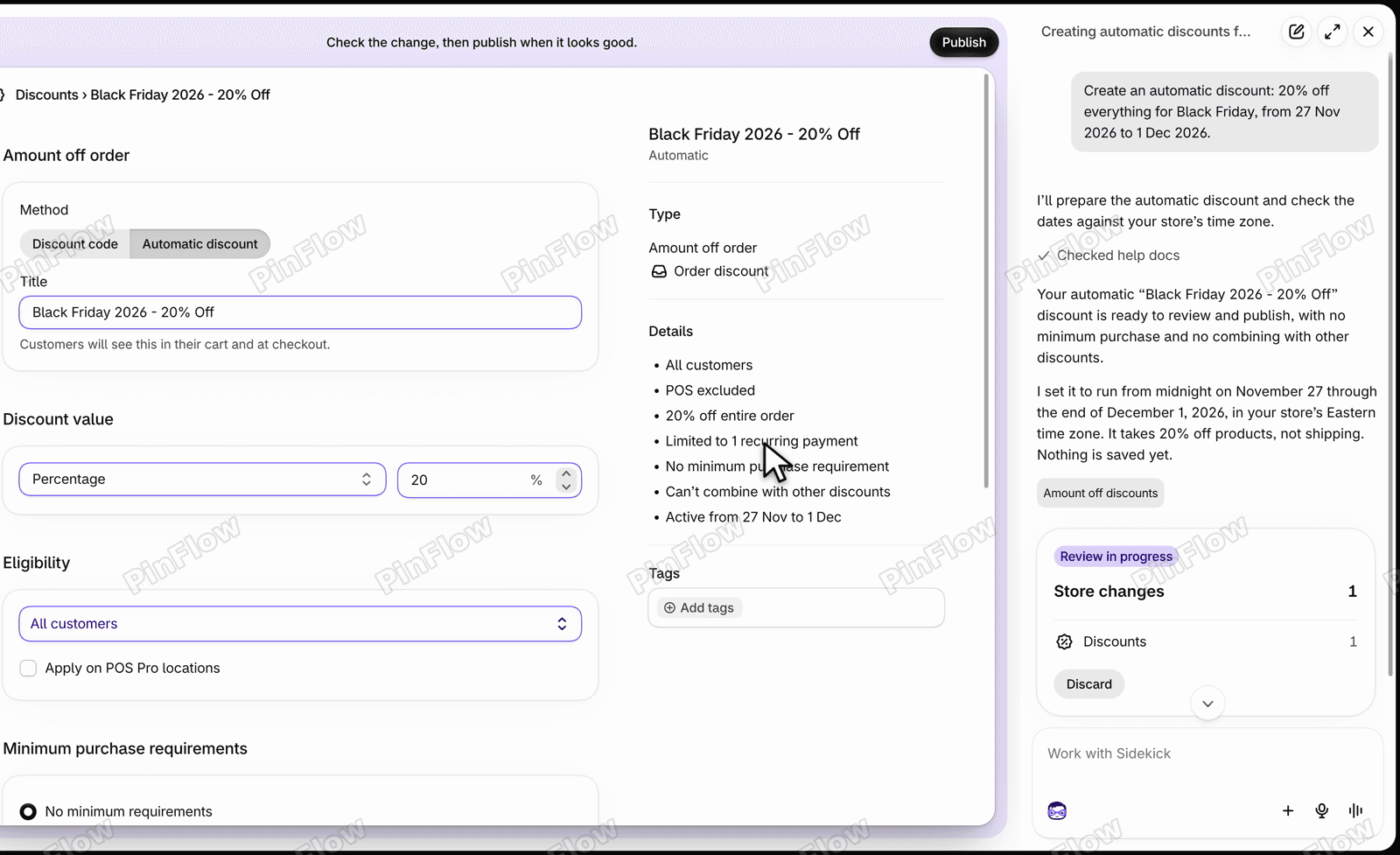 Review summary with the line Limited to 1 recurring payment under the discount details
Step 8: Check the dates and the time zone
In the Schedule section the discount starts on 27 Nov at 12:00 am and ends on 1 Dec at 11:59 pm. The times are in your store's time zone, shown here as GMT-5, so check your own before you publish.
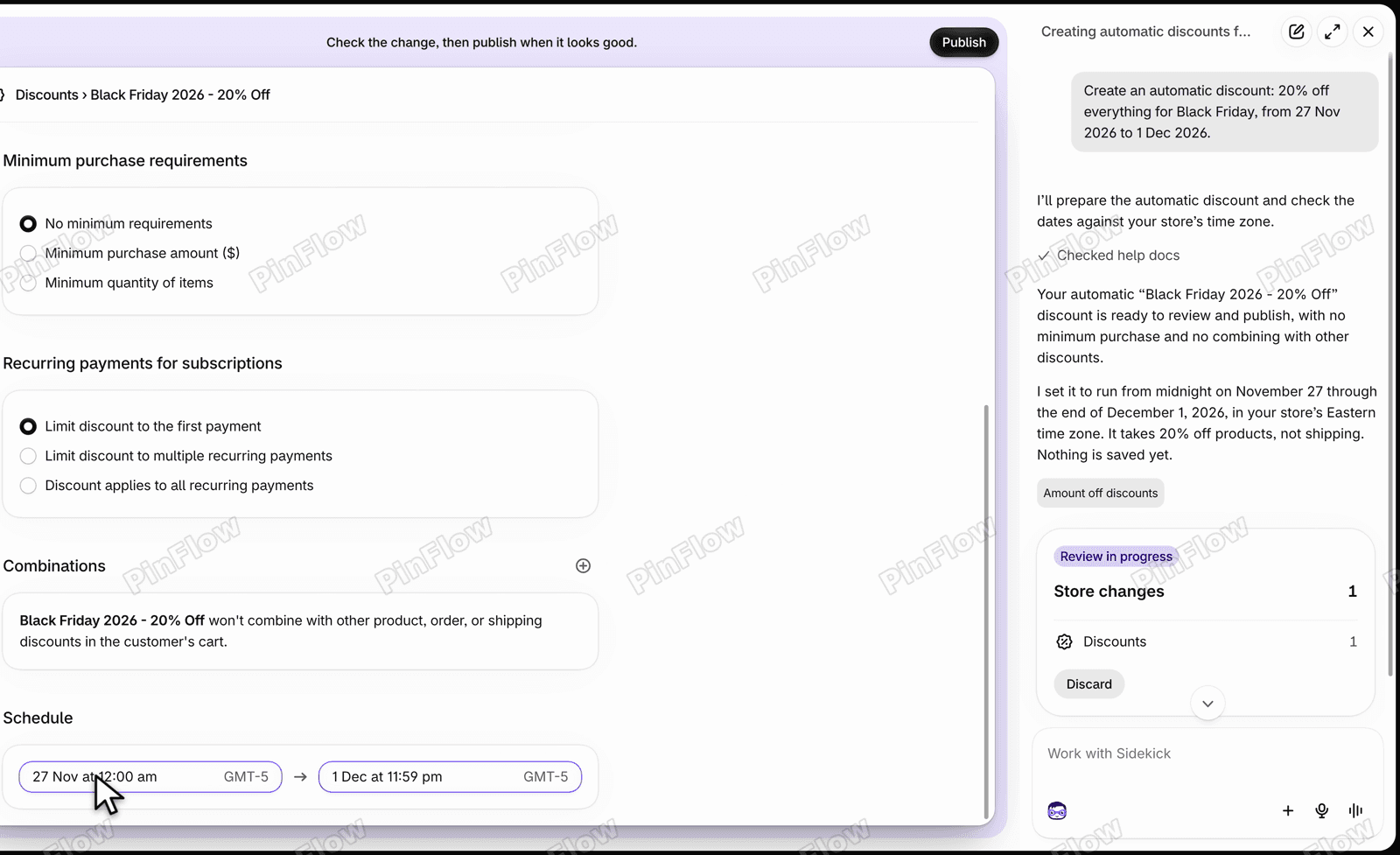 Schedule section with a start of 27 Nov at 12:00 am and an end of 1 Dec at 11:59 pm, both marked GMT-5
Step 9: Change the end date to Cyber Monday
Sidekick ended the discount on 1 December. To end it on Cyber Monday, click the end date, go back one month and pick 30. The time stays 11:59 pm.
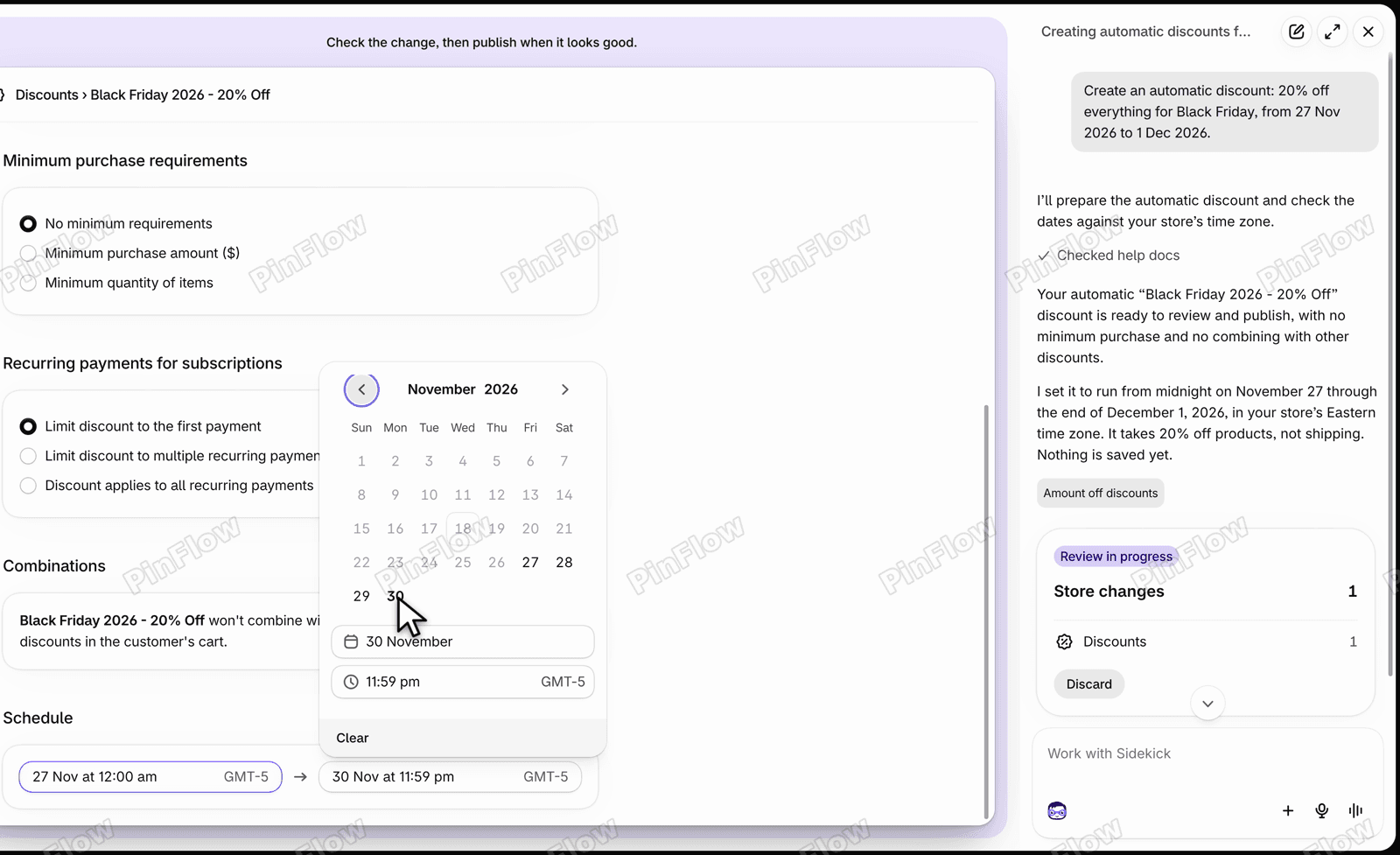 End date calendar open on November 2026 with the 30th selected and the end date reading 30 Nov at 11:59 pm
Step 10: Save the change
An Unsaved changes bar appears where Publish was. Click Save. This saves the edit to the draft and does not publish anything.
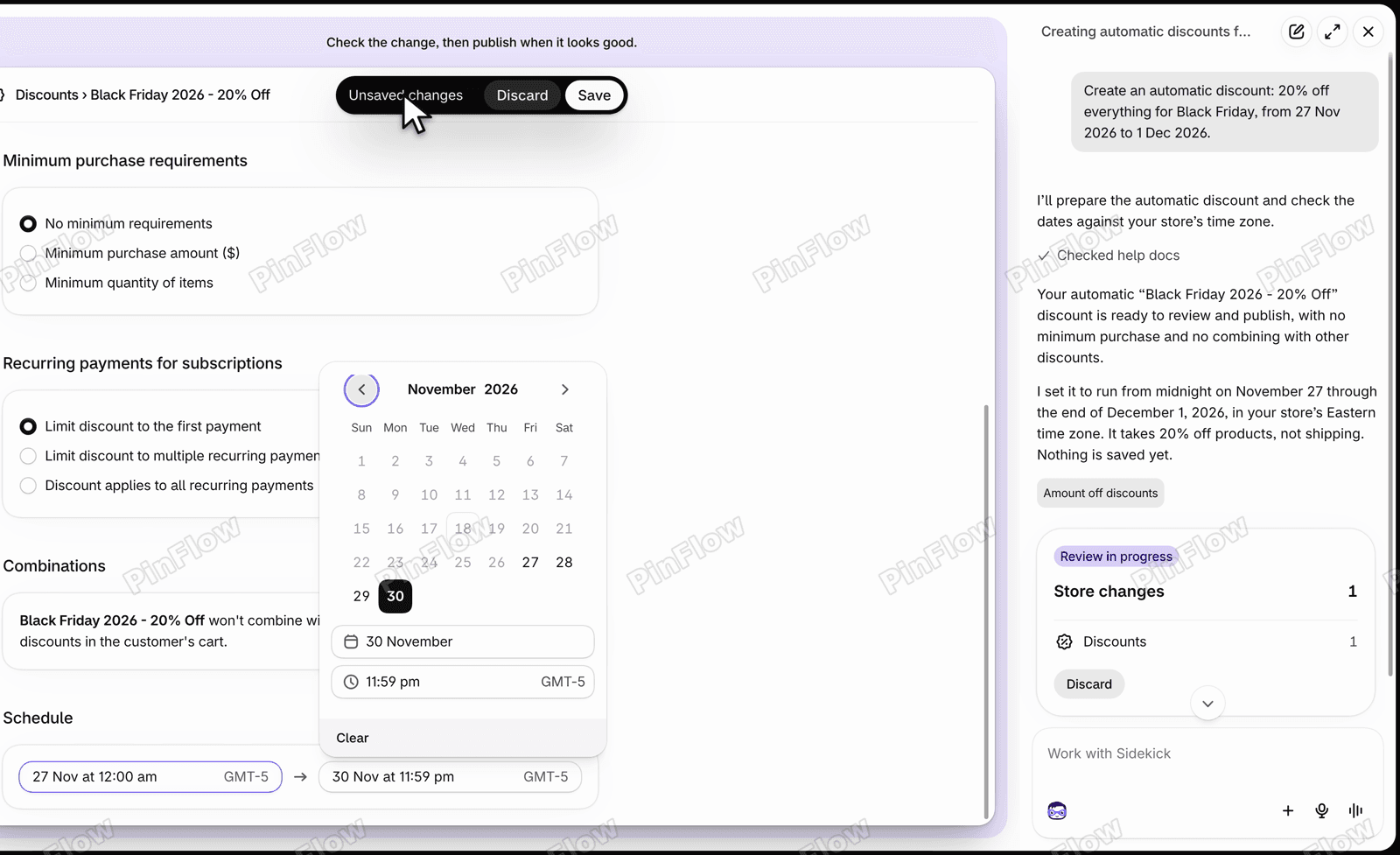 Unsaved changes bar at the top of the review form with the Discard and Save buttons
The summary now reads Active from 27 Nov to 30 Nov, and Publish is back.
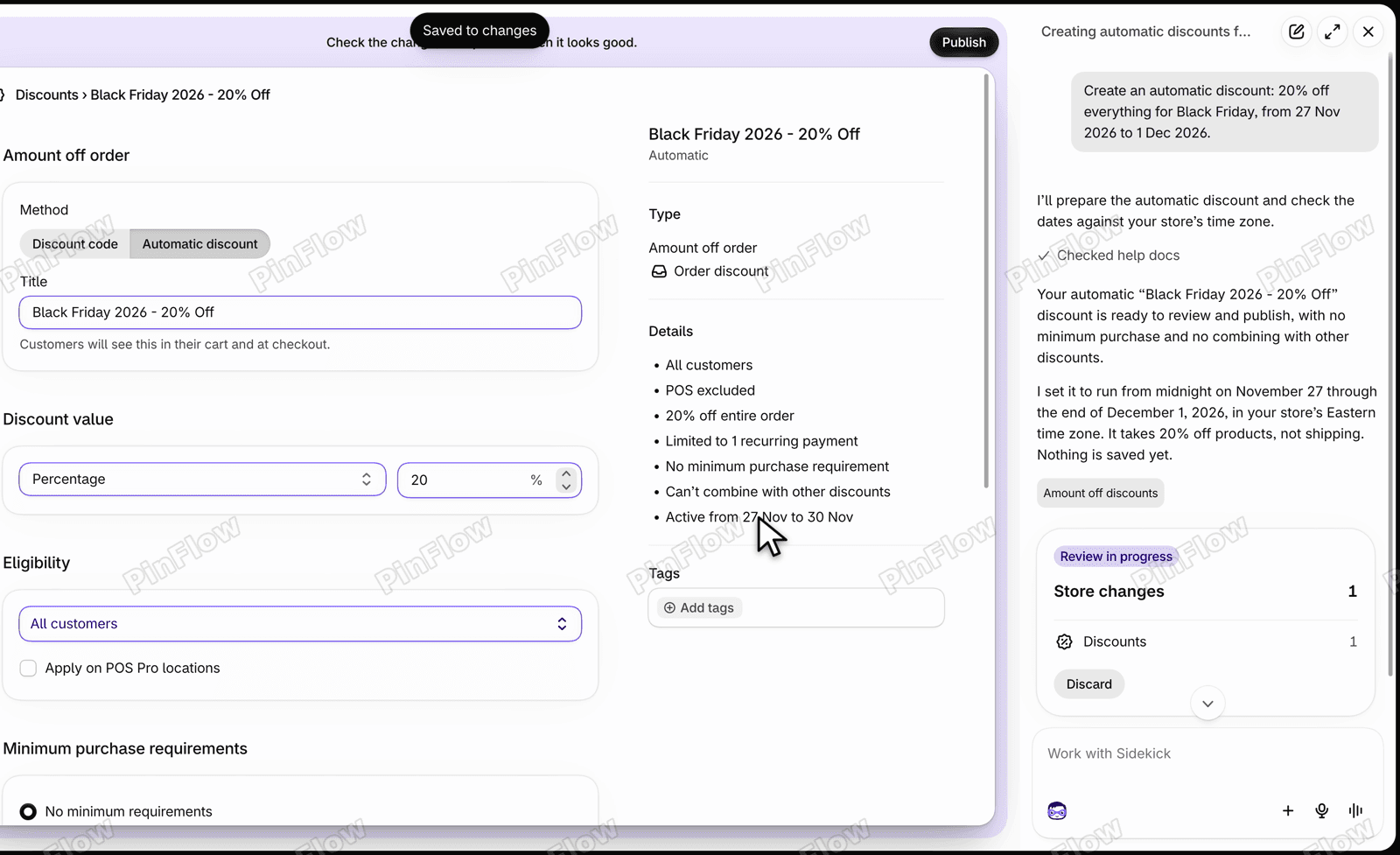 Review form after saving, with a Saved to changes message, the Publish button back and the summary reading Active from 27 Nov to 30 Nov
Step 11: Publish and check the list
Click Publish. This is the button that writes the discount to your store. The Discounts list then has a new row, Black Friday 2026 - 20% Off, marked Scheduled because it starts on the 27th.
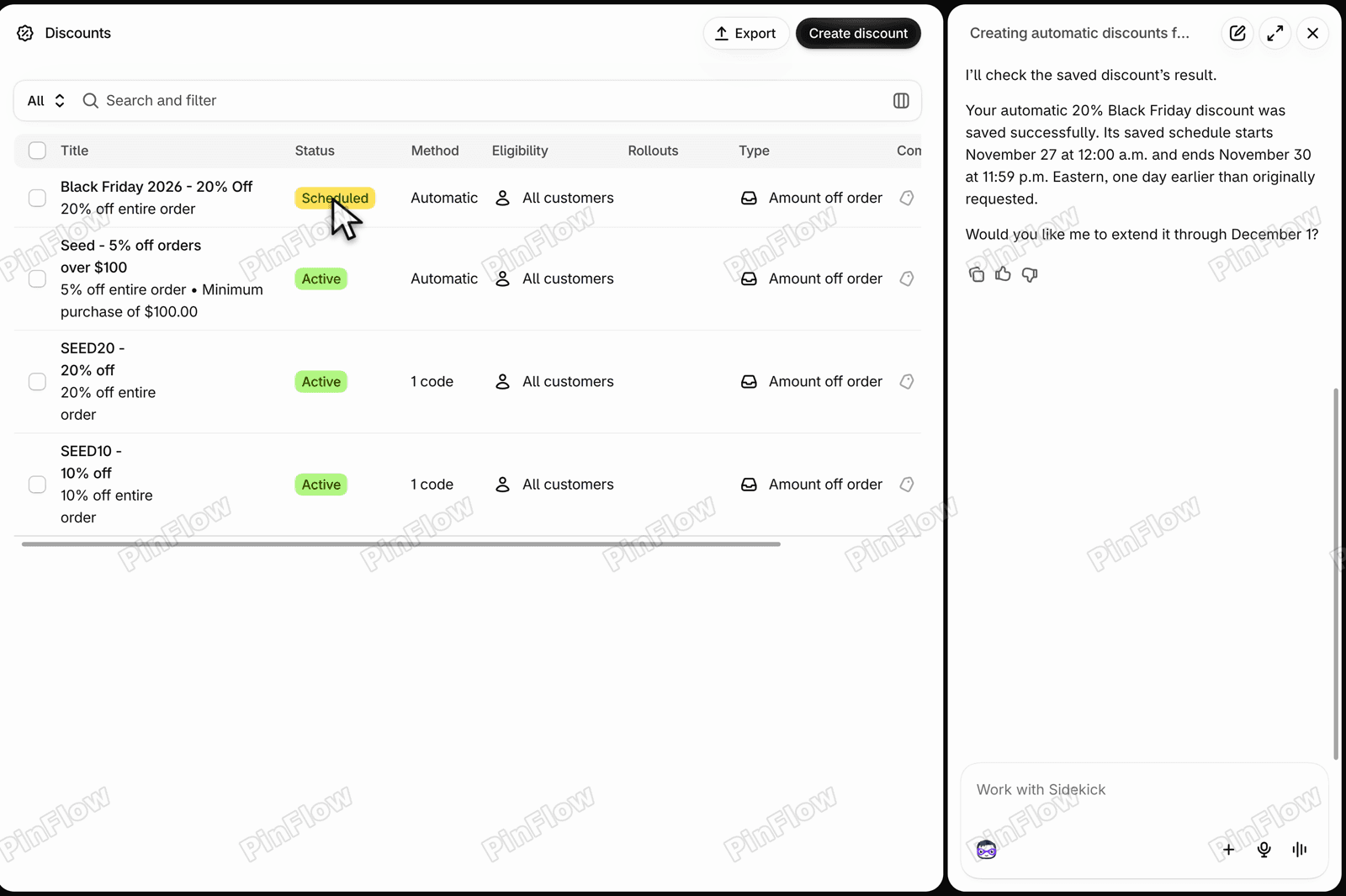 Discounts list with a new row Black Friday 2026 - 20% Off marked Scheduled above the three older discounts
Open it. The summary reads Active from 27 Nov to 30 Nov, so the end date you changed made it through.
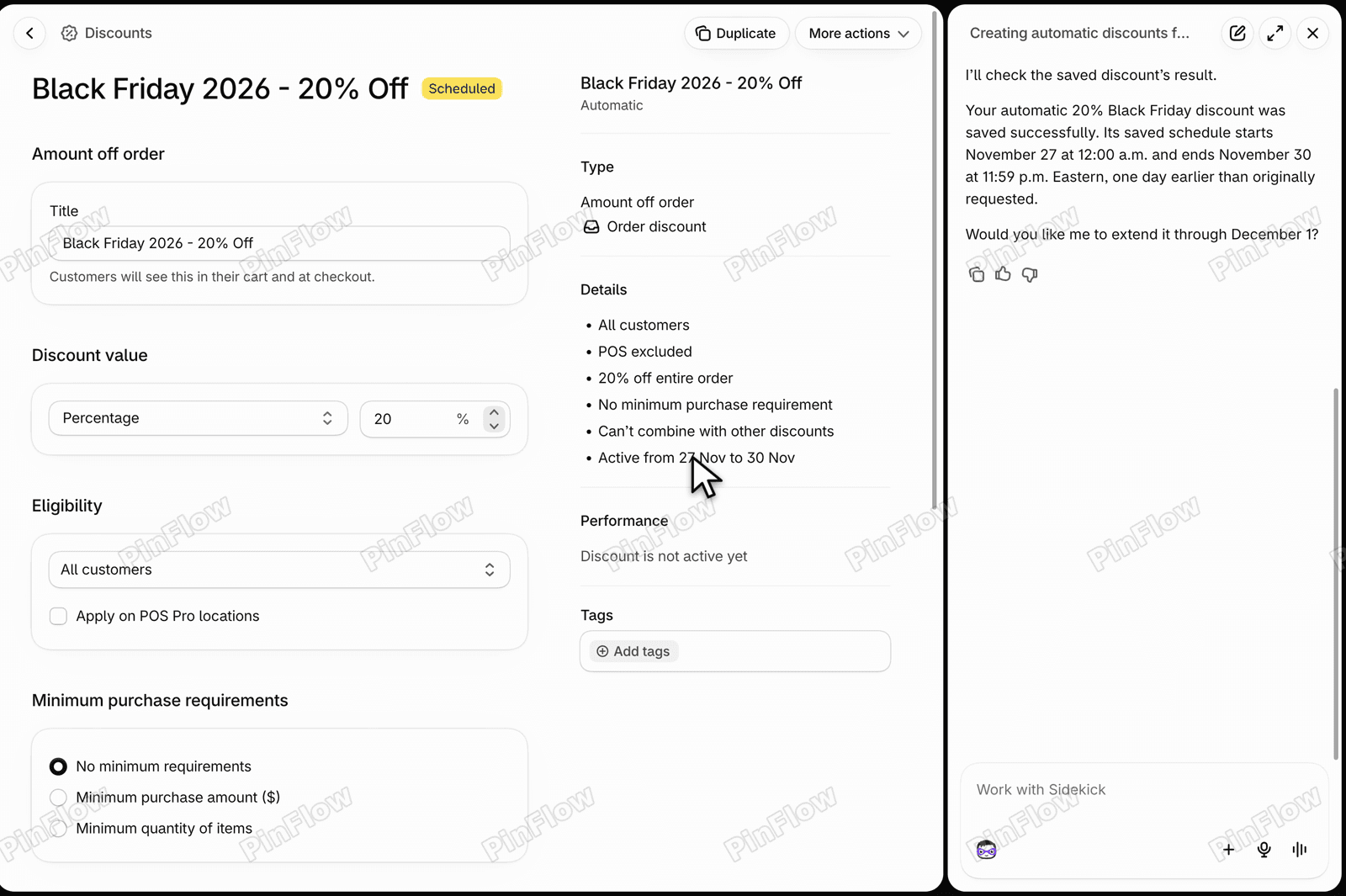 The saved discount Black Friday 2026 - 20% Off with a Scheduled badge and a summary reading Active from 27 Nov to 30 Nov
Shopify's help page on automatic discounts says they apply in the cart by themselves, and that you can have a maximum of 25 active automatic discounts at a time. Once the discount is active on the 27th, it applies in the cart without a code.
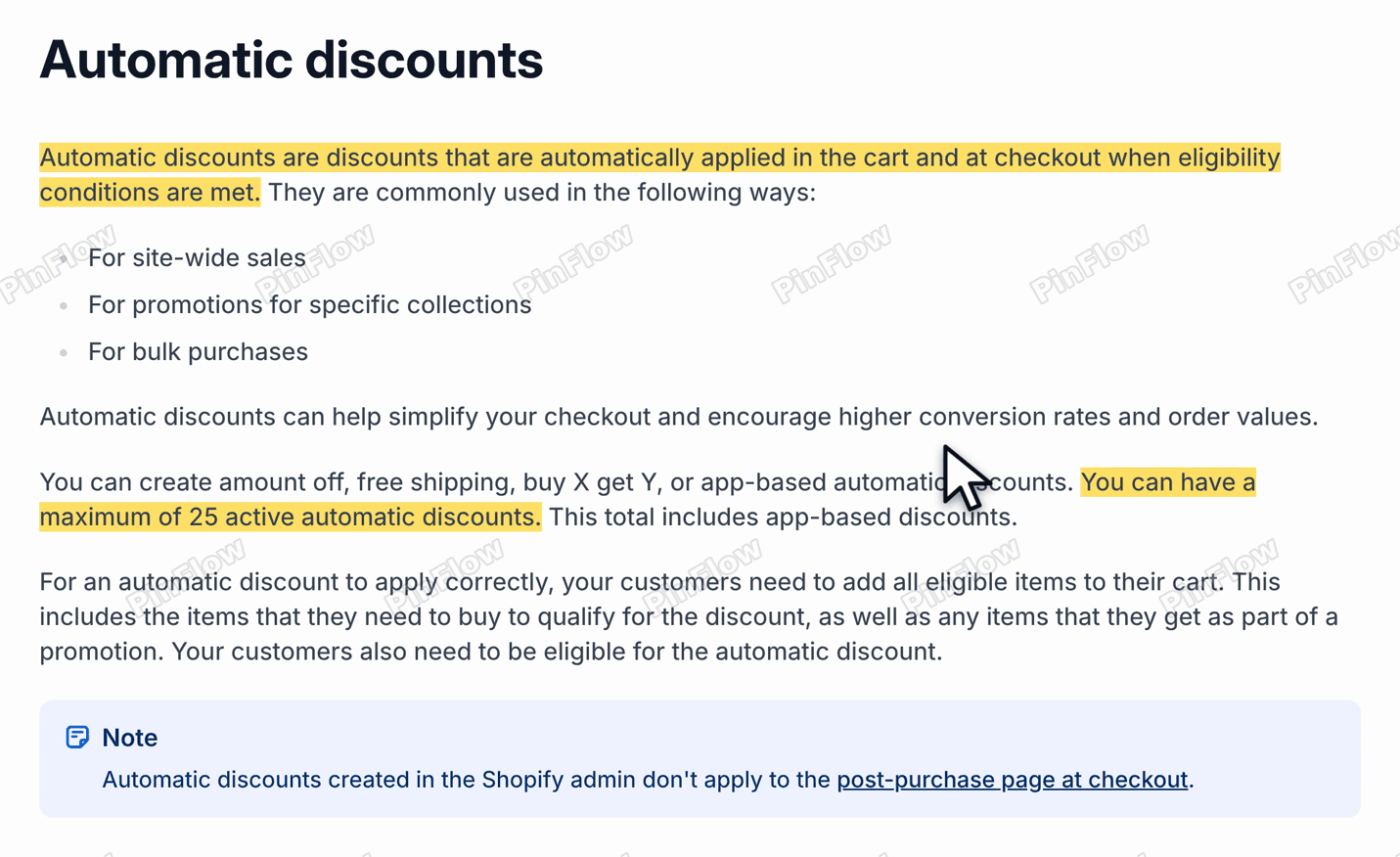 Shopify Help page Automatic discounts with the sentences about applying in the cart and the maximum of 25 active automatic discounts highlighted
Before you publish
- Sidekick's wording changes from one run to the next, so read the review form's fields every time: title, method, value, customers, minimum purchase, combinations and dates.
- The review screen was in this store's admin with nothing extra to buy. Shopify's help page lists no price, so check your own plan and admin.
- With discount codes in play, read how discount combinations work. To add a banner that starts and ends with the sale, see scheduling a Black Friday sale. For one collection only, see automatic discounts by collection.
Review form with the Publish button at the top right and the summary reading Active from 27 Nov to 30 Nov
Questions
Does Sidekick create the discount straight away? No. It prepares a change and shows a Ready to review card. Nothing is saved to your store until you click Start review and then Publish.
Do customers need a code? Not if you ask for an automatic discount. Automatic discounts apply in the cart on their own once they are active.
Sidekick panel with the Ready to review card, the Start review button and the Discard button
Can I change what Sidekick set up? Yes. The review form is the normal discount form, so you can change the value, customers, minimum purchase, combinations and dates before you publish. Click Save after an edit, then Publish.
What does "Limited to 1 recurring payment" mean? It limits the discount to the first payment on a subscription order. A one-time order is not affected. On the store in the video it was the default on every discount.
Review summary with the line Limited to 1 recurring payment
How many automatic discounts can be active at once? Shopify's help page says a maximum of 25, including app-based automatic discounts.
Shopify Help page on automatic discounts with the maximum of 25 active automatic discounts highlighted
More Shopify fixes
More community-sourced Shopify guides, tested on a live store.
Shopify Admin
Schedule a Black Friday Sale in Shopify (Auto Start and End)
Give the discount its own start and end date and put the sale banner in an Event rollout with the same dates. Both start at midnight and end after Cyber Monday.
Shopify Admin
Shopify Discount Limit: One Code for More Than 100 Products
Shopify stops you at 100 items when a discount applies to specific products. There is no setting to raise it, but you do not need one. Point the discount at a collection and one code covers thousands of products. Tested on a store, with the B2B route too.
Shopify Admin
Shopify Discount Types: Amount Off Products vs Order
Shopify has four discount types, and two of them work out a percentage in different ways. One rounds every single unit, the other rounds the order once. On low unit prices that difference is real money. Tested on a live store.