
Fix a Shopify Announcement Bar That Moves
Shopify announcement bar text jumping left as it rotates or on a click? On the Fabric theme it is one line of CSS. Here is the exact fix.
By AjayCodeWiz · August 11, 2026 · 13 min read
The problem
Your announcement bar sits at the very top of your store. It shows a short message like "Free shipping" or a location line.
But the text does not stay put. It looks centered on one message. Then it jumps to the left on the next one. On some stores it shifts every time a visitor clicks a link and the page reloads.
A merchant named Lucy asked about this on the Shopify Community. She runs the Fabric theme. Her bar shows a rotating set of messages, and the shorter ones slid to the left while the longer ones looked centered. It happened on every page of her store.
This is the shopify announcement bar text moving problem. It looks like a bug in the theme. It is not really a bug. It is a small styling gap, and it takes one line of CSS to fix.
I reproduced it on a test store on the Fabric theme. I want to walk you through why it happens, the exact fix, a no-risk alternative, and the questions people ask around it.
An announcement bar is the thin strip of text above your header. Shopify themes let you add one or more messages to it. When you add more than one, the bar becomes a rotating slideshow that cycles through them.
 Announcement bar text sitting to the left of center on the Fabric theme
In the screenshot above, the message "Prague based" is short. It sits well to the left of center. The bar itself is full width and centered, but the words inside are not. That mismatch is what makes it look like the text is jumping.
Why it happens
Here is the part most forum answers skip.
Fabric centers the message box. It does not center the words inside that box.
Think of it as two separate things. There is the container, which is the invisible box that holds one slide. And there is the text, which is the actual words. Fabric places the container in the middle of the bar. Good so far.
But the text inside gets a rule called text-align: start. In left-to-right languages like English, "start" means "left". So the words line up against the left edge of their box.
When a message is long, it fills the box. The left edge of the text and the center of the bar look close enough. You do not notice a problem.
When a message is short, it only fills part of the box. The text hugs the left. Now there is a big gap on the right. The message looks off-center.
As the bar rotates between a long message and a short one, the start point of the text stays on the left, but the amount of text changes. Your eye reads that as the text "jumping" left and right. On a click, the page re-renders and the same thing happens, so it looks like clicking moves the text.
So the real cause is simple. The box is centered. The text is not. We just need to center the text too.
This is a theme-level default in Fabric, not something you did wrong. It shows up the same way on every page because the announcement bar is part of the header, and the header appears everywhere.
Before you start: confirm it is the theme, not an app
One quick check saves you time.
Fabric's own announcement bar and a third-party announcement bar app are two different things. The fix below is for Fabric's built-in bar. If you installed an app like Essential or a promo-bar app, that app has its own settings and its own CSS, and this fix may not reach it.
To confirm you are on the built-in bar:
- Open your store in the theme editor
- Look at the top strip of the page
- Click it
- If the left settings panel says Announcement bar and lists your messages, that is the built-in bar and you are in the right place
If clicking the top strip opens an app embed or an app block instead, fix it inside that app's settings. The rest of this guide assumes Fabric's native bar, which is what the merchant on the community thread had.
The fix
This is one line of CSS. It does not touch any theme files. It is safe, and you can undo it in seconds.
CSS stands for the styling rules that control how your store looks. Fabric gives you a small box to add your own CSS to a single section, so you do not have to open the code.
Here are the steps.
Step 1. Open the theme editor.
From your admin, go to Online Store, then Themes, then Customize on your live Fabric theme. This opens the visual editor.
Step 2. Click the Announcement bar.
Click the top strip of the page in the preview. The left panel switches to the Announcement bar section settings. You will see your messages and options like "Time to next announcement".
Step 3. Open Custom CSS.
Scroll the section settings down. Near the bottom you will find a Custom CSS field. Open it. Fabric notes that this adds styles to this section only, which is exactly what we want.
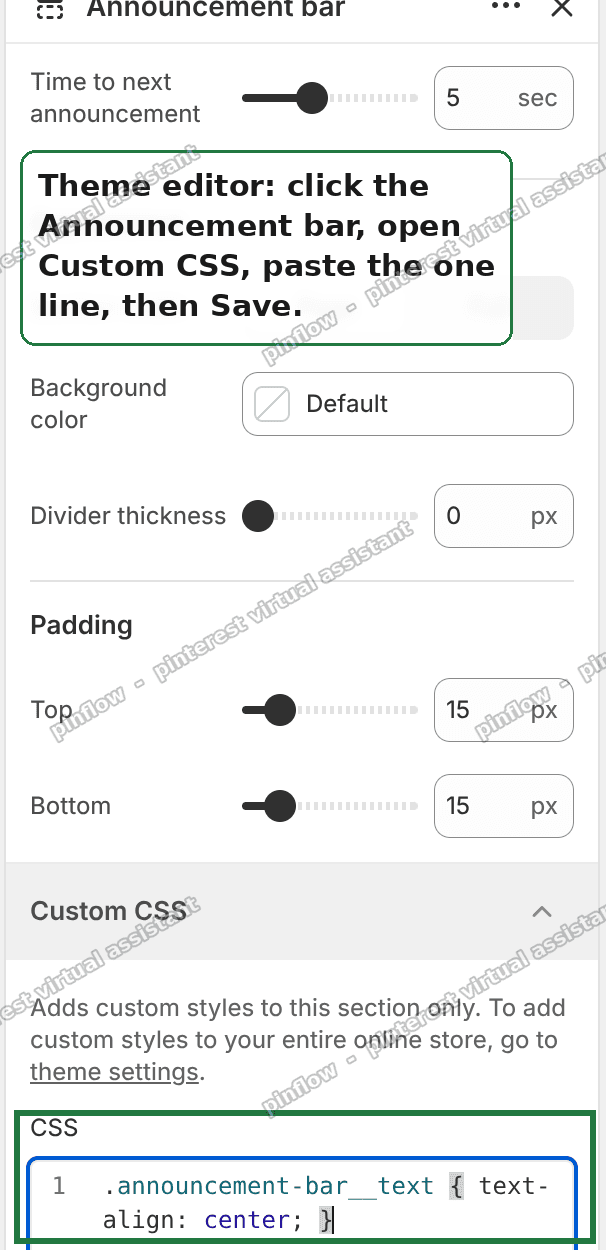 The Fabric Announcement bar Custom CSS field with the one-line fix pasted in
Step 4. Paste this one line.
.announcement-bar__text { text-align: center; }That is the whole fix. The class .announcement-bar__text is the exact element that holds the words on each slide. Setting text-align: center overrides the "start" default and puts the words in the middle of their box.
Step 5. Save.
Click Save in the top right.
Now every message, short or long, is centered on the bar. Nothing shifts when the bar rotates. Nothing shifts on a click.
 The announcement bar message centered on every slide after the fix
I tested this on a Fabric store. I put in a mix of short and long messages. Before the fix, the short ones sat left and looked like they jumped. After the one line, short and long messages all stayed centered, with no shifting between slides. The screenshot above is the fixed state.
One note on why this line and not a heavier one. You may see answers online that pile on !important, or that add display: inline-block; width: 100%, or that edit theme.liquid. You do not need any of that on Fabric's native bar. The single rule on .announcement-bar__text is enough because it targets the real text element, and the Custom CSS box already scopes it to this section. Keep it small. A small fix is easy to read later and easy to remove.
An alternative: center it without any code
If you would rather not paste CSS at all, check the section settings first.
Some Shopify themes, and some versions of Fabric, expose an Alignment or Text alignment control right in the announcement bar settings. If yours does, set it to Center and save. No code needed.
Look for it in the same left panel where you found Custom CSS. It may sit under a "Layout" or "Content" heading. If you see it, use it. That is the cleanest route because it is a built-in setting, not an override.
If your theme version does not show that control, the one-line CSS above is the reliable path. Both do the same job. The setting is friendlier; the CSS is more certain to be there.
There is also the app route, but I would not reach for it here. Installing a third-party announcement bar app to fix alignment is overkill and it adds another thing to your store to maintain. Only consider an app if you want features the native bar lacks, like a countdown timer or per-country messages.
How to make an announcement bar move in Shopify
People search "how to make announcement bar move shopify" for two different reasons. Let me split them.
If you want the bar to rotate through several messages, add more than one message to it. In the theme editor, click the announcement bar, then add each message as its own block. Once you have two or more, Fabric turns the bar into a rotating slideshow and cycles between them. The "Time to next announcement" slider controls how many seconds each message shows.
If your text is moving and you did not want that, you are on the wrong kind of "move". That is the jumping problem this whole article fixes. The bar rotating is on purpose. The text sliding left is not. The one-line CSS above stops the sliding while keeping the rotation.
So "moving" can mean the rotation you asked for, or the misalignment you did not. Add messages for the first. Add the center rule for the second.
How do I edit the announcement bar in Shopify?
To edit the announcement bar in Shopify, work in the theme editor, not the code.
- Go to Online Store, then Themes, then Customize
- Click the top strip of the store preview
- The left panel opens the Announcement bar settings
- From here you can change the message text, add or remove messages, set the rotation speed, and pick colors
- Click Save when done
To change the text, click a single message block in that panel and type the new words. To change the order, drag the message blocks up or down. To remove one, click it and choose remove. This is the same panel where the Custom CSS field lives.
You do not need to touch theme files to edit an announcement bar. Editing code is only needed for changes the settings do not cover, and centering is not one of those on most themes.
Why does my Shopify announcement bar text move only on some pages?
A few merchants see the shift on certain pages and not others.
The usual reason is message length, not the page. If a page loads and the current slide happens to be a long message, it looks centered. Load a page while a short message is showing, and it looks left. Same bar, different slide, so it seems page-specific when it is really slide-specific.
A second reason is an app or a different section reserving space near the bar on some templates. If the fix above centers the text everywhere except one page type, look at what else is at the top of that specific template.
The center rule handles the common case, because it fixes every slide regardless of length. If a single page still misbehaves after the fix, the cause is likely a separate element on that page, not the announcement bar itself.
Can I change the announcement bar alignment for the whole store?
Yes. The Custom CSS box in the section applies to the announcement bar wherever it shows, which on most stores is every page. So one paste covers the whole store.
If you want the rule applied at the theme level instead of the section level, Fabric also has a theme-wide Custom CSS field under theme settings. The section-level box is simpler and is what I used. Keep the fix in one place so it is easy to find later.
For shopify announcement bar alignment in general, remember there are two layers. The box position, which the theme usually centers already, and the text position inside the box, which is the one you are correcting. You almost always want both centered.
If it did not work
The fix is small, so problems are usually small too. Check these.
- You pasted into the wrong box. The line must go in the Announcement bar section's Custom CSS field, not a random section. Click the top strip first, then scroll to Custom CSS.
- You did not click Save. The editor does not auto-save. Confirm the Save button went grey after you clicked it.
- You are on an app bar, not the native bar. If an announcement bar app is running, its text lives in the app's own markup and this class will not match. Fix it in the app.
- A stronger rule is fighting yours. Rare on Fabric, but if another custom rule sets the text to the left with
!important, add!importantto yours:.announcement-bar__text { text-align: center !important; }. Try the plain version first; only escalate if it truly does not take. - Browser cache. After saving, hard refresh your store, or view it in a private window, so you see the new CSS and not an old cached page.
If it still slides after all that, the moving element is probably not the announcement text. Look at the header or a promo section directly below the bar on the page where it happens.
Definitions and distinctions people confuse
A few terms get mixed up around this topic. Here is the plain-English version.
Announcement bar vs header. The announcement bar is the thin strip at the very top with a short message. The header is the bigger band below it with your logo and menu. They are separate sections. This fix is only about the bar.
The box vs the text. The box is the invisible container that holds one slide. The text is the words. Fabric centers the box by default. It does not center the text. That gap is the whole problem, and centering the text closes it.
text-align start vs center. text-align: start lines text up against the reading-start edge, which is the left in English. text-align: center puts it in the middle. Fabric ships "start"; you are switching it to "center".
Custom CSS vs Edit code. Custom CSS is a safe box in the editor for small style tweaks, and it does not change theme files. Edit code opens the actual theme files and carries more risk. For this fix, Custom CSS is the right tool. You never need to edit code to center announcement bar text.
Rotating vs jumping. Rotating is the bar cycling through several messages on a timer, which is a feature. Jumping is the text sliding left when a short message shows, which is the flaw. Keep the rotation; kill the jump.
That is the full picture. One line of CSS on .announcement-bar__text, pasted into the section's Custom CSS field, centers every slide on the Fabric theme and stops the announcement bar text from moving.
Spending too long on manual Shopify busywork?
PinFlow turns your Shopify catalog into Pinterest pins and posts them on a schedule, automatically. Same idea as the rule above, let the system handle the repetitive part.
Get PinFlow on the Shopify App StoreMore Shopify fixes
More community-sourced Shopify guides, tested on a live store.
Themes & Storefront
Shopify AI Section: Fix a Price Badge Hidden Behind the Image
You built a section with Shopify's AI section generator, but the price badge on each card sits behind the photo. Here is the Custom Liquid fix that brings it to the front without regenerating anything. Tested on a Dawn store.
Themes & Storefront
Hide Shipping Calculated at Checkout on One Shopify Product
The line under Add to cart that says shipping is calculated at checkout shows on every product, gift cards included. Here is how to hide it on one product only, with the code, screenshots and the Eclipse theme steps.
Themes & Storefront
Shopify Dropdown Menu Behind Page Content (Z-Index Fix)
Your Shopify dropdown or mega menu opens, but the page title and products sit on top of its links and the menu closes before you can click. The fix is one Custom CSS rule in Theme settings. Tested on a Rebel store.