
Shopify Back in Stock Notification on Your Home Page
Back in stock apps only inject their widget on the product page, so a sold-out Featured product on your home page gets nothing. A free Custom Liquid block fixes it. Tested on Craft.
By AjayCodeWiz · July 23, 2026 · 9 min read
The problem
A merchant on the Shopify Community had the good kind of problem. They launched a product, it sold out fast, and they already had a back in stock app running on their product pages.
What they did not have was a Notify me button on the home page, where the product is featured. Their sold-out hero product sat there with a dead Sold out label and no way for a visitor to ask to be told when it returns.
They were on the Craft theme, using Kbite for back in stock alerts.
The thread filled up with app recommendations. Appstle, Notify Me, Appikon, SC Back in Stock, and a suggestion to switch apps entirely. One reply checked with Kbite support directly and confirmed the app cannot put its button in a home page Featured product block, and that the Featured collection equivalent is on a paid plan only.
So the merchant was being told to migrate their back in stock app to solve a button placement problem.
They do not need to. The fix is a five line Custom Liquid block and it takes about two minutes.
Why apps do not cover the Featured product block
This is worth understanding because it explains why swapping apps mostly does not help.
Back in stock apps inject their widget in one of two ways.
As an app block, which the merchant drops into a section through the theme editor. App blocks are only offered inside sections that declare support for them, and most themes only declare it on the main product section.
As an app embed, which runs on every page and finds a target element in the DOM. Embeds usually look for the product form on a product page template, so on the home page there is nothing for them to attach to.
The Featured product section on your home page renders a real product, with a real buy button, but it is not the product template. It is a home page section that happens to display a product. Almost no app treats it as a place to put a widget, and that is a decision on the app's side, not something your theme is blocking.
Here is the starting state on Craft. A sold-out product in the Featured product block, no notify button anywhere.
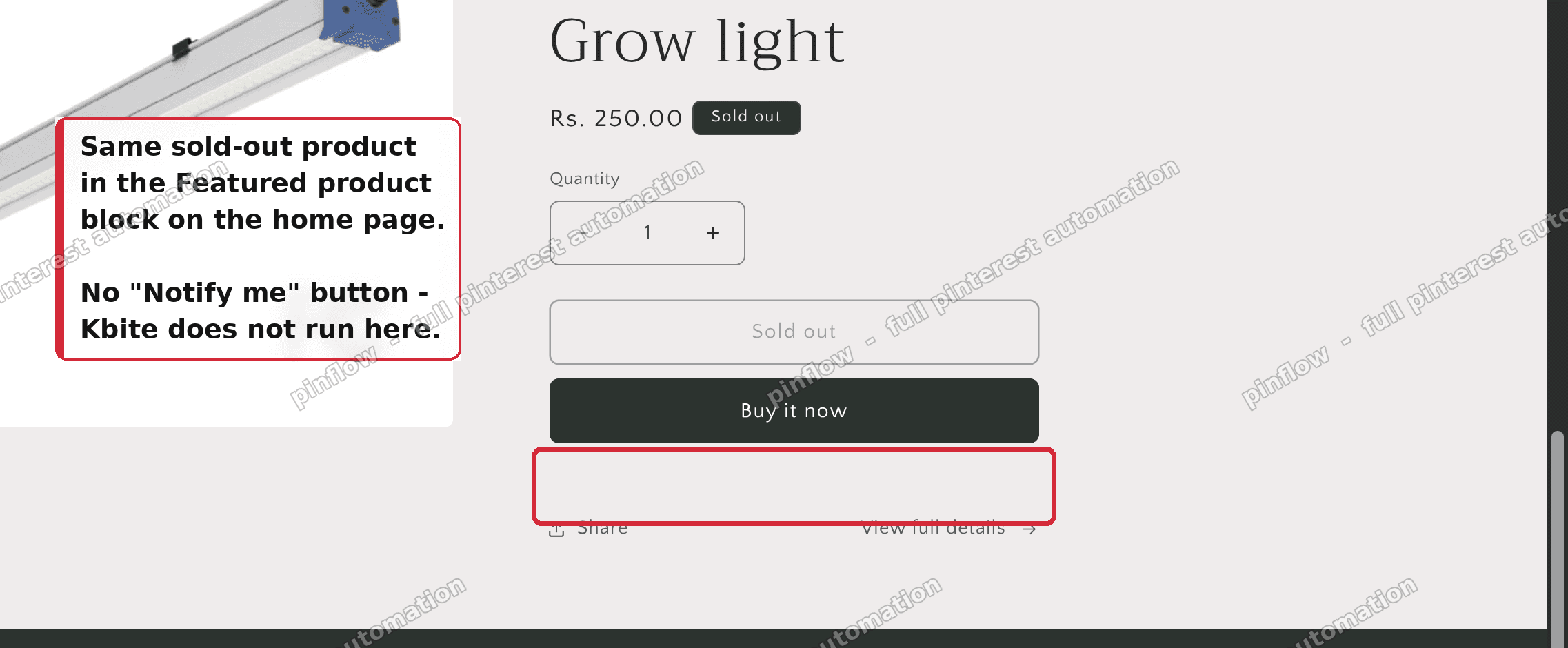 No notify button in the home Featured product block
The fix: link to the product page, where the app already works
The key realisation is that you do not need the app's form on the home page. You need a way for the visitor to reach the form.
Your back in stock app already works perfectly on the product page. So the home page needs one thing: a button that appears only when the item is sold out, and that takes the visitor to the product page where the form lives.
That is a link, not an integration, and Shopify gives you the tools to add it for free.
Step 1: open the Featured product section
In your admin, go to Online Store, then Themes. On your theme, click Customize.
Make sure you are on the Home page in the top page selector. In the left sidebar, click your Featured product section.
Step 2: add a Custom Liquid block
Click Add block, and under Blocks choose Custom Liquid.
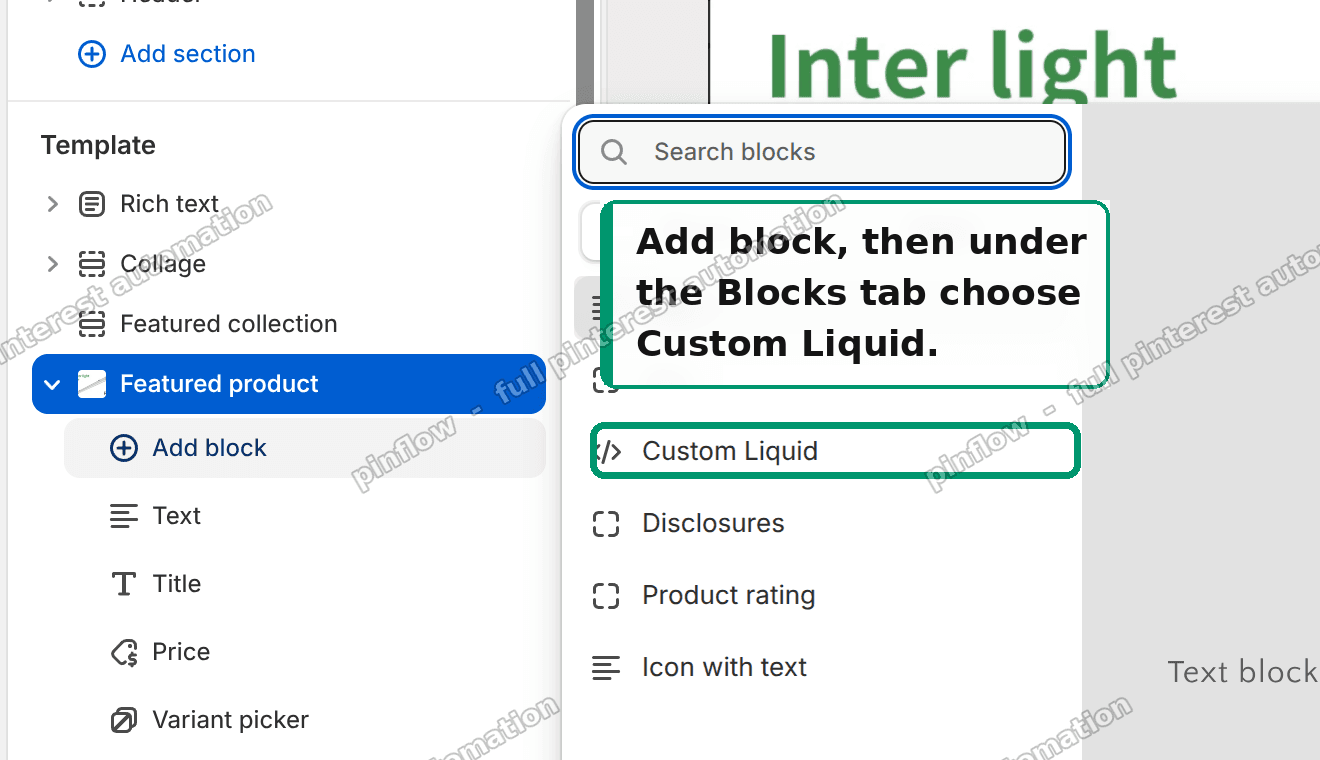 Add block, then Custom Liquid
Custom Liquid is a free, built-in block available in every Online Store 2.0 theme. It is not an app and it does not require the code editor.
Step 3: paste the code
Paste this into the Liquid code box:
{%- assign np = section.settings.product -%}
{%- if np != blank and np.available == false -%}
<a href="{{ np.url }}" class="button button--full-width" style="margin-top: 1rem;">
Notify me when available
</a>
{%- endif -%}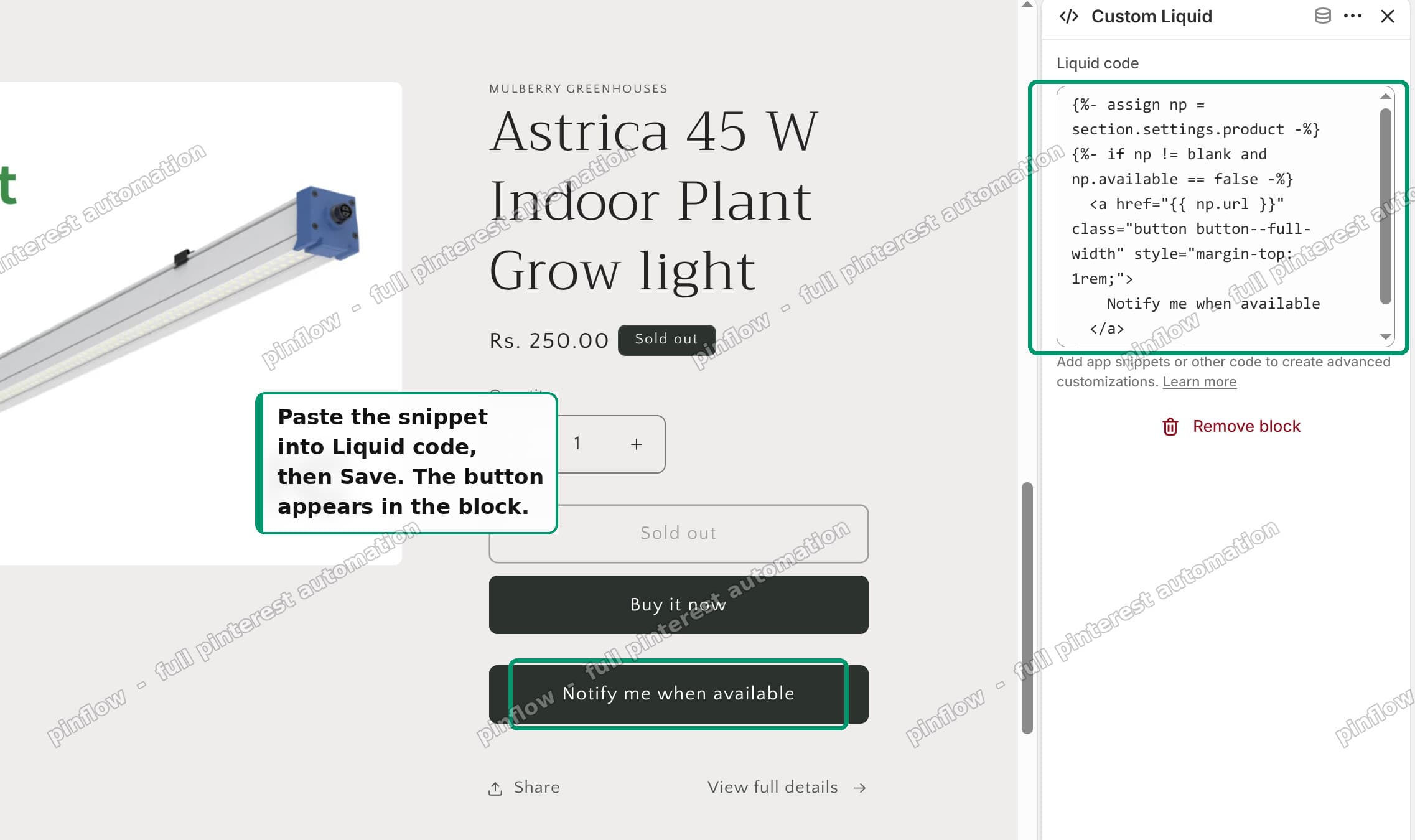 Paste the code, then Save
Four things are happening here, and they are worth reading because they are what makes the block safe to leave in place forever.
section.settings.product reads whichever product is currently selected in that Featured product section. You never hardcode a product handle, so when you swap the featured product the button follows it.
np.available == false is Shopify's own sold-out check. It is true only when every variant of the product is out of stock and not set to continue selling. That is the same logic your theme uses to draw the Sold out label.
np.url is the product's own URL, so the button always points at the right page.
The button button--full-width classes are Dawn and Craft's own button styling, so the button matches the rest of your theme without any CSS of your own. If your theme is not Dawn-derived, check what your theme calls its button class and swap it in.
Step 4: position it and save
Drag the Custom Liquid block so it sits just under Buy buttons, then click Save.
Position matters more than it looks. Under the buy button is where a visitor's eye already is when they read Sold out, so that is where the alternative belongs.
Here it is live.
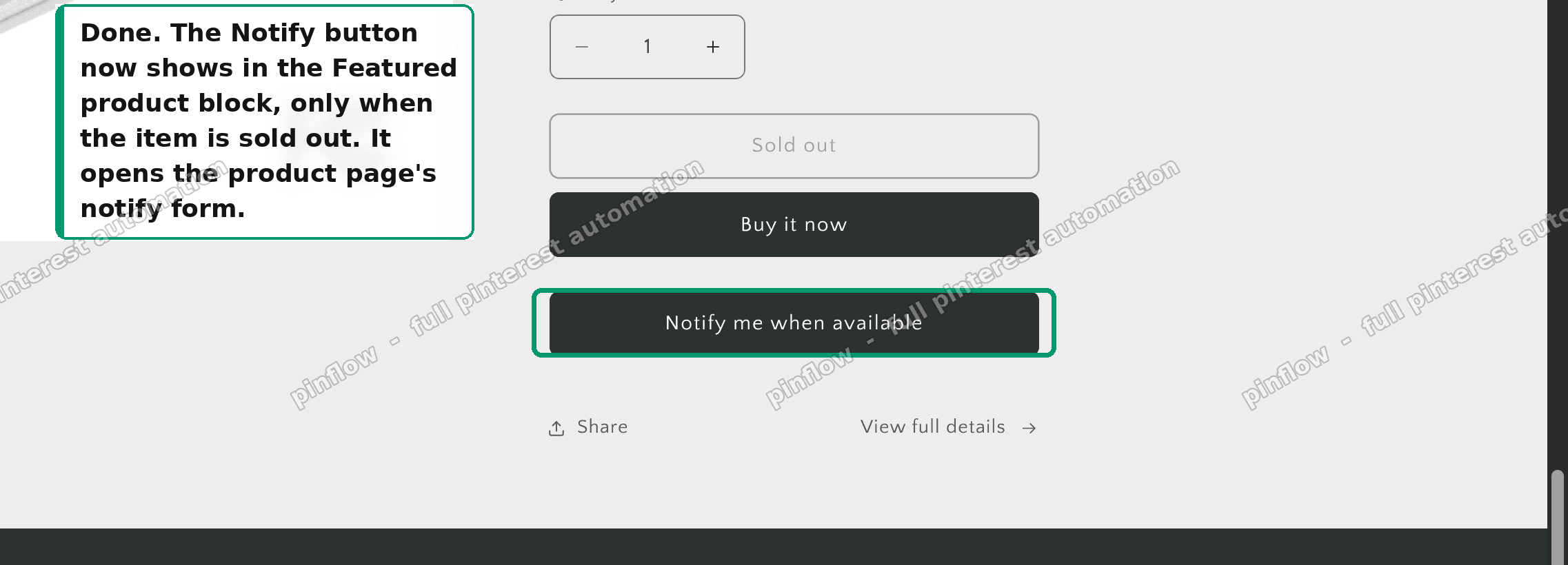 Notify button live in the Featured product block
The button shows only when the item is sold out. Restock the product and it disappears on its own, with no further edits.
Making it feel like one step instead of two
The basic version sends the visitor to the product page and lets them find the app's form. On a long product page that can mean scrolling.
If your back in stock app renders its trigger with a predictable anchor, you can deep link straight to it by appending a fragment:
<a href="{{ np.url }}#notify-me" class="button button--full-width">
  Notify me when available
</a>
Inspect the app's button on your product page, find its id, and use that. If it does not have one, skip this and leave the plain link; it works fine either way.
A second refinement worth having: some apps open their form from a query parameter. If yours does, {{ np.url }}?notify=1 will open the modal on arrival. Check your app's documentation for the parameter name.
Where else this same block works
The pattern generalises, because the only theme-specific parts are the setting name and the button class.
In a Featured collection section, loop the products instead of reading one:
{%- for p in section.settings.collection.products -%}
  {%- if p.available == false -%}
    <a href="{{ p.url }}" class="button">Notify me: {{ p.title }}</a>
  {%- endif -%}
{%- endfor -%}
On a custom landing page, use a Custom Liquid section rather than a block, and reference the product by handle:
{%- assign np = all_products['your-product-handle'] -%}
{%- if np.available == false -%}
  <a href="{{ np.url }}" class="button">Notify me when available</a>
{%- endif -%}
On the product page itself, you do not need this at all. That is where your app already works.
Common questions
Does this replace my back in stock app?
No, and it is not trying to. The app still collects the email address, still sends the restock alert, and still owns the whole notification flow. This block only fixes where the entry point appears.
Will the button show if only one size is sold out?
No. product.available is false only when the whole product is unavailable. If size medium is out but small is in stock, the product is still available and the button stays hidden, which is correct: the visitor can buy something.
If you want per-variant behaviour on the home page, that is genuinely harder, because the Featured product block does not track variant selection the way the product template does. Send them to the product page in that case.
What if I sell products that continue selling when out of stock?
Then available stays true and the button never shows, which again is correct. A product taking orders at zero inventory does not need a notify me button, it needs an add to cart button, and it already has one.
My theme is not Craft. Will this work?
Yes, on any Online Store 2.0 theme, which is every free Shopify theme and nearly every paid one from the last several years. The only thing to check is the button class. Look at an existing button in your theme's code and copy its classes.
Does this slow the page down?
No. It is Liquid, so it renders server side into the HTML. There is no JavaScript, no network request, and no app involved.
Can I change the wording?
Yes, edit the text between the anchor tags. "Email me when it is back", "Join the waitlist", and "Notify me when available" all test fine. Match whatever your app's form says so the visitor is not surprised on arrival.
If it did not work
The button does not appear on a sold-out product. Check the section actually has a product selected in its settings. If section.settings.product is blank, the whole block is skipped by design.
The button appears on an in-stock product. Check whether that product has "Continue selling when out of stock" enabled on a variant, which keeps available true.
The button looks unstyled. Your theme uses different button classes. Inspect an existing button on your storefront, copy its class list, and replace button button--full-width.
There is no Custom Liquid option under Add block. The section does not accept blocks of that type. Add a Custom Liquid section immediately below the Featured product section instead, and reference the product by handle as shown above.
Why this is worth doing rather than switching apps
Migrating a back in stock app means re-collecting existing subscribers, re-theming the form, and re-testing the restock email. That is real work, and in this thread it was being proposed to solve the placement of one button.
The Custom Liquid block costs two minutes, adds no monthly fee, survives theme updates, and keeps the app you already know works. When the choice is between changing a vendor and adding five lines of Liquid, the five lines are usually the smaller risk.
Tested on
Built and verified on a Craft theme store: added the Custom Liquid block to a Featured product section, confirmed the button renders only while the product is unavailable, confirmed it disappears when stock is added back, and confirmed the link lands on the product page where the notify form is.
Adding another app for one small job?
PinFlow does one job properly: it turns your Shopify products into Pinterest pins and posts them on a schedule, so your catalog markets itself while you build the store.
Get PinFlow on the Shopify App StoreMore Shopify fixes
More community-sourced Shopify guides, tested on a live store.
Themes & Storefront
Shopify Anchor Link: Button That Scrolls to a Section
Link a Shopify button to a section lower on the same page with an anchor link. Steps for the theme editor, no code files, plus the fix for a title hidden under the header.
Themes & Storefront
Shopify Social Media Icons: Add a Custom Icon and Link
Set your social links in Shopify theme settings, see why icons do not show, and swap in your own icon for a network the theme does not list.
Themes & Storefront
Sticky Add to Cart Button in Shopify Dawn, No App
Pin the Add to cart button and its delivery line to the bottom of the screen in Shopify Dawn. One free Custom Liquid block, no app, phone and desktop.