
Bold the Variant Option Name in a Shopify Theme (CSS)
There is no bold toggle for the variant option name in Horizon, so it takes one line of CSS. Here is where it goes, plus a version that works for buttons and swatches too.
By AjayCodeWiz · July 29, 2026 · 7 min read
The problem
A merchant asked this on the Shopify Community. They are new to Shopify, they like the Horizon theme, and they want the variant option name above their dropdown to be bold.
In their case the option was called "Font Selection", sitting above a dropdown that read "no personalization". They wanted that label to stand out.
This is a small, purely visual change. There is no theme setting for it, so it takes one line of CSS. Here is exactly where it goes, why the usual answer only half works, and a version that keeps working no matter how your variant picker is set up. I reproduced all of it on a Horizon store.
What "variant option name" means
Every product with options shows those options on the product page. The option name is the label, like "Size", "Color", or "Font Selection". The option value is what the customer picks, like "Large" or "no personalization".
The merchant wanted the name bold, not the value. So "Font Selection" in bold, with the dropdown underneath left as it is.
"Font Selection" is not a special Shopify feature, by the way. It is just the name this merchant gave their own option. The fix below bolds whatever your option is called.
Why there is no setting for it
Horizon is Shopify's newer free theme family, and it is built from theme blocks. The variant picker is one of those blocks. Open its settings in the theme editor and you can change the option label color, the picker style, alignment, and padding.
What you cannot change there is the font weight of the option name. There is simply no "bold" toggle in the block. That is why a text answer on the forum reaches for CSS instead of a setting. It is not that anyone is overcomplicating it, the control does not exist in the UI.
So the clean fix is a single CSS rule, added to the theme's stylesheet.
The one-line fix for a dropdown
If your option shows as a dropdown, its name is rendered inside a label element. This bolds it:
.variant-option--dropdowns > label {
  font-weight: 700;
}
700 is bold. If that feels too heavy, use 600 for a lighter, semibold look.
Here is the option name before, at normal weight:
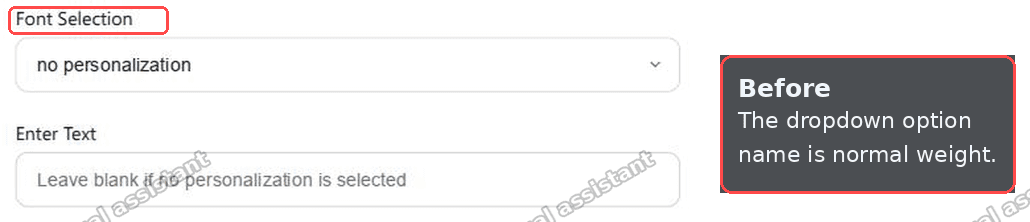 Before: the dropdown option name is at normal weight
And after adding the rule, the same option name in bold, with the dropdown and any other fields untouched:
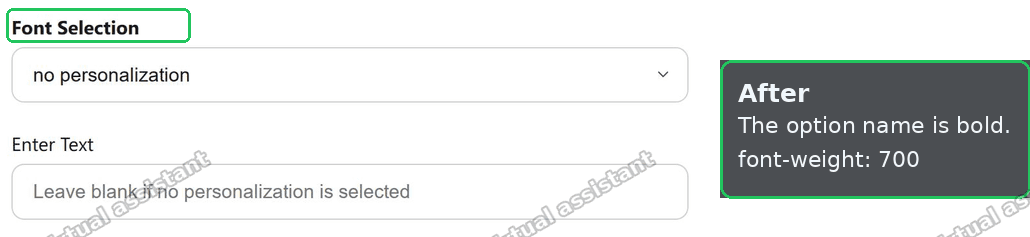 After: the dropdown option name is bold
Where to paste it
You add the CSS to the theme's main stylesheet, base.css. Do not edit any Liquid.
- From your Shopify admin, go to Online Store > Themes.
- Find your theme, click the
...menu, and choose Edit code. - In the file list on the left, open assets/base.css.
- Scroll to the very bottom of the file and paste the rule there.
- Click Save.
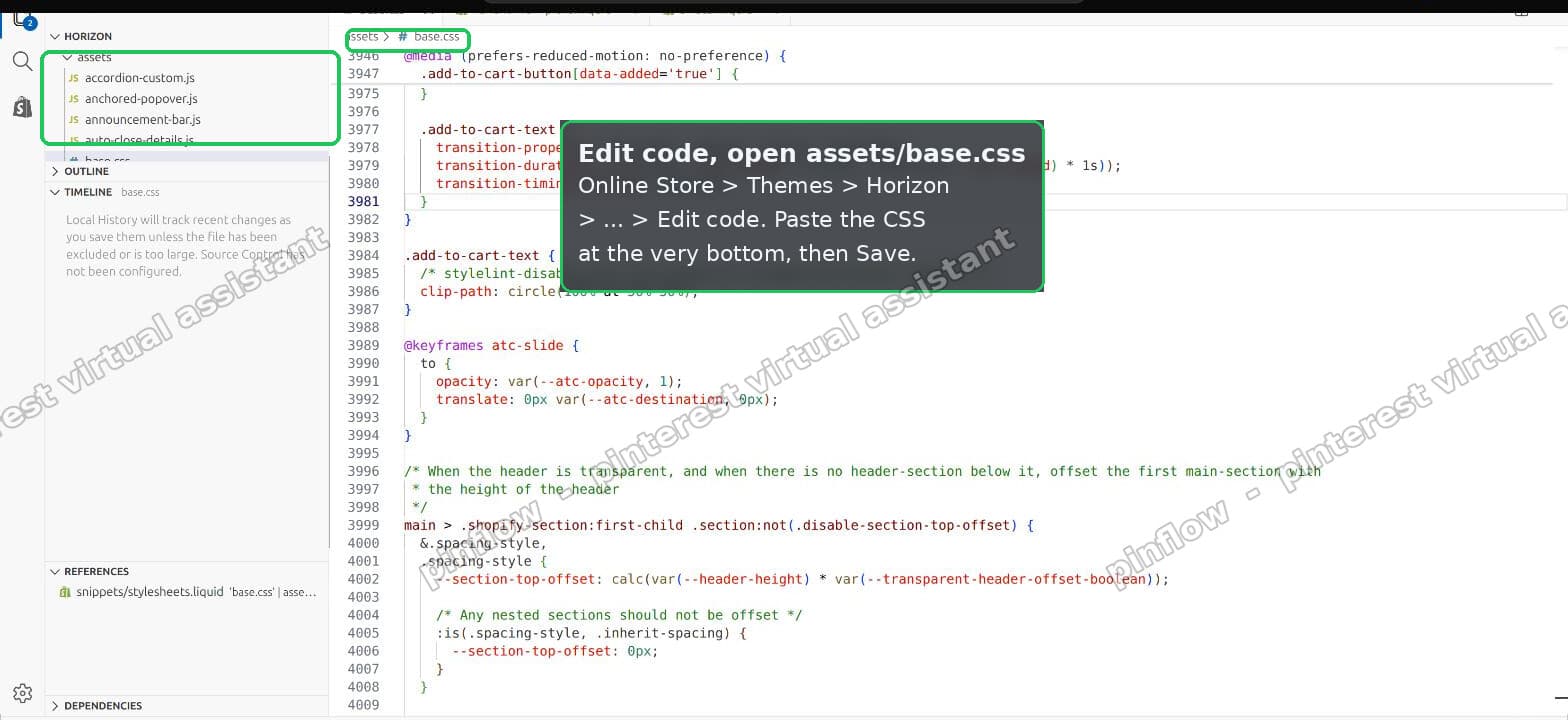 Open Edit code, then assets/base.css, and paste the rule at the bottom
Putting it at the bottom means it loads last, so your rule wins over the theme's default without any special tricks. Refresh a product page and the option name will be bold.
You do not need to understand the rest of base.css to do this safely. You are only adding a new rule at the end, not changing anything above it, so there is no risk of breaking existing styles. If you ever want to undo the change, just delete the lines you pasted and save again.
The catch: buttons vs dropdowns
Here is where the common forum answer only half works.
The rule above targets label, and that only matches when the option is shown as a dropdown. Horizon can also show options as buttons, pills, or swatches. In those styles the option name is not a label, it is a legend. So if you have buttons and you paste the dropdown-only rule, nothing changes and it looks like the fix failed.
To bold the option name no matter which style you use, target all three cases at once:
.variant-option--dropdowns > label,
.variant-option--buttons legend,
.variant-option[data-testid='variant-option-single'] {
  font-weight: 700;
}
This covers the dropdown label, the button and swatch legend, and the single-value case. It is the version I would paste, because it keeps working if you switch the picker style later in the theme editor.
How to tell which style you have
If you are not sure whether your options are dropdowns or buttons, look at the product page.
- A small box with a downward arrow that opens a list is a dropdown.
- Tappable boxes or colored circles shown all at once are buttons or swatches.
Or open the variant picker block in the theme editor and check its "Style" setting. Either way, the combined rule above handles both, so you do not have to get this exactly right.
Should you use 600 or 700?
font-weight: 700 is the standard "bold". 600 is "semibold", a little lighter.
Which looks better depends on the font your theme uses. Some fonts render 700 quite heavy. If bold looks too strong next to the rest of your product page, drop to 600. It is a one-character change, so try both and keep the one you like.
You can also go the other way. If you want the option name larger as well as bold, add a font size:
.variant-option--dropdowns > label {
  font-weight: 700;
  font-size: 1.05rem;
}
Keep the size change small. A big jump here can push your dropdowns around and unbalance the page.
Will a theme update remove it?
Editing base.css is a direct change to a theme file. If you later update Horizon to a new version, that update can replace base.css and your rule would go with it. Nothing breaks, the bold just disappears, and you paste the rule back in.
If you want the change to survive updates more cleanly, some merchants keep all their custom CSS in one place and re-apply it after an update. For a single rule like this, it is usually simplest to just remember it is there. Keep a copy of the snippet somewhere so re-adding it takes ten seconds.
What if it did not work?
If you pasted the rule and the name is still not bold, run through these.
- You have buttons, not dropdowns. This is the most common reason. Use the combined rule above that also targets
legend. - You bolded the wrong text. The rule bolds the option name, not the selected value inside the dropdown. The value lives in the native
select, and browsers limit how much you can style that. If you meant the value, that is a separate and much more limited job. - A caching layer is serving the old file. Right after saving, do a hard refresh, or view the product page in a private window.
- Another app is injecting its own variant picker. Some product-option apps replace Shopify's picker entirely with their own markup. If that is the case, the classes above will not match, and you would style the app's elements instead. Inspect the option name in your browser to see the real class it uses.
Doing the same on Dawn or an older theme
The idea carries over to other themes, only the class names change. Horizon uses variant-option--dropdowns. Dawn and its relatives use different names, often something like variant-input-wrap or a legend and label inside a fieldset.
The reliable way to find the right selector on any theme is to inspect the element:
- On the product page, right-click the option name and choose Inspect.
- In the panel that opens, the highlighted line is the element you want.
- Read the
classon that element, and on itslabelorlegend. - Write your rule against that class, then paste it at the bottom of the theme's main CSS file.
The theme changes, the method does not: find the element that holds the option name, then set font-weight on it.
Bolding the name on one product only
Sometimes you want the bold treatment on a single product, not the whole store. CSS alone cannot target one product by name, because the option markup looks the same everywhere.
The common approach is to scope the rule to the product template or a body class the theme adds, or to add the product's own section wrapper to the selector. If you only have a handful of products that need it, it is often simpler to accept the change site-wide, since a bold option name reads fine on every product. Decide based on how consistent you want the look to be.
The short version
There is no bold toggle for the variant option name in Horizon, so it takes one line of CSS in assets/base.css.
For a dropdown, use .variant-option--dropdowns > label { font-weight: 700 }. To cover buttons and swatches too, add .variant-option--buttons legend and the single-option selector to the same rule. Use 700 for bold or 600 for semibold, and keep a copy of the snippet in case a theme update clears it.
Spending too long on manual Shopify busywork?
PinFlow turns your Shopify catalog into Pinterest pins and posts them on a schedule, automatically. Same idea as the rule above, let the system handle the repetitive part.
Get PinFlow on the Shopify App StorePart of a complete guide
Shopify Variants: The Complete Guide
Variants are one product sold in several forms. How they work, the 2,048 and 3-option limits, and where each variant fix lives - images, swatches, sorting, hiding and the theme-specific bugs.
More Shopify fixes
More community-sourced Shopify guides, tested on a live store.
Collections & Products
Shopify Unit Pricing: Show a Price per Unit on Each Variant
Set a unit price on every variant and Dawn shows the price per 100 ml or per kg, and updates it when a shopper picks another size. No code needed.
Themes & Storefront
Square Size Buttons on Shopify Dawn (Custom CSS)
Dawn draws size options as round pills. Here is the Custom CSS that turns them into square boxes matching the Add to cart button, tested on Dawn 16.0.0.
Themes & Storefront
Remove the Variant ID From Your Shopify Product URL
Your product link keeps turning into /products/name?variant=43176780890281, before the customer has touched anything. One theme setting stops it, a second switch covers Dawn, and a short snippet cleans the links that already carry the ID.