
Remove the Variant ID From Your Shopify Product URL
Your product link keeps turning into /products/name?variant=43176780890281, before the customer has touched anything. One theme setting stops it, a second switch covers Dawn, and a short snippet cleans the links that already carry the ID.
By AjayCodeWiz · September 18, 2026 · 9 min read
The problem
You open a product page and the address bar reads something like this.
/products/signature-chocolate-mousse-etoile-eggless?variant=43176780890281The customer has not clicked a size. The page loaded and the number appeared. Copy that link into an email, a WhatsApp message or an Instagram bio and the long number travels with it.
That number is the ID of one variant of the product. Shopify gives every size, colour and style its own ID, and the ?variant= part tells the page which one to show.
The link still works. It just looks untidy, and most merchants who ask about it want the clean version to share.
Where it comes from
Shopify does not add it. Your theme does.
When a customer changes a size or colour, older themes call a browser function called history.replaceState and rewrite the address bar in place. No page reload, no flicker, just a longer link. Whether the theme does that at all is controlled by one setting called enableHistoryState.
There is a second half to the story, and it is the reason the ID appears before the customer clicks anything.
Most of these themes run one extra line right after the page loads.
// Auto-select first available variant on page load. Otherwise the product looks sold out.
$('.single-option-selector:eq(0)').val("6 inches").trigger('change');
That line picks the first size for the customer so the button does not read Sold out. Picking a size counts as a change, the change triggers the rewrite, and the ID lands in the address bar on load.
So two things have to be true: the setting is on, and the theme auto-selects a size. Both are true on a lot of older themes.
Which themes do this
The enableHistoryState spelling belongs to the older Shopify variant script, option_selection.js. You will find it in Debut, Venture, Brooklyn, Supply, Simple, and in a great many paid themes built in that era, including bakery, restaurant and single-product themes still selling today.
Newer themes do the same job with different wording. There is a section further down for Dawn, Craft, Studio, Refresh and the rest.
To tell which family you are in, search your theme for enableHistoryState. If you get hits, you are in the older family.
Find the setting, and skip the wrong hits
Go to Online Store > Themes, open the ... menu on your live theme, and choose Edit code. Duplicate the theme first if you want a backup.
In the code editor, click the magnifier in the far left sidebar. That is a search across every file in the theme, not just the open one. Type enableHistoryState.
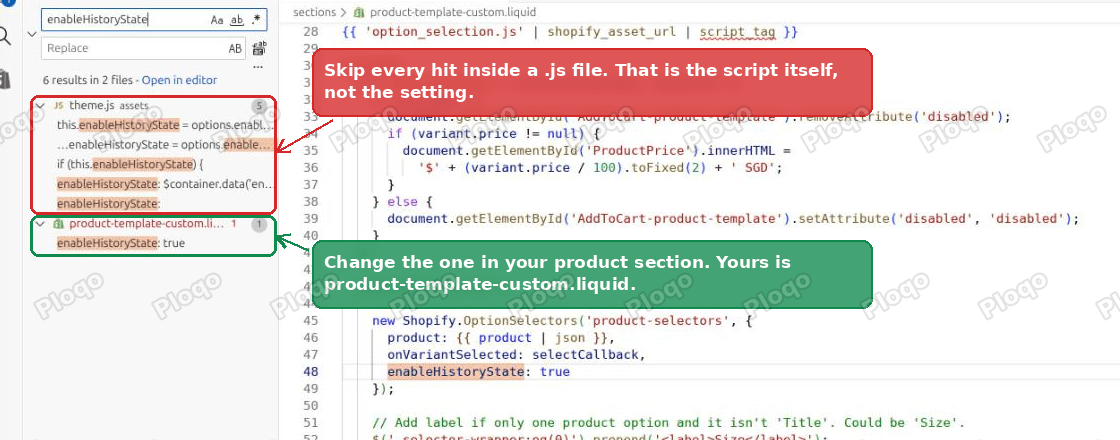 Search enableHistoryState in the Shopify theme code editor
You will usually get more than one result, and this is where people get stuck.
- Hits inside a
.jsfile are the script that reads the setting. There is often a handful of them intheme.js. Changing those does nothing useful and can break your product page. - The hit inside a section or template file is the setting itself. That is the one to change. It is the line that reads
enableHistoryState: true, sitting inside a block that startsnew Shopify.OptionSelectors.
Which file that is depends on the theme. Common names are sections/product-template.liquid, templates/product.liquid, or a custom one such as sections/product-template-custom.liquid.
If you are not sure which of several product files your live product pages actually use, open a product page on your store, right click, choose View page source and search the page for shopify-section-. The one wrapping the product block names the section file.
Change it
Open the file, find the line, and change the word.
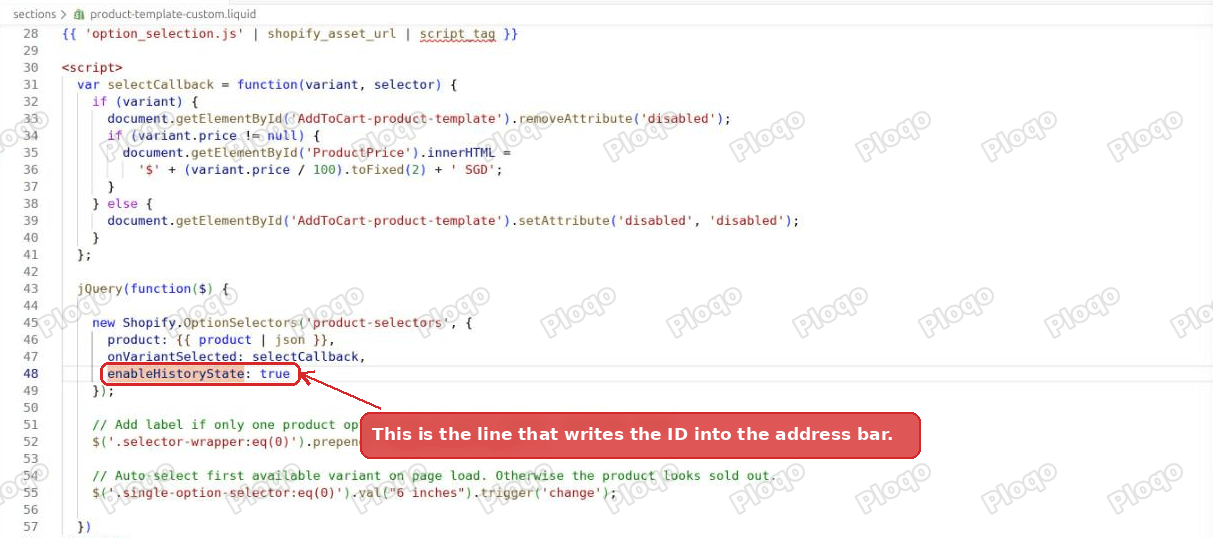 The enableHistoryState true line in the product section file
new Shopify.OptionSelectors('product-selectors', {
  product: {{ product | json }},
  onVariantSelected: selectCallback,
  enableHistoryState: false
});
Save.
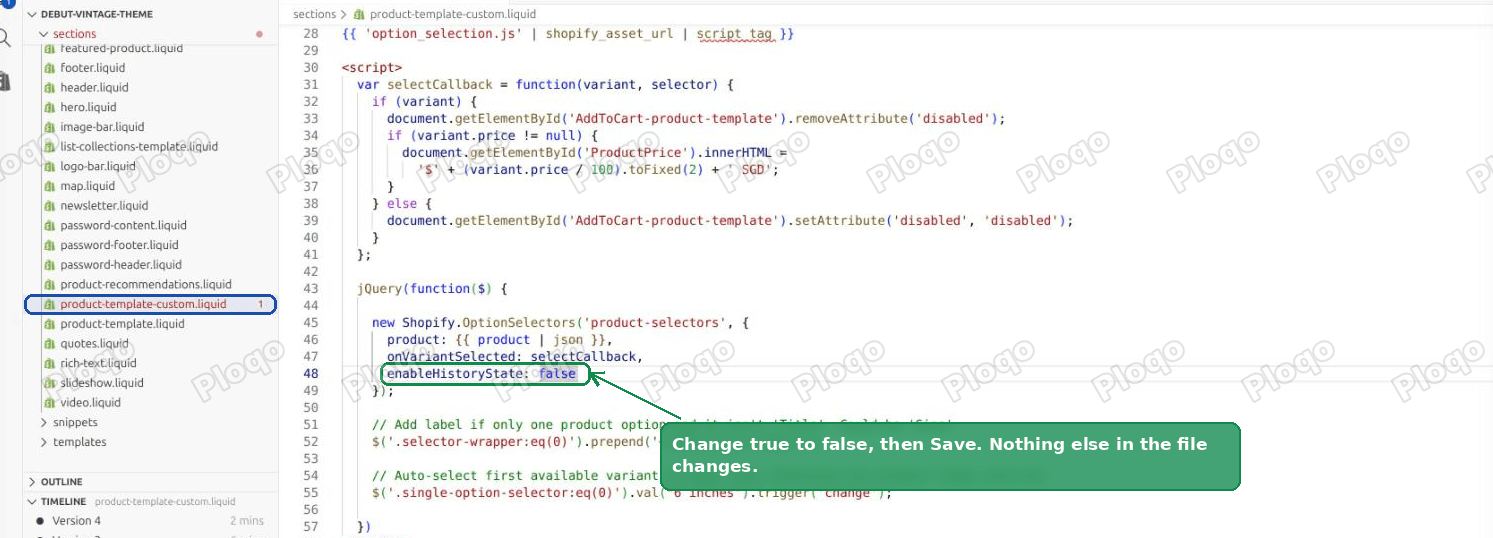 enableHistoryState changed to false and saved
If the search found the same line in more than one product file, change every one of them. A theme with a quick view, a featured product section and a main product page can carry three copies.
Check it worked
Open a product page in a fresh tab. Before the change the ID arrives on load.
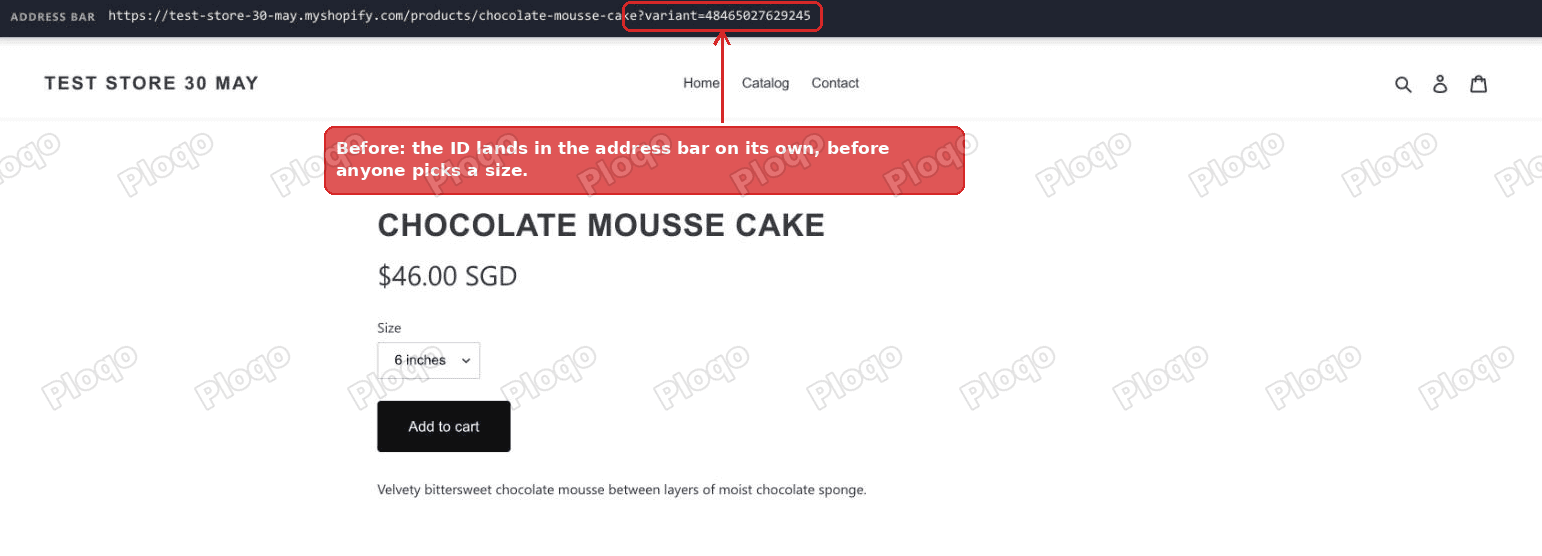 Variant ID appears in the Shopify product URL on page load
After the change the link stays as you typed it.
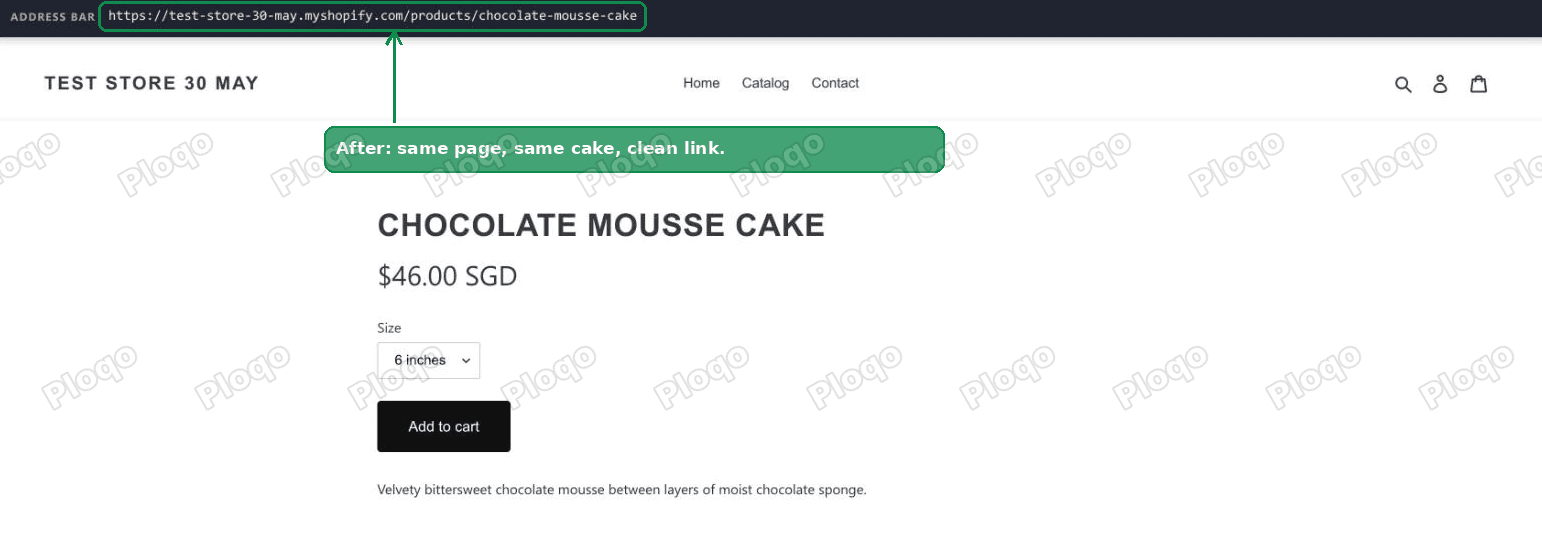 Clean Shopify product URL after the fix
I tested this on a dev store set up the same way as the merchant who asked: one product, three sizes, the same older variant script. With the setting on, the ID appeared with nothing clicked. With it off, the link stayed clean through every size change.
What does not break
This is the part worth checking before you touch anything, because the usual warning is that removing variant IDs from URLs causes problems.
Switching the setting off changes one thing only: whether the address bar gets rewritten. The variant selection itself runs through a hidden <select name="id"> field on the add to cart form, and that field is still updated exactly as before.
Measured on the same dev store, with the setting off:
- Choosing the 8 inch size changed the displayed price from $46.00 to $66.00.
- The hidden variant field changed to the 8 inch variant ID.
- The link stayed clean.
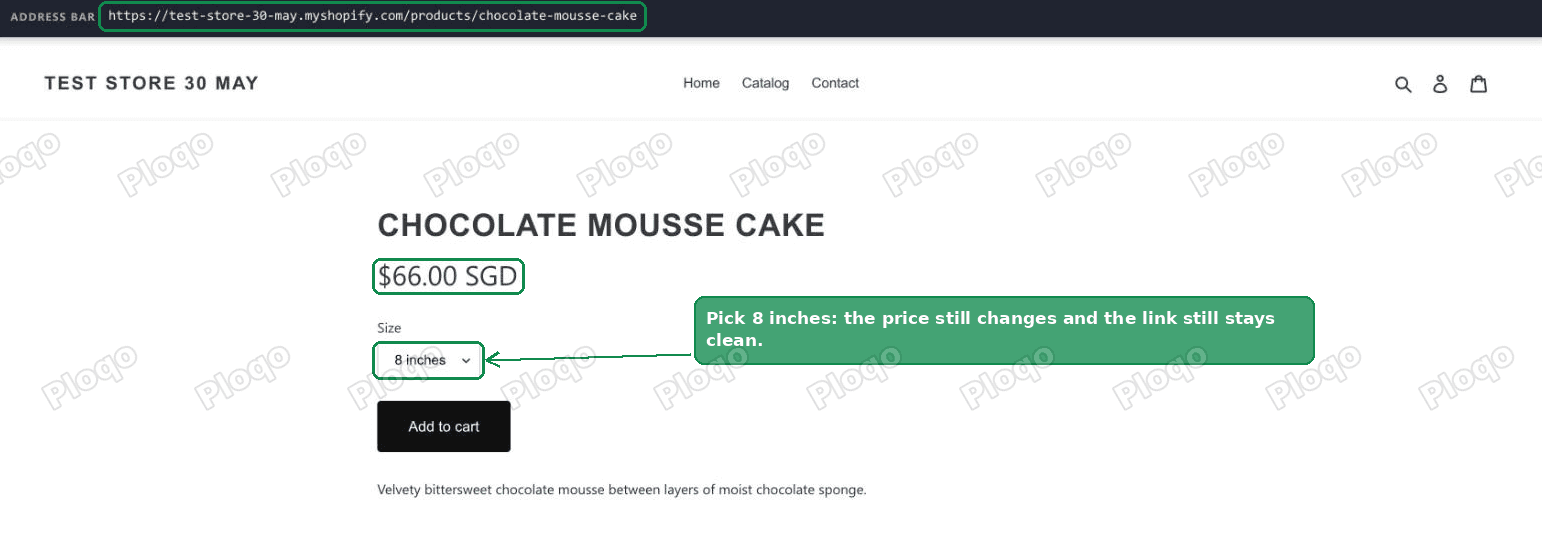 Choosing a variant still updates the price with a clean URL
Then add to cart:
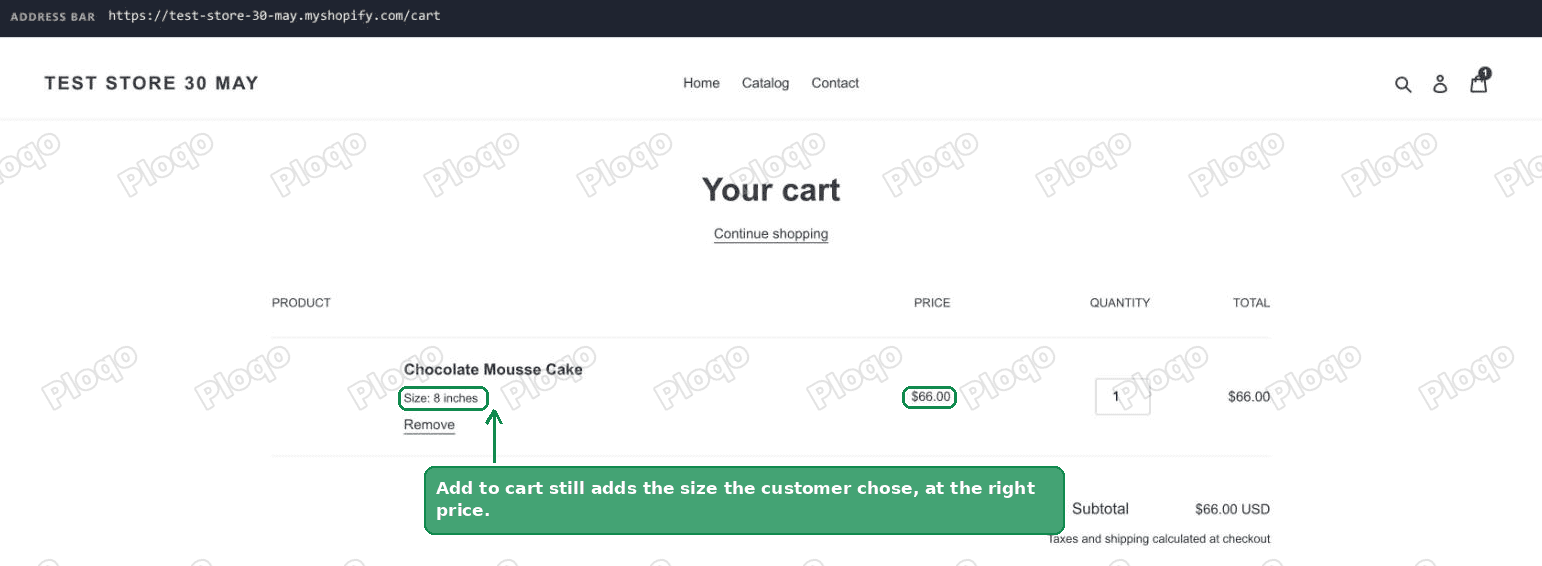 Cart shows the correct variant after the fix
The cart line reads Size: 8 inches at $66.00. The customer gets what they picked. Variant photos, price and availability all still switch.
Links that already carry the ID
Turning the setting off stops new ones being written. It does not clean a link that already exists.
A customer who bookmarked the page last month still has the long version. So does Google, if it crawled that URL, and so does any ad or email you sent.
If you want those to land on the clean link too, paste this into the same file, just above the {% schema %} tag at the bottom.
<script>
  if (window.history.replaceState && location.search.indexOf('variant=') > -1) {
    var u = new URL(location.href);
    u.searchParams.delete('variant');
    history.replaceState({}, document.title, u.pathname + u.search + u.hash);
  }
</script>
It runs once on load, removes the variant parameter and leaves everything else in the link alone, so UTM tags from your ads survive.
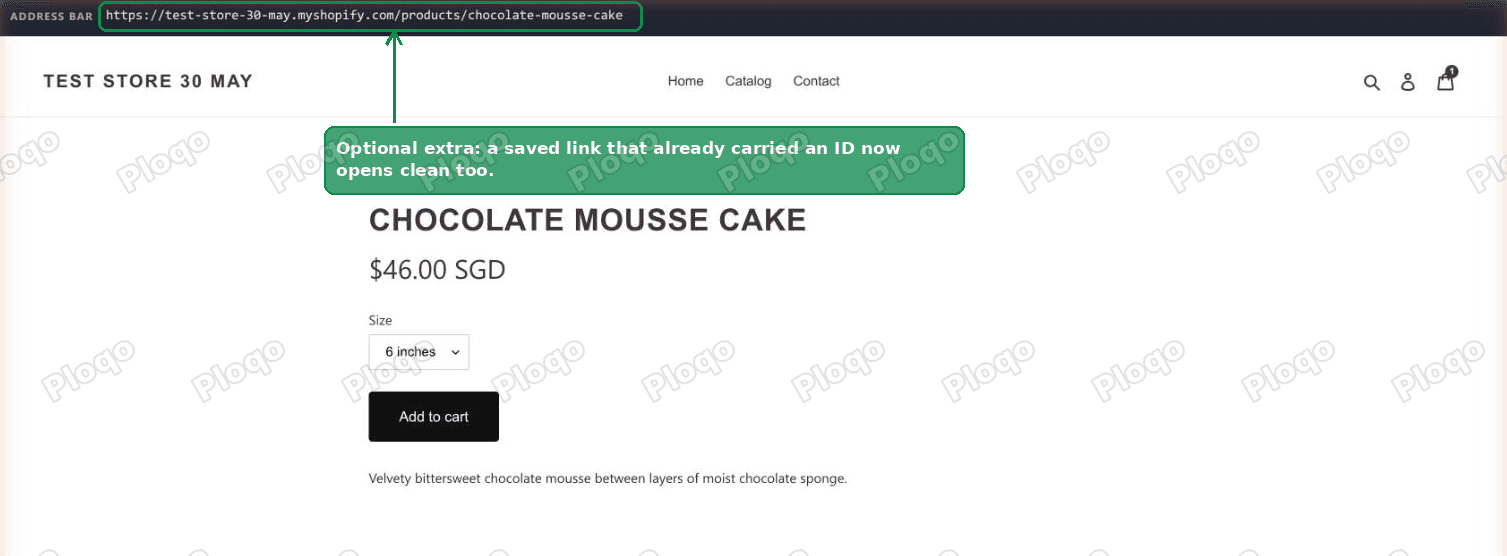 An old link carrying a variant ID now opens clean
One thing to understand before you add it. The page still opens on whichever variant the theme selects. The script tidies the address bar; it does not change what is shown.
Dawn, Craft, Studio and the newer themes
Dawn and the themes built on it do not use enableHistoryState. Searching for it returns nothing, which is why this fix looks missing on a modern theme.
The equivalent lives in sections/main-product.liquid, near the top, on the opening <product-info> tag.
<product-info
  data-update-url="true"
Change true to false and save.
The script reads that attribute immediately before it rewrites the address bar. I checked this on a Dawn store: with the attribute left at true, choosing a size wrote ?variant= into the link. With it set to false, choosing a different size still moved the price to $86.00 and still selected the size, and the link did not change.
One side effect worth knowing. Dawn's share button, the little link icon under the price, deliberately keeps building the full link with the variant ID in it, whatever this attribute is set to. That is intentional, so a customer who uses the share button still sends a link to the exact variant they were looking at. If you want that gone as well you have to edit the share button snippet separately.
Does the variant ID hurt your SEO?
Generally no, and it is worth saying clearly because this is the reason a lot of merchants go looking for the setting.
Shopify prints a canonical tag on every product page, and it points at the clean product URL even when the address bar shows a variant ID. That tag is the signal search engines use to decide which version of a page is the real one. So the ?variant= version was never being counted as a separate, duplicate page.
You can check your own store in a few seconds. Open a product page with a variant ID in the link, view the page source, and search for canonical. The link in it should have no ?variant= on the end.
What the ID does affect is analytics and link sharing. Long links look less trustworthy in a message, get truncated in some apps, and split your page views across several URLs in tools that do not normalise query strings.
What you give up
A link with a variant ID is a deep link: send someone ?variant= plus the ID of the 10 inch cake and they land on the 10 inch cake, already selected. Turning the setting off means your customers stop generating those links by copying the address bar.
Before you decide that matters, check whether yours actually work.
On many older themes they do not, and the reason is that auto-select line from earlier. It runs after the variant script has read the incoming link, so it overrides whatever the link asked for. On the store that prompted this article, a link carrying the 8 inch ID opened on 6 inches. The deep link had not worked for a long time, and the merchant had not noticed, because nothing visibly broke.
Test yours before and after. Copy a link with a variant ID, open it in a private window, and see which option is selected when the page settles.
If deep links do work on your theme and you need them, you can keep them and still get clean links most of the time: leave enableHistoryState alone and remove or comment out the auto-select line instead. The address bar then stays clean on load and only picks up the ID once the customer actually chooses something.
If the ID keeps coming back
Work down this list.
- You changed the wrong file. More than one product template can exist in a theme. Confirm the section name from the page source, as described above.
- You changed a hit inside a
.jsfile. Those are the script, not the setting. - Another product file has its own copy. Quick view and featured product sections often carry a second
enableHistoryState: true. - You are on a newer theme. Use
data-update-urlinsections/main-product.liquidinstead. - The link is coming from a collection page. Some themes build product card links with the variant already attached. That is a separate edit in the file that builds the product card, not this one.
- An app is writing it. Bundle, upsell and variant swatch apps sometimes manage the address bar themselves. Test with the app's embed turned off.
- Browser cache. Hard refresh, or test in a private window.
While you are in the variant picker area of the theme, two related fixes worth knowing: hiding variant combinations that do not exist and syncing a thumbnail click back to the variant selector.
What to do
- Search your theme for
enableHistoryStatein the code editor. - Change the hit in your product section file, not the ones in a
.jsfile, fromtruetofalse. - On Dawn and newer themes, set
data-update-url="false"insections/main-product.liquidinstead. - Add the small script above the
{% schema %}tag if you also want old links cleaned on arrival. - Check the cart still receives the right variant. It will, but check.
- Leave your canonical tags alone. They were already pointing search engines at the clean URL.
Spending too long on manual Shopify busywork?
PinFlow turns your Shopify catalog into Pinterest pins and posts them on a schedule, automatically. Same idea as the rule above, let the system handle the repetitive part.
Get PinFlow on the Shopify App StorePart of a complete guide
Shopify Variants: The Complete Guide
Variants are one product sold in several forms. How they work, the 2,048 and 3-option limits, and where each variant fix lives - images, swatches, sorting, hiding and the theme-specific bugs.
More Shopify fixes
More community-sourced Shopify guides, tested on a live store.
Themes & Storefront
Hide Unavailable Variants in a Shopify Dropdown
Green has no 3XL, so Shopify prints "3XL - Unavailable" in the size dropdown anyway. How to remove combinations that do not exist, without the bug that kills the variant picker. Tested on Studio.
Shopify Admin
How to Hide a Variant in Shopify Without Deleting It
A colour is temporarily unavailable and you want it off every product page without deleting it and rebuilding it later. Shopify can now unpublish a single variant. The fast way to do it, tested on a live store.
Themes & Storefront
Shopify Craft Theme: Sync Thumbnails to the Variant Picker
In the Craft theme, clicking a product thumbnail changes the photo but leaves the variant selector behind. Here is why the sync only runs one way, and the Custom Liquid block that fixes it.