
How to Bulk Add Multiple Variants to Cart in Shopify
Shopify's variant picker adds one variant per click. Here is a Dawn section that gives every variant its own quantity box, caps specific options, and adds them all in one request.
By AjayCodeWiz · July 10, 2026 · 10 min read
The problem: one add to cart, one variant
You sell rope by length. Six lengths, one product, six variants.
A customer wants six of the 1m, six of the 2m, and three of the 4m. On a stock Dawn product page that is three separate trips: pick a length, set a quantity, add to cart, go back, repeat.
Most of them will not bother.
This comes up constantly for anything sold in multiples: lengths, sizes in a size run, flavours in a mixed case, components in a kit. A merchant asked about exactly this, wanting customers to select several options at once with a cap of three on one specific option.
The honest starting point: Shopify's native variant picker cannot do this. It is built around one variant, one quantity, one add to cart. No theme setting changes that, because it is how the picker is designed rather than how it is configured.
There are two real routes. An app, or replacing the picker with a section that talks to the Cart AJAX API directly. I built the second one on a Dawn test store, and this is it.
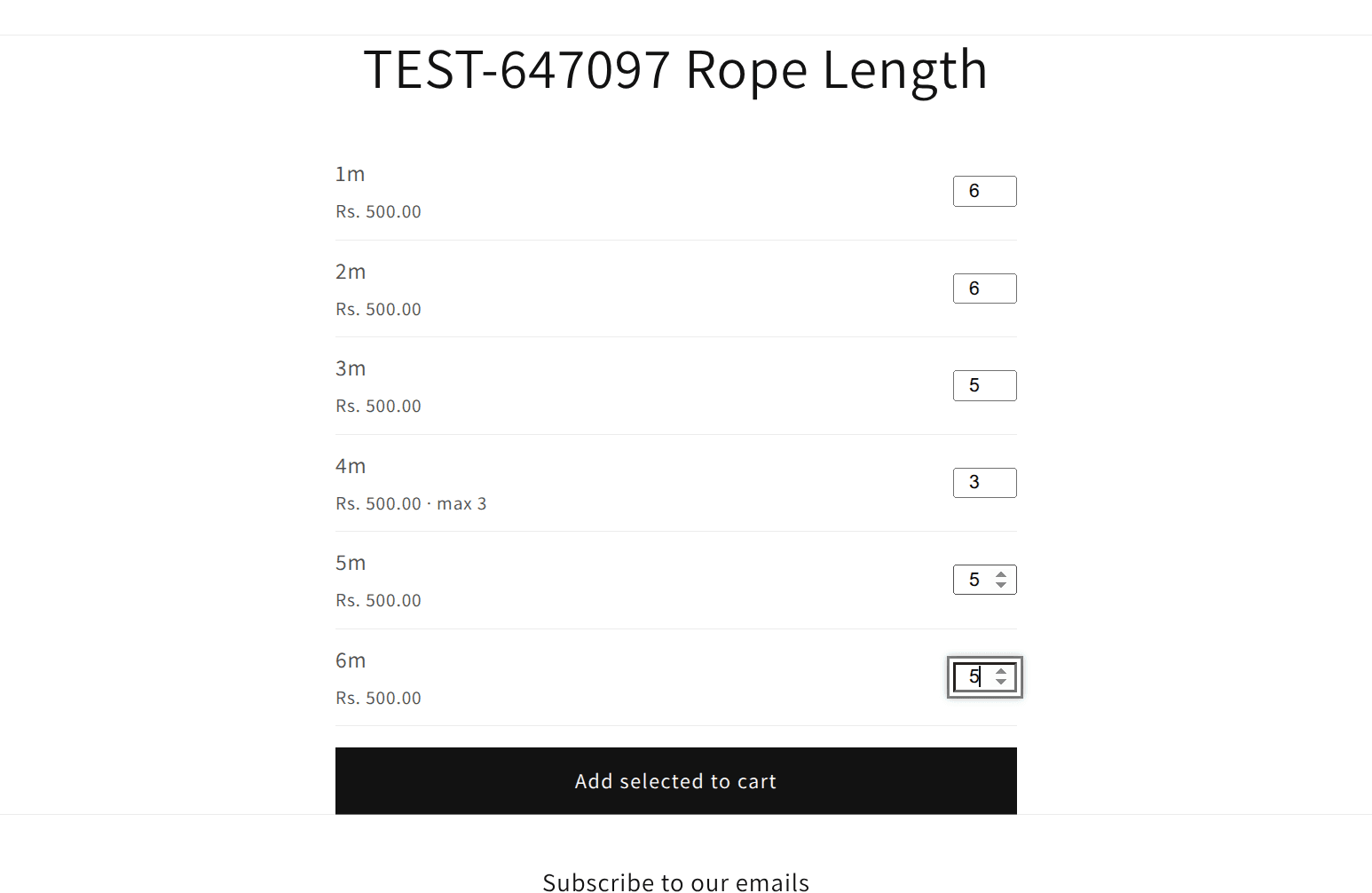 Quantity boxes for every variant, with a cap on one option
Why the native picker works this way
Worth a paragraph, because it rules out a lot of dead ends.
Shopify's product form posts a single id (a variant id) and a single quantity to /cart/add. One form, one line item. The variant picker's whole job is to decide which variant id goes in that field.
So "select several options" is not a picker setting that is turned off. There is nowhere in that form to put a second variant.
What people try, and why none of it works:
- Turning on more quantity selectors. The quantity box applies to the currently selected variant. There is only ever one.
- A different theme. Every Theme Store theme uses the same product form contract.
- Line item properties. Checkboxes attached to a line item are metadata, not quantities. You get one line item with a note attached, not several priced items with their own stock.
The Cart AJAX API does not have this limitation. POST /cart/add.js accepts an items array with as many variants and quantities as you like, in one request. That is the door this uses.
The two routes, briefly
A bundle or product-options app. The easiest answer and the right one for most stores. Apps like BOGOS or Easify Custom Product Options render a bundle page with a quantity per variant. No code, and stock and pricing stay correct because the app builds real line items.
Use this if you do not want to maintain Liquid, or if you need per-option pricing rules, conditional logic, or minimums and maximums that vary by customer.
A custom section. Free, no recurring cost, no extra scripts, and you own it. The rest of this article is that.
Use it if your requirement is simple, roughly "let people pick quantities across variants and cap one of them", and you are comfortable pasting a section file.
Duplicate your theme before you start. Online Store > Themes > ... > Duplicate.
Step 1: create the section
Online Store > Themes > ... > Edit code. Under Sections, click Add a new section, name it multi-variant-buy, and create it.
Delete the placeholder content and paste this in full:
{%- style -%}
.multi-variant-buy { max-width: 480px; margin: 0 auto; }
.multi-variant-buy__row {
display: flex;
align-items: center;
justify-content: space-between;
gap: 1rem;
padding: 0.75rem 0;
border-bottom: 1px solid rgba(var(--color-foreground), 0.08);
}
.multi-variant-buy__label { display: flex; flex-direction: column; }
.multi-variant-buy__qty { width: 4.5rem; text-align: center; }
.multi-variant-buy__submit { margin-top: 1.5rem; }
.multi-variant-buy__error {
color: rgb(var(--color-error, 200, 30, 30));
margin-top: 0.5rem;
}
{%- endstyle -%}
<div class="page-width">
<div class="multi-variant-buy" data-multi-variant-buy data-section-id="{{ section.id }}">
{%- for variant in product.variants -%}
{%- liquid
assign variant_max = section.settings.capped_max
assign is_capped = false
for option_value in variant.options
if option_value == section.settings.capped_option_value
assign is_capped = true
endif
endfor
-%}
<div class="multi-variant-buy__row">
<div class="multi-variant-buy__label">
<span>{{ variant.title }}</span>
<small>
{{ variant.price | money_with_currency }}
{%- if is_capped %} · max {{ variant_max }}{% endif -%}
</small>
</div>
<input
type="number"
class="multi-variant-buy__qty"
data-variant-id="{{ variant.id }}"
{% if is_capped %}data-max="{{ variant_max }}" max="{{ variant_max }}"{% endif %}
min="0"
value="0"
{% unless variant.available %}disabled{% endunless %}
>
</div>
{%- endfor -%}
<button
type="button"
class="button button--full-width button--primary multi-variant-buy__submit"
data-multi-variant-submit
>
Add selected to cart
</button>
<p class="multi-variant-buy__error" data-multi-variant-error hidden></p>
</div>
</div>
<script>
(function () {
var root = document.querySelector(
'[data-multi-variant-buy][data-section-id="{{ section.id }}"]'
);
if (!root) return;
var button = root.querySelector('[data-multi-variant-submit]');
var errorEl = root.querySelector('[data-multi-variant-error]');
root.querySelectorAll('.multi-variant-buy__qty').forEach(function (input) {
input.addEventListener('change', function () {
var max = input.dataset.max ? parseInt(input.dataset.max, 10) : null;
var value = parseInt(input.value, 10) || 0;
if (value < 0) value = 0;
if (max !== null && value > max) value = max;
input.value = value;
});
});
button.addEventListener('click', function () {
errorEl.hidden = true;
var items = [];
root.querySelectorAll('.multi-variant-buy__qty').forEach(function (input) {
var qty = parseInt(input.value, 10) || 0;
if (qty > 0) {
items.push({ id: parseInt(input.dataset.variantId, 10), quantity: qty });
}
});
if (items.length === 0) {
errorEl.textContent = 'Select a quantity for at least one option.';
errorEl.hidden = false;
return;
}
button.disabled = true;
fetch(window.Shopify.routes.root + 'cart/add.js', {
method: 'POST',
headers: { 'Content-Type': 'application/json', Accept: 'application/json' },
body: JSON.stringify({ items: items }),
})
.then(function (res) {
if (!res.ok) {
return res.json().then(function (data) {
throw new Error(data.description || 'Could not add items to cart.');
});
}
return res.json();
})
.then(function () {
window.location.href = window.Shopify.routes.root + 'cart';
})
.catch(function (err) {
errorEl.textContent = err.message;
errorEl.hidden = false;
button.disabled = false;
});
});
})();
</script>
{% schema %}
{
"name": "Multi-qty variant buy",
"settings": [
{
"type": "text",
"id": "capped_option_value",
"label": "Option value to cap",
"default": "4m",
"info": "Must match a variant option value exactly, e.g. 4m"
},
{
"type": "number",
"id": "capped_max",
"label": "Max quantity for that option value",
"default": 3
}
],
"presets": [{ "name": "Multi-qty variant buy" }]
}
{% endschema %}Save.
What the code is doing
Four pieces worth understanding, because they are what you will adjust.
One row per variant. The Liquid loops product.variants and renders a label, a price and a number input. The variant id rides along in data-variant-id, which is what the cart request needs.
The cap is data-driven. For each variant it checks whether any of its option values matches capped_option_value from the section settings. If so it writes max and data-max onto that input. No hardcoded variant ids, so it survives you adding or reordering variants.
Sold-out variants are disabled. The {% unless variant.available %}disabled{% endunless %} keeps people from ordering what you do not have. Remove it if you sell on backorder.
The cap is enforced twice. max on the input handles the browser's stepper. The change listener clamps a value that was typed or pasted, which max alone does not catch. Both matter.
The submit handler collects every input with a quantity above zero, builds an items array, and posts once to /cart/add.js. One request, one round trip, every variant added together.
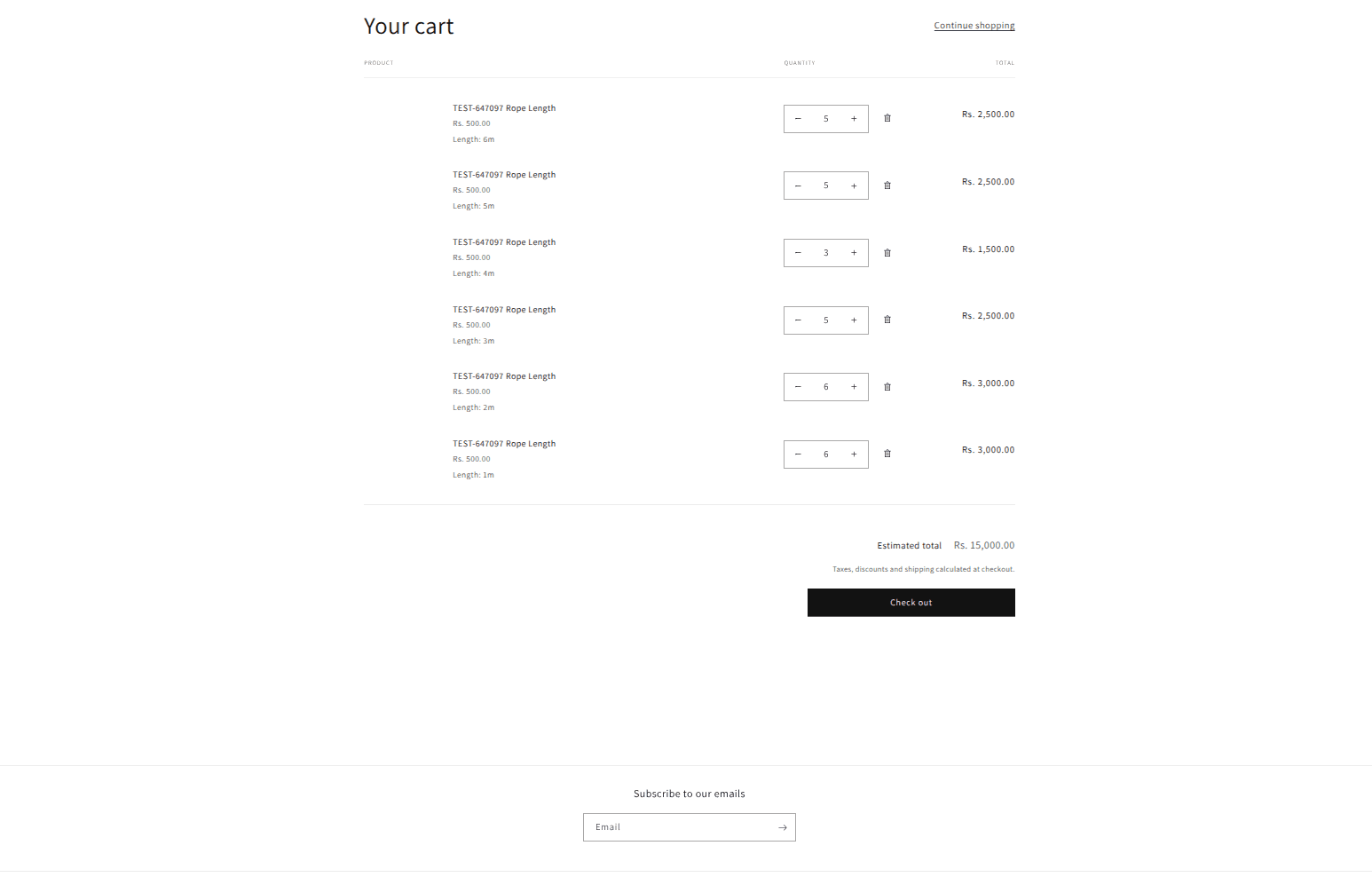 All the selected variants added to the cart in a single click
Step 2: put it on the right product
You probably do not want this on every product. Give it its own template.
- In Edit code, under Templates, find
product.json, click ... and Duplicate. - Name the copy
product.multi-variant. - On the product's admin page, find Theme template in the right sidebar and select it.
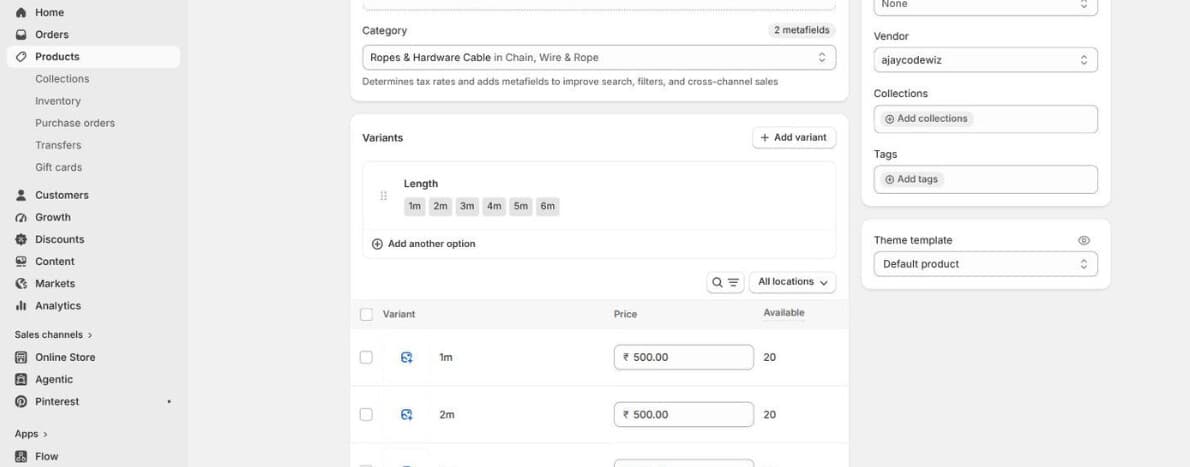 The product's variants in the admin
Only products assigned that template use the new layout. Everything else keeps the normal picker.
Skip this step entirely if you do want it on every product, and edit the default product.json instead.
Step 3: add the section and remove the old picker
Online Store > Themes > Customize, with the new template selected.
Then, and this is the step people miss: remove or hide the existing Variant picker, Quantity selector and Buy buttons blocks.
Leave them in and the page shows two ways to buy the same product. Shoppers use the old one, get one variant, and you conclude the section is broken.
Then Add section, search Multi-qty variant buy, and add it.
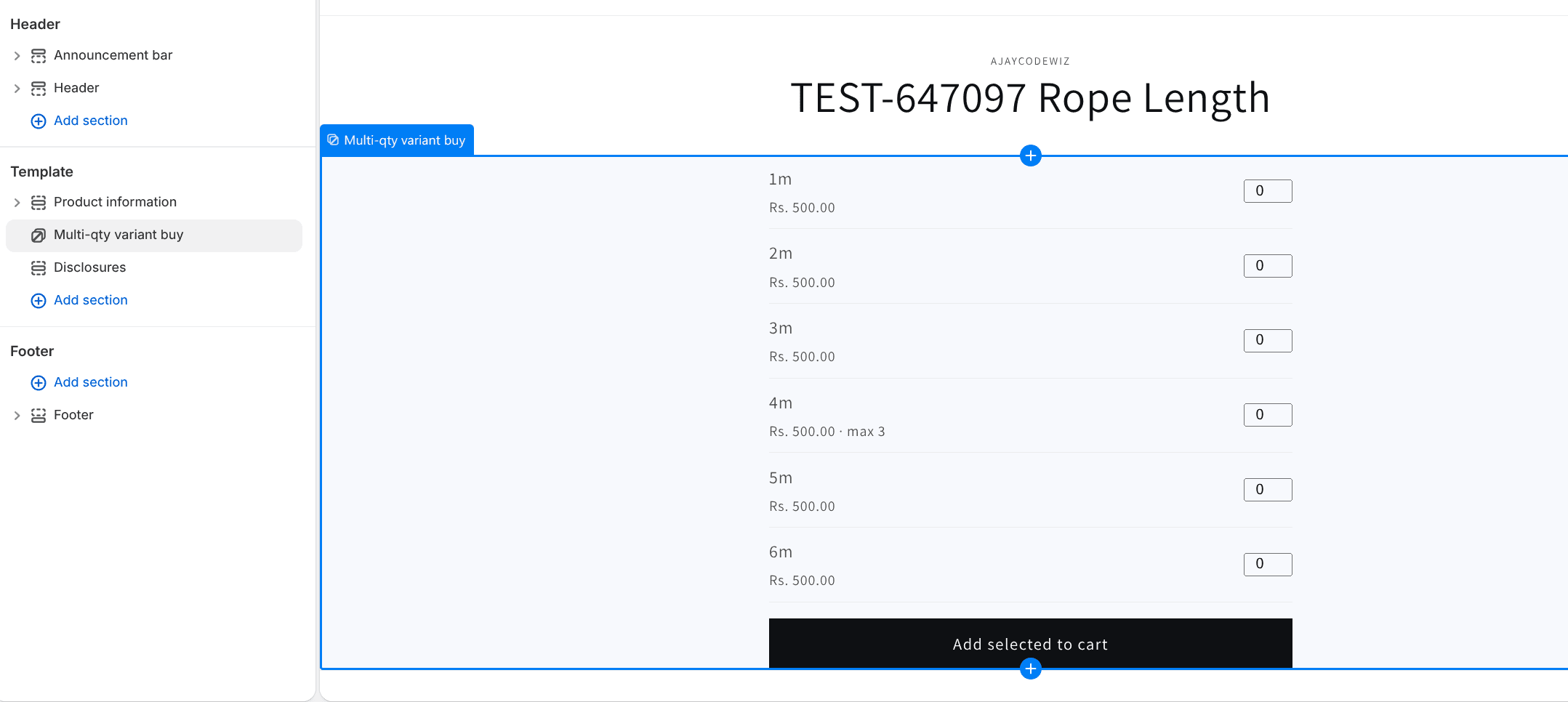 The section added in the theme editor
Step 4: set the cap
Click the section in the left sidebar. Two settings:
- Option value to cap: the exact option value, for example
4m. Case sensitive, and it must match your product's option value character for character. - Max quantity for that option value:
3.
Save.
On the test store the 4m input would not go above 3, by stepper or by typing, while every other length was uncapped. Hitting Add selected to cart added them all at once and landed on the cart.
Adjusting it
Cap several options. The setting takes one value. For more, change it to a comma-separated list and split it in the Liquid:
assign capped_values = section.settings.capped_option_value | split: ','then check membership with contains instead of the equality test.
Do not redirect to the cart. Replace the window.location.href line with a call to your theme's cart drawer, or refresh the cart bubble.
Enforce a minimum order. Sum the quantities in the click handler and reject the submit below your threshold, using the same error element.
Cap by inventory instead of a fixed number. Use variant.inventory_quantity in place of variant_max, but only when inventory tracking is on and the policy is deny. Otherwise it is unset and the cap disappears with no error.
The limitations, honestly
No live subtotal. Shoppers see prices per row, not a running total until they reach the cart. Adding one is not hard but it is more JavaScript.
Server-side stock is still the authority. The disabled attribute and the cap are client-side. Someone determined can bypass both. Shopify will reject an oversell at checkout when tracking is on, but the cap of three is a UI convention, not a business rule Shopify enforces.
It replaces the picker rather than extending it. Products with several options, say Length and Colour, render every combination as a flat row list. That is fine for six variants and unusable for sixty. Beyond a dozen or so, group them or use an app.
Theme updates. It is a standalone section file, so a Dawn update will not overwrite it. But it does use Dawn's button and page-width classes, which could be restyled.
Not tested on every theme. Built and tested on Dawn. Anything Dawn-derived should work. Horizon and Fabric use web components for the product form, so the section will render but the classes will look off until you restyle them. The cart API call is theme independent.
If it is not working
The button does nothing. Open the browser console. If you see an error naming window.Shopify.routes, the section is rendering somewhere Shopify's storefront JavaScript is not available, usually a preview context. Test on the real storefront.
"Cannot find variant" or a 422 response. The variant ids are wrong. This happens if you edited product options after adding the section, because changing an option value deletes and recreates variants with new ids. The Liquid reads ids fresh on every render, so a hard reload normally clears it. If it persists, the page is cached.
Everything adds with quantity 1. The inputs are not being read. Almost always a class name mismatch: the querySelector looks for .multi-variant-buy__qty and something has renamed it. Check the class on the input matches the selector in the script.
Two sets of buy buttons. Step 3 was skipped. Remove the Variant picker, Quantity selector and Buy buttons blocks from that template.
The cap is ignored. capped_option_value must match the option value exactly, including case and any spaces. 4M does not match 4m, and 4m with a trailing space does not match either. The value shown in the admin's variant list is the authority.
Nothing appears for a product. A product with no variants beyond the default has a single variant titled Default Title. The section will render one row for it, which is correct but pointless. This layout only earns its place on products with several real variants.
Which route to pick
Use the section when the requirement is roughly "quantities across a handful of variants, one of them capped", you want no recurring cost, and someone can paste a file.
Use an app when you need pricing rules, conditional options, customer-specific minimums, a live subtotal, or you have many variants per product. Also use an app if your team does not want to own Liquid when Dawn changes.
What does not work at any price is expecting the native variant picker to do it. It posts one variant id. Once you accept that, the choice is just who writes the code that talks to the cart API: you, or an app.
A better cart only helps the people who arrive
PinFlow turns your Shopify catalog into Pinterest pins and posts them on a schedule, so more of the right people reach the product page you just improved.
Get PinFlow on the Shopify App StoreMore Shopify fixes
More community-sourced Shopify guides, tested on a live store.
Themes & Storefront
Shopify Payment Icons: Fix a Footer That Shows None
The payment icons in a Shopify footer come from your payment provider, not from the theme. When the provider sends none, the row stays empty. Here is how to add the icons yourself on Refresh, Dawn and similar themes.
Themes & Storefront
Shopify Order Notes: Turn On the Cart Note Box
Let customers leave order notes and special instructions on your Shopify cart page. Turn on the built-in cart note in Theme settings, rename its label, and find each note on the order. Tested on Dawn, no code.
Themes & Storefront
Shopify WhatsApp Integration: Add a Free Chat Button
How to add WhatsApp to Shopify with a floating chat button: shoppers tap it and WhatsApp opens a chat with you, the message already typed and naming the product.