
Shopify Bulk Edit Metafields: Hide the Category Columns
Shopify's bulk editor adds a column for every category metafield each time it opens. Here is how to hide them, keep them hidden while you work, and bulk edit the metafields you actually want.
By AjayCodeWiz · September 24, 2026 · 8 min read
The problem: the bulk editor fills up with columns you did not ask for
You select a few products, click Bulk edit, and the grid opens with a long row of columns you never picked. Color, Sleeve length type, Age group, Neckline, Target gender, Fabric, Size, and more.
A merchant raised this on the Shopify Community. Every time they opened the bulk editor, they had to untick a long list of these columns before they could see the fields they wanted. After saving and opening the editor again, the columns came back.
I reproduced it on a test store with three T-shirt products. The bulk editor opened with 19 columns. Five of them were the normal ones: title, status, category, vendor and price. The other 14 were category metafields, and a message at the bottom of the screen said "14 columns added".
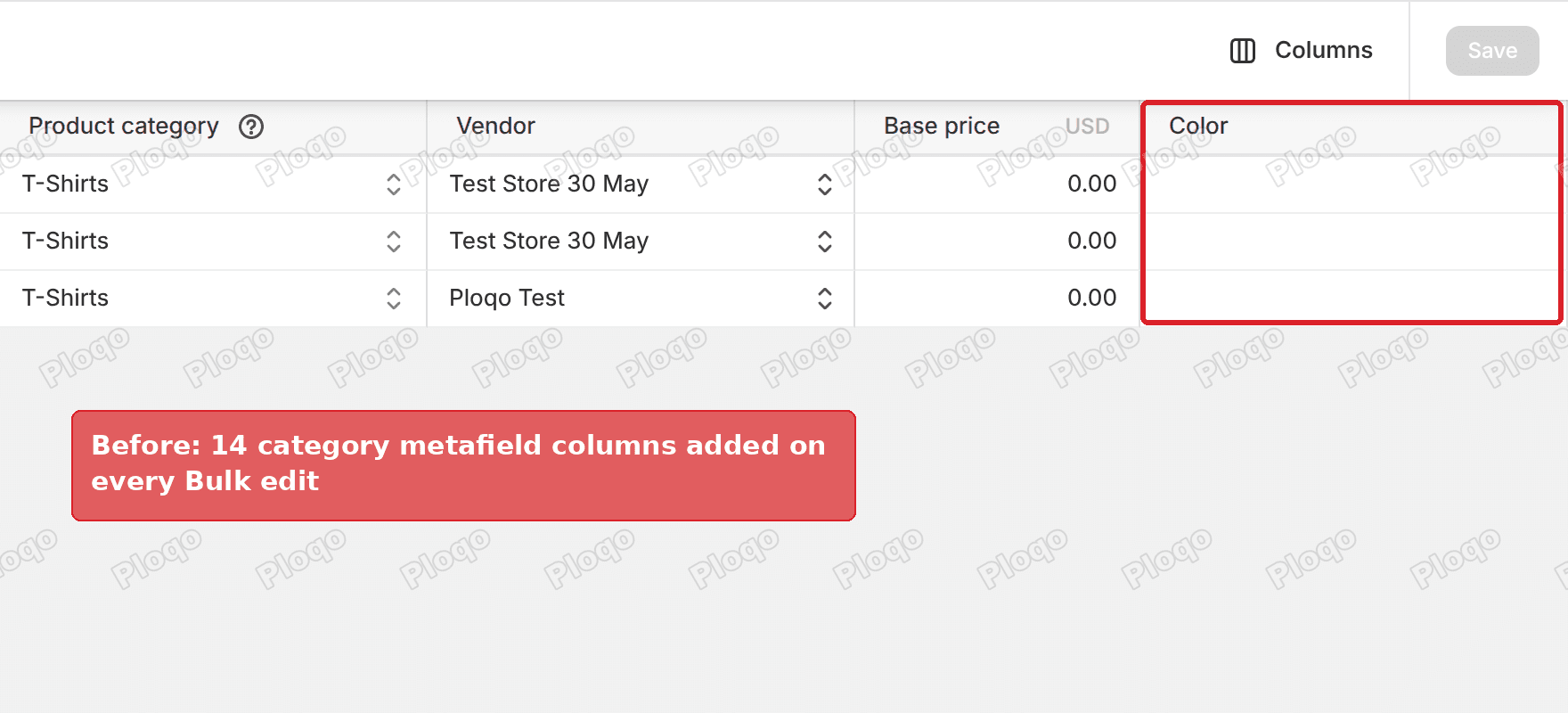 Shopify bulk editor with category metafield columns added automatically
Shopify has no setting that turns this off for good. You can still get a clean grid and keep it clean while you work, as long as you stay in the same browser tab.
Why the columns appear
Every product in Shopify can have a product category, picked from Shopify's standard list. "Apparel & Accessories > Clothing > Clothing Tops > T-Shirts" is one of them.
Each category comes with its own set of category metafields. A metafield is an extra field on a product that holds information Shopify does not have a built-in box for. Category metafields are the ones Shopify suggests for that category, like Fabric and Neckline for a T-shirt, or Orientation and Printing method for an art print.
On the product page in the admin, these show up in a Category metafields card as small "+" buttons. My T-shirt had 14 of them.
Each time the bulk editor loads, Shopify reads the categories of the selected products and adds one column for each category metafield it finds. It does this on every fresh open. If your products span several categories, the list grows. When I opened the editor on a mixed set of 20 products (prints, cakes, collectibles, a jersey), the message said "26 columns added".
Hide the category metafield columns
This is the fix I posted in the thread. It takes about a minute, and the trick is to do all your editing in one sitting.
- Go to Products and tick every product you want to edit today. Use the select-all checkbox at the top of the list if you want all of them.
- Click Bulk edit.
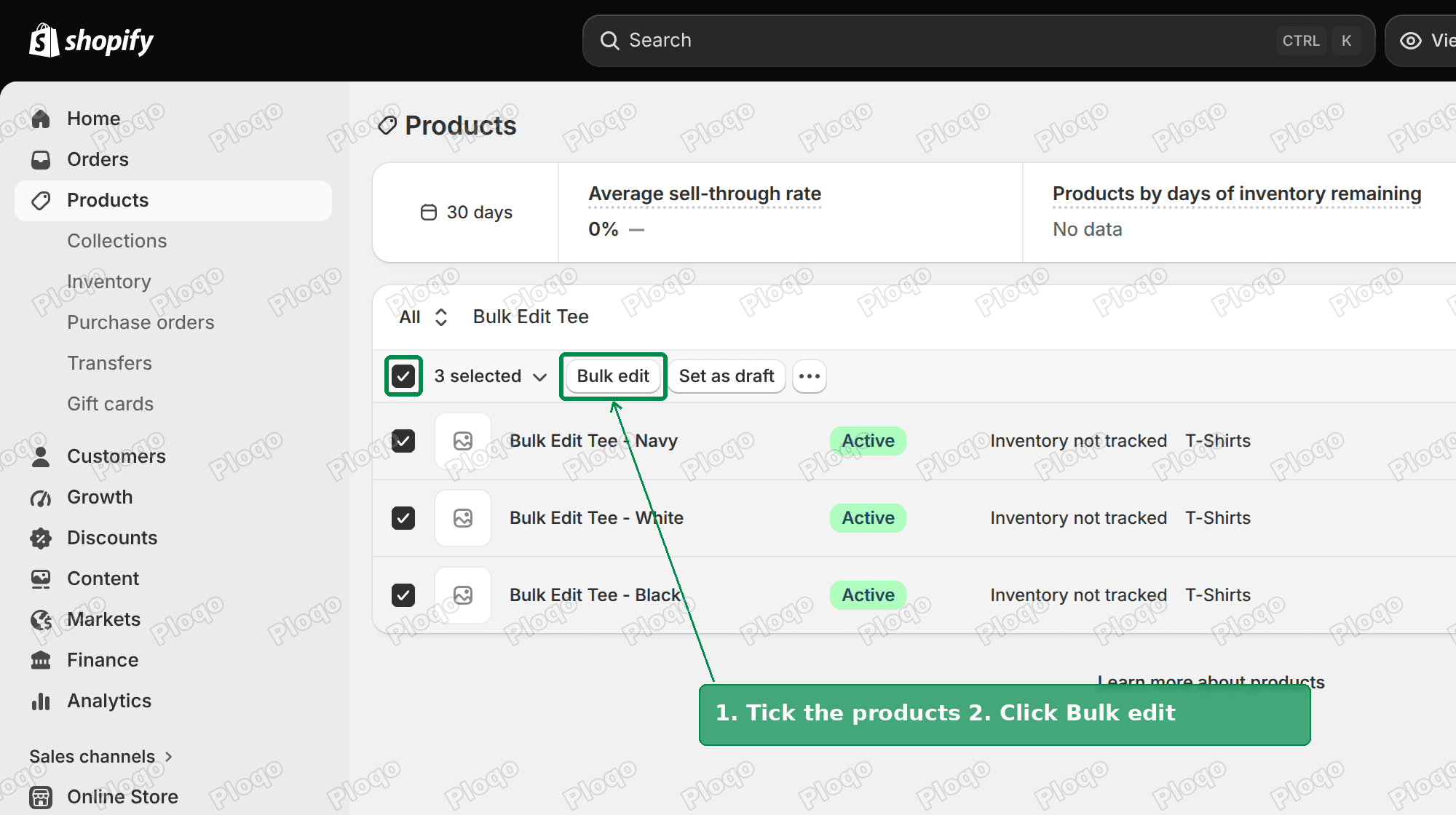 Products list with three products selected and the Bulk edit button
- Click Columns at the top right of the bulk editor.
- Scroll down to Category Metafields and click Show more. The list only shows the first 10 until you do.
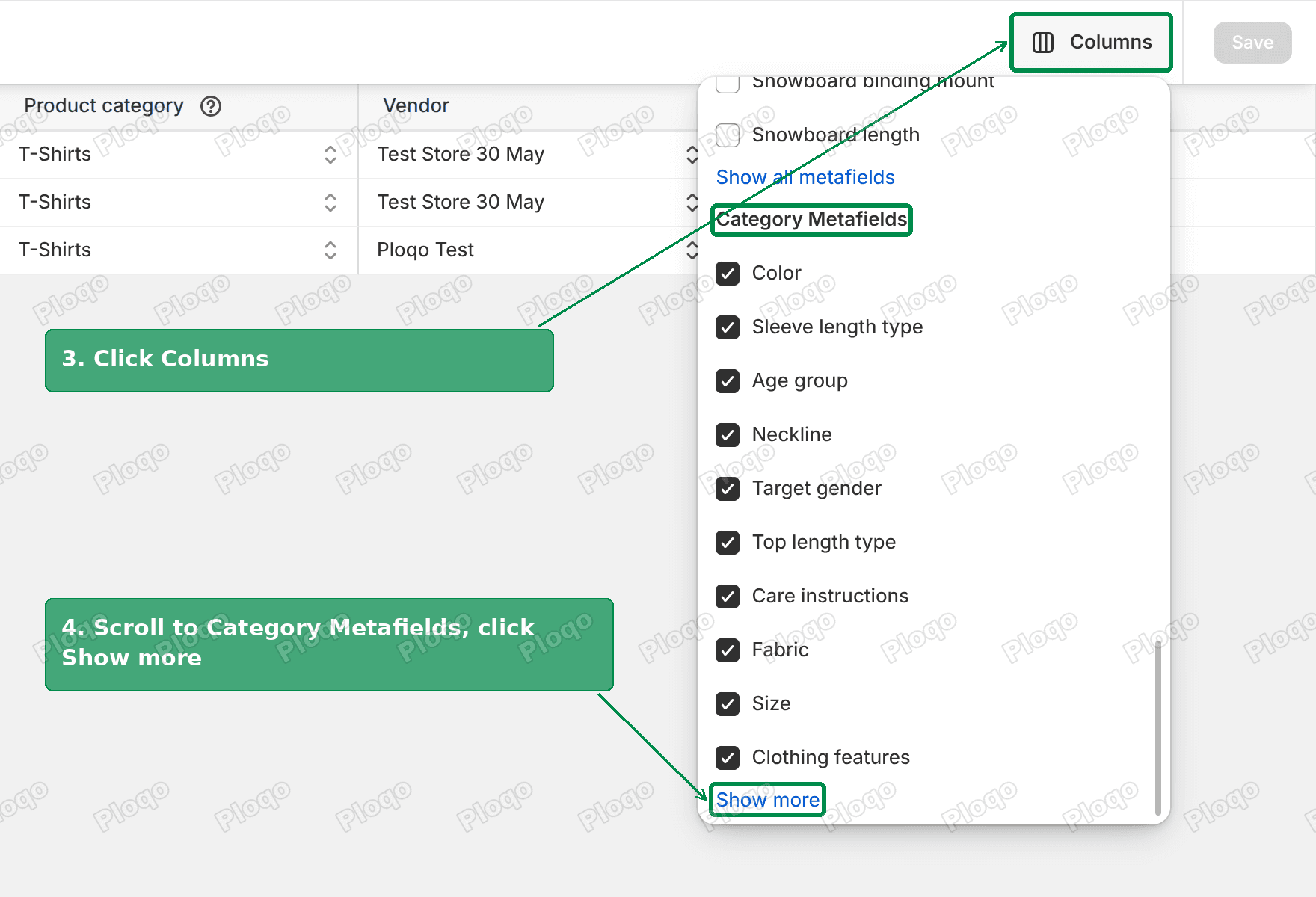 Columns menu open with the Category Metafields heading and Show more link
- Untick every category metafield. There is no "untick all" option, so it is one click per field.
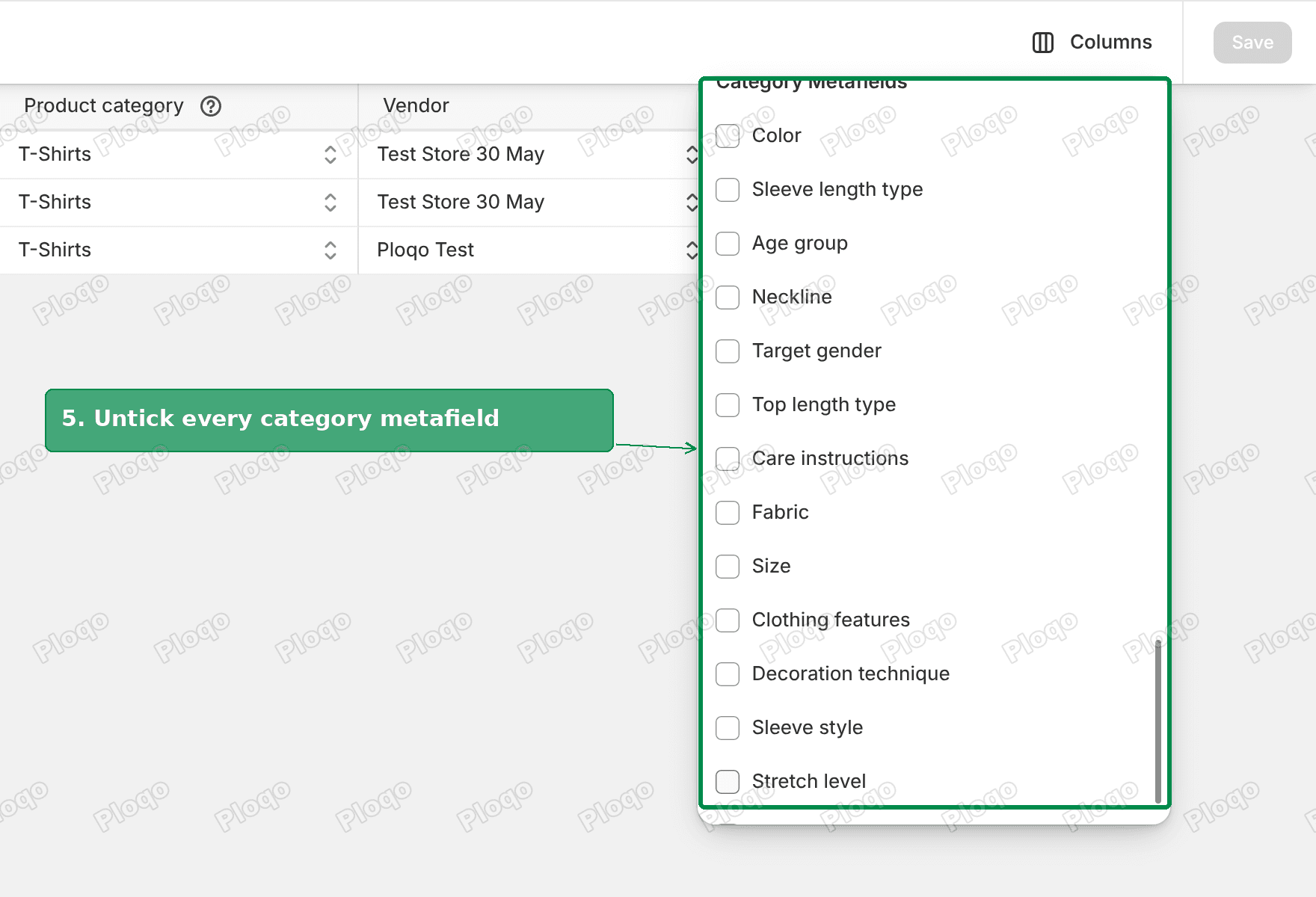 Category metafields all unticked in the Columns menu
- Make your edits and click Save.
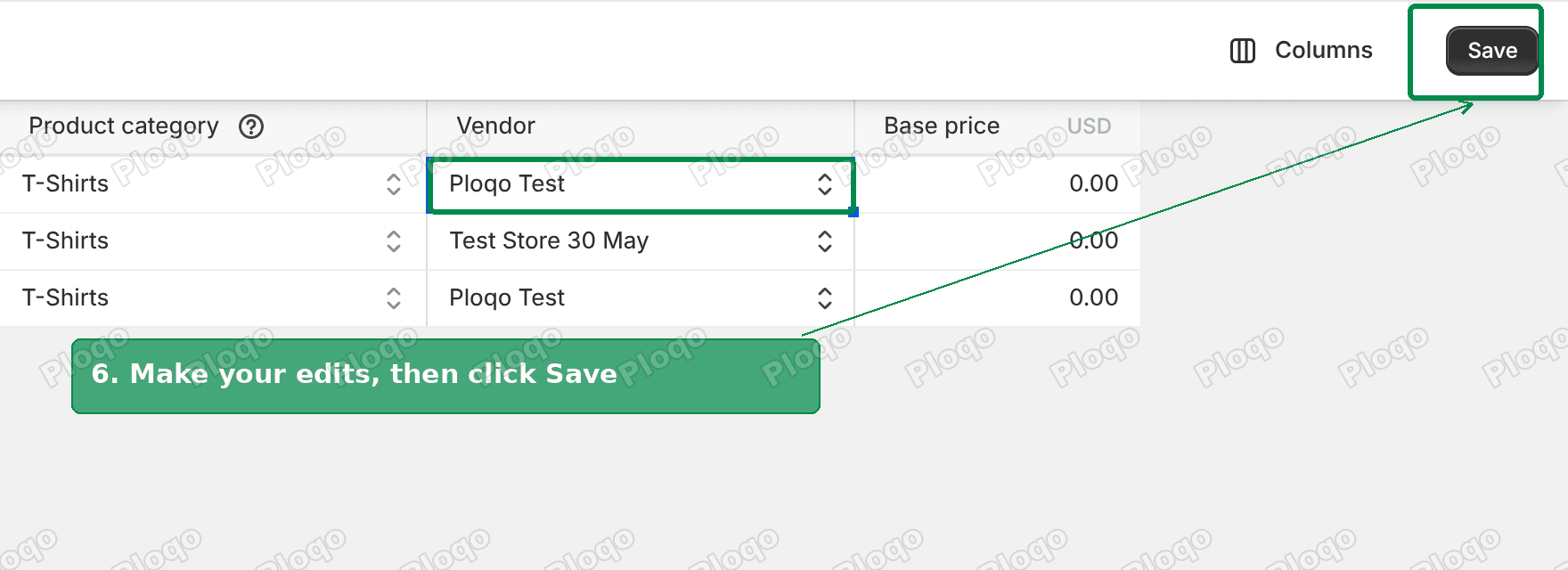 Bulk editor with an edited cell and the Save button active
- Stay on this tab for your next edits. The columns stay hidden after you save.
- Do not click Back or refresh the page. Either one brings the columns back.
On my test store the grid went from 19 columns down to 4. I changed a vendor, saved, and the grid stayed at 4 columns. I opened the Columns menu again after saving and all 14 category metafields were still unticked.
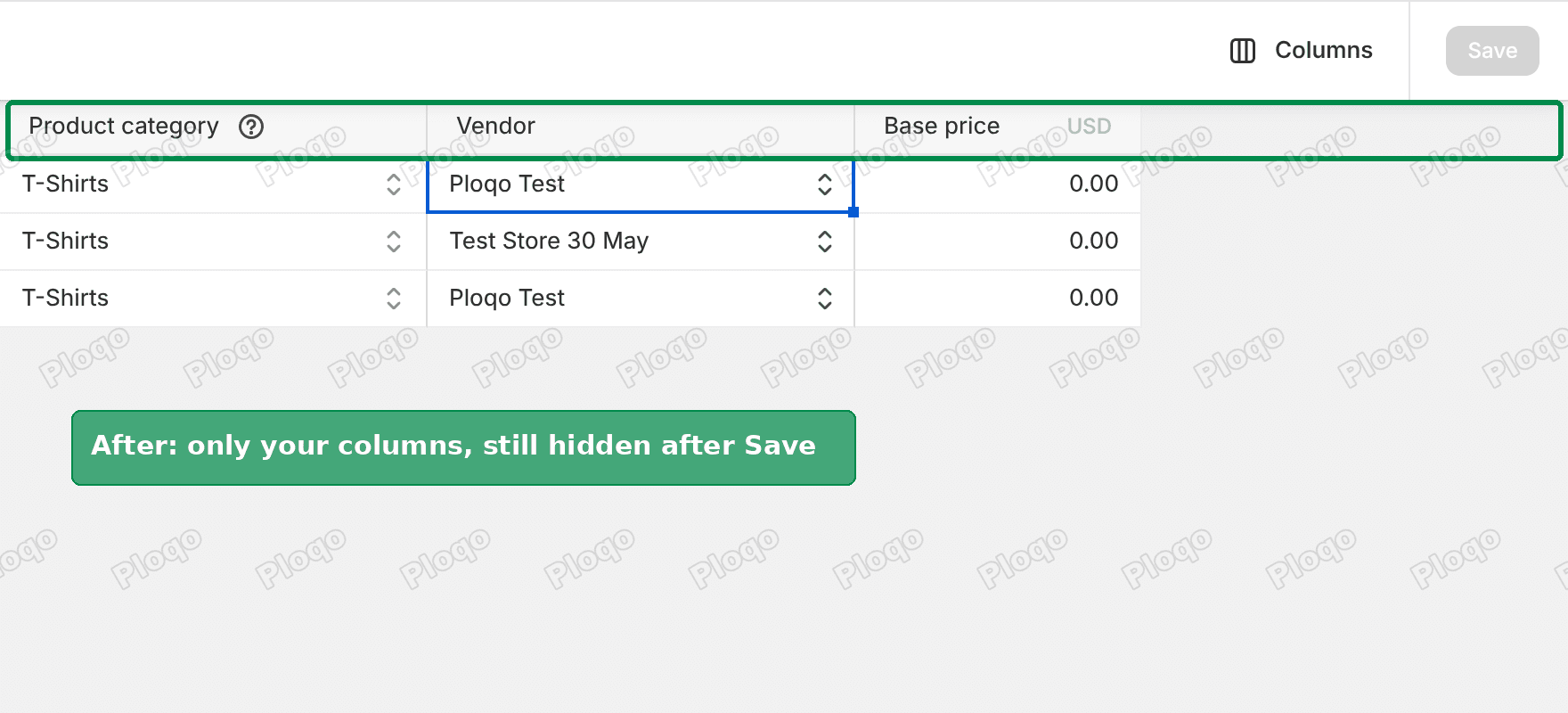 Bulk editor after saving, showing only the chosen columns
The catch is step 1. Going back to the product list to add more products resets the columns. So pick every product you plan to touch before you click Bulk edit, not just the first batch.
What does not work
I tried the obvious shortcuts before settling on the steps above. None of them keep the columns off.
Unticking Product category. It only hides the category column itself. All 14 category metafield columns stayed in the grid.
Clicking Back and opening Bulk edit again. The columns came back straight away, with a message that said "15 columns added". That is the 14 metafields plus the Product category column.
Refreshing the page. Same result. The data I had saved was still there, but every column I had unticked was back.
Bookmarking the bulk editor link. The web address of the bulk editor does include a list of columns. But when I opened a saved copy of that link in a new tab, Shopify rewrote it. It dropped my product selection and opened a default set of 20 products with its own category columns added.
Removing the product category. It would stop the columns, but the category is what gives you those fields in the first place. You also lose the suggested fields on the product page, so clearing it to tidy a spreadsheet view is a poor trade.
How to bulk edit metafields in Shopify
Once you know how the Columns menu works, the same menu is how you bulk edit the metafields you do want.
Open Columns and scroll past General, Publishing, Pricing, Inventory, Shipping and SEO. There are two metafield sections:
- Metafields lists your own product metafields, the ones you or an app created. On my store it showed three, plus a Show all metafields link for the rest.
- Category Metafields lists the fields that come with the product categories in your selection.
Tick a metafield and it appears as a column in the grid, one row per product. Edit the cells the same way you edit a price or a vendor. Click a cell, press Enter to start typing, then click Save at the top.
The same rule applies here. Your choice of columns lasts until you leave or refresh the tab. If you edit the same three metafields every week, you will be ticking them again every week.
Product metafields vs category metafields
These two get mixed up a lot, and the bulk editor lists them separately.
- Product metafields are fields you define yourself in Settings > Custom data > Products. You pick the name and the type. They apply to every product.
- Category metafields are defined by Shopify for a specific product category. You do not create them. They only appear on products in that category.
In the bulk editor, only the category ones are added for you. Your own metafields stay hidden until you tick them.
Search the Columns menu instead of scrolling
The Columns menu has a Search fields box at the top. Type a field name and the list narrows to that field.
This is handy for adding one metafield column. It is less handy for removing a dozen, because the search only shows one field at a time and has no select-all.
Should you use an app instead?
If you bulk edit metafields every day, an app may save you more time than the native editor. The larger bulk-edit apps work differently. You pick the field to change and the products to change, then run the edit as a job, so there is no grid of preselected columns to clear.
Well-known options on the Shopify App Store:
- Hextom: Bulk Product Edit
- Ablestar Bulk Product Editor
- EditEngine Bulk Import Export
Two things to check before you install one. First, whether it can edit the metafield types you use. Second, whether it can undo an edit. Some of the complaints in these apps' low-star reviews are about edits that removed variants or only updated some of the products. Test on a few products before you run an edit on your whole catalog.
If the steps did not work
The columns came back after Save. Check you did not click Back or refresh. On my test store, saving alone never brought them back. Only leaving the tab or reloading did.
You cannot find Show more. Scroll further down the Columns menu. The Category Metafields section sits near the bottom, below Metafields.
You see more category columns than your product page shows. Your selection includes products from more than one category. The bulk editor adds the fields from every category in the selection.
The bulk editor opened with the wrong products. You probably opened a saved link to the bulk editor. Go back to Products, select the products again and click Bulk edit from there.
You cannot see a category metafield you expected. That field belongs to a different category. Check the category on one of the products you selected.
Where to ask Shopify for a fix
The merchant's request in the thread was simple: open the editor with no optional columns ticked, or remember the last choice. Neither exists today. If it matters to you, add your voice on the Shopify Community thread linked below. Until then, untick once and stay in the tab.
I tested everything above on a development store with three T-shirt products in the T-Shirts category, using Shopify's current bulk editor.
Spending too long on manual Shopify busywork?
PinFlow turns your Shopify catalog into Pinterest pins and posts them on a schedule, automatically. Set it up once and let it run.
Get PinFlow on the Shopify App StoreMore Shopify fixes
More community-sourced Shopify guides, tested on a live store.
Shopify Admin
How to Edit a Packing Slip on Shopify to Show Big Product Photos
Shopify's order page shows each item as a 40 pixel thumbnail with no way to enlarge it. Here is how to edit the packing slip template so every line prints that exact variant's photo at 1000 pixels, including the one-line fix Shopify's default template needs.
Shopify Admin
Shopify Shipping Zones: Fix Products Sold Out in One Country
Products show Sold out for customers in one country while your admin shows stock. The cause is a shipping profile with no zone for that country. How Shopify shipping zones and profiles decide what a customer can buy, and the six-click fix, with screenshots.
Shopify Admin
Shopify Translate: Fix Mixed Languages on Product Pages
A Swedish Shopify store showed English words on translated product pages. The titles were translated, so the English came from option names and theme text. How to fix each one in Translate & Adapt, with screenshots.