
How to Bulk Edit Product Variants in Shopify
Shopify's bulk editor greys out variant fields, so most merchants edit variants one product at a time. There is a screen that does not, plus the CSV caveat that can break with nothing to flag it your variant IDs.
By AjayCodeWiz · July 18, 2026 · 8 min read
The problem: variant fields are greyed out in the bulk editor
You select every product in Shopify, click Bulk edit, and get a spreadsheet.
The variant rows are there. Small, Medium, Large sit under the product name. But the option value itself is plain grey text. There is no cell to click.
 Variant option values are grey text in the bulk editor, with no editable cell
A merchant raised this on the Shopify Community. Their words: it is "quite literally the ONLY thing on the bulk edit feature for all products that's gray and won't let us edit."
For an apparel store with hundreds of variants, that means opening each product one at a time. It is exactly the work a bulk editor is supposed to remove.
They are right that this should be on the main Products bulk editor. It is not. But there is a different screen that does the job, and few merchants use it for this.
I worked through it on a test store. Here is what actually works, what it cannot do, and the one caveat that can cost you real money if you get it wrong.
Why the Products bulk editor cannot do it
The Products list is built around one row per product.
The bulk editor inherits that. It can edit anything belonging to the product, and it shows variants underneath as read-only context. Price is editable because price lives on the variant and Shopify surfaces it. The option value is what defines the variant, so it is structural, not a field.
That is the actual reason it is grey. It is not an oversight in the UI. Changing an option value is a different operation from editing a field, which is why it needs a different tool.
So you need a screen built around one row per variant.
The fix: Products > Inventory lists every variant
This is the part most merchants never find, because the screen is named after inventory and this is not an inventory job.
Step 1. Go to Products > Inventory in the admin.
Look at the list. Every variant gets its own row, across every product in the store. A three-size top is three rows, not one.
Step 2. Tick the variants you want. You can mix freely, across different products.
Step 3. Click Bulk edit.
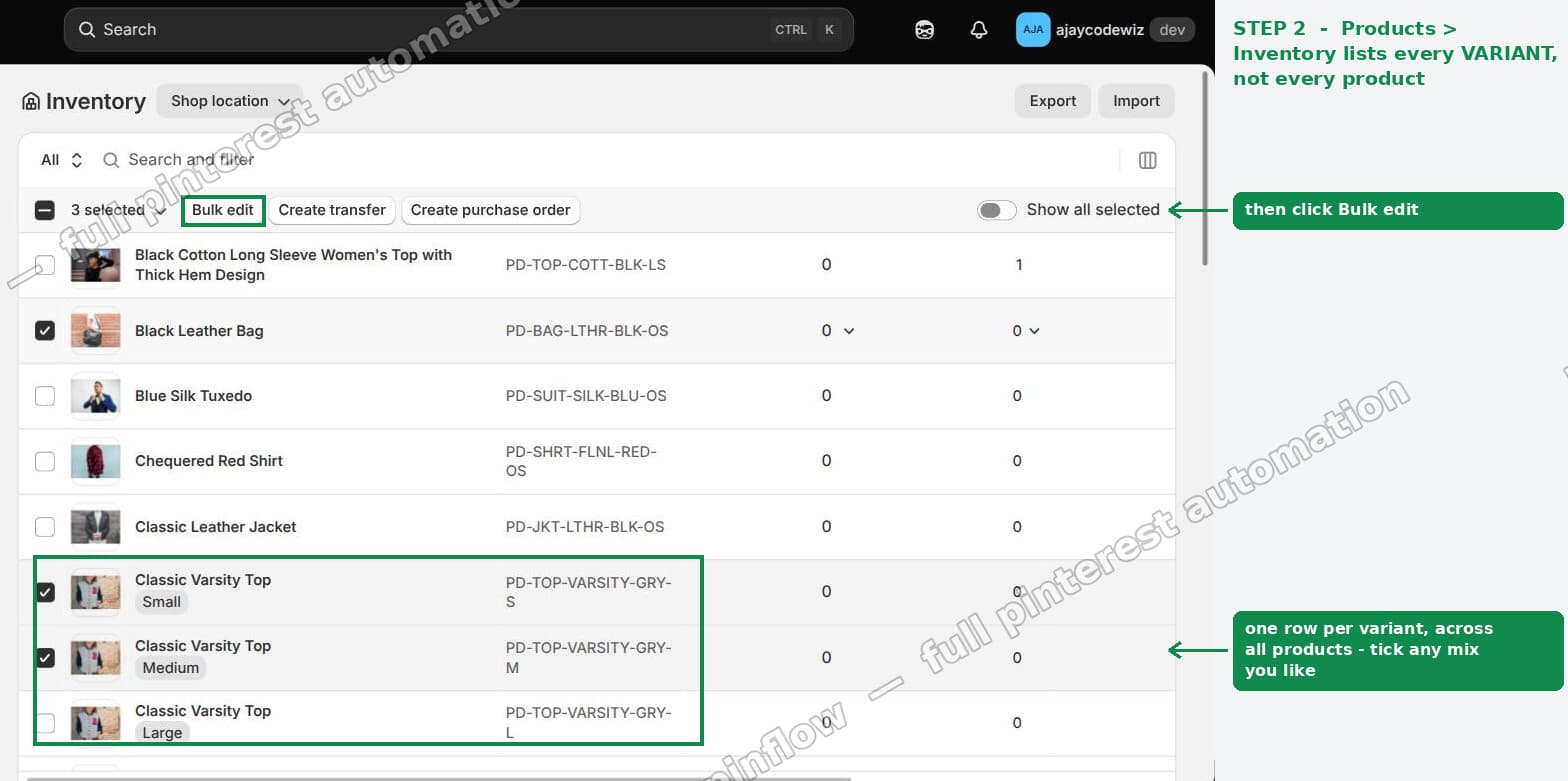 Products > Inventory lists one row per variant, with Bulk edit above the list
The header now reads Editing 3 variants, not "Editing 1 product". That is the whole difference.
Add the columns you need
By default the view shows inventory columns. The fields you probably want are hidden.
Click Columns on the right and tick what you need:
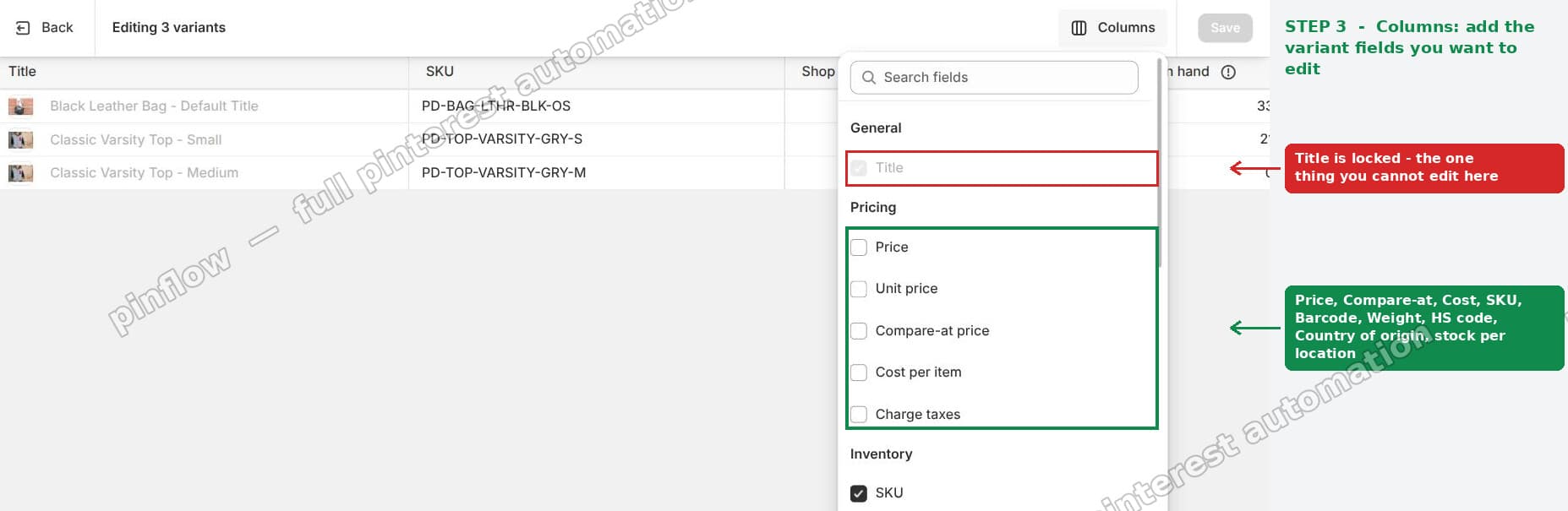 The Columns picker, showing Price, Unit price, Compare-at price, Cost per item and more
What you can edit here:
- Price, Unit price, Compare-at price, Cost per item
- Charge taxes
- SKU and Barcode
- Weight
- HS code and Country of origin
- Available and On hand stock, per location
What you cannot edit here: Title. It is locked in the picker. Title is the variant's option value, the Small or Medium, and it is still not editable in any admin grid. Changing that needs the CSV method further down.
So the honest summary is that this screen solves most of the problem but not all of it. It covers every field a merchant usually wants to bulk change. It does not rename options.
Edit many variants at once with one keystroke
The grid supports range fill, which is the part that turns this from useful into fast.
Click the first cell you want to change. Hold Shift and click the last cell in that column. Type the value once and it applies to the whole selection.
 One price typed once, applied to three variants spanning two different products
In that screenshot one price is applied to three variants that belong to two different products. The Products bulk editor cannot do that at variant level at all.
Click Save. Changes apply immediately.
Two things worth knowing:
- There is no undo. Note the old values before a large change, or export a CSV first as a snapshot.
- Nothing here creates or deletes variants. You are editing fields on variants that already exist, which is why this method is safe.
To change the option values themselves, use CSV
If you actually need to rename Small to X-Small, or restructure your options, the grid will not do it. Export, edit, re-import.
Step 1. Go to Products, click Export, and choose the products you want. You get a CSV with one row per variant.
Step 2. Open it in a spreadsheet. The columns you want are Option1 Name, Option1 Value, and the matching Option2 and Option3 columns.
Step 3. Edit the values. Leave Handle and SKU alone.
Step 4. Go back to Products, click Import, upload the file, and tick Overwrite any current products that have the same handle.
If you skip that checkbox, Shopify ignores every row that matches an existing product and nothing happens.
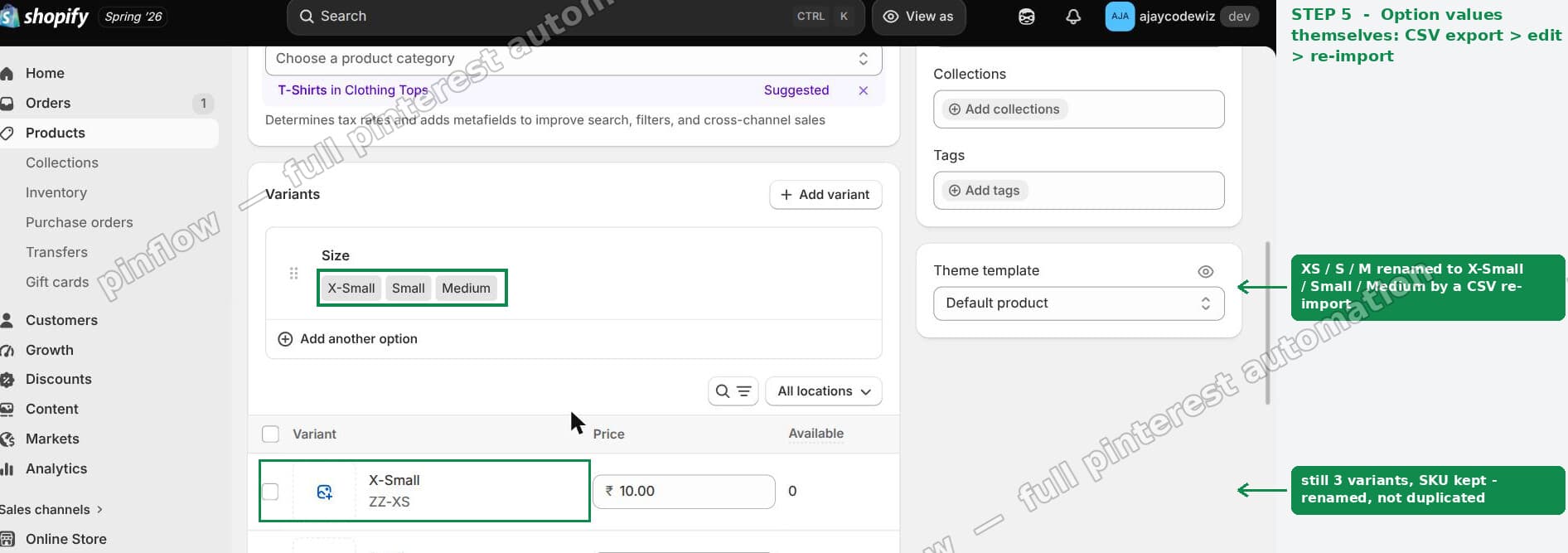 After the re-import the sizes read X-Small, Small, Medium, still three variants with SKUs intact
On my test store XS, S and M came back as X-Small, Small and Medium. Still three variants. SKUs intact. It looks exactly like a rename.
The CSV caveat that matters more than it looks
That last sentence is where people get hurt, so read this part before you run an import on a live store.
It looks like a rename. It is not one.
Shopify's own documentation is explicit: changing data in the Option1, Option2 or Option3 value columns deletes the existing variant IDs and creates new ones. The variant you see afterwards is a new record that happens to carry the same SKU and the same visible name.
Shopify's warning is blunt about the consequence. Any change to variant ID values can break third-party dependencies on variant IDs.
In practice that means:
- Subscription apps holding contracts against a variant ID can lose the link
- Reviews attached at variant level can detach
- Bundle and wholesale apps referencing variant IDs can break
- External systems such as an ERP, a 3PL or a marketplace feed can stop matching
- Existing draft orders pointing at the old variant can fail
None of that shows up in the admin. The product page looks perfect. The breakage appears later, in the app that stopped matching, with nothing to announce it.
So before a CSV option rename on a live store:
- Export a CSV first and keep it. That is your rollback.
- Check which apps you run that reference variants, especially subscriptions.
- Test on a handful of products before doing the whole catalog.
- If anything critical depends on variant IDs, do the rename through the API instead, where you can update options without recreating variants.
If you are only changing prices, SKUs, stock, weight or cost, none of this applies. Use the Inventory grid and the IDs stay put.
Which method for which job
| What you want to change | Use | Safe for variant IDs |
|---|---|---|
| Price, compare-at, cost | Products > Inventory grid | Yes |
| SKU, barcode | Products > Inventory grid | Yes |
| Stock levels per location | Products > Inventory grid | Yes |
| Weight, HS code, country | Products > Inventory grid | Yes |
| Option values such as sizes | CSV export, edit, import | No, IDs are recreated |
| Adding a whole new option | CSV export, edit, import | No, IDs are recreated |
| Product-level fields | Products > Bulk edit | Yes |
The rule of thumb is simple. If you are editing a field on a variant, the Inventory grid is the right tool and it is safe. If you are changing what defines the variant, you are restructuring, and restructuring recreates records.
If it did not work, check these
Bulk edit is greyed out on the Inventory page. You have not ticked anything yet. The button only activates with a selection.
You only see one row per product. You are on Products, not Products > Inventory. They look similar and it is an easy mistake.
The field you want is missing. It is hidden. Click Columns and tick it. If it is not in that list at all, it is a product-level field, so use the Products bulk editor instead.
Title will not become editable. It cannot. That is the CSV path.
The CSV import ran but nothing changed. The overwrite checkbox was not ticked, so every matching row was skipped.
The import created duplicate products. Your Handle column changed or was blank. Handle is what Shopify matches on, so it has to stay exactly as exported.
Stock did not update. Inventory quantities are per location. Check the location selector at the top of the Inventory page.
When you have outgrown all of this
The Inventory grid is comfortable up to a few hundred variants. Beyond that, ticking rows becomes the bottleneck.
At that scale, filter first. Narrow the Inventory list by collection, vendor, product type or tag, then select all and bulk edit only what matched. Ten filtered passes beat one pass over three thousand rows.
Past that, it is a CSV or API job. A CSV handles a few thousand rows comfortably. Above that, or when you need this on a schedule rather than once, the Admin API updates variants without recreating them, which also sidesteps the variant ID problem entirely.
The merchant in that thread was right about one thing: this should be in the main bulk editor. Until it is, Products > Inventory is the closest thing to it, and it is considerably better than opening products one at a time.
Tired of doing catalog work one product at a time?
PinFlow turns your Shopify catalog into Pinterest pins and posts them on a schedule. Same principle as the grid above, do it once across everything instead of product by product.
Get PinFlow on the Shopify App StoreMore Shopify fixes
More community-sourced Shopify guides, tested on a live store.
Shopify Admin
How to Edit a Packing Slip on Shopify to Show Big Product Photos
Shopify's order page shows each item as a 40 pixel thumbnail with no way to enlarge it. Here is how to edit the packing slip template so every line prints that exact variant's photo at 1000 pixels, including the one-line fix Shopify's default template needs.
Shopify Admin
Shopify Shipping Zones: Fix Products Sold Out in One Country
Products show Sold out for customers in one country while your admin shows stock. The cause is a shipping profile with no zone for that country. How Shopify shipping zones and profiles decide what a customer can buy, and the six-click fix, with screenshots.
Shopify Admin
Shopify Translate: Fix Mixed Languages on Product Pages
A Swedish Shopify store showed English words on translated product pages. The titles were translated, so the English came from option names and theme text. How to fix each one in Translate & Adapt, with screenshots.