
Shopify Translate: Fix Mixed Languages on Product Pages
A Swedish Shopify store showed English words on translated product pages. The titles were translated, so the English came from option names and theme text. How to fix each one in Translate & Adapt, with screenshots.
By AjayCodeWiz · September 28, 2026 · 8 min read
The problem
A merchant asked about this on the Shopify Community. They sell horse gear from Sweden on the Symmetry theme, and they run the store in two languages: Swedish and English. They translated the whole catalogue with Translate & Adapt, Shopify's free translation app.
The Swedish product pages still came out mixed. Some words were Swedish and some were English. The theme preview looked fine, so they suspected caching, the theme, or their Markets setup.
Two other replies in the thread said the same thing: some products were not translated, so translate them. That is a reasonable first guess. On this store it was wrong.
I checked all eight products on the live store in both languages. Every product title and every description had a Swedish version. The English words were coming from two other places:
- Option names. The labels above the size and colour buttons.
- Theme text. The small words the theme prints itself, like "Home", "By" and "Quantity".
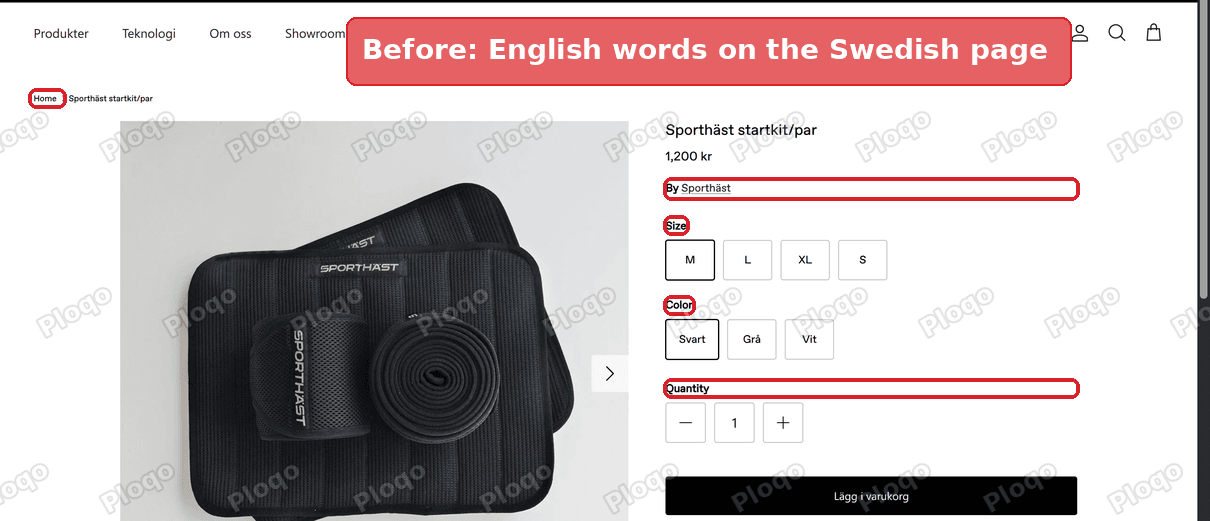 The Swedish product page with English words: Home, By, Size, Color and Quantity
How a Shopify product page gets its words
A product page is put together from three kinds of text, and each one is translated in a different place.
Your product content. The title, the description, the option values (Black, White, M, L). You write these on the product, and Translate & Adapt holds a second version for each extra language.
Your option names. "Size" and "Color" are also written on the product, in the Variants card. They have their own row in Translate & Adapt, separate from the title and description. A product can have a Swedish title and an English option name at the same time.
The theme's own words. "Home" in the breadcrumb (the trail of links above the title), "By" before the brand name, "Quantity" above the number box, "Sold out", and the backorder message. These are not stored on any product. They belong to the theme, and each theme ships its own list of them. Translate & Adapt lists them under Default theme content.
When Shopify shows a page in Swedish, it looks each piece up in Swedish. If a piece has no Swedish version, it falls back to the store's default language. On this store that was English. That fallback is what makes a page look mixed.
What was actually mixed on this store
Here is what the Swedish product pages showed, product by product.
| Product | Title | Option names shown in Swedish |
|---|---|---|
| Heat Regulating Boot | Swedish | Storlek, Färg (correct) |
| Heat Regulating Pad | Swedish | Storlek, Färg (correct) |
| Light Jacket | Swedish | Storlek (correct) |
| Start Up Kit | Swedish | Size, Color |
| Airy Mesh Bandage | Swedish | Color |
| Limited edition Cap | Swedish | Storlek, Color |
| Cover Pants | Swedish | XS |
On three products the option names were typed in Swedish on the product itself, in the field that should hold English. Then the Swedish translation was filled in with the English words. The two were swapped, so the English page said "Färg" and the Swedish page said "Color".
The Cover Pants option was named "XS", which is a size value, not an option name. That looks like a typo from when the product was set up.
On top of that, every Swedish product page showed the same English theme words: Home, By, Quantity and, on the cap, Sold out.
Fix 1: put the option names in the right fields
The rule is simple. The product itself holds your default language. Translate & Adapt holds every other language. On a store whose default is English, the product's option names must be English.
I set up a product with the same swapped names on a test store running Symmetry with Swedish added, then fixed it like this.
- Go to Products and open the product.
- In the Variants card, click the option name.
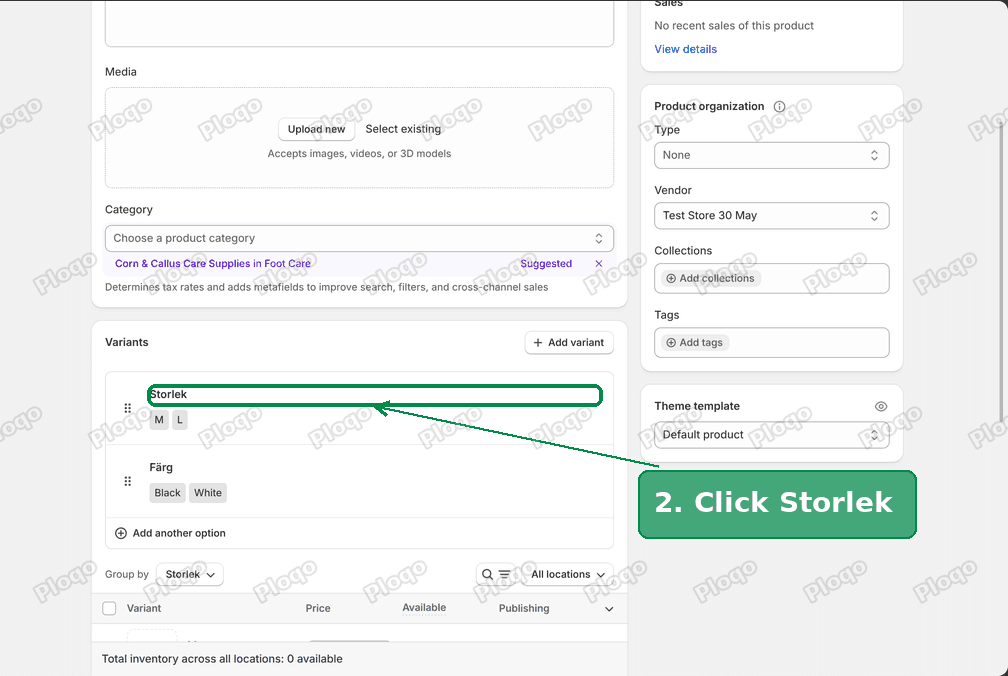 The Variants card showing the option names Storlek and Färg
- Change the name to the English word and click Done. Do the same for the second option.
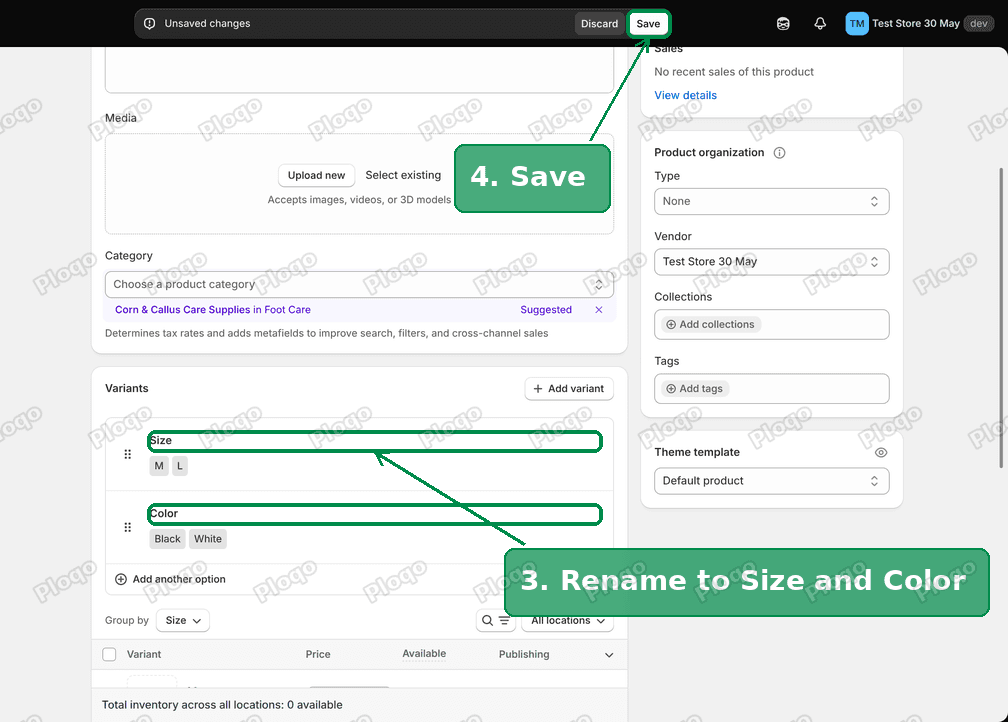 The option names changed to Size and Color
- Click Save.
- Go to Apps > Translate & Adapt. Pick Swedish at the top and click Products.
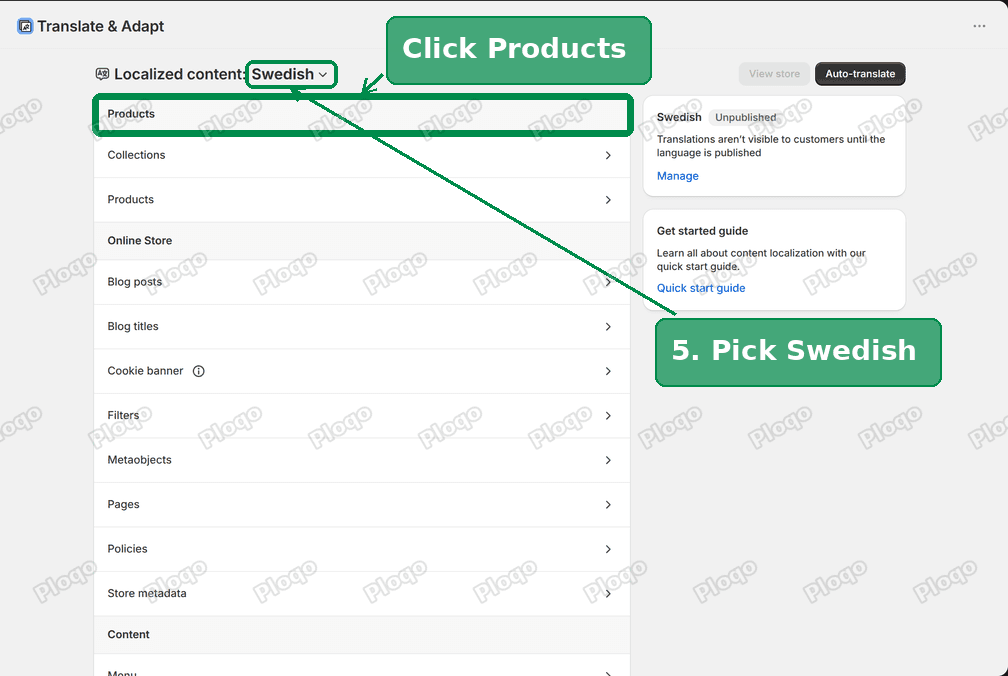 Translate & Adapt with Swedish selected and the Products row
- Open the same product. Scroll to the option names. Type the Swedish word next to each English one and click Save.
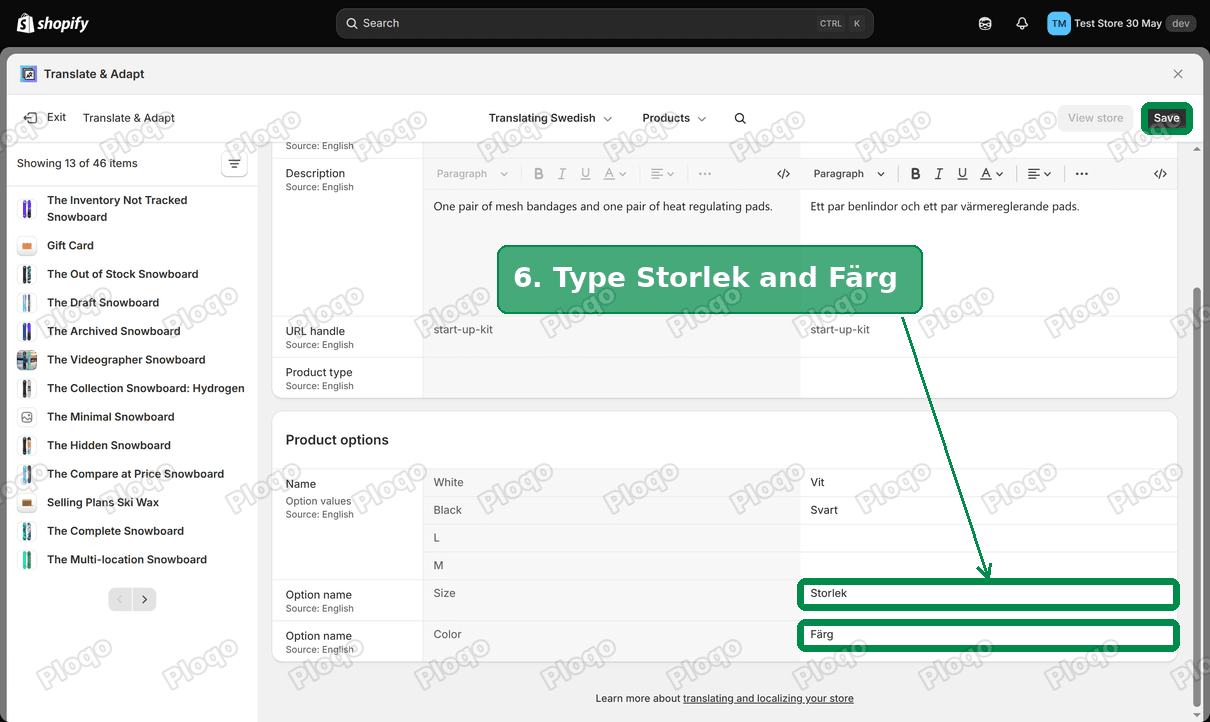 The Swedish option names typed in Translate & Adapt
Renaming the option does not change your variants, prices or stock. It only changes the label.
Fix 2: translate the theme's own words
Theme words are translated once per theme, not per product. One entry fixes every product page.
- In Translate & Adapt, click the theme card at the top left and pick your theme. On this store that was Symmetry. Make sure it is the theme that is live, not a copy.
- Click Default theme content.
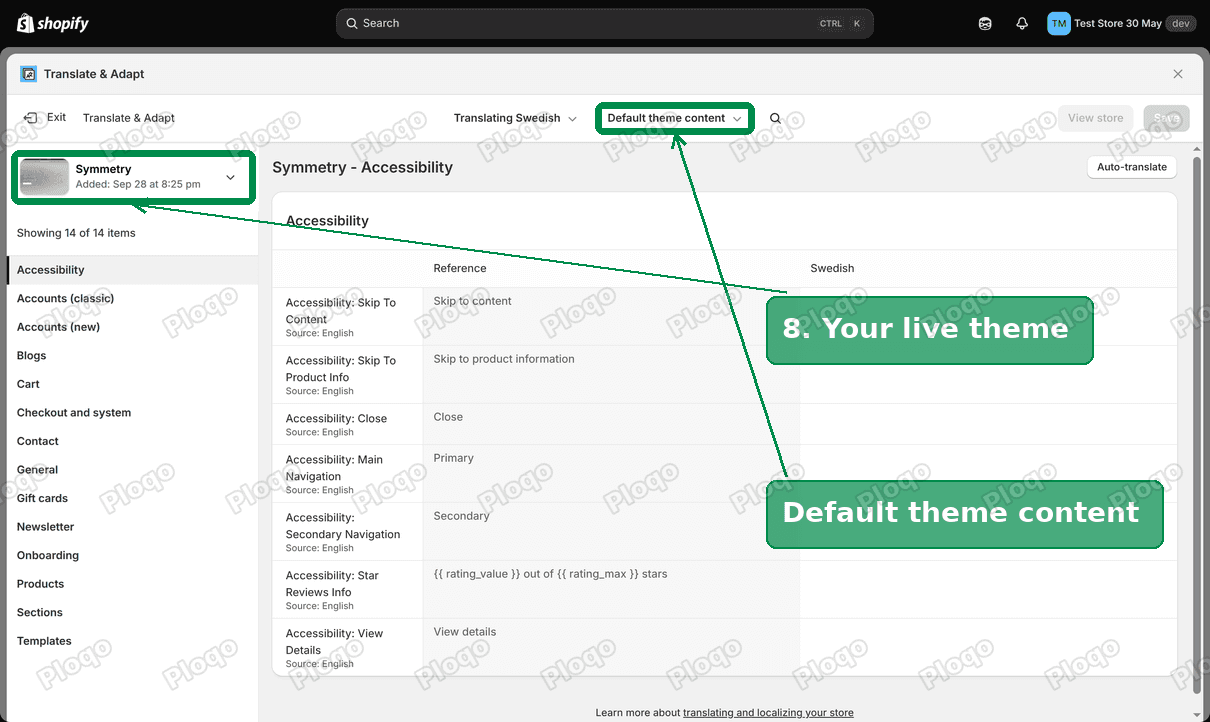 Picking the Symmetry theme and opening Default theme content
- Open the General group. Find the row Breadcrumbs: Home and write Hem in the Swedish box.
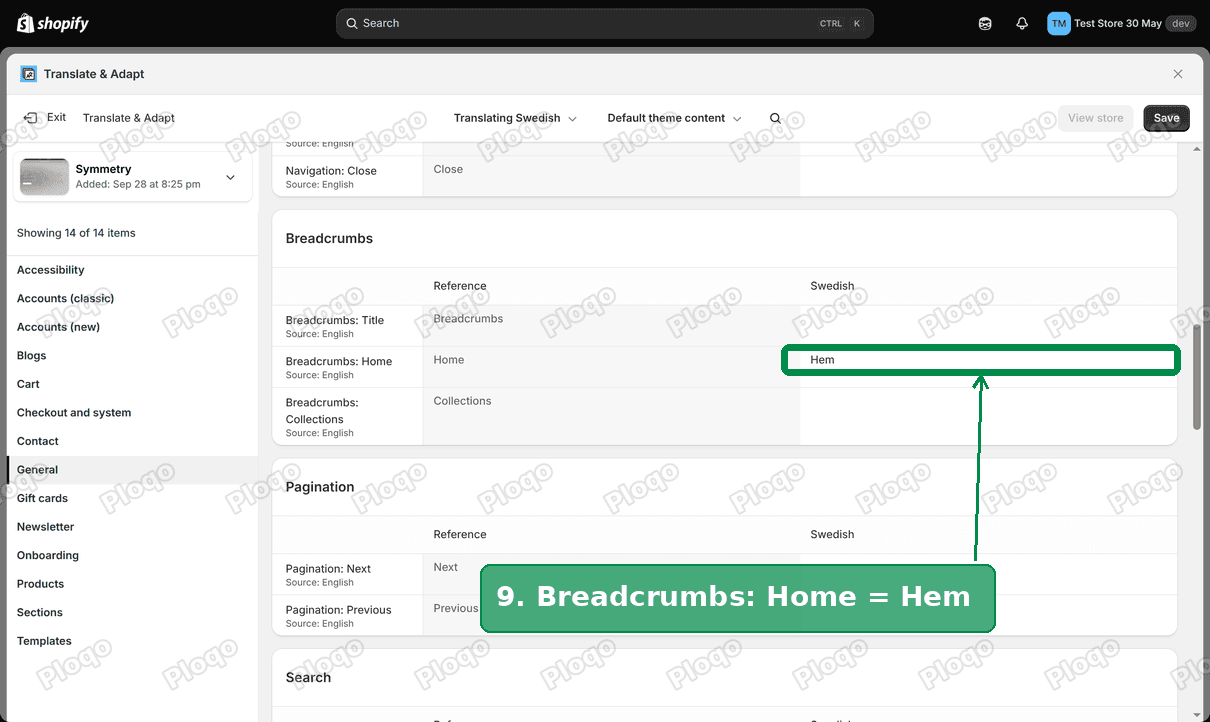 Breadcrumbs Home translated to Hem
- Open the Products group and fill in the row for each English word you saw on the page.
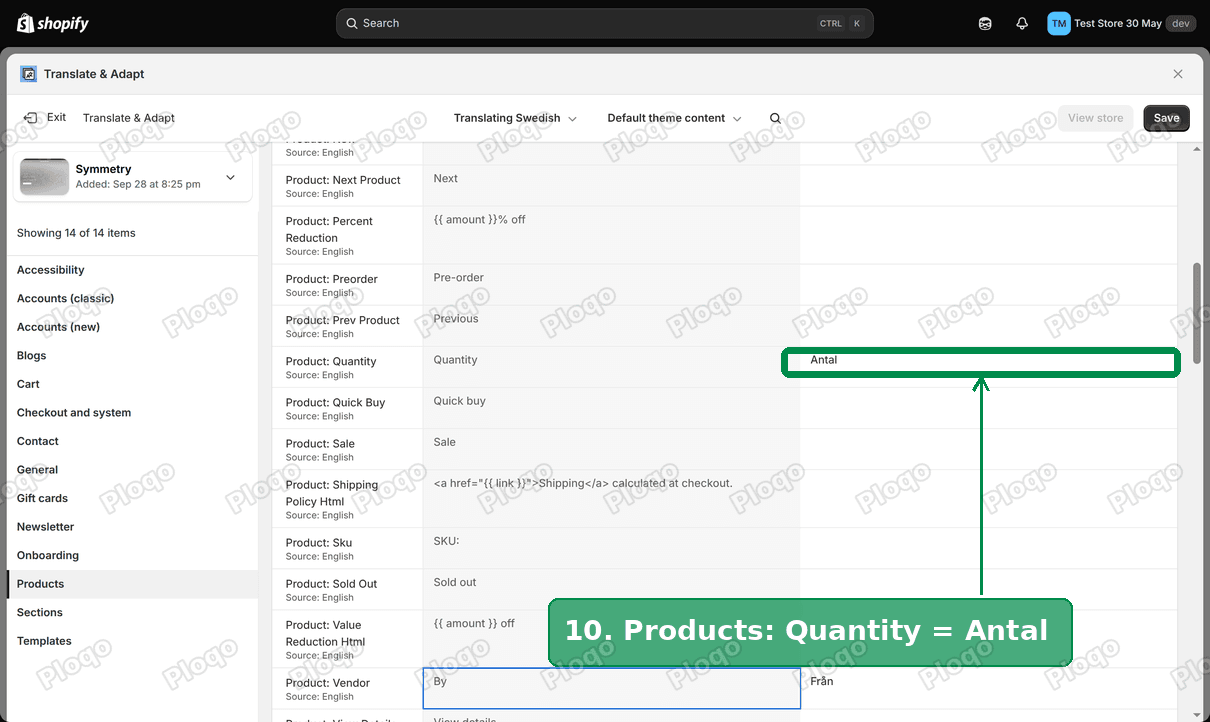 Quantity translated to Antal
- Click Save.
These are the Swedish words I used for Symmetry:
| English on the page | Where it is in Translate & Adapt | Swedish |
|---|---|---|
| Home | General > Breadcrumbs: Home | Hem |
| By | Products > Product: Vendor | Från |
| Quantity | Products > Product: Quantity | Antal |
| is backordered and will ship as soon as it is back in stock. | Products > Product: Backorder | är restnoterad och skickas så snart den finns i lager igen. |
| Sold out | Products > Product: Sold Out | Slutsåld |
The rows are grouped. If a word does not turn up in Products, look in General. When you switch groups, save first, or Translate & Adapt asks whether to drop your unsaved changes.
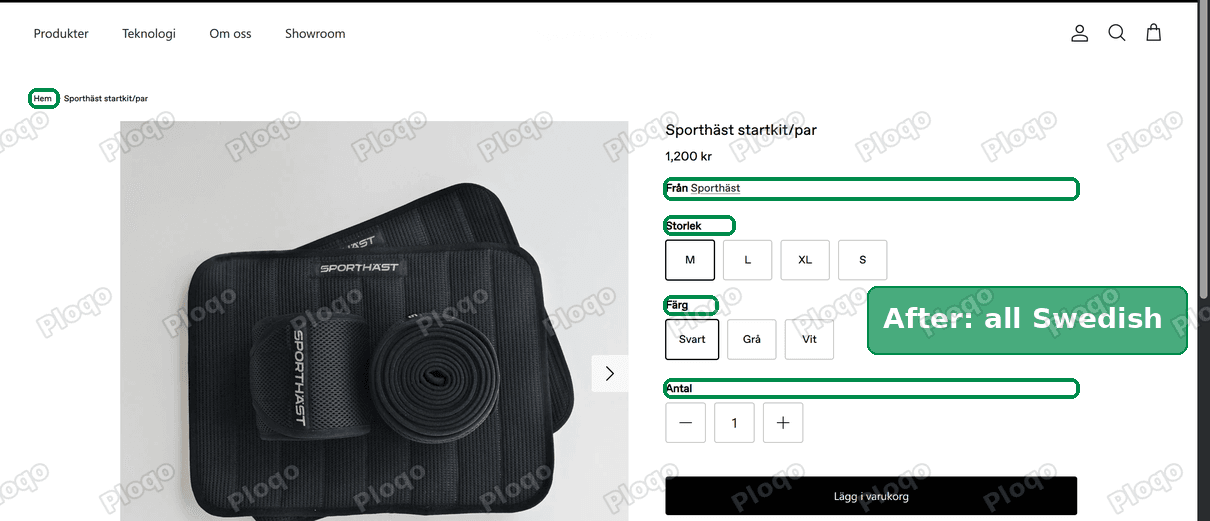 The same Swedish product page after the fix
Is it caching?
No. The live Swedish product page comes back from Shopify marked no-cache, no-store, so no stale copy is being served.
Does auto-translate fix this?
Not for the swapped option names. The Swedish field already held a word ("Color"), so there was nothing blank to fill. Those need fixing by hand, in both places.
For the empty theme words, auto-translate is an option. Check the result anyway, because short labels like "By" are easy for a machine to translate in the wrong sense.
How to find every leftover English word
Checking page by page works on a small store. This one had eight products. On a bigger catalogue, work through it like this.
- Open one product page in each language side by side. The labels that stay the same in both are your leftovers.
- Check a product in each state. A sold-out product and a backordered one show extra messages that an in-stock product never shows.
- Check the cart and the search page too. They use their own theme words, which sit in other groups of Default theme content.
- Look at the option names in Translate & Adapt. The left column should be in your default language. If it is not, the product needs fixing, not the translation.
If it did not work
- Translated the wrong theme. Translate & Adapt opens on your live theme, but if you picked a copy earlier it stays on that copy. Check the theme card at the top left.
- The Swedish box was saved but the page still shows English. Hard refresh the page. Then check that you opened the Swedish version of the page (the web address has /sv in it on this store).
- An option name still shows the old word. Open the product in Translate & Adapt again. After renaming an option, the old translation can be marked as outdated. Retype it and save.
- The word is not in Default theme content at all. Some text comes from a block setting in the theme editor, like a button label you typed yourself. That lives under Templates or Section groups in Translate & Adapt, not Default theme content.
Content translation vs theme translation
These two get mixed up, and the thread showed why.
Content is anything you typed in the admin: products, collections, pages, blog posts, menus. Each item gets its own translation.
Theme text is anything the theme prints on its own. It is translated once per theme, and switching to a new theme means translating it again, because each theme ships its own list.
When a page is partly translated, ask which of the two each English word belongs to. That tells you which part of Translate & Adapt to open.
The original question is on the Shopify Community.
Spending too long on manual Shopify busywork?
PinFlow turns your Shopify catalog into Pinterest pins and posts them on a schedule, automatically. Set it up once and let it run.
Get PinFlow on the Shopify App StoreMore Shopify fixes
More community-sourced Shopify guides, tested on a live store.
Shopify Admin
How to Edit a Packing Slip on Shopify to Show Big Product Photos
Shopify's order page shows each item as a 40 pixel thumbnail with no way to enlarge it. Here is how to edit the packing slip template so every line prints that exact variant's photo at 1000 pixels, including the one-line fix Shopify's default template needs.
Shopify Admin
Shopify Shipping Zones: Fix Products Sold Out in One Country
Products show Sold out for customers in one country while your admin shows stock. The cause is a shipping profile with no zone for that country. How Shopify shipping zones and profiles decide what a customer can buy, and the six-click fix, with screenshots.
Shopify Admin
Shopify B2B Discounts: How to Turn Them On and Set Them Up
Shopify B2B discounts are off until Shopify Support enables them. Here is how to ask, how to build a B2B market, and how to give company buyers automatic free shipping.