
Shopify Bulk Redirects: Import Them From a CSV File
Add hundreds of Shopify URL redirects in one CSV upload, plus short /go/ links to outside sites without the leave-store message. Tested on a dev store.
By AjayCodeWiz · October 21, 2026 · 9 min read
The problem
Shopify's changelog for 20 October 2026 announced a new message on online stores. When a shopper clicked a link to another website, a full-page box asked "Are you sure you want to leave" and the store's name, with the outside address underneath. The shopper had to click Go to site to carry on.
A merchant raised it on the Shopify Community the day it appeared. Their links were deliberate: partner sites, suppliers, their own other projects. Shopify Support had told them the message could not be turned off. They asked for a list of trusted websites that skip it.
I reproduced it on a test store and found a way around it that uses a standard Shopify feature, the URL redirect. Then the merchant replied that they had hundreds of outside links, so making the redirects one at a time was not realistic. Shopify can take them all in a single CSV upload, and that bulk import is what most of this article covers.
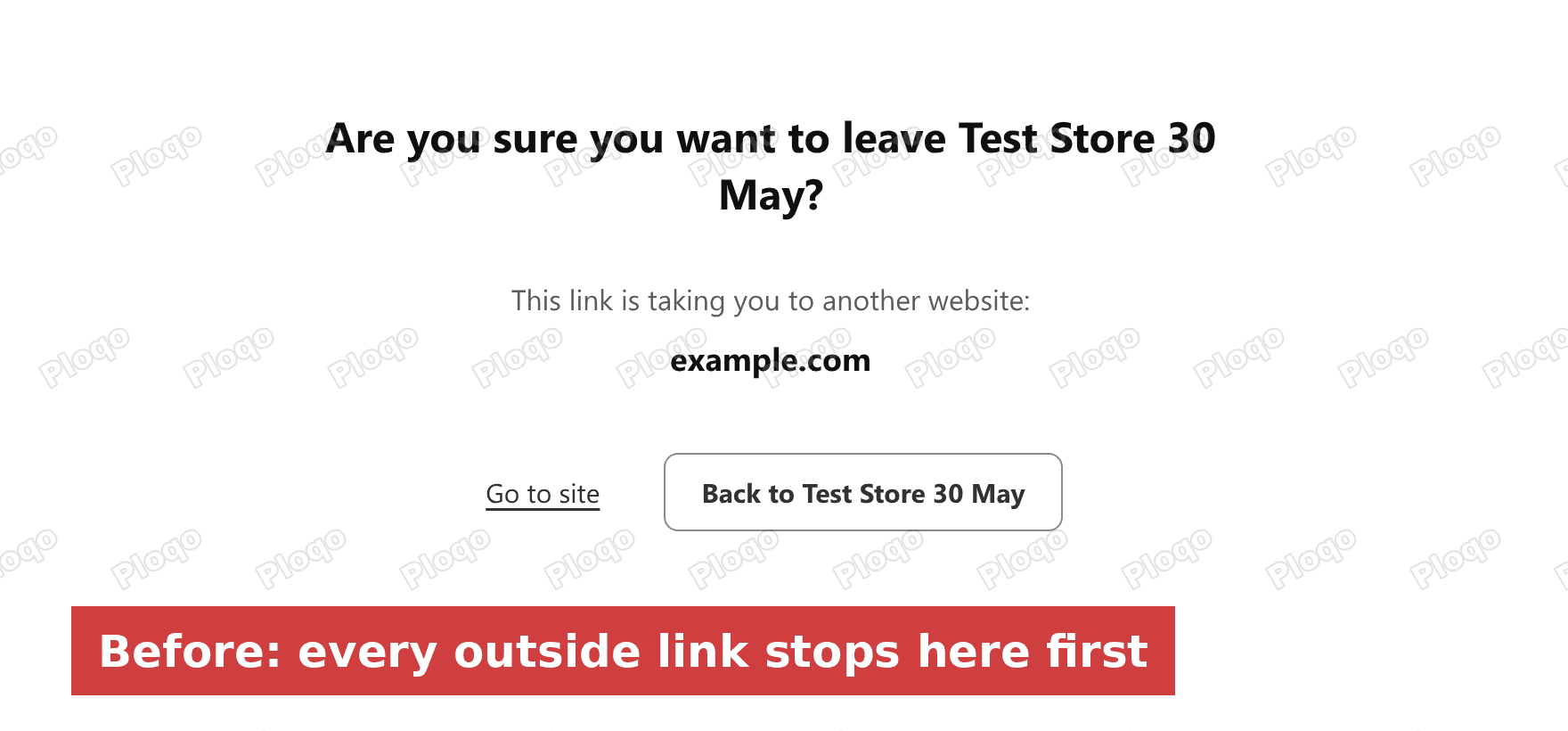 Before: the full-page "Are you sure you want to leave" message on a test store, with Go to site and Back to the store buttons
The bulk import is useful well beyond this one message. It is the same tool you use when you move a store from another platform, rename a batch of products or tidy up old collection links.
What the leave store confirmation is
Shopify calls the message the leave store confirmation. Its Help Center page says it is there to protect shoppers from code that tries to send them to a fake checkout or a phishing site.
It names the outside website and gives two choices:
- Go to site opens the other website.
- Back to your store name closes the message and keeps the shopper where they were.
Some destinations never trigger it. According to Shopify's Help Center, these skip the message:
- your own store domains and their subdomains, as listed on the Domains page of your admin
- your checkout
- Shopify pages your store uses, such as customer accounts and Shop Pay
- popular social networks, such as Facebook, Instagram, TikTok and YouTube
- email and phone links, and the browser's back and forward buttons
The same page states that a merchant cannot turn the message off or choose websites that skip it. That is the setting the merchant on the forum was asking for, and it does not exist.
Is it still switched on?
By 22 October the message no longer appeared on my test store, or on a large Shopify brand store I checked in a normal browser. The merchant who started the thread reported a sitewide rollback the evening after it launched. Shopify's changelog post and the Help Center page were both still published on 22 October, so the message may come back in this form or a revised one. The redirect setup below costs nothing to keep in place either way.
Why a redirect on your own store skips the message
The message checks where a link points at the moment a shopper clicks it. If the link points to an address on your own store, the message stays closed, because your own domain is on Shopify's allowed list.
A URL redirect is a rule you add in the admin that says: when someone asks for this address, send them to that one instead. So you give each outside site a short address on your own store, such as yourstore.com/go/partner, and point the redirect at the outside site.
The shopper clicks a link to your own store, which the message ignores. Shopify then forwards them to the outside site. The forwarding happens on Shopify's side, after the click, so the message never opens.
On my test store, a direct link to https://example.com/ opened the confirmation. A link to /go/partner, redirecting to the same site, opened it straight away with no message.
Make one redirect by hand
Start with a single link to see how it works. You need the admin, about a minute, and the full address of the outside site.
- From your Shopify admin, go to Content > Menus.
- Click URL redirects in the top-right corner.
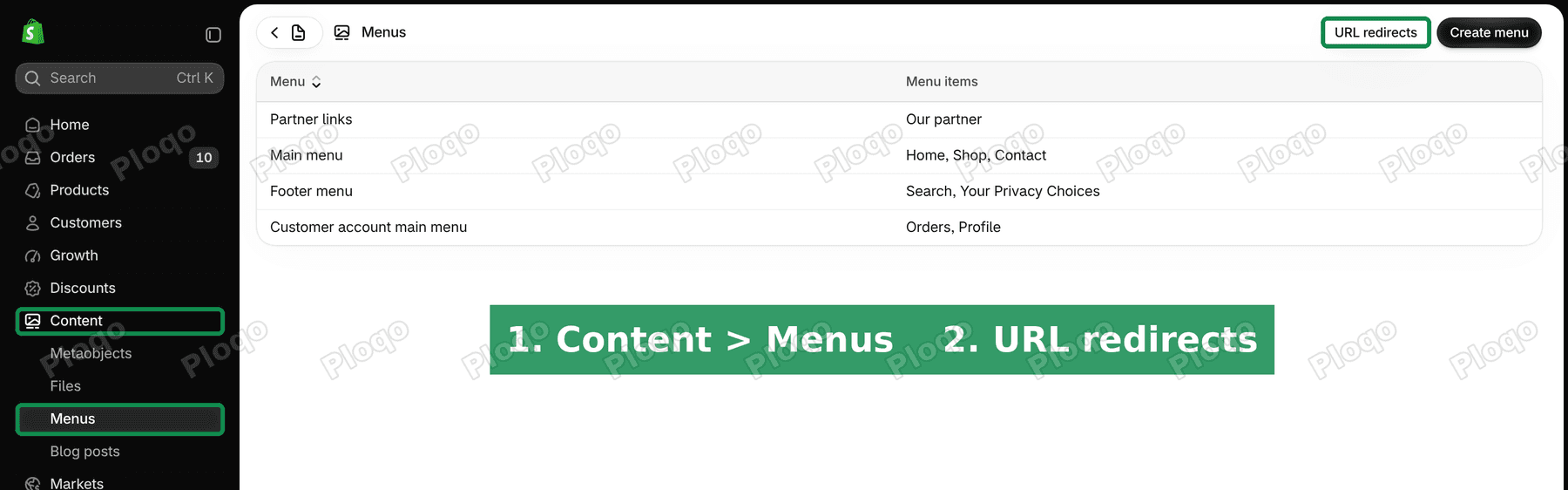 Shopify admin Menus page with Content and Menus highlighted in the sidebar and the URL redirects button highlighted top right
- Click Create URL redirect.
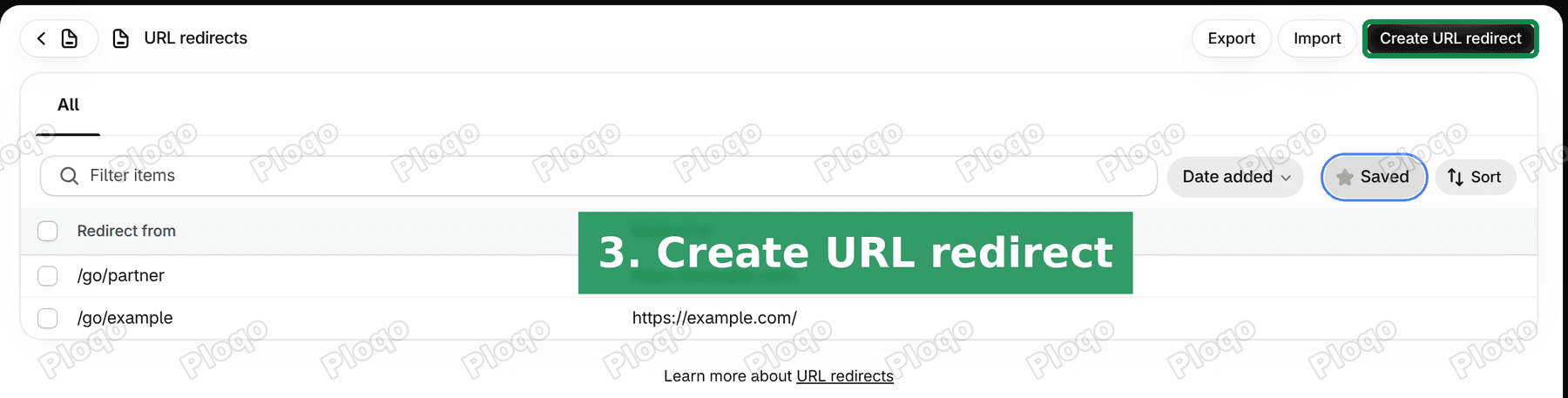 The URL redirects page with the Create URL redirect button highlighted
- In Redirect from, type a short path your store does not use, like
/go/partner. - In Redirect to, paste the full outside link, starting with
https://. - Click Save redirect.
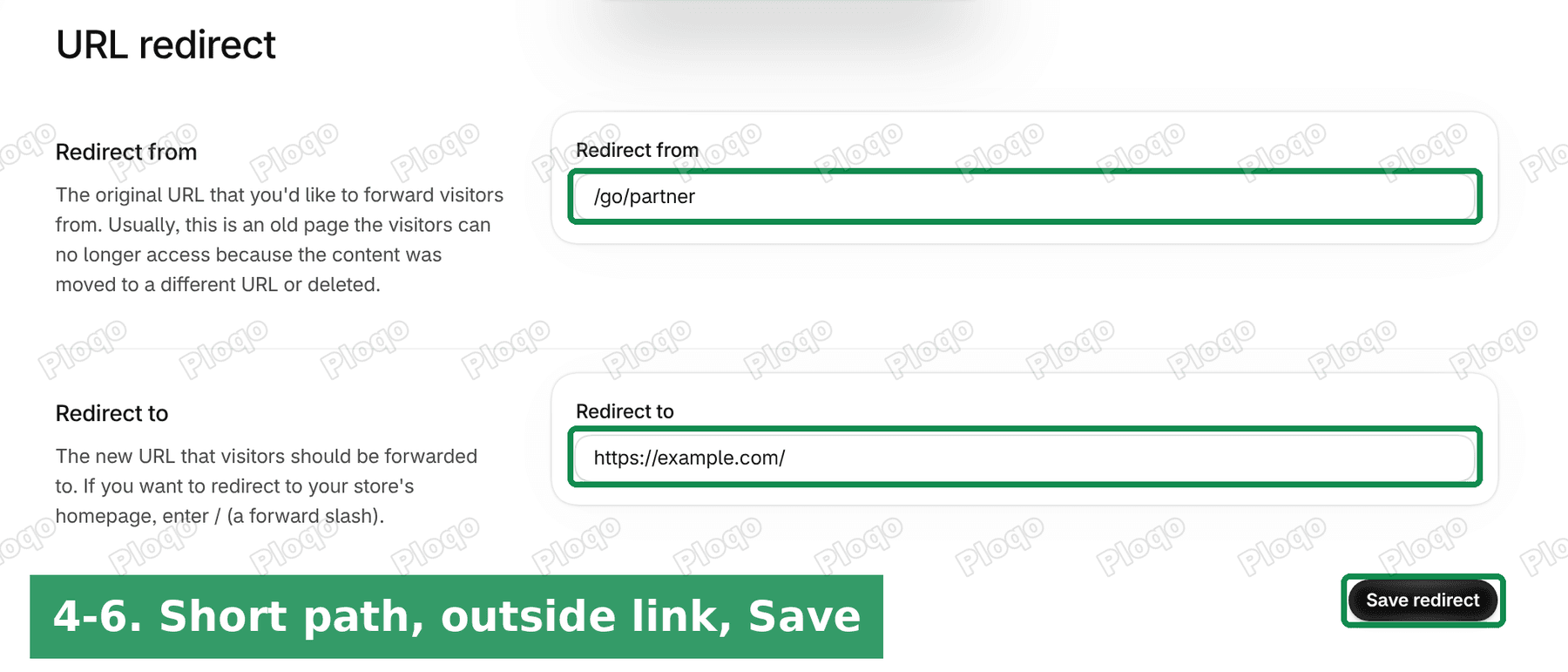 The Create URL redirect form with /go/partner in Redirect from, an outside https link in Redirect to, and Save redirect highlighted
The path in Redirect from is the part after your domain, starting with a slash. The Redirect to box takes either a path on your store or a full web address. Shopify's Help Center says to use the full address, with https://, when the destination is outside your store.
Point your menu at the short path
The redirect does nothing until your links use it. In a menu:
- Open the menu that has the outside link, then click that menu item.
- Replace its Link with
/go/partnerand click the tick. - Click Save.
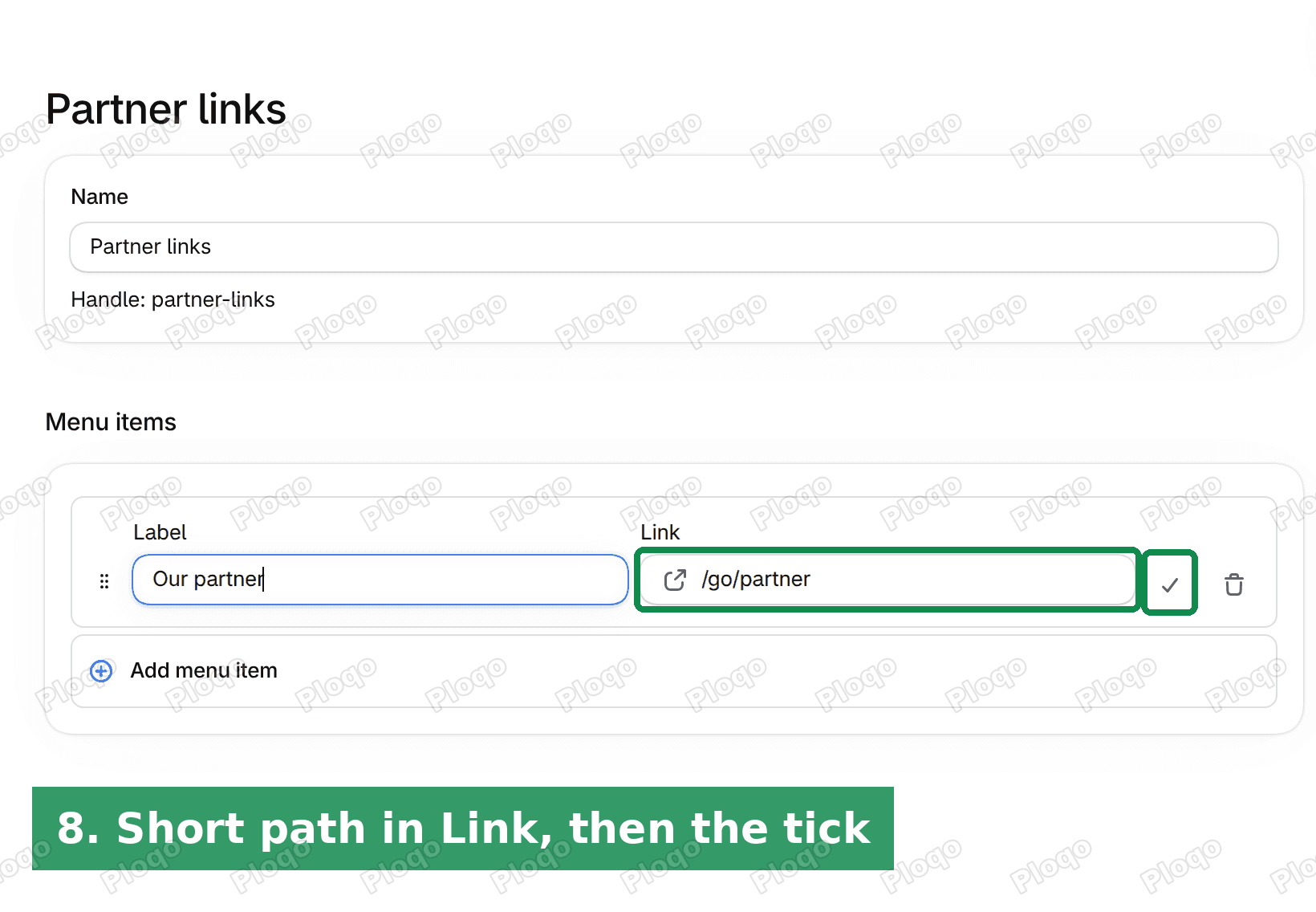 A menu called Partner links with the menu item Our partner, its Link set to /go/partner and the tick highlighted
Buttons and text links in the theme editor work the same way. Where a block asks for a link, paste the short path instead of the outside address.
Shopify bulk redirects: import them from a CSV
One redirect per outside site is fine for five links. For hundreds, use the Import button on the same URL redirects page. It reads a CSV file, which is a plain spreadsheet saved as text, with commas between the columns. Excel, Numbers and Google Sheets can all save one.
Build the file
The file needs exactly two columns, with these headings in the first row:
Redirect from,Redirect to
/go/partner-two,https://example.org/
/go/partner-three,https://www.iana.org/
That is the file I imported on my test store. Each row after the heading is one redirect.
In a spreadsheet:
- Put Redirect from in cell A1 and Redirect to in cell B1.
- Put one short path per row in column A, each starting with
/. - Put the matching full outside address in column B, each starting with
https://. - Save or download it as CSV. In Google Sheets that is File > Download > Comma-separated values.
If you are unsure about the layout, the import window links to a sample CSV template from Shopify. Download it and type your rows under its headings.
Import it
- Open Content > Menus and click URL redirects, as in the steps above.
- Click Import.
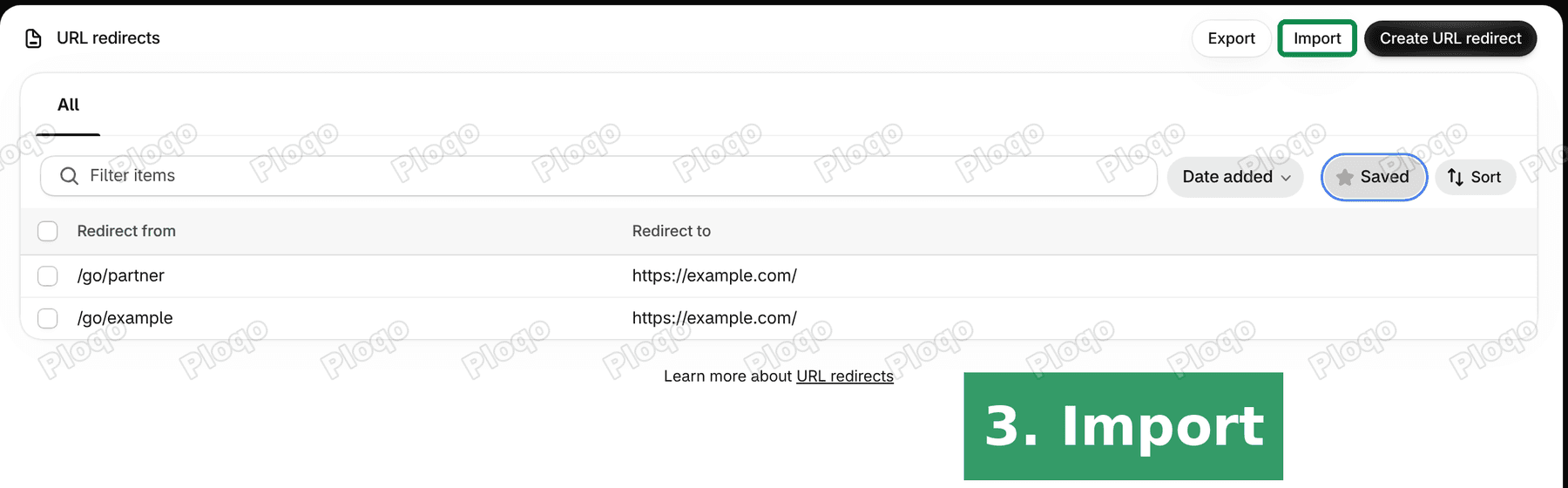 The URL redirects page listing two redirects, with the Import button highlighted next to Export and Create URL redirect
- Click Add file, choose your CSV, then click Upload file.
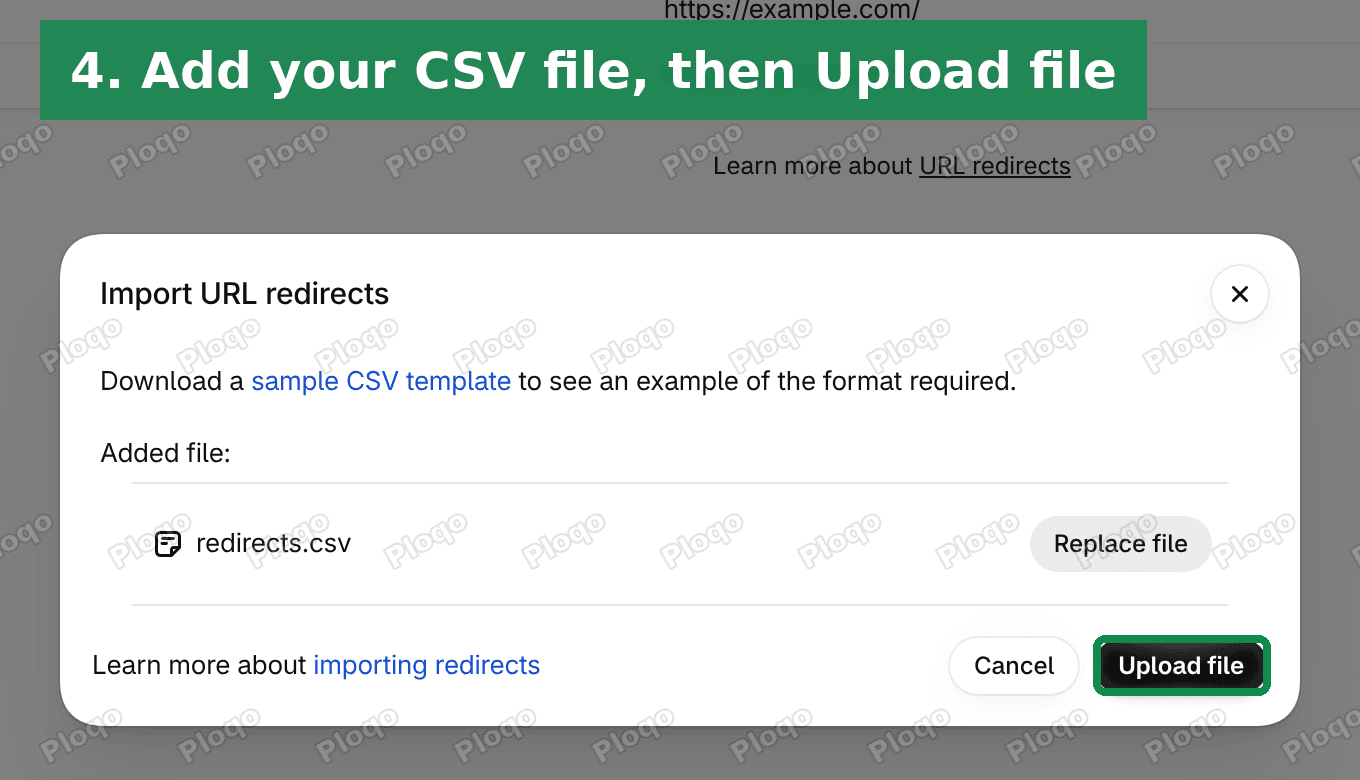 The Import URL redirects window with redirects.csv added and the Upload file button highlighted
- Shopify shows the rows it found. Check the list, then click Import redirects.
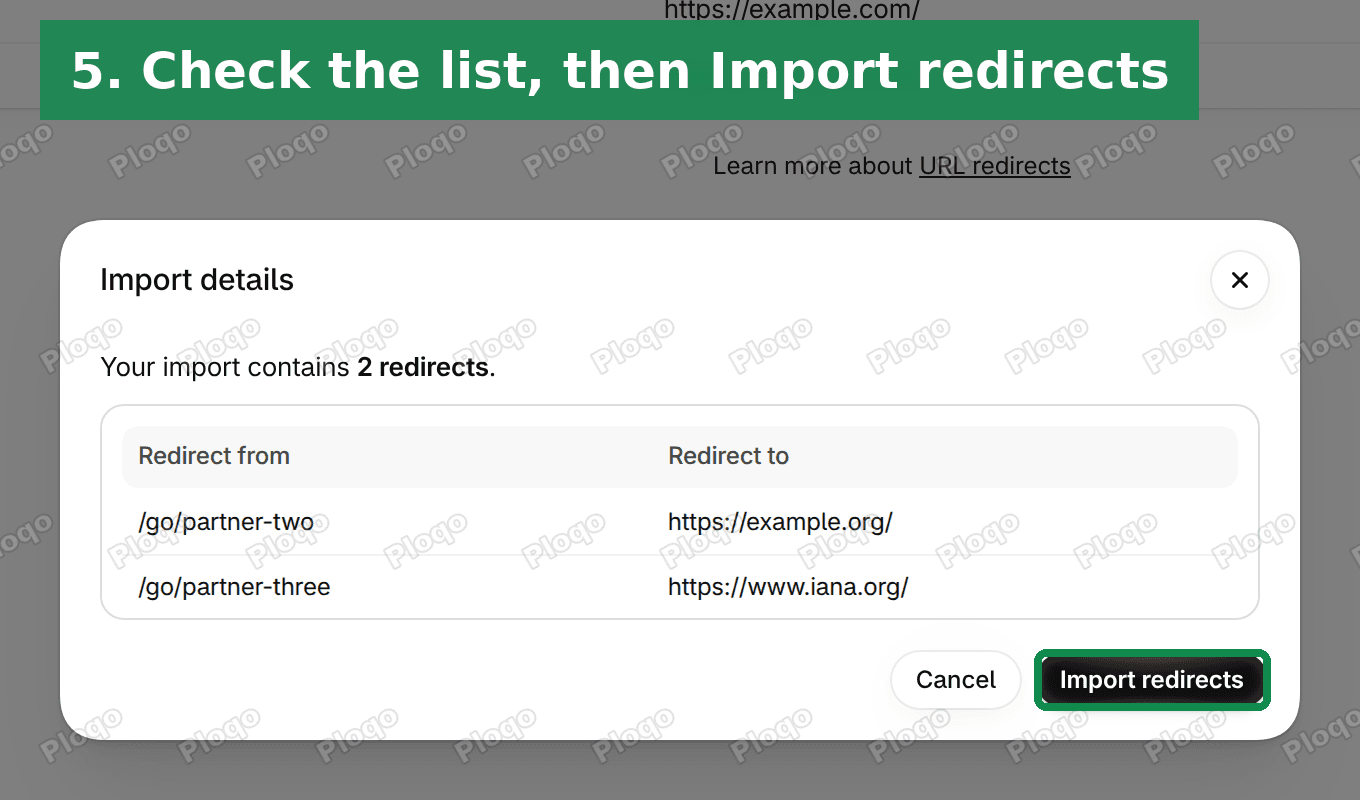 The Import details window saying the import contains 2 redirects, listing both, with Import redirects highlighted
- Wait for the Import complete message, then click Close.
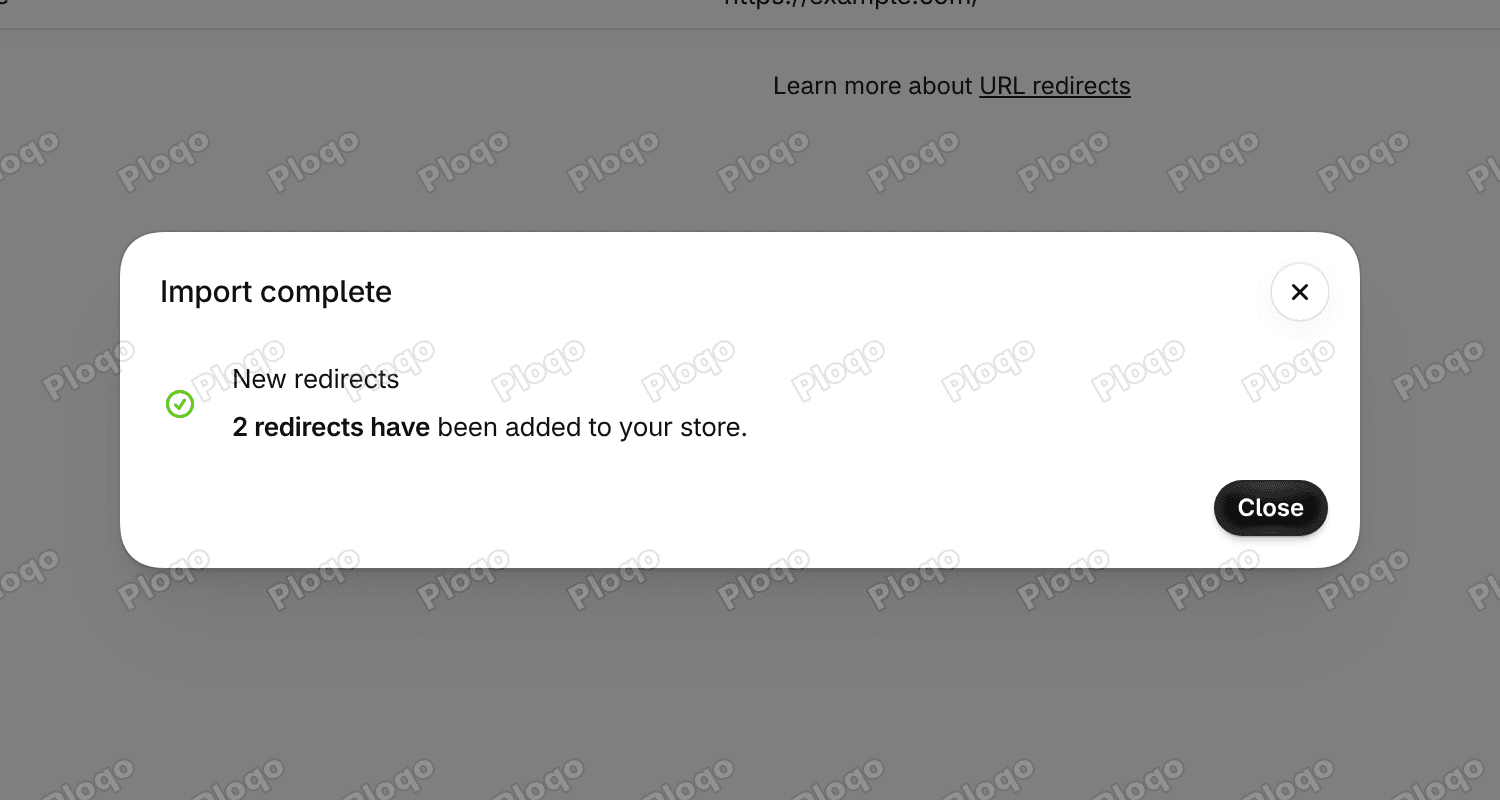 The Import complete message saying 2 redirects have been added to your store
On my test store both redirects appeared in the list straight away. On the storefront, a link to /go/partner-two opened https://example.org/ with no leave confirmation, while a direct link to the same site still showed it.
Then update the links
The import creates the redirects. It does not change the links on your pages. Every menu item, button and text link that should skip the message still needs its short path in place of the outside address.
That is the slow part for a store with hundreds of links, so plan the paths before you build the file:
- Use one folder for all of them, such as
/go/. It keeps them together in the redirect list and makes them easy to filter. - Name each path after the destination, such as
/go/supplier-name, so you can tell at a glance where it leads. - Keep the spreadsheet. It is your record of every short link and where it goes. Add new rows to it and re-import only the new ones.
Other jobs for bulk redirects
The CSV import is built for bigger jobs than outside links. These are the common ones.
Moving from another platform. Your old product pages had different addresses. Without redirects, every old link in Google, emails and social posts lands on a "Page not found" screen. List each old path in column A and its new Shopify address in column B, such as /products/blue-shirt, then import the lot.
Renaming products or collections in bulk. When you change one handle in the admin, Shopify offers to create the redirect for you. A handle is the short name Shopify uses in the web address, such as blue-shirt in /products/blue-shirt. When you change many handles at once, list each old address and its new one in a CSV and import them, so the old links keep working.
Retiring products. When you delete a product, its address shows a "Page not found" screen. Redirect it to a similar product or to its collection.
Hiding a seasonal collection. Shopify's Help Center describes setting a collection's online store visibility to hidden, so its address stops loading, then redirecting it to the current season's collection.
For short addresses inside your own store, such as yourstore.com/support, see Shopify URL structure. It covers single redirects and why some built-in addresses cannot be redirected.
Rules every redirect has to follow
These come from Shopify's Help Center page on URL redirects. They apply to redirects you add by hand and to imported ones.
- The starting address must not load a page. Shopify uses a redirect only when the address would otherwise show "Page not found". A
/go/path is free on a normal store, so it works. A redirect from a product that still exists is saved but has no effect. - Some paths are reserved. You cannot redirect from addresses starting with
/apps,/application,/cart,/carts,/orders,/servicesor/shop, or from the fixed paths/products,/collectionsand/collections/all. - There is a limit. A store can hold up to 100,000 URL redirects, or 20,000,000 on Shopify Plus.
- Query strings are unreliable. Addresses with a
?and extra text after it may not redirect as expected. - Browsers remember them. A redirect is permanent, so a browser that has used it once may keep going to the old destination for a while after you change or remove it.
If the import or redirect does not work
- The import does not accept your file. Check that the first row reads exactly
Redirect from,Redirect to, and that you saved the file as CSV rather than as a spreadsheet file. Compare it with Shopify's sample CSV template. - A redirect is in the list but does nothing. Check that its starting address does not already load a page, and that it does not start with a reserved path from the list above.
- The short link opens a "Page not found" screen. The redirect is missing or has a typo. Search for the path in the URL redirects list.
- The leave message still opens. The link on your page still points to the outside address. Open the menu item or block and check that its link starts with
/go/. - The short link works on your phone but not in your browser. Your browser may be holding on to an older version. Try a private window.
Related questions
Can I turn off the leave store confirmation? Not at the time of writing. Shopify's Help Center says merchants cannot turn it off or choose websites that skip it.
Will my social media links show the message? No, according to Shopify. Popular social networks such as Facebook, Instagram, TikTok and YouTube are on its allowed list.
Do I need a redirect for my own second domain? If the domain is connected to your store on the Domains page, it skips the message. Shopify's changelog notes that sites you own but have not connected may still trigger it.
Can I download my existing redirects? The URL redirects page has an Export button next to Import. Export before a large import so you have a copy of what was there.
Do redirects hurt SEO? No. A Shopify redirect is permanent, which tells search engines the old address has moved to the new one. That is what keeps old product links useful after a move.
Can I use a short link in my Instagram bio? You can, but for sending bio visitors straight to your products there is a better approach. See the link in bio article.
Spending too long on manual Shopify busywork?
PinFlow turns your Shopify catalog into Pinterest pins and posts them on a schedule, automatically. Set it up once and let it run.
Get PinFlow on the Shopify App StoreMore Shopify fixes
More community-sourced Shopify guides, tested on a live store.
SEO & Marketing
Shopify URL Structure: Why /pages/ and /collections/ Appear
Shopify puts /pages/, /collections/ and /products/ in every link, and you cannot turn that off. Here is what you can change - a short /support link, a tidy /collections page and shorter handles - tested on a Dawn store.
SEO & Marketing
Shopify Link in Bio: Show Your Domain, Land People on Products
You want your Instagram bio to read abc.com but send people straight to your products. A redirect will not do it, and /shop is a reserved path on Shopify. Here is the approach that works, and why the usual advice fails.
SEO & Marketing
How to Create a Pop Up Discount on Shopify, Free
Shopify's own free Forms app builds a discount popup in about five minutes. Here is every step, including the theme setting that decides whether it appears at all. Tested live.