
Shopify Link in Bio: Show Your Domain, Land People on Products
You want your Instagram bio to read abc.com but send people straight to your products. A redirect will not do it, and /shop is a reserved path on Shopify. Here is the approach that works, and why the usual advice fails.
By AjayCodeWiz · September 14, 2026 · 8 min read
The problem
You are doing organic marketing on Instagram. You have one link, in your bio, and you want it to do two things at once.
You want it to read as your bare domain, because that looks like a brand and not like a tracking link. And you want the tap to land on your products, not on a home page where the shopper has to find their way to the catalogue.
Plenty of stores appear to manage both. Their bio shows a clean domain, and the tap opens a product listing. So there must be a setting.
There is a way to get it, and it is not the one most answers give you.
Why the redirect answer does not work
The advice you will find is to set up a URL redirect in Shopify, from your root domain to your products page. There are two reasons that fails.
A Shopify redirect only fires on a URL that returns a 404. This is the part that gets missed. Shopify's URL redirects exist to repair broken links, so they only take effect when the requested page does not exist. Your home page exists and loads fine, so a redirect pointing away from / never triggers. Nothing happens, and nothing tells you why.
Even if it did work, it would be the wrong thing to do. Redirecting your root domain means your home page is unreachable, for shoppers and for Google. Everything you have published about your brand on that page stops being seen, and every link anyone has ever made to your domain now lands somewhere else.
Why /shop does not work either
The usual fallback is to make a short path instead: send people to abc.com/shop and redirect that to your products.
That specific path will not work on Shopify. /shop is one of Shopify's reserved path prefixes. So are /cart, /carts, /orders, /apps, /application and /services. Shopify uses them internally, and the redirect tool will not let you claim them.
Two more worth knowing, because they are the obvious destinations rather than sources: /products and /collections/all are fixed Shopify paths. You cannot redirect from those either.
If you do want a short path, pick a word Shopify has not reserved. /drop, /store, /new and /all are all free on a normal store, and they return a 404 today, which is exactly the condition a redirect needs. Set it up in Online Store > Navigation > URL redirects.
But you will still see that path in your bio, which is the thing you were trying to avoid.
What actually works: change what the home page shows
Here is the approach that gets you both halves of what you asked for.
Stop trying to send people away from your home page. Put the products on it. Then abc.com is not a detour to the catalogue, it is the catalogue, and the bare domain in your bio is doing precisely what you wanted.
No redirect is involved, so there is nothing to break, nothing to maintain, and no SEO consequence. Your home page still exists, still ranks, and still receives every link anyone makes to your domain.
Doing it
From your Shopify admin, go to Online Store > Themes and click Customize. Stay on the Home page template.
- Deal with the hero first. Most themes open with a full width image banner that takes up the whole first screen. On a phone that pushes your products below the fold, which defeats the point. Either remove that section, or shorten it, or move it below the products.
- Add section > Featured collection. Pick the collection you want people to land on. This is the one that does the work.
- For your whole catalogue, either point that Featured collection at a collection containing everything, or use Collection list so shoppers pick a category first.
- Set the product count. Featured collection has a products-to-show setting. Eight to twelve is usually right for a landing experience. Anything more and the page gets long on mobile.
- Save.
Open the store on your phone and check what shows in the first screen. That is what an Instagram visitor sees, and it is the only view that matters for this job.
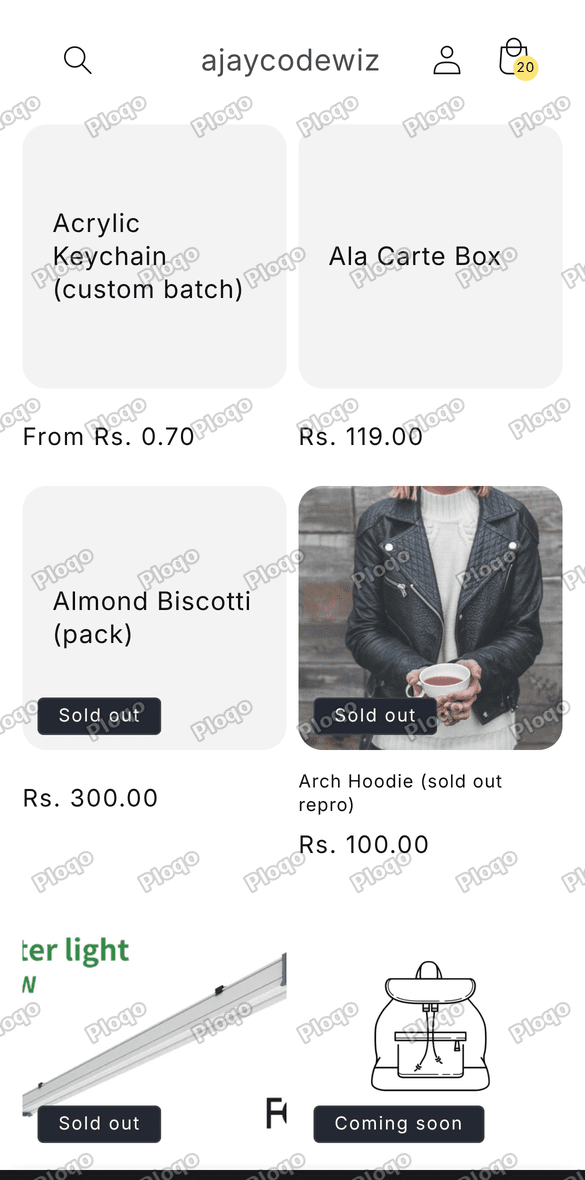 A Shopify home page at phone width showing product cards straight away, with no hero banner above them
That is the target: products in the first screen, no scrolling, no hero to get past. The domain in the bio now takes someone directly to something they can buy.
The trade off, stated plainly
Your home page is now a product listing. If you were using it to tell a brand story, run a lookbook, or announce a drop, you are giving that up, or moving it below the products.
For a store whose main traffic source is a single Instagram bio link, that is usually the right trade. For a store where the home page is doing real work for search traffic or for returning customers, it may not be. Look at where your visitors actually arrive before you decide.
The Instagram side of it
Worth separating clearly, because half this problem is not Shopify's.
Instagram's bio Links section takes a URL and, on current app versions, an optional title. When you set a title, that is what displays in place of the URL. If yours is still showing the raw address, it is usually the app version, or the link was typed into the bio text rather than added in the Links section.
It also does not matter much once the home page shows products. At that point the raw abc.com is exactly the text you wanted people to see, and it goes exactly where you wanted them to go.
What about a link in bio app?
There is a whole category of tools that give you a landing page with several buttons on it, and a link of their own to put in your bio.
They solve a different problem. They are for when you have many destinations to offer at once: a product, a playlist, a newsletter, a booking page. If your goal is one destination and a clean domain, adding a third party link in the middle makes both halves worse. The bio no longer shows your domain, it shows theirs, and the shopper takes two taps to reach a product instead of one.
Sending only the Instagram visitor to your products
The section above changes the home page for every visitor. If you want to keep your home page as it is and move only the people arriving from Instagram, there is a cleaner signal than a redirect.
Instagram does not open your link in Safari or Chrome. It opens it in its own in-app browser, and that browser stamps Instagram into the user agent, the short string every browser sends describing itself. A sample from an iPhone looks like this, with the useful part at the end:
Mozilla/5.0 (iPhone; CPU iPhone OS 17_0 like Mac OS X) AppleWebKit/605.1.15
(KHTML, like Gecko) Mobile/15E148 Instagram 302.0.0.23.113 (iPhone14,2; iOS 17_0; ...)
So you can check for it and act only on those visitors.
In the theme editor, on the Home page, use Add section > Custom Liquid and paste this. Custom Liquid is a section Shopify gives you for dropping in your own code, and it needs no theme file editing:
<script>
(function () {
  var tagged = (new URLSearchParams(location.search).get('utm_source') || '').toLowerCase() === 'instagram';
  var inApp  = /Instagram|FBAN|FBAV|FB_IAB/i.test(navigator.userAgent);
  if (!tagged && !inApp) return;
  if (sessionStorage.getItem('ig-routed')) return;
  sessionStorage.setItem('ig-routed', '1');
  location.replace('/collections/all' + location.search);
})();
</script>
Then put the tag on the link in your bio:
https://abc.com/?utm_source=instagramWhy the user agent alone is not enough
Most versions of this answer test the user agent and stop there. That leaves a hole, and it is a large one.
The user agent test only fires inside the Instagram app. Someone reading instagram.com in desktop Chrome and clicking the same bio link sends an ordinary desktop user agent, so the test never matches and they land on your home page exactly as before.
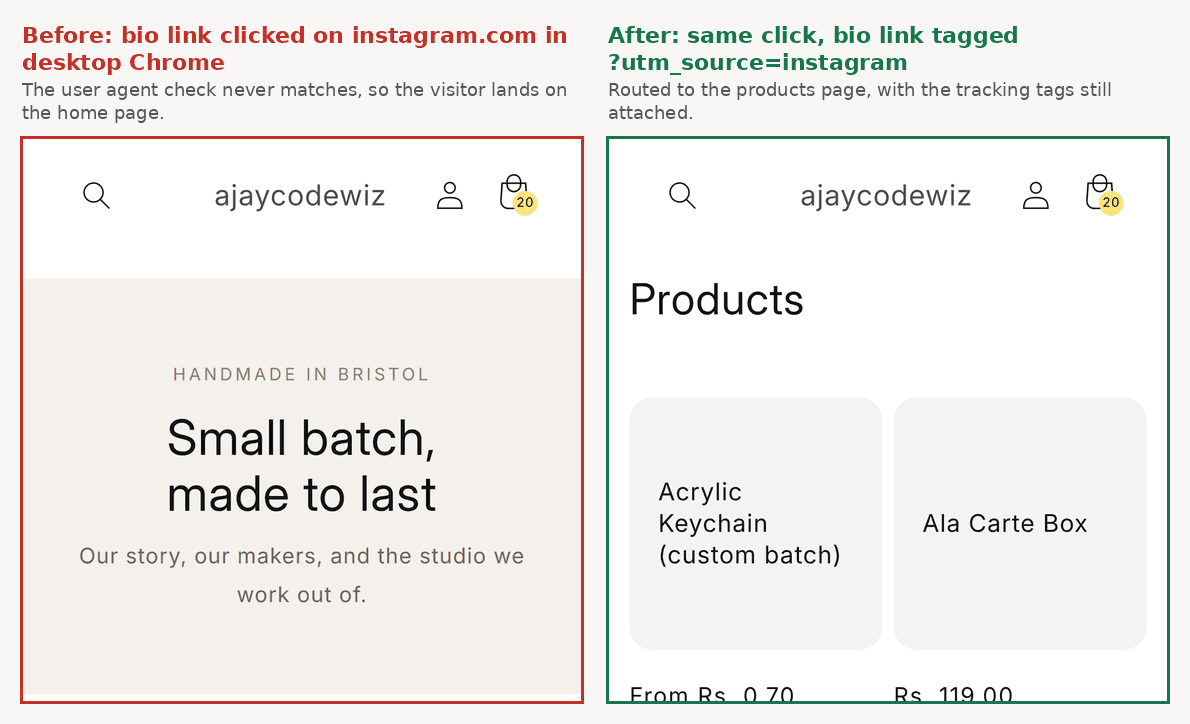 A Shopify home page on the left showing the brand hero for a desktop Instagram click, and the products page on the right after the link was tagged
That is why the snippet checks two things. The tag catches the desktop web visitor, the user agent still catches the in-app one, and either is enough on its own.
Reading that code
Five decisions in it are worth understanding, because they are what separate this from the version that annoys people.
- The tag is the signal you control.
utm_source=instagramis on the link because you put it there, so it arrives whatever browser the visitor is using. sessionStoragestops a loop. Without it, a shopper who taps your logo to go back to the home page is thrown at the products again, over and over. The flag means the redirect happens once per visit.location.replacerather thanlocation.href. Replace swaps the current history entry instead of adding one, so the Back button still works normally and no shopper gets trapped bouncing between two pages.+ location.searchcarries the tags to the destination. Drop it and the visitor arrives untagged, so Shopify attributes the session to nothing and the reporting you set this up for disappears.FBAN|FBAV|FB_IABcatches Facebook's in-app browser too. Remove them if you only want Instagram.
What it does not affect
Googlebot never carries your tag and never sends an Instagram user agent, so it does not see the redirect and your home page is indexed exactly as before. Email traffic, ad traffic and people typing your domain are all unaffected too. The only people who move are the ones you sent.
One cost to weigh. If your Instagram Links section shows the raw URL rather than the Title you set, the tag is visible in the bio, which is the opposite of the clean look you were after. In that case use the Featured collection approach above instead, which needs no tag at all.
What about a Cloudflare Worker?
This is a natural idea if you have used Cloudflare before: put a Worker in front of the domain, read the incoming request, and route Instagram traffic to your products page at the edge, before Shopify is involved at all.
It is worth answering properly, because the two companies say different things about it.
Cloudflare documents it
Cloudflare has a provider guide for Shopify. It describes a configuration called Orange-to-Orange, or O2O, where your own Cloudflare zone sits in front of Shopify's. You enable it with a proxied CNAME pointing at shops.myshopify.com, and the guide says it works on any Cloudflare zone plan. Workers are listed as a compatible product, disabled only on the /checkout path.
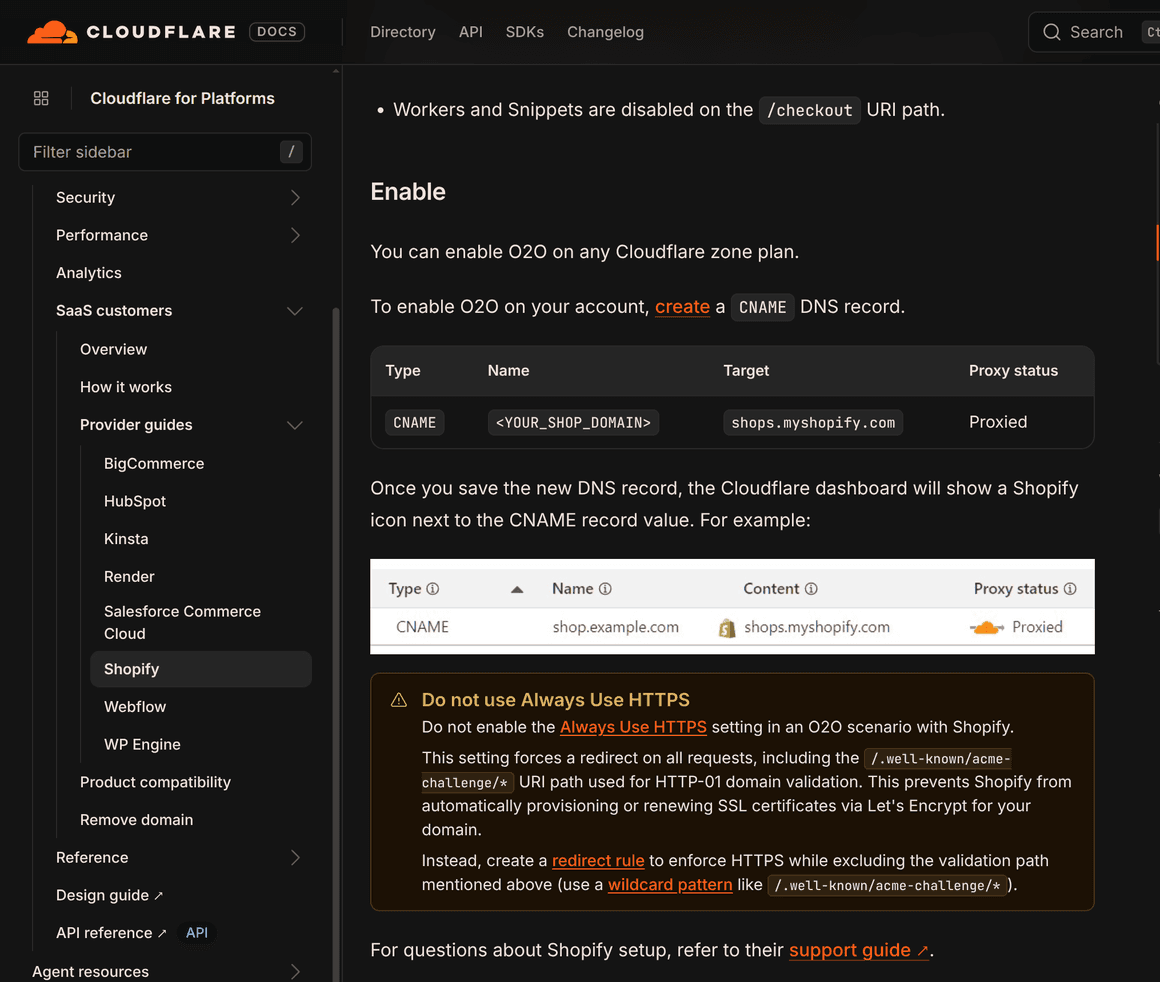 The Cloudflare provider guide for Shopify, showing the proxied CNAME record and the warning about Always Use HTTPS
The same page carries a specific warning that explains most of the certificate horror stories: do not turn on Always Use HTTPS. That setting forces a redirect on every request, including /.well-known/acme-challenge/*, the path Shopify uses to prove domain ownership when it issues and renews your TLS certificate. Force a redirect there and the certificate stops renewing. Cloudflare's own fix is a redirect rule that excludes that path.
Shopify says not to
Shopify's help centre is direct about it. Cloudflare proxy setups, O2O included, are not supported, and the page lists four consequences.
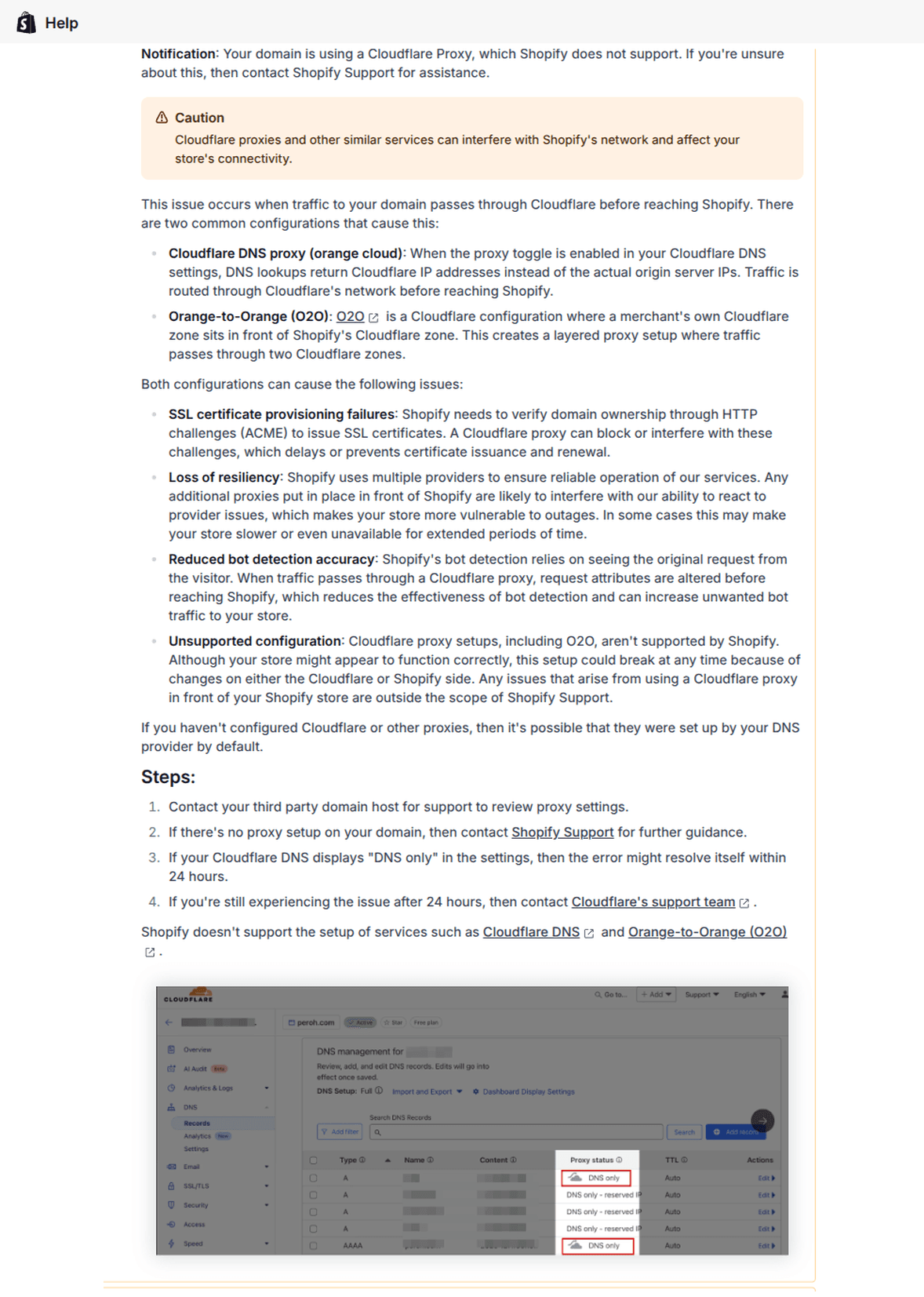 The Shopify Help Center section on Cloudflare Proxy presence, listing SSL certificate provisioning failures, loss of resiliency, reduced bot detection accuracy and unsupported configuration
- SSL certificate provisioning failures. Shopify verifies domain ownership over HTTP to issue certificates, and a proxy can block or interfere with that.
- Loss of resiliency. Shopify runs on multiple providers, and a proxy in front limits their ability to route around a provider problem.
- Reduced bot detection accuracy. Their bot detection reads the original request, and a proxy alters it.
- Unsupported configuration. In their words, your store might appear to work correctly, and the setup could still break at any time. Anything that goes wrong sits outside Shopify Support.
So which is it
Both, and the answer is that the setup exists, Cloudflare documents it, and a Worker really can do this routing. It is also a configuration Shopify will not stand behind, on the domain your revenue arrives through.
For this particular job the maths is not close. You would be putting your whole storefront behind an unsupported proxy layer to move a redirect that a few lines of theme code already handle, with no certificate risk and nothing to maintain.
If you do not need a Worker for something else, leave the DNS record on DNS only, the grey cloud, which is what Shopify asks for.
Why the referrer is not the answer
The other common suggestion is to read the referrer, the field naming which page sent the visitor. It sounds like it should work for the desktop web case, and it does not.
Instagram marks its bio links rel="noreferrer". That instruction tells the browser to send no referrer at all, so your store receives an empty value and has nothing to test. Instagram also routes outbound clicks through l.instagram.com first, which would have obscured the original page even without the noreferrer.
Inside the app there is no referrer either, because the tap is opened by the app rather than clicked from a web page.
Build a rule on the referrer and it does nothing, for every Instagram visitor, with no error to tell you why. The tag on your own link is the signal that is actually present.
Check that it worked, and that it is working
Two things are worth setting up once, because a bio link is often a store's biggest single traffic source and it is easy to leave it broken without noticing.
Look at it the way a visitor does
Open your store on an actual phone, not a resized desktop browser. Those are different: a desktop window squeezed narrow still renders at desktop breakpoints in some themes, so the layout you see is not the layout a phone gets.
Then look only at the first screen, before any scrolling. A visitor arriving from a bio link has no context and no patience. If the first screen is a logo and a slogan, the link is not doing its job even though it technically works.
Tag the link so you can measure it
Add tracking parameters to the URL you put in the bio, so the visits show up as their own source in analytics rather than being lumped in with everything else.
https://abc.com/?utm_source=instagram&utm_medium=social&utm_campaign=bioThis still displays as your domain in most places, and Shopify passes the parameters through to its own analytics. Without them, Instagram traffic and direct traffic look identical in your reports, so you cannot tell whether the change helped.
If you set up a short path instead of using the home page, put the parameters on that URL too.
If you used the routing snippet above, this tag is doing two jobs at once. It tells your analytics where the visit came from, and it is the signal the snippet tests to decide whether to move that visitor.
If something is not behaving
- The redirect did nothing. The source URL still loads a real page. Redirects only apply to URLs that return a 404. Check by opening the source URL in a private window.
- Shopify will not accept the path. You have hit a reserved prefix.
/shop,/cart,/carts,/orders,/apps,/applicationand/servicesare all taken. Choose another word. - The products are there but below the fold on mobile. The hero section above them is too tall. Shorten it, remove it, or drag it below the Featured collection in the theme editor.
- The bio still shows the full URL with the path. That is Instagram displaying what you gave it. If you want the bare domain shown, the destination has to be the bare domain, which is the whole reason for putting products on the home page.
- The routing snippet works on your phone but not on your laptop. You are testing by typing the address, so there is no tag on the URL and no Instagram user agent. Test the actual bio link, tag included.
- It redirected once and then stopped. That is the
sessionStorageflag doing its job. Open a new private window, or clear the tab's session storage, to test again. - You changed the home page and your search traffic dropped. Check which pages were bringing that traffic before you assume the change caused it. If the home page was ranking for brand terms, it still will; if it was ranking for a story or guide you removed, move that content to its own page rather than deleting it.
A quick summary
- Do not redirect your root domain. Shopify redirects only fire on URLs that 404, so it will not work, and if it did it would take your home page down with it.
/shopis reserved by Shopify, along with/cart,/orders,/appsand/services. Pick an unreserved word if you want a short path.- A Cloudflare Worker can technically do it, through a setup called O2O that Cloudflare documents, but Shopify lists that setup as unsupported and warns it can break at any time.
- To move every visitor, put a Featured collection on your home page. The bare domain then really is the product page.
- To move only the Instagram visitor, tag your bio link with
?utm_source=instagramand check that tag as well as the user agent. The user agent alone misses every visitor clicking from instagram.com on a desktop. - Check the result on a phone, because the first screen is the whole experience for a bio link.
Spending too long on manual Shopify busywork?
PinFlow turns your Shopify catalog into Pinterest pins and posts them on a schedule, automatically. Same idea as the rule above, let the system handle the repetitive part.
Get PinFlow on the Shopify App StoreMore Shopify fixes
More community-sourced Shopify guides, tested on a live store.
SEO & Marketing
Shopify Bulk Redirects: Import Them From a CSV File
Add hundreds of Shopify URL redirects in one CSV upload, plus short /go/ links to outside sites without the leave-store message. Tested on a dev store.
SEO & Marketing
Shopify URL Structure: Why /pages/ and /collections/ Appear
Shopify puts /pages/, /collections/ and /products/ in every link, and you cannot turn that off. Here is what you can change - a short /support link, a tidy /collections page and shorter handles - tested on a Dawn store.
SEO & Marketing
How to Create a Pop Up Discount on Shopify, Free
Shopify's own free Forms app builds a discount popup in about five minutes. Here is every step, including the theme setting that decides whether it appears at all. Tested live.