
How to Create a Pop Up Discount on Shopify, Free
Shopify's own free Forms app builds a discount popup in about five minutes. Here is every step, including the theme setting that decides whether it appears at all. Tested live.
By AjayCodeWiz · September 10, 2026 · 8 min read
The problem
A discount popup is the standard way stores turn a first-time visitor into an email address. "Get 10% off your first order", a name and an email, then a code.
Most merchants assume they need a paid app for it. They do not. Shopify has its own free app, Shopify Forms, and it does the whole job including attaching the discount code.
I built one on a test store from scratch. Below is every step with the real screens, plus the one setting that stops, with nothing to flag it the popup from ever showing.
Install Shopify Forms
Search the App Store for Shopify Forms and install it. It is published by Shopify, it is free, and there is no plan to choose.
Once installed it appears in your admin sidebar under Apps as Forms.
Create the popup
Open Forms and click Create form.
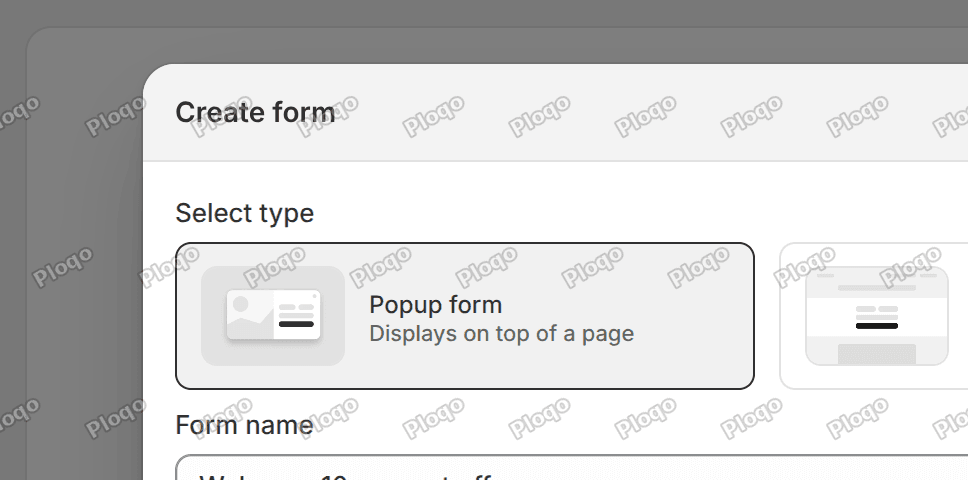 The Create form dialog with Popup form and Inline form as the two types, and a form name field
Two choices:
- Popup form - displays on top of a page
- Inline form - embedded in a page
Pick Popup form, give it a name only you will see, and click Create. The Create button stays disabled until you have picked a type, which is easy to miss because the popup card does not look unselected.
You land in the form editor. The defaults are sensible: an overlay popup, a first name and email field, a Submit button, and a consent line. You can ship it as it stands.
Attach the discount
The discount control sits further down the page than you would expect. Scroll to the Success section. Under Confirmation behavior there is a block headed Discount (optional) with the line "Display a discount to customers after they submit". Click Select a discount.
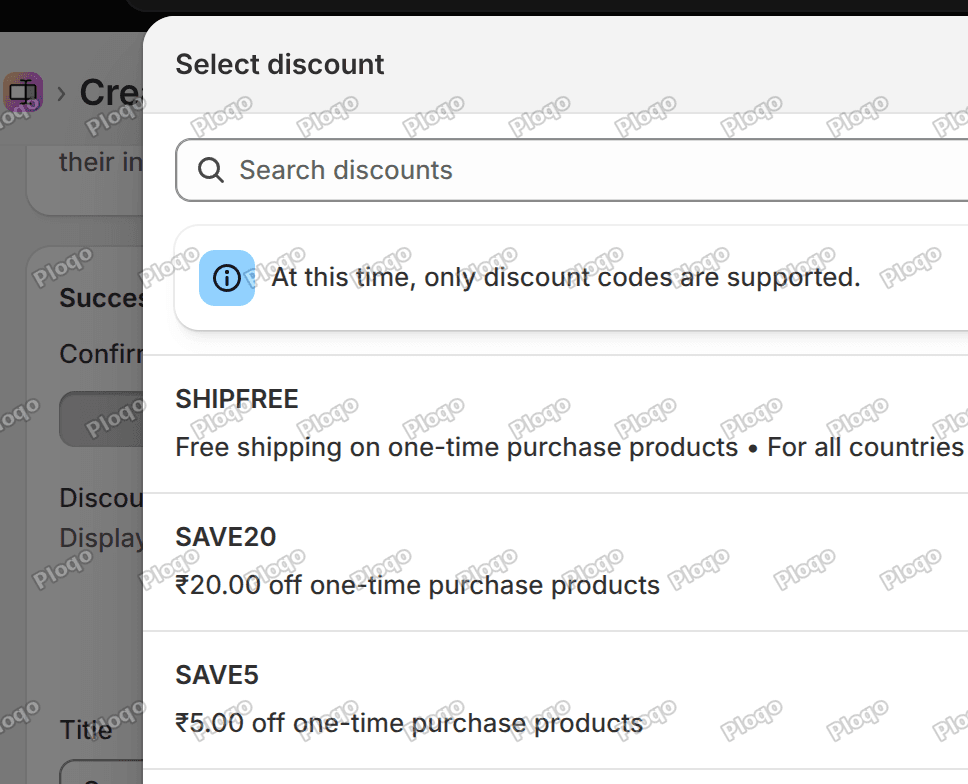 The Select discount dialog listing existing discount codes, with a notice that only discount codes are supported
Note the message at the top: "At this time, only discount codes are supported."
That is a real limitation. You cannot attach an automatic discount to a form, because the whole point is to hand the shopper a code they type in later. If your list is empty, there is a Create new discount button at the bottom of this dialog, or you can make one first following how to create a discount code in Shopify.
I picked a 10% off code with a one-use-per-customer limit. The preview on the right updates straight away.
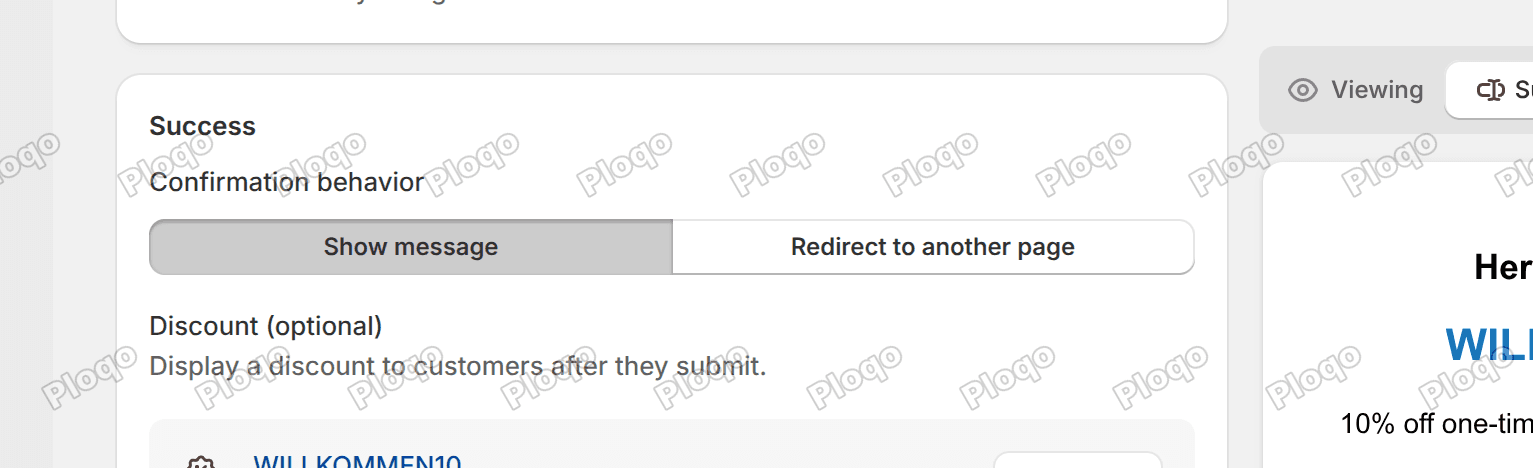 The form editor with the discount attached, and a preview reading Here's your discount followed by the code and its terms
The success panel reads "Here's your discount: WILLKOMMEN10 - 10% off one-time purchase products - One use per customer", with a copy button beside the code. The wording under the code is generated from the discount itself, so if you edit the discount later the popup follows.
Press Save, then Turn form on. The status badge goes from Inactive to Active.
The step that gets skipped
The moment the form is created, Shopify shows this:
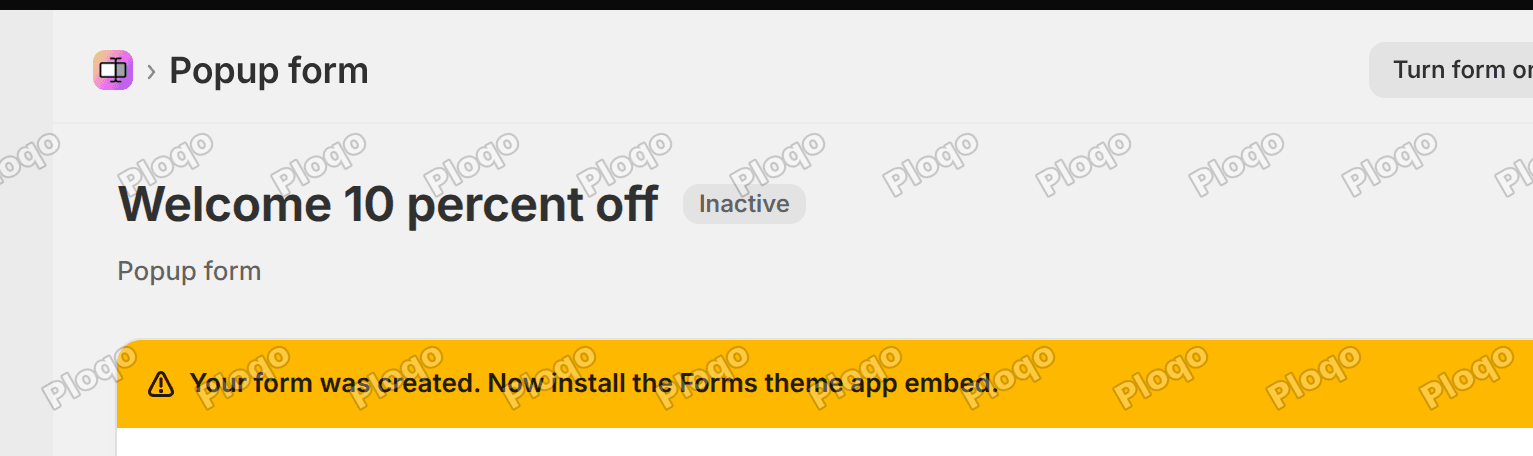 An orange banner reading Your form was created, now install the Forms theme app embed
"Your form was created. Now install the Forms theme app embed. In order for your forms to work on your storefront, go to your online store editor and turn on the Forms theme app embed."
An app embed is a piece an app loads on every page of your store, switched on from the theme editor rather than placed on one page.
An active form does not appear on your store until you do this. The form says Active. The preview looks right. The storefront shows nothing. This is the single most common reason a Shopify Forms popup "does not work".
Click Go to online store, or go to Online Store → Customize. In the theme editor, click the App embeds icon in the left rail, find Forms, and turn the toggle on.
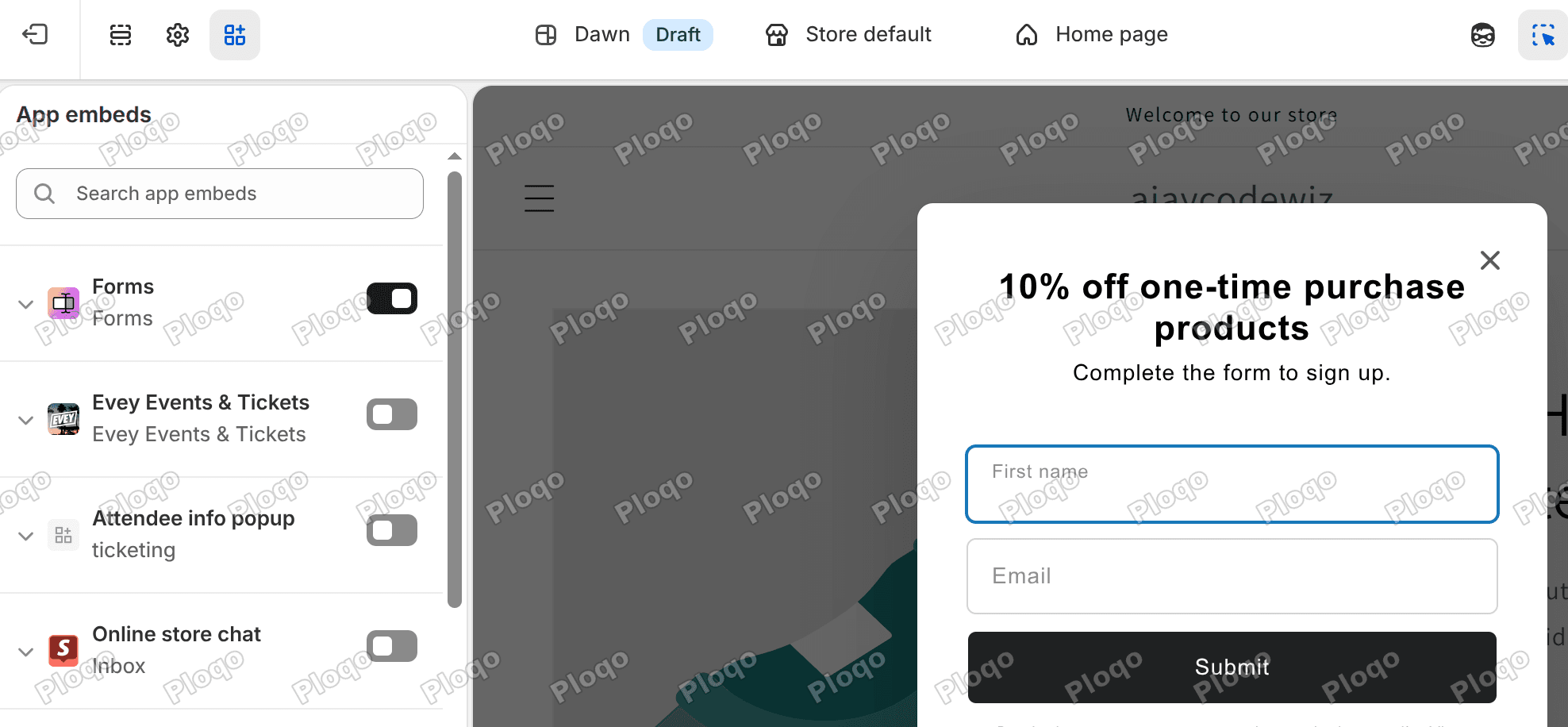 The theme editor App embeds panel with the Forms toggle on and the popup rendering live in the preview
The popup appears in the preview the instant you flip it. Press Save.
One thing to remember: the app embed is a per theme setting. Enable it, then change theme or duplicate the theme and publish the copy, and the popup is gone again. If a popup stops appearing after a redesign, this is why.
Seeing it live
With the embed on, I loaded the storefront.
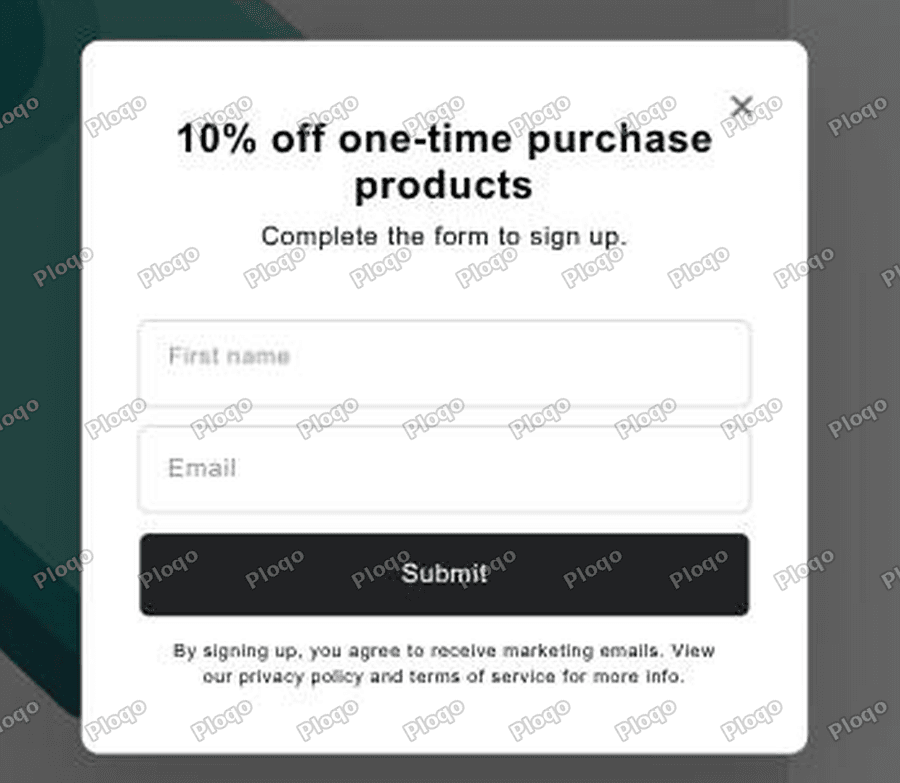 The storefront home page with the discount popup over it, headed 10 percent off one-time purchase products, with First name and Email fields and a Submit button
The popup opens on the first page view with a dimmed overlay behind it. The headline is taken from the discount summary rather than typed by hand, which is handy but also means you should override it if you want real marketing copy.
And the code works. Applied at checkout on a $40 cart:
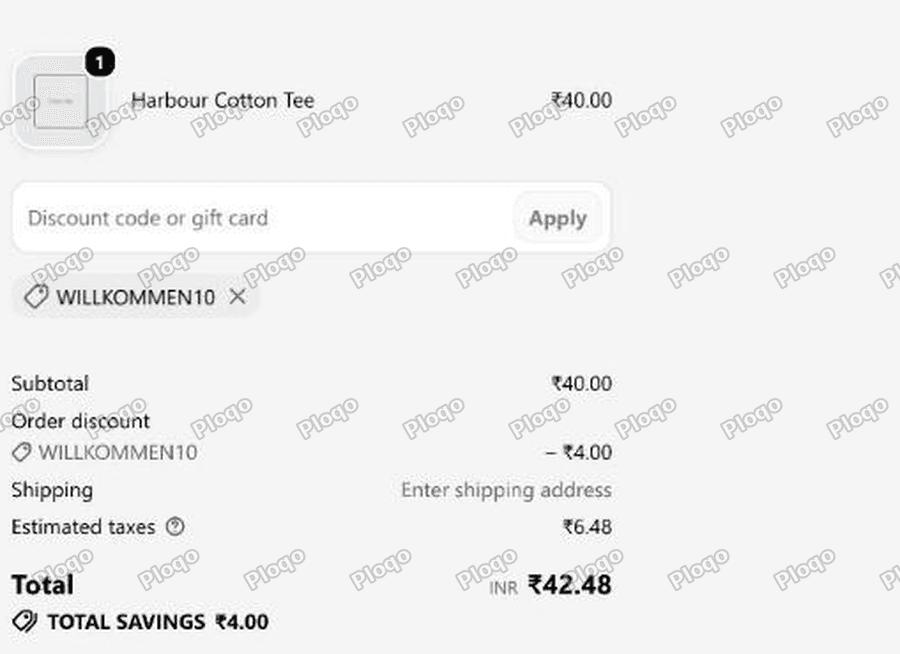 Checkout with the code applied, showing a 4.00 order discount and a total of 42.48
$4.00 off, total $42.48, savings $4.00. End to end, from popup to money off.
Settings worth changing before you launch
The defaults will run, but four of them are worth a look. They are all in the form editor.
Trigger. By default the popup fires on first page view after 0 seconds, meaning instantly. That is aggressive. Under Behavior → Trigger you can move it to the second or third page view, or add a delay. A short delay converts better and annoys less.
Exit intent. In the same section there is a checkbox for "Show form when visitors attempt to leave page". Desktop only. Pairs well with a later page view trigger.
Teaser. Under Popup display there is a Teaser setting, defaulting to "If the customer closes the form without subscribing". That leaves a small tab in the corner so a shopper who dismissed the popup can bring it back. Set it to Never if you want to ask once and leave it at that.
Devices. Under Behavior → Devices you can limit the popup to desktop or mobile. A full-screen overlay on a phone is worth thinking about carefully.
Pages. By default the popup shows everywhere. "Show only on specific page types" lets you keep it off the cart and checkout, which is usually the right call.
Floating versus overlay
Under Popup display there are two shapes:
- Overlay dims the page and centres the form. Higher signup rate, more interruption.
- Floating sits in a corner without dimming anything, and you choose the position.
Overlay is the default. If your traffic is mostly returning customers, floating is the less costly choice.
Doing it without any app at all
You can, but you should know what you are giving up.
Every free Shopify theme has an email signup form built into the footer, and Dawn also ships a Email signup section you can add to any page. Neither is a popup and neither hands out a code. They collect the email; you then have to email the discount separately.
If you will not install anything, "popup discount without an app" comes down to a Custom Liquid section holding a <dialog> element with your code in it and a small script to open it after a delay. A Custom Liquid block is an empty box in the theme editor where you paste your own code. That gives you the popup and the code, but no email capture, no customer record, and no marketing consent, which is the part that made the popup worth building.
Shopify Forms is free, made by Shopify, and captures the consent properly. There is not much of a case for hand-rolling this one.
Popup apps, if you want more
The category is crowded. The names that come up most are Privy, OptiMonk and Klaviyo's own onsite forms.
What they add over Shopify Forms is mostly targeting and testing: A/B tests on the copy, rules by traffic source or country, spin-to-win wheels, and deeper reporting. If you are running a serious acquisition programme those matter. For "collect emails and give 10% off", Forms already does it.
One point in Forms' favour beyond price: it writes straight into your Shopify customer list with consent recorded, so no sync step and no second system holding your subscribers.
Common problems
The popup does not appear on the storefront. The theme app embed is off. This is the answer nine times out of ten. Online Store → Customize → App embeds → Forms.
It appeared once and never again. Forms remembers that you dismissed it. Test in a private window, or clear site data.
It does not appear after switching theme. App embeds are per theme. Turn it on again in the new one.
The discount picker is empty. You have no discount codes. Automatic discounts do not show and cannot be attached. Create a code first.
The code does not work at checkout. Check whether another discount is already on the cart. By default two discounts refuse to run together and one is dropped without a message, which discount combinations explains.
Submissions are not arriving by email. In the form editor, tick "Send an email for each submission to this form" under Email notifications. It is off by default, and notifications go to your store contact email.
The main points
- Shopify Forms is free, made by Shopify, and does discount popups natively.
- Forms → Create form → Popup form → name it → Create.
- Attach the code in the Success section under Discount (optional). Only discount codes work, never automatic discounts.
- Save, then Turn form on.
- Then the step that gets skipped: Online Store → Customize → App embeds → turn Forms on → Save. Without it an active form shows nothing, and the setting is per theme.
- Change the Trigger off "first page view, 0 seconds" before you launch.
- Verified live: popup on the storefront, code applied at checkout, $4.00 off a $40 cart.
Spending too long on manual Shopify busywork?
PinFlow turns your Shopify catalog into Pinterest pins and posts them on a schedule, automatically. Same idea as the popup above, let the system handle the repetitive part.
Get PinFlow on the Shopify App StoreMore Shopify fixes
More community-sourced Shopify guides, tested on a live store.
Shopify Admin
Schedule a Black Friday Sale in Shopify (Auto Start and End)
Give the discount its own start and end date and put the sale banner in an Event rollout with the same dates. Both start at midnight and end after Cyber Monday.
Shopify Admin
Shopify Discount Limit: One Code for More Than 100 Products
Shopify stops you at 100 items when a discount applies to specific products. There is no setting to raise it, but you do not need one. Point the discount at a collection and one code covers thousands of products. Tested on a store, with the B2B route too.
Shopify Admin
Shopify Discount Types: Amount Off Products vs Order
Shopify has four discount types, and two of them work out a percentage in different ways. One rounds every single unit, the other rounds the order once. On low unit prices that difference is real money. Tested on a live store.