
Create an Automatic Bundle Discount in Shopify
Create an automatic bundle discount in Shopify - a native "1 of each" Buy X Get Y set with no app, no code, and no two-item loophole.
By AjayCodeWiz · August 11, 2026 · 11 min read
The problem
You want to sell two products as a set. Add both to the cart, and the price drops on its own. No coupon to type. No app to install.
A merchant asked exactly this on the Shopify Community. They were selling a denim set: a jacket that is ready to ship, and jeans sold as a pre-order.
The goal sounds simple. One jacket plus one pair of jeans should get a bundle price at checkout.
The catch is the usual fix breaks. They tried a "Buy X Get Y" discount. But a shopper could add two jackets and still get the same bundle price. That is not a bundle. That is a loophole.
The other idea was a separate "bundle" product listing. But then stock gets messy. You end up building a manual tracker so the jacket count stays right whether someone buys it alone or inside the bundle.
I reproduced this on a test store in the Shopify admin, under Discounts. I found a clean native setup that fixes both issues. This post walks through the exact steps, why the loophole happens, and when to switch to a real combined-stock bundle instead.
This is the core of any shopify bundle discount done natively: get the discount rule to key off the right thing.
Why it happens
Here is the mechanism most forum answers skip.
A "Buy X Get Y" discount has two sides. The "buy" side is the trigger. The "gets" side is where the price cut lands.
When you set the trigger to a quantity, like "buy 2 of anything in a collection," Shopify only counts items. It does not care which items. Two jackets is a quantity of two. So the deal fires. That is the loophole.
The fix is to stop counting quantity and start naming products. You make the trigger "buy 1 of this specific product" and the reward "get 1 of that specific product." Now both named items must be in the cart. Two jackets is not one jacket plus one pair of jeans. So the deal stays off.
In short: quantity triggers can be gamed. Specific-product triggers cannot. That single change turns a leaky discount into a real shopify automatic bundle.
The word "automatic" matters here. Shopify has two discount kinds. A discount code needs the shopper to type something. An automatic discount applies by itself when the cart matches the rule. For a set that should just work when both items are present, you always want automatic.
Before you start
Check three things first. They save you a support ticket later.
- You have both products created as separate listings in your store. Each has its own price.
- You know your target set price. From that, work out the discount. If the jeans are $90 and you want $45 off the pair, that is 50% off the jeans, or a flat $45 off. Either works.
- If one item is a pre-order or runs low, decide how it sells when stock hits zero. More on that below.
You do not need any app for the steps that follow. You do not need a coupon. You do not need a third "bundle" product.
The fix
Here is the native setup, step by step. It builds a shopify buy x get y discount that only fires for one of each named product.
1. Open the discount editor
In your admin go to Discounts. Click Create discount. Choose Buy X Get Y. Set the method to Automatic, not a code. Automatic means it applies on its own at checkout.
2. Set the "buys" side to one specific product
Under Customer buys, choose Specific products, not a collection. This is the key step. Pick your first item, the jacket. Set the quantity to 1.
Picking a specific product, not a collection, is what blocks the two-jackets trick. A collection or a quantity rule would let any two matching items qualify.
3. Set the "gets" side to the other product
Under Customer gets, choose Specific products again. Pick your second item, the jeans. Set the quantity to 1.
Then set the discount value on the jeans. Use a percentage or a fixed amount that lands your set price. In my test I used 50% off, which took $90 jeans down to $45. Save.
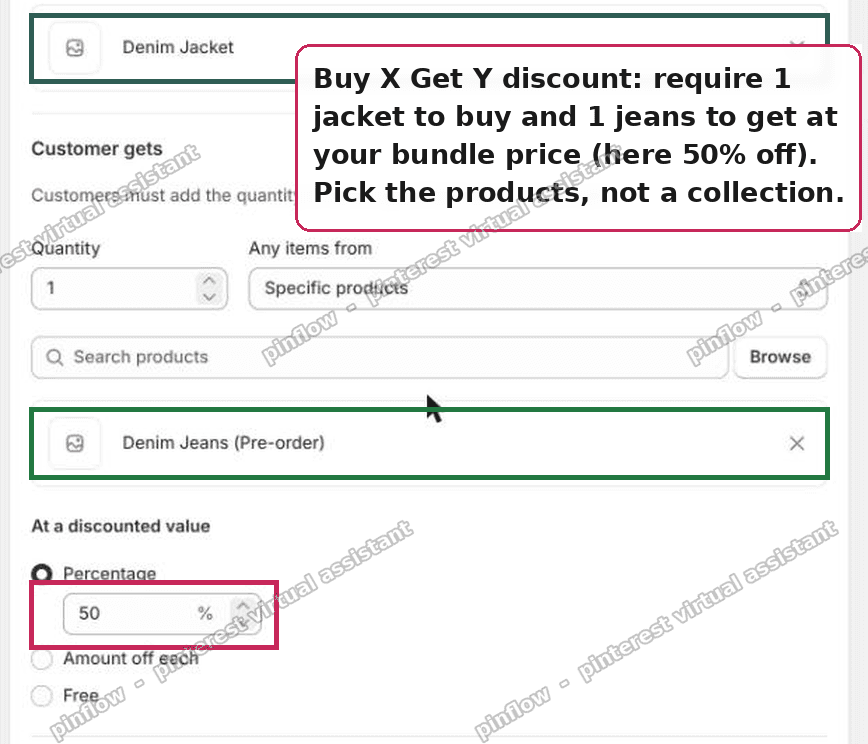 Shopify Buy X Get Y discount setup: buy 1 jacket, get 1 jeans at the bundle price, using Specific products not a collection
That is the whole build. Two named products, one of each, an automatic method, and the price cut sitting on the second item.
4. Test the loophole is closed
Now prove it works. Add two jackets to the cart and nothing else. The discount should not appear. The total stays at full price, because there are no jeans to trigger the reward.
I tested this. Two jackets alone stayed at full price with no discount applied.
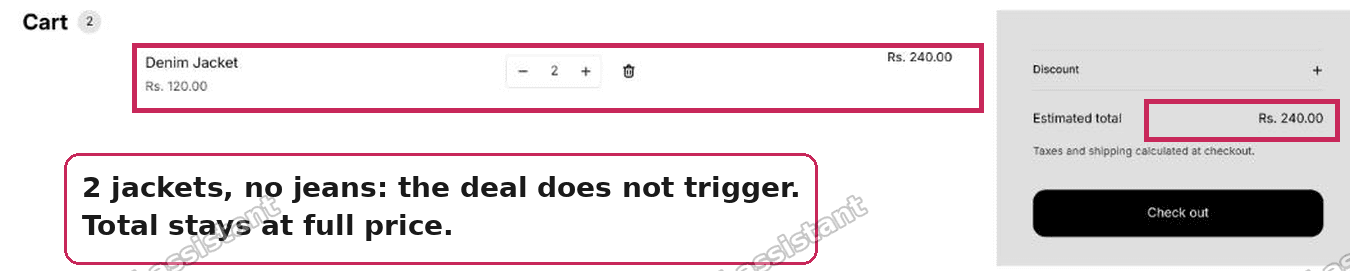 Cart with two jackets and no jeans: the Buy X Get Y discount does not trigger, total stays at full price
5. Test the bundle fires
Empty the cart. Add one jacket and one pair of jeans. The jeans should drop to the discounted price on its own. The total should equal your set price.
In my test the jeans dropped to half and the total became the bundle price automatically, with nothing typed in.
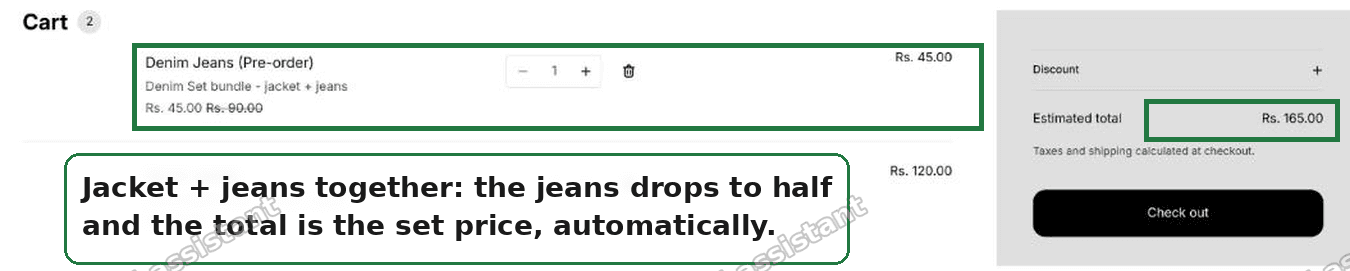 Cart with one jacket and one pair of jeans: the jeans drops to the bundle price automatically and the total is the set price
Keeping your inventory simple
This is the part that saves the manual tracker. Both items stay as two separate products. Each is tracked on its own count. There is no third bundle listing to sync.
If one item is a pre-order, like the jeans in this case, this setup handles it fine. Open the jeans product, find the inventory section, and turn on "Continue selling when out of stock." The pre-order sells, the jacket count stays honest, and the discount keeps firing when both are in the cart.
An alternative: Shopify Bundles for combined stock
The setup above keeps two listings. Sometimes you want the opposite. You want one product page that sells the set as a single item, with the two stocks combined and tracked for you.
For that, use Shopify's own free app, Shopify Bundles. It is made by Shopify, not a third party.
Shopify Bundles builds a real bundle product. The shopper sees one item to add to the cart. Behind the scenes it draws down the stock of each component for you. No manual tracker, no spreadsheet.
When to pick which:
- Want the two items to stay separate on the storefront, each with its own page, and just get a price break when bought together? Use the Buy X Get Y discount above.
- Want one product page for the set, with combined inventory handled automatically? Use Shopify Bundles.
Both are native. Both are free. They just solve slightly different shapes of the same idea.
How to create a bundle discount on Shopify
Short version, since this is the most searched phrasing.
To create a bundle discount on Shopify without an app, go to Discounts, create a Buy X Get Y automatic discount, and set both sides to Specific products with a quantity of one each. Put the price cut on the second product so the pair lands at your target price.
The mistake people make is using a collection or a quantity-only rule. That lets any matching items qualify, which is how the two-jackets loophole appears. Name the exact products instead.
If you need more than two items in the set, you can add more products to the "buys" or "gets" side. But the more items and quantities you mix, the more you should test the edge cases in a real cart before you go live.
Shopify Buy X Get Y: how it actually works
A Buy X Get Y discount is a conditional reward. The shopper "buys" the trigger items. They then "get" a discount on the reward items.
The discount value never sits on the trigger. It always sits on the reward. So in a set, the item you discount is the second one you name under Customer gets.
Buy X Get Y can be a code or automatic. For a bundle that should apply by itself, choose automatic. That is what makes it feel like real shopify bundle pricing instead of a coupon.
One more detail. Buy X Get Y does not combine two separate products into one line. Each stays its own line in the cart. You will see the jacket at full price and the jeans discounted. The total is your set price. That is expected, and it is fine.
Shopify automatic bundle vs a discount code
An automatic bundle applies on its own when the cart matches. A discount code needs the shopper to type it in.
For a set meant to feel seamless, automatic wins. The shopper adds both items and the price is already right. Nothing to remember, nothing to copy.
Use a code instead only when you want the deal gated. For example, a code you email to a list, or one you share with a single influencer. For a permanent product set on your own store, automatic is the natural choice.
You can run one automatic Buy X Get Y bundle at a time on the same products without conflict. If you stack several automatic discounts, test how they combine, because Shopify has rules about which discounts can run together.
Shopify bundle pricing options compared
There are three common ways to price a set on Shopify. Here is how they line up.
- Buy X Get Y automatic discount. Two separate listings, price drops when both are in the cart. Best for a simple two-item set where you want independent inventory. This is the fix in this post.
- Shopify Bundles app. One combined product page, stock of each component tracked for you. Best when you want the set to look and sell as a single item.
- Third-party bundle apps. More layouts and rules, like tiered pricing or "build your own box." Best when native tools do not cover a complex offer. These add cost and another app to maintain.
Start native. Only reach for a paid app when the free tools genuinely cannot do what you need.
If it did not work
A few things to check when the bundle price does not apply.
- You picked a collection, not specific products. This reopens the loophole and can misfire. Edit the discount and switch both sides to Specific products.
- The discount is a code, not automatic. A code sits idle until typed. Recreate it as Automatic, or make sure the shopper enters the code.
- The discount is scheduled or expired. Check the active dates on the discount. An end date in the past means it will never fire.
- You put the value on the wrong side. The price cut belongs on the "gets" product. If nothing discounts, confirm the value is on the reward item, not the trigger.
- Both named products are not in the cart. The deal only fires with one of each. One item alone, or two of the same, will not trigger it. That is the design working, not a bug.
- Another discount is blocking it. If you run several automatic discounts, one may be taking priority. Test with the others paused.
Definitions people confuse
Bundle vs Buy X Get Y. A true "bundle" in Shopify's own wording is a single product built from components, like the Shopify Bundles app makes. A Buy X Get Y is a discount rule across separate products. Both can feel like a bundle to the shopper. They differ in inventory and on the product page.
Automatic discount vs discount code. Automatic applies by itself when the cart matches. A code must be typed. Same discount types underneath, different trigger.
Specific products vs collection. Specific products means the exact items you pick. A collection means any item inside that group. For a fixed set, always use specific products, or you invite the quantity loophole.
Continue selling when out of stock. A per-product inventory setting. Turn it on and the item still sells at zero stock, which is how pre-orders work. It does not affect the discount, but it keeps a pre-order item buyable inside the bundle.
Get these four distinctions right and the native tools cover most two-item sets cleanly, with no app and no exploit.
Spending too long on manual Shopify busywork?
PinFlow turns your Shopify catalog into Pinterest pins and posts them on a schedule, automatically. Same idea as the rule above, let the system handle the repetitive part.
Get PinFlow on the Shopify App StoreMore Shopify fixes
More community-sourced Shopify guides, tested on a live store.
Shopify Admin
How to Edit a Packing Slip on Shopify to Show Big Product Photos
Shopify's order page shows each item as a 40 pixel thumbnail with no way to enlarge it. Here is how to edit the packing slip template so every line prints that exact variant's photo at 1000 pixels, including the one-line fix Shopify's default template needs.
Shopify Admin
Shopify Shipping Zones: Fix Products Sold Out in One Country
Products show Sold out for customers in one country while your admin shows stock. The cause is a shipping profile with no zone for that country. How Shopify shipping zones and profiles decide what a customer can buy, and the six-click fix, with screenshots.
Shopify Admin
Shopify Translate: Fix Mixed Languages on Product Pages
A Swedish Shopify store showed English words on translated product pages. The titles were translated, so the English came from option names and theme text. How to fix each one in Translate & Adapt, with screenshots.