
Change the Cart Background Color in Shopify
Color the middle of your Shopify cart page without fragile section IDs, using one resilient CSS rule that survives theme updates.
By AjayCodeWiz · August 6, 2026 · 10 min read
The problem
A merchant asked about this on the Shopify Community. Their cart page had a colored header and a colored footer. But the big middle area, the part that lists the products, stayed plain white.
They wanted the whole cart page to share one color. Not just the top and bottom strips. The white block in the middle looked out of place.
This is a common Shopify cart background color question. The header and footer pick up your theme colors. The cart body does not. So you get a white band sitting between two colored bands.
I reproduced it on a test store on the Dawn (Pastel Blues) theme. The cart looked exactly like the merchant's screenshot. The middle was white while everything around it had color.
Here is the goal. Make the middle of the cart page match the color you want. Do it in a way that does not break when the theme updates.
Why it happens
Your cart page is built from separate blocks. Shopify calls them sections.
Each section is its own box on the page. The header is one section. The cart items list is another. The cart total and checkout button are another. The footer is another.
When you set colors in the theme editor, some sections follow that setting and some do not. The header and footer usually pick up a background color. The cart items section often stays white by default.
So the color you see is not really one background. It is several section backgrounds stacked on top of each other. Most are colored. The middle one is white.
To fix it you have to color that one middle section. The trick is targeting it in a way that keeps working later.
The wrong way: fragile section IDs
The most common answer people post uses the exact ID of your cart section. It looks like this.
#shopify-section-template--17689824788669__cart-items {
  background: #f3c299;
}
That long number is unique to one theme on one store at one moment. Copy that answer and it may not match your store at all.
Worse, that ID can change. Duplicate your theme, reinstall it, or let Shopify push an update, and the number can shift. When it shifts, your color disappears with no error. The white middle comes back and you have no idea why.
I avoid section IDs for this reason. There is a cleaner target that does not depend on any number.
Before you start: confirm your theme
This fix is written for Dawn and Dawn-based themes. Pastel Blues is one of them. It is a paid theme built on Shopify's free Dawn theme, so it shares Dawn's cart markup.
Many free and paid themes are Dawn variants. Craft, Taste, Sense, Refresh, and Ride are all Dawn family. Studio, Colorblock, and Publisher too. If you run any of these, the rule below should fit.
To check your theme, go to Online Store, then Themes. The name is at the top of your live theme card. If it is Dawn or a Dawn variant, continue.
The fix
This is one small CSS rule. Nothing to install. It only touches the cart page.
CSS is the styling language your theme already uses. You are adding a few lines to a file it already loads.
Step 1. Open the code editor
- Go to Online Store, then Themes.
- On your theme, click the ... button, then Edit code.
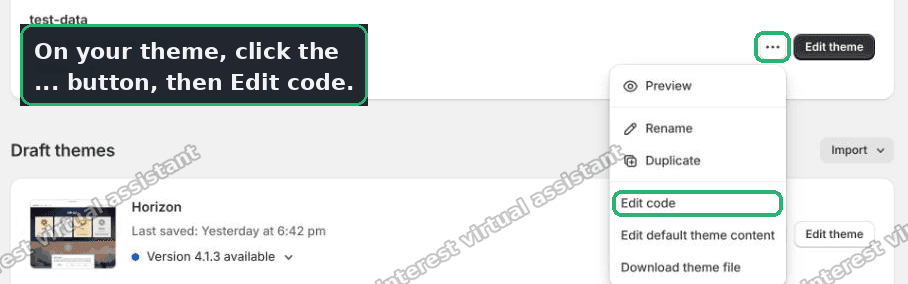 Shopify theme actions menu open with Edit code highlighted
Step 2. Open base.css
- In the left list, open the Assets folder.
- Click base.css. This is your theme's main stylesheet.
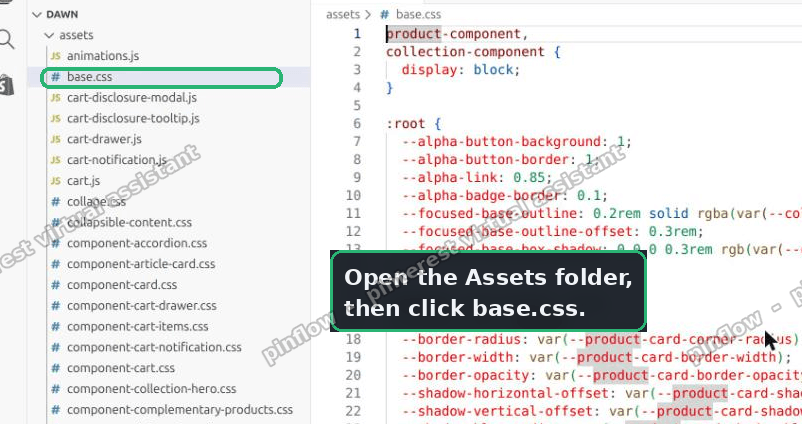 Assets folder open in the code editor with base.css selected
Step 3. Paste this at the very bottom, then Save
Scroll to the end of the file. Paste this in. Click Save at the top right.
.shopify-section:has(.cart-items),
.shopify-section:has(.cart__footer) {
background-color: #f3c299;
}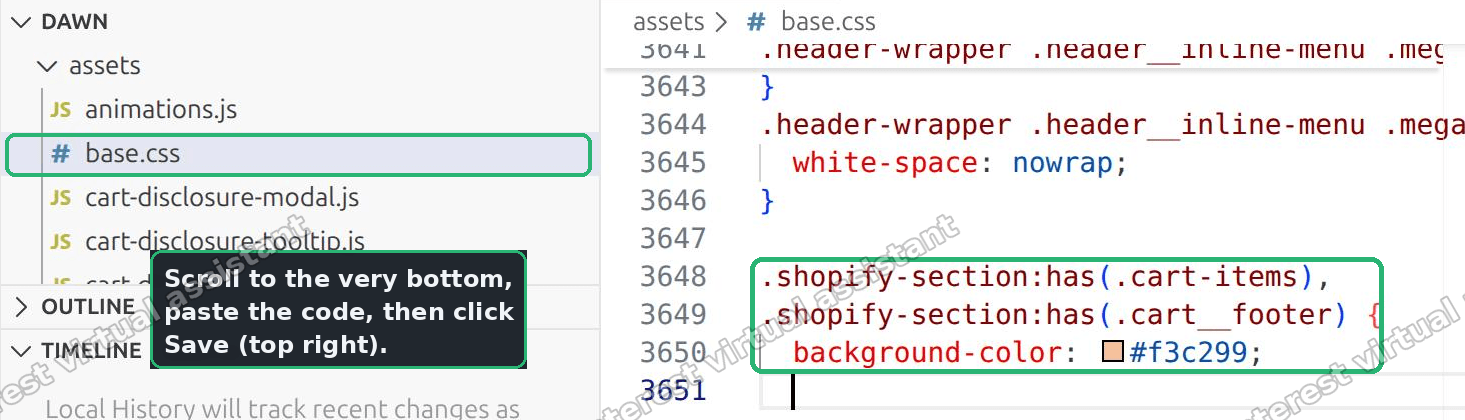 base.css with the new cart color rule pasted at the bottom, ready to save
Here is what that rule does in plain words. It finds the section that contains the cart items list. It finds the section that contains the cart footer. It paints both with your color.
The :has() part is the key. It means "the section that has this thing inside it." So you target the section by what it holds, not by a fragile ID number.
Step 4. Pick your own color
- Change
#f3c299to any color code you like. #f3c299is a soft peach. Swap it for your brand color.
You can find a color code with any online color picker. Paste it in place of the peach one.
Here is the before, tested on the store. The middle is white.
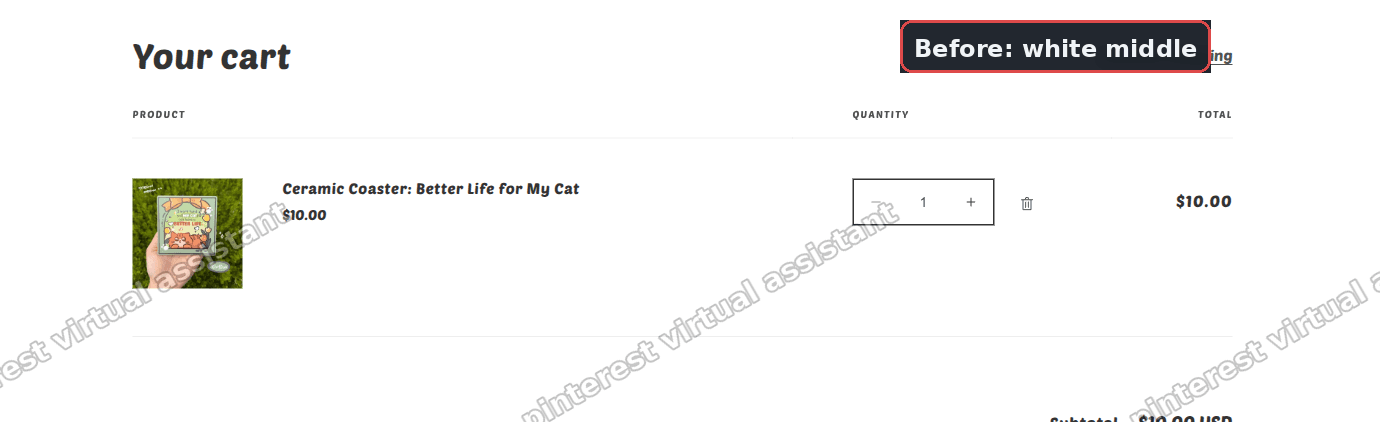 Shopify cart page before the fix, white middle section with a product listed
And the after. The middle now matches the color.
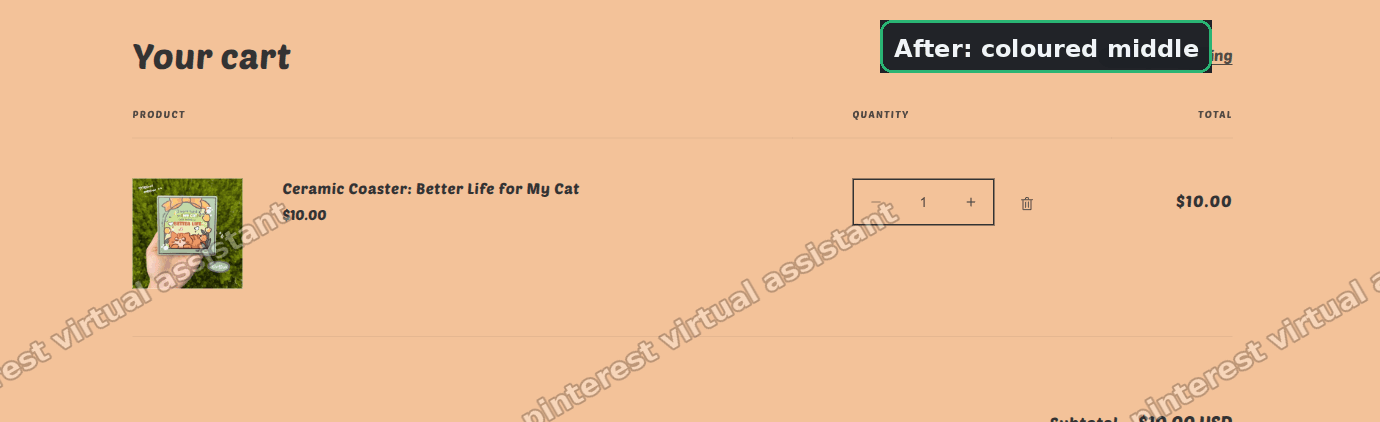 Shopify cart page after the fix, the middle section colored to match the header and footer
I tested this on the cart. The white middle turned to the color. The header and footer stayed exactly as they were. No other page changed.
Make it cover the empty cart too
The merchant came back with a good catch. The color worked when the cart had products. But when the cart was empty, the middle went white again.
Here is why. The .cart-items part of the rule points at the products table. That table only exists when there are products in the cart. Empty it, and the table is gone, so the rule has nothing to match.
The fix is one character. Remove the dot before cart-items.
.shopify-section:has(cart-items),
.shopify-section:has(.cart__footer) {
  background-color: #f3c299;
}
With the dot, you target a CSS class that only appears with products. Without the dot, you target the cart-items element itself. That element is on the page whether the cart is full or empty.
Replace your earlier rule with this one. Keep your own color code.
I tested both states. With the dot, the empty middle stayed white. Without the dot, the empty cart takes your color and the full cart still works.
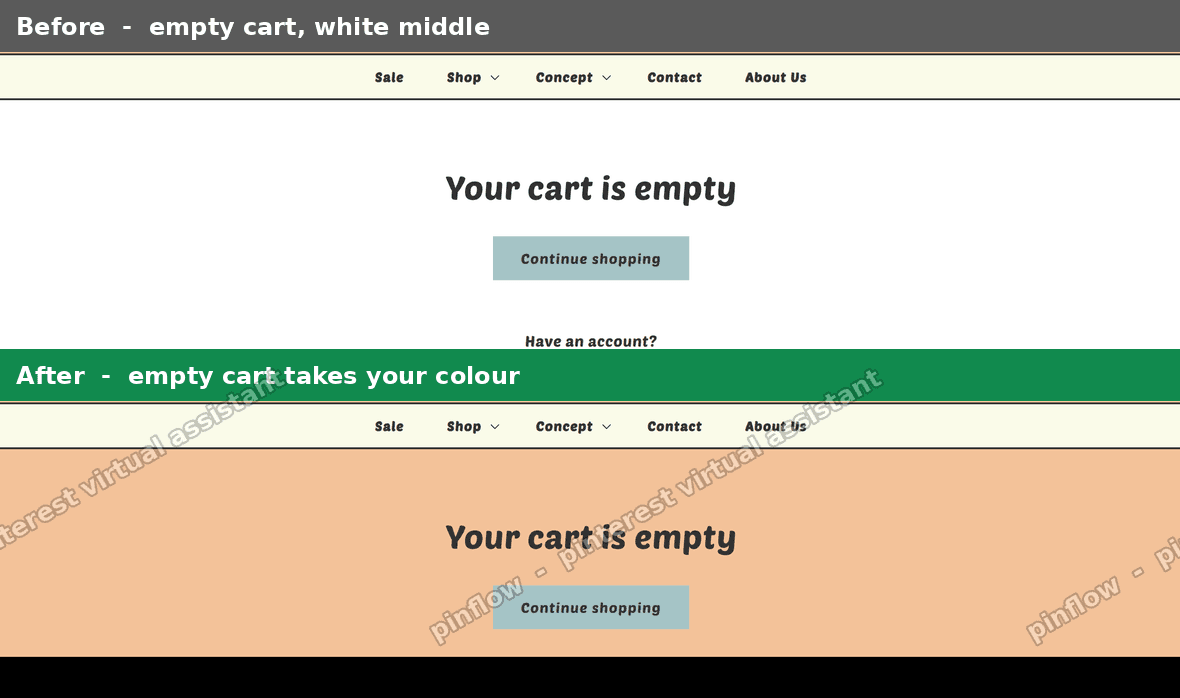 Empty Shopify cart, before with a white middle and after with the colored middle, tested on the store
So use the dotless version. It handles the full cart and the empty cart with one rule.
An alternative: use the theme's Custom CSS box
Editing base.css works and is what I tested. But there is a slightly safer home for the rule if your theme offers one.
Some Dawn-based themes have a Custom CSS field in the theme editor. You reach it under Theme settings, then Custom CSS.
Paste the same rule there instead of base.css. The benefit is update safety. When Shopify updates the theme, it can overwrite base.css. A theme settings field is kept separate, so your rule survives.
If your theme has that box, prefer it. If it does not, base.css is fine. Just remember to re-add the rule if you ever reinstall the theme from scratch.
Either way the rule is identical. Only the place you paste it changes.
How do I change the Shopify cart page background color?
Add the one CSS rule above to your theme. It targets the cart items section and the cart footer section by what they contain.
That covers the full width of the cart page body. It leaves the header and footer of the site alone. Only the cart middle changes.
If you want the color to reach the very edges of the screen, the rule already does that. The section spans the full page width, so the color runs edge to edge behind the content.
Does this change the Shopify cart drawer too?
No. The rule above only touches the cart page. That is the full page you land on at /cart.
The cart drawer is the small panel that slides in from the side when you add a product. It uses different markup. So this rule does not affect it.
To color the drawer as well, target its own container. In Dawn that is usually .cart-drawer or .cart-drawer__inner. Add a separate rule for it if you want both to match.
Keep the two rules apart. One for the cart page, one for the drawer. That way you can give each its own color if you ever want to.
Will this Shopify cart color survive a theme update?
The :has() approach is built to survive. It does not rely on a section ID that can change. It matches by structure, which stays stable across updates.
The one risk is the file. If you paste into base.css and Shopify overwrites that file during an update, the rule goes with it.
That is why the Custom CSS box is the safer home when your theme has one. It is not overwritten by updates.
So for the longest life, put the rule in Theme settings, then Custom CSS. If you keep it in base.css, just check it is still there after any major theme update.
How do I change the Shopify Dawn cart color specifically?
Dawn is the theme this fix was built and tested on. Pastel Blues is a Dawn variant, so the steps are the same.
Open base.css in the code editor. Paste the dotless rule at the bottom. Save. Then swap the peach color for yours.
Dawn also lets you set color schemes in the theme editor. Those change groups of colors at once. But they do not isolate the cart middle on their own, which is why the CSS rule is the direct route.
If you run a different Dawn variant like Craft or Sense, the same rule applies. They share Dawn's cart structure, so cart-items and .cart__footer are present in all of them.
If it did not work
The color did not appear at all. Make sure you saved base.css. Then refresh the cart page. Browsers cache stylesheets, so do a hard refresh to pull the new file.
Only the full cart changed, not the empty cart. You likely used the version with the dot. Switch .cart-items to cart-items with the dot removed.
The color went everywhere, not just the cart. Check you pasted the rule exactly. A missing brace or a stray line can leak the color onto other pages. Compare it character by character with the rule above.
Your theme is not Dawn based. The selectors may differ. Open your cart page, right click the white area, and choose Inspect. Find the section wrapper around the cart items, then adapt the :has() rule to whatever element sits inside it.
The color vanished after an update. Your rule was probably in base.css and got overwritten. Re-add it, and move it to the Custom CSS box if your theme has one.
Definitions people confuse
Cart page vs cart drawer. The cart page is the full page at /cart. The cart drawer is the slide-in panel. They use different code, so a rule for one does not touch the other.
Section vs element. A section is a whole block on the page, like the cart items area. An element is a single tag inside it. This fix colors the section based on an element it contains.
Class vs element selector. In CSS, .cart-items with a dot means a class name. cart-items without a dot means an element or tag. That single dot is the whole reason the empty cart behaved differently.
Theme color scheme vs custom CSS. A color scheme is a preset group of colors in the theme editor. Custom CSS is a rule you write yourself for one exact spot. The cart middle needed the second, targeted approach.
Once you understand those four pairs, the fix reads clearly. You are coloring one section, matching it by an element inside, using an element selector so it holds for both the full and empty cart.
Spending too long on manual Shopify busywork?
PinFlow turns your Shopify catalog into Pinterest pins and posts them on a schedule, automatically. Same idea as the rule above, let the system handle the repetitive part.
Get PinFlow on the Shopify App StoreMore Shopify fixes
More community-sourced Shopify guides, tested on a live store.
Themes & Storefront
Shopify AI Section: Fix a Price Badge Hidden Behind the Image
You built a section with Shopify's AI section generator, but the price badge on each card sits behind the photo. Here is the Custom Liquid fix that brings it to the front without regenerating anything. Tested on a Dawn store.
Themes & Storefront
Hide Shipping Calculated at Checkout on One Shopify Product
The line under Add to cart that says shipping is calculated at checkout shows on every product, gift cards included. Here is how to hide it on one product only, with the code, screenshots and the Eclipse theme steps.
Themes & Storefront
Shopify Dropdown Menu Behind Page Content (Z-Index Fix)
Your Shopify dropdown or mega menu opens, but the page title and products sit on top of its links and the menu closes before you can click. The fix is one Custom CSS rule in Theme settings. Tested on a Rebel store.