
Shopify Cart Drawer: How to Edit One You Did Not Install
Your Shopify cart drawer shows a button or a banner you cannot find anywhere in your theme. Here is how to work out what is actually drawing it, in about sixty seconds, and what to do in each case.
By AjayCodeWiz · July 26, 2026 · 9 min read
The problem
A merchant posted this on the Shopify Community with a screenshot and a very reasonable question.
Her cart drawer had two things in it she did not want:
- A green COMPLETE ORDER button, where she wanted a plain black Checkout button.
- A red promotional banner reading 1+1 GRATIS, in Dutch, on an English store.
She had not written either of them. In her words, "some code was added by another editor on my site". She wanted both gone.
The obvious move is to open the theme code and search for the text. That is what most people try, and on this store it would have found nothing at all.
The reason is the interesting part, and it applies to a lot more stores than this one.
Your cart drawer might not be in your theme
A cart drawer is the panel that slides in from the side when you add something to the basket, instead of sending the shopper to a full cart page. Every modern Shopify theme has one, and most stores use it.
But the drawer on any given store can come from three completely different places, and they are edited in three completely different ways.
1. Your theme. Dawn, Horizon and most paid themes ship a cart drawer of their own. It is a theme setting (usually Theme settings > Cart > Cart type: Drawer), and its wording and colours come from the theme editor and the theme's language file.
2. An installed app. Cart drawer apps are a big category. UpCart, Slide Cart, Rebuy and others replace the theme's drawer entirely with their own. Nothing about them is editable from the theme editor, because the drawer is not in your theme.
3. A script somebody injected. This is the one people rarely check. A <script> tag pasted into your theme by a freelancer, an agency, or a "free" service can draw its own cart drawer over the top of everything. It is not an app, so it does not appear in your Apps list. It is not the theme, so searching the theme for the button text finds nothing.
That third case is what this merchant had. And it explains her follow-up perfectly: "My website does not currently have an upcart app installed so I'm not sure why the cart drawer is having these errors."
She was right. The app was not installed. Something was drawing an UpCart-style drawer anyway.
How to find out which one you have
Sixty seconds, no code, no apps.
- Open your store and add anything to the cart so the drawer appears.
- Right-click the page, then View Page Source.
- Press Ctrl+F and search for
cart-drawer, thenupcart, thenslidecart.
What you find tells you which branch you are on.
If the only matches look like cart-drawer.js from your own domain under /cdn/shop/t/, it is your theme. Edit it in the theme editor.
If you see an app's name in a script loaded from that app's domain, it is an app. Edit it in the app.
If you see an app-flavoured class name like upcart-discount-code-badge but no matching app in your Apps list, and a script loading from a domain you do not recognise, you are on branch three.
That is exactly what her store showed. One line, near the top of the cart page:
<script src="https://shopoe.net/jquery.js" defer></script>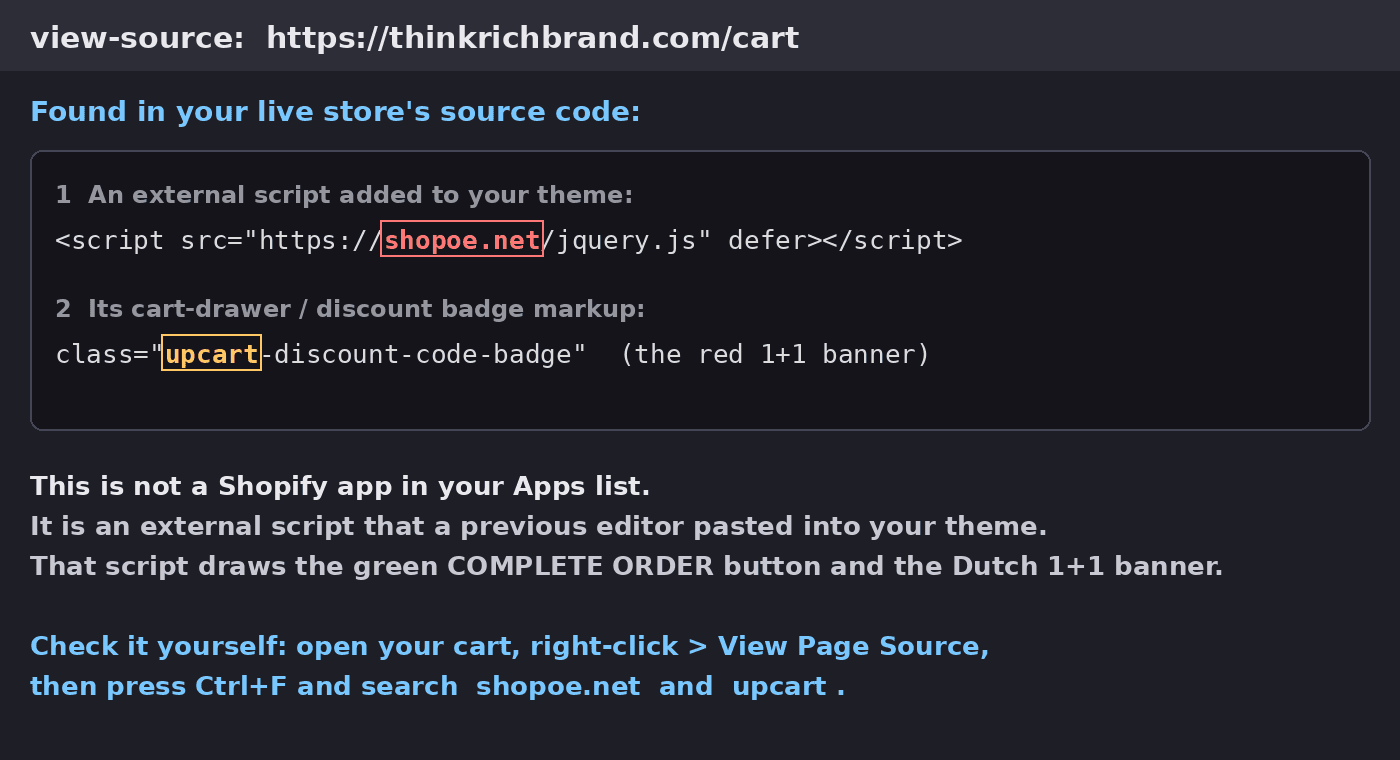 The live cart page source showing an external script injected from an unknown domain
That file is not jQuery, whatever it is named. It was drawing the drawer, the green COMPLETE ORDER button, and the Dutch discount banner.
Branch three: remove the injected script
If the drawer is coming from a script you did not add, the fix is to find and remove that script.
- Online Store > Themes > ... > Edit code.
- Use the code editor's search to look for the domain name across the whole theme.
- Check layout/theme.liquid first. It is where injected scripts nearly always land, right before
</head>or</body>. - Also check custom snippets and any section a previous developer added.
- Delete the
<script src="...">line, then Save. - Reload the cart and check the drawer.
Duplicate your theme before you start, so you have a copy to fall back to.
If the search turns up nothing in the theme, check Settings > Customer events for a custom pixel, and check your app embeds under Theme settings > App embeds. Both can inject scripts without touching theme files.
Treat an unknown script as unauthorised
This part matters more than the button colour.
A third-party script running on your storefront can do anything the page can do. Rewrite prices, change the checkout button destination, read what shoppers type, or add and remove content on any page. If you did not add it and you cannot identify who did, the safe assumption is that it should not be there.
Once you have removed it:
- Check Settings > Users and remove collaborators and staff you no longer work with.
- Check Settings > Apps for anything you do not recognise, and uninstall it.
- Look at your theme's edit history for who changed what.
And a related warning, because the same thread demonstrated it. When you post a problem like this on a public forum, people will offer to fix it for you and ask for store access or a WhatsApp chat. You do not need to give anyone staff access, a collaborator invite, or your login to change a button colour. Everything in this article is done from your own admin.
Branch two: it really is an app
If the source does show a cart drawer app, and the app really is installed, then everything is editable. You just do it in the app rather than in the theme.
Using UpCart as the example, because it is the most common one and it is the drawer the injected script above was imitating.
To change the button colour, open the app, go to the Design tab, then Button settings. Set Button color to #000000 and Button text color to white.
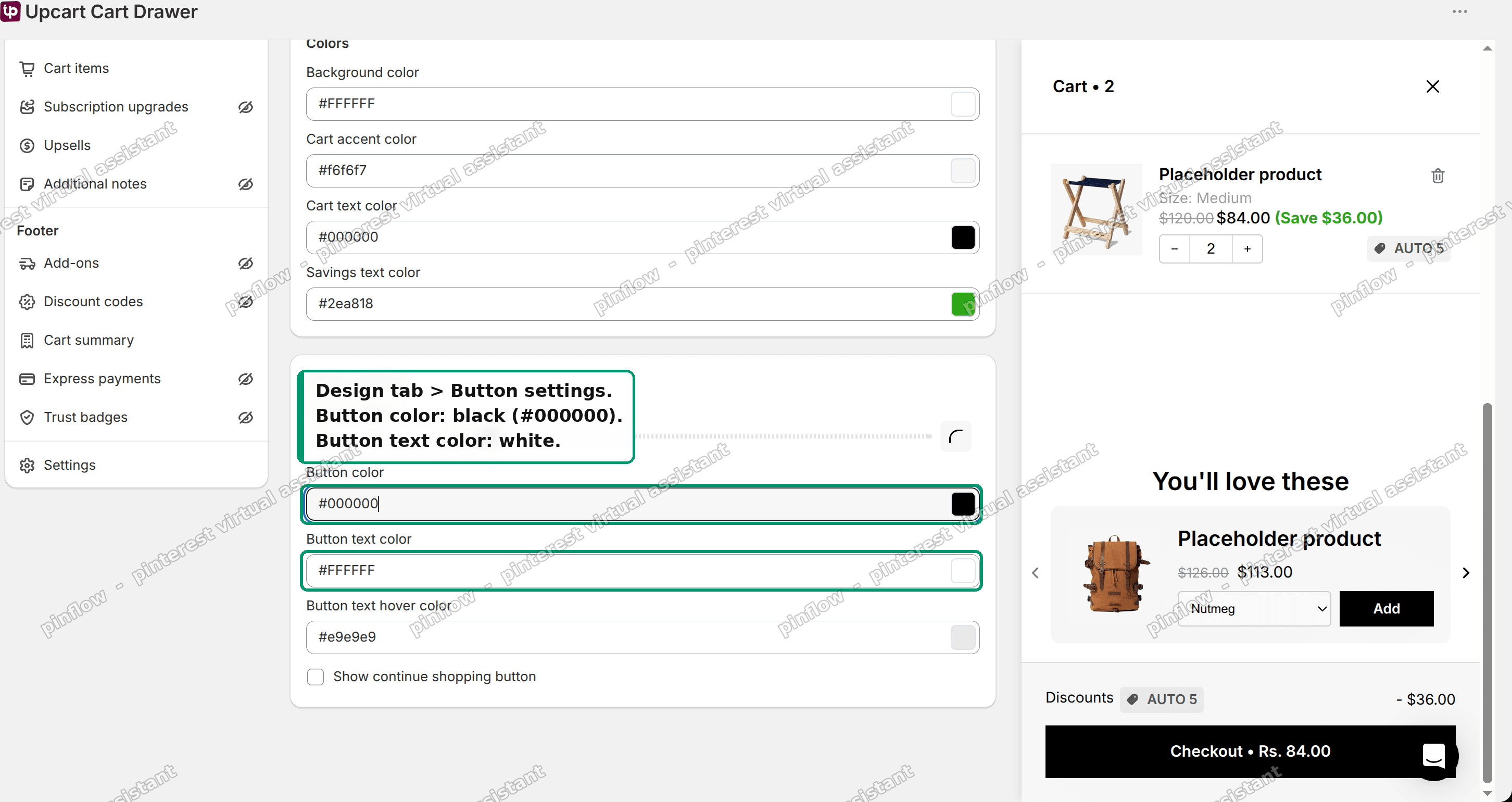 Cart drawer app button settings, setting a black button with white text
To change the button wording, go to Settings, then Edit copy, then Footer, then Checkout button text. Replace COMPLETE ORDER with Checkout. Most drawers support a token for the cart total, so Checkout • {{total_price}} gives you a button that shows the amount.
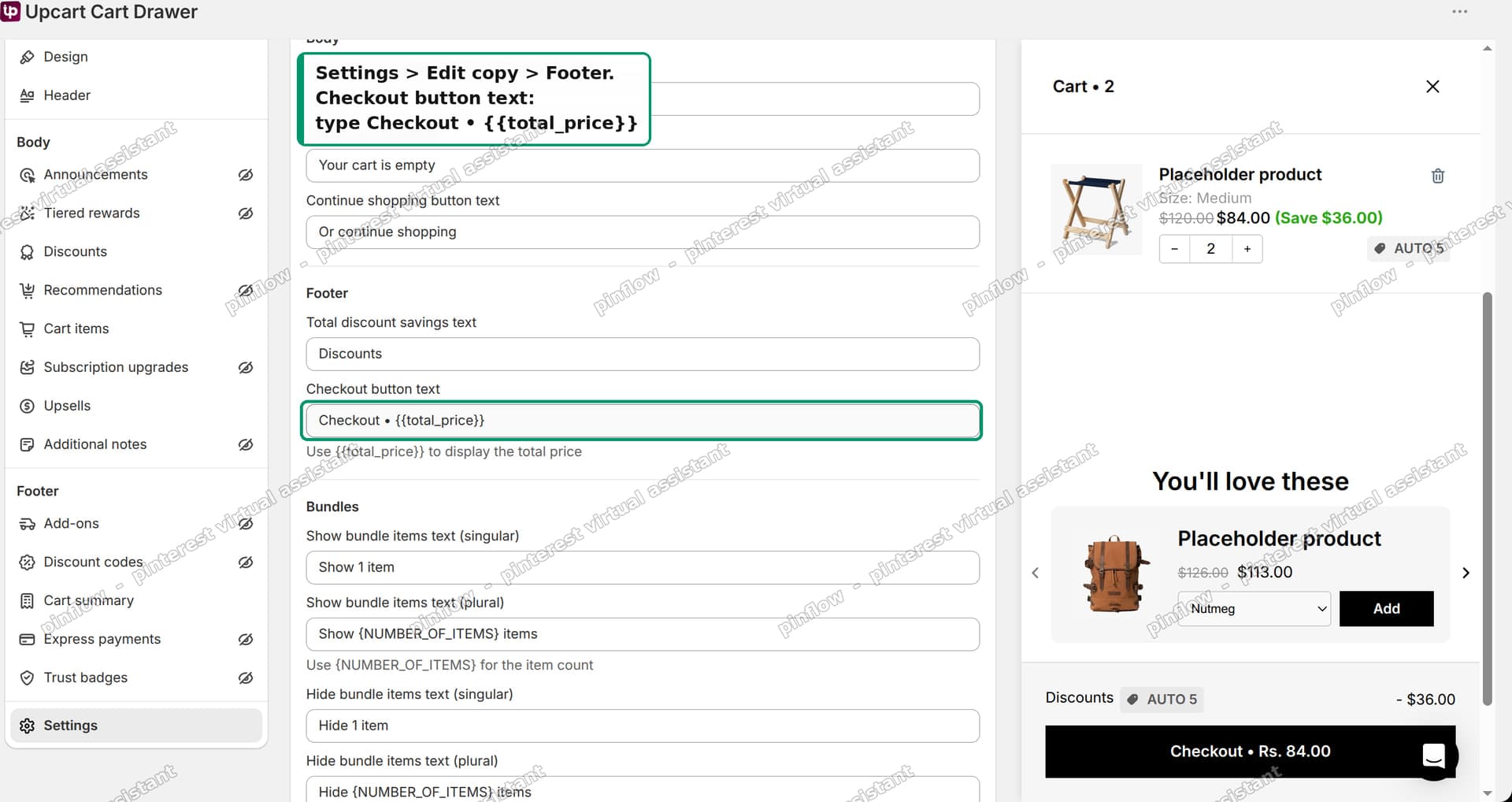 Cart drawer app edit copy screen showing the checkout button text field
To remove a promotional banner, that is a discount message rather than a bug. Open the Discounts module, then Manage all discounts, and either edit the text or switch the discount off.
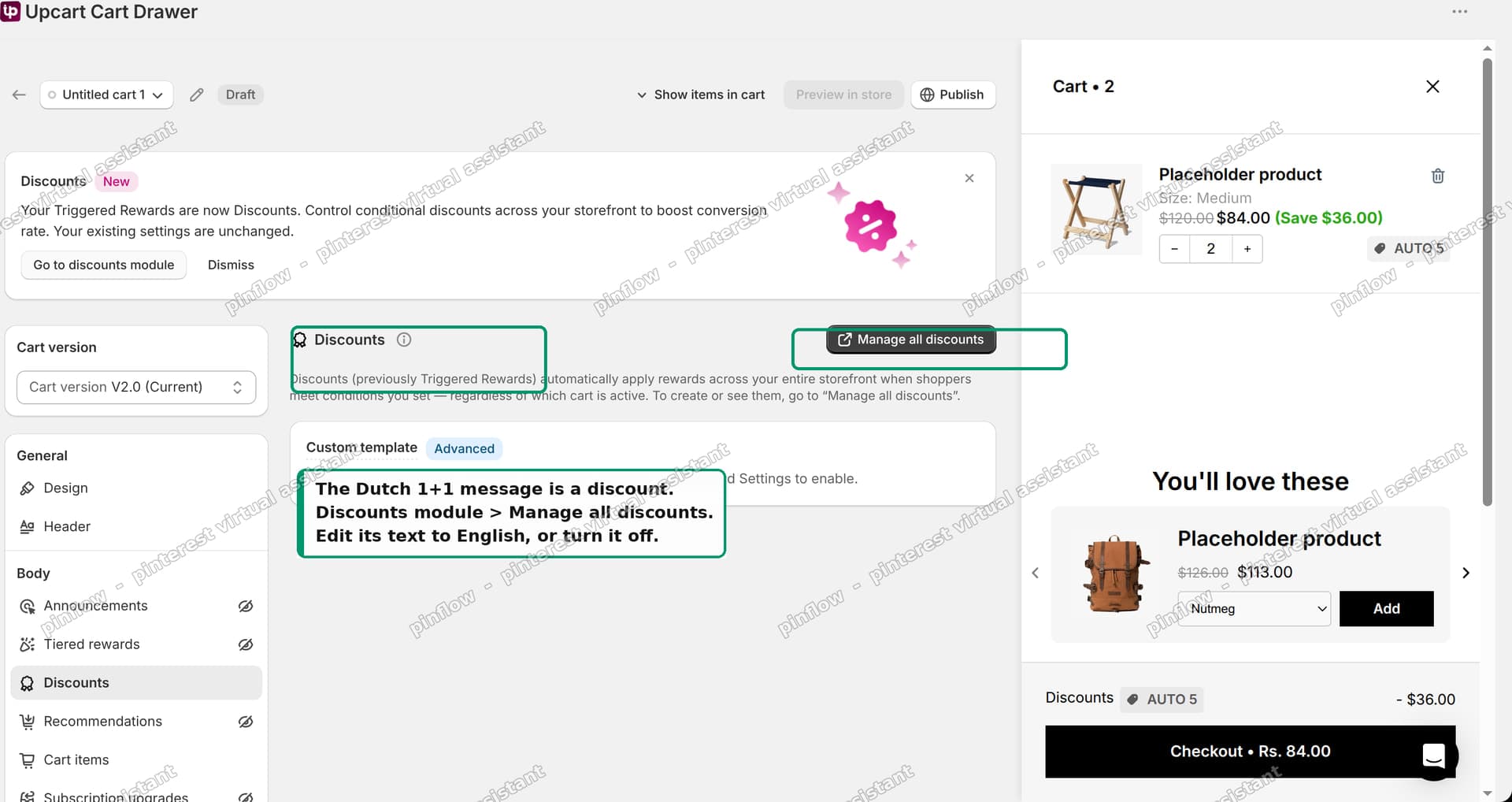 Cart drawer app discounts module with manage all discounts
The pattern generalises. In any cart drawer app, colours live under a Design or Style tab, wording lives under a copy or text editor, and promotional banners are configured as discounts or announcements rather than typed in as HTML.
Branch one: it is your theme
The easiest case, and worth spelling out because a fair number of people go looking for an app that was never there.
To switch the drawer on or off: theme editor, Theme settings > Cart, then set Cart type to Drawer, Popup, or Page.
To change the button colour: theme editor, Theme settings > Colors. The drawer's checkout button uses your accent or primary button colour. It is not styled separately.
To change the button wording: this one surprises people. It is not in the theme editor at all. Go to Online Store > Themes > ... > Edit default theme content, and search for the cart strings. Button labels live in the language file, not in the settings.
That is also why searching a theme's Liquid files for "Checkout" often finds nothing useful. The Liquid says {{ 'sections.cart.checkout' | t }}, and the actual word lives in locales/en.default.json.
What is a cart drawer, and should you use one?
A cart drawer keeps the shopper on the page they were browsing. They add an item, the panel slides in, they close it, and they carry on. No page load, no context switch.
The alternative is the cart page, a full page at /cart that the shopper is navigated to.
Drawers generally win for stores where people buy several items in a session, because they make it easy to keep shopping. Cart pages are better when the cart itself needs space, for example when you sell configurable products with lots of line item detail, or you need to show a long shipping calculator.
You do not need an app for a drawer. Every free Shopify theme has one built in. Apps are worth it when you want the extras: upsells inside the drawer, free shipping progress bars, tiered reward messages, sticky add-ons. If you just want a drawer instead of a page, the theme setting is enough.
How to create a cart drawer in Shopify
For completeness, since it is the same settings screen.
- Theme editor, Theme settings in the left sidebar.
- Open Cart.
- Set Cart type to Drawer.
- Save.
That is the whole thing on Dawn, Horizon, and most themes built in the last few years. Some older or heavily customised paid themes name it differently (Ajax cart, Slide cart, Mini cart) but the setting is in the same place.
What to check if the drawer still looks wrong
You removed the script but the drawer is unchanged. Hard refresh, and check in an incognito window. Storefront assets cache aggressively. Also confirm you edited the published theme rather than a draft.
The old button text is back after a theme update. Language file edits survive updates, but if you edited Liquid directly, an update can overwrite it. Prefer the theme content editor over hard-coding strings.
Two drawers open at once. Classic symptom of an app drawer and a theme drawer both being active. Turn the theme's cart type back to Page, and let the app own the drawer.
The drawer looks right on desktop and broken on mobile. Check for custom CSS in theme settings that targets the drawer. Fixed widths in pixels are the usual culprit.
You cannot find the text anywhere. Search in this order: the language file, then app settings, then the page source for an external script. In that order, most cases resolve on the first or second step.
The takeaway
If your Shopify cart drawer shows something you cannot find in your theme, stop searching the theme. Look at the rendered page source instead and find out what is actually drawing it.
Three possible answers, three different places to make the change. The theme, an app, or a script somebody pasted in.
On the store in this thread it was the third one, and the merchant was right that the app was not installed. A single external script line was drawing a drawer that looked like an app's. No amount of theme editing would ever have fixed it, and the real fix was to remove the script and audit who has access to the store.
A clean cart only pays off with traffic in it
PinFlow turns your Shopify catalog into Pinterest pins and posts them on a schedule, so the store you keep tidying keeps reaching new shoppers while you work on it.
Get PinFlow on the Shopify App StoreMore Shopify fixes
More community-sourced Shopify guides, tested on a live store.
Themes & Storefront
Shopify Anchor Link: Button That Scrolls to a Section
Link a Shopify button to a section lower on the same page with an anchor link. Steps for the theme editor, no code files, plus the fix for a title hidden under the header.
Themes & Storefront
Shopify Social Media Icons: Add a Custom Icon and Link
Set your social links in Shopify theme settings, see why icons do not show, and swap in your own icon for a network the theme does not list.
Themes & Storefront
Sticky Add to Cart Button in Shopify Dawn, No App
Pin the Add to cart button and its delivery line to the bottom of the screen in Shopify Dawn. One free Custom Liquid block, no app, phone and desktop.