
Shopify Cart Drawer Showing on the Page? The Mobile Fix
On mobile, your Shopify cart drawer flashes at the top of the homepage with an empty-cart message and category buttons. Here is why it happens and the one CSS rule that keeps it hidden until it is opened.
By AjayCodeWiz · August 15, 2026 · 8 min read
The problem
A merchant asked about this on the Shopify Community, and the screenshot made it instantly clear.
On their phone, when they returned to the homepage after browsing, a strange block appeared at the very top of the page. It sat above the announcement bar and above the logo. It showed "Your cart is currently empty" and three big buttons for their main categories.
They called it a "module" and wanted to switch it off, because it pushed the whole store down and ruined the first impression on mobile.
Their store runs Vinova, a theme sold on ThemeForest. But this exact behaviour shows up on many themes that use a slide-out cart, so the explanation and the fix below apply well beyond Vinova.
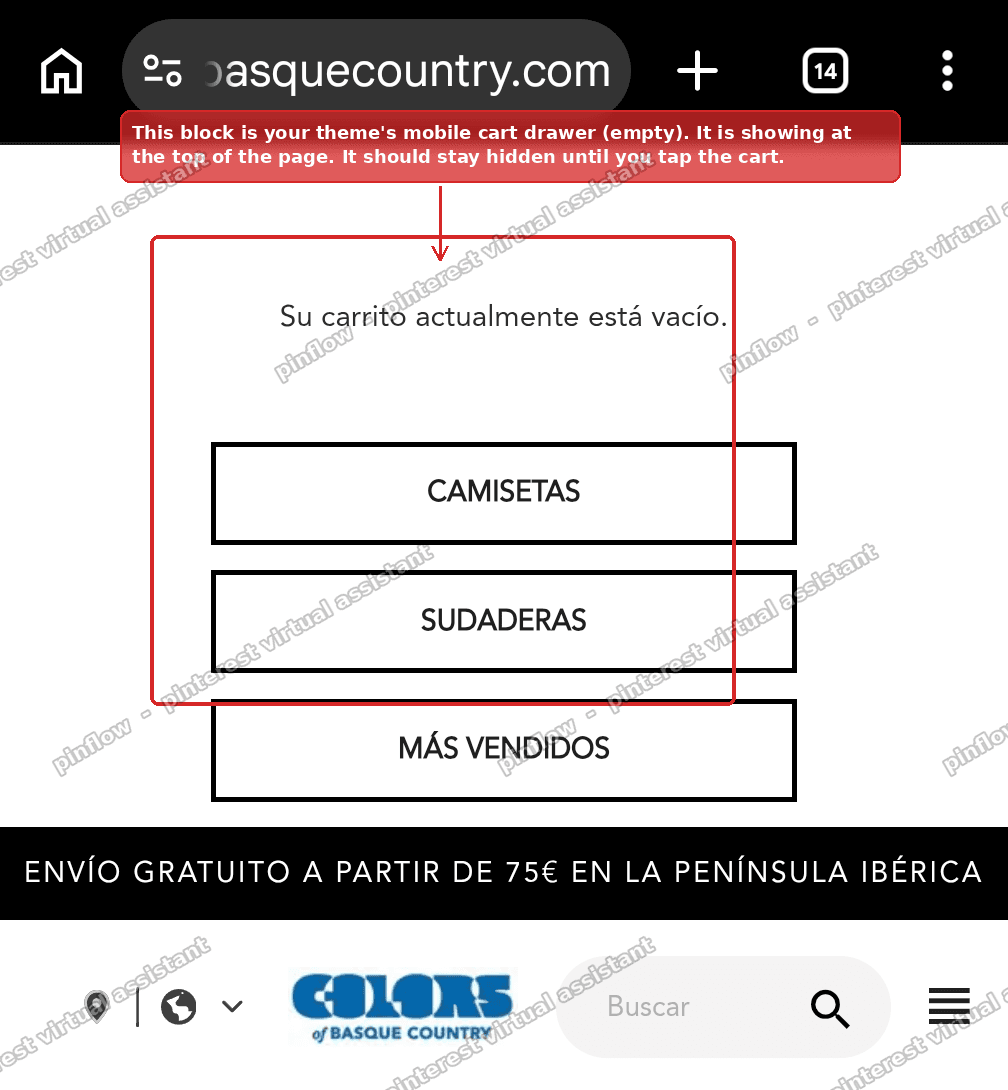 The mobile cart drawer showing at the top of the homepage
I opened their live site on a mobile view to see what that block really was. It was not a separate module at all.
Why it happens
That block is your theme's mobile slide-out cart. It is the same panel that normally slides in from the side or bottom when a shopper taps the cart icon. The empty-cart message and the category shortcuts are just what it shows when the cart has nothing in it yet.
So why is it stuck at the top of the page instead of hidden?
Here is the mechanism. A slide-out cart lives in your page code near the top of the body. Normally your theme uses CSS to push it off-screen and hide it until it is opened. That CSS is what keeps it out of the way.
On mobile, when you tap the browser back button or return to a page you already visited, the browser often restores that page from memory very fast. For a split second, the page can render before the "hide off-screen" styling is applied. In that gap, the cart panel is just a normal block sitting near the top of the page, so it shows up above everything else.
On this theme the cart panel is positioned with position: fixed and set to visibility: hidden until it gets an active class. When that positioning has not kicked in yet, the panel falls back into the normal page flow and lands at the top.
In short, nothing is broken and no app is doing this. It is your own cart drawer flashing into view before its hide styling loads.
The fix: keep it off-screen until it is actually open
The clean fix is to force the cart panel out of the page flow at all times, unless it is open. The key is to apply that rule as early as possible, so it is in place before the panel can ever flash.
The safest place for that is the head of your theme, because styles in the head apply before the body is drawn.
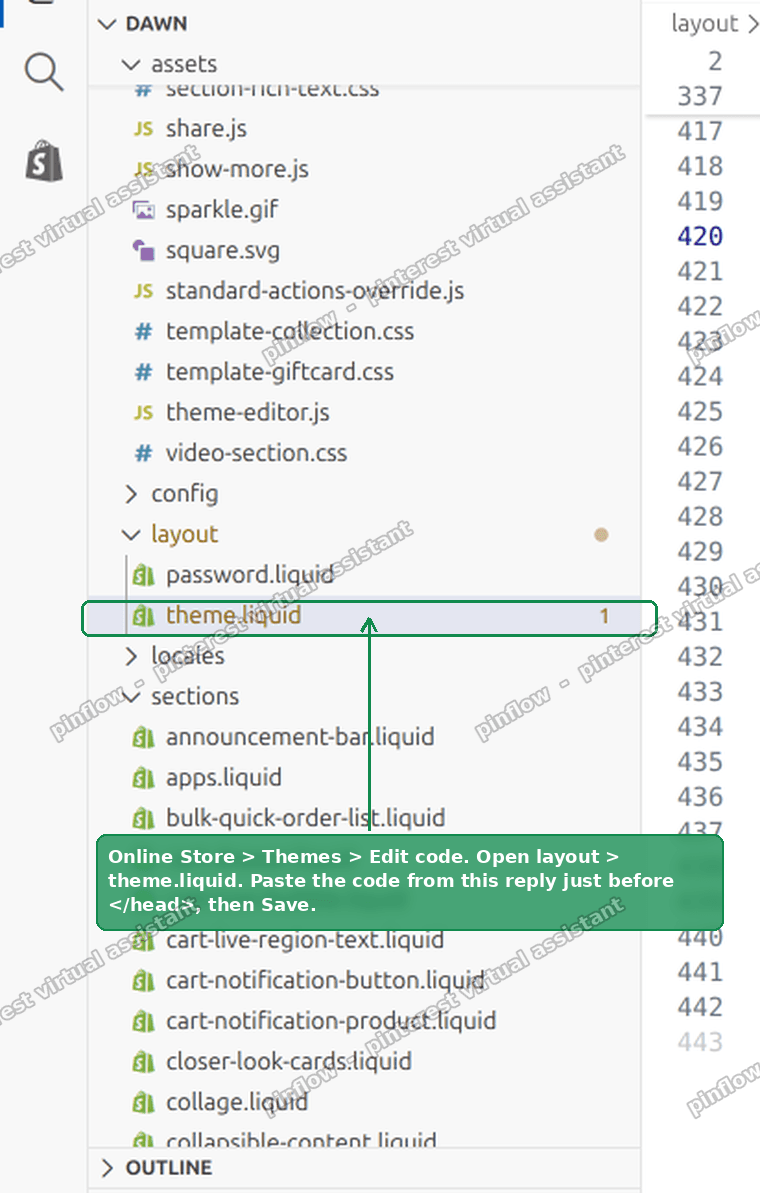 Open layout theme.liquid and paste the code before the closing head tag
Step 1. Open your theme code
Go to Online Store, then Themes. Click the three dots next to your theme, then Edit code.
Step 2. Open layout, then theme.liquid
In the file list on the left, open the layout folder, then click theme.liquid. This is the master file that wraps every page.
Step 3. Paste the rule just before the closing head tag
Scroll down until you find the </head> tag. Paste this block on the line just above it, then click Save.
<style>
  #mobile-blockcart:not(.active){
    position: fixed !important;
    top: 100% !important;
    height: 0 !important;
    overflow: hidden !important;
    visibility: hidden !important;
    opacity: 0 !important;
  }
</style>
That is the whole fix. On the Vinova theme the cart panel has the id mobile-blockcart and gets an active class when it opens, so this rule hides it whenever it is not open.
Why placing it in the head matters
You could paste this rule into a Custom CSS box in theme settings instead, and it would help. But the flash happens before your main stylesheet loads, so a rule that arrives late can still let the panel blink once.
Putting the rule in the head, inside a <style> tag, means the browser reads it while it is still building the page. The cart panel is pinned off-screen from the very first frame, so it can never appear at the top, even during a fast back-button return.
The cart still opens normally
This is the part people worry about, so let me be clear.
The rule only hides the cart panel while it is not open. The moment a shopper taps the cart, your theme adds the active class, and the rule stops applying to it. The panel slides open exactly as before.
I tested this on the live store. With the rule in place, the empty-cart block never appeared at the top. Then I tapped the cart button and the drawer opened full screen as normal. Nothing about the shopping experience changes. Only the unwanted flash is gone.
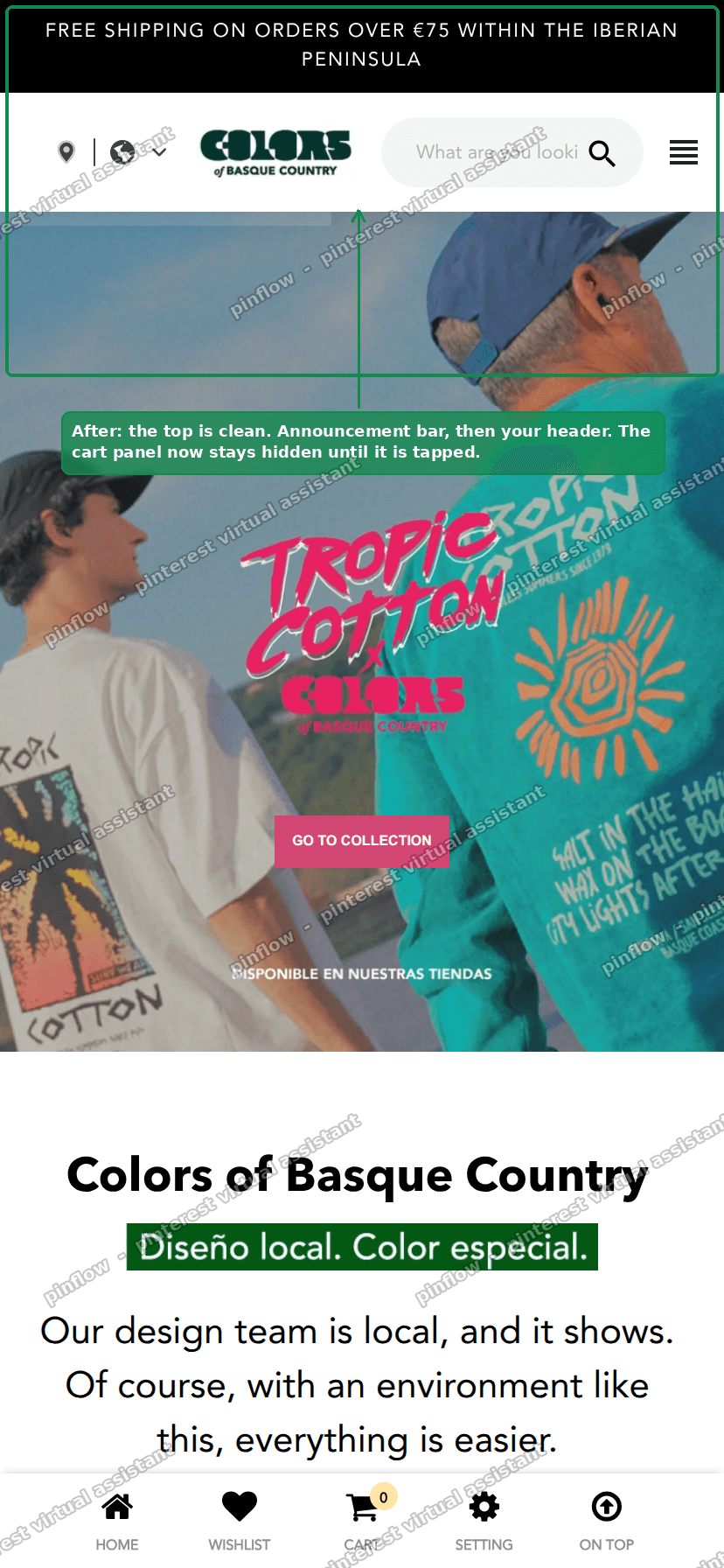 The clean top of the page after the fix, with the cart panel hidden
If you are on a different theme
The idea is the same on any theme, but the id in the rule may differ. You need the id or class of your own cart drawer element.
On a computer, open your storefront, right click the cart drawer area, and choose Inspect. Look for the wrapper element of the slide cart. It usually has a name like cart-drawer, mini-cart, slide-cart, CartDrawer, or off-canvas-cart.
Then swap that name into the rule. For example, if your drawer element is <cart-drawer> and it opens with an open class, your rule becomes:
<style>
  cart-drawer:not(.open){
    position: fixed !important;
    top: 100% !important;
    height: 0 !important;
    overflow: hidden !important;
    visibility: hidden !important;
    opacity: 0 !important;
  }
</style>
Match the element name and the "open" class to whatever your theme uses. If you are not sure, your theme developer or the theme's support can tell you both in one message.
What to check if it still flashes
If the block still appears after the fix, run through these.
- Confirm you pasted the rule before
</head>, not before</body>. Placement is the whole point. - Confirm you saved the file and are testing on the live site, not the editor preview.
- Clear your mobile browser cache, or test in a private window. The old cached page can keep showing the flash for a while.
- Check the id in the rule matches your theme. If your drawer is not
#mobile-blockcart, the rule targets nothing. Use Inspect to find the real name. - Make sure you did not accidentally paste it inside another tag. It must be its own
<style>block.
Why it only happens on mobile and only sometimes
Two questions come up a lot with this bug, so here are the short answers.
Why only on mobile? Many themes only load the slide-out cart on small screens and use a different cart on desktop. Desktop often opens the cart on its own page or in a dropdown, so the off-screen panel is not there to flash.
Why only when I come back to a page? A first, fresh page load usually applies the styling fast enough that you never see the panel. The flash shows up on a back-button return, because the browser restores the page from memory and can paint it a beat before the styling settles. That is why it feels random.
This is not an app, and not a broken theme
It is worth saying plainly, because it changes where you look.
You do not need to uninstall an app. No app added this block. It is a core part of your theme, the cart drawer, appearing at the wrong moment.
You also do not need to rebuild your theme or contact the theme author for a rewrite. A single CSS rule in the head pins the panel off-screen until it is opened, which removes the flash without touching how the cart works.
Want a different cart entirely
If you would rather replace your theme's cart with a purpose-built slide cart, there are dedicated apps for that. They give you an upsell block, a free-shipping bar, and a cleaner mobile drawer, and they manage their own show and hide logic.
Popular ones are iCart Cart Drawer Cart Upsell, Slide Cart Drawer, and Corner Cart. This is optional. For the flashing-at-the-top problem specifically, the one CSS rule above is all you need, and it is free.
The short version
The block at the top of your mobile homepage is your theme's slide-out cart, showing its empty state. It flashes there because its hide styling loads a moment too late on a back-button return. Paste a small CSS rule into the head of layout/theme.liquid that pins the cart panel off-screen unless it is open. The flash disappears and the cart still opens normally when tapped.
Spending too long on manual Shopify busywork?
PinFlow turns your Shopify catalog into Pinterest pins and posts them on a schedule, automatically. Let the system handle the repetitive part while you build the store.
Get PinFlow on the Shopify App StoreMore Shopify fixes
More community-sourced Shopify guides, tested on a live store.
Themes & Storefront
Shopify AI Section: Fix a Price Badge Hidden Behind the Image
You built a section with Shopify's AI section generator, but the price badge on each card sits behind the photo. Here is the Custom Liquid fix that brings it to the front without regenerating anything. Tested on a Dawn store.
Themes & Storefront
Hide Shipping Calculated at Checkout on One Shopify Product
The line under Add to cart that says shipping is calculated at checkout shows on every product, gift cards included. Here is how to hide it on one product only, with the code, screenshots and the Eclipse theme steps.
Themes & Storefront
Shopify Dropdown Menu Behind Page Content (Z-Index Fix)
Your Shopify dropdown or mega menu opens, but the page title and products sit on top of its links and the menu closes before you can click. The fix is one Custom CSS rule in Theme settings. Tested on a Rebel store.