
Shopify Catalog: Check What ChatGPT Gets (Channel Mapping)
Shopify Catalog is the product data ChatGPT and other AI channels read. Open Channel mapping, read the preview, and check the title, price and description.
By AjayCodeWiz · November 29, 2026 · 7 min read
Shopify Catalog: what ChatGPT gets from your product data
Shopify Catalog is the product data that AI channels such as ChatGPT read from your store. This post is about that Catalog, not B2B catalogs, the price lists for wholesale buyers. To see what Catalog gets for one of your products, open Sales channels, then Agentic, then Shopify Catalog, then Review your product data, and read the preview on the Channel mapping page.
Filmed on a development store (Basic plan, new admin) on 27 November 2026. That store is not eligible for Shopify Catalog yet, so nothing on it reaches ChatGPT. The Channel mapping page still opens and its preview still works, and that is what the steps below show.
What does Shopify Catalog send for a product?
The video opens on the preview for the Running Shoe. Catalog gets the photo, the price of $110, the title, the sizes 7 to 11, and the description.
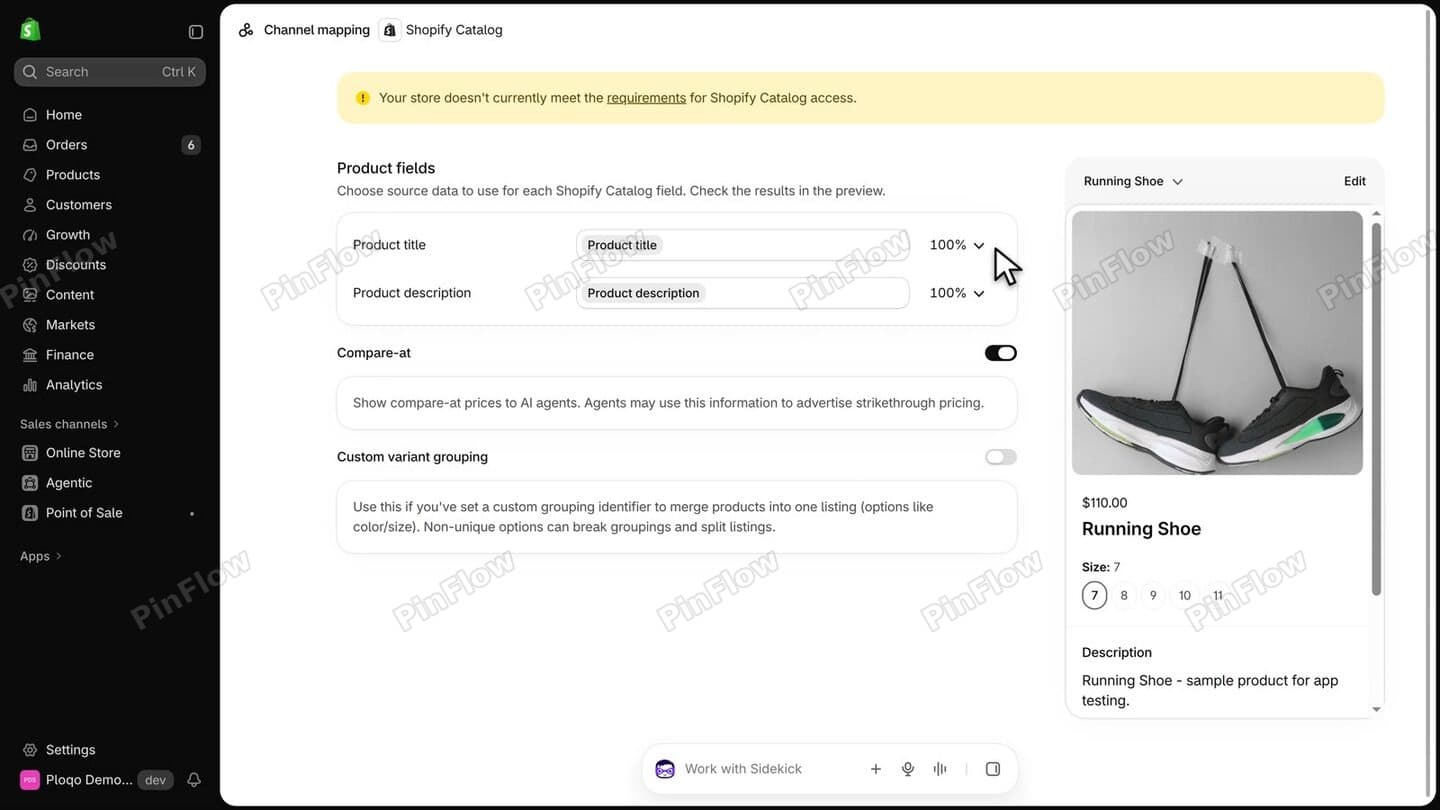 The Shopify Channel mapping page for Shopify Catalog with a preview of the Running Shoe showing its photo, $110 price, title and sizes
How do I open Channel mapping for Shopify Catalog?
Start on the admin home. In the left sidebar, under Sales channels, click Agentic.
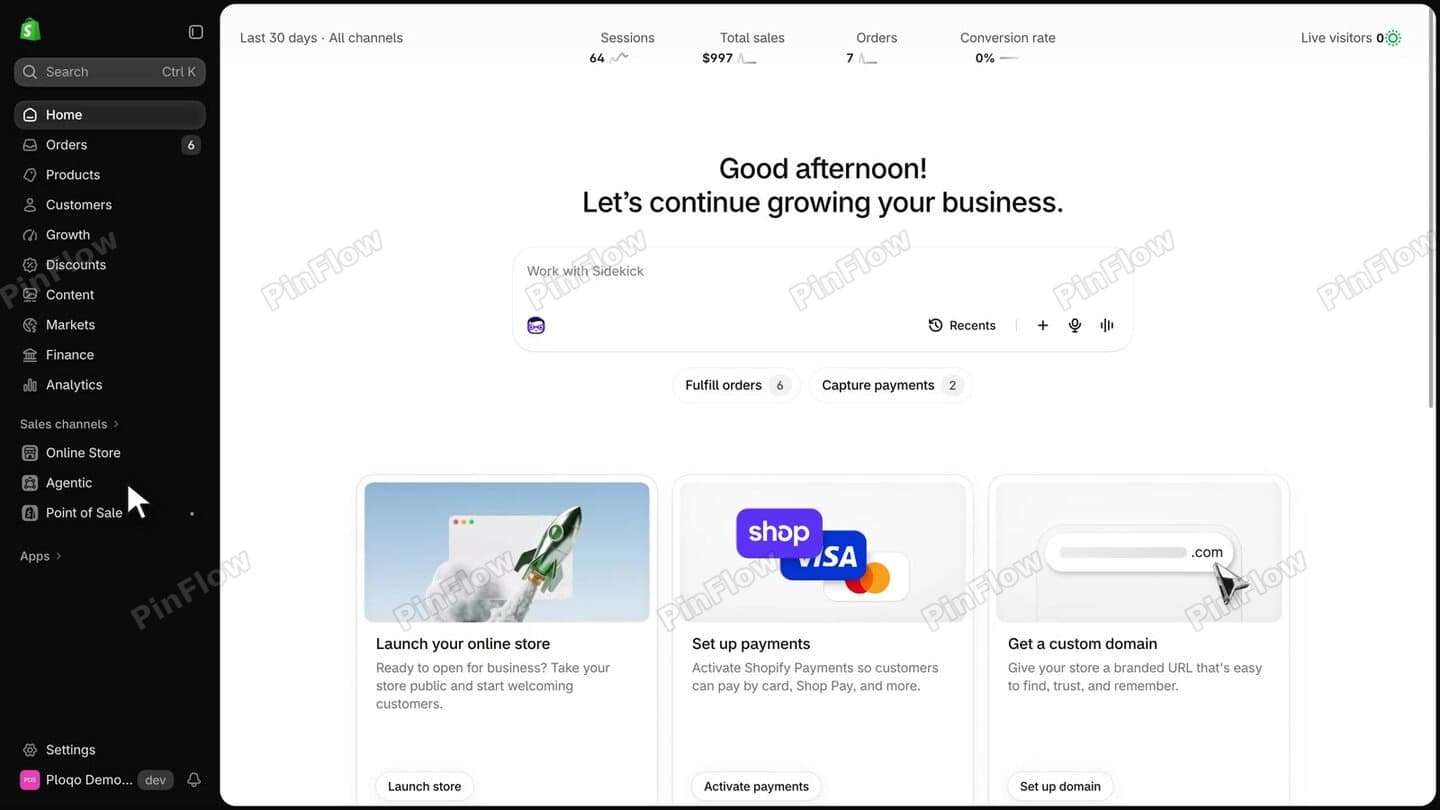 The Shopify admin home with the sidebar showing Sales channels, Online Store, Agentic and Point of Sale
On the Agentic page, look at the Sources box on the right. The Shopify Catalog row is marked Ineligible. Click it and a panel opens with the reason and a Review your product data button. Click that button.
 The Agentic page with the Shopify Catalog panel open, a banner about the requirements and the Review your product data button
That opens Channel mapping with Shopify Catalog selected. A yellow banner says the store doesn't currently meet the requirements for Catalog access, and links to them. The page picks the source for each field, and it has a preview on the right. For where Agentic sits in the admin, see the tour of the Agentic page.
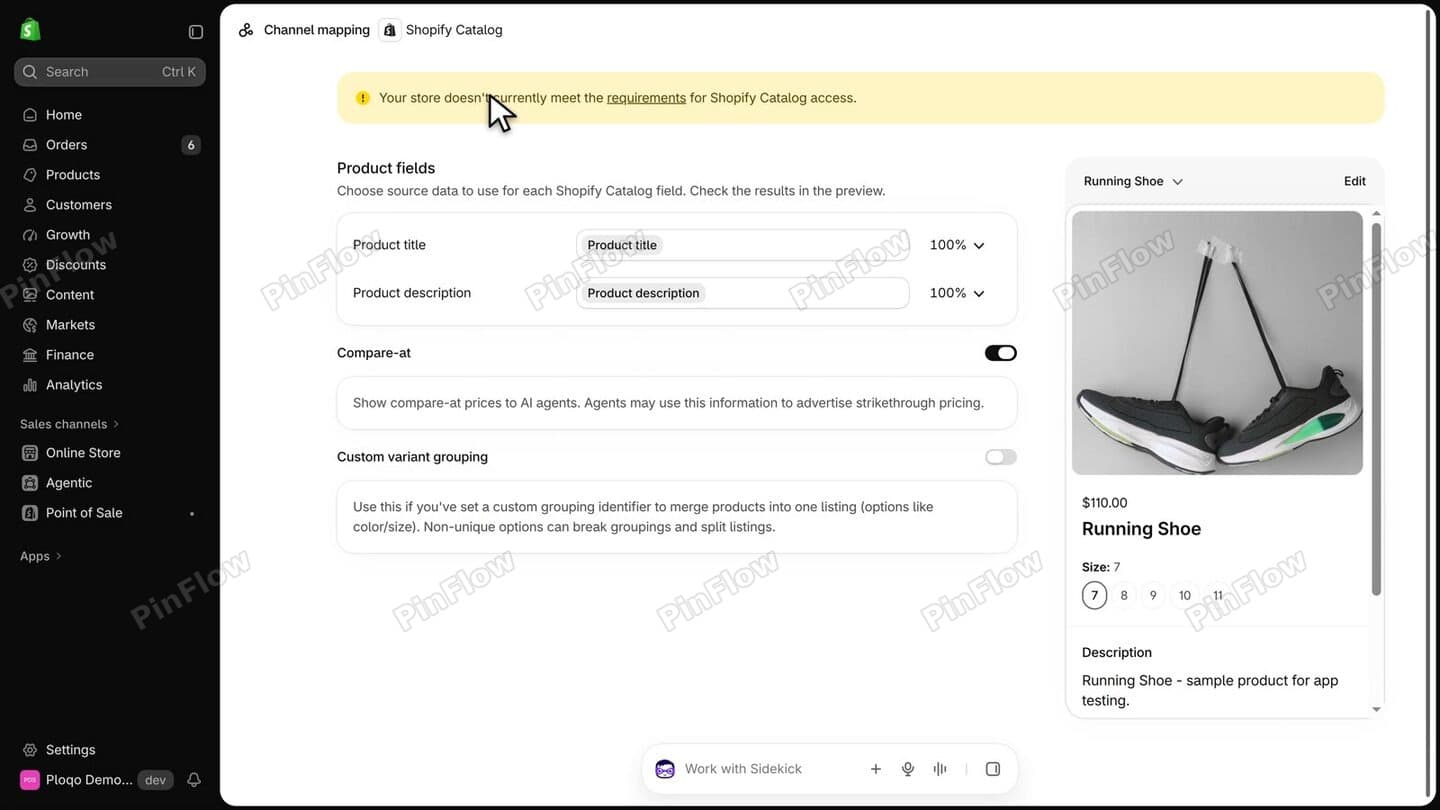 The Channel mapping page with a yellow banner saying the store doesn't currently meet the requirements for Shopify Catalog access
Can I use Channel mapping if my store is ineligible?
Yes. Shopify's help page says you can still customize your product data for Shopify Catalog on this page, even when the store isn't eligible. The help page for ineligible stores also says AI channels might still show your products through other means, such as traditional web crawling and indexing.
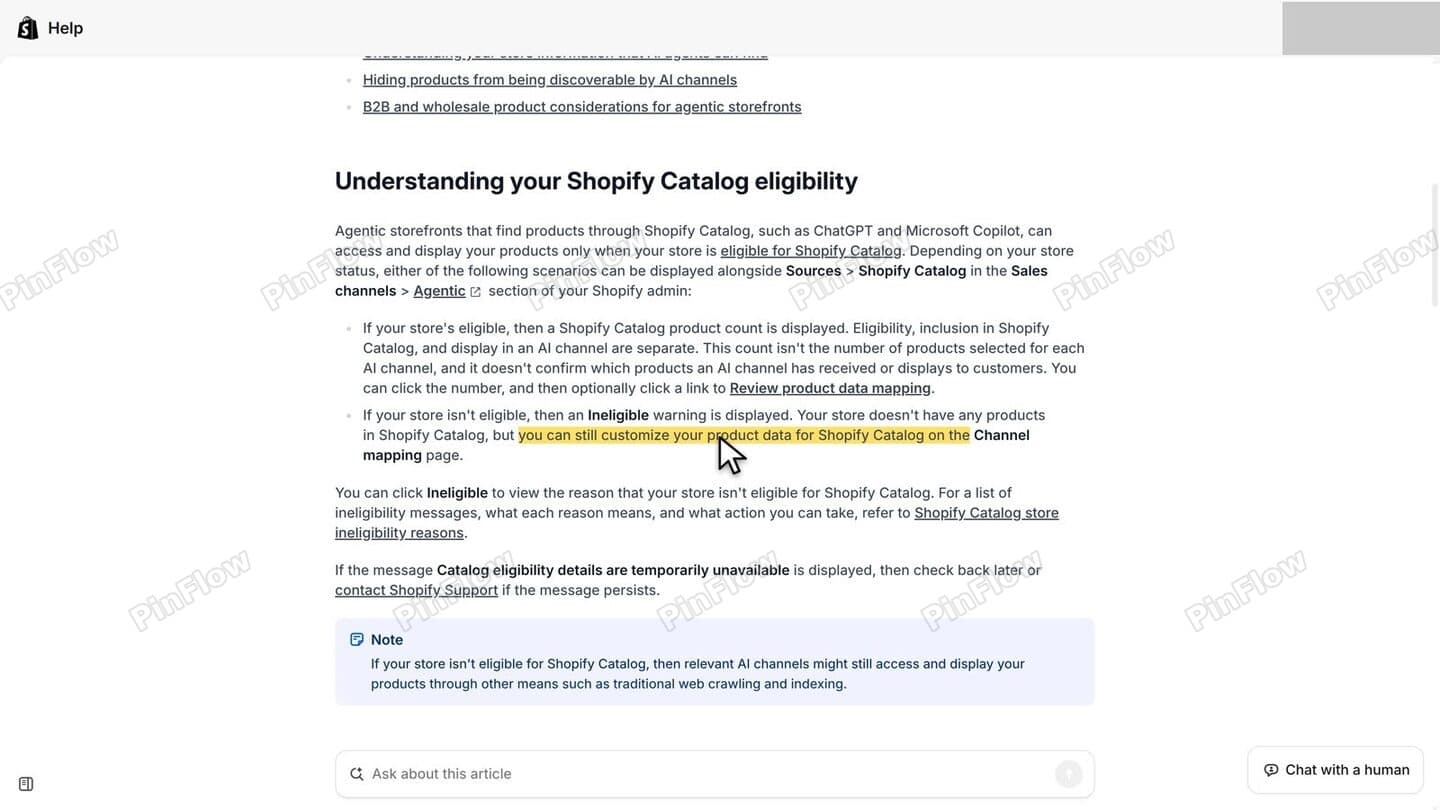 Shopify Help page on Shopify Catalog eligibility with the sentence about customizing product data on the Channel mapping page highlighted
How accurate is the preview?
The mapping help page says the preview shows how Shopify Catalog receives your data, and that it isn't an exact indicator of how AI channels show it. Treat it as a check of the data, not a screenshot of a ChatGPT answer.
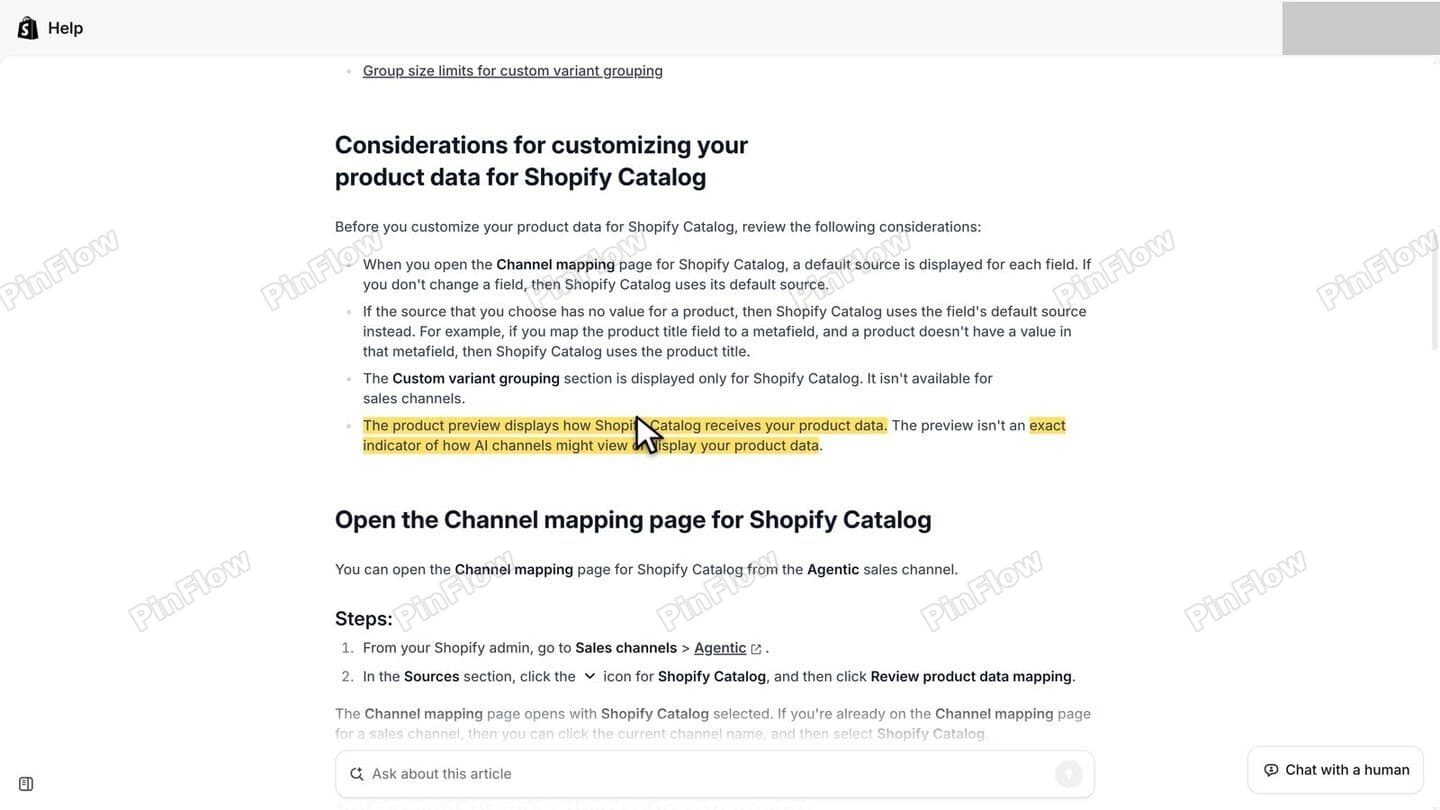 Shopify Help considerations for customizing product data with the sentence about the product preview not being an exact indicator highlighted
How do I read the Shopify Catalog preview?
Back on the page, the preview is on the right. For the Running Shoe it shows the photo, the price, the title, the size buttons and the description.
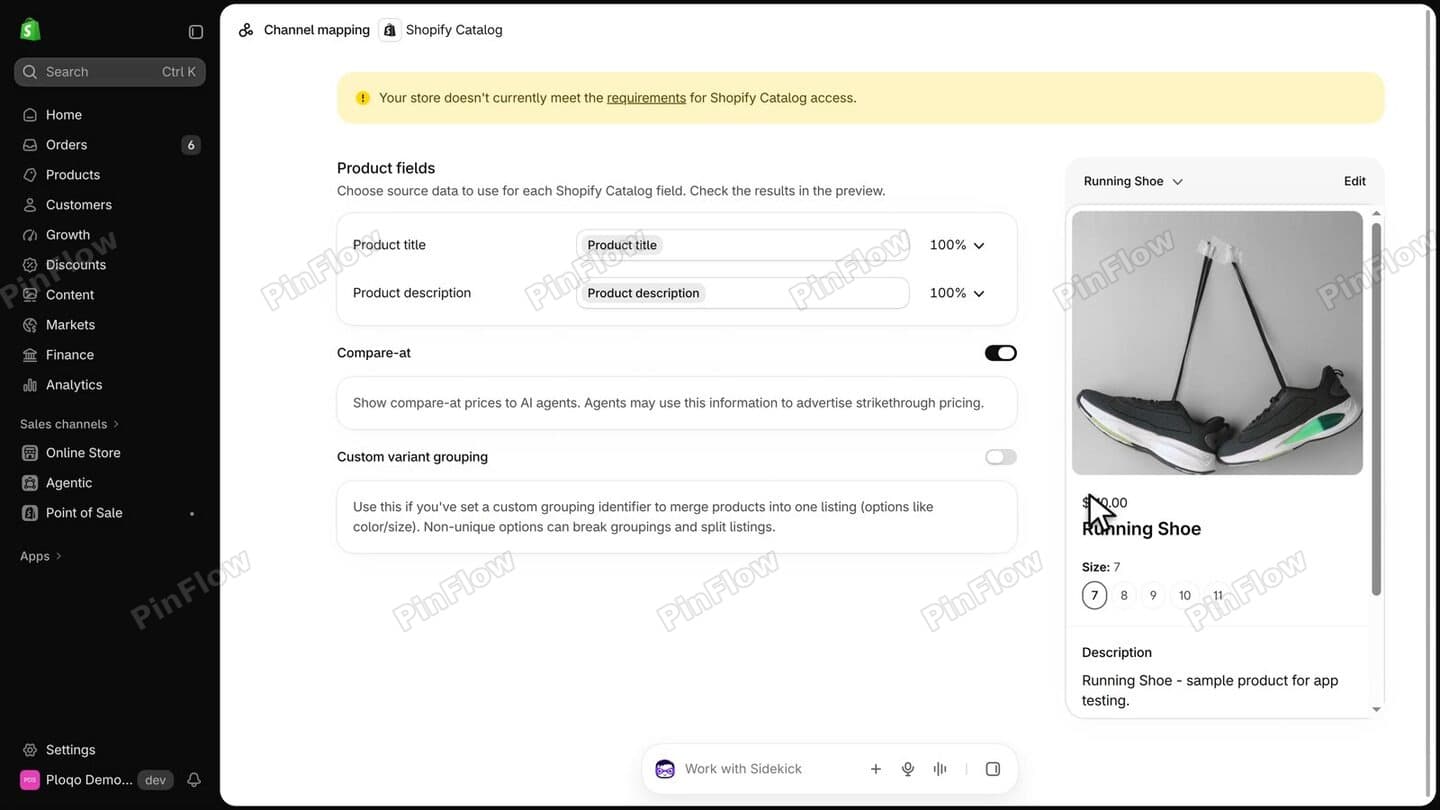 The Channel mapping preview for the Running Shoe with the price, title, size options 7 to 11 and the description below the photo
Point at a field on the left and the preview marks the part it fills. Here the Product title field fills the title of the preview, and a small tag reads "Source: Product title".
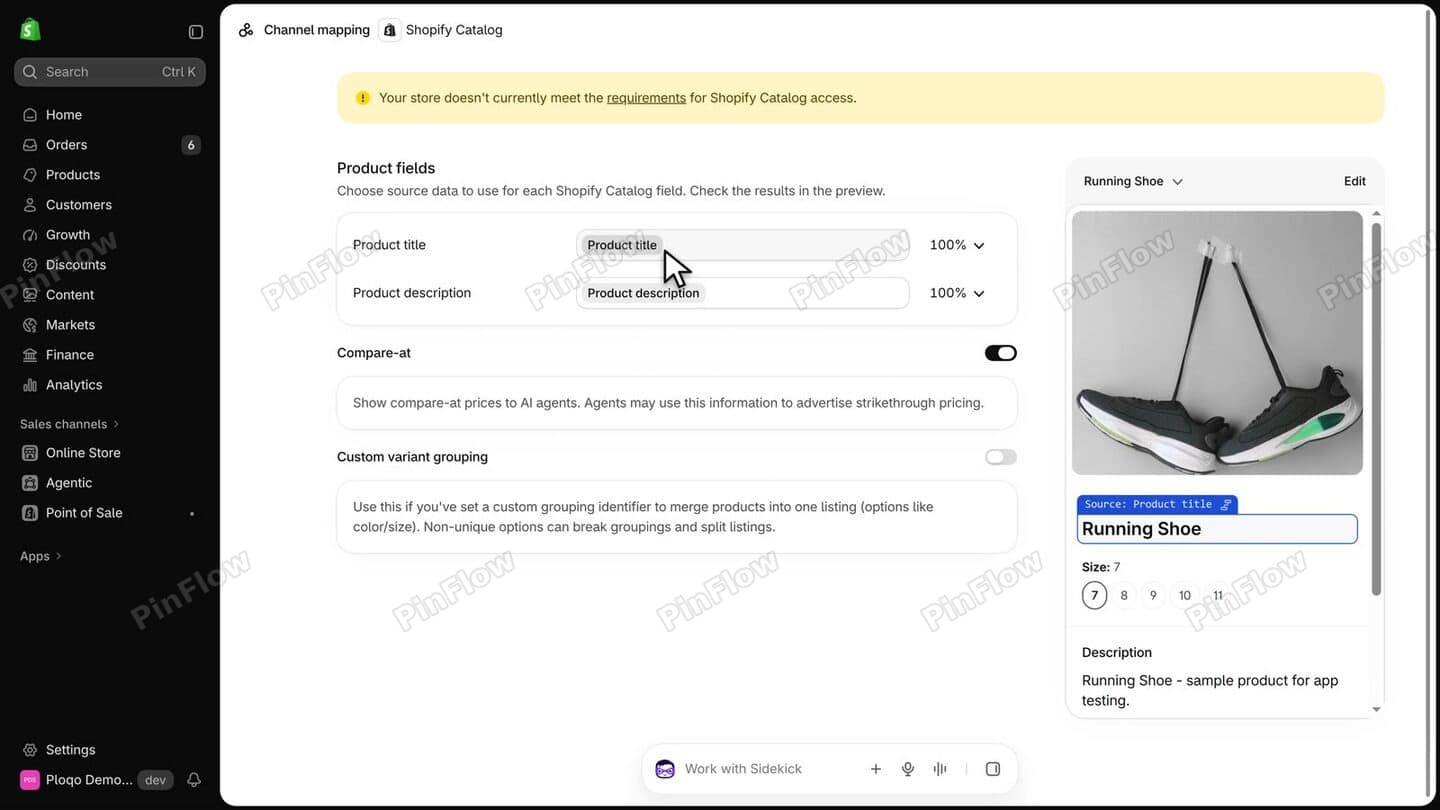 Hovering the Product title source on the left marks the title in the preview with a tag reading Source Product title
The 100% next to each field is its coverage, the share of your products that have a value. In this store every product has a title and a description. If some are missing a value, Shopify's help says you can click Fix [number] products to add the values in the bulk editor.
Switch the preview to another product
To check a product with options, click the product name above the preview and choose the Classic Tee. It has two options, size and color, and its description is one short line.
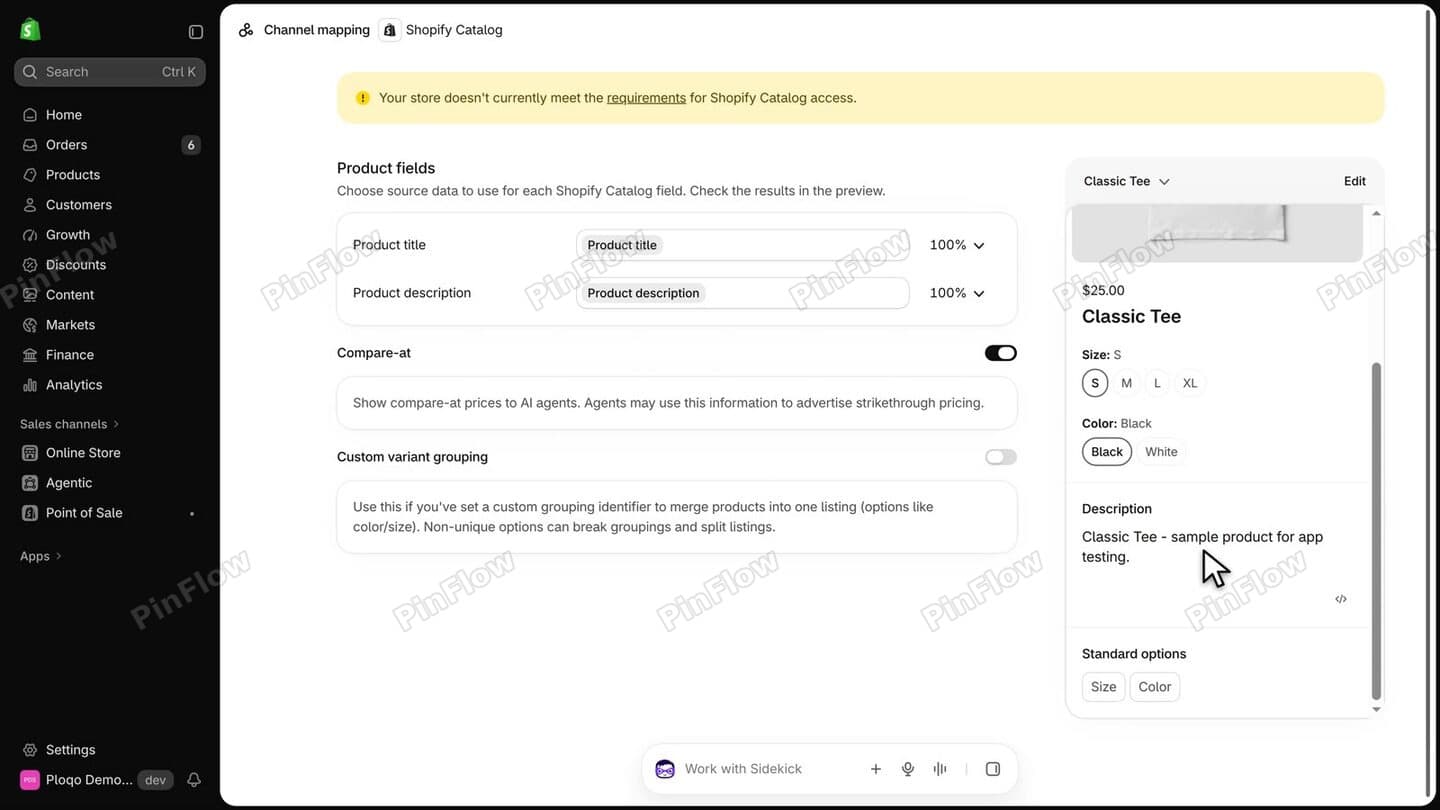 The preview switched to the Classic Tee at $25 with Size S M L XL and Color Black and White options
How do I change the description Shopify Catalog uses?
Click the source of the Product description field. To add a second source, click the plus and choose a metafield, which is an extra field you add to a product, such as Material. The list shows product fields and, below them, your metafields. I picked Material.
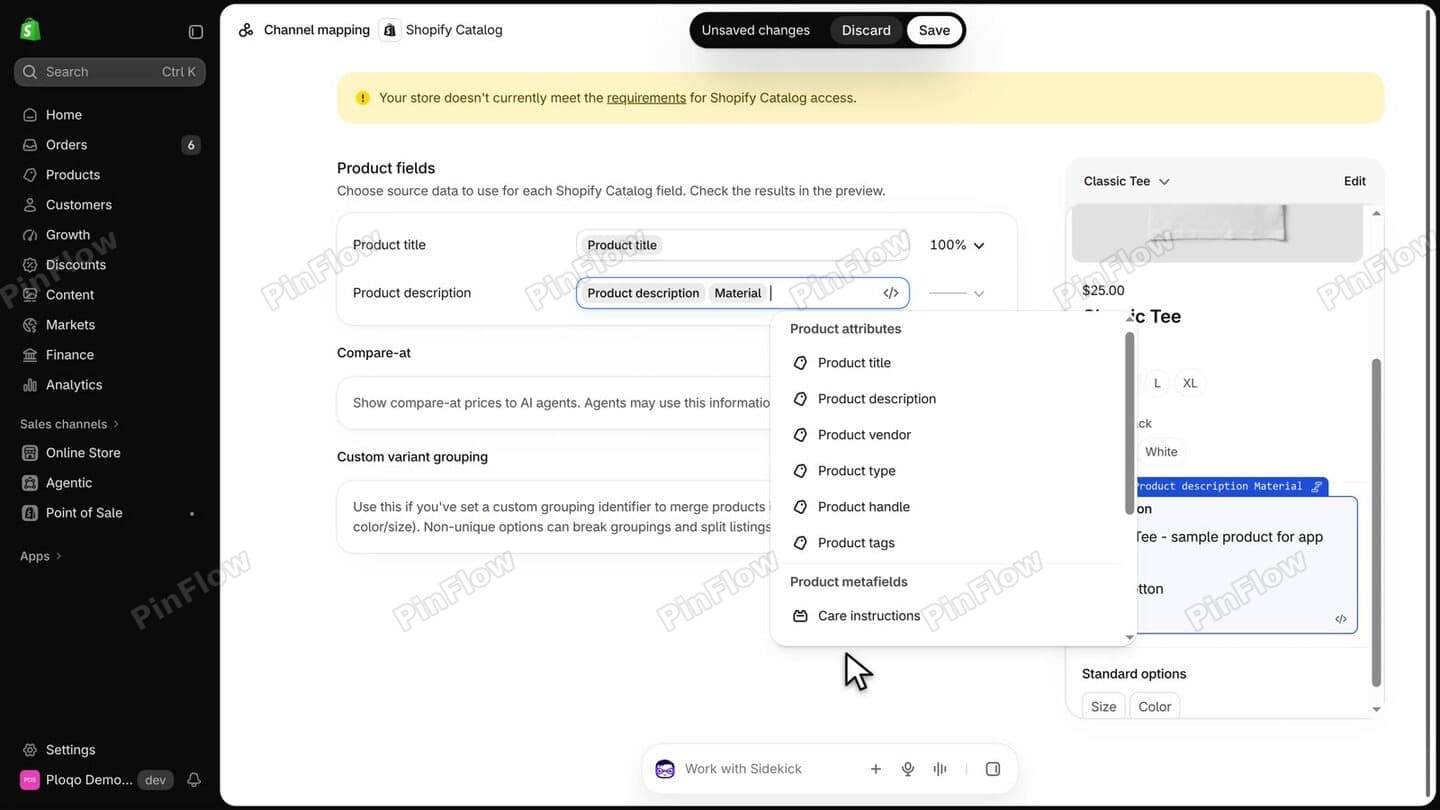 The Product description source with a second source being added and the list of product attributes and metafields open
The preview now adds "100% cotton" under the Classic Tee's description, and a bar at the top says there are unsaved changes. A second button on the field edits it as Liquid code (Shopify's template language), if you need more control. I left it alone.
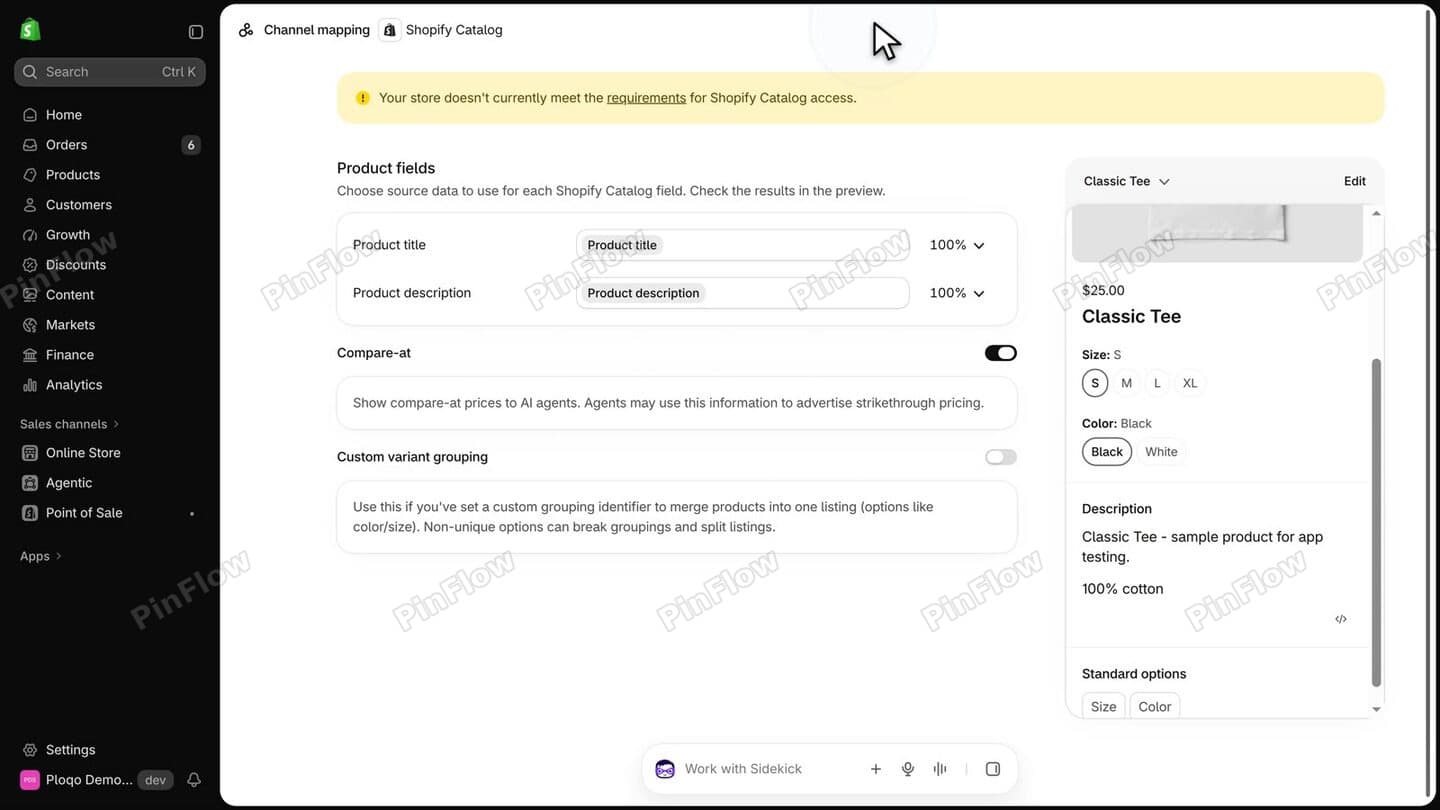 The Classic Tee preview with 100% cotton added to the description and an Unsaved changes bar with Discard and Save at the top of the page
The change isn't saved until you press Save. Shopify's help says the preview includes changes you haven't saved yet, so you can try a source first. In the video I pressed Discard, and the description went back to the product description.
Does Shopify Catalog send compare-at prices?
Yes. Shopify's changelog from 9 October 2026 says Catalog now shares your compare-at price with AI shopping agents, so they can see when a product is marked down.
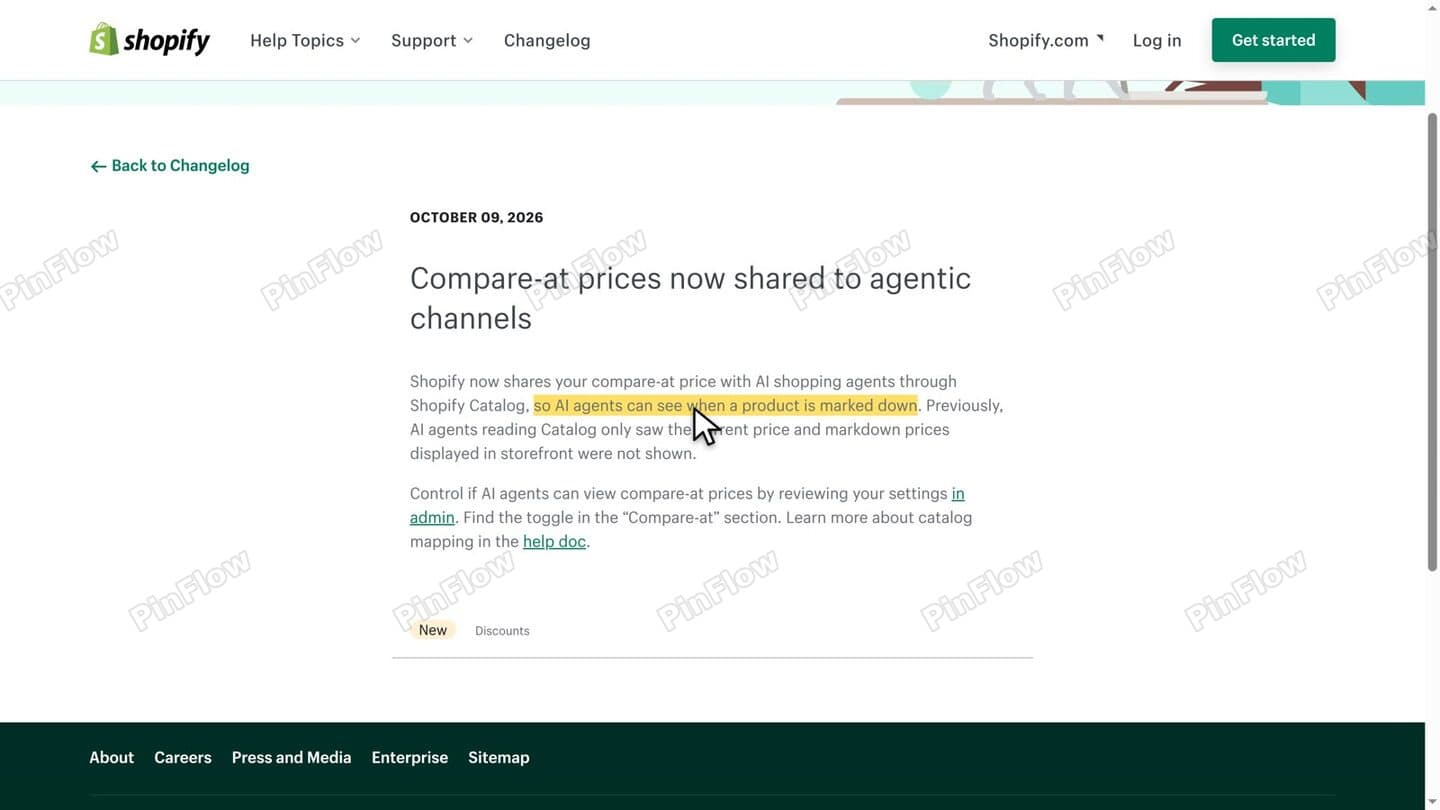 The Shopify changelog post from 9 October 2026 titled Compare-at prices now shared to agentic channels
Switch the preview to the Leather Wallet. It shows 60 struck through. Below the product fields, the Compare-at switch is on.
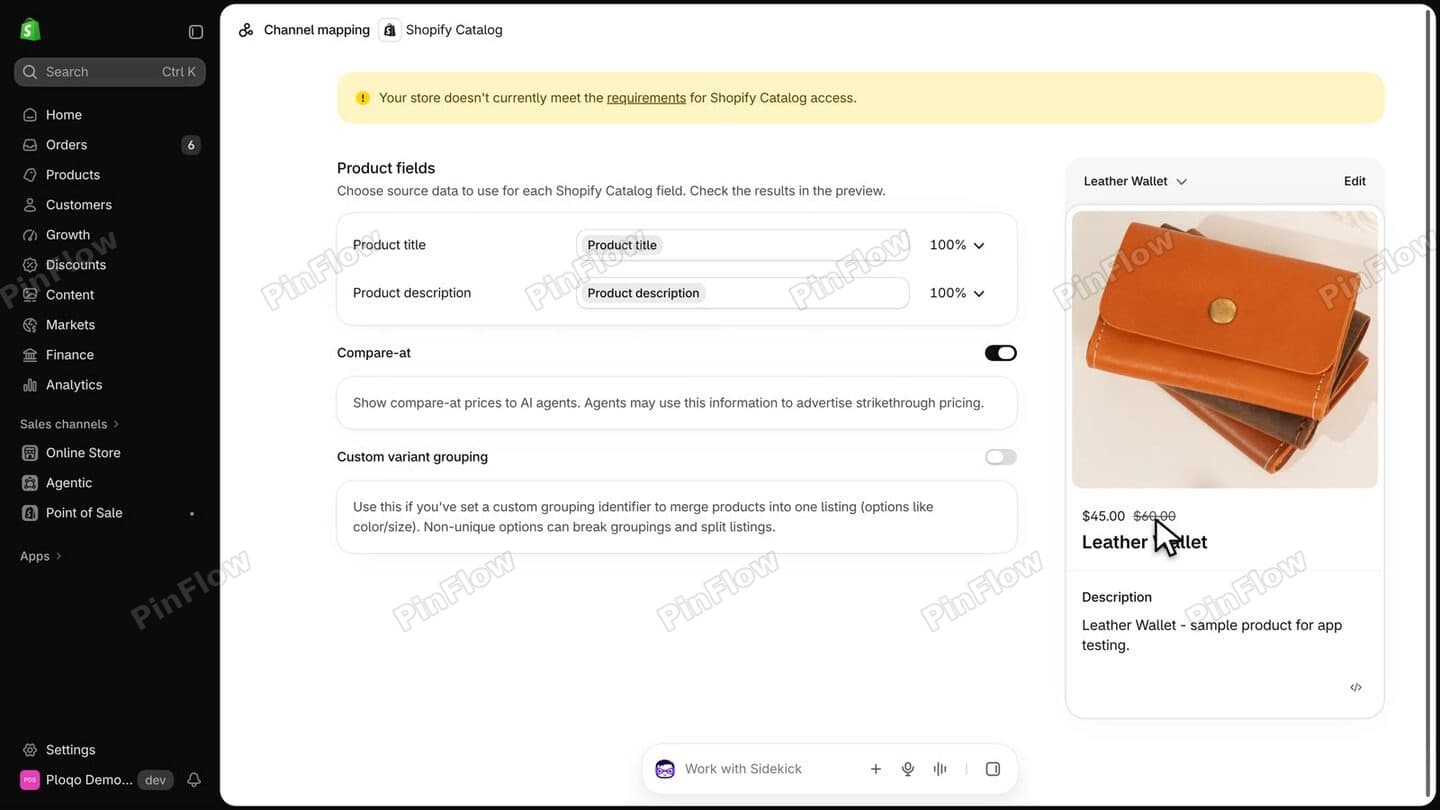 The Channel mapping preview for the Leather Wallet showing 45.00 with 60.00 struck through and the Compare-at switch on
Turn the switch off and the 45. The text under the switch changes too. I turned it back on, and the save bar went away with it.
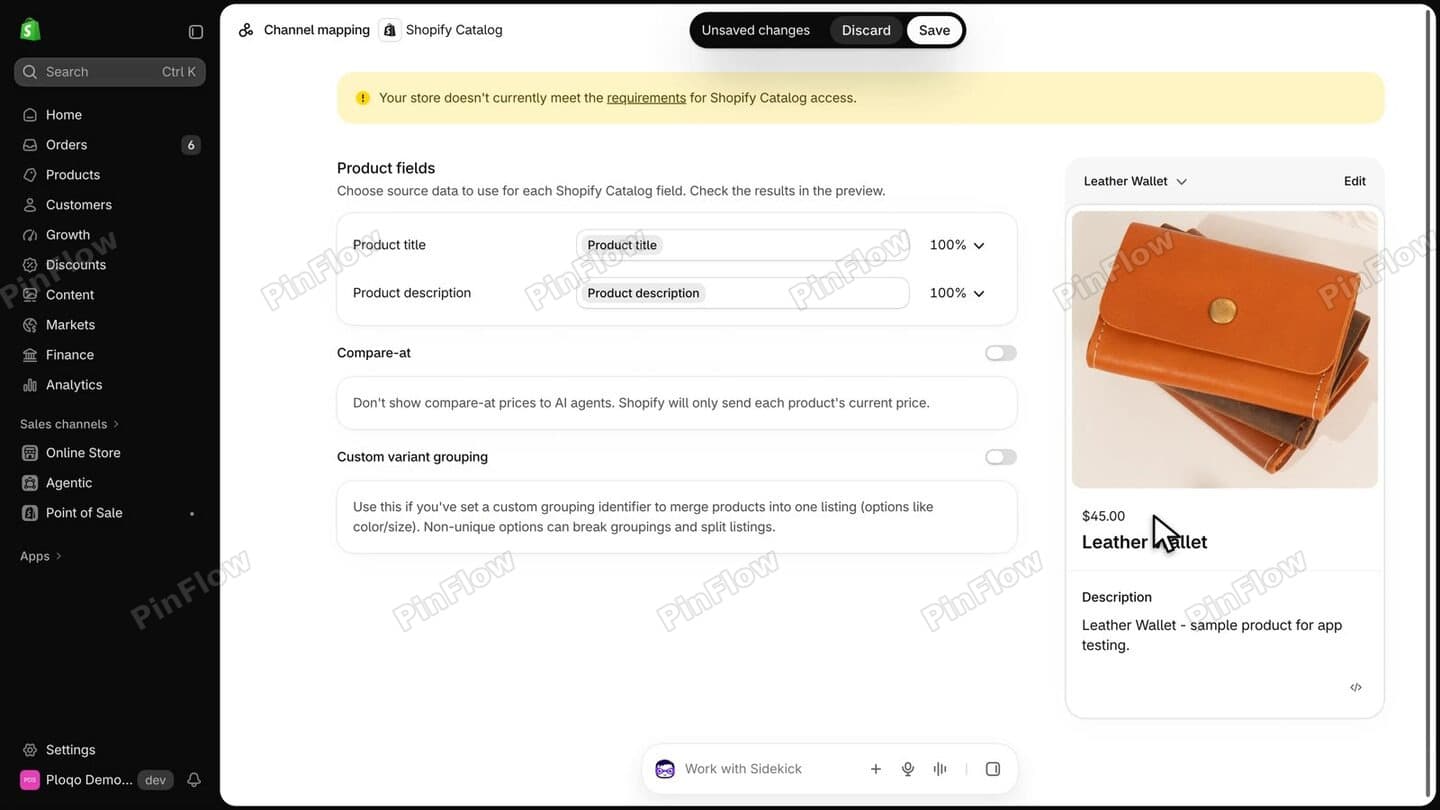 The Leather Wallet preview with the Compare-at switch off, only $45.00 shown and an Unsaved changes bar at the top
What is custom variant grouping?
Custom variant grouping merges separate products into one listing, when you have set your own grouping. It is off by default. Turn it on and the page asks for a Grouping method. I turned it off again.
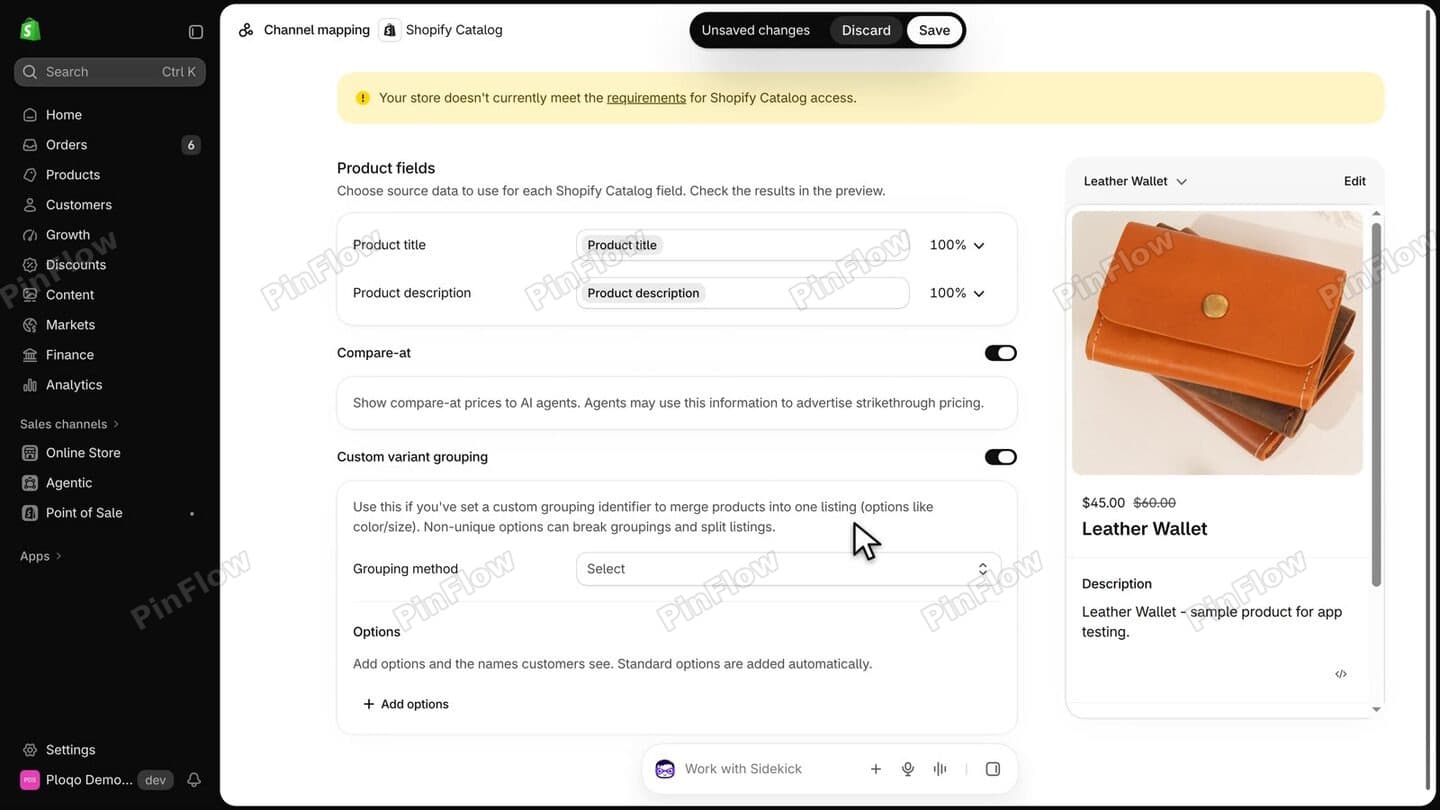 The Custom variant grouping switch turned on with a Grouping method dropdown and an Options section below it
If you use the Combined Listings app, Shopify's help page says custom grouping ignores that setup for Shopify Catalog.
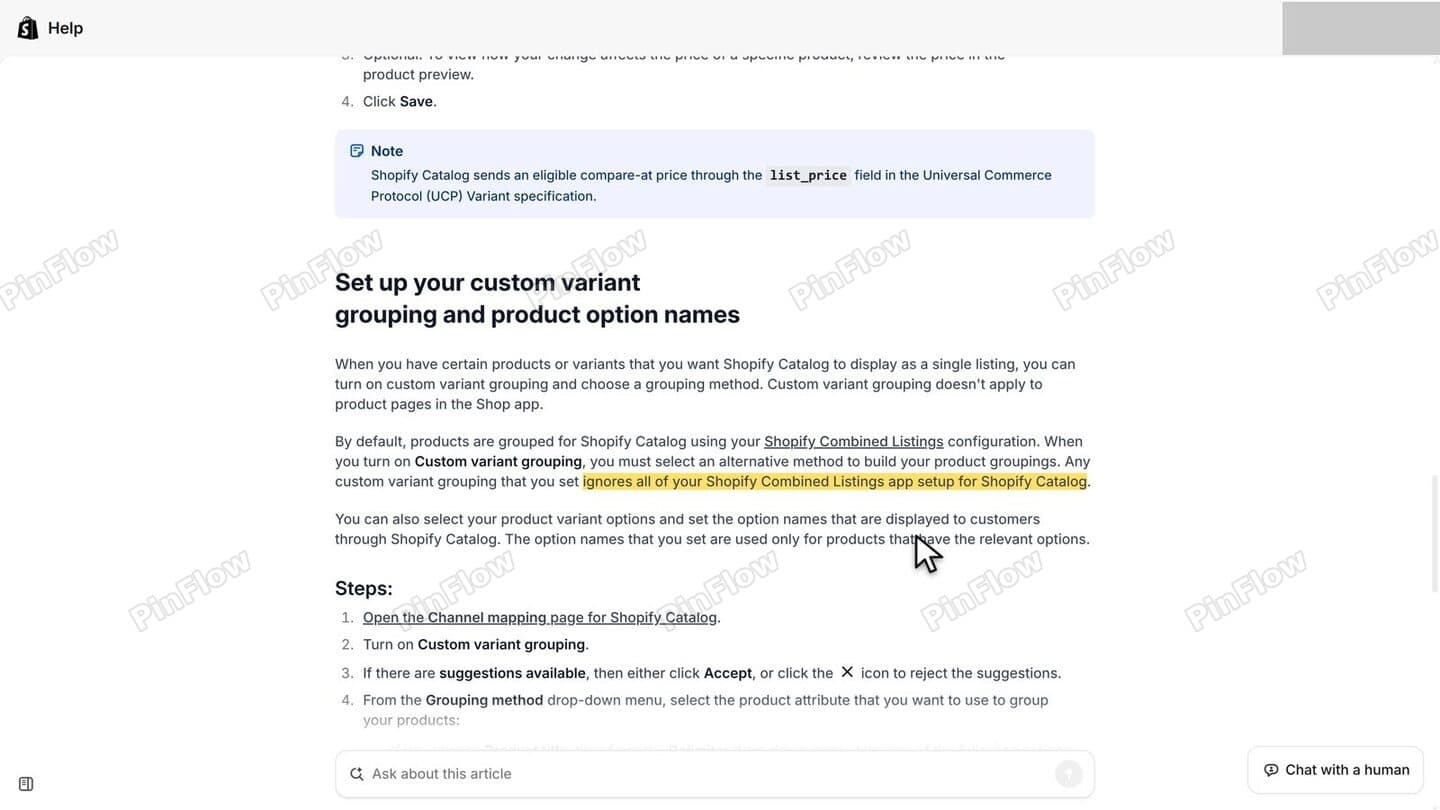 Shopify Help section on custom variant grouping with the sentence that it ignores the Combined Listings app setup highlighted
What can't Channel mapping change?
The product category. Shopify's help page says you can't map the product category for Shopify Catalog.
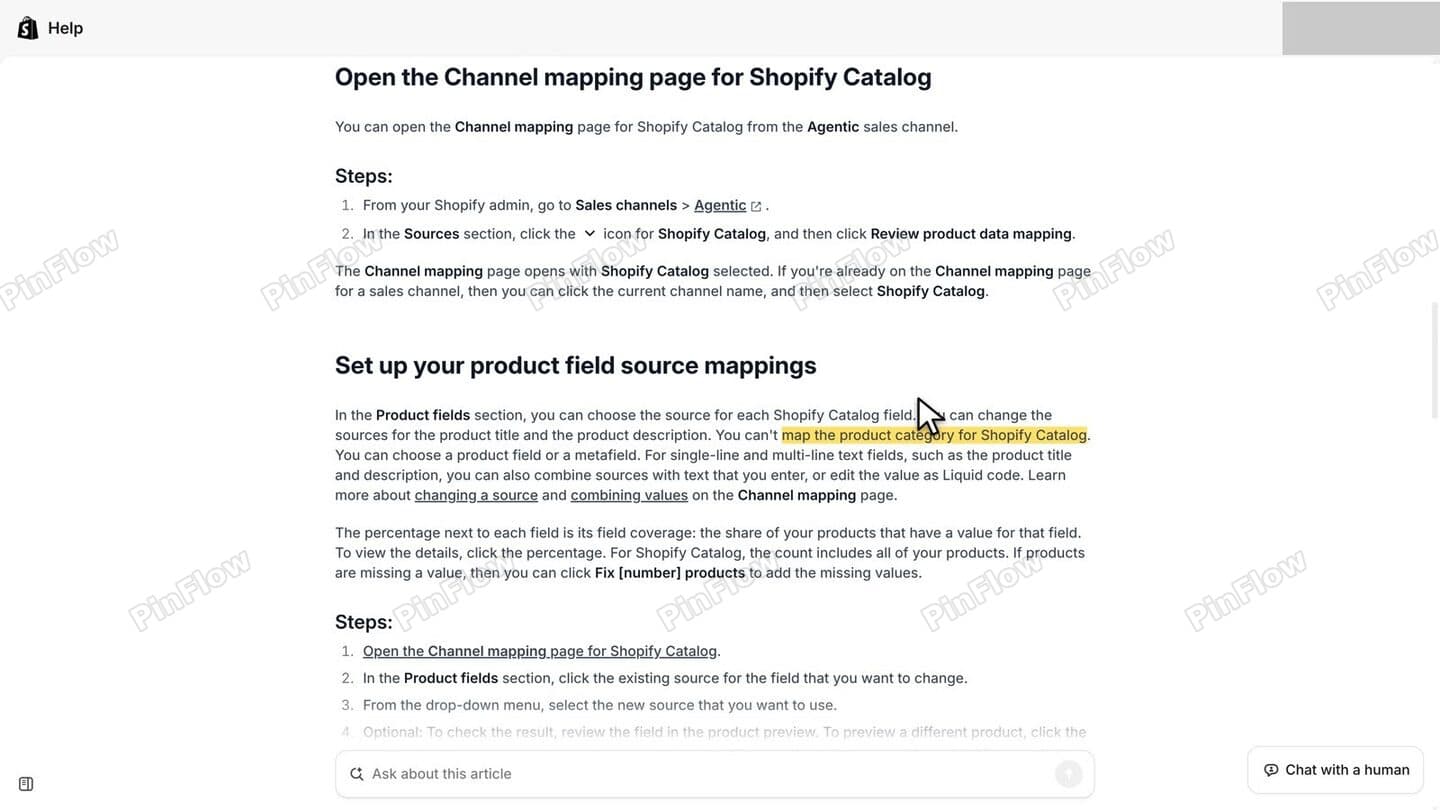 Shopify Help section on product field source mappings with the sentence you can't map the product category for Shopify Catalog highlighted
That matters because the Catalog requirements page leaves out products that Shopify classifies as Uncategorized. Shopify's page also says its classification can differ from the category you set, so a category helps but does not guarantee a product is included.
 Shopify Help Catalog requirements page with the line Products that Shopify classifies as Uncategorized highlighted
How do I set the Shopify product category?
The category is set on the product itself. Pick the Classic Tee in the preview and click Edit. The product page opens over the mapping page, and its Category field says Uncategorized. Below it, a note says the category determines tax rates and adds metafields to improve search, filters and cross-channel sales.
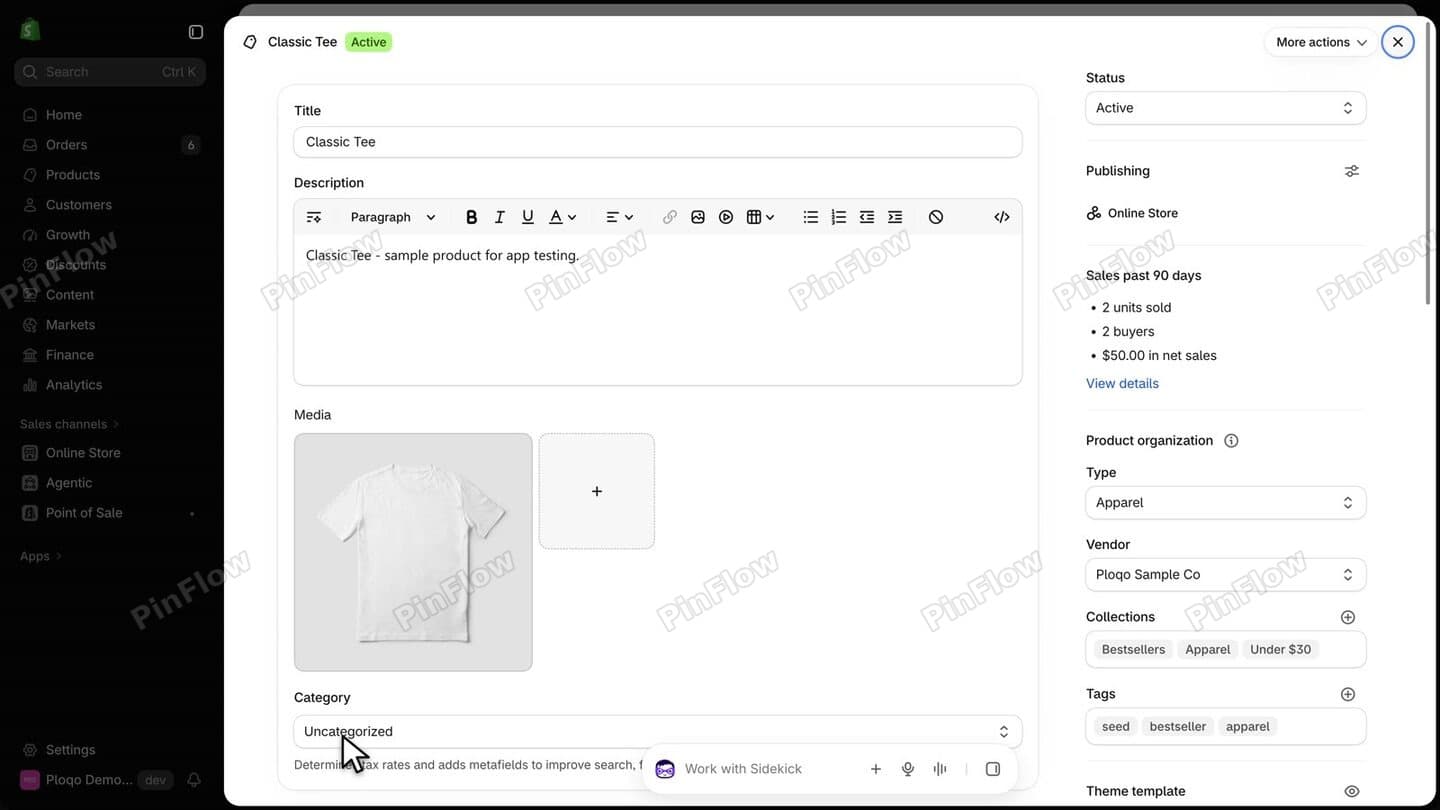 The Classic Tee product page opened from the preview with the Category field set to Uncategorized
Click the field, search for T-Shirts and pick the one under Clothing Tops. The picker lists several T-Shirts categories with different parents, so check the parent. Then Save.
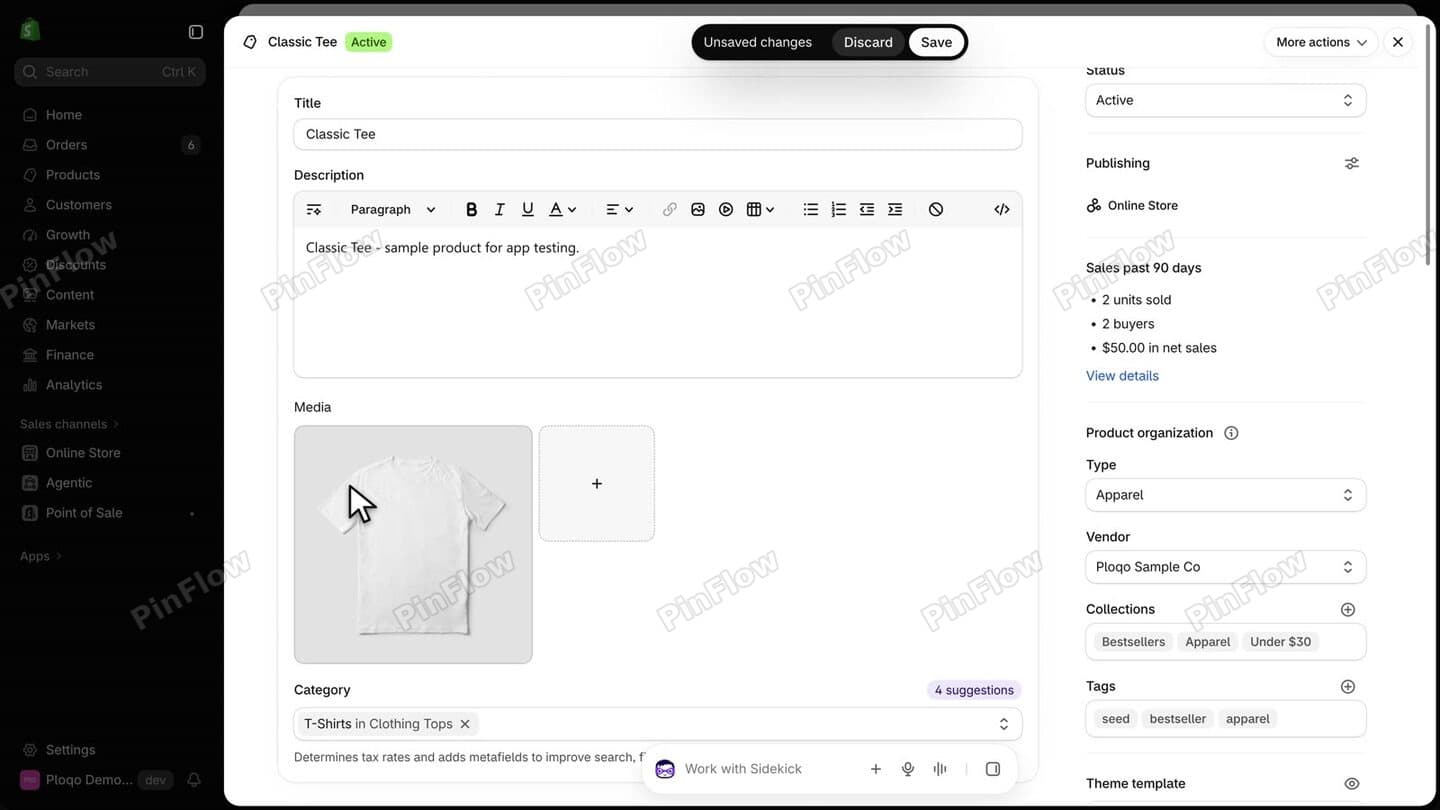 The Category field of the Classic Tee set to T-Shirts in Clothing Tops with an Unsaved changes bar and the Save button
After the save, the product page closes and the mapping page shows a "Changes saved" message.
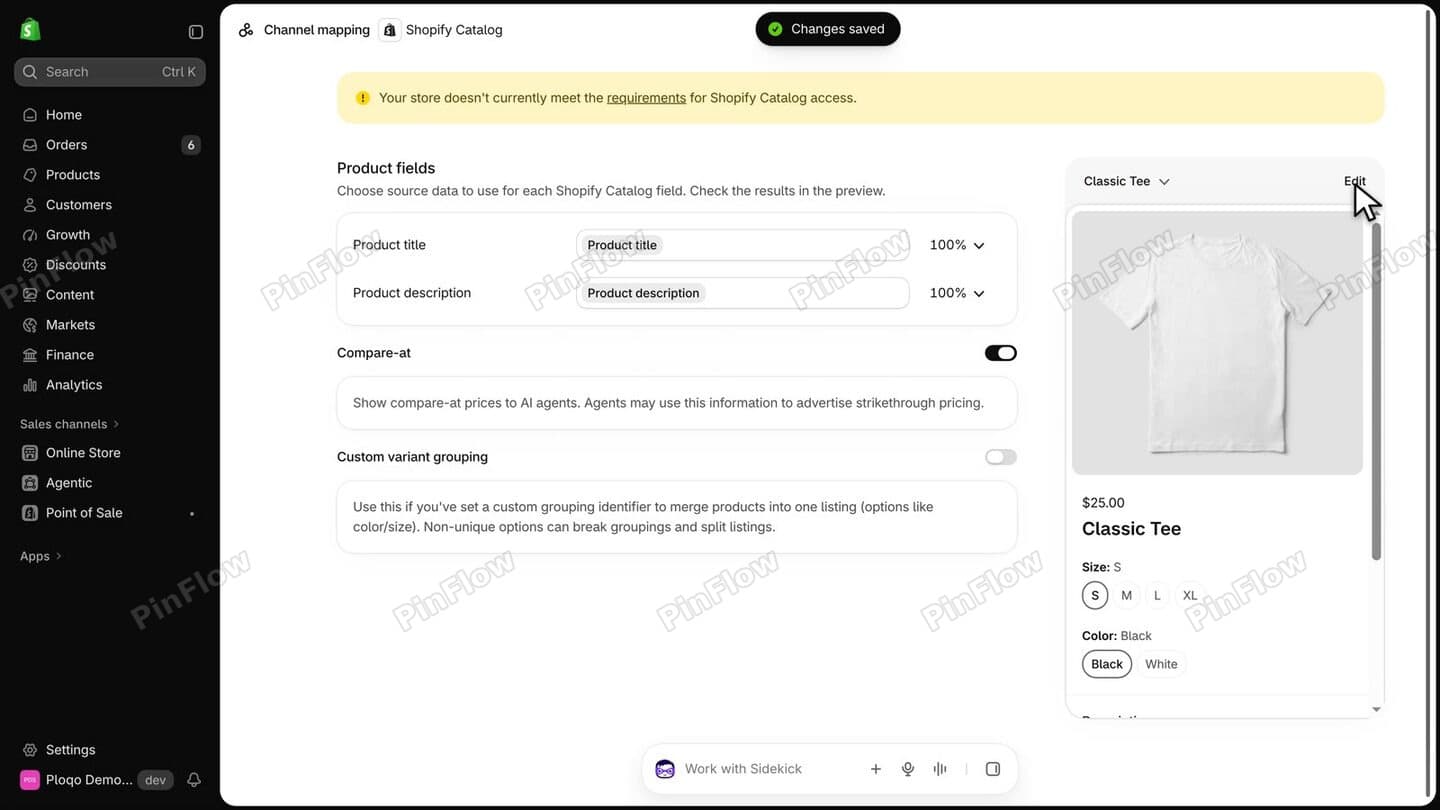 The Channel mapping page with a Changes saved message after the Classic Tee category was saved
Click Edit again and the Category field reads T-Shirts in Clothing Tops. I put the category back to Uncategorized after filming, so this store stays unchanged.
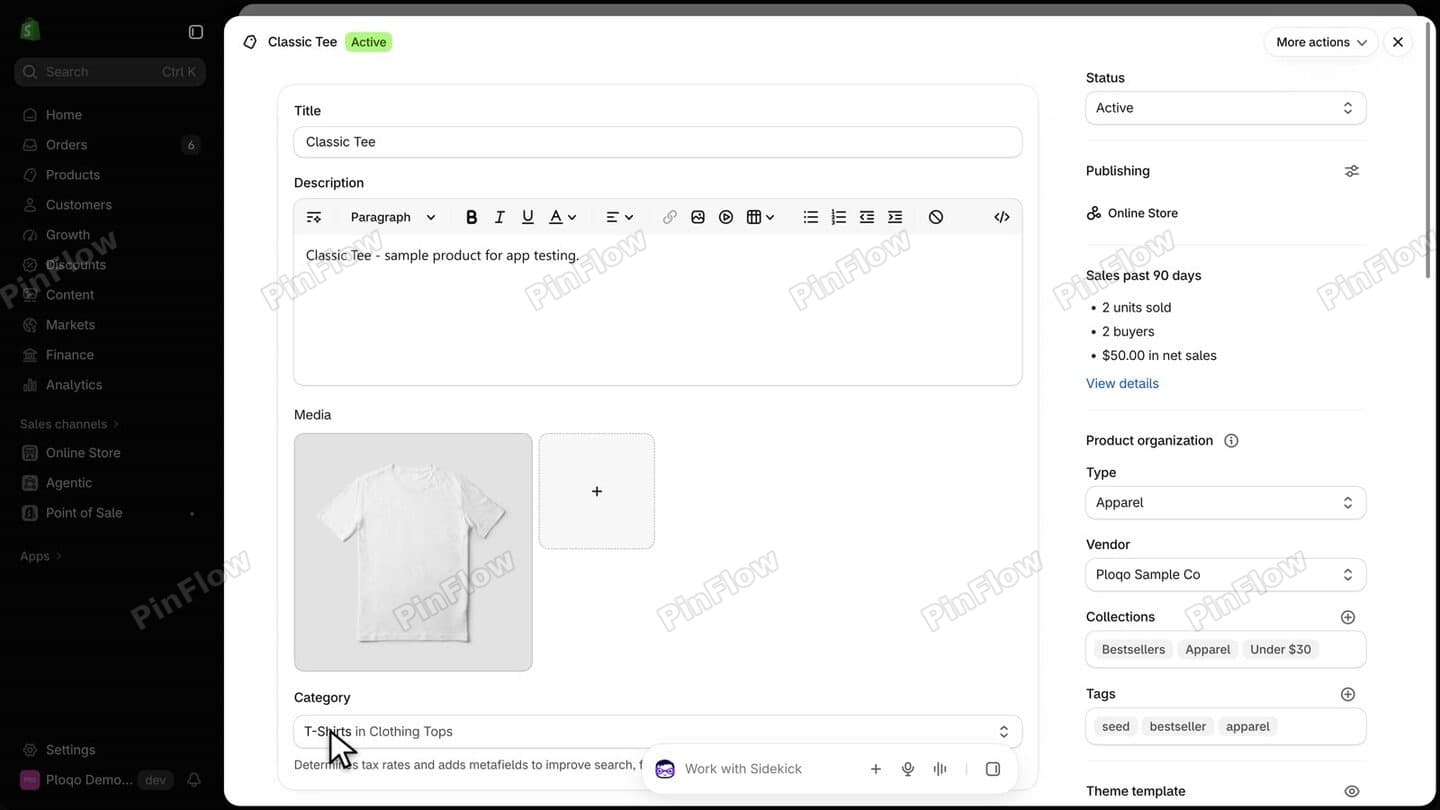 The Classic Tee product page reopened with the Category field reading T-Shirts in Clothing Tops
What should I check before relying on the preview?
Better product data can help, and Shopify's page on optimizing products for AI platforms says other factors in each AI agent or platform can influence the results too.
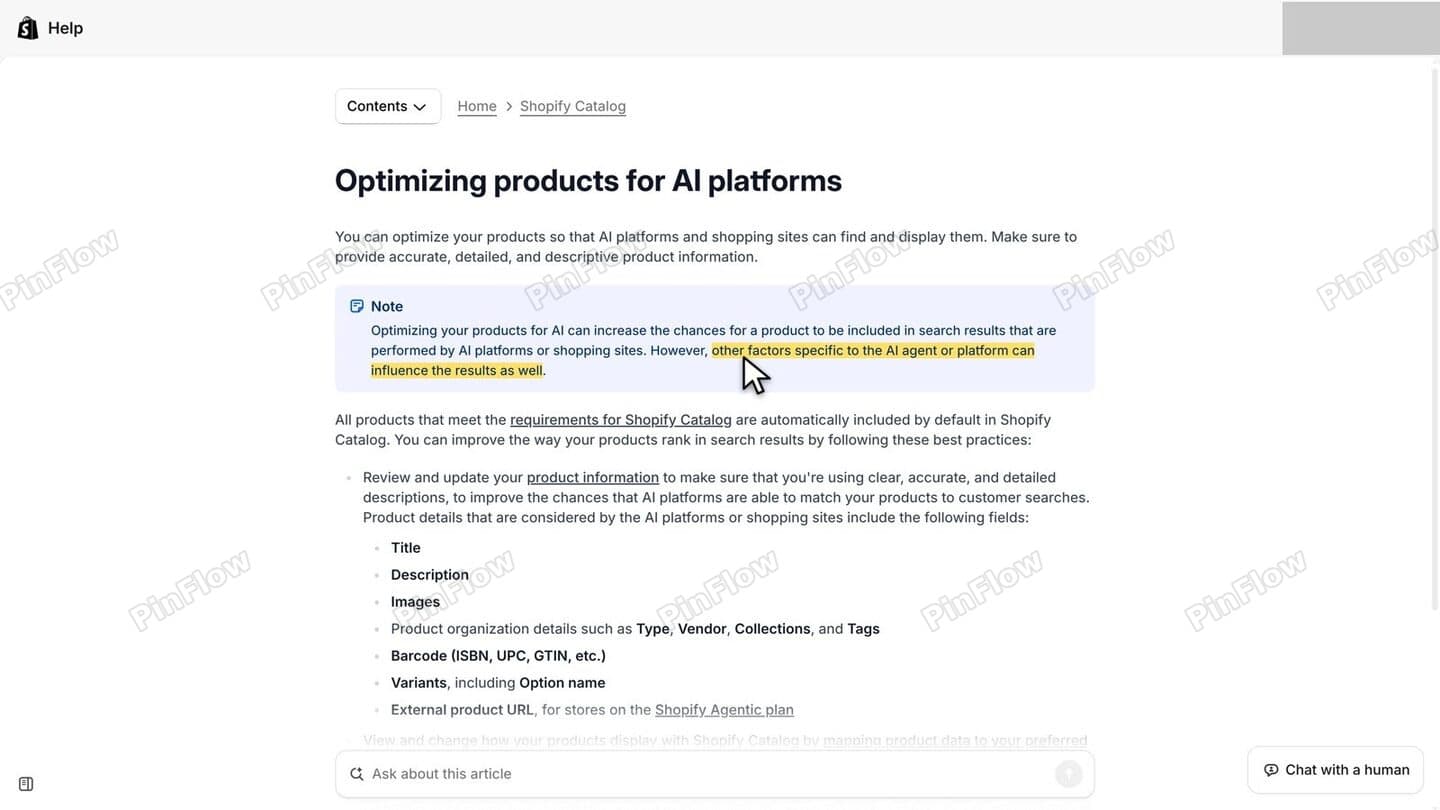 Shopify Help page Optimizing products for AI platforms with the note that other factors specific to the AI agent or platform can influence the results highlighted
So pick a few products in the preview and check the title, the description, the price and the options. That is what Shopify Catalog gets, and Catalog is what ChatGPT reads.
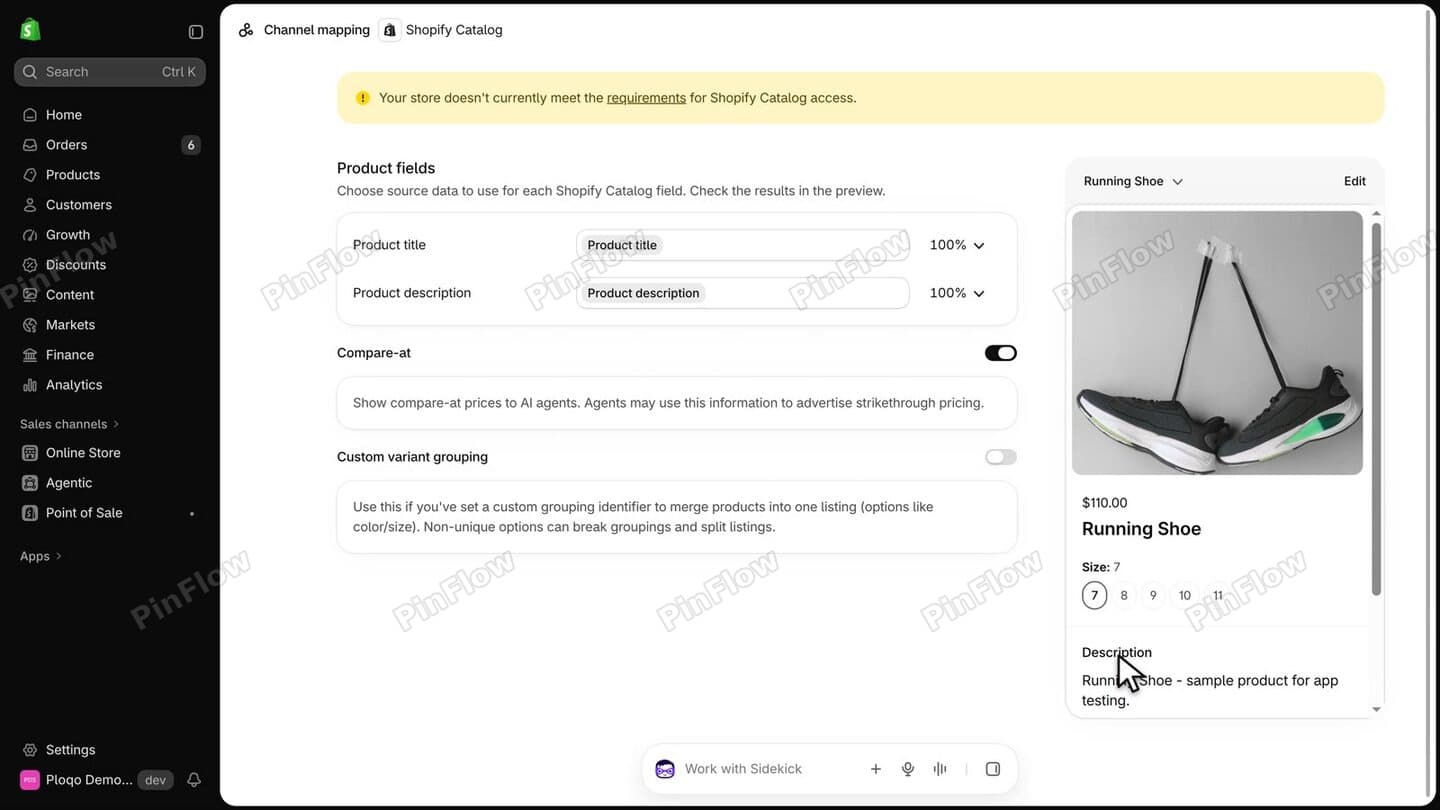 The Channel mapping preview for the Running Shoe at the end of the video, ready to check the title, description, price and options
To see whether ChatGPT is on for your store, use the ChatGPT selling check. For the rest of the Agentic page, read where to find Agentic storefronts. The facts you add yourself for AI agents are covered in the Knowledge base video.
Questions about Shopify Catalog
What is Shopify Catalog? It is the product data Shopify structures from your store so AI channels and apps, such as ChatGPT and Shop, can read it. Shopify consolidates variants and groups identical items for you.
The Agentic page Sources box with Shopify Catalog listed under Knowledge Base
Is Shopify Catalog the same as B2B catalogs? No. B2B catalogs are the price lists and product sets you offer to wholesale companies. Shopify Catalog is the product data AI channels read. If you searched for how to edit a catalog for B2B buyers, this is not that page.
How do I edit my Shopify Catalog? Open Sales channels, then Agentic, click Shopify Catalog under Sources, and choose Review your product data. On Channel mapping you can change the source of the title and description, the compare-at switch and custom variant grouping.
The Channel mapping page for Shopify Catalog with the Product fields, Compare-at and Custom variant grouping sections
Does Channel mapping change my online store? No. Shopify's help says your product details on your online store don't change when you use channel mapping. The mapping changes only what the selected channel gets.
Can I map the product category? Not for Shopify Catalog. Set it on the product page, using the category picker. Shopify's help on product categories explains that the categories come from its standard product taxonomy.
The Category field on the Classic Tee product page set to T-Shirts in Clothing Tops
Will ChatGPT show exactly what the preview shows? Not necessarily. Shopify says the preview isn't an exact indicator of how AI channels show your data.
Sources
- Shopify Help: customizing product data for Shopify Catalog
- Shopify Help: customizing product data for sales channels (Channel mapping)
- Shopify Help: Shopify Catalog requirements
- Shopify Help: product category
- Shopify Help: optimizing products for AI platforms
- Shopify changelog, 9 October 2026: compare-at prices now shared to agentic channels
- Shopify changelog, 28 October 2026: map product data by sales channel
Questions or a screen that looks different on your store: [email protected]
More Shopify fixes
More community-sourced Shopify guides, tested on a live store.
Shopify Admin
Shopify Knowledge Base: Add Facts for AI Agents (2026)
The Shopify knowledge base is now in your admin: Sales channels, Agentic, Knowledge base. Add a fact, pick a type, save, and publish it for AI agents.
Shopify Admin
Shopify ChatGPT: Is It Selling Your Products? Check (2026)
Shopify ChatGPT selling is on by default for eligible stores since 23 November 2026. See where to check yours in Sales channels, Agentic, with video and steps.
Shopify Admin
Shopify Agentic Storefronts: Where to Find It (2026)
Shopify agentic storefronts put your products inside AI chats like ChatGPT and Copilot. Find it under Sales channels, Agentic, and see each part of the page.